Learn about Theater Mode on your Apple Watch, including how to turn it on and off and who should use it and under what circumstances.
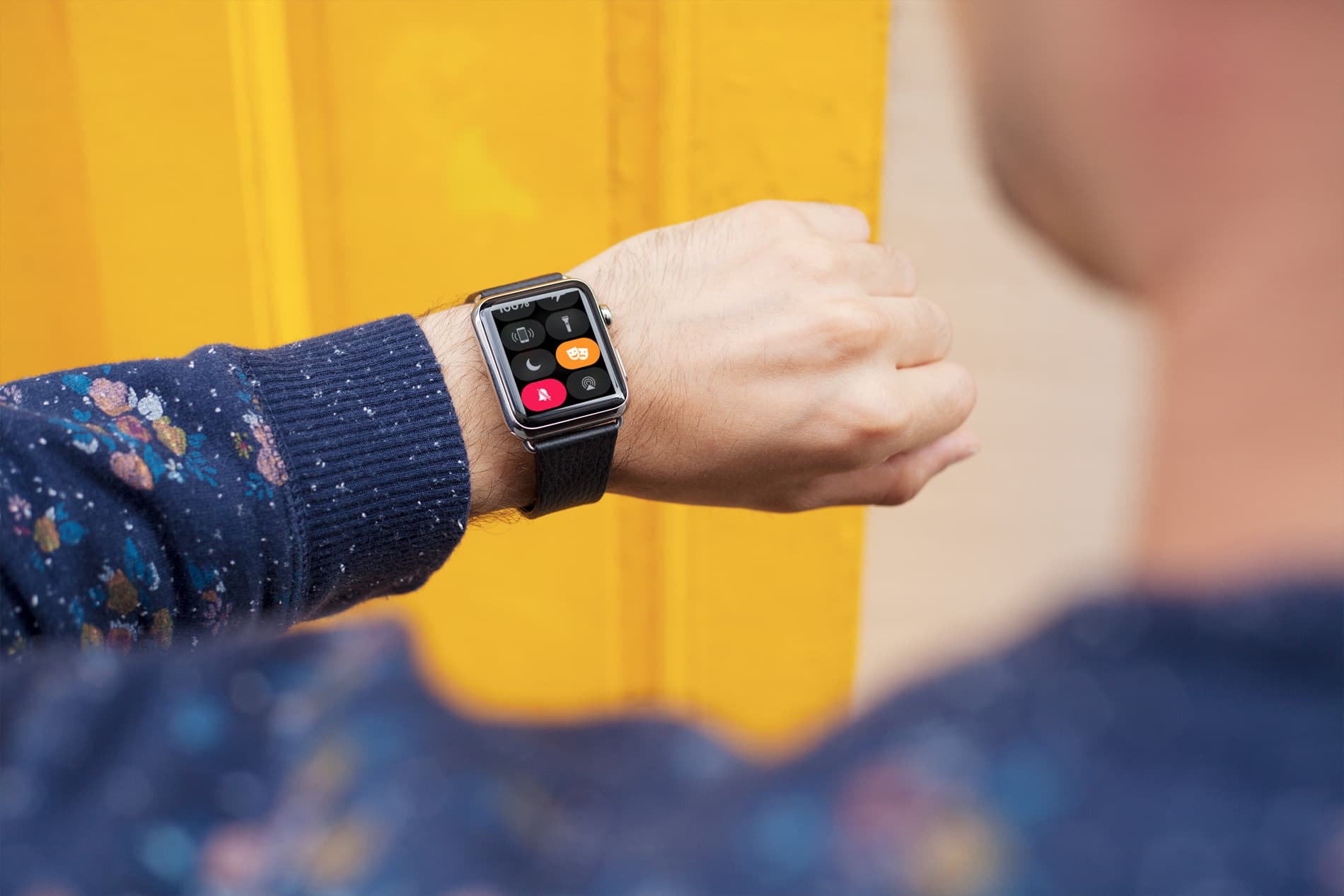
What is Theater Mode on your Apple Watch?
Introduced in 2017 alongside the watchOS 3.2 operating system, Theater Mode silences your Apple Watch, shuts off the always-on display (even if you raise your wrist or a notification arrives), and makes your Walkie-Talkie status unavailable.
The only clue that you have received a notification while in Theater Mode is haptic feedback; the watch will still tap you on the wrist, but you’ll hear no sound and the display won’t light up upon wrist raise or when a new notification arrives.
The toggle for Theater Mode is available in Control Center. To wake your Apple Watch when in Theater Mode, just tap the screen or press the Digital Crown button or the side button.
Use Theater Mode on an Apple Watch
- Open Control Center on your Apple Watch by pressing the side button.
- Tap the Theater Mode button, which looks like two theater masks. If that’s your first time using Theater Mode, a splash screen will introduce you to the feature; tap the orange Theater Mode button at the top of that screen to turn it on. Otherwise, hit the Theater Mode button in Control Center to toggle the feature.
When Theater Mode is turned on, the Silent Mode button in Control Center turns red, the Theater Mode button turns orange, and a Theater Mode icon appears at the top of your Apple Watch face.
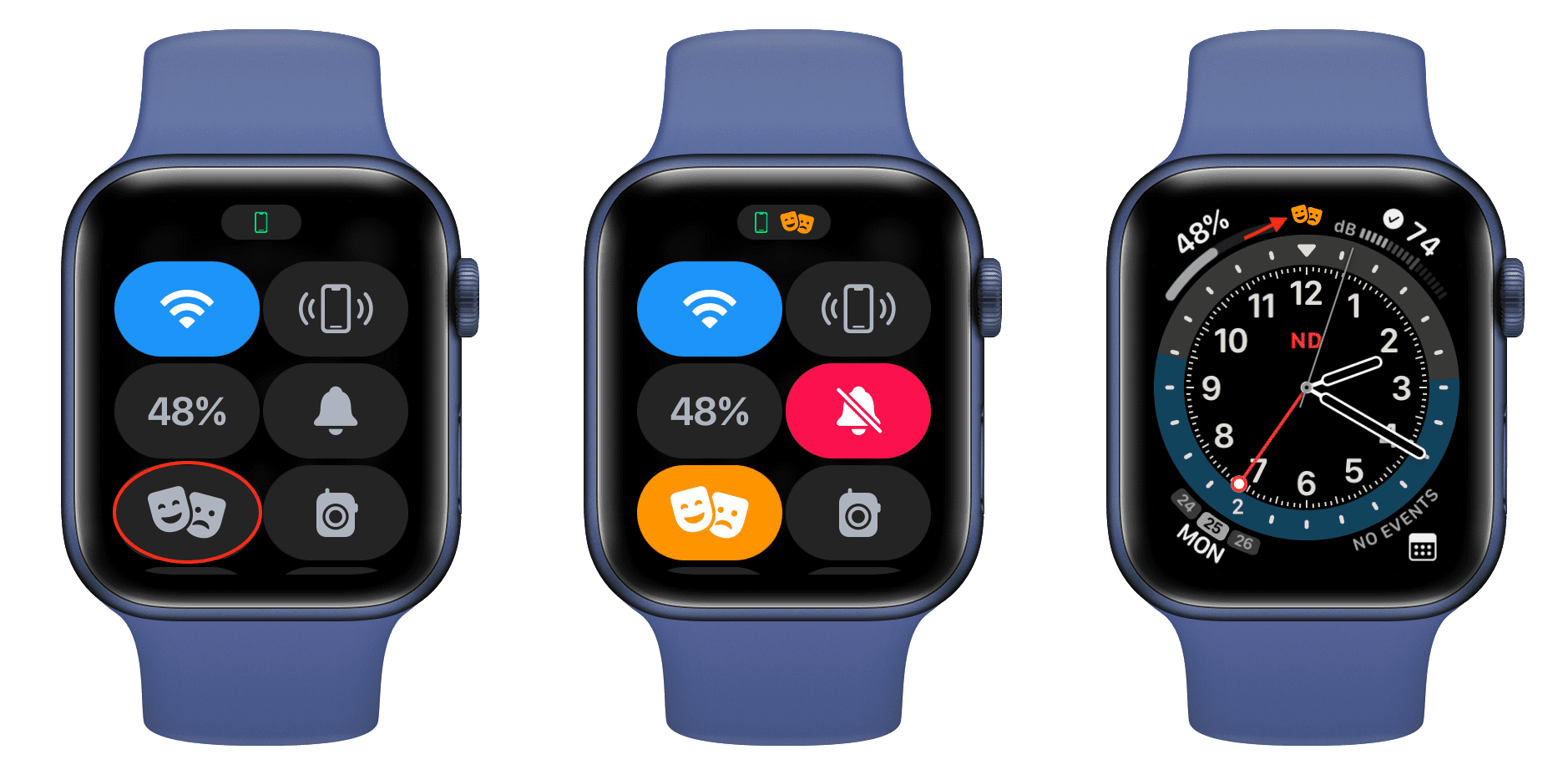
To turn Theater Mode off, tap the display to wake it, then press the side button. Doing so will take you to Control Center, where you can turn off Theater Mode, which will automatically turn the Theater and Silent Mode buttons back to normal.
Not just for movie-goers
Apple obviously designed Theater Mode to be used at the cinema, so that your Apple smartwatch doesn’t disturb others. But that doesn’t mean that Theater Mode is only for theater-goers. If you wear your Apple Watch to bed, for example, Theater Mode can be handy if you don’t want to wake up only to be immediately blasted with bright light produced by the Watch display.
If you think of any other situation when Silent Mode won’t suffice, and the display shouldn’t light up, that’s also when you should use Theater Mode. If your Apple Watch tends to activate the display even if you haven’t raised your wrist fully, Theater Mode will prevent that and potentially help save some battery.
Also, check out: