Tutorial

Learn how to master your Apple devices with our comprehensive tutorials. From iPhone and iPad to Mac, Apple Watch, AirPods, and more, our expert guides will help you unlock the full potential of your Apple products. Discover new features, tips, and tricks each day to enhance your user experience.

QuickPwn 2.2 Guide & Tutorial

[digg-me]This guide will show you how to use QuickPwn 2.2 to jailbreak your iPhone. This tutorial is for PC users but I assume the steps are the same on a Mac.

UPDATE: THIS WILL ONLY WORK WITH FIRMWARE 2.2. IT WILL NOT WORK WITH 2.2.1 AS THERE IS NO JAILBREAK FOR IT YET. IF YOU ARE ON 2.2 THEN FOLLOW THESE INSTRUCTIONS. IF YOU ARE ON 2.2.1, THEN COME BACK TO THIS SITE IN A FEW DAYS WHEN WE FIND A SOLUTION TO JAILBREAKING IT.

UPDATE 2: I updated this guide for the newer firmware 2.2.1. Please go here for a QuickPWN 2.2.1 guide.

UPDATE 3: The comments are closed. If you have any question about jailbreaking, please ask it in the forum.

IMPORTANT: READ EVERY SINGLE WORD OF THIS POST BEFORE ATTEMPTING TO JAILBREAK YOUR IPHONE

If you like this post, please feel free to digg it, or subscribe to our RSS feed, or follow me on Twitter, or all of the above ;)

This QuickPwn 2.2 tutorial will be short as I have already posted a QuickPwn guide before. This guide only shows you how to jailbreak. If you want to learn how to unlock your iPhone 2.2 firmware, please read my iPhone 2.2 QuickPwn unlock tutorial.

The following is not applicable anymore since you can unlock your iPhone safely with this method.

IMPORTANT NOTE FROM THE DEV TEAM:

If you are using your iPhone with one carrier and have no interest in the possibility of an iPhone 3G unlock in the near future then just restore or upgrade to 2.2 using iTunes and use QuickPwn to Jailbreak and add Cydia and Installer.

Before doing anything, I suggest you read this important message from the Dev Team.

What does that mean? It means that you can only use this method if you don't care about unlocking your iPhone in the future. If you're a "legit" AT&T iPhone user and you have no interest in unlocking your iPhone in the future, then this is for you.

On the other hand, if you're not a "legit" user or if you do want to be able to unlock your iPhone in the future, then this is NOT for you. If that's the case, you will have to jailbreak your iPhone using PwnageTool, which will preserve your baseband.

Note that you are pwning your iPhone at your own risk… Success is not guaranteed!

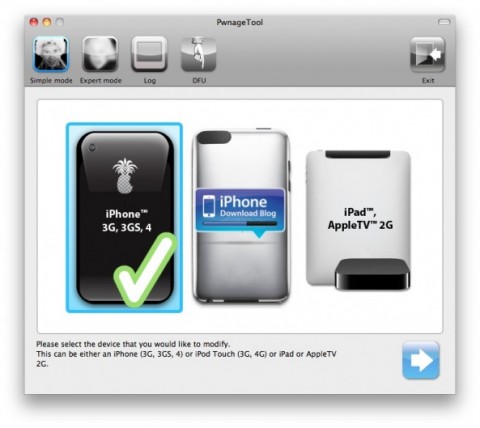
Create a folder called “QuickPwn” on your desktop. Download a copy of your iPhone 2.2 firmware from here. Also download QuickPwn 2.2 from here. Place all these files in the newly created QuickPwn folder on your desktop. Unzip QuickPwn. Make sure you have downloaded the latest version of iTunes. If you have to update to the latest version of iTunes, I highly recommend you restart your computer after the update. Not restarting my computer after updating iTunes caused me trouble in the past... Plug your iPhone and make sure iTunes has detected it. If you’re iPhone is already jailbroken, you may want to remove all the apps that you have downloaded from Cydia. Certain applications such as Winterboard, Categories and more cause trouble. You will be able to reinstall them later. As an alternative solution, you may want to read by post about upgrading a jailbroken iPhone without using AptBackup, which saves your Cydia apps settings. Update or restore your iPhone to firmware 2.2 using iTunes. Restore is preferred as it won't create any wasted space on your iPhone. Right after restoring your iPhone, launch QuickPwn. It should recognize your device automatically.

You will be asked to select your iPhone firmware. Select the firmware you downloaded in Step 1.

If the firmware you selected is valid, QuickPwn will show a green checkmark. Click Continue.

You will then have the opportunity to select Cydia,Installer, and custom boot logos. You have to at least select Cydia. You may also choose to install Installer .and check to BootLogos box if you want to replace your boot logo. Click Next.

QuickPwn will now ask you to confirm that your iPhone is connected. Click the blue arrow to continue.

QuickPwn will now automatically put your iPhone into recovery mode. Once its in recovery mode you will be prompted to: Hold the Home button for 5 seconds, Hold the Home and Power buttons for 10 seconds, then release the Power button and continuing holding the Home button until your iPhone is in DFU mode. Watch the prompts carefully and follow along.

Once QuickPwn detects your iPhone in DFU mode, it will start the jailbreak process.

Finally, QuickPwn will let you know that pwnage process was completed successfully.

Done!

Share your jailbreak experience with us in the comments...

Downgrade iPhone Firmware 2.2 to 2.1

Firmware update 2.2 surprised a few people who accidentally updated their iPhone. If that happened to you, you now have 2 choices: either stay and 2.2 and wait for the Dev Team to come up with a jailbreak method for 2.2, or you can try to downgrade from 2.2 to 2.1.

I personally don't have this issue. I haven't updated to 2.2 but I figured that some of you guys may have, so I started looking for a solution to post here. The problem is there doesn't seem to be a solution that works for one main reason: 2.2 updates your baseband and once your baseband is updated, you can't downgrade it to 2.1 (not as yet anyway).

From what I read, only 2-3 people were actually able to get their iPhone back to 2.1 without issues but it is very unclear what they did exactly... Now let's have a look at these different methods that supposedly show you how to downgrade from iPhone firmware 2.2 to 2.1.

Recovering missing or hidden icons

BigBoss wrote a post tonight about 2 questions he's often asked:

How do I recover the Poof icon if I hid it? How do I recover my missing icons after restoring my iPhone?

Here are the solutions that BigBoss recommends

If you have Cydia, install Quickgold and Poof to unhide the icons

Install SBSettings and unhide any apps that are hidden

Launch the Settings app and disable/reenable restrictions. Doing this should unhide all the hidden apps

If Cydia is hidden, you can use Apt-get and install Quickgold from the SSH prompt

Worst case scenario, if nothing works, you can use iPhoneBrowser and delete the files located at /var/mobile/Library/Preferences/com.apple.SpringBoard.plist and the reboot your phone

Full credit goes to BigBoss. This post was highly inspired from his recent post.

Make Your Own Custom iPhone Keypad Guide

[digg-me]

It doesn't take too long playing with nifty iPhone themes to realize it might be fun to make your own. We'll get started with a custom keypad, but you can use the same principals to customize many areas of your iPhone, like the power sliders, the battery charging image, and much more. And it's all pretty easy. Fancy that! So let's get started.

Credit where it's due: A big thanks to Mark for his exceptionally helpful tutorial which provided the original templates I used and the basis of much of this tutorial.

Here's what you'll need:

A jailbroken iPhone (Duh!) with Winterboard Installed File transfer utility - I used the handy iPhone browser Graphics program - capable of editing layered .png files (Fireworks pictured) The template files, downloadable here.

If you want to change the keypad background only while retaining the default iPhone fonts, you'll probably prefer the template from Mark's tutorial, which has the default text/fonts, already positioned.  (I choose to retype the letters and numbers to have custom fonts and effects.)

Here's a breakdown of all the images we're making and how they're used. The iPhone will default to standard images for any you don't include, so you can always start off with just a custom keypad background (dialerkeypad.png) and add more later.

dialerkeypad.png - The dialing area. This image must be 320px wide x 273px high. dialerkeypad_pressed.png - Same, for pressed key variations. dialercd.png - Above the keypad, this is the background for number display when making a call. addcontact.png - The "Add a Contact" button addcontact_pressed.png - Pressed version delete.png - The backspace button delete_pressed.png - Pressed version callbkgrnd.png - The background for either an outline and/or transparent areas of call button. Repeats horizontally. 74px high. callbkgrnd_pressed.png - Pressed version callglyph_big.png - The call button that you'll see on your custom keypad. callgplyph.png- Another call button image, can be a copy of the callglyph_big.png image. I haven't  been able to figure out yet when this image is actually used, because it is NOT used as a pressed version but your custom call button will NOT show if you don't have both these callglyph images. More on that later.

Open up CustomKeypadTutorial.png, you'll see slices and layers all sized and laid out and ready to go for ya.

Sliced Image Template Now for the fun part - get busy changing the fonts, colors, and effects as desired. You'll probably want to add your own background pic first - I picked a lovely butterfly pic that I snapped with my iPhone, of course.

For my keypad, I wanted to create the illusion of keys being pressed. So I added a slight drop shadow to all the keys in customkeypad.png. (We'll get our pressed effects done in a minute.)

You'll also need to decide if you want to keep the button grid outlines or not. To hide the grid, make the "Apple Stock Image" layer invisiible. It's better not to delete the layer entirely so you can refer to it to review size or positioning of the buttons as you work. Grid Layer Get everything just how you want it, and save a backup copy of this image. Backups are your friend, oh iPhone themer! Then let's get back to your working image. We're preparing to save the images.

You'll need a folder for your keypad. The folder structure is "Dialer Name/Folders/MobilePhone.app/" with the images placed in the innermost folder. If the folders are not named properly, you keypad won't work. To make it easy, I included a "My Dialer" folder in the tutorial download to use for your images, so just find the "Your Images Here" text file to know where your images belong. Export the slices as .png images; I used png 8 settings with transparent matte.

Then, in your working image copy, create a second frame that is an exact copy of the work you've done thusfar. This is for your "pressed" image versions. Make any changes you'd like for the pressed state of your buttons.

For example, I removed the drop shadows and moved the text down and right a few pixels to create a pressed button effect. I also added a light glow to text make the buttons appear to light up when pressed.

When you're done, save these images with the same name as their slices but ending with _pressed.png and put them in your keypad folder. Save your working file, of course.

That Pesky Call Glyph

If you want a custom call button with your own background, you'll have to work a little harder. That call button is confusing, since it doesn't have a pressed version like the other buttons. In fact, to get a call button pressed effect, part of this image must be transparent, and the callbkgrnd.png and lbkgrnd_pressed.png images provides the backgrounds. This took a while for me to pin down.

Now, if you don't want to mess with it, you can easily skip this step (as well as the "Add Contact" and "Delete" buttons) for iPhone to use the default ones. Me? I wanted my background image to show on the call button, so I foraged on. Trial and error and looking at other themes is the way you get this to display the way you want.

Downloading other keypad themes to deconstruct, you'll find that the callglyph buttons have a few rows of transparent pixels in certain places on the images. Experimenting with my callglyph, I was able to determine that it needed a couple rows of transparent pixels at the bottom of the image to display my image background without a thin line above the call button (provided by the callbckgrd image files).

To make this button, I cut out a section of the background image where the call button belongs, and saved it as callglyph_big.png. Then I increase the size of the canvas to give a couple transparent pixels at the bottom.

I added my effects and made the letters themselves transparent. Blowing up the image, I then erased the background image behind the letters so that the pressed background can show through.

Call Glyph

So are you ready? Let's get this stuff over to your iPhone and see how your work of art turned out. Go to the iPhone browser (or you file transfer method of choice), find the Winterboard themes, and add your new dialer folder.

Now that you're in the themes area, put that keypad on your iPhone, man!

Once the files are on your iPhone, open Winterboard and activate your new keypad theme. Any time you replace one of the images and want to see the new version, you'll also need to open Winterboard, deactivate and reactivate your keyboard theme and wait for the phone to respring. Each time you change the theme, there will be a brief flash of the old keypad which appears to be cached.

As mentioned, the basic idea works for more than just keypads. I used the same technique to alter the cool flower slider theme to some nice Yin-Yang slider buttons. Just grab yourself a theme and use your iPhone browser to grab the files and customize away.

I'd love to hear from anyone who gives this a go, and know how it worked out for you. Happy theming!

Create an iTunes account without a credit card

[digg-me]So you have a spanking new iPhone or iPod Touch and you can't wait to download all these applications from iTunes until you realize you need a Credit Card to have an iTunes account. Or, maybe you do have a Credit Card but the app you want is not available in your country? Don't panic, there is an easy solution to this problem, and best of all, it's totally legit and should take you about 2 minutes to set up.

This tutorial will teach you how to create an iTunes account in any country whether you have a credit card or not. All you need is 2 minutes, an Internet connection and have iTunes already running on your computer.

How to Use an iPhone Without the Data Plan

[digg-me]After playing with my kids iTouch's it became clear to me how much the iTouch is lacking in functionality. Before buying one I considered it just an iPhone without the ability to make calls. The lack of camera was the biggest surprise, because I can't figure out why they left it out. The GPS and Camera would have been really nice to have even if I can't use it as a phone.

So would it still be better to buy an iPhone and use it just like an iTouch but with camera and GPS?  I found a thread on one of the iPhone forums where a guy, who was going to college and couldn't afford the $30.00 a month data plan, but wanted an iPhone anyway.  He was on campus where they had a robust wifi connection all of the time and didn't really need the data plan. He already had an AT&T cell phone (a Razor), and just wanted to get a used iPhone and put his SIM card into it.

After giving the guy a hard time, a good samaritan responded with a way to do just that.  He pointed out a cool service offered by unlockit.  It is an APN Changer for 3G iPhones.  It lets you turn off the Edge and 3G data service on your iPhone.  This lets you use an AT&T SIM card with your iPhone but lets you use it without adding the iPhone data plan.

To use this service do the following:

Put the AT&T Sim card in the already activated iPhone. Make a wifi connection to a local wifi source. Navigate to this page.  Click "Continue To The Next Page". Click Disable Data (Fake APN). The Install Profile window appears. Click Install. Another Install Profile window will popup warning you that authenticity of this profile cannot be verified.  Click Install on this window too. You should now see a message stating "Could not activate Cellular Data Network; You are not subscribed to a cellular data service.

You should now be able to make phone calls and be able to use wifi to access the internet.  When you aren't connected, you should get an error.

To remove the 3G/Edge block, simply go to your Network settings and removed the Fake APN profile.

This thread pointed out a really cool service.

Unlock your iPhone 2G with QuickPwn

After posting the QuickPwn 2.1 tutorial yesterday, I got many emails from people asking me if the method worked for unlocking iPhones. The answer is yes! It does work to unlock the iPhone. It only works with the 1st Generation iPhone though. So if you have an iPhone 3G, it's not gonna work.

In the guide I posted yesterday, I show you how to jailbreak an iPhone (no matter what iPhone you have) but many people that are not really tech savvy asked me for a tutorial on how to unlock the iPhone 2G. So here we go...

Before starting, do not hold me responsible if something goes wrong. If you follow these instructions carefully, chances are you won't have any problem. So read everything!

Now before we start the process, you need to make sure you have downloaded and installed iTunes 8 and backed up your iPhone. And there are a few files you need to download too. Create a folder on your desktop and save all these files in there:

QuickPwn 2.1 for Windows BL 3.9 BL 4.6 iPhone 2G 2.1 firmware Connect your iPhone to your PC and open iTunes. Hold the Shift key and click "Restore" at the same time. You could click "Update" but that would eat up your disk space for nothing. See my previous post about that. So, when you click SHIFT + RESTORE, a window will pop up asking you to choose your firmware. Select the firmware you downloaded before Step 1. iTunes will then restore your iPhone to 2.1, which may take a while. Once iTunes has restored your iPhone to 2.1, launch QuickPwn. Make sure your iPhone is connected to your PC and click the blue arrow. Click the BROWSE button to locate your iPhone firmware you downloaded before Step 1. Select the firmware. QuickPwn will automatically check and make sure the ipsw (firmware) is correct. Click the blue arrow to go to the next step. Now select what you want to do. You HAVE TO install Cydia. Using custom logos and installing Installer is pretty useless at the time. Also make sure you check the "Unlock Phone" checkbox. Click the blue arrow to continue. You will then be asked to choose your BootLoader files you downloaded before step 1. Select them and click the blue arrow to continue. QuickPwn will ask you to confirm that your iPhone is connected to your computer. Make sure it is and click the blue arrow to continue. QuickPwn will now put your iPhone into recovery mode. Once it is in recovery mode you will be asked to: a) Hold the Home button for 5 seconds, b) Hold the Home and Power buttons for 10 seconds, c) Release the Power button and continuing holding the Home button until your iPhone is in DFU mode. QuickPwn gives you very detailed instructions to make it even easier for you! Once QuickPwn detects your iPhone in DFU mode, it will start the pwning process. Once pwned, QuickPwn will informa you that you successfully completed the pwnage process. Your iPhone will then proceed to run BootNeuter, which may take a few minutes, so be patient! Once done, your iPhone will reboot. Done!

How easy was that?

I closed the comments on this post but if you have any question about unlocking your iPhone 2G, please ask in the forum.

QuickPwn 2.1 Guide & Tutorial

UPDATE: This post in kind of outdated since firmware 2.2 became available. I wrote new tutorials on how to jailbreak iPhone 2.2 with QuickPwn and how to unlock iPhone 2.2 with QuickPwn.

UPDATE 2: I closed the comments for this post. If you have any question about QuickPwn, please ask in the forum.

This guide will show you how to use QuickPwn 2.1 to jailbreak your iPhone. This tutorial is for PC users. If you use a Mac, you may want to refer to QuickPwn tutorial for Mac OS X or PwnageTool 2.1 Tutorial for Mac OS X.

This QuickPwn 2.1 tutorial will be short as I have already posted a QuickPwn guide before.

Before starting, make sure you have downloaded the latest version of iTunes. Also make sure you are currently running firmware 2.1 (thanks Tim for pointing that out!). Plug your iPhone and make sure iTunes has detected it. If you're iPhone is already jailbroken, you may want to remove all the apps that you have downloaded from Cydia. Certain applications such as Winterboard, Categories and more cause trouble. You will be able to reinstall them later.

Supports 2.1 firmware with the unlocking and jailbreaking of iPhone 1st generation (2G) device. Supports the jailbreaking of iPod Touch 1st generation device and iPhone 3G. Does not support the unlocking of iPhone 3G or jailbreaking of second generation (n72ap based) iPod Touch.

Note that you are pwning your iPhone at your own risk... Success is not guaranteed!

Create a folder called "QuickPwn" on your desktop. Download your appropriate iPhone firmare from here. Also download the QuickPwn 2.1 from here and place it. Place these files in the newly created QuickPwn folder on your desktop. If you want to unlock your iPhone (only works with iPhone 2G), download the Bootloader 3.9 & 4.6 Files. Extract QuickPwn zipped file. Launch QuickPwn and select your iPhone version. You will be asked to select your iPhone firmware. Select the firmware your downloaded in Step 1. If the firmware you selected is valid, QuickPwn will show a green checkmark. Click Continue. You will then have the opportunity to select Cydia, Installer and to choose a custom boot logo. You have to select Cydia. You may also choose to install Installer. Click Next. You will now have a message saying that you are ready to launch the QuickPwn process in a new Window. Click Go. You will then be asked to power off your iPhone and press Enter once it has been turned off. QuickPwn 2.1 will now help you put your iPhone into DFU Mode (aka recovery mode). Read the instructions carefully then type in Y for YES and press Enter. You will be asked to hold down the Power button for 5 seconds. Then you will have to also hold down the Home button for 10 seconds without letting go of the Power button. At the end of 10 seconds you will need to release only the Power button. After a few seconds of holding down just the Home button QuickPwn will detect the your iPhone in DFU mode and start performing some "operations". After 8 operations are performed QuickPwn will tell you to "Please wait while your iPhone is Jailbroken". Press any key to continue. Your iPhone will display a turning wheel and in a few minutes will be jailbroken!

If you have a 2G iPhone and would like to unlock it simply install and run BootNeuter from Cydia.

If this post was helpful, please DIGG it! Thanks.

Jailbreak iPhone 2.1

A lot of things happened with the last 48 hours in the iPhone jailbreak community; this is due to the release of QuickPwn and PwnageTool 2.1 by the DevTeam. I have been posting quite a few tutorials since yesterday on how to jailbreak the iPhone 2.1 firmware and I understand some of you might be a little overwhelmed by the amount of information.

To make it easier for you, I am writing this post to sum up all the iPhone 2.1 jailbreak tutorials that I posted so you can find your QuickPwn guide or PwnageTool tutorial in one place.

PwnageTool 2.1 Guide QuickPwn Tutorial iPhone 2.1 Jailbreak guide

PwnageTool 2.1 Tutorial for Mac OS X

[digg-me]That's a lot of work for me this morning with all these news falling... I just posted about a tutorial for QuickPwn 1.1 for Mac OS X and now I'm gonna show you how to jailbreak your iPhone 3G with PwnageTool. This tutorial (or guide) will show you how to use PwnageTool 2.1 and how to update your iPhone to 2.1.

Before we start, make sure you backup your iPhone in iTunes and also download your iPhone firmware from here and save it to your desktop.

Download PwnageTool 2.1 from here. in iTunes, go to the summary tab and download (do not update!) the latest iPhone firmware 2.1 Launch PwnageTool 2.1 Select your device and click "Next" Select the right iPhone firmware You will then get a message that says "We will now create an .ispw file that you can use to restore your iPhone with iTunes. This file will be placed on your desktop. Do you want to continue?". Click YES The it will ask "Do you have an iPhone contract that would normally activate with iTunes?". If you are a legit AT&T customer, click YES, if not, click NO Then wait while PwnageTool 2.1 builds the custom .ispw file. It could take a few minutes. Enter your password when asked to. Then wait for the custom .ipsw to be built The it will ask if your iPhone has been Pwned before. Click YES or NO Turn off your iPhone You will then get a message saying: "Close the PwnageTool application, put your iPhone into recovery mode, start iTunes and restore with your custom firmware bundle". Close PwnageTool Put your iPhone into recovery mode (Google it or go to YouTube to see how to do this) Start iTunes. iTunes will say "iTunes has detected an iPhone in recovery mode. You must restore this iPhone before it can be used with iTunes." Click OK Do NOT just click "Restore". Hold the OPTION key + click "Restore" With Finder, select the Custom .ipsw file PwnageTool created on your desktop Select whether to set up as a new iPhone or restore your it from a backup. I recommend setting it up as a new phone. You will lose all your contacts and everything but these can be synced again later on. Restoring from a backup sometimes created problems. You're done!

How was this PwnageTool 2.1 guide? Hope that helped!

QuickPwn tutorial for Mac OS X

Ok, now that a new version of QuickPwn is out for Mac OS X, you don't have any excuse for not jailbreaking your iPhone 3G. I already posted a QuickPwn guide a couple weeks ago called QuickPwn Mac OS X Tutorial. The method is exactly the same so instead of doing it all over again, I'll just put the link to the QuickPwn for Mac tutorial.

Here it is: QuickPwn Mac OS X Tutorial

And here is the PwnageTool 2.1 for Mac OS X Guide

QuickPwn Mac OS X Tutorial

[digg-me]How to use QuickPwn Mac OS X to jailbreak the iPhone? This is a very good question that will find answer in the new few paragraphs. Before we start, I want to make it clear that QuickPwn for Mac OS X does not activate; it just pawns firmware 2.0.2 (at least to this date).

Another thing I would like to add is that you are pawning your iPhone at your own risk and it will void Apple's warranty. It is also worth noting that pawning your iPhone is illegal. I know, it's your phone, you should be able to do whatever you do with it but it still illegal. Ok, let's go.

QuickPwn Mac OS X Guide:

Before starting: your iPhone must be on firmware 2.0.2.

Download QuickPwn Mac OS X from here or from our iPhone Downloads section. Also download the 2.0.2 firmware for your iPhone and place it in your DOCUMENTS folder. It is very important you put it there as QuickPwn will automatically look for it at this location. Open QuickPwn and click OK to the warning. The next few steps are all automated, you pretty much have nothing to do but sit and relax. QuickPwn will ask you to connect your iPhone. Do so and click OK. QuickPwn will then automatically detect your device. Then QuickPwn will automatically build the custom firmware for you. It should say "Building IPSW". It will then ask for your password. Enter it. OK, now is the part where you actually work a little bit... Follow the onscreen instructions to put your iPhone into DFU mode. Wait for QuickPwn to pawn your iPhone. Then you will get a message telling you that "QuickPwn is modifying your device". Click OK and you will get a cute success message (you'll see what I mean). This process may take a few minutes and your iPhone will reboot automatically. Done!

So, wasn't that hard, was it? Please leave comments.