Tutorial

Learn how to master your Apple devices with our comprehensive tutorials. From iPhone and iPad to Mac, Apple Watch, AirPods, and more, our expert guides will help you unlock the full potential of your Apple products. Discover new features, tips, and tricks each day to enhance your user experience.

iPhone 3GS Jailbreak With PurpleRa1n

Not even a week after showing solid proofs of a successful iPhone 3GS jailbreak, GeoHot officially released PurpleRa1n, a tool to jailbreak the iPhone 3GS. The Dev Team planned to release their 3GS jailbreak after the OS 3.1 update but GeoHot just couldn't wait.

Normally I don't make tools for the general public, and rather wait for the dev team to do it. But guys, whats up with waiting until 3.1? That isn't how the game is played. We release, Apple fixes, we find new holes. It isn't worth waiting because you might have the "last" hole in the iPhone. What last hole...this isn't golf. I'll find a new one next week. Also your purplera1nyday files ensure that you can always get back to a jailbroken state, so if you have it it's just a matter of tools.

Before going through a short PurpleRa1n tutorial, there are a few things you need to know:

This is a beta release with some major hiccups. It is not stable at all. PurpleRa1n only works with 32 Bit Windows XP SP2 works fine on Windows and Mac You must have the latest version of iTunes installed The jailbreak is incomplete and many apps won't work (ie WinterBoard)

Jump the break to read the full tutorial.

Prepare Your iPhone 3GS For Jailbreak

The Dev Team posted a message yesterday suggesting that iPhone 3GS owners should prepare their device for jailbreak.

Remember we warned you to stay away from any updates to 3.1 if you want to be able to jailbreak or unlock your 3GS.

Well this is an additional message to all you 3GS owners that would like to jailbreak your device sometime soon, but this advice comes with a warning! A warning that if you accidentally upgrade to 3.1, you will not be able to use Ultransn0w, so please re-read and double check this warning at the bottom of this post before proceeding.

During the restore process iTunes nicely keeps these oh-so-top-secret-files in a lovely accessible place for us to copy out and backup, that place?  /tmp on Mac OS X or %TEMP% on Windows.  Thanks Apple — handy!

The downside to this approach is that you actually need to go through the restore process to get these signed files, which has risks if you are anywhere near 3.1 or 3.1 beta :-)

Jump the break for instructions on how to get the iBEC and iBSS of your iPhone 3GS.

Unlock Your iPhone 3G With UltraSn0w

UltraSn0w, the soft unlock for the iphone 3G 3.0 firmware is now available thanks to the good work of the Dev Team. Don't wait any minute to install UltraSn0w and unlock your iPhone 3G.

Note that this tutorial was originally written for the 3.0 unlock but the steps are exactly the same to unlock iPhone OS 3.0.1. I simply updated this guide with the latest info.

Before installing UltraSn0w, your iPhone 3G has to be jailbroken and running the latest 3.0 3.0.1 firmware. You can either jailbreak your iPhone 3G using RedSn0w (see tutorial here) or by using PwnageTool (see tutorial here).

After jailbreaking your iPhone 3G, follow these simple steps:

Launch Cydia. Add the following source to Cydia repo666.ultrasn0w.com (note there is a "0" in sn0w, not an "o"). After installing this source in Cydia, search for "ultraSn0w". Install UltraSn0w and reboot your iPhone. Voila!

Note that T-Mobile users should disable 3G before using UltraSn0w.

Unfortunately, the new iPhone 3G S still can't be unlocked because there is no jailbreak for it yet.

Tutorial: iPhone 2G Unlock Using RedSn0w

This RedSn0w guide & tutorial will show you how to unlock your iPhone 2G using RedSn0w. This guide is to unlock the iPhone 2G only. If you want to unlock the iPhone 3G, you will have to jailbreak your iPhone first using this guide, then run UltraSn0w, the unlocking tool for iPhone 3G.

This tutorial was originally written for jailbreaking firmware 3.0 but it also works with firmware 3.0.1. I just updated this guide with the latest information.

Note that this RedSn0w tutorial is for Windows users but I assume the steps are similar on a Mac.

1. Before doing anything, make sure you have the latest version of iTunes and the latest firmware 3.0 3.0.1 installed on your iPhone 2G.

2. Create a new folder on your desktop. In this folder, download RedSn0w as well as the 3.0 firmware (not 3.0.1) for your iPhone 2G from our iPhone downloads page (make sure you pick the right firmware). Also download the following bootloader files: BL 3.9 and BL 4.6

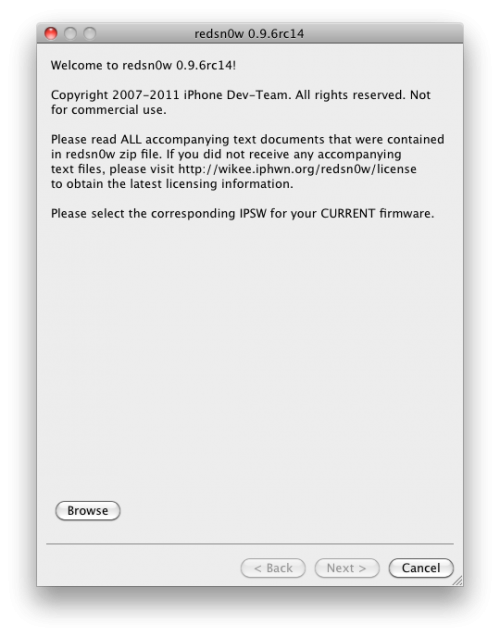
3. Unzip and launch RedSn0w.

4. Click “browse” and select the 3.0 (not 3.0.1) firmware you downloaded in a folder in step 2.

5. Once the firmware has been successfully identified, click “next”.

6. Select “install Cydia” and "unlock", then click “next”.

7. Browse for the bootloader files you downloaded in step 2, and click "next".

8. Make sure your iPhone is plugged into the computer and that it is off. Click “next”.

9. RedSn0w will then guide you to put your iPhone into DFU mode. Hold down the power button for 2 seconds. Without releasing the power button, also hold down the home button for 10 seconds. Without releasing the home button, release the power button but keep holding the home button for 30 seconds.

10. If done correctly, your iPhone should reboot and the jailbreak process should start. This step may take up to 15-20 minutes so be patient.

11. Once this process is over, you will get a message saying that it is “done!”

12. Click the “finish” button and reboot your iPhone. The reboot may take up to 10 minutes so again, be patient.

13. Congratulations, you just jailbroke and unlocked your iPhone 3.0 3.0.1 with RedSn0w.

Tutorial: iPhone 3.0 Jailbreak Using RedSn0w

This RedSn0w guide & tutorial will show you how to use RedSn0w to jailbreak your iPhone 2G, iPhone 3G, or iPod Touch 2G. Note that this step is required to unlock your iPhone 3G using UltraSn0w later on. For more information about the latest jailbreak methods for each iPhone, I recommend you read this before doing anything.

This guide is for PC users but I assume the steps are very similar on Mac. If you want to build custom firmware files with more flexibility it is suggested that you use PwnageTool on Mac OS X (PwnageTool jailbreak tutorial - PwnageTool unlock guide).

1. Before doing anything, make sure you have the latest version of iTunes and the latest firmware 3.0 installed on your iPhone.

2. Create a new folder on your desktop. In this folder, download RedSn0w as well as the latest 3.0 firmware for your iPhone from our iPhone downloads page (make sure you pick the right firmware).

3. Unzip and launch RedSn0w.

4. Click "browse" and select the 3.0 firmware you downloaded in a folder in step 2.

5. Once the firmware has been successfully identified, click "next".

6. Select "install Cydia" and click "next".

7. Make sure your iPhone is plugged into the computer and that it is off. Click "next".

8. RedSn0w will then guide you to put your iPhone into DFU mode. Hold down the power button for 2 seconds. Without releasing the power button, also hold down the home button for 10 seconds. Without releasing the home button, release the power button but keep holding the home button for 30 seconds.

9. If done correctly, your iPhone should reboot and the jailbreak process should start. This step may take up to 15-20 minutes so be patient.

10. Once this process is over, you will get a message saying that it is "done!"

11. Click the "finish" button and reboot your iPhone. The reboot may take up to 10 minutes so again, be patient.

12. Congratulations, you just jailbroke your iPhone 3.0 with RedSn0w. Cydia should now be on your springboard :)

Tutorial: Unlock iPhone 2G 3.0 Using PwnageTool For Mac

This tutorial will show you how to unlock your iPhone 2G using PwnageTool for Mac. This guide will allow you to use your iPhone 2G with any carrier.

1. Make sure you have downloaded the latest version of iTunes 8.2 and that you have updated your iPhone to the latest 3.0 firmware.

2. Create a folder on your desktop. In this folder, download PwnageTool 3.0 and your iPhone 2G 3.0 firmware from our iPhone downloads page. Also download bootloader files 3.9BL, 4.6BL.

3. Launch PwnageTool, agree to the warning, and select the “expert mode”.

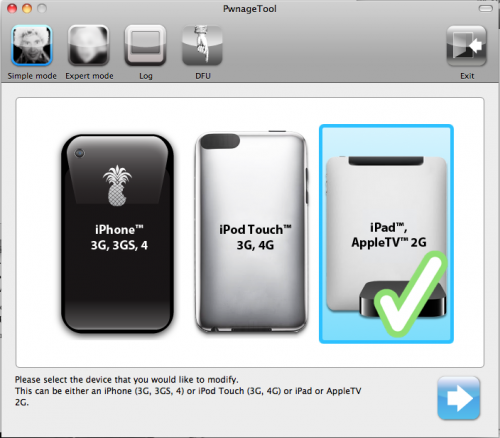
4. Select your iPhone model (iPhone 2G) and click the blue arrow to continue.

5. Now if your computer doesn’t automatically detect the iPhone 2G 3.0 firmware you downloaded in step 1, browse for it.

6. You will then have a menu with 7 choices. Choose “general”, which will allow you to set your own root partition size. Click the blue arrow to continue.

7. You will now have 3 checkboxes. Make sure that "activate the phone" and “enable baseband update” are checked. You will also need to increase the root partition size. Usually setting the root partition around 700MB is enough. Click next to continue.

8. When you get to the “bootneuter settings”, only check the boxes for "unlock baseband" and "auto delete bootneuter.app". Click the blue arrow to continue.

9. The  “Cydia settings” allow you to choose packages to download now so you don’t have to download them from Cydia later. Choose any of the packages you want and click next.

10. You will now have the possibility to choose your own boot logo. I will skip this step as it is useless.

11. After setting your own boot logos (if you chose to), you will now be able to build your own IPSW file. Click the blue “build” button to start.

12. If it's the first time you do this, you will get a message asking you to upload the bootloader file v3.9. When asked to search the web for it, click "no". When asked to browse for it, click "yes" and select it from the folder we created in step 2. Repeat the process for bootloader v4.6.

13.You will then be asked if you're a legit iPhone user. If you click "yes" this will not unlock the phone, thus defeating the whole purpose of this guide. Make sure you click "no".

14. You will then have to choose a folder to save your custom firmware (ie. desktop). You custom firmware will now be built, which may take up to 15-20 minutes. Be patient.

15. Enter your administrator password.

16. When asked if your iPhone has been pwned before, say “no”, even if it has. Make sure your iPhone is connected to your computer and turn it off, as prompted.

17. This is the tricky part. You will now have to follow directions to enter DFU mode. It will ask you to hold the home and power buttons for 10 seconds. Then, you will have to release the power button and hold the home button for 10 seconds.

18. If done correctly, you will get a message saying that you successfully entered DFU mode. Close PwnageTool and launch iTunes.

19. iTunes will then give you a message saying it has detected an iPhone in recovery mode. Click OK.

20. In iTunes, hold the Alt/Option key and click “restore” at the same time. It will open a window where you will have to select the custom firmware that you built a few minutes before.

21. iTunes will then restore your iPhone 2G using the custom firmware. This step may take 15-20 minutes so again, be patient.

22. Once done, you will have to “set up your iPhone”, either as a new phone (which I recommend), or from backup.

23. Reboot your iPhone and you should have a Cydia icon on the springboard.

24. Congrats! You just unlocked your iPhone 2G using PwnageTool 3.0

Tutorial: Jailbreak Your iPhone 3G 3.0 With PwnageTool For Mac

This tutorial will show you how to jailbreak your iPhone 3G using PwnageTool for Mac. Following this guide is the first step to take in order to unlock your iPhone 3G later on using UltraSn0w.

1. Make sure you have downloaded the latest version of iTunes 8.2 and that you have updated your iPhone to the latest 3.0 firmware.

2. Create a folder on your desktop. In this folder, download PwnageTool 3.0 and your iPhone 3G 3.0 firmware from our iPhone downloads page.

3. Launch PwnageTool, agree to the warning, and select the "expert mode".

4. Select your iPhone model (iPhone 3G) and click the blue arrow to continue.

5. Now if your computer doesn't automatically detect the iPhone 3G 3.0 firmware you downloaded in step 1, browse for it.

6. You will then have a menu with 6 choices. Choose "general", which will allow you to set your own root partition size. Click the blue arrow to continue.

7. You will now have 3 checkboxes. Make sure only "enable baseband update" is checked. You will also need to increase the root partition size. Usually setting the root partition around 700MB is enough. Click next to continue.

8. When you get to the "bootneuter settings", simply click the blue arrrow to continue.

9. The  "Cydia settings" allow you to choose packages to download now so you don't have to download them from Cydia later. Choose any of the packages you want and click next.

10. You will now have the possibility to choose your own boot logo. I will skip this step as it is useless.

11. After setting your own boot logos (if you chose to), you will now be able to build your own IPSW file. Click the blue "build" button to start.

12. Choose a folder to save your custom firmware (ie. desktop).

13. Your custom firmware will now be built, which may take up to 15-20 minutes. Be patient.

14. Enter your administrator password.

15. When asked if your iPhone has been pwned before, say "no", even if it has.

16. Make sure your iPhone is connected to your computer and turn it off, as prompted.

17. This is the tricky part. You will now have to follow directions to enter DFU mode. It will ask you to hold the home and power buttons for 10 seconds. Then, you will have to release the power button and hold the home button for 10 seconds.

18. If done correctly, you will get a message saying that you successfully entered DFU mode. Close PwnageTool and launch iTunes.

19. iTunes will give you a message saying it has detected an iPhone in recovery mode. Click OK.

20. In iTunes, hold the Alt/Option key and click "restore" at the same time. It will open a window where you will have to select the custom firmware that you built a few minutes before.

21. iTunes will then restore your iPhone 3G using the custom firmware. This step may take 15-20 minutes so again, be patient.

22. Once done, you will have to "set up your iPhone", either as a new phone (which I recommend), or from backup.

23. Reboot your iPhone and you should have a Cydia icon on the springboard.

24. Congrats! You just jailbroke your iPhone 3G using PwnageTool 3.0 :)

How To Install An iNav Theme On Your iPhone

If you're iPhone is jailbroken and that you look at Cydia apps and mods from time to time, you most likely came across the iNav themes. iNav themes are a little more complex than your usual theme and simply activating the theme in WinterBoard won't be enough. You will need to prep your iPhone and that's exactly what I'm going to show you today.

Installing an iNav theme is not hard at all but it will take a few minutes of your time.

iPod Touch 2G Full Jailbreak PC Tutorial

As you all know the greatest thing just occurred: the iPod Touch 2G has been fully jailbroken. But how do you jailbreak? Very simple.

This tutorial is for PC users only. There is no Mac version available yet. The Dev Team is updating PwnageTool and Quickpwn to work for this. You need to wait a bit. This method requires a FULL restore.

OK so you must first download QuickFreedom. You can download it here, here, or here.

Make sure you have the C++ Distributable Package and LIBUSB. You can install LIBUSB directly from the program. Just press the button in the beginning. So here we go:

When you open the program you are welcomed to the main menu. Click the "Jailbreak" button in the center. Make sure it says LIBUSB is installed and give it a second for it to find and copy the firmware file. When the option becomes available click next. Choose whether you want to install Installer and if you want custom boot logos. When done press the "Create Firmware" button. When that's done it will put the custom ISPW in the desktop. Click next. Now put your iPod in DFU mode. Hold the Power and Home button for 10 seconds and then the Home button for 8 seconds. When in DFU press the "Start Pre-Jailbreak" button. When it is done you can close the program. Open up iTunes. Go to your iPod. Press and hold shift and click restore. Select the ISPW in the Desktop and wait for it to restore. When it finishes you are done.

Post any problems in the comments and I'll try to help.

***********WARNING***********

I have seen a few reports that this is NOT working correctly with Windows 7 and that installing LIBUSB causes some problems. Please do not try this if you are on Windows 7. I will look into this and will get back to you.

UPDATE: Hey guys. QuickFreedom 1.1.1 has been released. It's the same as before so you can still follow the instructions above. But this update fixes most if not all bugs that you guys in the comments were experiencing. You can download it here, here, and here.

QuickPWN 2.2.1 Guide & Tutorial

If you like this post, please feel free to digg it, or subscribe to our RSS feed, or follow me on Twitter, or all of the above ;)

[digg-me]This guide will show you how to use QuickPWN to jailbreak your iPhone firmware 2.2.1. Please read carefully all the steps and warnings before attempting to use QuickPWN to jailbreak your iPhone. The following tutorial is for PC users.

UPDATE: I closed the comments on this post. If you have any question about QuickPwn, please ask your question in the forum.

Unlock Your iPhone 3G With Yellow Sn0w Guide & Tutorial

[digg-me]Below are instructions on how to unlock your iPhone 3G using Yellow Sn0w. Unlocking your iPhone 3G will make it possible for you to use any cellphone carrier.

Before you go any further, make sure to READ EVERY SINGLE WORD OF THIS TUTORIAL. If you think you're too cool for school, then go directly to the instructions but please, do not complain if you mess up your iPhone during the process, which is very unlikely to happen anyways...

First things first. In order to be able for you to use Yellow Sn0w to unlock your iPhone 3G, you have to be on a jailbroken iPhone that runs the latest firmware 2.2 with the latest baseband 02.28.00. To find out what firmware you're on, go to Settings > General > About and look for "Modem Firmware". It should say 02.28.00.

If you have not jailbroken your iPhone yet, you have to now in order to unlock. To jailbreak your iPhone, follow the QuickPwn 2.2 guide that I wrote a few weeks ago.

If you have already jailbroken your iPhone using PwnageTool to preserve your baseband, sorry but you have to restore and rejailbreak again in order to have the latest 02.28.00 baseband.

If you have updated to the latest firmware 2.2 with its latest 02.28.00 baseband, then you're good to go.

So from now on, I assume that you are on a clean firmware 2.2 with firmware 02.28.00 and that your iPhone is jailbroken.

1. Go to Cydia and install this new source: http://apt9.yellowsn0w.com/ (note that snow is spelled with a zero, not an "o"). To install a new source in Cydia, go to Manage > Sources > Edit > Add, then type in the source http://apt9.yellowsn0w.com/ and tap "Add Source".

2. Once the source has been added, tap "Return To Cydia", then tap "Done".

3. Now tap "apt9.yellowsn0w.com from the list of sources "Entered By Users".

4. Select Yellow Sn0w, then tap install nad confirm.

5. Once the installation had been successfully completed, return to Cydia.

6. Hard reset your iPhone. To do this, hold the home and power buttons simultaneously for a few seconds until the phone shuts off by itself (ignore the "slide to power off" message)

7. Insert whatever SIM card you want! Wait a few seconds and you should be good.

8. Done!

See, that wasn't too hard at all. Users that are already familiar with Cydia and sources shouldn't have any problem at all. But first time jailbreakers might be a little lost, which is why I detailed this tutorial a lot.

Now there are a few known issues with Yellow Sn0w and I highly recommend you either read my previous post about it, or go directly to the Dev Team's blog.

Troubleshooting:

1) If you are on tmobile USA you should disable 3G in Settings or sbsettings. 2) YellowSn0w does not work with a SIM PIN. You  must disable your SIM card pin lock.

At any rate, I would really appreciate it if you could digg this post, then write a comment, then go to the Dev Team's blog to thank them for their great work.

Unlock Your iPhone 2G 2.2 Using QuickPwn

This guide will show you how to use QuickPwn 2.2 to jailbreak and/or unlock your iPhone 2G. This tutorial is for PC users but I assume the steps are the same on a Mac. This tutorial is NOT for iPhone 3G. If you're only interested in jailbreaking your iPhone (not unlockink), please may read my QuickPwn 2.2 guide.

If you like this post, please feel free to digg it, or subscribe to our RSS feed, or follow me on Twitter, or all of the above ;)

IMPORTANT: READ EVERY SINGLE WORD OF THIS POST BEFORE ATTEMPTING TO UNLOCK YOUR IPHONE

Note that the comments are closed. If you have any question about the unlocking process, please ask in the forum.

Before doing anything, I suggest you read this important message from the Dev Team.

Click here to download the MobileInstallation patch for 2.2

Note that you are pwning your iPhone at your own risk… Success is not guaranteed!

Make sure you have downloaded the latest version of iTunes. Update or restore your iPhone to firmware 2.2 using iTunes. Restoring is the preferred way to do it as it won't waste space on your iPhone. Plug your iPhone and make sure iTunes has detected it. If you’re iPhone is already jailbroken, you may want to remove all the apps that you have downloaded from Cydia. Certain applications such as Winterboard, Categories and more cause trouble. You will be able to reinstall them later. Create a folder called “QuickPwn” on your desktop. Download your appropriate iPhone 2.2 firmware from here. Also download the QuickPwn 2.2 from here, the bootloader files BL 3.9 and BL 4.6 from here too. Place these files in the newly created QuickPwn folder on your desktop. Extract QuickPwn zipped file. Launch QuickPwn and select your iPhone version. You will be asked to select your iPhone firmware. Select the firmware you downloaded in Step 1. If the firmware you selected is valid, QuickPwn will show a green checkmark. Click Continue. You will then have the opportunity to select Cydia, Installer, custom boot logos and "unlock iPhone". You have to select Cydia and "unlock iPhone". You may also choose to install Installer. Click Next. You will now be asked to select your bootloader files. Click the Browse button and select the 3.9 bootloader from the Pwnage folder on your desktop. Likewise do the same thing for the 4.6 bootloader file. Then click the blue arrow button to continue. QuickPwn will now ask you to confirm that your iPhone is connected. Click the blue arrow to continue. QuickPwn will now automatically put your iPhone into recovery mode. Once its in recovery mode you will be prompted to: Hold the Home button for 5 seconds, Hold the Home and Power buttons for 10 seconds, then release the Power button and continuing holding the Home button until your iPhone is in DFU mode. Watch the prompts carefully and follow along. Once QuickPwn detects your iPhone in DFU mode, it will start the jailbreak process. Finally, QuickPwn will let you know that pwnage process was completed successfully. Done!

[digg-me]Let us know how it goes!