Did you accidentally delete an important note on your Apple device? Worry now, as it’s easy to recover them using your iPhone, iPad, Mac, or from iCloud.com.
How to recover deleted notes on iPhone, iPad, Mac, and iCloud

Learn how to master your Apple devices with our comprehensive tutorials. From iPhone and iPad to Mac, Apple Watch, AirPods, and more, our expert guides will help you unlock the full potential of your Apple products. Discover new features, tips, and tricks each day to enhance your user experience.
Did you accidentally delete an important note on your Apple device? Worry now, as it’s easy to recover them using your iPhone, iPad, Mac, or from iCloud.com.

Learn how to stop people you’re not friends with from showing up in your Facebook chat and adjust settings to prevent them from showing up again.

Many jailbreakers will be familiar with the program TinyUmbrella, which has traditionally been one of the best ways to save SHSH blobs for their iOS devices onto their Macs for safekeeping. What SHSH blobs are, their function, and how to save them is outside the scope of this article, (I will put something together soon on this), but suffice to say that saving these blobs is of some importance to many jailbreakers and that TinyUmbrella has been the go-to application for doing so for a long while.
Whilst the application was updated as recently as August by its creator Semaphore, many Mac users (myself included) have noted that the new version, 9.3.4, gives an error on launch and cannot be used at all. This guide will walk you through the fix to get your umbrella back up again on Mac, so you can carry on wishfully saving those blobs.
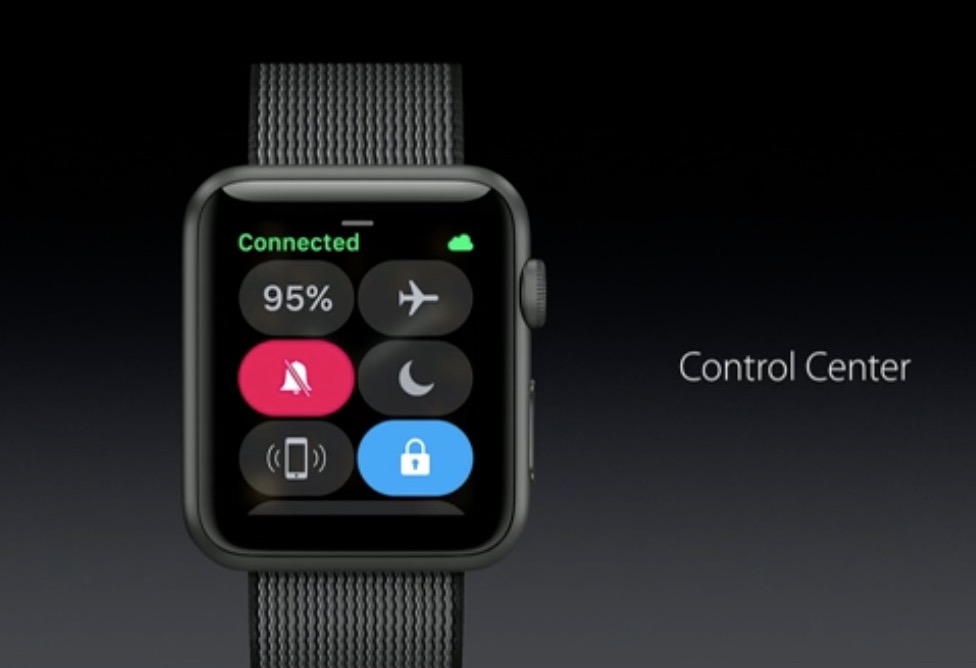
If you are not closely tracking every subtle interface change that Apple puts into practice on iOS, macOS or watchOS, it is likely you have entirely lost sight of a smaller feature or setting before. This is because, in short, Apple likes to relocate and thereby slowly supplant features no longer withstanding the test of time. With watchOS 3, the complete renovation of the operating system and reinvention of the Side button on top of it has had a similar ripple effect for numerous older features.
Power Reserve mode has become one of such cases, a feature still of much use despite the improved battery performance on Apple Watch Series 1 and 2. It used to be as easy as holding down the Side button and swiping to activate Power Reserve, but mind you, nothing is permanent with Apple and it has been silently relocated since. In case you have been caught napping on Power Reserve, let's quickly fill you in on how to deploy the potential life saver on the latest watchOS.
The AirDrop file transfer protocol, introduced with Mac OS X Lion and iOS 7, is a fast and convenient way to transfer files between Apple devices. The current version of the service is interoperable between iOS and macOS, but requires both Bluetooth and Wi-Fi to be active in order to work. It also requires Mac OS X Yosemite or newer and a hardware model from 2012 or later.
However, the version of AirDrop that shipped as standard with OS X between 10.7 (Lion) and 10.9 (Mavericks), whilst unable to send files to iOS devices, works without Bluetooth and on Mac models going back as far as 2008. Luckily, alongside the newer version, this legacy mode is still included on all Mac models to date, and as this guide will show, can be modified to have an even broader functionality.

We've already covered how to completely prevent partitions from mounting under macOS, but sometimes you want a partition mounted and ready to use but still want the benefit of it not cluttering up your desktop. For example, many people want their Time Machine partition constantly mounted and backing up throughout the day but don't need it to be visible at all.
Finder's preferences allow for hiding all volumes from the desktop but offer no control on a volume-by-volume basis. Therefore, we'll show you how to use the Terminal to hide mounted volumes on a case-by-case basis.

Find out how to download Netflix movies and TV series to watch on the go, and what to do if downloading fails on your iPhone, iPad, or other devices.

If you're not familiar with the Quick Look feature on macOS, try selecting a picture, folder, or text document on your computer and pressing the space bar. The rich preview that pops up is Quick Look working its magic. Apple introduced Quick Look in Mac OS X 10.5 Leopard and it has since gained support for many more file types natively, such as Microsoft Office and Adobe Suite documents.
I use it daily and it has become an automatic part of my workflow, a natural response to wanting to inspect a file without waiting for a program to launch and without leaving off what I'm doing.
However, the problem that Quick Look faces is support. It requires a plugin for each file type it can preview, and out-of-the-box only a handful are supplied. More obscure file types are neglected, and display only a blank pane with the file icon, name, size, and date modified. In this guide, I will detail how to add plugins to Quick Look for a richer and more useful preview experience.
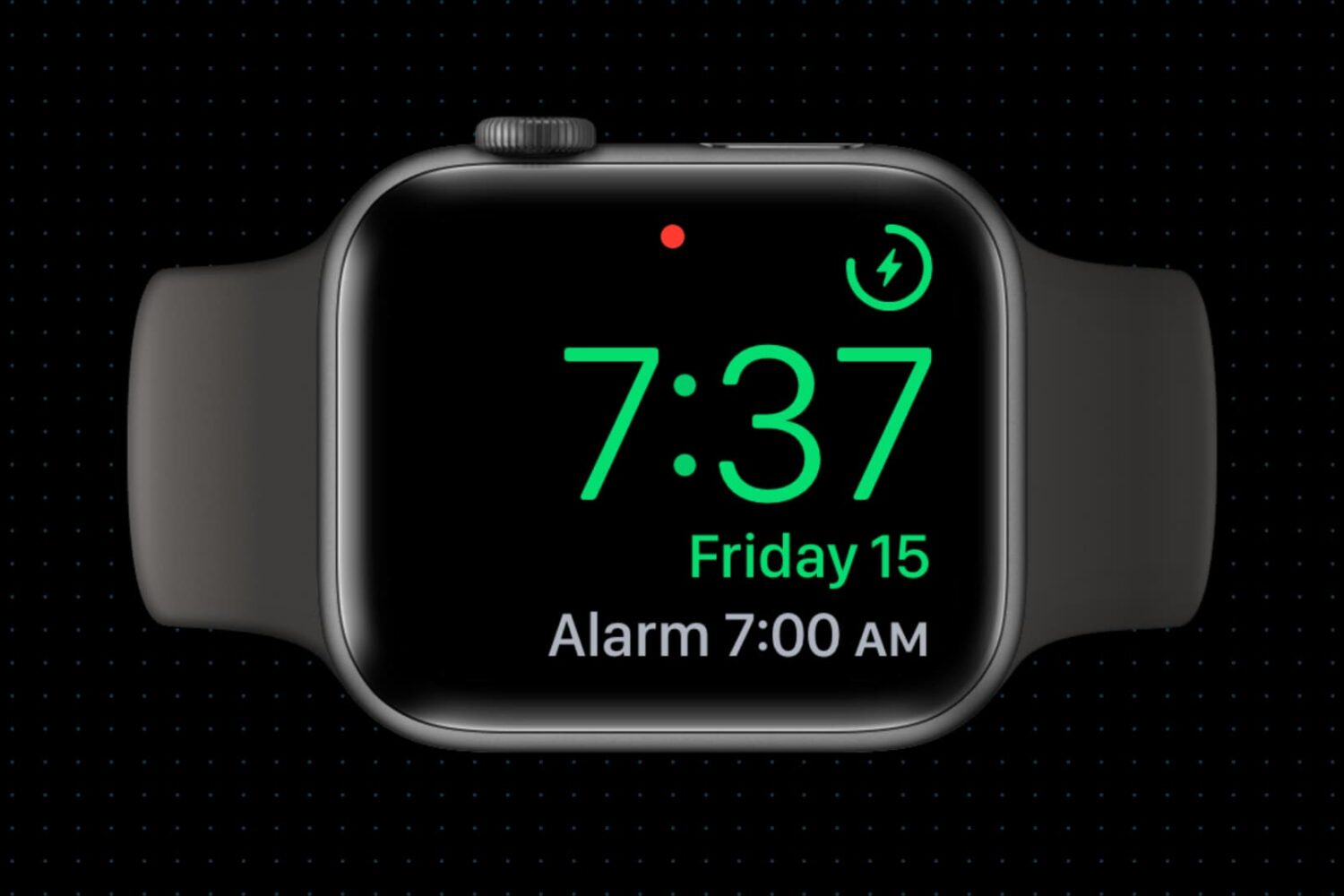
Did you know your Apple Watch can be used as a bedside clock? In this tutorial, we will show you how to use the Nightstand Mode feature to give your Apple Watch a purpose even when you’re not wearing it.

It's been a while since we posted in our Account Deletion series, which deals with terminating accounts on popular services from brands like Apple, Google, PayPal, Netflix, Spotify, Dropbox, Twitter, Viber, WhatsApp, Facebook, Instagram and many others. In this tutorial, you will learn how to close and terminate your personal account on Yahoo along with personal information and settings associated with it.
We'll also show you how to remove your child's account as part of your family account, educate you on Yahoo's data retention policy and lay out any caveats you should be aware of ahead of breaking ties with Yahoo.
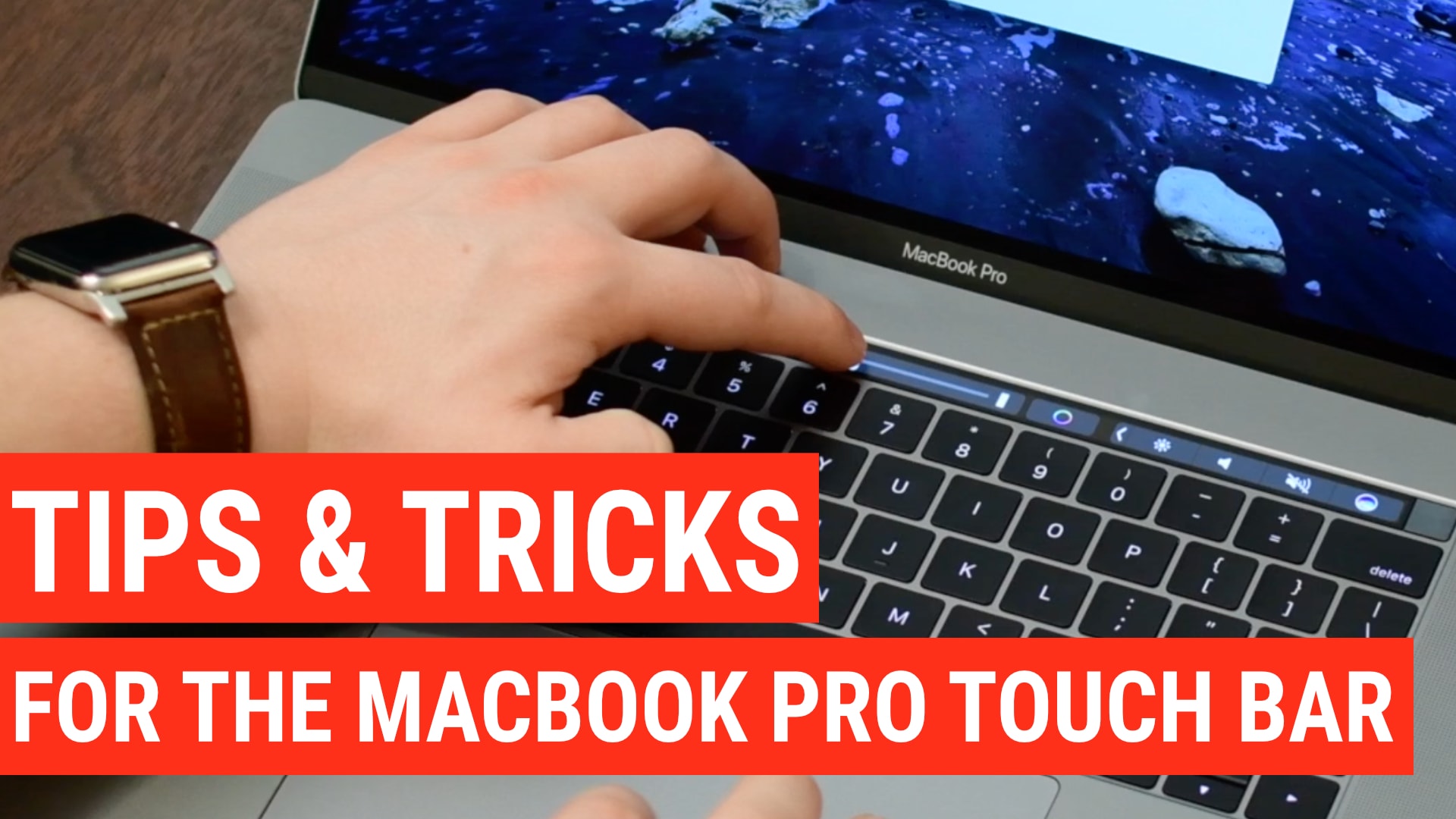
Touch Bar is a versatile OLED bar at the top of your keyboard that replaces the function keys with software-based buttons that change based on what app you're in and what you're doing. In this post, we'll mention twenty-five awesome things you can do with the Touch Bar on your MacBook Pro.