Learn how to change the display name of your Apple Watch to easily identify the device in the Find My app, on iCloud, in watchOS menus, etc.
How to give a unique name to your Apple Watch

Learn how to master your Apple devices with our comprehensive tutorials. From iPhone and iPad to Mac, Apple Watch, AirPods, and more, our expert guides will help you unlock the full potential of your Apple products. Discover new features, tips, and tricks each day to enhance your user experience.
Learn how to change the display name of your Apple Watch to easily identify the device in the Find My app, on iCloud, in watchOS menus, etc.
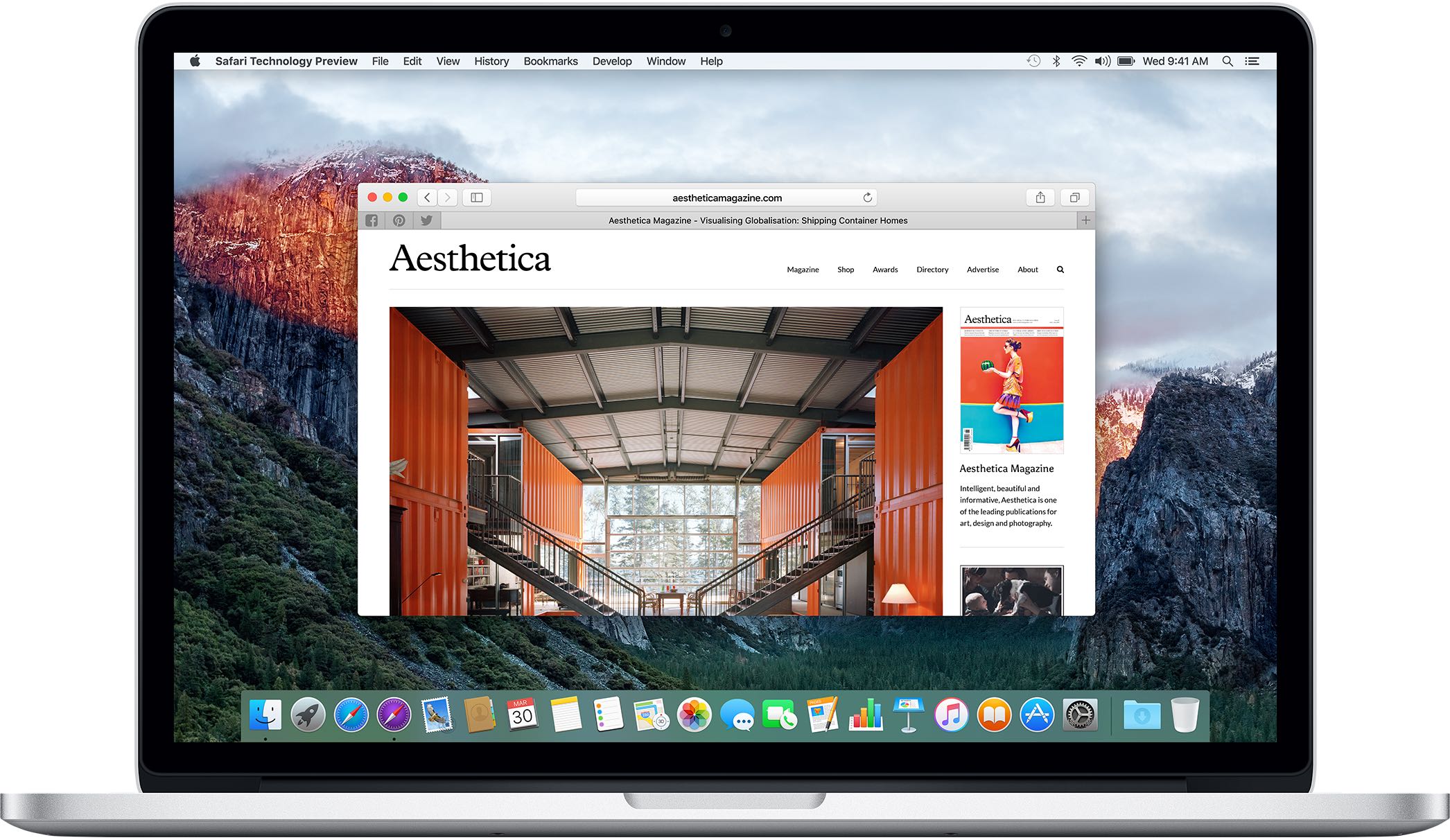
In this tutorial, we'll show you the quick steps to disable all images on websites you visit in Safari on your Mac.

A particularly cruel proverb says there's more than one way to skin a cat. True or not for cats, its intended meaning certainly applies to sending iTunes gifts and gift cards to your loved ones. For years, Apple has done their homework to make sure we can easily swoop up gift cards for iTunes at most retailers, online through services such as PayPal and also directly gift apps or music we come across and want to share immediately.
On top of the bevy of options available, there's another simple trick to send (any desired) iTunes credit to a fellow application user, right through iTunes or the App Store on iOS. While on no account a hidden gem, we haven't called attention to it before on iDB, so let's bring you up to speed on it if necessary.

Your Apple devices provide a global setting for representing specific quantities of temperature in apps. You can switch between displaying the temperature in either Celsius or Fahrenheit. Apps that support this feature, including Apple's stock Weather app, honor this setting to display the temperature in your preferred unit regardless of your regional settings.
In this tutorial, you will learn how to easily switch between Celsius and Fahrenheit independently of your other regional settings on your iPhone, iPad, or iPod touch, as well as adjust this setting on other Apple devices, such as your Apple TV, Apple Watch, or Mac.
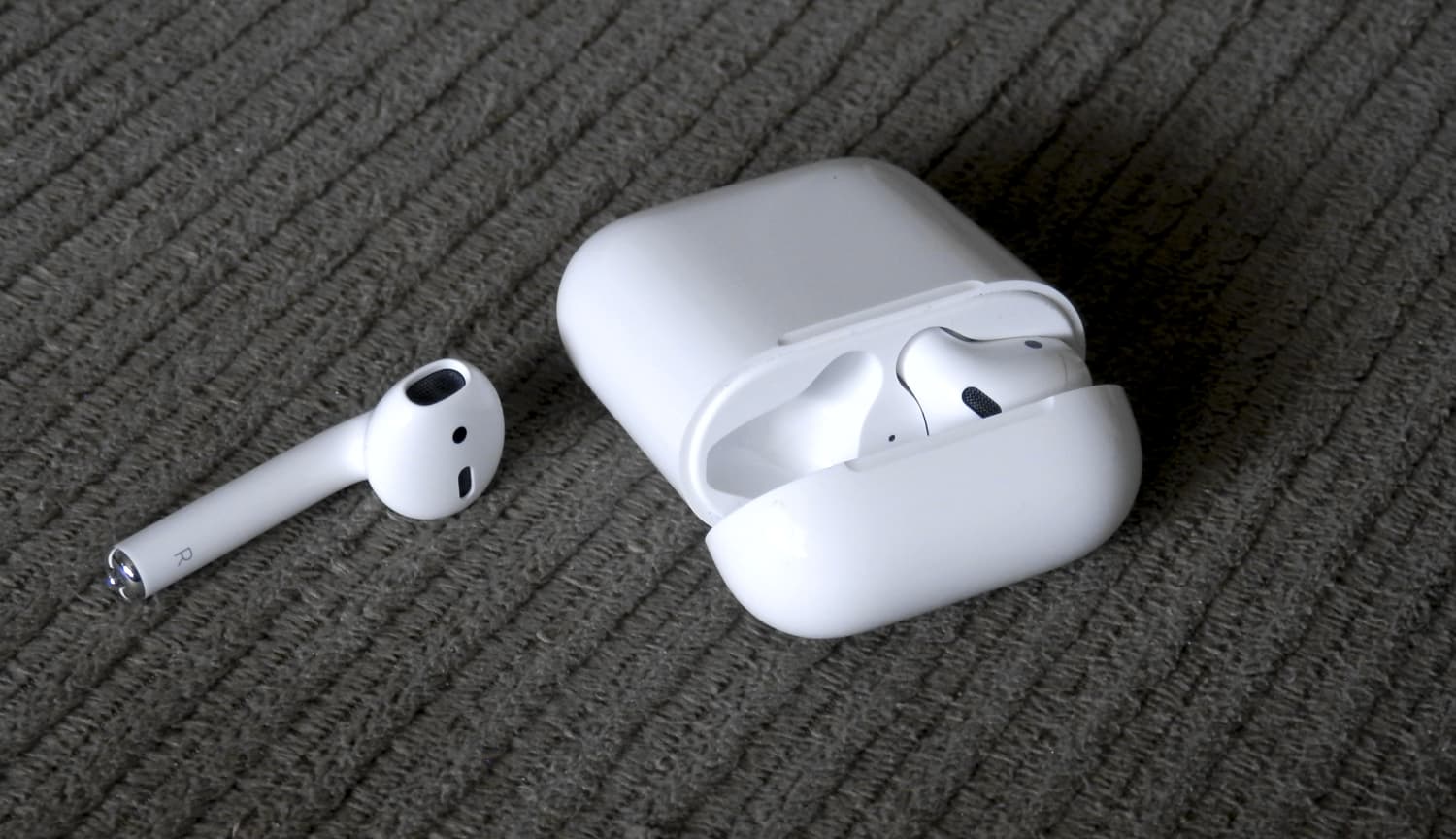
Learn how to fix AirPods resetting to their default name if you cannot rename them as “AirPods” in order to simplify their appearance in menus on your iPhone.
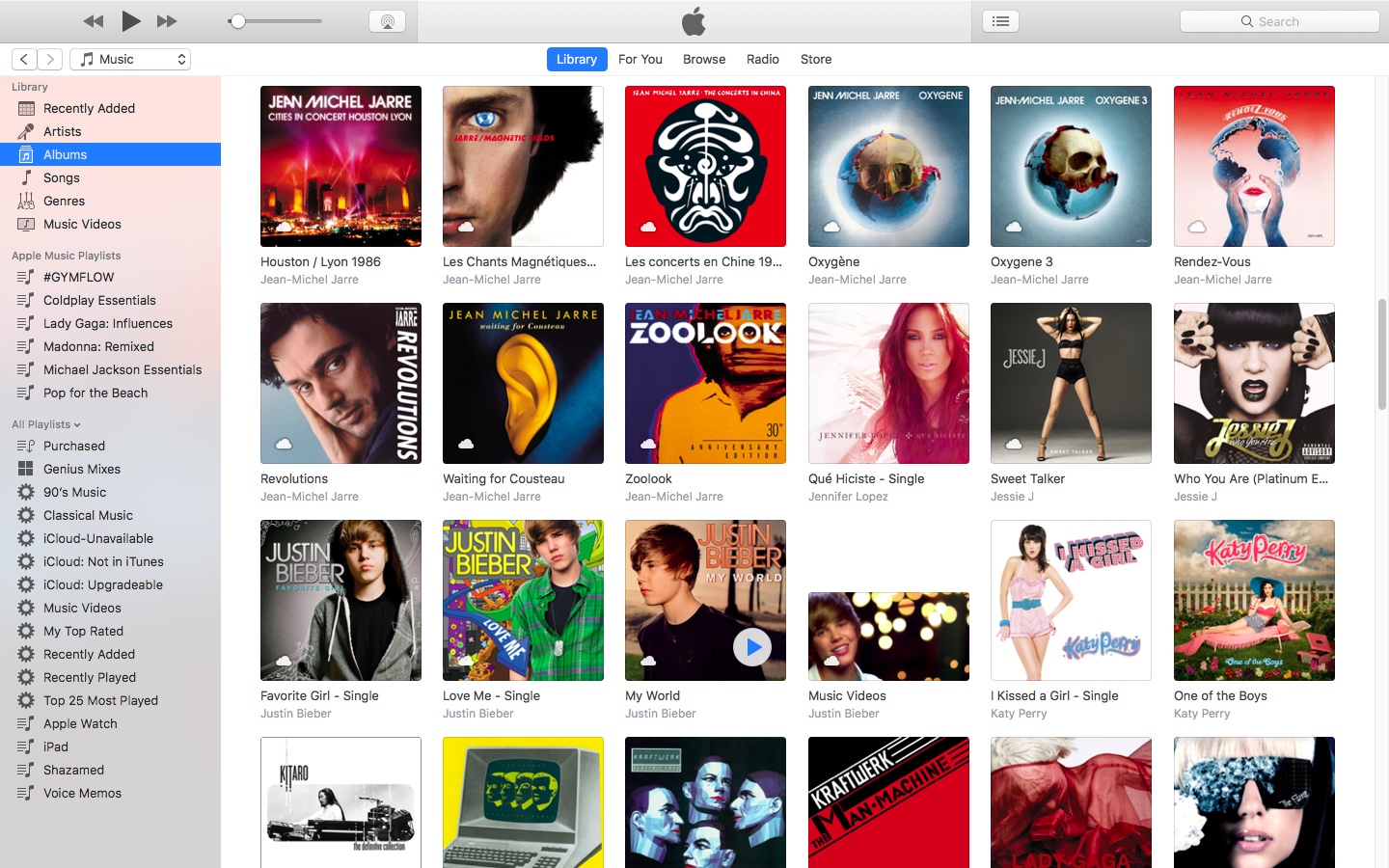
In older versions of iTunes, you could easily open a playlist in a separate window. It was both a great time-saver and a boon to your productivity, especially on large screens.
For reasons unknown, Apple has removed that functionality from the iTunes 12 update which was overhauled around a single-window workflow.
Thankfully, the company has reinstated the ability to open playlists in new windows with iTunes 12.6. Here's how to open your playlists in their separate windows using iTunes for Mac.
How to open your playlist in a new iTunes window1) Launch iTunes on your Mac.
2) Choose Music from the menu near the upper-left corner, then click the Library tab.
3) In the lefthand column, right-click or Control (⌃)-click your playlist underneath the All Playlists heading, then select the option Open In New Window from the popup menu.
This will open a new iTunes window containing the selected playlist, as shown top of post.
You can drag songs at will between the playlist windows and open as many playlists in separate windows as you like. I don't have that many playlists created in iTunes so I was able to open “only” four playlist windows, but it worked like a charm.
How to open an Apple Music playlist in a new windowPlaylists on Apple Music cannot be opened in their separate windows unless they're in your iTunes library. To do so, follow the steps below:
1) Launch iTunes on your Mac.
2) Choose Music from the popup menu near the upper-left corner of the window, then click either the Library or the For You tab.
3) Find a playlist on Apple Music and click the three dots in the lower-right corner of playlist graphics to bring up the contextual menu, then choose the option Add to Library.
4) With the selected Apple Music playlist now in your iTunes library, switch to the Library tab, right-click it underneath the Apple Music Playlists heading in the lefthand column, then select the Open in New Window command.
Just like that, the selected Apple Music playlist from your library opens in a new window.
iTunes playlists windows and Split ViewSadly, playlists windows in iTunes don't support macOS's useful Split View feature.
If iTunes supported Split View properly, it could have been a great multitasking feature. In other words, you cannot browse your iTunes library in the main window and have your favorite playlist in its separate window in macOS's Split View mode.
And that's it, boys and girls!
Pass along this article to other Mac users you support and don’t forget we accept your submissions regarding future coverage ideas via tips@iDownloadBlog.com.
If you have any questions, please post a comment below.
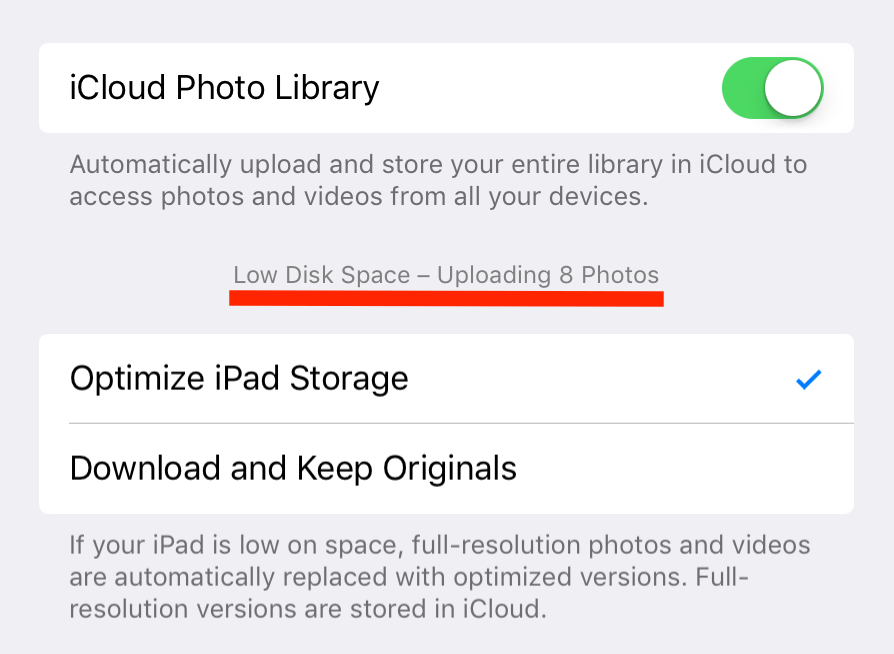
iCloud Photo Library is one of these great features that you think you don't really need until you actually start using it. One of the promises of the service is that it automatically keeps every photo or video you take in iCloud. These photos and videos can then be accessed from any of your devices, assuming the feature is enabled on these devices. iCloud Photo Library is great... at least when it works as it should.
In this tutorial, we’ll show you how to use referenced library mode in Mac’s Photos app to stop it from making copies of your media and help save space.

Over time, web browsers accumulate website data from everyday browsing. Known as cache, this data collection helps browsers load web pages more quickly, so these files don't have to be re-downloaded when you revisit the same websites in the future.
Unfortunately, cache is also the main suspect when diagnosing issues loading websites, and it can also eat up valuable storage space on your Mac. That's why in this tutorial, we'll show you how to delete cache and cookies in three of the most popular web browsers: Apple Safari, Google Chrome, and Mozilla Firefox.
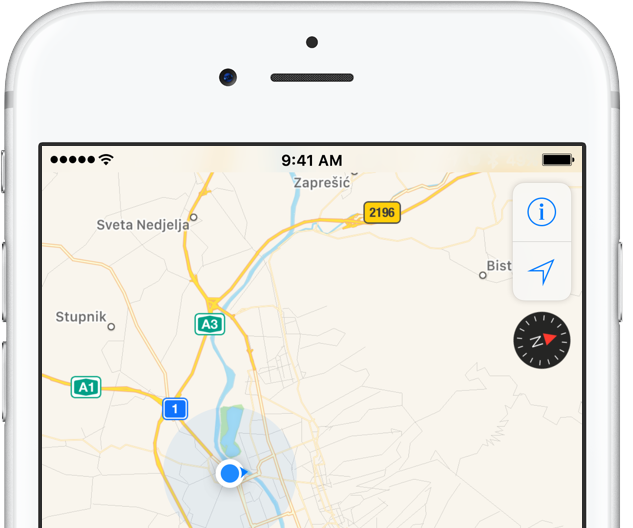
iPhone includes a magnetometer sensor, also known as digital compass. With it, your iPhone can tell the direction it's pointed at. Along with built-in GPS and iOS's Location Services, this allows for some cool navigation capabilities. If you're wondering how to use iPhone compass with Apple Maps, you've come to the right place.
Displaying compass on a map not only helps you orient yourself better and find a route to a location, but also stay on course while navigating to avoid distractions that could lead to dangerous situations. In this tutorial, you'll learn how to display the compass for navigation and use it with Apple Maps turn-by-turn directions.
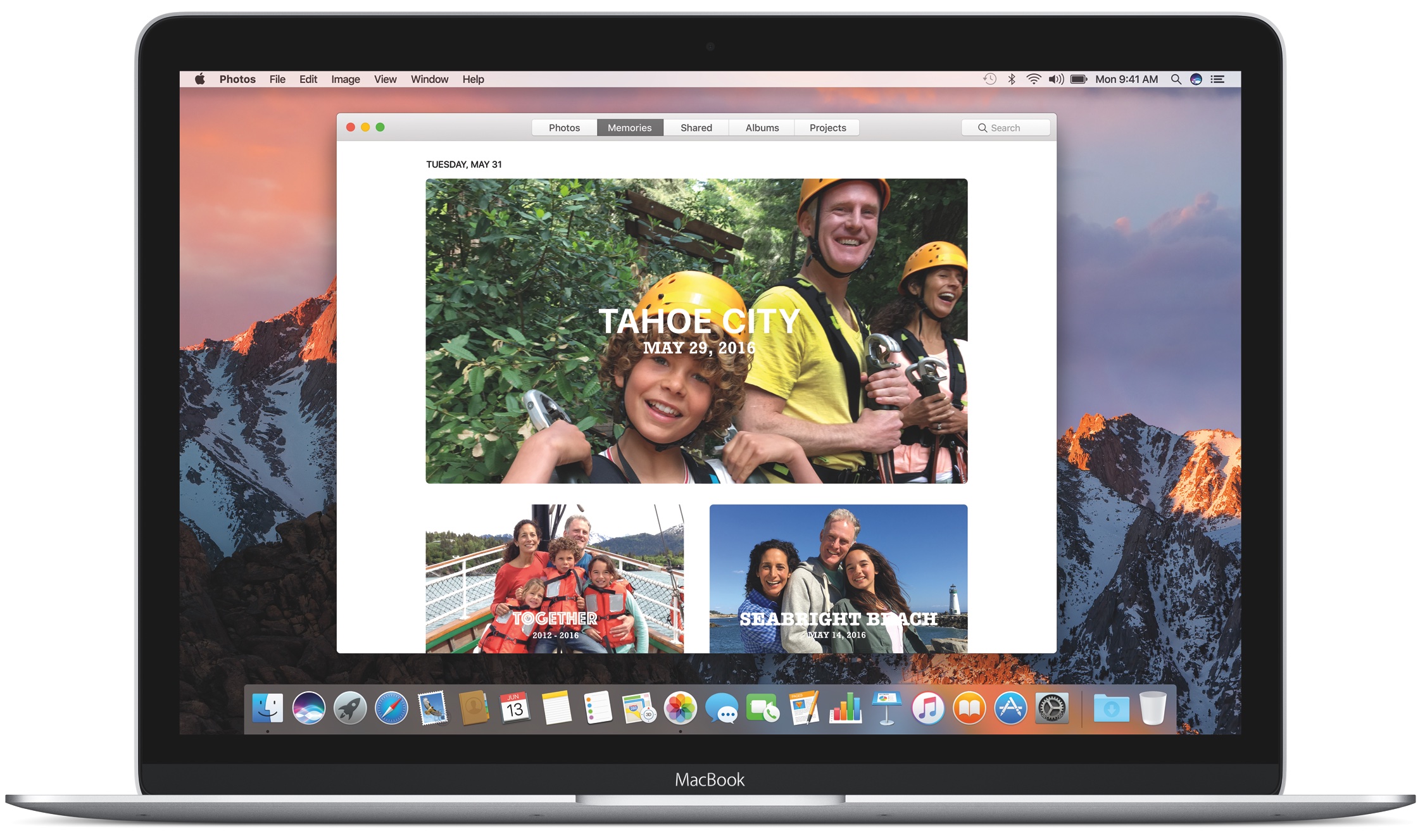
Learn how to find the location of the library file on your Mac where Apple Photos stores your images, videos, and other media in case you need to copy or move it.
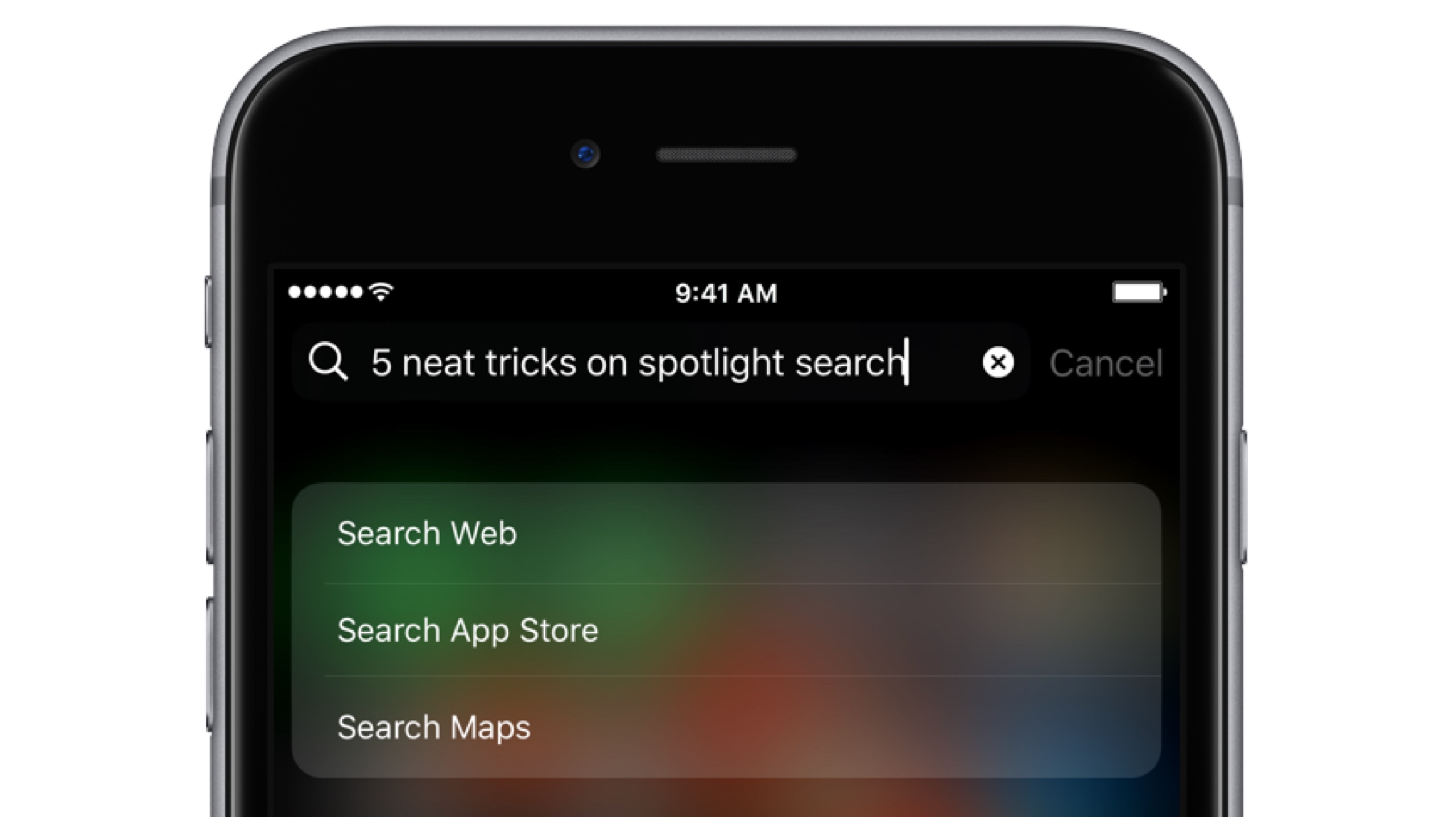
Bearing in mind the numerous ways to invoke Spotlight search on your iPhone today, the feature has clearly become a centerpiece of iOS 10th iteration.
That is because for one, it's the fastest way to rifle through your device for any type of information, however it is also incrementally adopting Siri-level intelligence. You might know about using Spotlight for swift currency and measurement conversions by now, but the list does not end here. Largely undiscussed on the web, here are five more cool uses for Spotlight.