In this tutorial, we'll walk you through the process of disabling Dashboard on Mac using Mission Control and applying it system-wide.
Never use Dashboard on your Mac? Here’s how to disable it
Stay up-to-date on the latest Mac news, and tutorials. Get expert tips and tricks to optimize your Mac’s performance and learn about the latest Apple products and software updates. Discover the best Mac apps and accessories to enhance your user experience.
In this tutorial, we'll walk you through the process of disabling Dashboard on Mac using Mission Control and applying it system-wide.
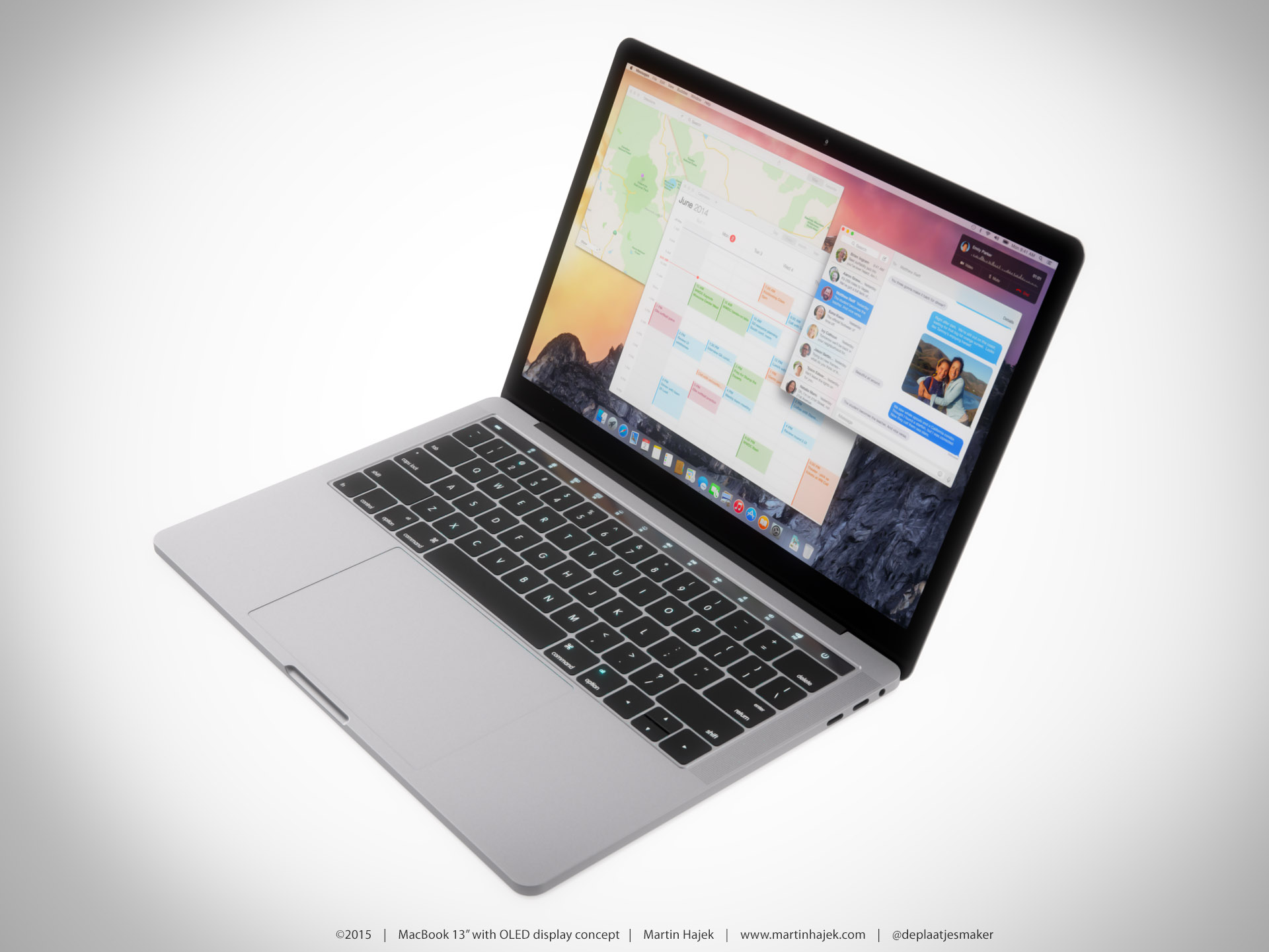
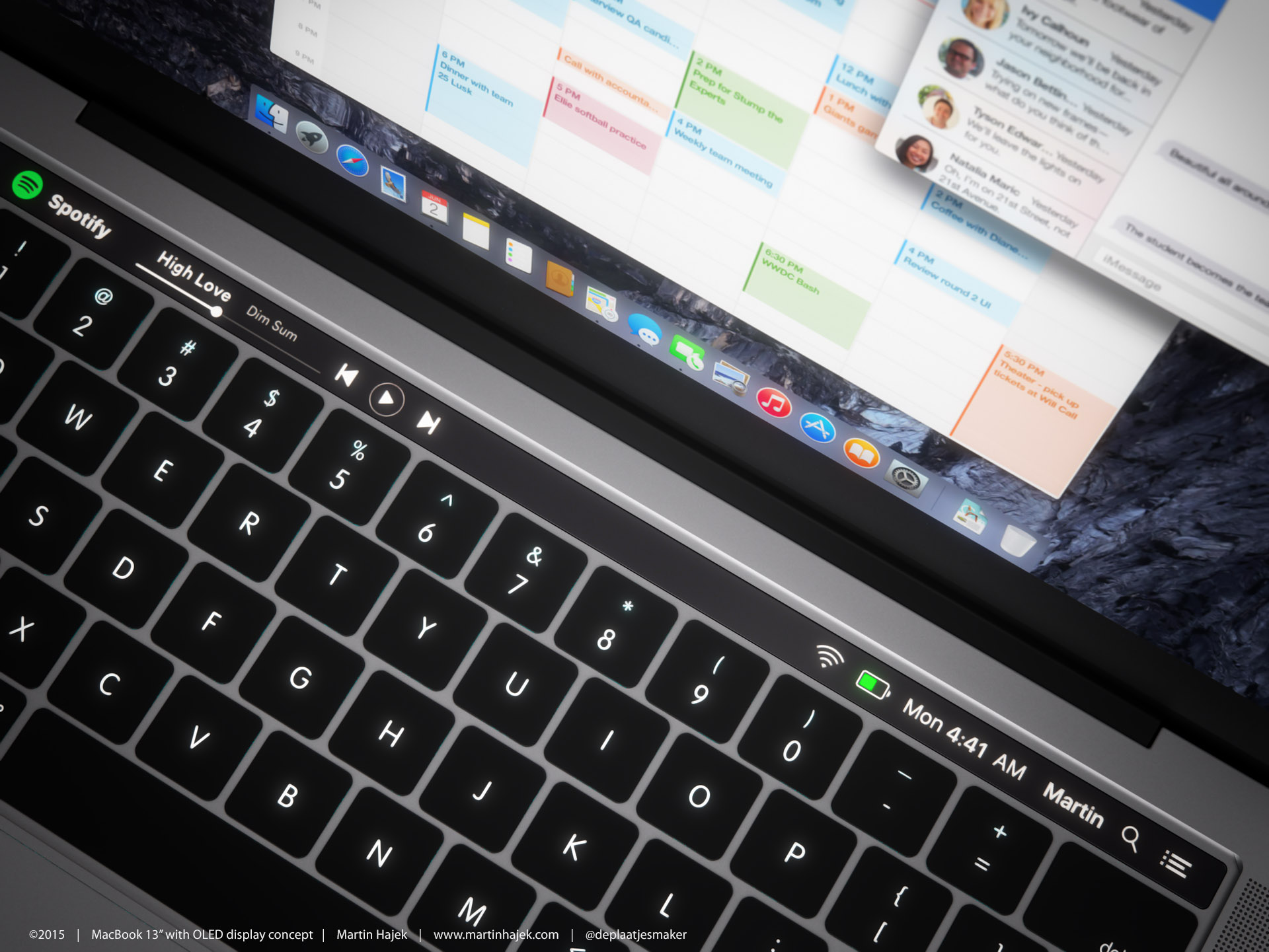
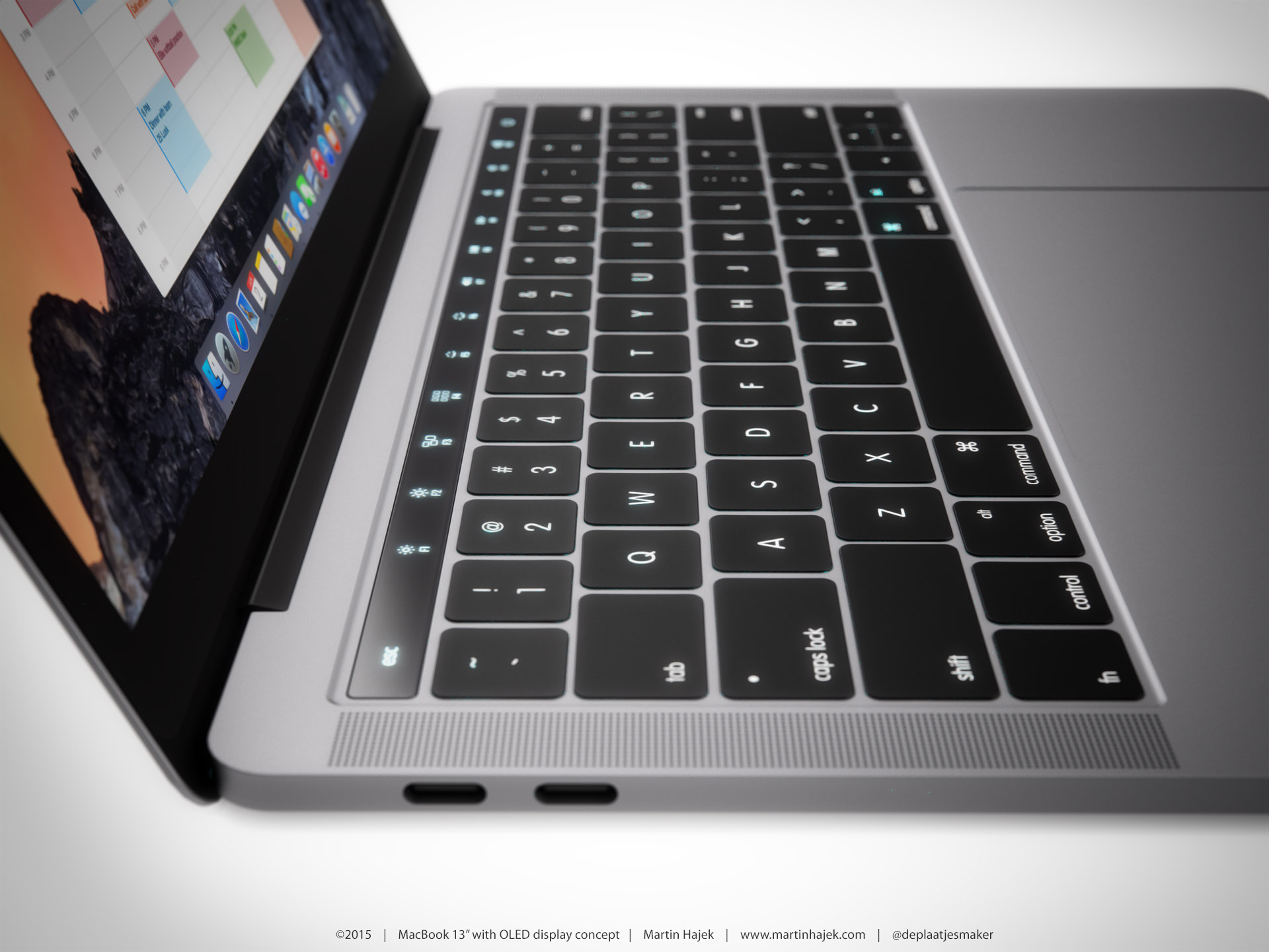
Apple is believed to be working on the next MacBook Pro upgrade that should include, among a faster Intel processor and graphics and other hardware-related enhancements, an OLED bar replacing the row of function keys on the keyboard with programmable touch-sensitive shortcuts that could automatically change from one app to another.
In a new report Monday, 9to5Mac has learned from a sketchy source that the rumored OLED touch bar might be accompanied by a Touch ID sensor for fingerprint login.
Those of you with Macs know that you can't just click on the Close button to exit out of most apps. Instead, you have to physically quit those apps after you're done using them.
On the other hand, if you just can't be asked to take the time to do that, we're going to show you a really easy way to make an applet that can be used to quit all of your Mac's running apps at once.
Making Apple services even smarter and more personalized entails processing troves of information because intelligence is driven by big data. The fact that iOS 9's proactive features don't tap into the cloud has served Apple well thus far. But since Google Assistant came to light, people have been wondering if Apple can compete without resorting to raw data collection Google is infamous for.
iOS 10 and macOS Sierra represent Apple's refined approach to privacy, which revolves around new techniques collectively known as Differential Privacy. An en vogue statistical method, Differential Privacy helps Apple deliver smarter services without compromising privacy of their users.
It's a relatively unproven technique with lots of potential which hasn’t been used to boost Apple's services before iOS 10 and macOS Sierra. Here's a closer look at Differential Privacy, how it powers intelligence and proactiveness and why it should serve Apple better than Google's bulk data collection and analysis.
iOS 10 and macOS Sierra tap into an interesting technology, called Differential Privacy, which makes possible data collection from a large number of users without compromising individual user's security and privacy. Re/code has now learned from Apple that Differential Privacy will be opt-in only, meaning privacy-minded folks won't be required to use the feature unless they specifically want to.
Bottom line: Apple won’t collect your data to make its services a lot smarter unless you specifically let it.
In this tutorial, we'll show you how you can launch apps on your Retina display Mac in normal resolution rather than in its higher Retina display resolution form.
Our ongoing macOS Sierra previews continue unabated as Andrew and I take a closer look at two new useful features in Sierra: Universal Clipboard and shared Desktop. You're definitely going to use Universal Clipboard quite a bit: in addition to being a great time-saver, it “just works”.
Universal Clipboard lets you copy and paste items across your iPhone, iPad, iPod touch devices and Mac computers like a boss. Sierra also puts your iCloud storage to good use by keeping any Desktop items along with the files within the Documents folder synchronized across your other devices.
Your Mac's Mail app is a powerful email client, and for many, the default app configuration in plenty for getting day-to-day email tasks done.
But for those who demand more power and functionality, it's a great idea to customize the toolbar at the top of the Mail app so you have quick and easy access to the functions you use the most.
In this tutorial, we'll show you how to customize the toolbar at the top of your Mac's Mail app so you can get more out of it.
Dropbox today announced a major update to its mobile and desktop clients across platforms, including the ability to scan documents in the mobile app, create Microsoft Word, PowerPoint and Excel files on the go, share files securely with others using access privileges and much more.
On the downside, Dropbox's existing Camera Sync feature has been removed from the mobile app so you now must manage photos using the desktop client. Dropbox for iOS is available at no charge via the App Store. The Mac client must be downloaded directly from the Dropbox website.
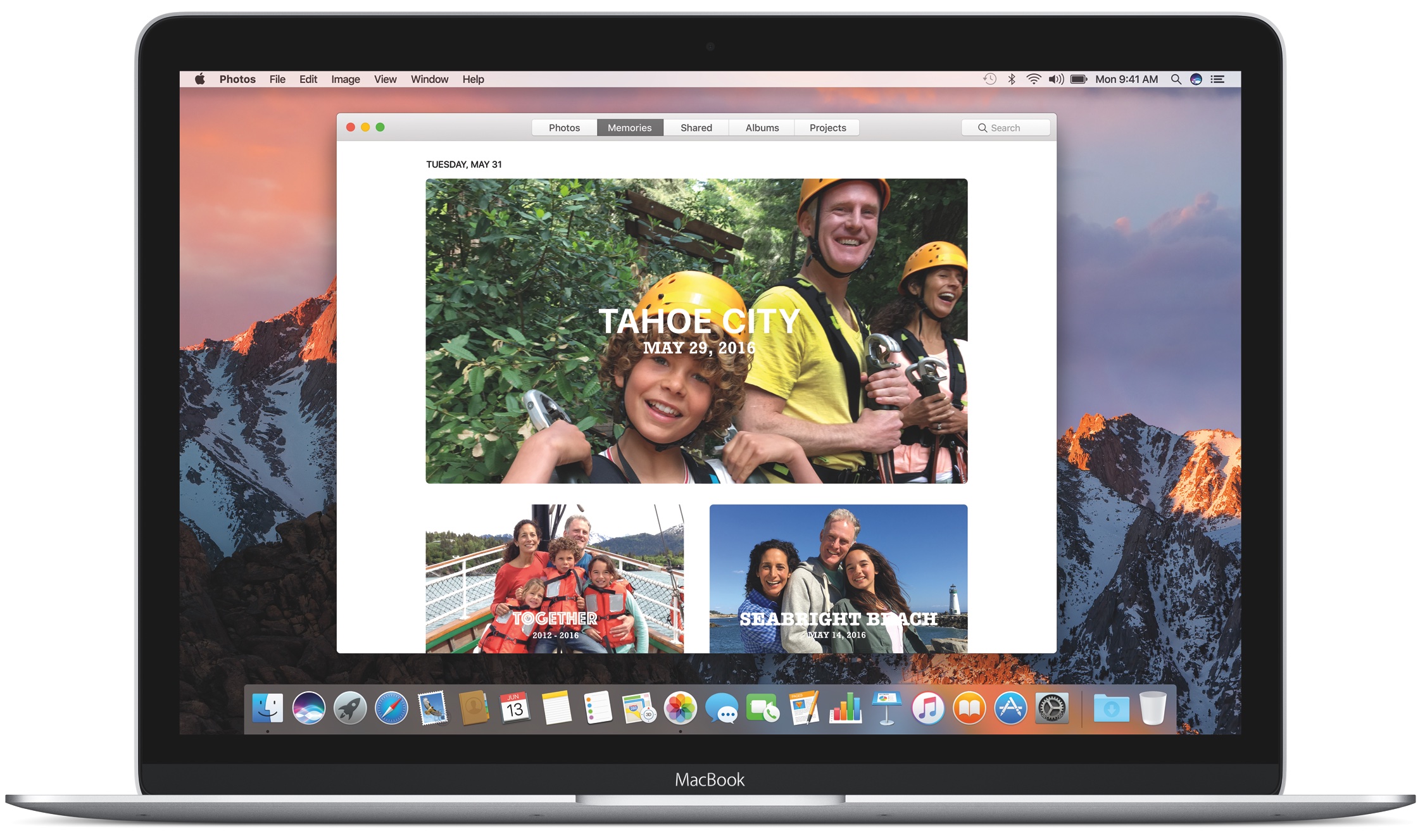
During his WWDC 2016 keynote segment, Apple's software boss Craig Federighi briefly flashed a slide listing Mac models that will be able to run the operating system out of the box when it releases publicly this fall (the macOS Preview webpage does not yet mention anything in terms of the minimum system requirements for the new OS).
It seems that Macs manufactured in 2008 and older models won't be eligible for the new OS. But if your Mac is not on Apple's list, an unofficial option might allow you to run macOS Sierra anyway, with some caveats.
Photoshop maker Adobe today announced availability of a major update to its Creative Cloud suite of applications, which brings out the previously previewed content-aware crop in Photoshop, performance enhancements across Creative Cloud, new features in Adobe Stock, and various updates to other apps in the suite.
Want to forward delete on Mac rather than delete the text backward? In this tutorial, we’ll show you how to delete text from left to right (instead of the usual right to left) with a couple of simple keyboard shortcuts.