iPad

From the latest news to the most comprehensive tutorials, learn how to get the most out of your iPad with our step-by-step guides and expert tips.

Explosion Occurs at iPad Factory, Apple and Foxconn Comment

I hate to be the bearer of bad news, but it looks like there's been an accident at Apple's manufacturing partner, Foxconn's Chengdu, China factory. At this point details aren't completely clear but it seems the explosion at the factory plant unfortunately caused sixteen injuries and two deaths.

The Chengdu plant opened up last year in an effort to increase production of Apple's iPad tablet. The explosion reportedly occurred at 7pm Chengdu time yesterday. Foxconn states that they are working with security officials to find out exactly what caused the accident. Both Apple and Foxconn have released statements regarding the explosion... 

iPhone 4 Wins “Display of the Year” Award

We all love the iPhone 4's brilliant retina display. When Apple introduced their ground-breaking, 640x960 display during the iPhone 4's launch event, the rest of the mobile display market was left in the dust. After all, how can you compete with a screen that matches the same pixel density perceivable by the human eye?

Besides the obvious appeal to consumers, the retina display has also garnered Apple the "Display of the Year Gold Award" from The Society for Information Display...

iPad Survives Getting Run Over by a Car, Thanks to Extreme Sleeve

Remember that iPad case that we showed you earlier this year called the Extreme Sleeve? Let me give you a quick reminder. G-Form, a company well known for their extreme sports protective gear has ventured into the portable electronic arena. They have made protective gear for MacBooks and other laptops, and they now have one for the iPad.

Their G-Form Extreme Sleeve has been grabbing headlines over the last few months, as the G-Form team has gone through great lengths to prove its durability. They've dropped bowling balls on their Extreme Sleeve-covered iPads and have even dropped one out of an airplane. Each time the iPad has emerged unharmed.

When we previously reported on the product it was not available yet, but it promised to start shipping May 2nd of this year. Well it looks like the Extreme Sleeve is starting to make its way to user's hands, as a new video from Mobile Syrup puts the Sleeve through its own durability test. Is the Extreme Sleeve tough enough to protect an iPad from being run over by a car? Let's watch.

http://www.youtube.com/watch?v=yrLNVcYz6ZM

Though the video stops playing, the iPad appears to be just fine. Now that these G-Form Extreme Sleeves are available to the masses, I'm guessing this isn't the last we've seen of these extreme iPad survival videos. I'm sure G-Form is loving the free viral advertising.

What do you think?

How to Jailbreak iPad 4.3.3 with RedSn0w [Tutorial]

Three days ago, we told you that Apple released a new version of their iOS firmware. This update was specifically released to patch the location bug that made everyone so nervous.

We warned both original iPad and iPad 2 owners to avoid updating until we had official word from the jailbreak community that it was ok. We now have confirmation that iOS 4.3.3 is indeed susceptible to the current exploit.

Earlier today, the Dev Team released updated versions of their jailbreak software. Now both PwnageTool and RedSn0w have the ability to hack Apple's new iOS 4.3.3. If you have an original iPad and have been dying to update it to get rid of the tracking file, check out this step by step tutorial:

This jailbreak is only for the original iPad, if you have an iPad 2 click here.

Step 1: Make sure your iPad is on the latest 4.3.3 firmware. It's also a good idea to make sure you are using the latest iTunes.

Step 2: Download RedSn0w 0.9.6.RC15 and iOS 4.3.3 for your iPad from here. I always recommend downloading everything to your desktop to help keep track of things.

Step 3: After launching RedSn0w, find the firmware you just downloaded, and click next. You'll then be given options like customizing your boot logo, once you've selected what you want, click next.

Step 4: Make sure your iPad is off and connected to your computer. Then just follow the instructions to get your iPad into DFU mode.

Step 5: Once you are successfully in DFU mode, RedSn0w will start its magic. This can take a while, but after it's done your iPad will restart.

You should now see the Cydia icon on your home screen, enjoy.

Any questions?

iPad holds 82% of the U.S. Tablet Market

Remember back when Apple announced the original iPod? Though there were portable MP3 players available before it, there was something about Apple's design that attracted consumers. Apple has since held a firm grip on the portable media player market, and it looks like their iPad is destined for the same fate.

When Apple's original tablet launched in early 2010, there were certainly mixed reviews. But it seems as though the consumers outnumbered the critics, as the Cupertino company's first entry in the tablet market flourished.

Their second model was even more successful. Folks gathered all around the world to wait in line for a chance to buy the iPad 2. In fact, just yesterday I was at my local Apple Store and asked a clerk what their iPad 2 stock looked like. He mentioned that they get them nearly everyday, but there is generally a line outside and they sell out quickly. A line, 2 months after it was released?

Having known all of the previous, it didn't shock me too much when I saw a report from the Nielsen company on AppleInsider today. The survey of tablet owners found that the iPad currently has an 82% market share of tablets in the U.S. The closest competitor was the Samsung Galaxy Tab with a 4% market share.

The questionnaire also determined that half of the iPad users owned a 3G model, and half of all tablet users didn't share their tablet with anyone else. I thought it was interesting that nearly 80% of the users reported using their tablets for actions which they would have previously used a computer for. I guess that's why companies like Acer are so nervous.

Although we've played devil's advocate on the blog from time to time, we are certainly fans of our iPads. Apple didn't sacrafice design, battery, and reliability for 4G, and they didn't risk size for things like USB ports. But with a commanding lead in the tablet market, in the U.S. anyways, the Cupertino company is obviously doing something right.

What do you think?

iOS 4.3.3 Just Went Live, Jailbreakers Stand Down

If you've been living in a cave the last few weeks, you may have missed all of the controversy involving Apple's iOS. A research team uncovered a hidden file deep within Apple's mobile operating system, that kept a record of users' travels. When they broke this information to the public, a lot of curious folks turned to Apple for answers.

The secret file was just a programming glitch, but the public has a tendency to be really concerned about their personal privacy. In the wake of the discovery, Apple decided to patch the bug in a new firmware update, which just went live a few minutes ago.

Original iPad owners who are jailbroken and iPad 2 owners that hope to jailbreak in the future should avoid upgrading to the new firmware. As with any new software update, Apple could have patched the exploit that the current jailbreak is using, and you could be stuck with stock iOS for a while.

Although a jailbreak for the iPad 2 has not been released yet, owners of Apple's latest tablet are encouraged to stay away from the new software as well.  There are members of the Chronic Dev team and others that currently have jailbroken iPad 2s, the exploit is just not ready for the masses. Updating your firmware could disqualify you from the possibility of a future jailbreak.

iOS 4.3.3 was specifically released to erase the file that was recording locations. While I don't think we'll see any surprises in this update, I would still recommend holding off until we have official word from the community that it's safe. We'll keep you updated.

Are you more worried about Apple's location bug or your jailbreak?

GarageBand Running on the iPhone 4

Thanks to a new hack for running iPad apps on the iPhone, someone has been able to successfully run GarageBand on the iPhone 4. GarageBand is a relatively new addition to iOS that was introduced alongside the iPad 2.

Although the App Store's GarageBand is specifically designed for the iPad, it can also be hacked to run on a jailbroken iPhone.

The app seems to function pretty well once ported. The guy says he used OpenSSH to change the app's underlying metadata so that it would run on the iPhone.

There are some obvious scaling and interface issues, but this is still a cool experiment to check out. You can do this yourself through the magic of OpenSSH on a jailbroken iDevice, you just need the right information.

Apple will probably make GarageBand a universal app in the future. It's going to be really interesting to see how the iWork suite (Pages, Numbers, Keynote) work on the iPhone through this method.

What do you think of GarageBand running on the iPhone 4? Pretty cool, huh?

[9to5Mac]

How to Run iPad Apps on the iPhone

Did you know that you can run iPad apps on the iPhone? If your iPhone is jailbroken, there's a new way to run iPad-specific apps on the iPhone and iPod touch.

It's been technically possible to port iPad apps to the iPhone for quite some time, but not until now has it become a relatively straightforward process.

First Lawsuit Filed For iPhone Location-Tracking Debacle

I had a feeling this was coming. The very first lawsuit has been filed against Apple for the highly controversial tracking of location data from the iPhone and iPad.

According to Bloomberg, a lawsuit was filed against Apple on April 22nd in Tampa, Florida, at a federal court by iPhone user, Vikram Ajjampur, and iPad user, William Devito. The two iDevice users claim that Apple has been surreptitiously tracking the location of iPhone and iPad owners.

They claim to have filed the lawsuit in an effort to stop the alleged data collection by Apple. 

How to Jailbreak iPad 4.3.2 with PwnageTool

Just like RedSn0w earlier this week, PwnageTool has been updated to support the new firmware 4.3.2 for iOS. As previously stated, there wasn't much reason for folks on the original iPad to update to this latest software.

But for the people that did, PwnageTool is recommended to jailbreak your iPad. It is simple and about as solid as it gets when it comes to jailbreak applications. If you've never done this before, or need a quick refresher, check out the tutorial below.

If you are looking for reasons to hack your iPad, check out our article, The Top 5 Reasons to Jailbreak here.

Important note: PwnageTool is for Mac OS only, for those that use Windows and want to jailbreak, check out our RedSn0w tutorial. Again this jailbreak is only for original iPads, the iPad 2 has not yet been jailbroken.

Step 1. Obviously make sure your iTunes is up to date and your iPad is on the latest firmware (4.3.2). You're also going to need to download the latest version of PwnageTool from here.

Step 2. It's a torrent, meaning you'll need a client like uTorrent to open the file once it's downloaded. After it's installed, open it up and select iPad and Expert Mode and click next. Browse to HD/Users/$urname$/Library/iTunes/iPadSoftwareUpdates and select the 4.3.2 firmware.

Step 3. If PwnageTool likes the firmware you picked, it'll take you to a menu where you can tweak the jailbreak. If you choose Cydia packages, you can preinstall tweaks and apps so when the jailbreak gets loaded onto your iPhone, its already set up.

Step 4. Once you are done tinkering, select the build option and click next. This is where PwnageTool does its magic. It'll take a bit, so be patient.

Step 5. After the custom firmware is done building, PwnageTool will have you put your iPad in DFU Mode, but don't worry, the software walks you through this.

Step 6. If you do it successfully, iTunes should recognize that you have a device plugged in and ask you to restore. Hold down the Option key while clicking restore to get the option to choose your custom firmware. Once it installs, your iPad reboots and you are finished!

Any questions?

Dev Team Releases PwnageTool to Jailbreak iPads on 4.3.2

Apparently the Easter Bunny left something else in our baskets last night besides eggs and candy. The notorious iDevice hackers released an update late yesterday to their PwnageTool software to successfully jailbreak 4.3.2 firmware.

For those who haven't been paying attention to the recent software updates, Apple pushed out 4.3.2 a few weeks ago to correct the iPad 2 Verizon 3G issues. While most original iPad users haven't had a reason to upgrade, some have by either accident or design.

The PwnageTool software has been a staple in the jailbreak community for years, and is usually the most reliable out of all the software options. The Dev Team are well known for not releasing exploits until they've worked out all the bugs.

iPad 2 owners, there's still no word on the jailbreak for Apple's latest tablet. Hackers like p0sixninja have tweeted that this is the slowest progressing jailbreak they've ever seen.

For those who are looking to hack their original iPads with 4.3.2 software, sit tight. We will post an easy step by step tutorial on how to jailbreak your original Apple tablet with the latest firmware shortly.

Kick it Old School with SNES on Your iPad

Console emulators have been around the jailbreak scene for a long time. Those that aren't familiar with emulators, they basically allow you to play copies of console games, while not on that console.

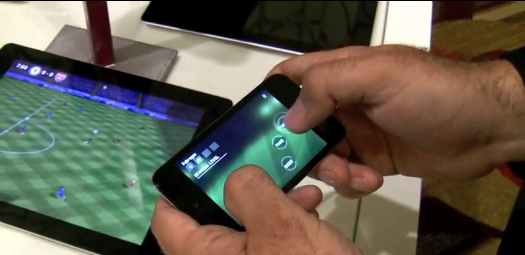
SNES HD turns your jailbroken iPad into a Super Nintendo system. Not only that, it allows you to connect up to 2 other iDevices to use as controllers.

It's free, and all you need is a jailbroken iPad and iPhone or iPod touch. Wanna try it out? I'll give you an easy tutorial to get you started.

Step 1. Make sure you have a jailbroken iPad and iPhone or iPod touch (both devices must be jailbroken).

Step 2. Open Cydia on both iDevices, and go to the Sources tab. Add the following source by selecting Edit > Add : http://wherethewoozlewasnt.com/cydia/

Step 3. After the sources are done loading, you need to install SNES (HD) on your iPad and ControlPad onto your iPhone/iPod touch. Both apps can be found by searching for them in the Cydia Search tab.

Step 4. Almost done! Make sure bluetooth is activated on both devices, and load up the downloaded applications. You should see an SNES console on your iPad, and an SNES controller on your iPhone.

Step 5. If the controller doesn't connect right away, touch the bluetooth search icon. Once paired, press the power button to start your game!

If you are wondering why you don't have any games, it's because it doesn't come with any. Console games are copyrighted, and it is illegal to host or download them. And we certainly don't condone piracy.

There are, however, several websites that do offer them, but clearly state that you must have the original game in your possession. These copies of the game are known as "backup copies" which are legal to have, I've read.

If you can stomach the pain of locating games, it really is quite worth it. Games are surprisingly playable on the iPhone's touch screen. You can race against a buddy in Top Gear, or take them on in Street Fighter. That's it, now your kicking it old school.

Any questions?