iOS

How to redeem iTunes or Apple Music gift cards

If you don't set up one of the supported payment methods for your Apple ID, you won't be able to upgrade your iCloud storage or buy music, movies and TV shows from iTunes Store, apps from App Store and Mac App Store, books and audiobooks from iBooks Store and more.

That's where an iTunes or Apple Music gift card should come in handy.

Upon redeeming, the amount shown on the card is added to your Apple ID in the form of good-as-cash credit that can be used for each purchase you make in Apple's content stores.

In this tutorial, you'll learn about the types of gift cards Apple supports, how they should be used, as well as how to redeem your iTunes or Apple Music gift card and apply the credit toward an individual Apple Music membership or to top up your Apple ID balance.

About iTunes and Apple Music gift cards

iTunes gift cards and Apple Music gift cards can be purchased from Apple, PayPal, Amazon, eBay, Best Buy and a number of other retailers. iTunes gift cards typically come in $25, $50 and $100 denominations. Apple Music gift cards are currently available in $30 and $100 denominations for three or twelve months of service, respectively.

You can buy them in physical form for delivery via mail or opt for a digital gift card, in which case your redemption code will be delivered straight to your inbox.

The 16-digit redemption code is hidden underneath the label on the card's back.

The redemption code always starts with an “X”.

The redemption code may appear in different places on the back of your card.

Redeeming an iTunes gift card adds store credit to your Apple ID.

Store credit is used for each purchase you make in iTunes Store, App Store or iBooks Store until it's gone. iTunes billing system always uses your store credit first, as long as the value of the item that you're buying is less than or equal to the value of your credit balance.

If you don't have any store credit left, the payment method that you designate when you sign up for an Apple ID is charged for the entire purchase.

You can use your store credit to buy the following items:

Apps from App Store and Mac App Store In-App Purchases Songs, albums, movies, TV shows and more from iTunes Store Books and audiobooks from iBooks Store iCloud storage

Store credit cannot be used to purchase more gift cards or iTunes Gifts.

NOTE: Some purchases might require that you have a credit card on file, even if you're using your credit balance to make the purchase. For instance, you must have a credit card on file in order to use store credit to pay for your iCloud storage upgrades.

You cannot use store credits for:

App gifting—When you gift an app or media item to someone else the payment method on file is always billed for the entire purchase, not the store credit. Family Sharing—You cannot share your store credit with other family members.

Even if a Family Sharing member buys something and the family organizer has store credit on their account, the item cost is still billed to the organizer's payment method on file rather than being deducted from their store credit.

TUTORIAL: How to gift apps

If a Family Sharing member with a credit on their account buys something from Apple's content stores, the amount is billed to their own account unless there's a remainder, in which case it bills to the family organizer's payment method.

You can use the credit from your Apple Music gift card to:

Sign up for a new Apple Music membership Extend your Apple Music membership by the number of months shown on the card Credit the amount to your Apple ID, like an iTunes gift card

Read Apple's support document for more on how iTunes Store purchases are billed.

How to redeem iTunes or Apple Music gift cards on iPhone and iPad

1) Open iTunes Store, App Store or iBooks on your iOS device.

2) In iTunes Store, App Store or iBooks, tap the Featured tab, then scroll to the very bottom of the screen and tap the Redeem option.

3) Sign in with the Apple ID that you use for iTunes Store or Apple Music purchases.

Tip: You can quickly get to the redeem feature by visiting the link below on your Apple device:

To redeem an iTunes gift card, follow this link To redeem an Apple Music gift card, follow this link

TIP: If your device has 3D Touch, you can press the iTunes Store or App Store icon and select the Redeem option from the Quick Actions menu on your Home screen.

4) Choose whether you'd like to type in your code manually or have the card scanned:

Scan the redemption code—If you have a physical gift card with a box around the code, use this option to redeem it via your built-in camera. Tap Use Camera, then hold the back of the card up to your iPhone's camera until it scans the code. Only gift cards with a focus box around the redemption code are redeemable via a camera. This feature is not available in all countries and regions. Type in the redemption code manually—Tap the field labeled ”You can also enter your code manually”, then peel off the label on the back of the card and type in the redemption code or paste the code from your purchase confirmation email.

When you redeem an iTunes gift card, your updated store balance appears onscreen. An error message appears if you try to redeem a gift card that's already been used.

Upon redeeming an Apple Music gift card, you're given the choice between topping up your iTunes store credit or using the code toward an individual Apple Music membership.

This is what happens if you choose to use the code for your Apple Music membership:

Apple Music members—Applying the credit to your ongoing membership extends your date of renewal by the number of months shown on the card. Apple Music non-members—Applying the credit signs you up for a membership.

If you've never been an Apple Music member, you can still get your free three-month trial in addition to the number of months your Apple Music gift card card is worth.

5) In the upper-right corner, tap Done to finish the process.

If you'd like to redeem another iTunes or Apple Music gift card, tap Redeem Another Code.

TIP: If you received your gift card via email, click the Redeem Now link in the email.

To get information about your iTunes Store or Apple Music balance:

iTunes Store balance—You can find your store balance underneath your Apple ID at the bottom of the Featured tab in iTunes Store, App Store or iBooks on your iOS device. Apple Music balance—To view your Apple Music membership, go to Settings → [your name] → iTunes & App Store and tap your Apple ID at the top of the screen. Tap View Apple ID, then Subscriptions. From the list, choose the subscription that you want to see more information about.

Your account balance automatically updates in iTunes Store, App Store and iBooks Store after redeeming the card. If your store credit does not update automatically, sign out and back in on all of your devices for it to refresh properly.

How to redeem Apple Music gift card in iOS Music app

1) Open the Music app on your iOS device.

2) Switch to the For You tab at the bottom of the screen.

3) Tap your profile image in the upper-right corner.

4) Tap the Redeem option.

5) Use your iPhone to scan the redemption code on the back of the card or enter it manually, then tap Redeem to continue.

7) Tap Done when finished redeeming the code.

How to redeem Apple Music gift card on Android

1) Open the Apple Music app on your Android device.

You can download Apple Music for Android free from Google's Play Store.

2) Tap tap the Menu icon in the upper-left corner.

3) Tap your Apple ID.

4) Tap Redeem.

5) Enter the code from the back of the card, then tap Redeem again.

An error message will appear if you try to redeem a card that's already been used.

How to redeem iTunes or Apple Music gifts card on Mac and Windows PCs

1) Open iTunes on your Mac or Windows PC.

2) Choose Music, Movies, TV Shows or Apps from the popup menu near the top-left corner, then click the Store tab near the top of the screen.

3) Click the Redeem link under the Quick Links heading on the right side.

Tip: Alternatively, choose the Redeem option from iTunes' Account menu.

To get to the Redeem feature faster, visit the link below on your computer:

To redeem an iTunes gift card, follow this link To redeem an Apple Music gift card, follow this link

4) Enter the password for the Apple ID you use for iTunes Store purchases or your Apple Music membership, then press the Return or Enter key on your keyboard, or click the Sign In button.

5) Choose how you'd like to redeem the code on the card:

Scan the redemption code—Use this option to redeem a physical card via your Mac's built-in camera. Click the Use Camera button, then hold the back of the card up to the FaceTime camera until it scans and redeems the code. Only gift cards with a focus box around the code are redeemable via a camera. This feature is not available in all countries and regions. Type in the redemption code manually—Click inside the field labeled ”You can also enter your code manually,” then type in the redemption code from the back of the card or paste it from your purchase confirmation email.

6) Click Redeem to continue.

You'll be asked if you'd like to apply the credit toward your individual Apple Music membership.

If not, select the option Use Credit for iTunes or App Store to add the amount shown on the card to your Apple ID store balance like a regular iTunes gift card.

Your updated store balance appears onscreen.

7) Click Done to finish redeeming the card.

To redeem an iTunes gift card in iBooks or App Store on your Mac:

iBooks—Open the iBooks app from your Dock, Launcher, Spotlight or the Applications folder. In the upper-left corner, click the iBooks Store button, then click the Redeem link underneath the Quick Links heading on the right side. App Store—Open the App Store app from your Dock, Launcher, Spotlight or the Applications folder. Click the Featured tab at the top, then click the Redeem link underneath the Quick Links heading on the right side.

An error message appears if you try to redeem a card that's already been used.

Related tutorials

You may find the following how-tos useful:

How to gift iTunes or App Store credit on iPhone and iPad How to redeem iOS app promo codes How to redeem Apple TV app promo codes Redeeming iTunes gift cards with iPhone's camera Redeeming iTunes gift cards with Mac's camera That's all, folks!

If you have a question, post a comment below and we'll do our best to answer it. Please share this tutorial on social media and pass it along to the folks you support.

Submit your ideas regarding future coverage via tips@iDownloadBlog.com.

This tweak also clears app icon badges when clearing notifications from Notification Center

One of the pet peeves I’ve always had as an iOS user is that when I clear notifications from Notification Center, the badges remain on the Home screen app icons, requiring me to manually dismiss the badges after I already went through the process to dismiss the notification in Notification Center.

A new free jailbreak tweak dubbed Pigeon by iOS developer ridn eliminates this tedious problem by automatically updating the icon badge number after you cleared notifications via Notification Center.

Tinc adds a splash of color to Control Center and Notification Center

If you like adding personalization on your jailbroken device, then sometimes it’s the simple things that stand out the most. Subtly changing UI colors so they don’t overpower the whole interface or user experience is just one example of this concept.

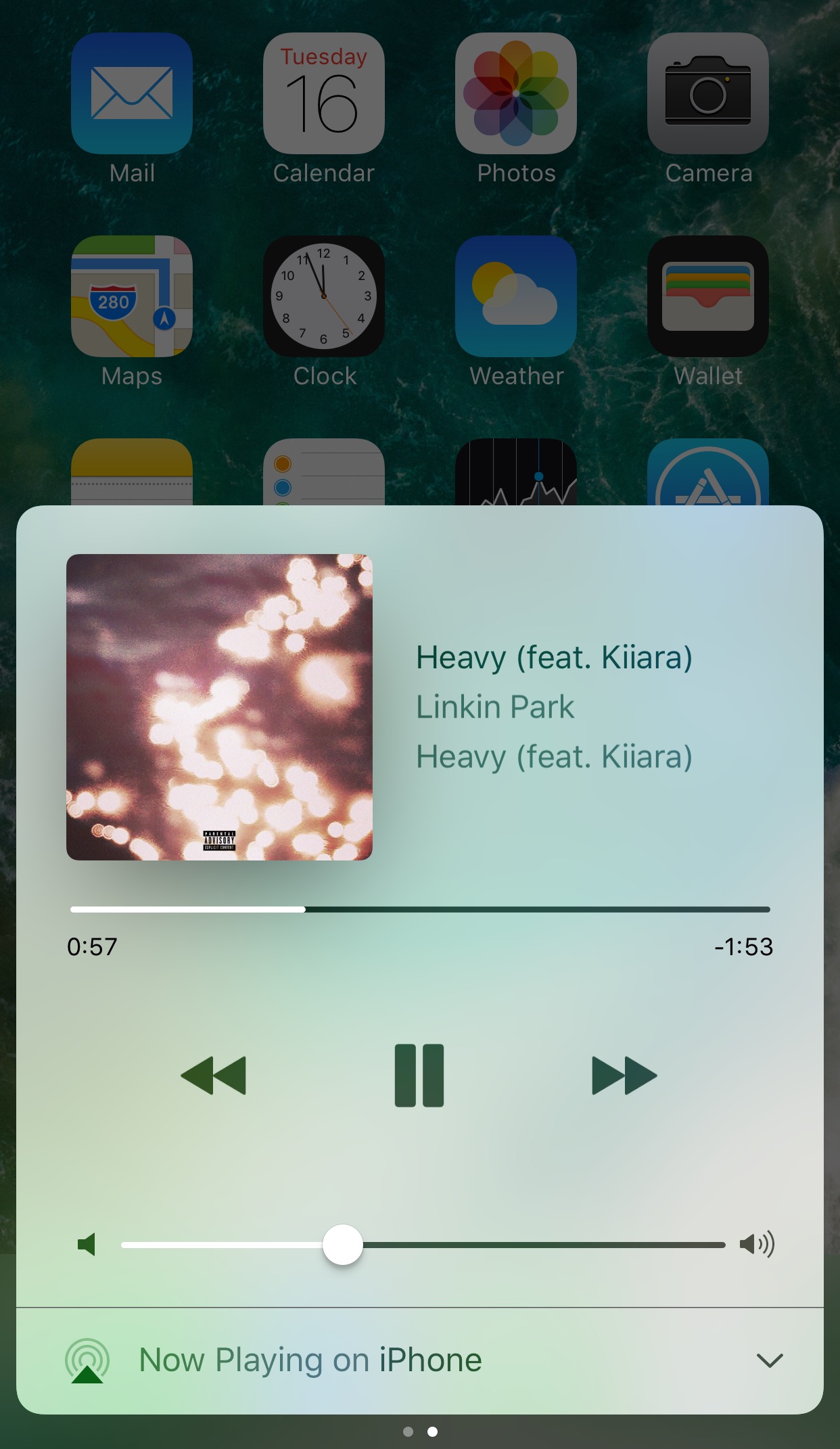
A new free jailbreak tweak called Tinc by iOS developer ridn lets you tint the interfaces of Notification Center and/or Control Center in iOS any color you like, and is a testament too subtle customization.

Hypeman announces Now Playing changes by voice or banner notifications

If you ever listen to radio apps or random playlists that you didn’t create, then you’re probably familiar with how it feels when you can’t quite figure out what’s playing; a real buzzkill when you like the beat and want to save the song for later.

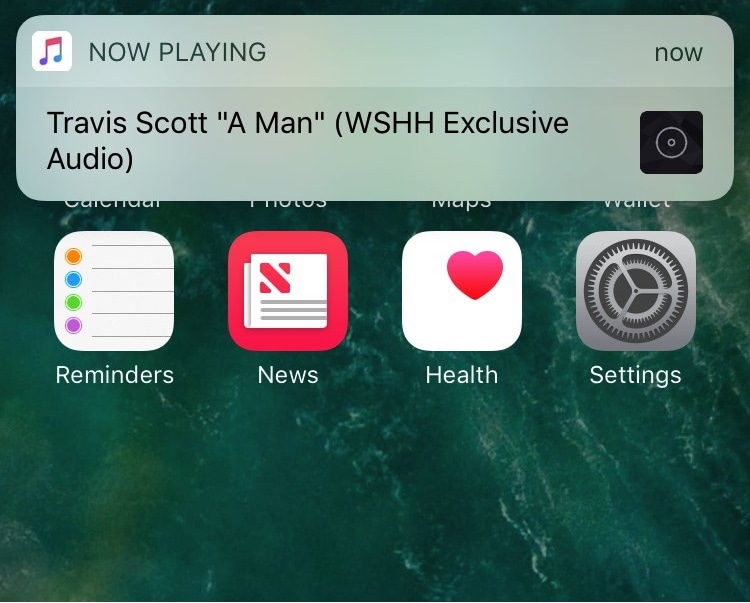
A new free jailbreak tweak dubbed Hypeman by iOS developer ridn can help in this regard, as it keeps you in the loop with song information every time the Now Playing track changes.

Colorize your notification banners with Cheader

Banner notifications throughout iOS 10 are bland, lacking any visual appeal whatsoever. On the other hand, a new free jailbreak tweak dubbed Cheader by iOS developer ridn aims to fix that.

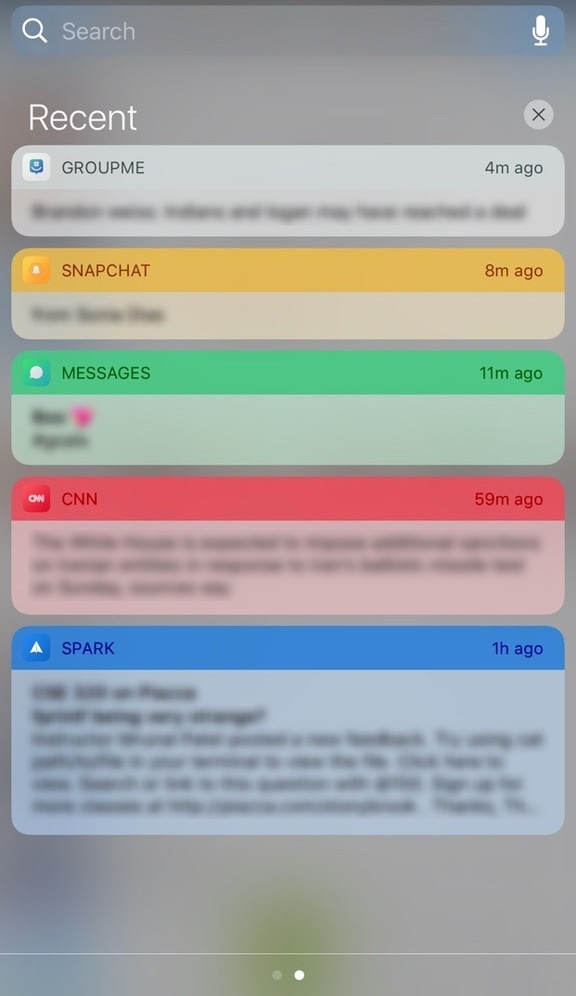
Once installed, Cheader automatically colorizes your notification banners based on the dominant color found in the icon of the app that delivered the notification.

iOS 11 concept imagines new productivity features for iPad

Apple is going to preview iOS 11 along with other OS updates at its annual developers conference next month and we fully expect the mobile operating system to include advances that should make the Apple tablet a better laptop replacement than it currently is.

In the meantime, Federico Viticci and Sam Beckett of MacStories have put together an incredibly detailed concept of iPad-specific features that could be part of iOS 11, including the Finder, a new Shelf feature, drag-and-drop available system-wide and other perks.

With the Shelf feature, you would be able to clip pretty much anything with a simple drag-and-drop gesture. Sitting above apps both in full-screen or Split View mode, it would reveal itself automatically when you're dragging an item towards the top of the screen.

The Shelf would display your previously saved items as thumbnail previews and you'd be able to drop an item on top of another item to create a folder in the Shelf.

“The idea behind the Shelf is to make it as effortless as possible to hold something for later without the cognitive load of deciding which app or extension should receive it right away.”

The Shelf would be paginated and local to each iPad.

You'd be permitted to drop almost anything in it: from text selections and images to phone numbers and even songs. Tapping an item in the Shelf would pull up a custom Quick Look preview with additional information and actions relevant to the selected item.

And here's the concept video.

https://www.youtube.com/watch?v=UyFUDQ5LLZw

Next up: file management.

As you know, Apple currently offers the iCloud Drive app for browsing your iCloud files.

MacStories has envisioned a Finder for iOS because the argument that iPad doesn't need to expose its filesystem to the user “lost its validity when Apple introduced document providers in iOS 8 and the iCloud Drive app in iOS 9.”

Unlike Finder for macOS, its iOS counterpart would not expose system information beyond the actual files. You'd be able to browse your files in column and grid views, shared items via iCloud with full permission controls, apply tags, use the Versions feature and even take advantage of Siri integration to search across your files.

“All the pieces of the current system—iCloud Drive, the document picker and document providers—should be unified into a single Finder app and system-wide layer available everywhere,” said MacStories.

Instead of having files stored within app-specific folders on iCloud Drive, users would be able to create files in a top-level iCloud Drive view.

As a bonus, rather than list a bunch of installed document provider extensions in a popup, you'd get a full-blown Finder dialog to open files from any folder or app.

MacStories notes:

With a new set of APIs and user permissions, iOS 11 could allow apps to more easily open each other's documents in complex (but intuitive) workflows that aren't possible today.

And, obviously, automation could play a role in this down the road, opening the door to ideas such as folder-monitoring utilities and file automation either via Workflow or Hazel-like apps.

Finder for iOS would integrate with other features that MacStories has envisioned, such as the Shelf and system-wide drag-and-drop, but without the complexity of macOS.

But wouldn't drag-and-drop clash with iOS's standard gestures?

In a word, no. As MacStories explains:

Because drag-and-drop would be fully multitouch-enabled, it wouldn't block the iOS interface: another finger could be used to navigate in a different "drop area" of an app, or a user could keep dragging until the Split View app picker is shown and drop an item onto an app's icon, opening a contextual action menu.

App Store could be redesigned around Apple Music-inspired redesign, as show below.

Apple could even bring aspects of the watchOS interface to iOS and move beyond the static, inexpressive nature of its interface. “Touch-down states for icons and buttons would add useful context to iOS toolbar icons and menus as well,” reads the article.

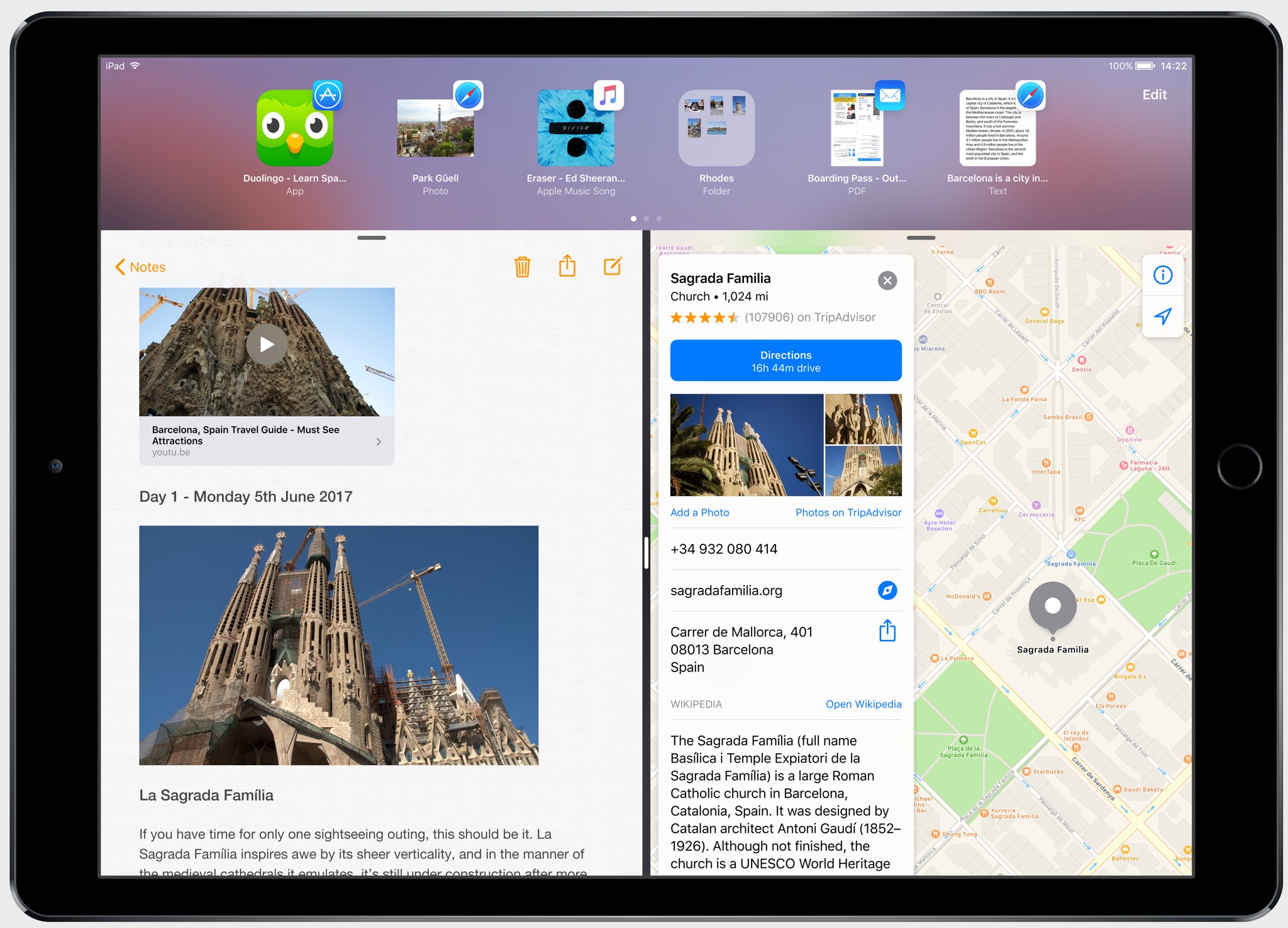
A better Split View implementation is one of my favorite concepts proposed by MacStories for iOS 11. In addition to supporting drag-and-drop between the apps in Split View mode, you'd gain the ability to quickly select an app for Split View by choosing it from a Home screen like view complete with Spotlight integration for surfacing Split View-enabled apps.

Be sure to visit the MacStories concept for additional high-resolution mockups and detailed descriptions of other proposed enhancements, such as improvements to Notes and Control Center, better extension support in Safari and more.

Feel free to let us know your thoughts on this concept by posting a comment below.
PresentPage lets you assign a default Control Center card

Control Center is one of the most useful interfaces you can use in iOS, as it provides you with quick access to toggles, shortcuts, and music playback options from anywhere.

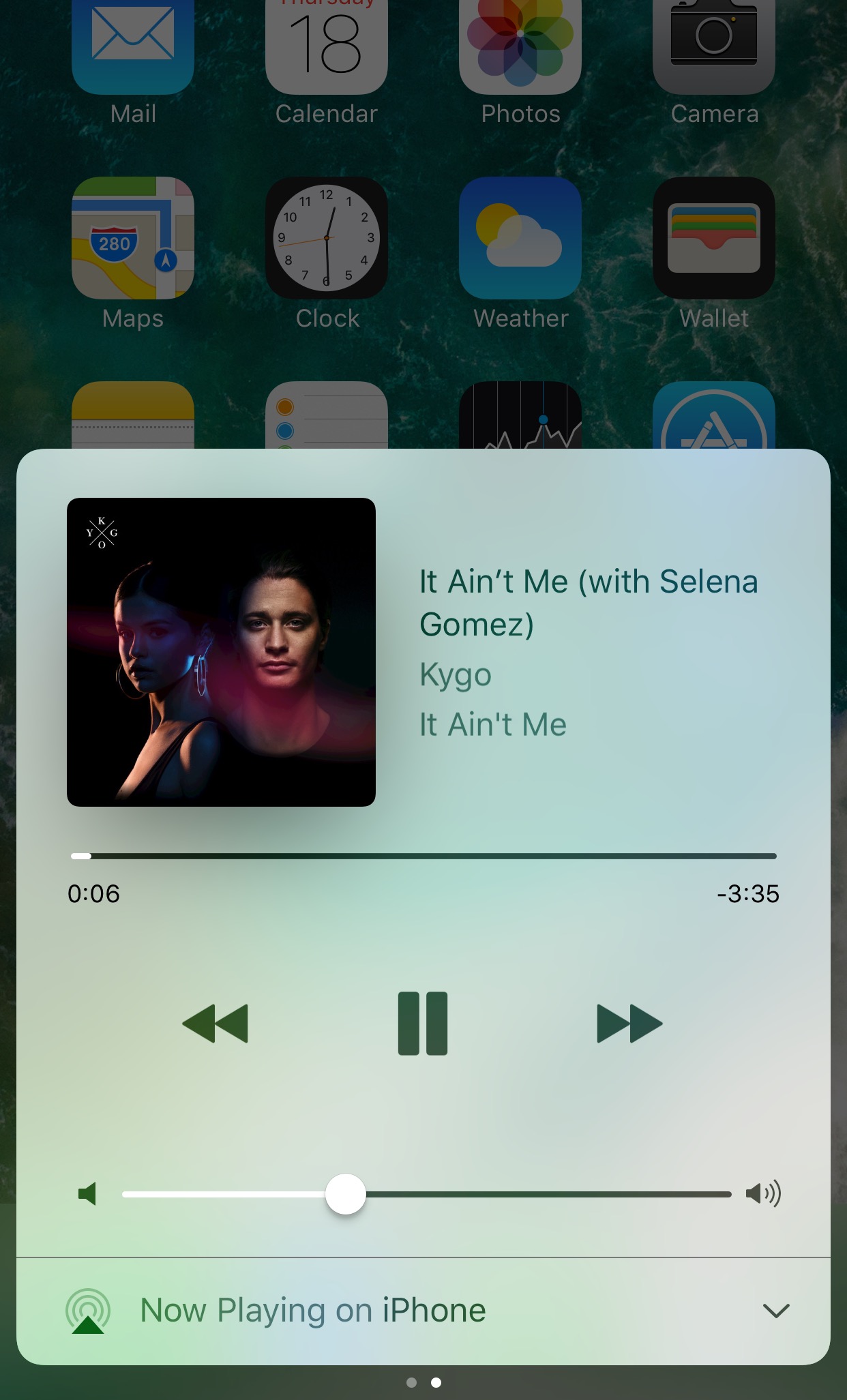
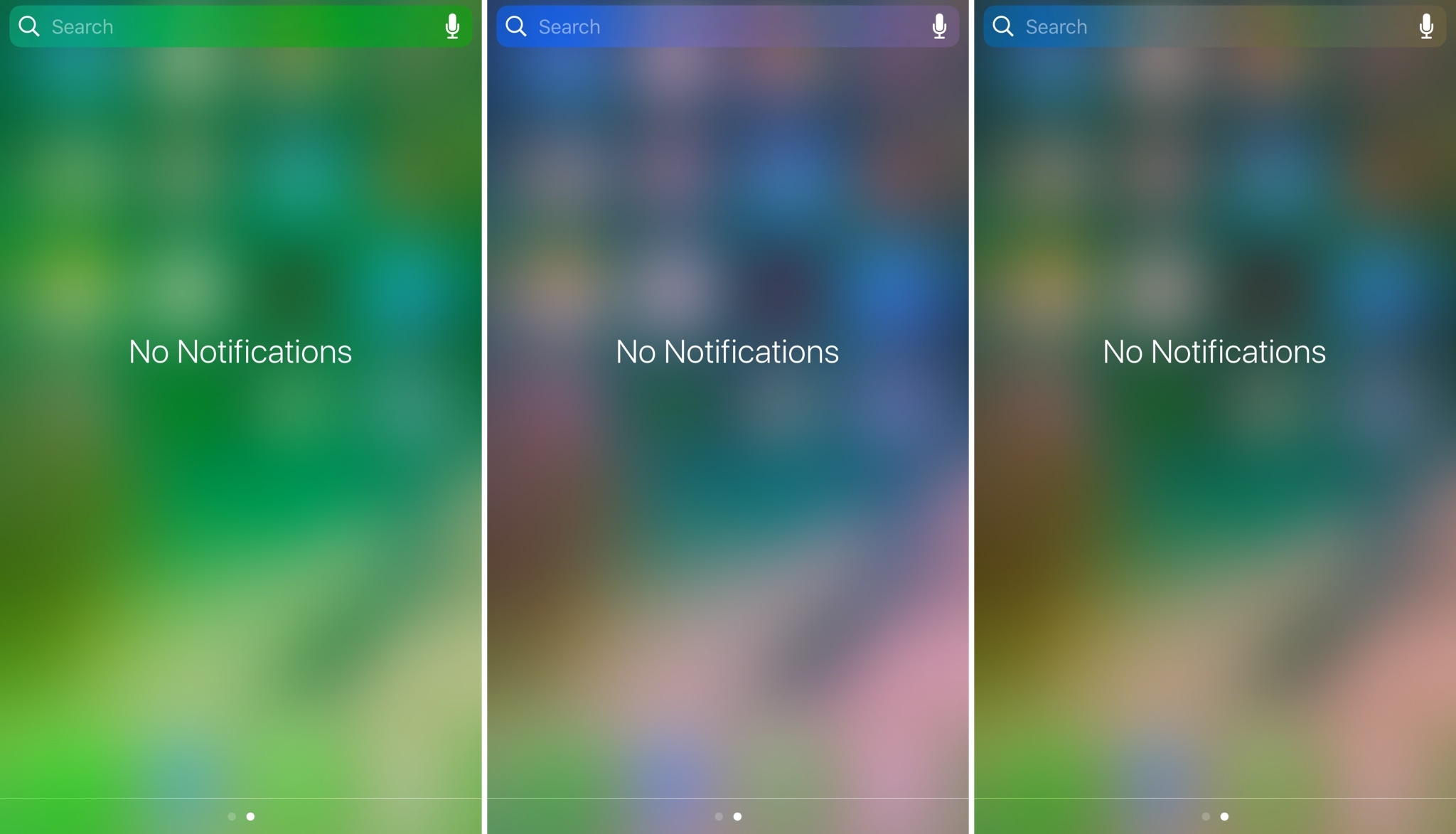
If you ever find yourself using a specific Control Center card more frequently than the other and prefer the interface wouldn't remember the card you used last, then you’d probably like a new free jailbreak tweak called PresentPage by iOS developer Cole Cabral.

Tim Cook talks assistive technologies with Accessibility evangelists

Apple CEO Tim Cook sat down with three YouTubers who are Accessibility evangelists to discuss the importance of the assistive technologies built into the company's iOS, macOS, tvOS and watchOS platforms.

James Rath, a legally blind filmmaker; Tatiana Lee, a model, actress and lifestyle blogger; and Rikki Poynter, a North Carolina-based writer and deaf awareness activist, all published their video interviews with Apple's chief on their respective YouTube channels on Wednesday.

James Rath interview

https://www.youtube.com/watch?v=kXy8KcONTSs

Rikki Poynter interview

https://www.youtube.com/watch?v=t6_iOVSavdE

Cook explained to Poyter what Apple is all about when it comes to Accessibility:

Apple is founded on giving people power to create things, to do things that they couldn't do without those tools. And we've always viewed accessibility as a human right. And so just like human rights are for everyone, we want our products to be accessible for everyone.

He added that accessibility should be a basic human right:

It's a basic core value of Apple. We don't make products for a particular group of people. We make products for everybody.

We feel very strongly that everyone deserves an equal opportunity and equal access. So we don't look at this thing from a return on investment point of view—I've been asked that before. The answer is no, I've never looked at that. We don't care about that.

A lot of these Accessibility features, everyone can use. With HomeKit, I use HomeKit every day and control my house with my voice.

“It’s a basic core value of Apple,” said Cook.

Tatiana Lee interview

https://www.youtube.com/watch?v=58ZZFUDIM0g

Lee's whole video was shot with her iPhone 7 and edited using Apple's new app Clips.

Cook did the interviews to honor Global Accessibility Awareness Day, an initiative that promotes inclusion when it comes to creating products, content and experiences for everyone.

The company is currently highlighting apps on App Store that implement Accessibility features.

Lastly, Apple posted seven inspiring videos showcasing how people with disabilities are using assistive technologies built into iPhone, iPad and Mac. For the full overview of the extensive assistive features built into Apple products, check out its dedicated Accessibility webpage.

IconCert lets you know when your Yalu certificate expires

The Yalu iOS 10 jailbreak, just like the iOS 9.3.3 jailbreak before it, is a semi-untethered jailbreak. This means you must re-sign the jailbreak app after 7 days with Cydia Impactor in order to keep your jailbreak app functioning after a reboot.

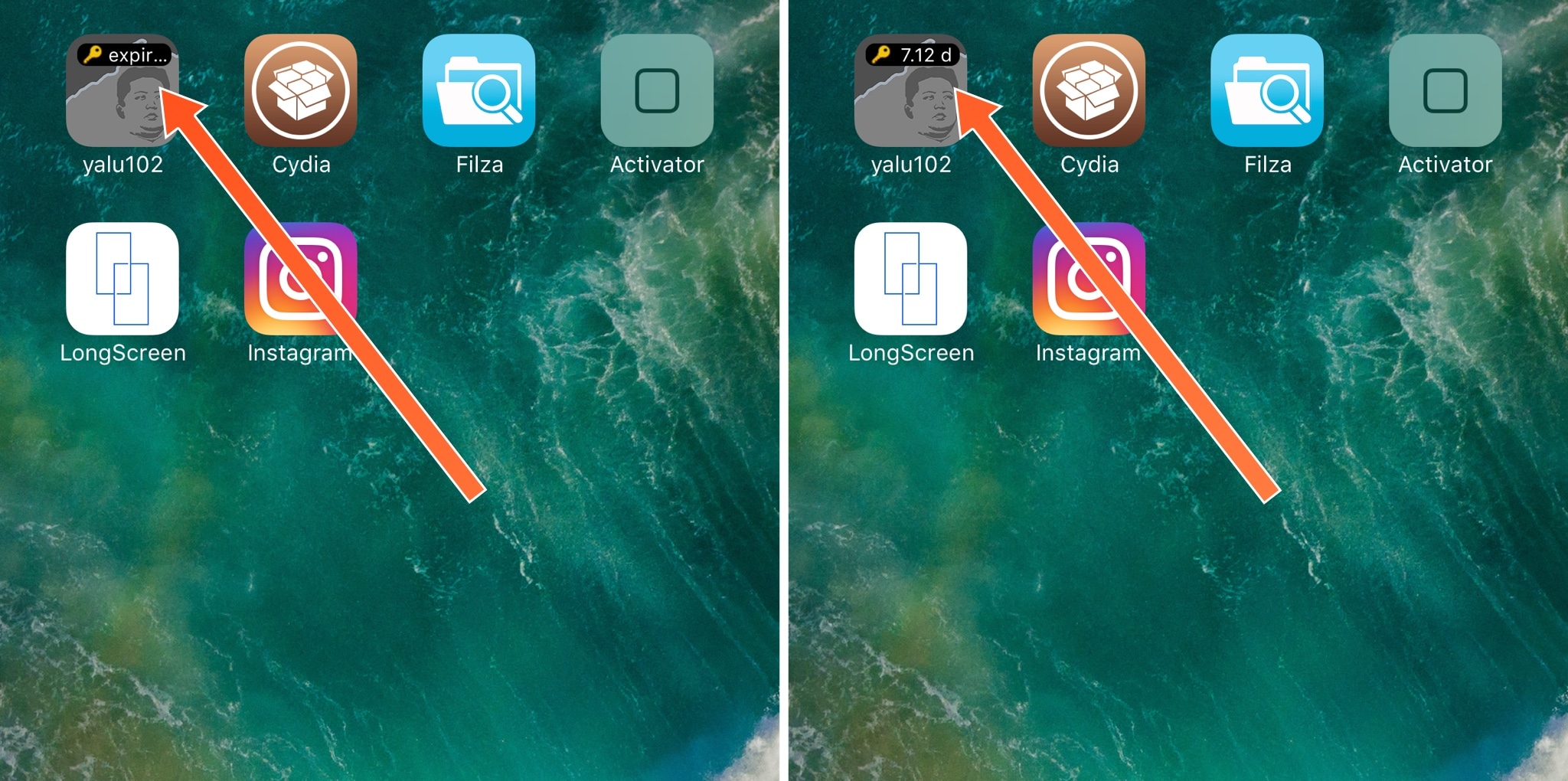
A new free jailbreak tweak called IconCert by iOS developer faz helps you keep better track of your Yalu app’s signing status so you can take the proper action to re-sign it accordingly.