iOS 11

Videos: cool stuff made with ARKit

Eager to learn why Apple's new ARKit framework is such a big deal? Look no further than a new website which offers a hand-picked curation of some of the coolest stuff developers have made thus far with ARKit, via The Loop.

For the uninitiated, augmented reality experiences superimpose computer-generated imagery on top of live video feed of the real world. According to Apple, ARKit uses a technique known as Visual Inertial Odometry to accurately track the world around an iPhone or iPad by fusing camera sensor data with motion data.

“These two inputs allow the device to sense how it moves within a room with a high degree of accuracy, and without any additional calibration,” the company says.

The following videos offer a look at the capabilities of the ARKit framework.

https://www.youtube.com/watch?v=nMd0dIAEJuc


https://www.youtube.com/watch?v=1hvfpxaxGwc


https://www.youtube.com/watch?v=6OV2mBbNtVk


https://www.youtube.com/watch?v=2xrVFDRJ8HQ


https://www.youtube.com/watch?v=R4OeFjZCi9o


https://www.youtube.com/watch?v=OHJRExynkuI


https://www.youtube.com/watch?v=VdaWHv6hmJk


https://www.youtube.com/watch?v=njQSiO2uj0s


https://www.youtube.com/watch?v=Rq2NChZ3c4E


https://www.youtube.com/watch?v=4HY868Jskrc

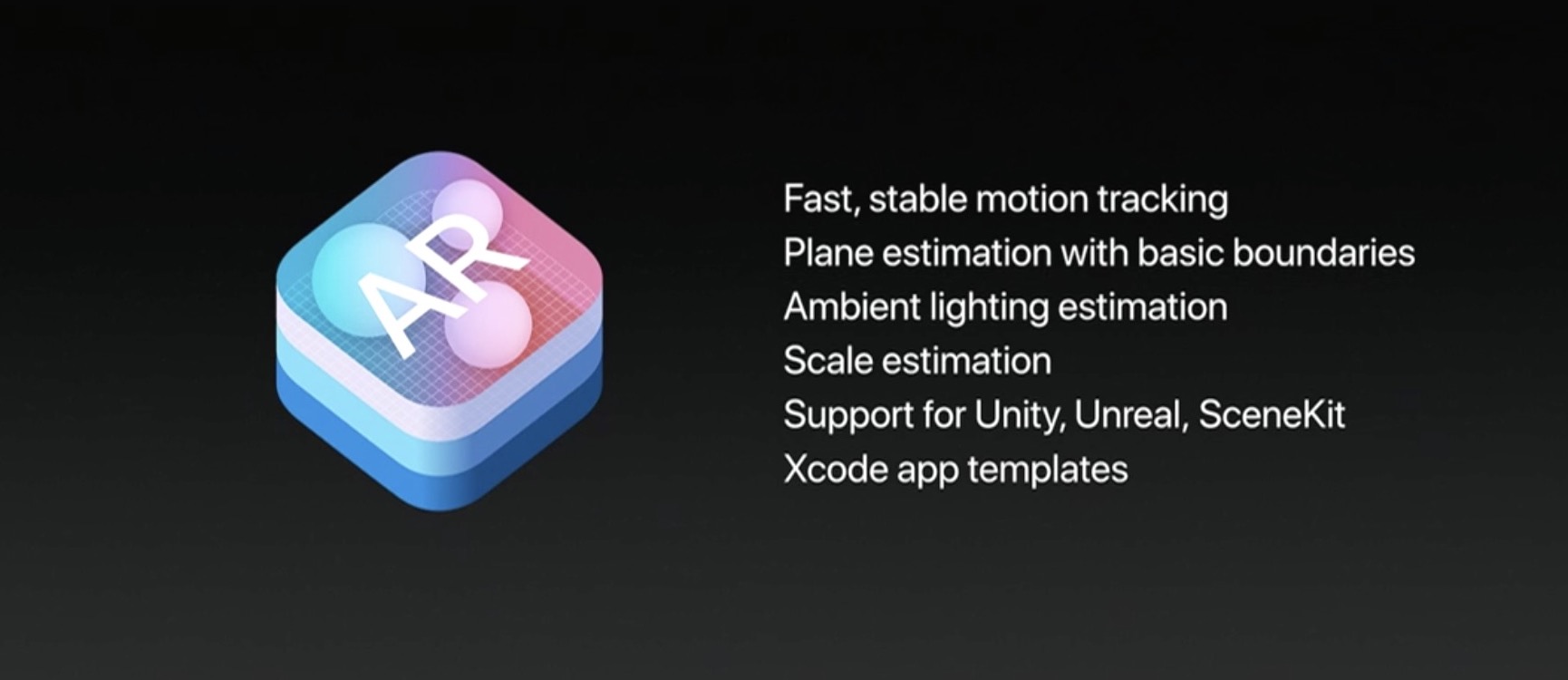
The ARKit framework uses computer vision to determine the layout of your surroundings and automatically find horizontal planes like tables and floors. It can track and place objects on smaller feature points and apply the right type of light to a virtual object in order to match the current lighting conditions in your room.

Ikea is working on an AR app in partnership with Apple that will let users try out furniture in augmented reality before buying it. Apple's WWDC 2017 keynote demos included an upcoming ARKit-driven game, called Wingnut AR, by director Peter Jackson's AR company.

If you like these demos, be sure to follow @madewithARKit on Twitter.

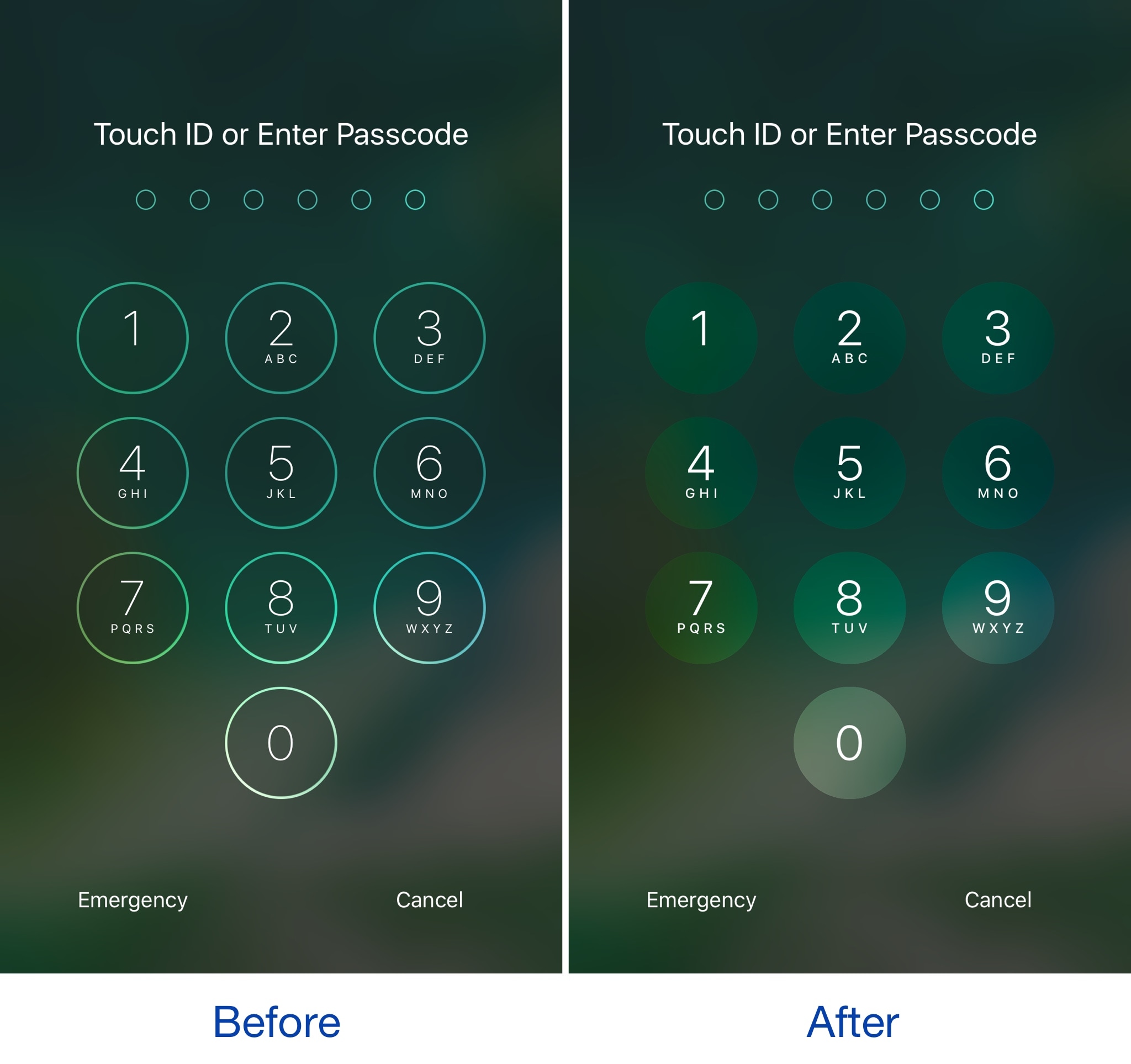
This tweak brings an iOS 11-inspired passcode keypad to iOS 10

Among the slew of interface changes iOS 11 brings to the table, one of first things you’ll notice after picking up a device with the new operating system installed on it is the redesigned passcode keypad.

If you like the way it looks, but you won’t be upgrading this Fall in order to keep your jailbreak, a new free jailbreak tweak dubbed Creamy (iOS 10) by iOS developer ijapija00 can be used to mimic the aesthetics of the iOS 11 passcode keypad on your jailbroken device.

Apple’s iPad strategy is finally stupendously watertight

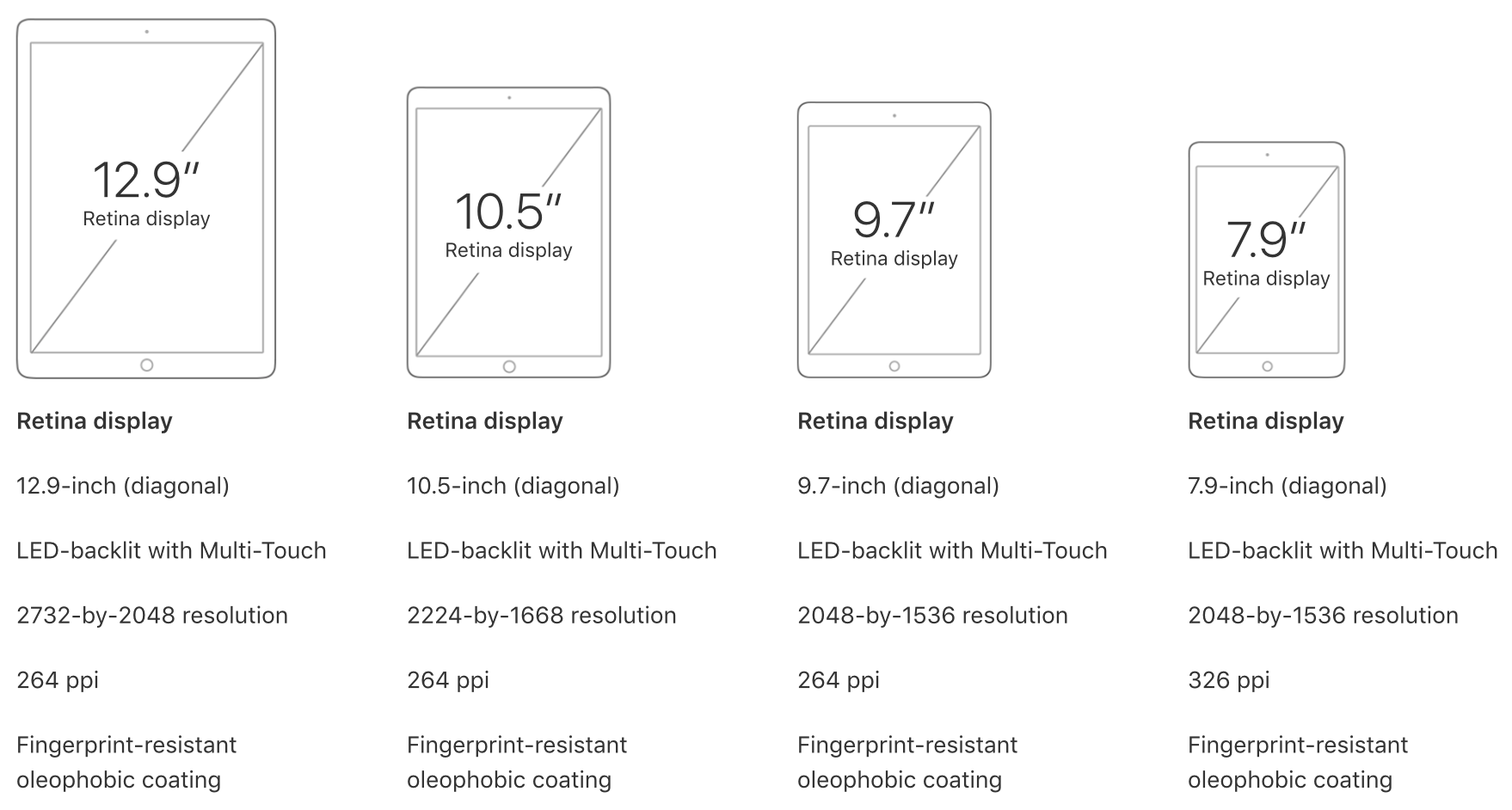
Rome was famously not built in a day. And we know now that at Apple, the iPad line-up was not intuitively streamlined until WWDC 2017. Factoring out the formative years of iPad shortly after its birth in 2010, too many incremental releases (e.g. iPad 3 to iPad 4 in the same year of 2012, also iPad Mini) and too much tinkering with suffixes in the name (Air, Pro, Mini, blank) had diluted and complicated the iPad brand, so much so that large numbers of customers must have struggled to stay on top of what’s the latest tablet product on Apple’s shelves.

By the same token, even if some customers were in the know about what the factual successor to their beloved iPad Air 2 is, most would understandably be hard pressed to remember which of Apple’s iPads is the most or least powerful in the mix, or how they all compare to each other in terms of pricing. That is of course besides all the other important product specifications (camera, Apple Pencil compatibility, etc.) every informed customer should be able to easily grasp for each iPad available, before ultimately pouncing for the most suitable choice. And regrettably up until mid 2017, Apple has not made any of that easy for us.

I would in fact go further and lament that it's been a sticky mess, lacking direction and - more reprehensibly - common sense.

Inconsistencies left right and center

I’m not going to bore you for long with the most questionable decisions of the past, such as the counterintuitive marketing language used between the ‘new iPad’ (iPad 3), the 'iPad with Retina Display' (iPad 4) and the subsequent iPad Air, or instances where iPad Minis eclipsed their bigger brothers in specs or numbers.

However what these examples do underscore is that the most recent case of Apple not being able to draw clear, differentiating lines between their different iPad categories is on no account unprecedented. Just consider this: not long ago, in March to be exact, Apple released their ‘new’ 9.7-inch iPad (no suffix) to a market until then sporting the 9.7-inch iPad Air 2 and the 9.7” iPad Pro. With that, prospects were asked to make sense of three (to the naked eye) identically looking iPads, all of which had a unique marketing slant and story to tell.

Add the iPad Mini 4 and the super sized 12.9” iPad Pro to the equation and it’s easy to see how Apple could have really dropped the ball at WWDC ’17 by adding insult to injury and introducing yet another brand new iPad, the smashing 10.5” iPad Pro. Thankfully, they did just about the opposite.

When all of a sudden everything stacks up

Instead of presenting a historically inflated iPad line up, the 10.5-inch reveal was preceded by some serious purging actions behind the scenes. The result is beautiful, not just because the 9.7” ambiguity has been completely eliminated.

What’s more striking is that customers are now dealing with three iPad classes (Pro, Normal, Mini) and accordingly unique size offers for all three, unique prices for all three and even uniquely capable chips for all three. All criteria is arranged in an entirely intuitive order, namely descending from bigger to smaller, from more expensive to cheaper, from more powerful to more economic, in short: from Pro to Mini. It’s like Apple themselves got tired of the fuzzy product lines and decided to do a full one-eighty.

What you see is what you get now, meaning even the less techy customer is going to be able to remember that the big Pro iPads rock the most powerful chips (A10X) followed by the medium sized normal iPad (A9), which in turn has the lead over the physically smallest iPad Mini (A8). Gone are the days of an awkward A9X chip in the dead on arrival 9.7” iPad Pro, or other illogical decisions such as equipping one iPad Pro with a 12MP rear camera while the big brother has a sucky eight.

Today, the meaningful specs such as the chip or camera are aligned in descending order at 12 MP for all Pro iPads and 8 MP for the mid tier choice plus lower tier iPad Mini. It’s just disarmingly straightforward. Want the most storage? You’ll have to shoot for the physically biggest Pro category to get up to 512GB of storage. Want to try the least powerful iPad to test the water first? Grab the physically smallest iPad. Which iPads are Apple Pencil compatible? Only the ones bigger than the original iPad. Find the 9.7” size to be perfect? Good, you’re done, no need to choose between a 9.7-inch iPad Pro, iPad Air and iPad whatnot.

The logic behind this is painfully commonsensical, which begs the question why it took Apple so long to get there, but I am willing to forgive and forget. Water under the bridge, Apple, what matters is that we finally have clarity.

June 2017 has not only brought us spanking new iPads and a glimpse of an iPad-focussed iOS 11, but also finally clear product differentiation that will be easily replicable for experts and more importantly understandable to the average customer. In that vein, WWDC 17 could have been a watershed moment for the one product line Tim Cook has been so bullish about time and again. So please Apple, do not muck this up come November or at any other point in 2018, it took us long enough to get here.
Eleven: an upcoming collection of iOS 11-like jailbreak tweaks

If you’re jailbroken on iOS 10 and yearn to make your device look like it's running iOS 11, then you’re in luck because prominent developers are taking on a full-scale project to bring several iOS 11 features to the jailbreak community before the operating system update is released this Fall.

The project is being undertaken by iOS developers LaughingQuoll and Antique_Dev, and will be called Eleven. It will be a collection of multiple different jailbreak tweaks that each focus on specialized features of iOS.

Developer tweaks iOS 11 to enable drag and drop on iPhone

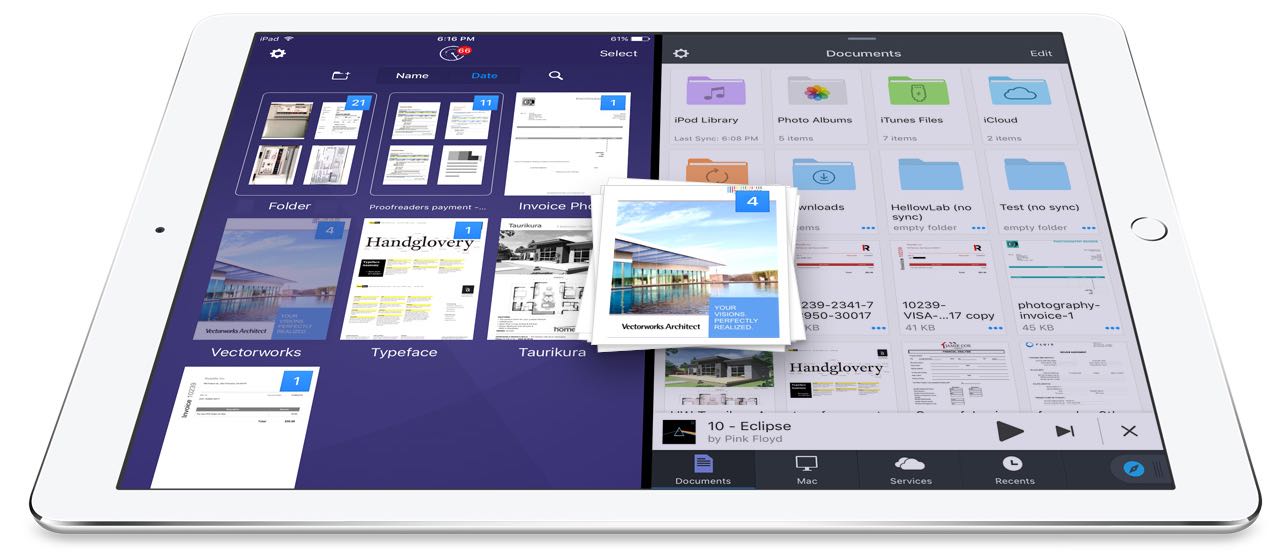
In yesterday's tweetstorm, iOS developer Steve Troughton-Smith explained that he had successfully turned on full drag and drop support on iPhone by making some changes to the iOS 11 developer beta code.

After adjusting a few settings in a preferences .plist file within the UIKit framework to make it work, he posted an iOS simulator video showing the ability to drag items between different apps on the phone.

The implementation is a bit clunky because iOS 11 does not bring the iPad's much-enhanced Dock to iPhone, meaning your must use both hands to switch apps while dragging an object.

Normally, iOS 11 does support drag and drop on iPhone out of the box, but only within apps.

https://twitter.com/stroughtonsmith/status/874278953564950528

For instance, the new Files app allows you to drag a file and drop it on a folder. You can also drag a file with one finger and tap the Back button with another finger to move it to a different location. However, true inter-application drag and drop is not possible on iPhone without making changes to the iOS 11 developer beta code.

https://twitter.com/stroughtonsmith/status/874324117662699521

Apple has not talked about basic drag and drop support on iPhone at WWDC.

We're certainly not expecting any miracles in subsequent betas in terms of providing feature parity for drag and drop across iPhone and iPad. For the sake of completeness, Troughton-Smith did speculate that inter-app drag and drop may be reserved for iPhone 8.

https://twitter.com/stroughtonsmith/status/874272200446156800

“If Apple’s gonna have an on-screen Home button on iPhone 8, it would make a lot of sense to spring-load it for drag and drop,” he wrote on Twitter.

Would full drag and drop make sense on iPhone, do you think?

iOS 11 and macOS High Sierra automatically update your Apple ID to use Two-Factor Authentication

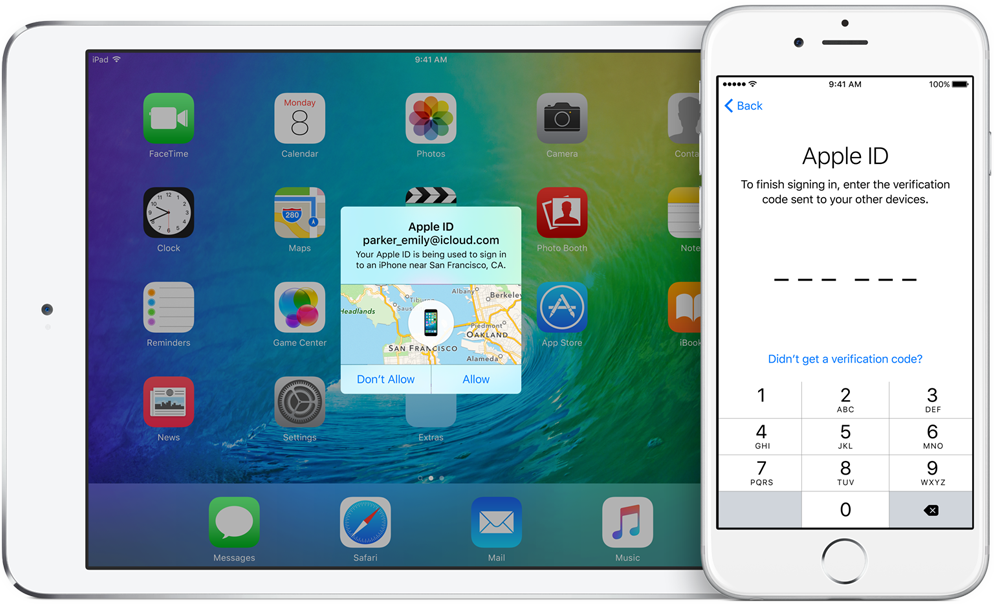
If you haven't upgraded your Apple ID from Apple's older Two-Step Verification system to the more secure Two-Factor Authentication, iOS 11 and macOS High Sierra will do that for your when you install either operating system on your devices.

Apple communicated the change in an email to customers with Two-Step Verification enabled for their Apple ID. Here's the full text of the email communique, as obtained by MacRumors:

If you install the iOS 11 or macOS High Sierra public betas this summer and meet the basic requirements, your Apple ID will be automatically updated to use two-factor authentication. This is our most advanced, easy-to-use account security, and it's required to use some of the latest features of iOS, macOS, and iCloud.

Once updated, you'll get the same extra layer of security you enjoy with two-step verification today, but with an even better user experience. Verification codes will be displayed on your trusted devices automatically whenever you sign in, and you will no longer need to keep a printed recovery key to make sure you can reset a forgotten password.

Significantly improving the security of your Apple ID, Two-Factor Authentication requires both your Apple ID password and a one-time code when you sign in to a new device or browser with your Apple ID.

TUTORIAL: How to protect your Apple ID with Two-Factor Authentication

Unlike Two-Step Verification, which sends a six-digit verification code via SMS, Two-Factor Authentication is deeply integrated in iOS 9, OS X El Capitan, watchOS 2 and tvOS or later and features a mechanism that automatically delivers verification codes via push notifications to all trusted devices registered to a given Apple ID.

If you're not using either system to protect your Apple ID, you're wholeheartedly recommended to enroll your devices in Two-Factor Authentication. If your account isn't eligible for two-factor authentication, you can still use two-step verification to protect your Apple ID information.

One way or another, anyone installing Apple's latest OS updates this fall shall be asked to upgrade their Apple ID to the more modern Two-Factor Authentication system. Two-Factor Authentication is available in more than a hundred countries, listed in Apple's support document.

Basic analytics coming to iOS 11’s Podcasts app

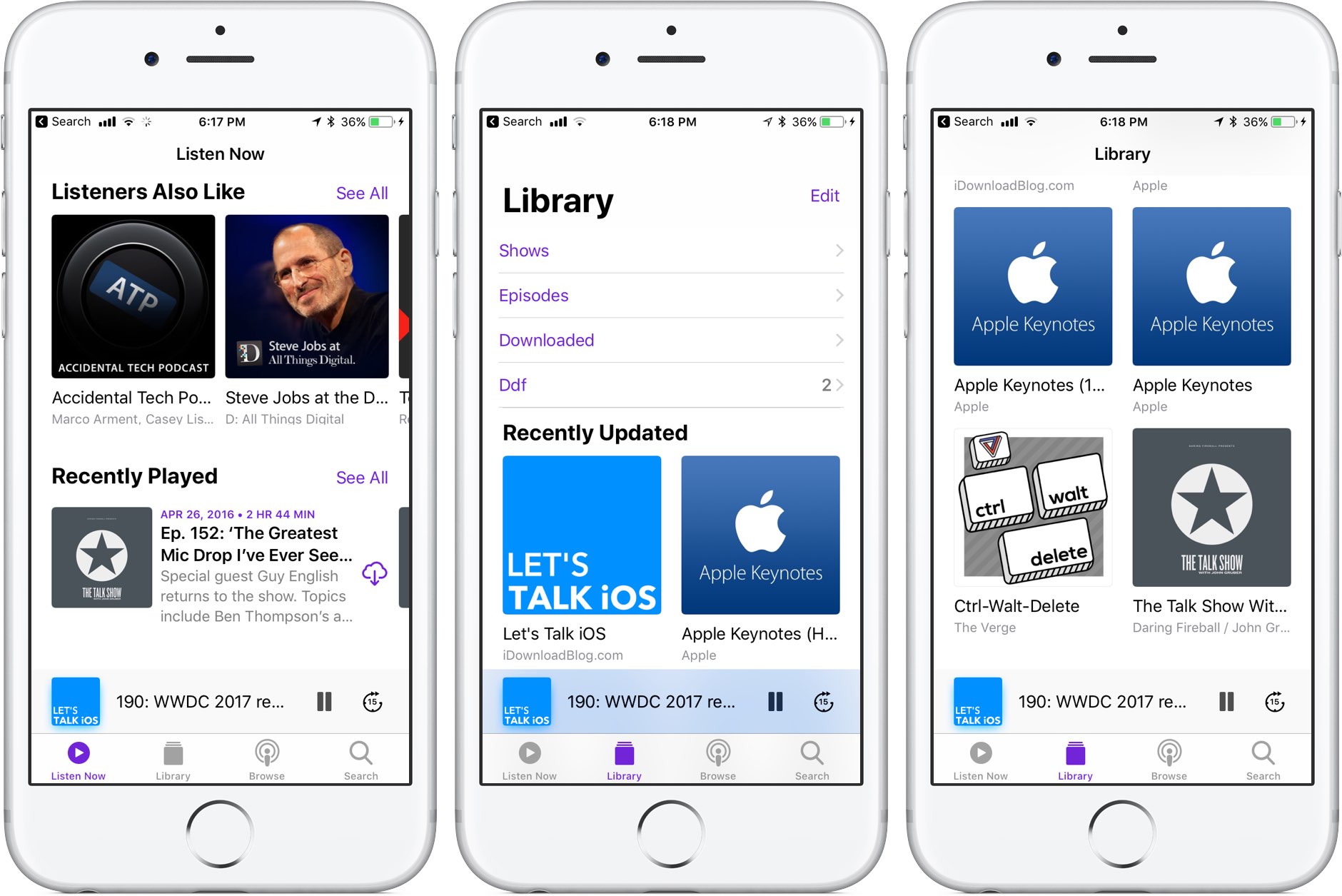
Like many stock apps in iOS 11, Apple's Podcasts app has been redesigned around an Apple Music-style appearance with consolidated tabs, bigger thumbnails and more.

As reported by Recode's Peter Kafka and Six Colors' Jason Snell, Apple is also making some notable changes to the way podcast feed works so that both podcast creators and advertisers can see what listeners actually like.

As for users, they'll be able to download full seasons of their favorite podcast shows and the Podcasts app will determine if a podcast should be played in chronological order.

There are other updates focused on making podcast creators' lives easier as well. According to Apple's own spec sheet regarding the Podcasts app updates in iOS 11, the updated Apple Podcasts specification now provides the following features:

Podcast creators can now provide clear, concise titles. Improvements to how episodes are ordered and recommended within a season. The ability for new subscribers to receive the full current season in their Library. Quick play lets users pick up listening where they left off.

Podcasts will be able to define individual seasons and explain whether an episode is a teaser, a full episode or bonus content. Snell explains that these extensions will be read by the Podcasts app and used to present a podcast in a richer way than the current linear approach in iOS 10.

https://www.youtube.com/watch?v=LFsAlcnlmSo

Subscribe to iDownloadBlog on YouTube

As explained, Apple is going to share more data with podcast creators and advertisers.

With basic analytics, podcast creators will have the ability to see when listeners play individual episodes, what part of individual episodes they listen to, which parts they skip over and when they stop listening. To protect your privacy and prevent targeted advertising, Apple will provide aggregated, anonymized performance data that cannot be tracked to individual users.

Currently, podcast creators can see when someone has downloaded an individual episode, but that's about it when it comes to analytics.

How do you like these changes coming to the Podcasts app?

Share your opinion in the comments section below.

iOS 11, macOS High Sierra, iMac Pro wallpapers from WWDC 2017

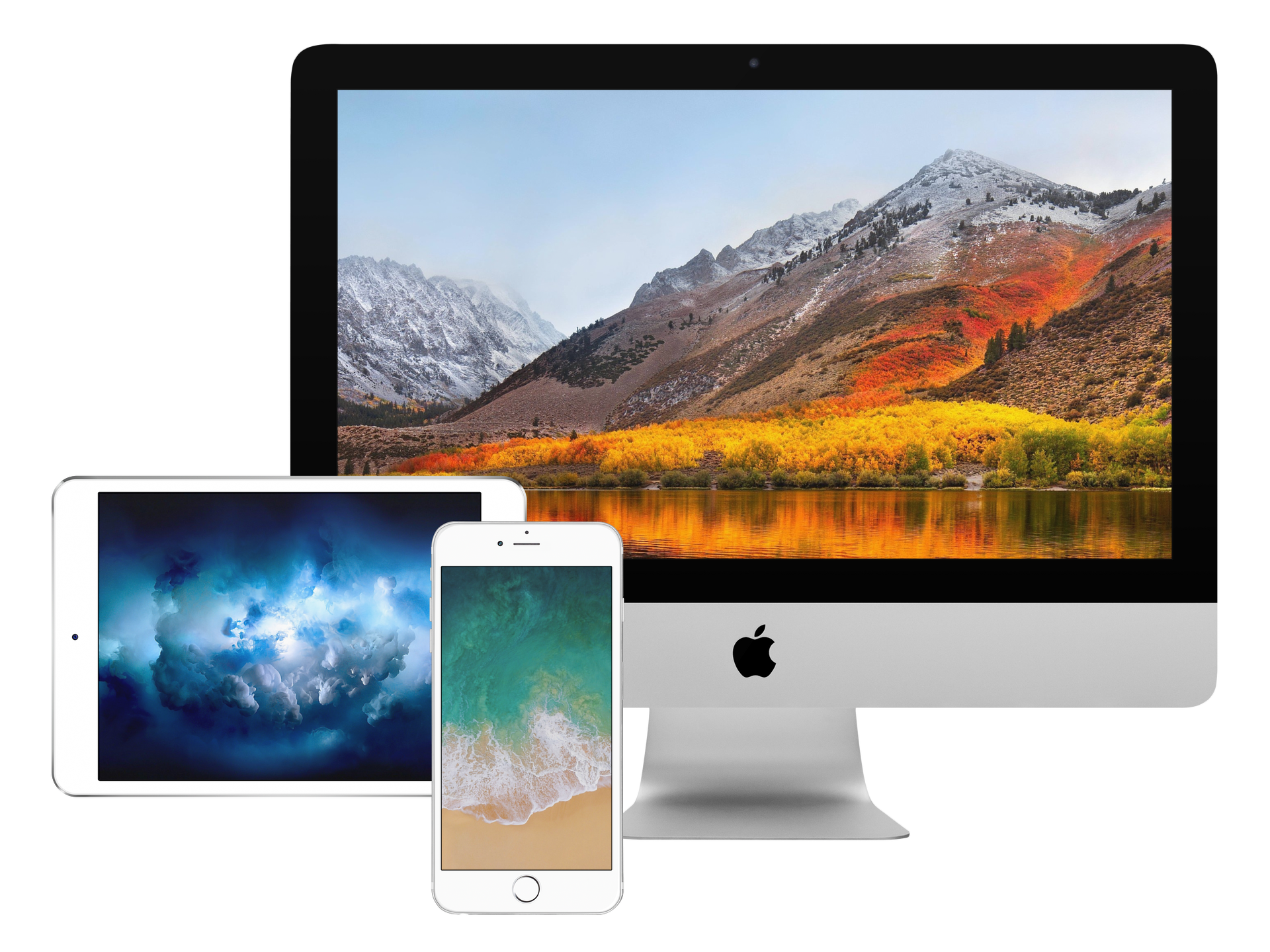
Last week, Apple announced and highlighted new versions of iOS and macOS. Improvements for both operating systems look impressive, especially iOS 11 for iPad. With each OS release, Apple also includes at least one new hero wallpaper that symbolizes the newer version. Then, a mad dash occurs to obtain the images, providing you access, even without the need to rely on a beta release. Take a step inside for three wallpaper downloads.

Have iPhone automatically answer incoming calls on your behalf

Many iOS 11 features seemed to be inspired by the jailbreak community. Among them, a brand new call audio routing option in accessibility settings that allows you to set your iPhone to automatically answer incoming calls on your behalf, should you wish so.

This optional feature supports regular calls via your carrier's mobile network, as well as Wi-Fi calls, FaceTime audio and video calls and any VoIP calls originating from third-party apps that use Apple's CallKit framework, such as WhatsApp, Skype, Viber and more.

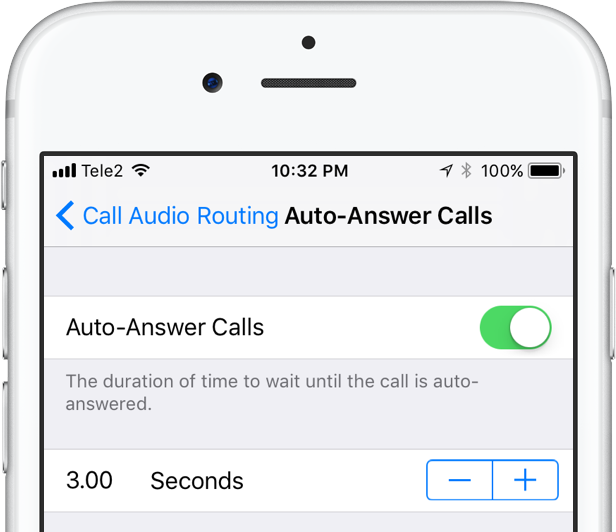
To enable this feature, go to Settings → Accessibility → Touch → Call Audio Routing.

There, you'll see the call routing options which include settings like Bluetooth headsets, the iPhone speaker and more. These options are also available on prior iOS editions. But look at the bottom and you'll see a brand new menu, labeled Auto-Answer Calls.

Tapping it takes you to a new screen where you can enable or disable the feature and set the duration of time your iPhone will wait when a call comes in before it's auto-answered for you.

This handy new option, as I already mentioned, is nowhere to be found in iOS 10 or earlier.

I can see myself using Auto-Answer Calls a lot, not just while jogging with my AirPods or working out with my PowerBeats in my ears but also in other situations when interacting with the phone may be impractical, like driving a car or swimming with my Apple Watch on.

How do you like this nifty feature? Will you be using this auto-answer call setting, and why?

Do let us know by posting a comment below!

TUTORIAL: How to set your iPhone to automatically answer calls

iOS 11 brings lossless FLAC audio playback to iPhone and iPad

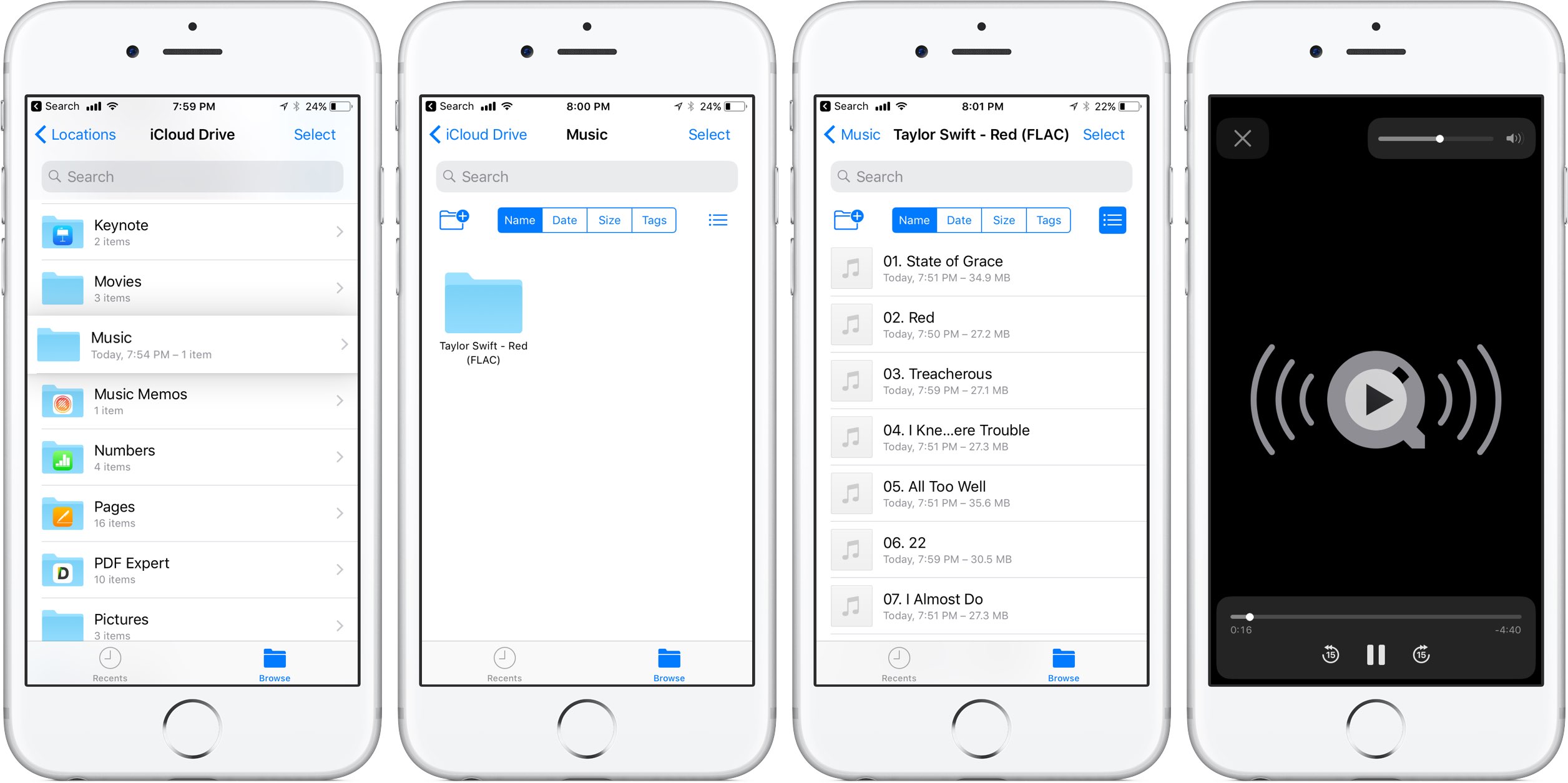
iOS 11 reportedly brings native support for lossless audio encoded in the popular FLAC format to iPhone, iPad and iPod touch. As discovered by Reddit users, Apple has included full playback support for FLAC audio files on iOS 11. iTunes and iOS 10 currently lack built-in support for the FLAC codec, though people can use a third-party app to enjoy FLAC audio.

At this stage, only the new Files app has support for lossless playback of FLAC-encoded audio files. Of course, things could change in subsequent beats as Apple continues to refine iOS 11 ahead of its fall release, at which point iTunes could be updated with full playback support for the popular format.

As things currently stand, any FLAC files synced to an iOS device through iCloud Drive, Dropbox or Box can be played from within the Files app. FLAC files are currently unsupported via the Music app on iOS 11.

For what it's worth, I tried sending an FLAC audio file to my iOS 11-enabled iPhone through AirDrop, to no avail. My iPhone didn't know what to do with the file, putting up the standard prompt offering to download an app from App Store.

No matter how you look at it, this is a big win for music lovers and audiophiles.

The FLAC format bring the full quality of the original recording. FLAC, or Free Lossless Audio Codec, features lossless compression of digital audio which can reduce the size of the audio file to between 50 percent and 60 percent of its original size, without degrading audio quality of the original.

iOS 10 currently supports the AAC, Protected AAC, HE-AAC, MP3, MP3 VBR, Dolby Digital (AC-3), Dolby Digital Plus (E-AC-3), Audible (formats 2, 3, 4, Audible Enhanced Audio, AAX and AAX+), Apple Lossless, AIFF and WAV audio formats.

The ability to play lossless FLAC audio on an iPhone, iPad or iPod touch with iOS 11 could also signify that HomePod, Apple's upcoming smart speaker, may support high-quality FLAC audio.

Hands-on with iOS 11’s one-handed QuickType keyboard

As previously suspected, and officially announced at the Worldwide Developers Conference, iOS 11 provides a new keyboard feature making it easier to type in one-handed mode, whether you're a right or left-handed user. It works on both 4.7 and 5.5-inch iPhones and is easily invoked at any time via the keyboard's Emoji key.

Andrew O'Hara put together a short video demonstration of this feature in action. Watch it embedded below, then read the rest of the article before meeting us in comments.

https://www.youtube.com/watch?v=nq0xDpcCGKA

Subscribe to iDownloadBlog on YouTube

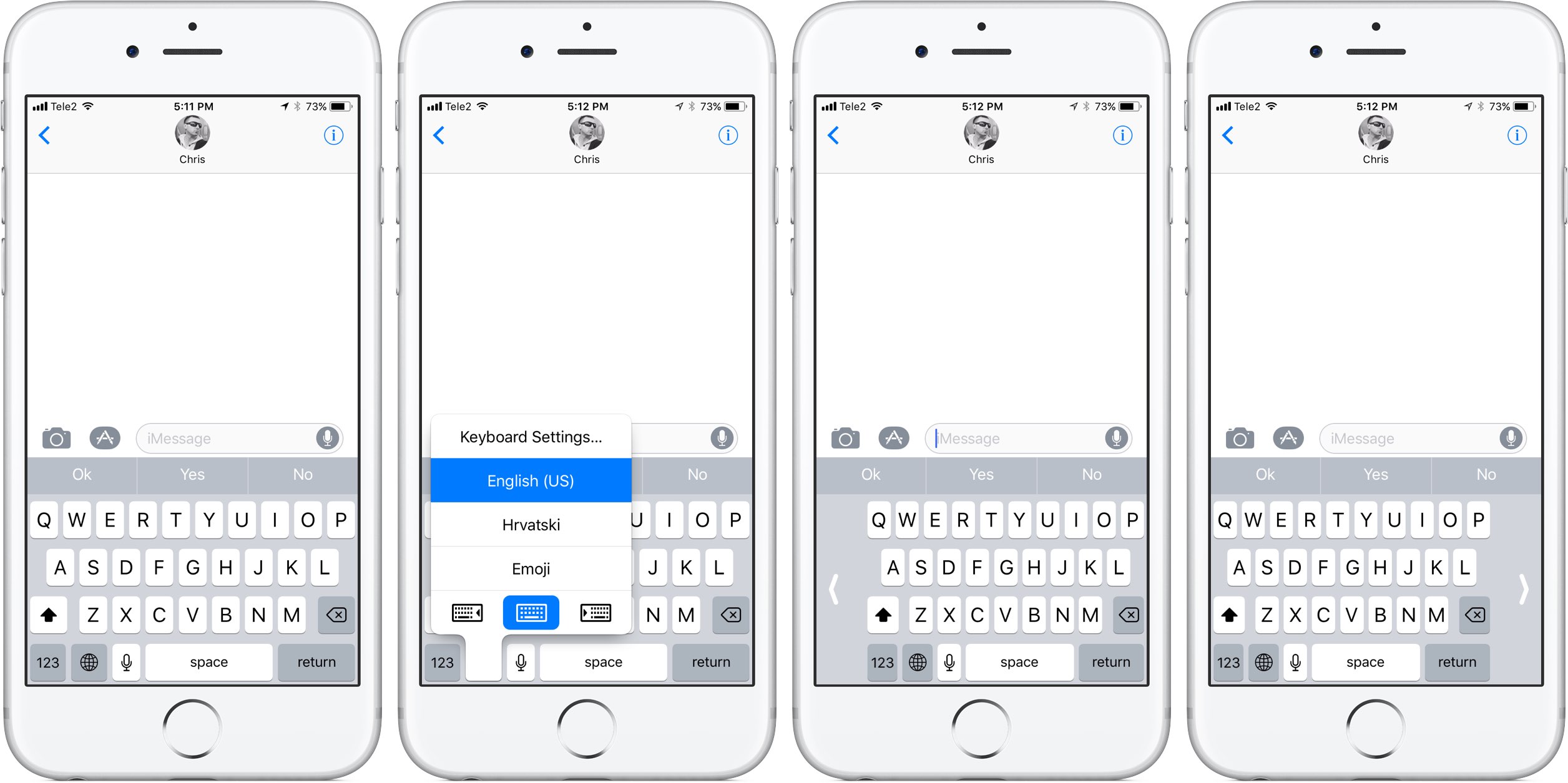
To activate this  keyboard mode, tap and hold the Emoji key on the keyboard.

You'll notice a trio of new icons lined up alongside the bottom of the menu. These icons let you move the entire keyboard either fully to the left or to the right of the screen so that typing with a single thumb is easier.

The keyboard shrinks exactly to the width of the keyboard on a four-inch iPhone.

To return to the normal-size keyboard, tap the Emoji key again, then hit the middle icon at the bottom of the menu. Alternatively, tap the arrow on either side of the keyboard to quickly get back to the normal layout.

What are your thoughts on iOS 11's new one-handed keyboard? Do you think you'll be using it on your iPhone when iOS 11 drops? Share in the comments section below!

Video: watch iOS 11 Messages new “Echo” and “Spotlight” fullscreen effects in action

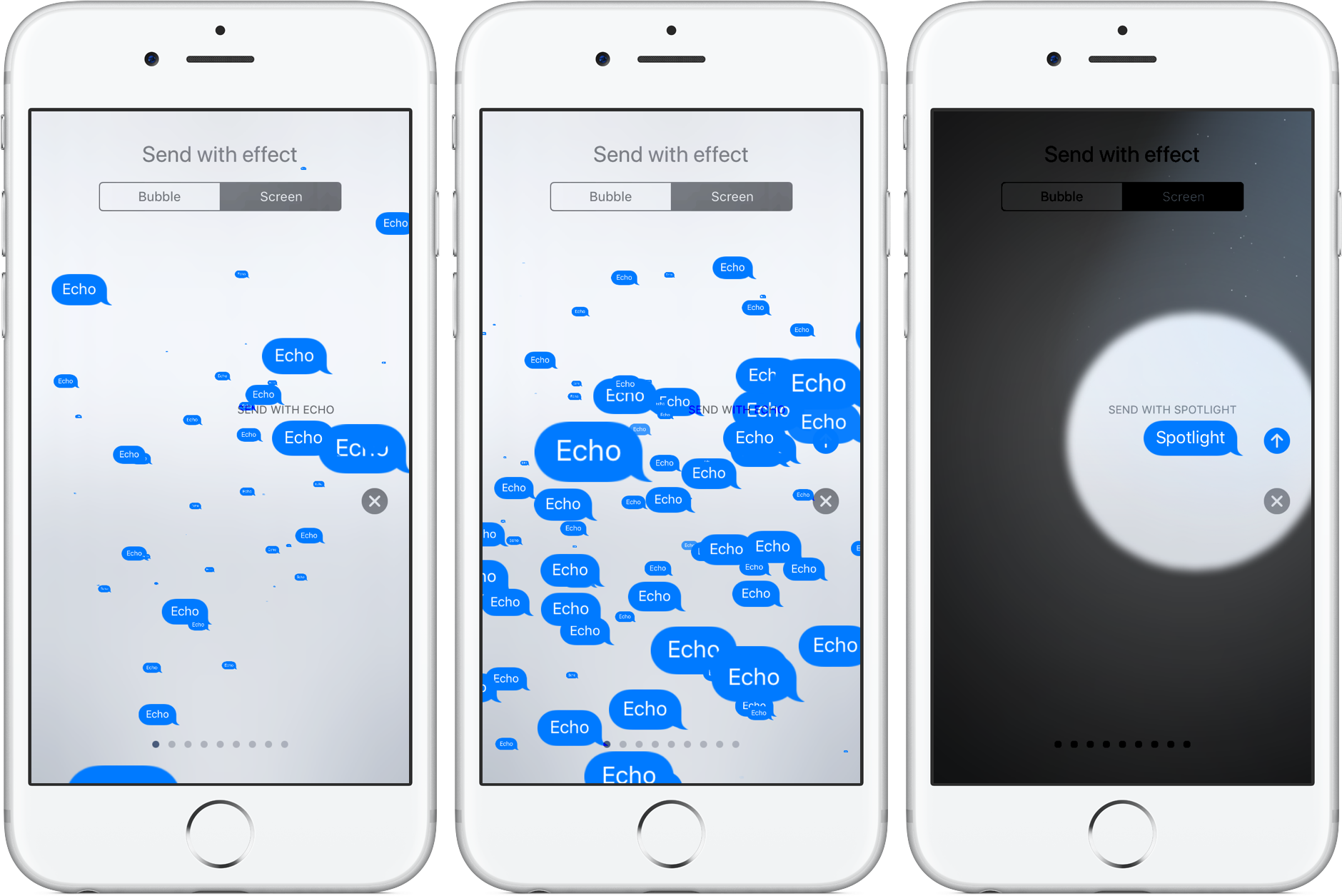
Apple's expressive Messages app gained some interesting fullscreen effects with last year's release of iOS 10. With iOS 11, Apple is bringing a pair of brand new effects to the built-in messaging app, called “Echo” and “Spotlight”.

The two new effects are in addition to the existing ones: Balloons, Celebration, Confetti, Love, Lasers, Fireworks and Shooting Star. To use these effects, press the Send button in Messages with 3D Touch, then tap the Screen tab at the top to swipe through real-time effect previews.

Echo, as the title suggests, multiplies your text all over the screen. Spotlight puts a large spotlight on your chat bubble to emphasize your text.

Watch the new Messages effect in action.

https://www.youtube.com/watch?v=Ur08nXULKvo

Subscribe to iDownloadBlog on YouTube.

As for the so-called bubble effects, no new ones have been added in iOS 11. iOS 10 currently includes five different bubble effects: Slam, Loud, Gentle and Invisible Ink.

How do you like the two fancy new effects in Messages for iOS 11?

Let us know by posting a comment below.