iTunes

How to disable Apple Music Connect

If you choose to hide Apple Music on an iPhone, iPod touch or iPad, the Music app gains a new Connect tab.

Described by Apple as a place where “musicians give their fans a closer look at their work, their inspirations, and their world,”Apple Music Connect permits music lovers to view and follow an artist's stream, like and comment on their posts and more.

Apple Music Connect is basically Ping 2.0. The feature is a tad crude in appearance and feels rough around the edges so little wonder that some folks don't view Connect as valuable enough for it to deserve its own tab.

Wouldn't it be great if you could get rid of the Connect tab? Thankfully, there is.

You'd be forgiven for thinking that the Connect feature couldn't be disabled: Apple has made sure to burry and hide it in an obscure place. In this post, I'm going to explain precisely how you can disconnect from Connect in Apple Music on iPhone, iPod touch, iPad or Mac.

Apple releases iTunes 12.2 with Apple Music and Beats 1 integration

In addition to releasing the latest iOS 8.4 software update for the iPhone, iPod touch and iPad and posting the new OS X Yosemite 10.10.4 update for the Mac, Apple has now issued a brand new version of iTunes for Mac and Windows PCs with built-in support for the new Apple Music on-demand subscription music service, Beats 1 global Internet radio and more.

You must install iOS 8.4 on your iPhone, iPod touch or iPad to enjoy Apple Music. iTunes 12.2 is required to enjoy Apple Music and Beats 1 radio streaming on your Mac or Windows computer.

TaiG 2.1 released to fix Cydia Substrate

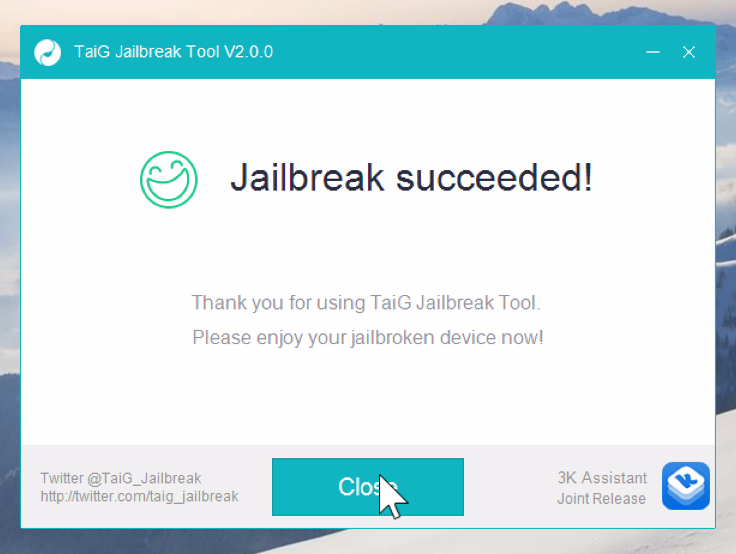
It looks like several reddit users have unearthed the next version of the TaiG jailbreak for iOS 8.3. Several users have posted screenshots of the tool, which is said to fix the Cydia Substrate issues, iTunes issues, etc.

I've tested the untether myself, and I can confirm that it works. Cydia Substrate now works, and jailbreak tweaks that are compatible with iOS 8.3 now work.

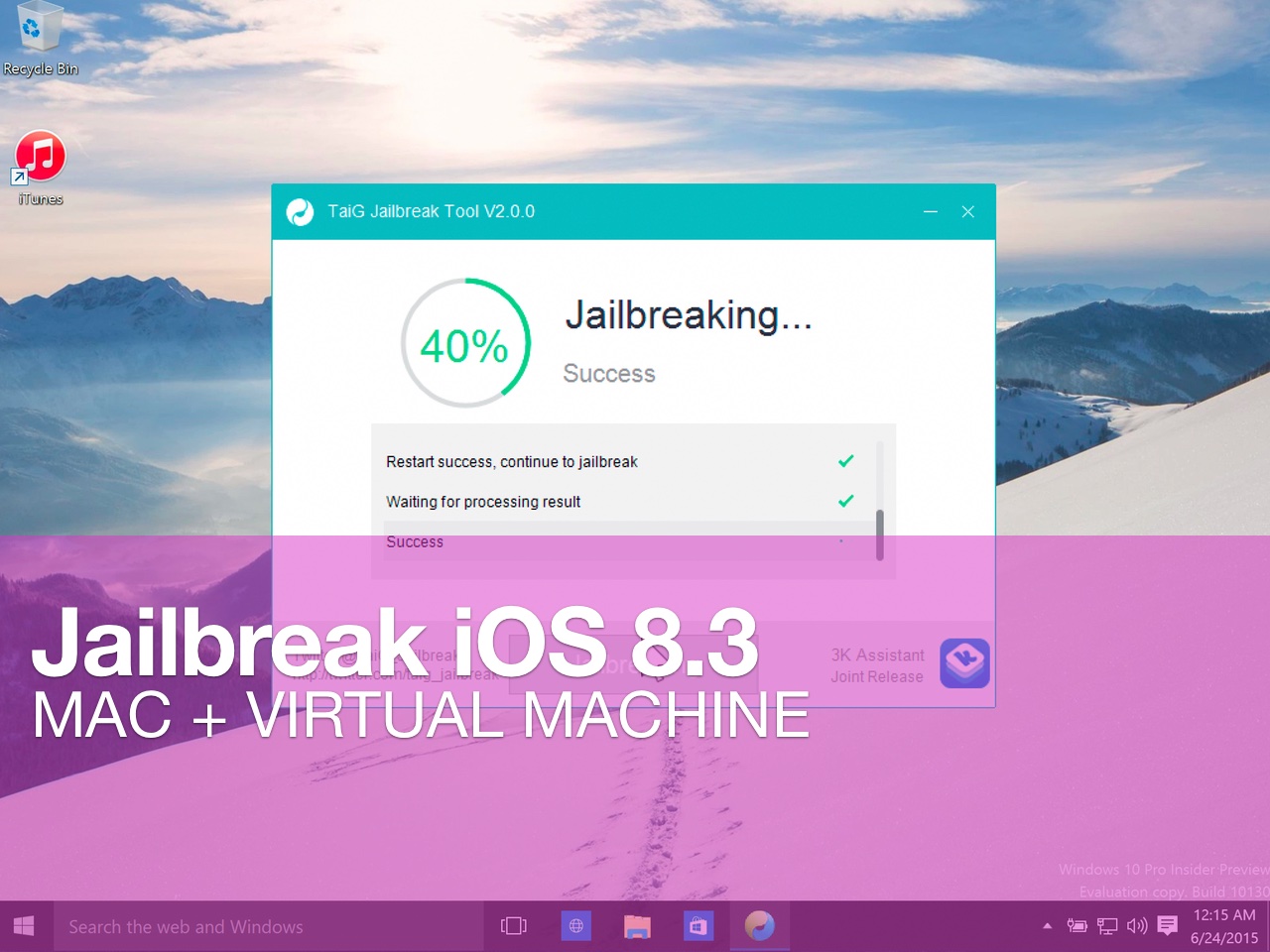
How to jailbreak iOS 8.3 or iOS 8.4 on Mac using a virtual machine

Although the iOS 8.3/iOS 8.4 jailbreak was a surprise, it was no surprise that the release was limited to Windows only. While this can make some Mac users feel bitter, it's actually not a very big deal at all.

Thanks to the awesome virtual machine software that we have on the Mac, it's super-easy to jailbreak an iPhone on our Macs, even if said jailbreak is Windows only.

In this complete tutorial, I'll walk you through the entire process of setting up the virtual machine, installing a valid version of iTunes, and jailbreaking your iPhone.

The most impressive thing about this tutorial is that it can all be done in less than 18 minutes (not including the necessary file downloads), and it's 100% free to do.

If you're a Mac-only user, there really is no excuse for you not to be jailbroken if you want to be. This method is tried and true, super-reliable, and it just works. In fact, by sticking to this method and following my video, you'll likely be able to avoid many of the pitfalls plaguing those who are experiencing issues with the TaiG tool.
How to fix the TaiG 20% timeout for the iOS 8.3 jailbreak

Thankfully, the 20% error that was causing us problems earlier today has been solved. If you received this error, you need to downgrade your version of iTunes.

I decided to downgrade to iTunes 12.1.0 as suggested by several of my Twitter followers, and just like that, it worked. If you're having problems with TaiG 2.0.0 hanging at 20% completion for the iOS 8.3 jailbreak, then try downgrading your version of iTunes.

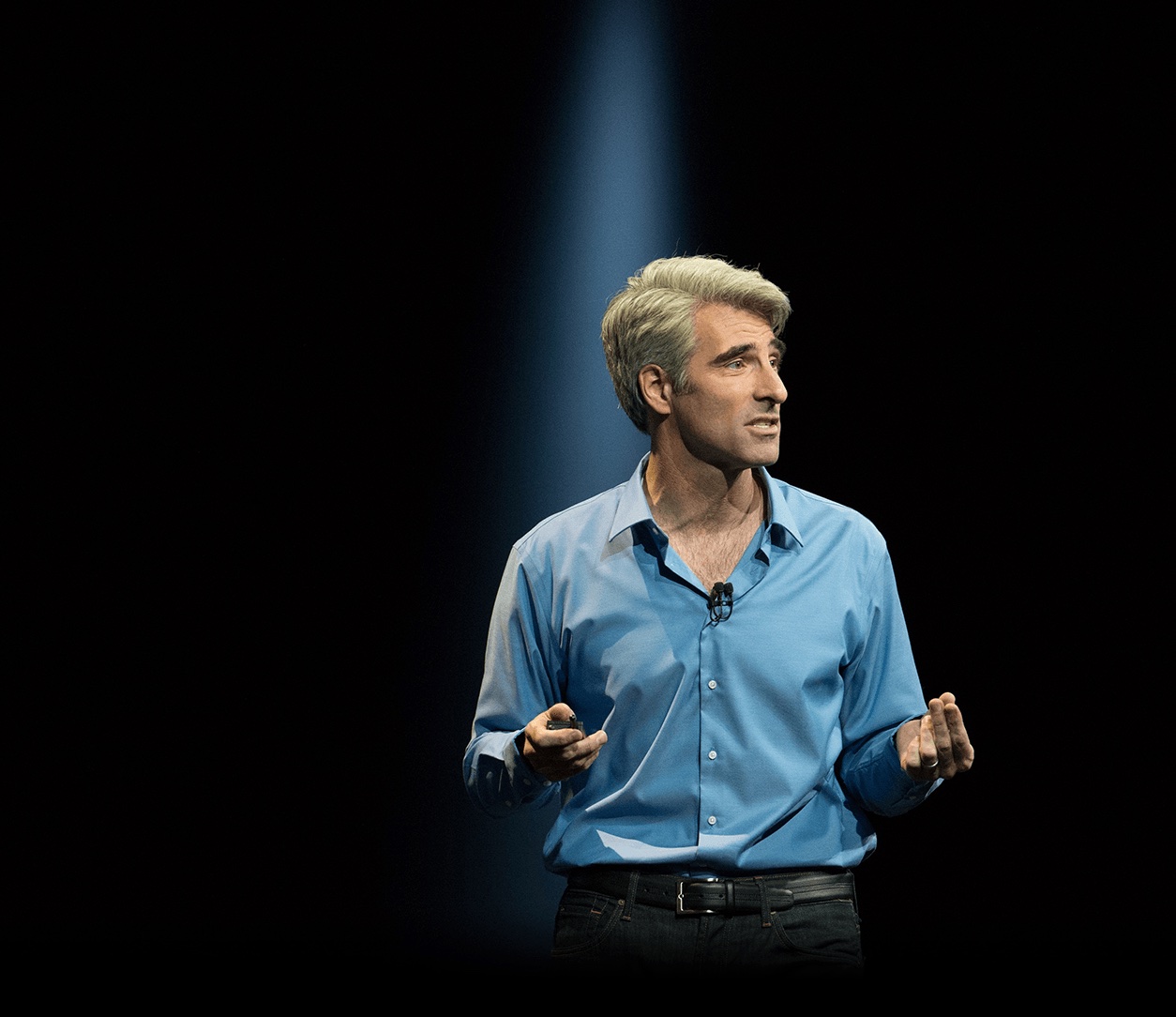
WWDC 2015 keynote posted to iTunes as a downloadable high-definition video podcast

Following promotional footage for Apple Music that the Cupertino company posted to its YouTube channel along with the inspirational 'App Effect' video, the entire keynote presentation has now been uploaded to iTunes and made available to everyone in the form of a video podcast.

In case you haven't had a chance to sit through the whole keynote talk yesterday, you can now download the video to your Mac, iPhone, iPod touch or iPad and watch it on your own time.

iTunes Radio revamp rumored to include Drake, Pharrell Williams and David Guetta as guest DJs

Apple is reportedly in talks with some more A-list names to add as gust DJs to its Beats Music revamp, including Drake, Pharrell Williams and David Guetta, The New York Post learned yesterday.

These well know names in music should join the likes of BBC Radio 1 DJ personality Zane Lowe who was recently confirmed as leaving the radio giant for a job at Apple in March.

Starbucks, Spotify ink big deal that gives employees Premium subscription

While it's been a partner of iTunes in the past, Starbucks announced on Monday a big partnership with Spotify that will link its 7,000 stores in the US and 10 million My Starbucks Rewards loyalty members with Spotify’s 60 million global users.

Most notably, Starbucks' 150,000 US-based employees will receive a free Spotify Premium subscription in the coming weeks, followed shortly thereafter by employees in Canada and the UK. Spotify Premium is priced at $10 per month.

Warner Music Group: Streaming music revenue now outweighs downloads

Tucked away in its earnings release on Monday, major music-player Warner Music Group announced that revenue from streaming surpassed revenue from downloads for the first time. This signals a major turn in the industry, as an old school player is finally revealing it may be comfortable, and on board, with the shift in how customers consume music.

How to transfer your music to a new computer using iTunes Match

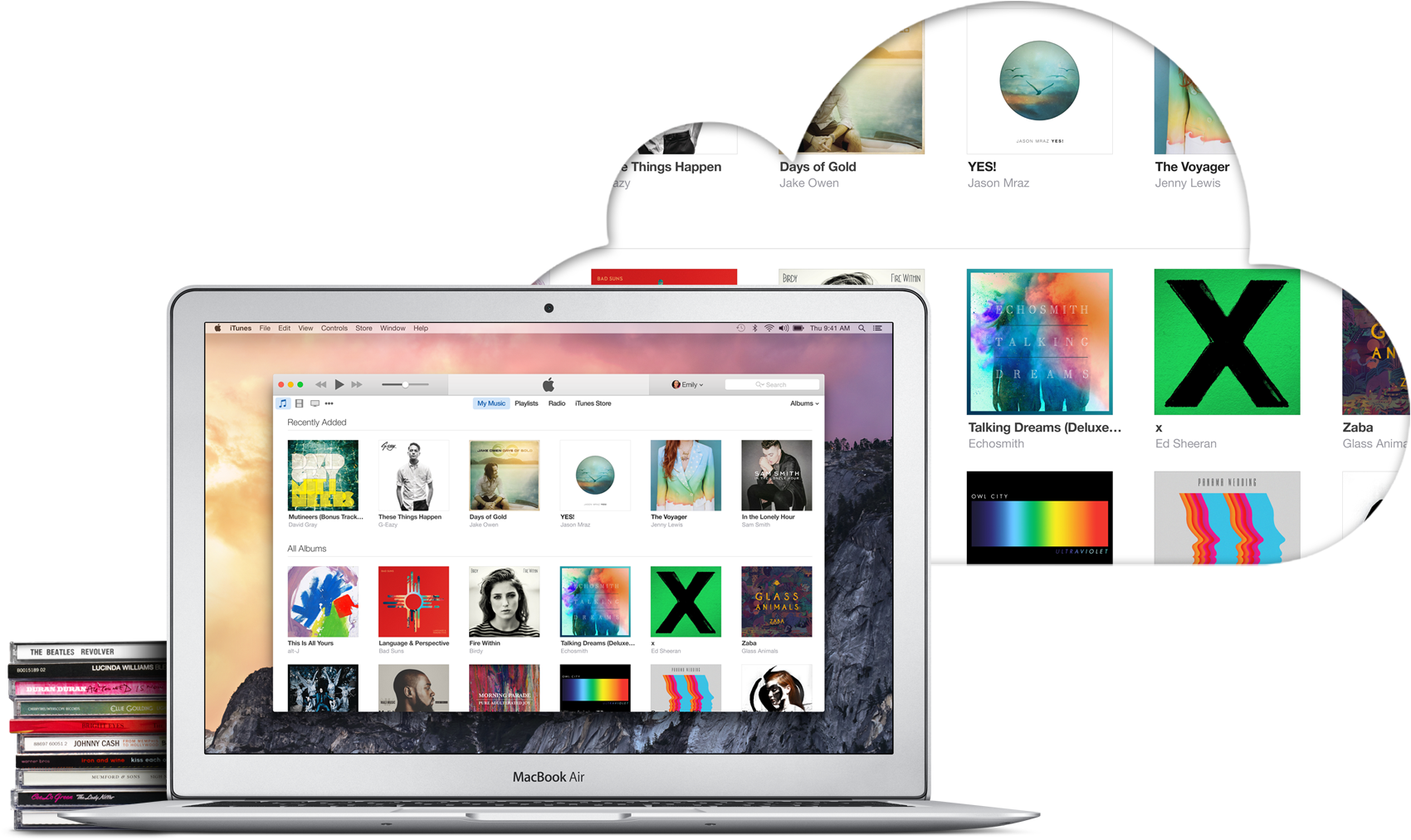
iTunes Match is a paid service from Apple that allows you to store all your music in iCloud, regardless of where it originated from. For example, it could be music imported from CDs, downloaded from online music stores, or even music that was downloaded in ways that go against copyright laws. In short, iTunes Match matches or uploads all your music to iCloud so you can stream or download it from any of your Apple devices, including Mac, iPhone, and Apple TV.

With that said, iTunes Match offers an easy way to move your iTunes library to a new computer without having to deal with transferring files from one hard drive to the other. In this post, I will show you how to transfer your iTunes library to a new computer using iTunes Match.

How to transfer your iTunes library to a new computer

The best thing about getting a new computer is that, well, you're getting a brand new computer. It's exciting to have a shiny new toy to play with, making you wonder how you could have been using that old machine for so long.

To me though, the major downside of getting a new computer is that you have to set it all up from scratch. I'm not going to lie; some of that is part of the fun, but it can also be stressful and time consuming. Take migrating your iTunes library to your new computer for example. There is nothing really fun in that, and if you have a large library, it could take hours.

In this post, I will show you how to move your iTunes library to a new computer. Unfortunately I won't be able to save you time or stress, but at least, you'll have simple instructions on how to do transfer all your iTunes songs, albums, album covers, and playlists to a brand new computer.