iPod Touch

Have iPhone automatically answer incoming calls on your behalf

Many iOS 11 features seemed to be inspired by the jailbreak community. Among them, a brand new call audio routing option in accessibility settings that allows you to set your iPhone to automatically answer incoming calls on your behalf, should you wish so.

This optional feature supports regular calls via your carrier's mobile network, as well as Wi-Fi calls, FaceTime audio and video calls and any VoIP calls originating from third-party apps that use Apple's CallKit framework, such as WhatsApp, Skype, Viber and more.

To enable this feature, go to Settings → Accessibility → Touch → Call Audio Routing.

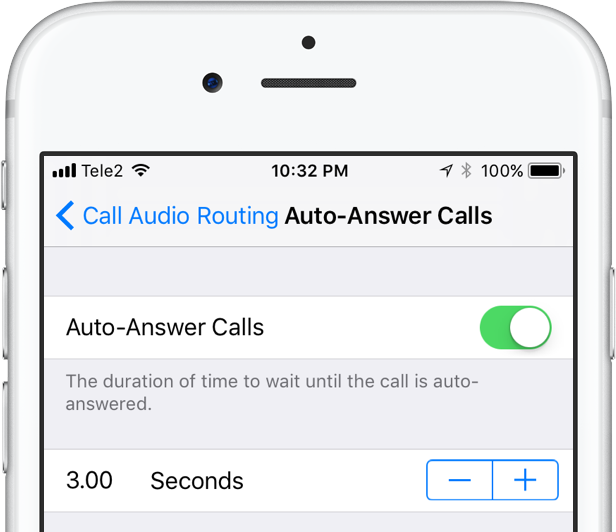
There, you'll see the call routing options which include settings like Bluetooth headsets, the iPhone speaker and more. These options are also available on prior iOS editions. But look at the bottom and you'll see a brand new menu, labeled Auto-Answer Calls.

Tapping it takes you to a new screen where you can enable or disable the feature and set the duration of time your iPhone will wait when a call comes in before it's auto-answered for you.

This handy new option, as I already mentioned, is nowhere to be found in iOS 10 or earlier.

I can see myself using Auto-Answer Calls a lot, not just while jogging with my AirPods or working out with my PowerBeats in my ears but also in other situations when interacting with the phone may be impractical, like driving a car or swimming with my Apple Watch on.

How do you like this nifty feature? Will you be using this auto-answer call setting, and why?

Do let us know by posting a comment below!

TUTORIAL: How to set your iPhone to automatically answer calls

Apple now allowing developers to implement digital tip jars via In-App Purchase mechanism

Apple recently asked WeChat and other popular social networking apps in China to disable the popular tipping feature, and now we know why—the Cupertino giant has introduced an officially-sanctioned way for iPhone and iPad users to tip content creators in apps via the standard In-App Purchase mechanism.

Like with other In-App Purchases, tipping content providers is subjected to Apple's 70:30 revenue sharing scheme, meaning the company will keep 30 percent of any proceeds to itself.

According to TechCrunch, the updated App Store Review Guidelines now include a clause that deals with tips, here's a relevant excerpt:

Apps may use in-app purchase currencies to enable customers to “tip” digital content providers in the app. Apps may not include buttons, external links, or other calls to action that direct customers to purchasing mechanisms other than In-App Purchases.

According to the report, developers have the freedom to decide how much of the tips are passed to the content creators themselves (after Apple's 30 percent cut, of course).

At any rate, Apple was smart to implement this cool new feature.

Tipping content creators like musicians, comedians, e-sports athletes and others is tremendously popular in China. The company has lacked a tipping system for iOS apps, meaning it couldn't get in on the action to process such transactions through its own iTunes billing system.

With tips now being officially supported via the familiar In-App Purchase mechanism, many customers who were previously reluctant to use PayPal or their credit card for tipping their favorite content creators will now be able to do so, directly in the app.

And by taking tipping out of the grey area, as TechCrunch observes, more developers might implement digital tip jars— without fearing repercussions from Apple—as an alternative way to get creators paid without having to offer ad revenue sharing.

In turn, the feature may create a whole new revenue stream for Apple at a time when the company is monetizing its huge user base in an attempt to boost its ever-growing Services revenue.

iOS 11 brings lossless FLAC audio playback to iPhone and iPad

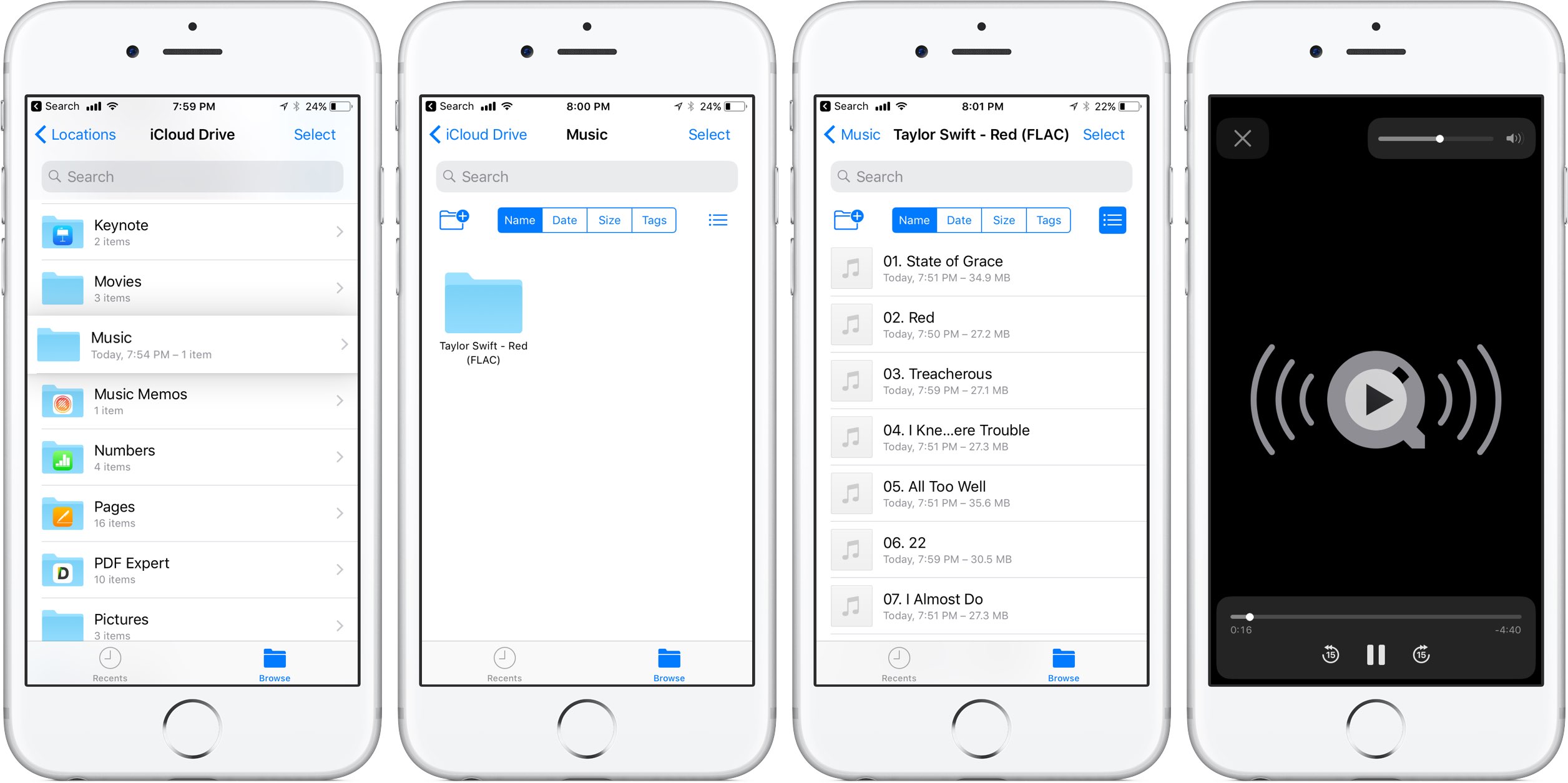
iOS 11 reportedly brings native support for lossless audio encoded in the popular FLAC format to iPhone, iPad and iPod touch. As discovered by Reddit users, Apple has included full playback support for FLAC audio files on iOS 11. iTunes and iOS 10 currently lack built-in support for the FLAC codec, though people can use a third-party app to enjoy FLAC audio.

At this stage, only the new Files app has support for lossless playback of FLAC-encoded audio files. Of course, things could change in subsequent beats as Apple continues to refine iOS 11 ahead of its fall release, at which point iTunes could be updated with full playback support for the popular format.

As things currently stand, any FLAC files synced to an iOS device through iCloud Drive, Dropbox or Box can be played from within the Files app. FLAC files are currently unsupported via the Music app on iOS 11.

For what it's worth, I tried sending an FLAC audio file to my iOS 11-enabled iPhone through AirDrop, to no avail. My iPhone didn't know what to do with the file, putting up the standard prompt offering to download an app from App Store.

No matter how you look at it, this is a big win for music lovers and audiophiles.

The FLAC format bring the full quality of the original recording. FLAC, or Free Lossless Audio Codec, features lossless compression of digital audio which can reduce the size of the audio file to between 50 percent and 60 percent of its original size, without degrading audio quality of the original.

iOS 10 currently supports the AAC, Protected AAC, HE-AAC, MP3, MP3 VBR, Dolby Digital (AC-3), Dolby Digital Plus (E-AC-3), Audible (formats 2, 3, 4, Audible Enhanced Audio, AAX and AAX+), Apple Lossless, AIFF and WAV audio formats.

The ability to play lossless FLAC audio on an iPhone, iPad or iPod touch with iOS 11 could also signify that HomePod, Apple's upcoming smart speaker, may support high-quality FLAC audio.

AirPods Next/Previous track controls also work on iOS 10

One of the little things in iOS 11 includes the ability to set up the AirPods double-tap action to skip forwards and backwards between tracks, cancelling the need to invoke Siri to change songs. As iDownloadBlog reader Harshit Yadav has discovered and shared with us, you can also get this next/previous track control functionality to work on your iPhone, iPad or iPod touch with iOS 10, here's how.

First of all, your AirPods must be running the firmware version 3.7.2 or later, which enables you to customize double taps independently for both the earbuds. To find out your AirPods current firmware version, go to Settings → General → About → AirPods on your iPhone.

Your AirPods must be connected to your iPhone to appear there.

TUTORIAL: How to install software updates for your AirPods

To ensure your AirPods have the latest available firmware, put both the earbuds inside their charging case, then close the case and connect it to a charger or a USB port on your computer. Your iPhone must be paired with your AirPods and connected to Wi-Fi in order for the firmware to download and install.

With the 3.7.2 firmware installed on your AirPods, do the following:

1) Connect your AirPods to an iOS device running iOS 11. This is very important that your AirPods be connected to an iOS 11 device. If not, the option to customize Left and Right ear will not appear.

2) Go to Settings → Bluetooth on your iOS 11 device.

3) Tap the “i” next to your AirPods.

4) Tap Left underneath the Double Tap on AirPod heading, then choose Previous Track from the list of double-tap actions for your left earbud.

5) Tap Right underneath the Double Tap on AirPod heading, then choose Next Track from the list of double-tap actions for your right earbud.

6) Close out the Settings app and play some music to verify that double-tapping either AirPod takes you to the next or previous track.

7) You're done.

With your AirPods updated to the firmware version 3.7.2 and the double-tap action set to next/previous track, you can now pair them back to an iOS 10 device and they will continue to work.

It's important to note that attempting to change your AirPods settings on iOS 10 will overwrite any changes made on your iOS 11 device, meaning you'll loose the next/previous track functionality.

Let us know in the comment section below how it went for you.

Video: watch iOS 11 Messages new “Echo” and “Spotlight” fullscreen effects in action

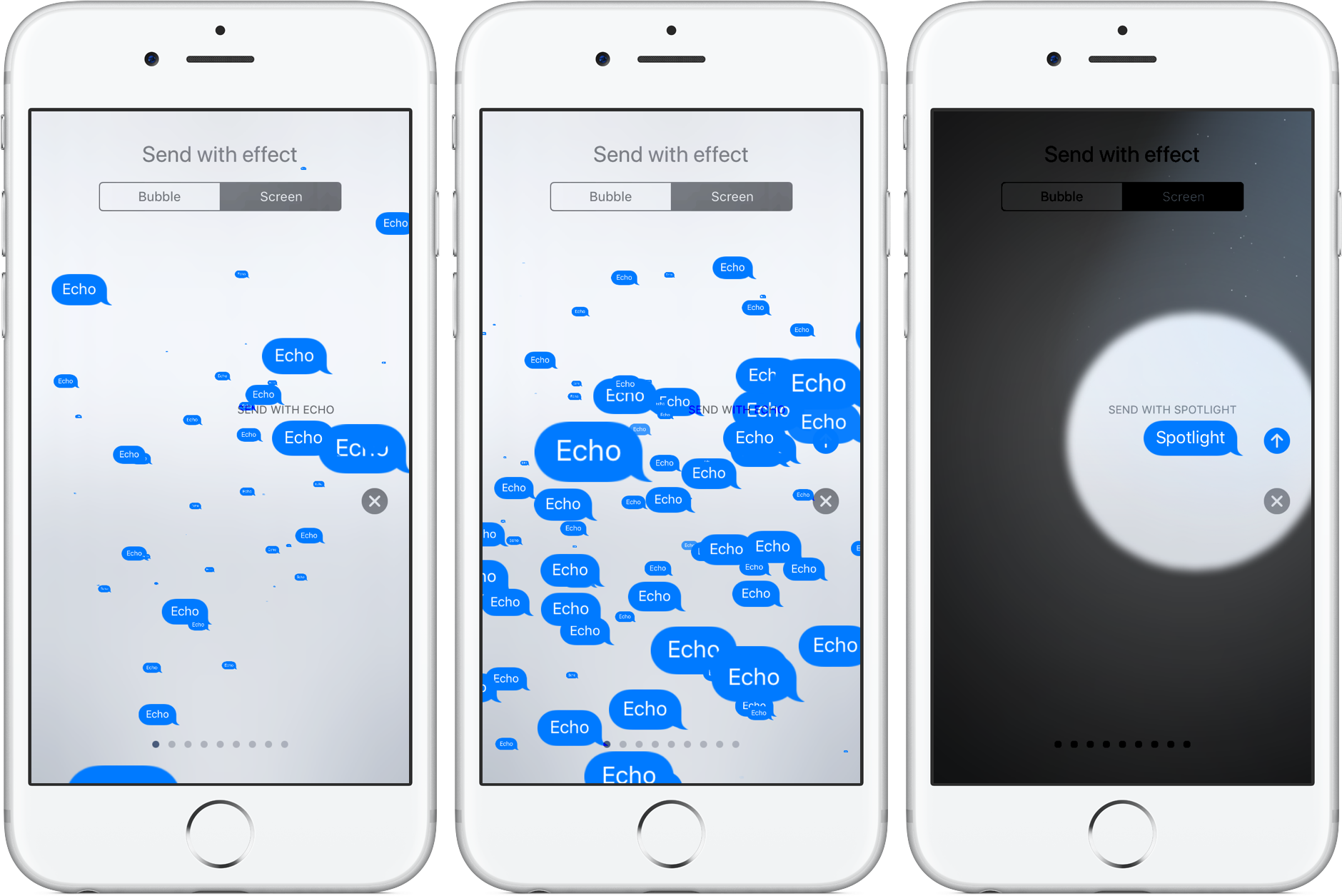
Apple's expressive Messages app gained some interesting fullscreen effects with last year's release of iOS 10. With iOS 11, Apple is bringing a pair of brand new effects to the built-in messaging app, called “Echo” and “Spotlight”.

The two new effects are in addition to the existing ones: Balloons, Celebration, Confetti, Love, Lasers, Fireworks and Shooting Star. To use these effects, press the Send button in Messages with 3D Touch, then tap the Screen tab at the top to swipe through real-time effect previews.

Echo, as the title suggests, multiplies your text all over the screen. Spotlight puts a large spotlight on your chat bubble to emphasize your text.

Watch the new Messages effect in action.

https://www.youtube.com/watch?v=Ur08nXULKvo

Subscribe to iDownloadBlog on YouTube.

As for the so-called bubble effects, no new ones have been added in iOS 11. iOS 10 currently includes five different bubble effects: Slam, Loud, Gentle and Invisible Ink.

How do you like the two fancy new effects in Messages for iOS 11?

Let us know by posting a comment below.

iOS 11 makes it a cinch to share your Wi-Fi password with nearby devices

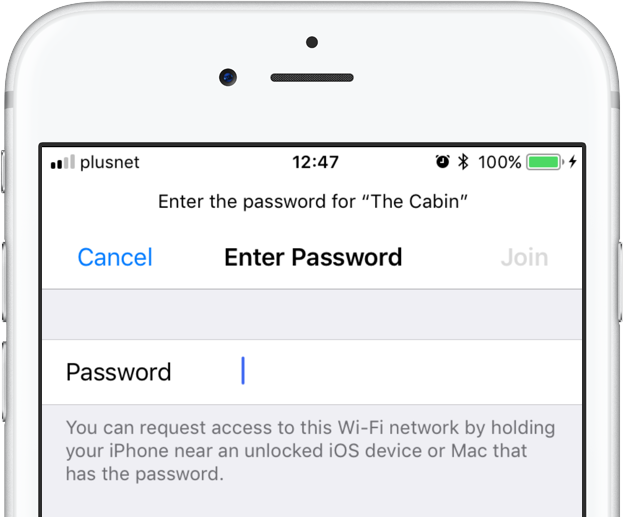
iOS 11 provides a nifty new feature for sharing your Wi-Fi hotspot password with nearby devices, without having to type the password on another device. When a nearby device running iOS 11 attempts to connect to your password-protected Wi-Fi network through Settings → Wi-Fi, a new message informs the owner they can now request access to the network.

To request Wi-Fi network access, they simply hold their device near an unlocked iPhone, iPad, iPod touch or Mac that's already connected to the network. A Wi-Fi sharing card pops up on the device already on the network, resembling the seamless AirPods pairing interface.

As first discovered by 9to5Mac, the device that has the network password automatically sends it to the nearby device over the air, allowing the receiving device to quickly and securely connect to your local wireless network.

This feature uses Wi-Fi and Bluetooth proximity information.

The beauty of this method, as I mentioned earlier, is that it just works—the device requesting access to your Wi-Fi network never sees the actual network password.

macOS High Sierra will support this time-saving feature as well.

Speaking of which, iOS 11 includes automated first-time setup and account login features.

For instance, a feature called Automatic Setup lets you securely import most of the settings and data to your new iPhone or iPad by holding it near an iOS device or Mac you already own, using a process that's very similar to that of pairing an Apple Watch to a nearby iPhone.

iOS 11 is compatible with all 64-bit iPhone, iPad and iPod touch devices. The software update will release as a free download to all customers this fall.

iOS 11’s volume slider no longer covers fullscreen videos

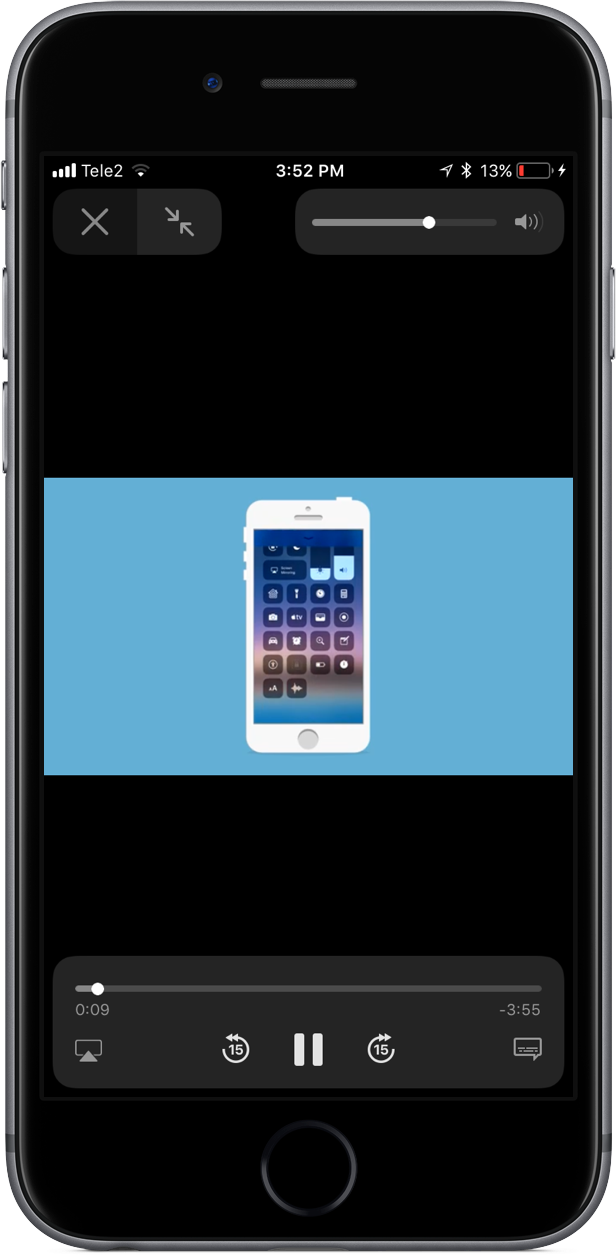
One of the most interesting changes in iOS 11 that hasn't been talked about at all during Monday's WWDC 2017 keynote is going to make a lot of you happy: the volume indicator on iOS 11 no longer obstructs the center of the screen obnoxiously.

As noted by users on Twitter, the redesigned slider only appears when playing video in fullscreen mode. In other words, the good ol' volume control centered on the screen isn't going anywhere, it's just that playing video in fullscreen mode replaces the standard volume control with an unobtrusive slider that sits in the top-right corner of the screen.

This is actually part of a bigger update for iOS 11's system video player.

The iOS 11 video player has controls for subtitles (including YouTube's auto-generated subtitles), AirPlay and more. Plus, it supports full keyboard control so you can control video playback with more than a dozen shortcuts via your physical wireless keyboard.

iOS 11's new minimalist volume slider does not appear in apps and on websites that implement their own custom video player. As an example, many video-streaming apps, including HBO NOW and Netflix, override the system video player and use a bespoke one.

Google's mobile YouTube app also recently updated its video player with a thin volume slider positioned unobtrusively at the very top of the currently playing video.

iOS 11 is compatible with all 64-bit iPhone, iPad and iPod touch devices. The software update will release as a free download to all customers this fall.

iOS 11 lets AirPods owners skip forwards and backwards between tracks with a double tap

The most common complaint about AirPods is their inability to change the currently playing song directly on the earphones, without invoking Siri. Well, YouTuber Appsolutely Tech has discovered that iOS 11 solves this customer pain point by adding the ability to skip forwards and backwards between tracks with a double tap.

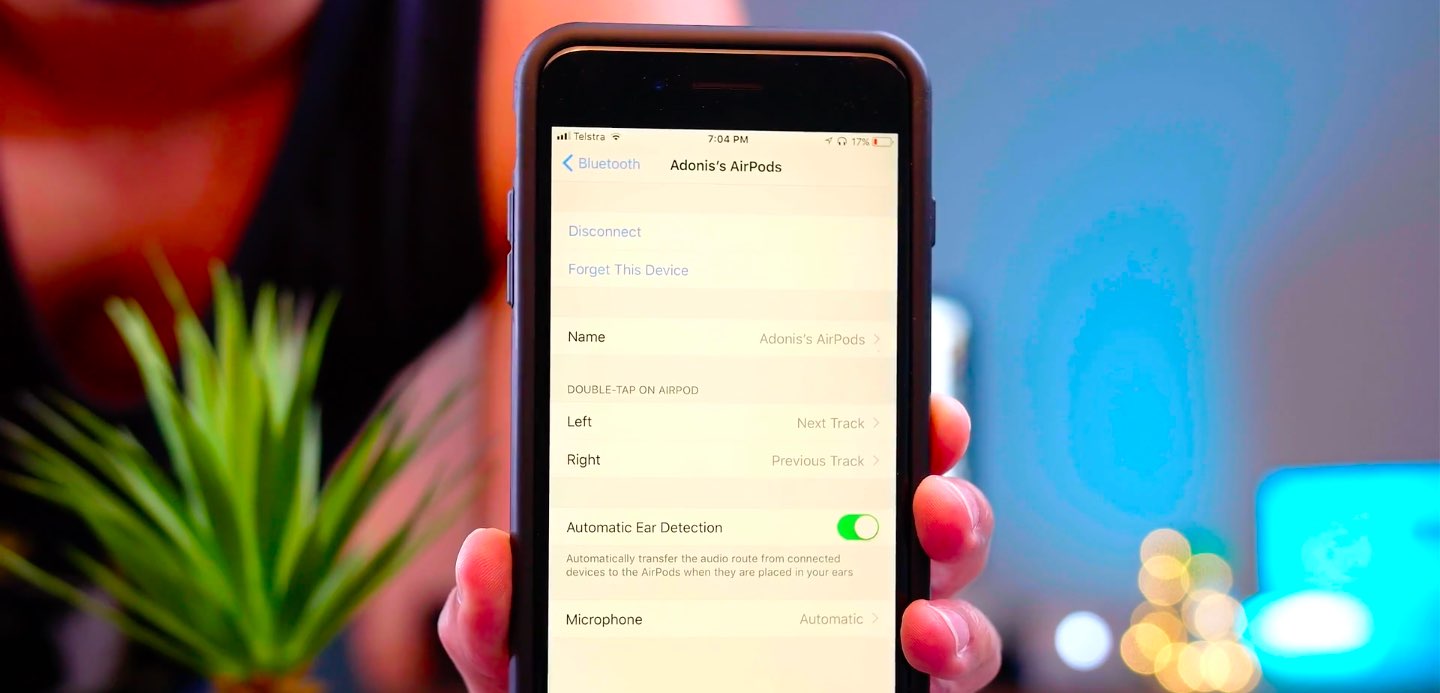
On iOS 11, your AirPods settings include some handy new options for choosing a double-tap action separately for the left and right earbud.

TUTORIAL: Tips and tricks for using AirPods like a pro

You could, for example set your left AirPod to skip to the next track and your right AirPod to go to the next track. Or, you could leave Siri as the default action for one of your AirPods and set the other one to go to the next track when double-tapped.

Watch Appsolutely Tech's video below.

https://www.youtube.com/watch?v=VsQ9J1mwU78

Simply tap the “i” next to your AirPods in Settings → Bluetooth on your iOS 11 device.

You will see you can now set a different double-tap action for each of your AirPods:

Siri Play/Pause Next Track Previous Track Off

It's unclear if Apple might bring this new feature to iOS 10 via a future AirPods firmware update.

Hands-on with iOS 11’s highly customizable Control Center

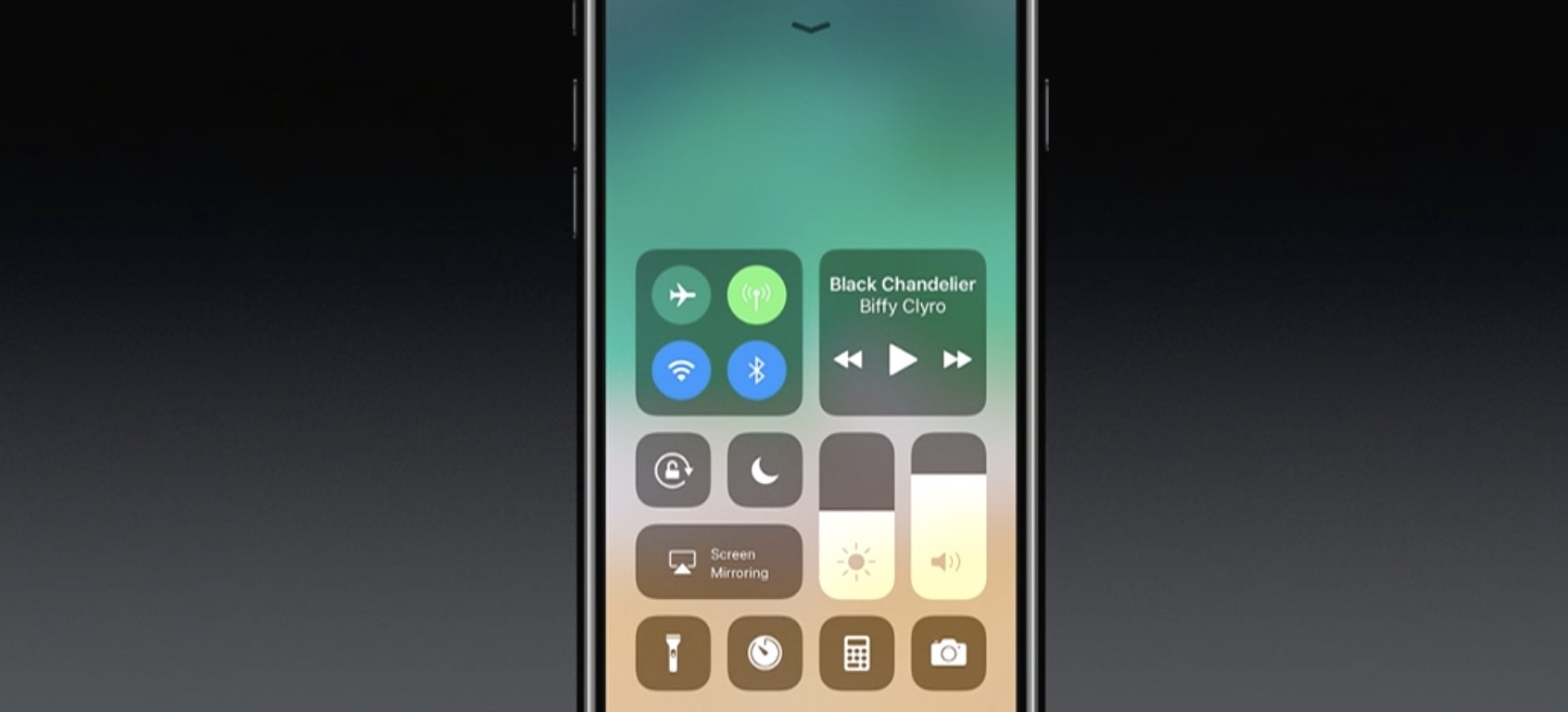
A completely redesigned Control Center is one of the hallmarks of iOS 11. Having ditched card-based layout spanning multiple pages, Control Center has adopted a single-page design. Control Center on iOS 11 is realized as a full-screen scrollable overlay, a design that has allowed Apple to put many more useful controls at your fingertips than ever before.

It is highly customizable, too: you get to choose what appears in your Control Center!

For instance, you could opt for a pedestrian Control Center with a handful of the most commonly used shortcuts, like on iOS 10, or create a fully loaded Control Center that may contain as many as 18 additional toggles. Apple currently does not provide Control Center APIs, meaning third-party apps cannot ship their own Control Center toggles, for now.

iOS 11 Control Center highlights:

Control Center is more condensed You no longer have to swipe your way through multiple cards Everything is on a single, vertically scrollable page iOS 11 has eighteen additional toggles for Control Center You decide which toggles appear in your Control Center

Like before, Control Center is invoked by swiping up from the bottom of the screen.

A fully loaded Control Center on iOS 11.

As you can see for yourself, Control Center on iOS 11 is more condensed than before.

The refreshed design allows you to quickly toggle various settings on a single screen, no swiping between pages required whatsoever.

Additional toggles for Control Center can be added and re-ordered in Settings.

The entire Control Center can be scrolled vertically to reveal any controls that may not fit on a single page. To dismiss Control Center, swipe down or press the Home button.

To stop Control Center from appearing on your Lock screen for security reasons, slide the Control Center switch in Settings → Touch ID & Passcode to the OFF position. All in all, iOS 11's Control Center is completely different than it was before—and it's a change for the better.

To help you get quickly up to speed with everything Control Center on iOS 11 has to offer, we asked our prolific video editor Andrew O'Hara to put together a quick video walkthrough.

Watch his clip below, then read the rest of the article for additional information on other new features for Control Center on iOS 11.

https://www.youtube.com/watch?v=UGWjmt6UXJI

Subscribe to iDownloadBlog on YouTube

Many of Apple's own apps on iOS 11 include their own controls for Control Center.

Notes, for example, provides Control Center shortcuts for creating a new note, checklist, photo or sketch. Clock includes Control Center options for creating alarms and timers, and so forth.

Some of the most useful Control Center shortcuts let you quickly access iOS 11's new screen recording feature, set the Dynamic Text size, control your Apple TV without needing to launch Apple's Remote app and much, much more.

The following set of controls can be added to Control Center at any time:

Accessibility Shortcuts Alarm Apple TV Remote Calculator Camera Do Not Disturb While Driving Flashlight Guided Access Home Low Power Mode Magnifier Notes Screen Recording Stopwatch Text Size Timer Voice Memos Wallet

You can add these toggles to, or remove them from Control Center at any time, in Settings. To rearrange the order in which they appear, drag their handles around.

Keep in mind that these expanded Control Center controls are in addition to the standard toggles, some of which now come with additional switches and options.

The non-removable Control Center items include:

Network—Airplane Mode, Cellular Data, Wi-Fi, Bluetooth, AirDrop and Personal Hotspot. Now Playing—See what's playing, adjust playback volume, control speakers with multi-room support via AirPlay 2, scrub through your media, play or pause a song or go to the previous/next song. Brightness—Adjust the screen brightness, turn Night Shift on or off. Volume—Control your audio volume. Orientation Lock—Toggle Orientation Lock on or off. Night Shift—Toggle Night Shift on or off. AirPlay—Mirror the device's screen on your TV, select an AirPlay device.

As mentioned, these controls are persistent and cannot be removed from Control Center.

Some of the built-in controls will be familiar to you, but many will not.

That said, you're wholeheartedly encouraged to try pressing each toggle with 3D Touch to reveal additional options. For instance, pressing the Network control with 3D Touch expands it so you can choose additional controls, like Personal Hotspot and AirDrop switches.

Similarly, pressing the Now Playing reveals the scrubber and the volume slider. Unfortunately, if your device lacks 3D Touch you won't be able to access any of the additional options for Control Center toggles that provide them.

Apple could tweak Control Center's design as we get closer to iOS 11's release this fall.

While we're not expecting drastic changes in subsequent iOS 11 betas, Apple would be wise to add the ability to drag the toggles inside Control Center to rearrange them.

Bottom line: even in its current form, Control Center is now way more useful than it's ever been.

Everyone will have a chance to appreciate iOS 11's condensed, highly customizable Control Center as soon as iOS 11 releases for public consumption this fall.

iOS 11 is compatible with all 64-bit iPhone, iPad and iPod touch devices.

Share your thoughts on iOS 11's redesigned Control Center by posting a comment below.
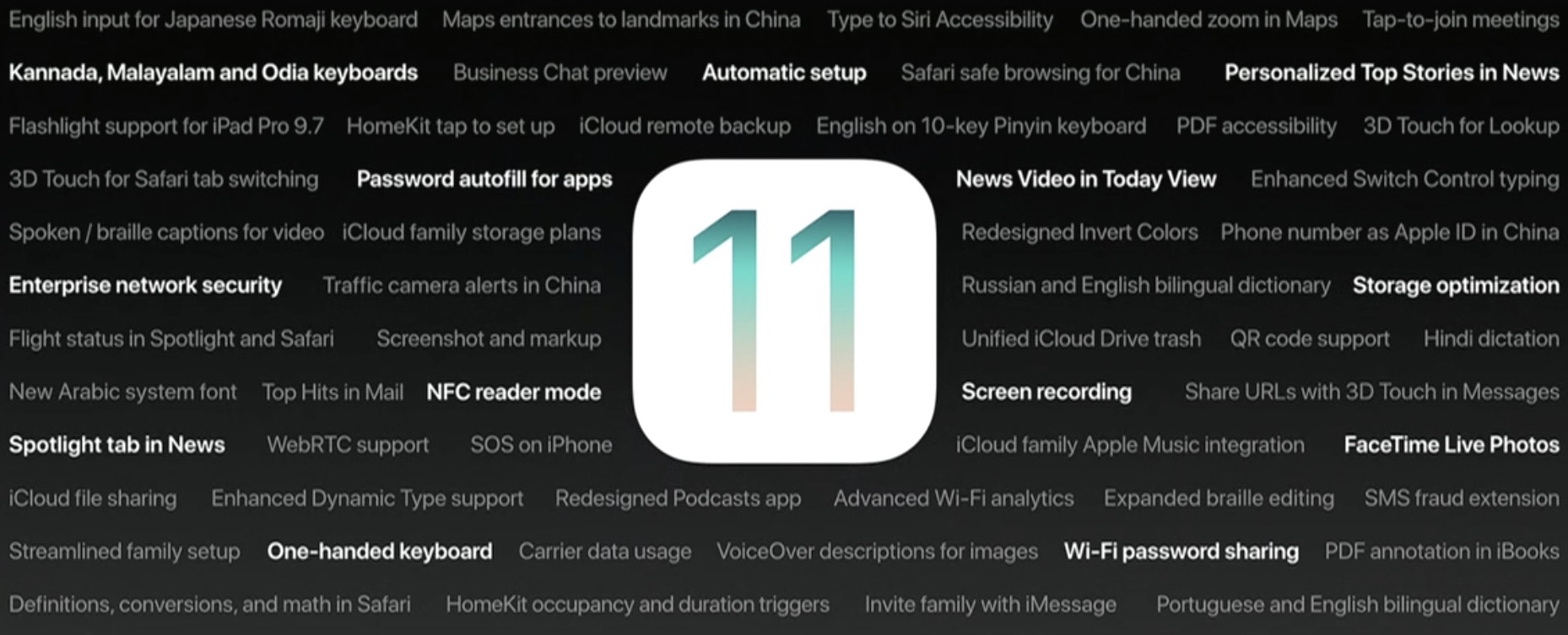
90+ new features shipping with iOS 11 this Fall

Apple spent a lot of time demoing iOS 11 at the WWDC 2017 keynote, but in the interest of time, they were only able to show off some of the top features rather than everything that's new.

In this piece, we'll outline a number of new features that Apple didn't get a chance to show you at the keynote.

iOS can automatically uninstall apps that haven’t been used in a while

iOS 11 included many new features and enhancements, big and small alike.

For example, a revamped storage-management section became available in Settings. Speaking of which, users can appreciate another new feature that allows them to optionally have their device automatically uninstall apps that haven't been used in a while.

If you venture to Settings  → iTunes & App Store, you'll notice a new toggle at the bottom of the screen, labeled Offload Unused Apps. Setting that switch to the ON position shall prompt iOS to delete rarely used apps from your device in order to make more room for your photos, videos, documents and so forth.

iOS uses Siri intelligence to determine your usage of apps.

The feature's description notes that documents and data belonging to uninstalled apps will be kept on your device in case the app is reinstalled. “Reinstalling the app will place back your data, if the app is still available in the App Store,” notes Apple.

This feature is disabled by default.

Rightfully so, if I may add. Had Apple enabled it by default, novice users would've been stunned discovering iOS had deleted their apps for seemingly no apparent reason.