Apple on Thursday announced plans to spend a cool $1.3 billion to build a brand new data center that will be located in Waukee, Iowa's Des Moines area.
Apple to build $1.3 billion iCloud data center in Iowa
Apple on Thursday announced plans to spend a cool $1.3 billion to build a brand new data center that will be located in Waukee, Iowa's Des Moines area.
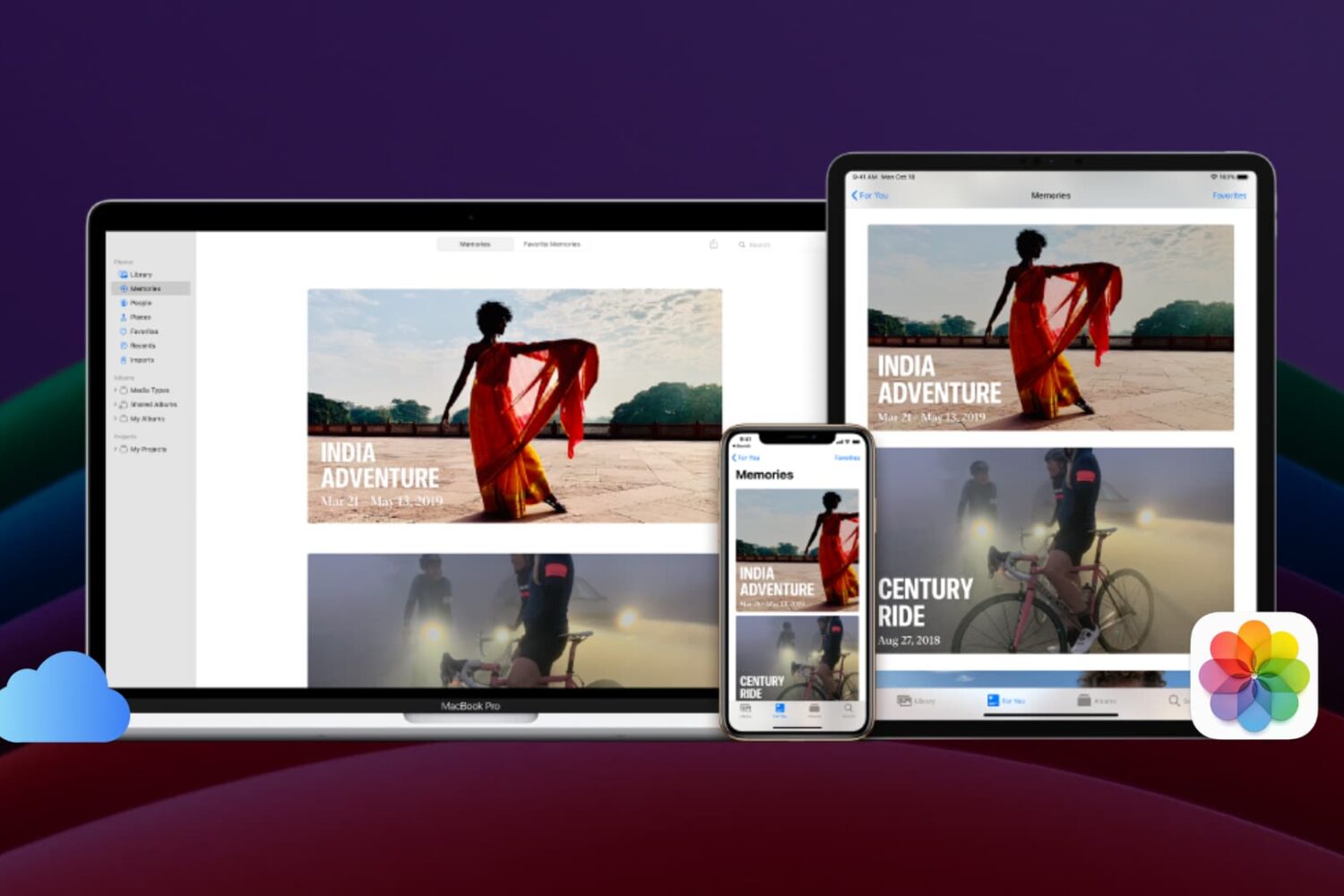
Learn how to pause iCloud Photos updates to save battery and bandwidth on your iPhone, iPad, or MacBook and stop your images, videos and other media from synchronizing across devices.
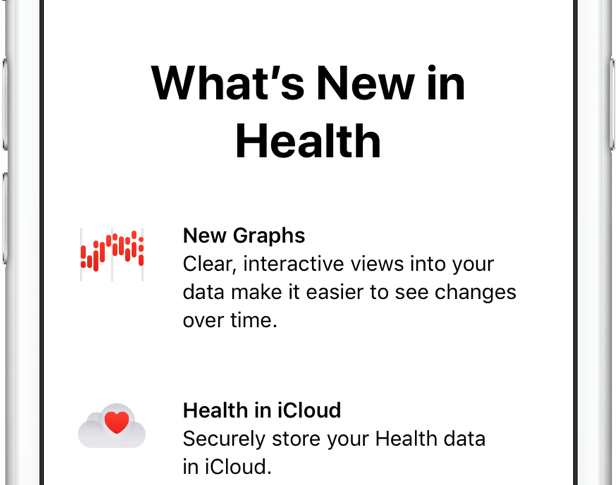
Carrying over the complete Health database from your old to a new iPhone used to require restoring the new phone from an iCloud backup or an encrypted backup created in iTunes.
Apple will build another iCloud data center in the Danish city Aabenraa near the German border, its second in the country, Apple's Nordic director Erik Stannow told Reuters today.
The Cupertino company will spend 6 billion Danish crowns, which works out to approximately $921 million, on the facility which will be powered entirely by renewable energy.
It will power App Store, Siri, iMessage, Maps and other iCloud services. Construction is expected to start before the end of 2017.
Stannow told Reuters in an email:
We're thrilled to be expanding our data center operations in Denmark, and investing in new sources of clean power. The planned facility in Aabenraa, like all of our data centers, will run on 100 percent renewable energy from day one, thanks to new clean energy sources we're adding.
He added that the reliability of the Danish grid is one of the main reasons Apple will operate two data centers in Denmark, a leader in wind power which also has abundant supplies of biomass energy.
If all goes as planned, the facility should go online in the second quarter of 2019.
The iPhone maker is also building a $1 billion data center in Denmark's Foulum, a small town located just outside of Viborg, a city in central Jutland that is home to Aarhus University and agricultural research facilities.
That facility should go online later this year, barring any unforeseen circumstances.
Apple is also building a data centre in Ireland but it's been struggling to get it off the ground because local residents asked the High Court for a judicial review on environmental grounds.
"The proposed data center is currently under judicial review," a spokeswoman said.
Image: Apple's data center in Maiden, North Carolina
Apple has updated its figurative trademark for “iCloud”, filed with the Hong Kong Trademark Office, to include smart glasses and even a headset peripheral device. As you know, the Cupertino company is rumored to be working on a dedicated augmented reality headset or a smart glasses product with Carl Zeiss optics.
As first noted by PatentlyApple, since April of this year Apple has begun to include specific types of products to its trademarks covering the Mac Pro/iMac Pro computers and the ARKit framework for building augmented reality apps, including devices like smart glasses, head mounted displays, virtual and augmented reality displays and the like.
The iCloud trademark's international class 09 verbiage defines the headsets as falling under the context of “wearable digital electronic devices capable of providing access to the Internet” or “computer software for setting up, configuring, operating and controlling” these systems.
Likewise, the trademark meticulously lists the real-world applications for “smart glasses,” also covering things like “virtual and augmented reality displays, goggles, controllers, and headsets, 3D spectacles, eyeglasses, sunglasses, spectacle lenses, optical glass and optical goods”.
iCloud Photo Library is an optional feature on iPhone, iPad, iPod touch and Mac that uploads every photo and video you take or import to iCloud and keeps everything synchronized across all your Apple gear. I've been using it for years and it really “just works”.
On iOS 10 and earlier, Photos syncs with iCloud each time your device connects to Wi-Fi and the battery is charged. On iOS 11 and later, Photos can also use your iPhone's cellular data connection to sync and update the image library.
Do you take many photos on the go? Are you on a metered rather than an unlimited plan? Then you don't need me to tell you that you must ensure you're not wasting huge amounts of cellular data to this feature.
Here's how to stop the Photos app from eating into your iPhone's cellular data plan.
Before we get to it, keep in mind the following:
iOS 10 and earlier—Your Photos library syncs with iCloud each time your device connects to Wi-Fi and the battery is charged. iOS 11 or later—You decide if Photos syncs with iCloud via cellular or Wi-Fi only.In other words, you should double-check that cellular updates for iCloud Photo Library are turned off only if you're on iOS 11 or later. Folks on older iOS editions needn't do that because Photos syncs with iCloud only when their iPhone is connected to power and Wi-Fi.
How to stop iCloud Photo Library on iPhone from using cellular data12-megapixel images and 4K videos captured on your iPhone take up quite a bit of storage space. For most people, there's no point allowing iOS to gobble up cellular data just to keep the image library synchronized with iCloud at all times.
Thankfully, you can prevent this from happening, and here's how:
1) Launch the Settings app on your iPhone or cellular iPad.
2) Tap Photos in the list.
3) Tap Cellular Data.
4) Slide the button labeled Cellular Data to the OFF position.
This device will no longer use your carrier's cellular data for updating the Photos library. Any changes to your image library will automatically upload to iCloud as soon as the device connects to power and Wi-Fi.
TIP: If you really need Photos to be in perfect sync with iCloud at all times, even on the go, via cellular and Wi-Fi, be sure to slide the toggle labeled Unlimited Updates to the ON position.
The feature's description says “unlimited updates may cause you to excess your quota“.
Need help? Ask iDB!If you like this how-to, pass it along to your support folks and leave a comment below.
Got stuck? Not sure how to do certain things on your Apple device? Let us know via help@iDownloadBlog.com and a future tutorial might provide a solution.
Submit your how-to suggestions via tips@iDownloadBlog.com.
Apple today acknowledged ongoing issues with iCloud backups, noting on its System Status webpage that a small percentage of customers have been unable to create new iOS device backups in iCloud or restore from previous saves since Tuesday morning.
“Users may be unable to restore from an iCloud backup,” reads Apple's notice.
According to the System Status webpage, less than one precent of Apple users are affected by the outage. Given the company's one billion active devices in the wild, that seemingly small percentage potentially translates into tens of millions of affected customers.
The company states that its iCloud Backup service has been down since 8am Pacific on Tuesday. The downtime had persisted at the time of this writing, but other iCloud systems didn't seem to have been affected.
Are you experiencing issues creating iCloud backups or restoring from previous ones?
Apple has made some changes to paid iCloud storage upgrades.
Having nixed the previously available one-terabyte tier, the company has now made its flagship two-terabyte plan more affordable than ever.
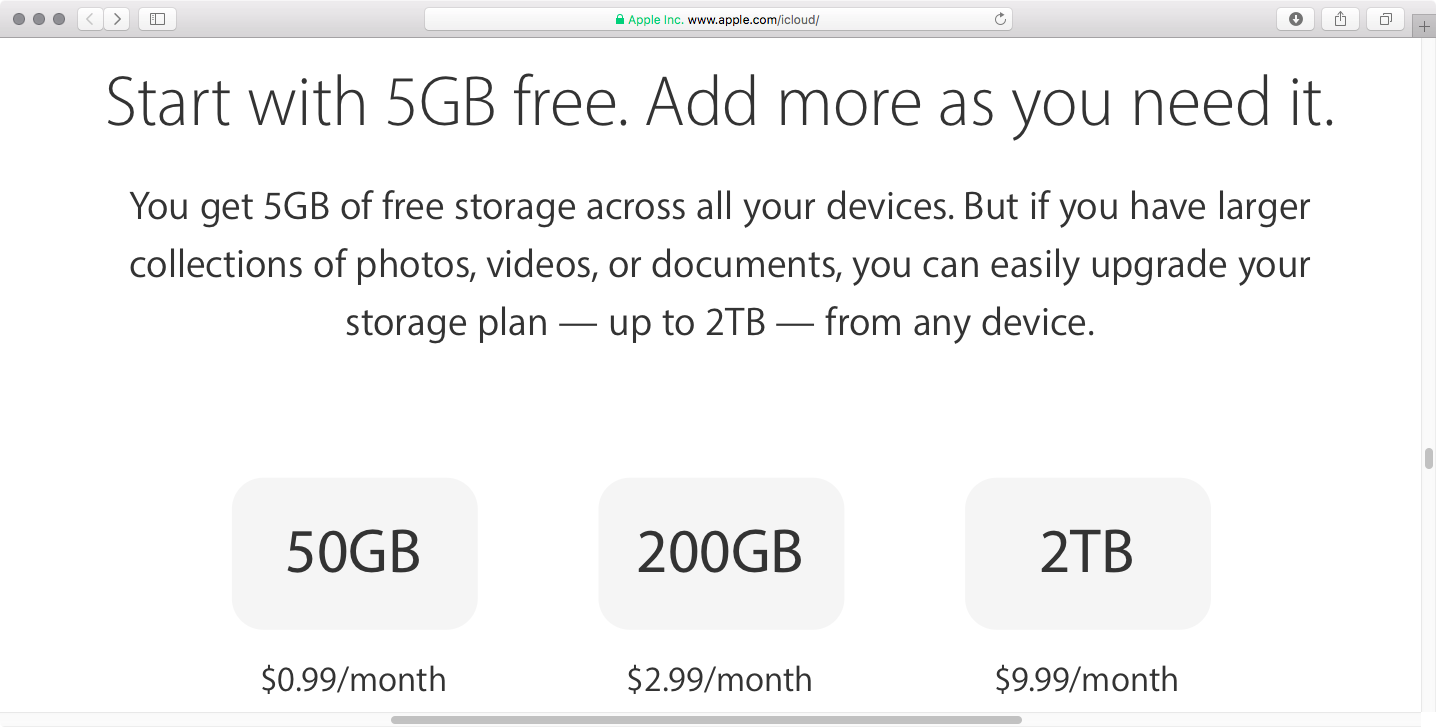
You can now get a whopping two terabytes of storage in exchange for a pretty competitive monthly fee of just $9.99 per month, or half the previous asking price of $19.99 per month.
As mentioned, the 1TB plan that used to cost $9.99 per month has been eliminated. The 200GB $2.99 per month and the 50GB $0.99 per month tiers have remained unchanged. The free tier is still limited to just five gigabytes of storage.
According to Apple's iCloud webpage, the following storage tiers are now available:
5GB for free 50GB for $0.99 per month 200GB for $2.99 per month 2TB for $9.99 per monthThe new pricing is available in all markets.
You can use iCloud storage to store your entire Photos library, backup all the Apple devices you own, synchronize files between devices, keeping other files in your iCloud Drive, store your iCloud Mail message archive and much more.
And with iOS 11 and macOS High Sierra, Apple customers can now share a 200GB or 2TB iCloud storage plan with family members, if they like.
“Now you can share an iCloud storage plan with your entire family, notes Apple. “Choose 200GB or 2TB and give everyone space to store photos, videos, documents and more.
You can upgrade your iCloud storage directly on your device in Settings → General → Storage & iCloud Usage, then tap Manage Storage under the iCloud section and hit Change Storage Plan. On a Mac, go to System Preferences → iCloud → Manage for these options.
Apps designed to use iCloud Drive for syncing data between devices “just work”. On the other hand, those that don’t natively support Apple's secure Two-Factor Authentication system may ask for your Apple ID password to access data stored in your iCloud account.
For instance, Fantastical for Mac may require your Apple ID user name and password to import your iCloud calendars. And what if you'd like to use your iCloud email account in apps like Spark or Airmail, but don't want to expose your Apple ID credentials to the app?
Given that asking for the user's iCloud password poses a dangerous attack vector, Apple now mandates that all native apps use app-specific passwords to access user data stored in iCloud.
The change goes into effect on June 15, 2017.
To ensure worry-free experience, you can use an app-specific password to sign in to an app or service not provided by Apple, without ever typing your Apple ID password.
In this step-by-step tutorial, you will learn how to create an app-specific password for any native app that wants to access your personal data stored in iCloud, revoke all of your generated passwords one by one or all at once, and more.
About app-specific passwordsSecurity is paramount.
Protecting your Apple ID account against hackers and nefarious users by turning on Apple's older Two-Step Verification system or the modern, more secure Two-Step Verification also entails using app-specific passwords for any web apps, online services and apps that don’t natively support entering verification codes.
TUTORIAL: How to protect your Apple ID with Two-Factor Authentication
App-specific passwords maintain “a high level of security and ensure that your primary Apple ID password won’t be collected or stored by any third-party apps you might use,” notes Apple.
You can have up to 25 active app-specific passwords at any given time. If you need to, you can revoke passwords individually or all at once.
How to generate app-specific passwords1) Sign in to your Apple ID account page at appleid.apple.com/account/home.
2) In the Security section, click Generate Password below App-Specific Passwords.
3) Type a password label into the text field, then click Create to generate a random password. The password label helps distinguish one app-specific password from another.
I'll create an app-specific password for Fantastical and name it “Fantastical for Mac”.
4) Click Done to finish creating the password.
5) Now paste the password into the password field of the app as you would normally.
Again, I'm a Fantastical believer so I'm going to type the generated password into Fantastical.
Using an app-specific password ensures that Fantastical is able to access my iCloud calendar and gives me a piece of mind knowing I don't have to worry about the security of my Apple ID.
As a reminder, you can have up to 25 active app-specific passwords at any given time. Keep in mind that each app-specific password is case-sensitive and only works in one app.
How to revoke app-specific passwordsYou can revoke app-specific passwords individually or all at once. Revoking an app-specific password stops the app from accessing data in your iCloud account.
1) Sign in to your Apple ID account page at appleid.apple.com/account/home.
2) In the Security section, click Edit.
3) In the App Specific Passwords section, click View History.
4) You can now revoke an individual password or all passwords at once:
Revoke individual passwords—To revoke an individual password, click the “x” next to a password you'd like to delete, then click Revoke. Revoke all passwords at once—To revoke all the app-specific passwords you've generated thus far, click Revoke All.“After you revoke a password, the app using that password will be signed out of your account until you generate a new password and sign in again,” notes Apple.
Be sure to generate new app-specific passwords for any apps that don't support entering verification codes because, for the sake of your own security, all of your app-specific passwords are auto-revoked any time you update or reset your primary Apple ID password.
Need help? Ask iDB!If you like this how-to, pass it along to your support folks and leave a comment below.
Got stuck? Not sure how to do certain things on your Apple device? Let us know at help@iDownloadBlog.com and a future tutorial might provide a solution.
Submit your how-to suggestions via tips@iDownloadBlog.com.