Learn how to use your iPhone or iPad as a wireless remote for controlling a Keynote presentation on your Mac.
How to use iPhone or iPad as a remote for Keynote on Mac
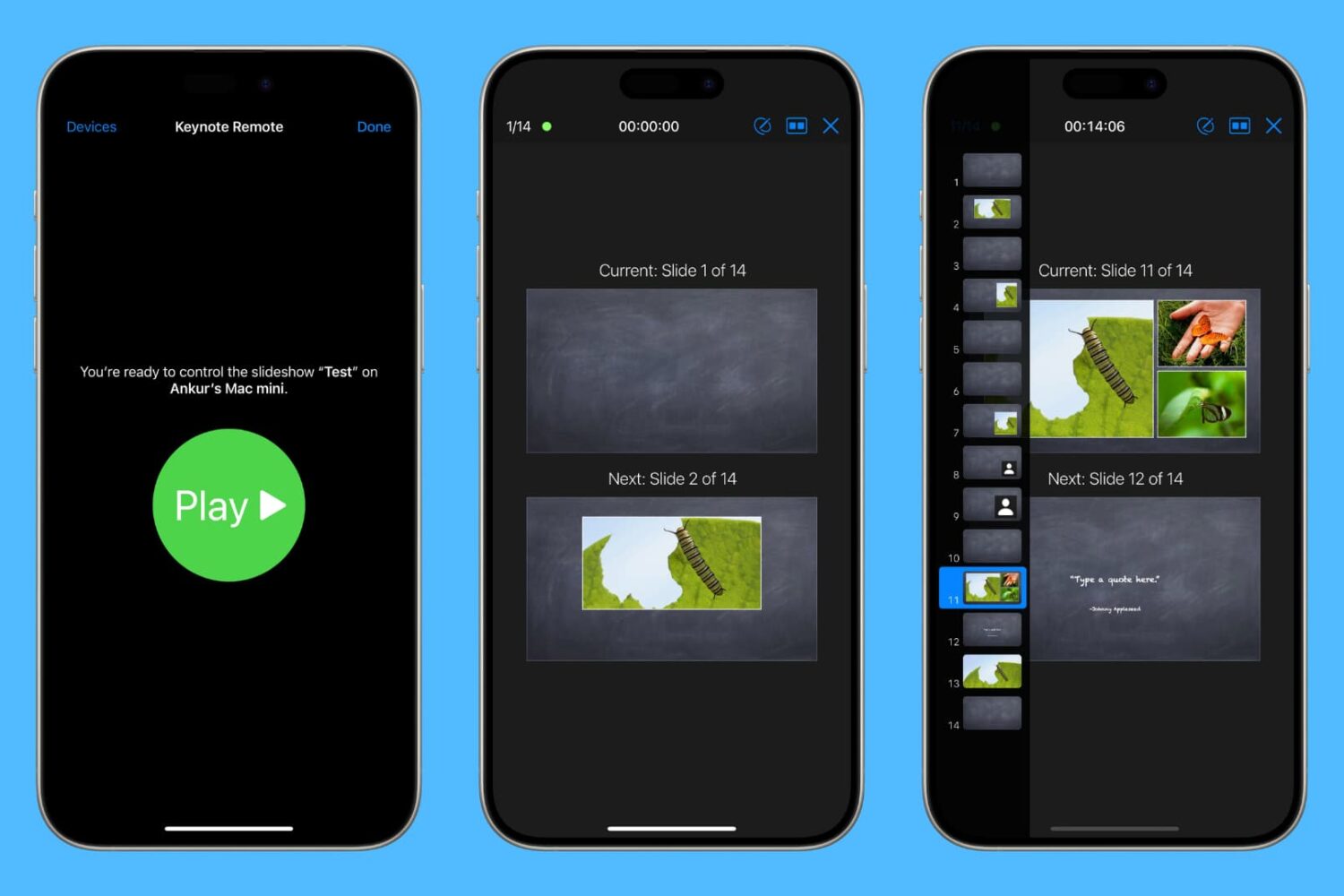
Learn how to use your iPhone or iPad as a wireless remote for controlling a Keynote presentation on your Mac.

Apple's newly-announced macOS Sierra is set to release to the public this Fall as the company revealed at WWDC 2016 this week, and it includes a variety of improvements that will make using your Mac even better than ever.
One of those improvements is Universal Clipboard, which is a Continuity feature that lets you share your clipboard between your iOS device(s) and your Mac.
But what if we told you that you didn't have to wait until the public release of macOS Sierra to enjoy a similar feature on your Mac?
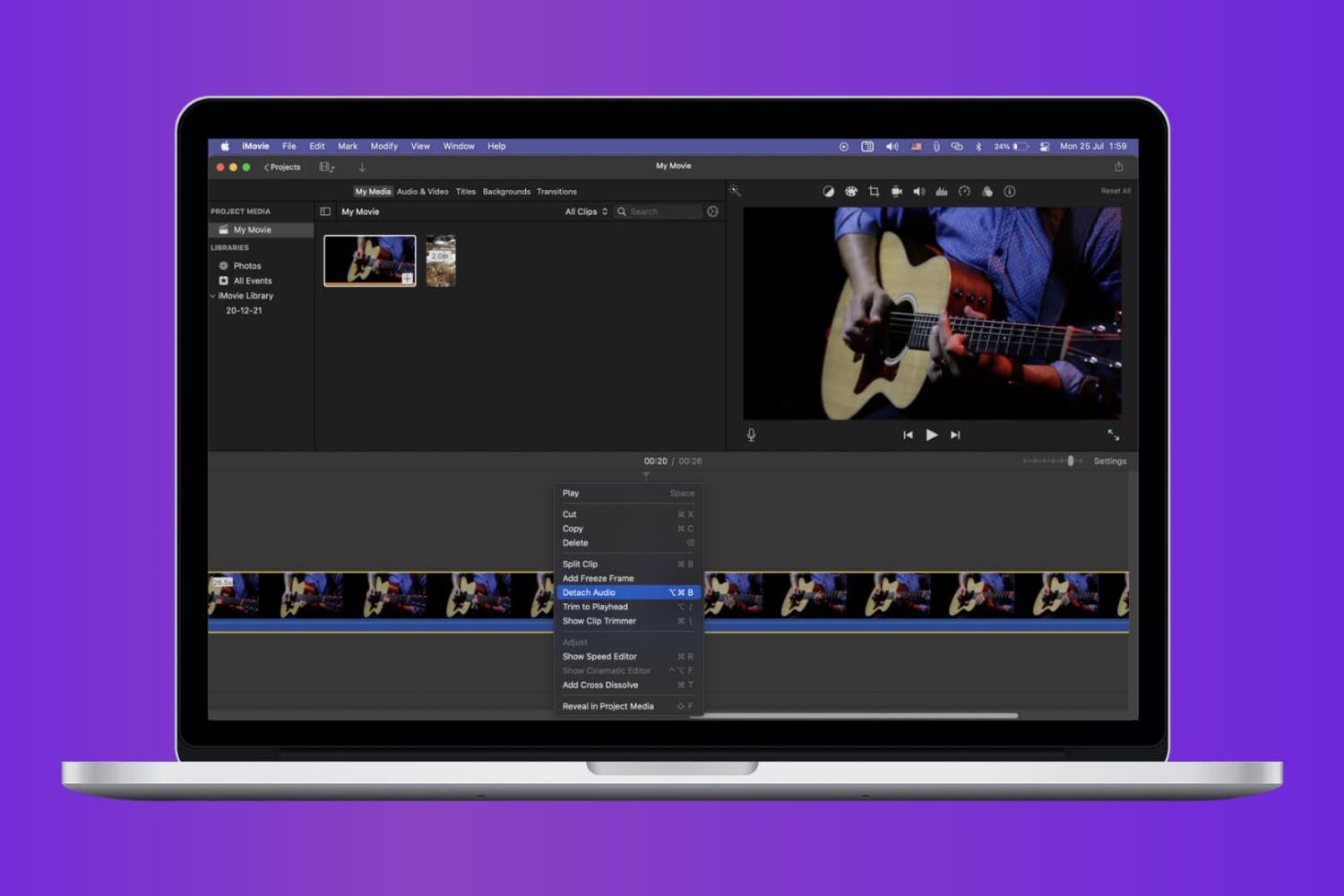
Check out the quick steps to remove audio from a video using iMovie and save that soundless clip locally to your Mac.

When it comes to using your Mac for day-to-day activities, you may want to set up a printer with it so you can print documents, shipping labels, photos, and other important pieces of information.

Learn how to fix iPhone apps stuck on “Installing…” so you can get your downloads working again quickly.
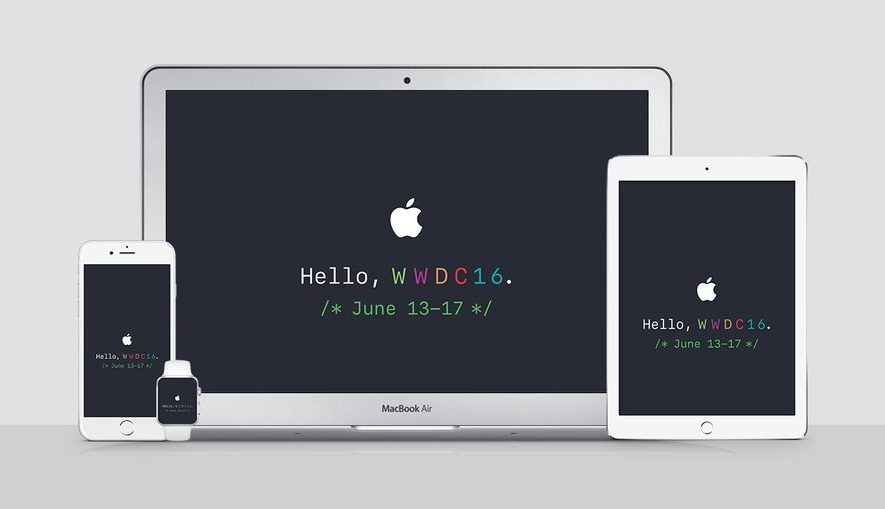
Apple is going to be streaming their WWDC 2016 event live on their website today, and die-hard Apple fans will be tuning into the event from their devices to see what's new.
Whether you've got a Mac or a PC, or are using your mobile device to stream the media, you can watch it live whether you're at home or on the go. There are, however, some requirements you will have to meet to be able to do so.
Here's everything you need to know about how to stream the WWDC 2016 event live on your devices today.
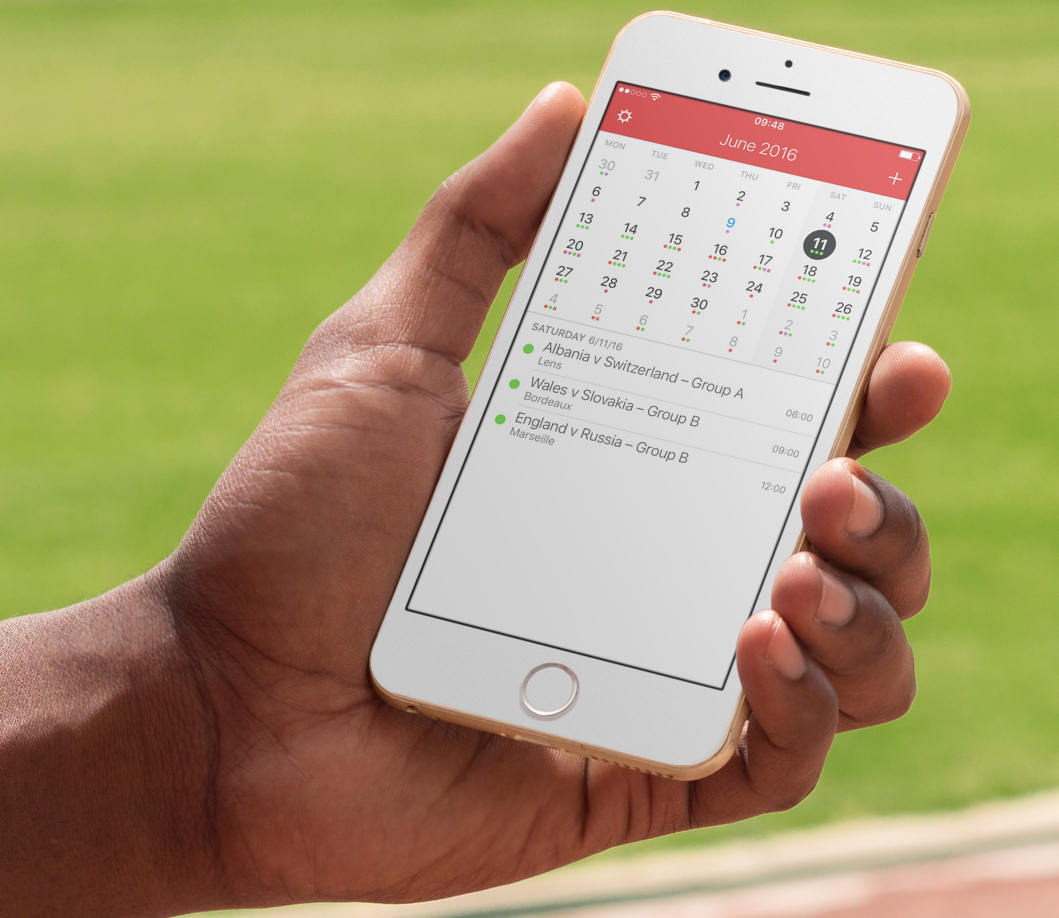
I recently wrote a post describing how to add the schedule of the Euro 2016 to your iPhone, Mac, or iPad calendar app in order to keep up with the competition. As described in my post, subscribing to this calendar (or any other calendar) directly from your iPhone or iPad, will only add the calendar locally on the device, but it won't sync across all your other devices like an iCloud calendar would.
iDB reader Kyler emailed us earlier today asking how he can subscribe to a calendar while adding it to his iCloud account to make sure the calendar events sync to his iPhone, iPad, and Mac, without having to manually subscribe to the calendar on each device. This is what we're going to do look at in this post.
The UEFA Euro 2016 will kick off tomorrow with France taking on Romania in the first game of the competition. If you're a casual football fan (sorry, I can't call it soccer!), and want to keep up with the competition schedule and fixtures without necessarily downloading a bunch of apps, your best bet is to subscribe to a calendar that will push all games dates, times, and places to your iPhone or iPad calendar app of choice.

Lots of times you may want to print something, only to find that you have no printer ink or that you aren't near a printer. Your Mac comes with a useful function in the macOS printing menu that lets you save anything you want to print as a PDF file to print or share later. We'll show you how you can make a PDF out of anything you intend to print in this tutorial.

Sometimes when emptying the Trash on your Mac, you may get error messages that tell you files you're trying to delete are in use. When you're looking to delete everything that's in your Trash to free up some storage space, error messages are going to be the last thing you want to see.
In this piece, we'll talk about why you're getting these messages and how to get your Mac to free up the file so you can delete it safely.

There is a ton of VNC software options out there, but Screens by Edovia has by far been my favorite for a number of years because it looks and feels like software Apple could have created themselves.
In this tutorial, I'll show you how you can use the Screens app from your iPhone, iPod touch, or iPad, in combination with Edovia's free Screens Connect software for Mac, to access your Mac remotely.
Although your Mac comes with a Calculator app, you will find that it only supports basic, scientific, and programmer modes.
Unfortunately for those who are in advanced math courses in school, be it grade school or college, or for those that just need a hand in tutoring their children, the Calculator app doesn't come with graphing functionality and it leaves you to fend for yourself.
A little known feature of your Mac, directly out of the box, is that it does have graphing functionality built into its default software, and in this tutorial, we'll show you how to unleash it.