Learn how to close all open Safari tabs at once on your iPhone or iPad to save time, declutter your browsing, boost performance, and even save battery power.
How to close all opened Safari tabs at once on iPhone and iPad

Learn how to close all open Safari tabs at once on your iPhone or iPad to save time, declutter your browsing, boost performance, and even save battery power.
Contact groups can be useful, but as your list of contacts changes over time, you may outgrow the need for some you already have, or develop a need to make more. In this tutorial, we'll show you how you can delete a contact group from iCloud.com.
Spring-cleaning your contact group list helps reduce clutter in the Contacts app and makes it easier to find the contacts you want right when you need them.

Love it or hate it, Apple's Safari is a zippy web browser that performs well on the Mac, and it continues to get more and more competitive with other web browser platforms.
Since Apple wants you to use Safari on your Mac, it's a no-brainer they're going to make it easier to migrate your web data from one web browser to another.
In this tutorial, we're going to show you how to import bookmarks to Safari, along with your other web data, from a different web browser.

Mac’s Safari web browser is loaded with features that aren’t enabled out of the box. One of them is the hidden Develop menu in the top macOS menu bar, which packs a number of features that even regular Safari users could benefit from.
Last week, we showed you how you could customize the toolbar on your Mac's Finder window to better suit your needs, but there are other apps throughout the macOS operating system that come with toolbar-editing capabilities as well.
In this tutorial, we'll show you how you can customize the toolbar in the Safari web browser to make your web surfing experience the best it can be for your specific needs.
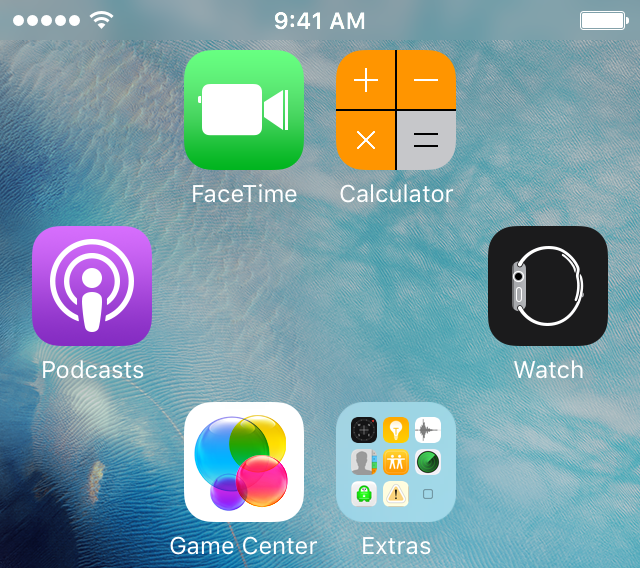
One of the top things that those without jailbreaks wish they could do is put blank spaces between app icons on the Home screen.
Whether it's to help with your creative organization technique, or to simply add a personal touch or pattern to your Home screen, you may be excited to hear that it's possible to create blank spaces between your app icons on a completely stock, non-jailbroken iOS device.
In this tutorial, we'll talk about how you can generate blank spaces between your app icons on the Home screen, as shown above, without having a jailbreak.

Java, just like Adobe Flash, is often a major security flaw waiting to happen for both Mac and PC owners.
Although Apple takes security very seriously and just about forces Mac users with Java to check for Java updates automatically, it's still never a bad idea to check on your own from time to time.
Since we recently showed you how to check for Flash updates manually, it only made sense to follow up with a similar guide for Java, which is also a commonly-used web plugin.
In this tutorial, we'll show you how to see if you have the latest version of Java installed on your computer or not.
SnapBack, a long-standing and very easily overlooked Safari for Mac feature, can save you a ton of clicks if you search a lot, and most of us do. With SnapBack, you can go right back to the last full search results page, even after traveling multiple pages in from your search results.
Part of the reason most users aren't familiar with SnapBack has to do with Apple's decision to remove the little orange SnapBack icon from Safari's address bar and bury the feature in the menus.
Here's that secret SnapBack shortcut that everyone should start using right now.

Flash is among one of the most targeted web platforms for injecting computers with malware, including Macs, and that's why Adobe is always turning around with updates for Flash all the darned time.
If you're like me, then your security is important to you, and you may not trust automatic updates to deliver updates to you quickly enough.
This tutorial will show you how you can make sure Flash is up to date on your Mac, the manual way.
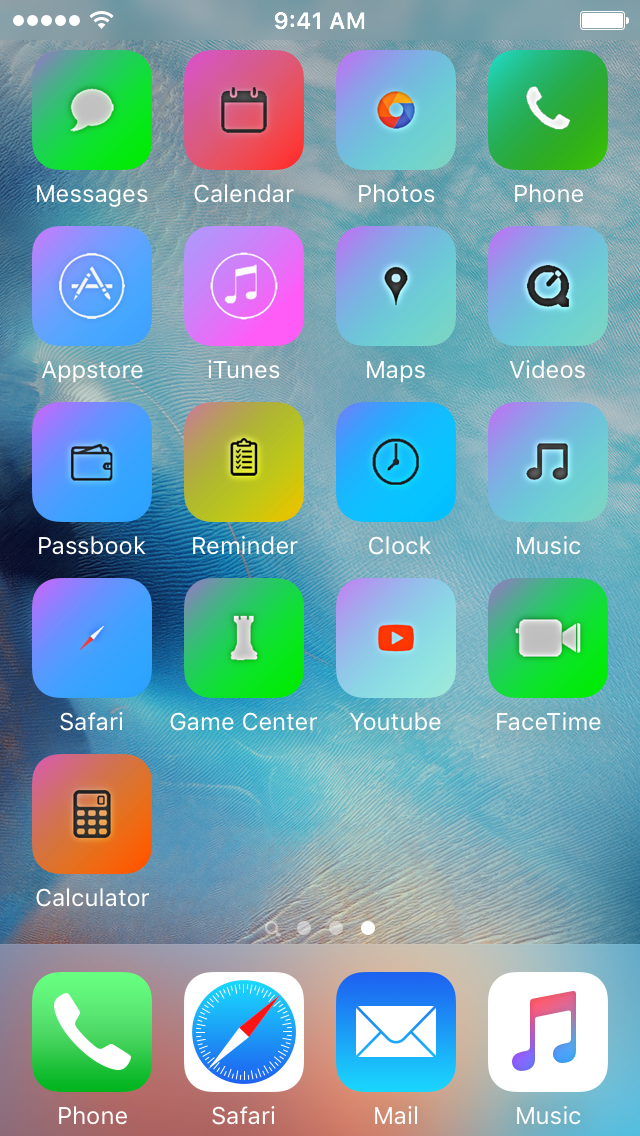
Theming your iPhone, iPod touch, or iPad has been a long time primary reason of jailbreaking. Unfortunately, as the wait for a new jailbreak becomes ever so longer in between iOS releases, the jailbreak scene is becoming less reliable for getting the features you want on the latest version of iOS.
For those who are tired of waiting, iSkin is a new platform that can be used directly from your Safari web browser to install themes on your iOS device without a jailbreak, and we'll show you how it's used in this tutorial.

Learn how to turn off Safari suggestions on your iPhone, iPad, or Mac that appear as content previews when typing search terms in the address bar.
