As you might know, Apple with iOS 11 and macOS High Sierra introduced a new space-saving image file format, called High Efficiency Image File Format (HEIF).
How to convert HEIF images to JPEGs with iMazing HEIC Converter
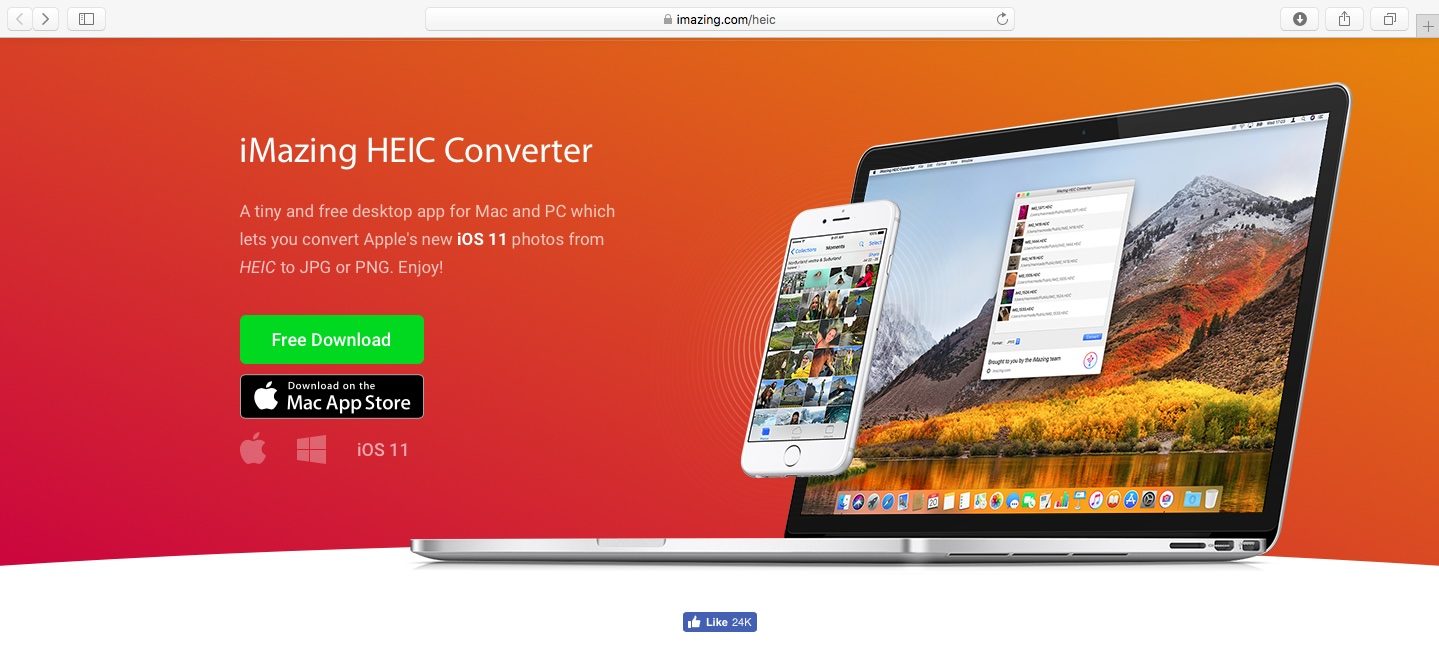
As you might know, Apple with iOS 11 and macOS High Sierra introduced a new space-saving image file format, called High Efficiency Image File Format (HEIF).

Do you have books in the Apple Books app (earlier called iBooks) for which you would like to change the cover? If so, read on because we are about to show you how to change the cover of a book in the Books app in just a few clicks.
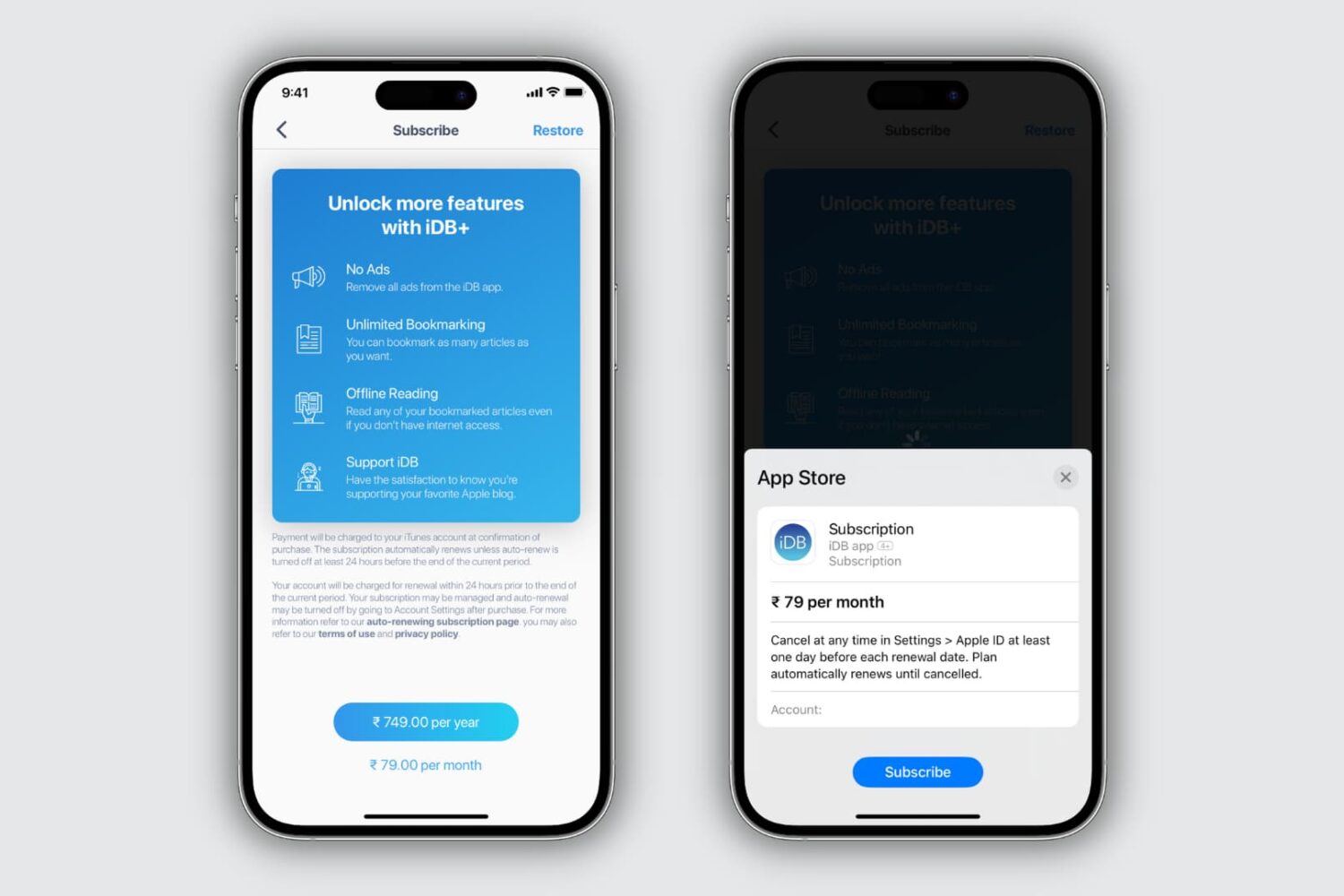
Learn how to view the subscriptions you purchased in App Store apps on your iPhone, iPad, or Mac, and cancel ones you no longer need to stop paying for them.
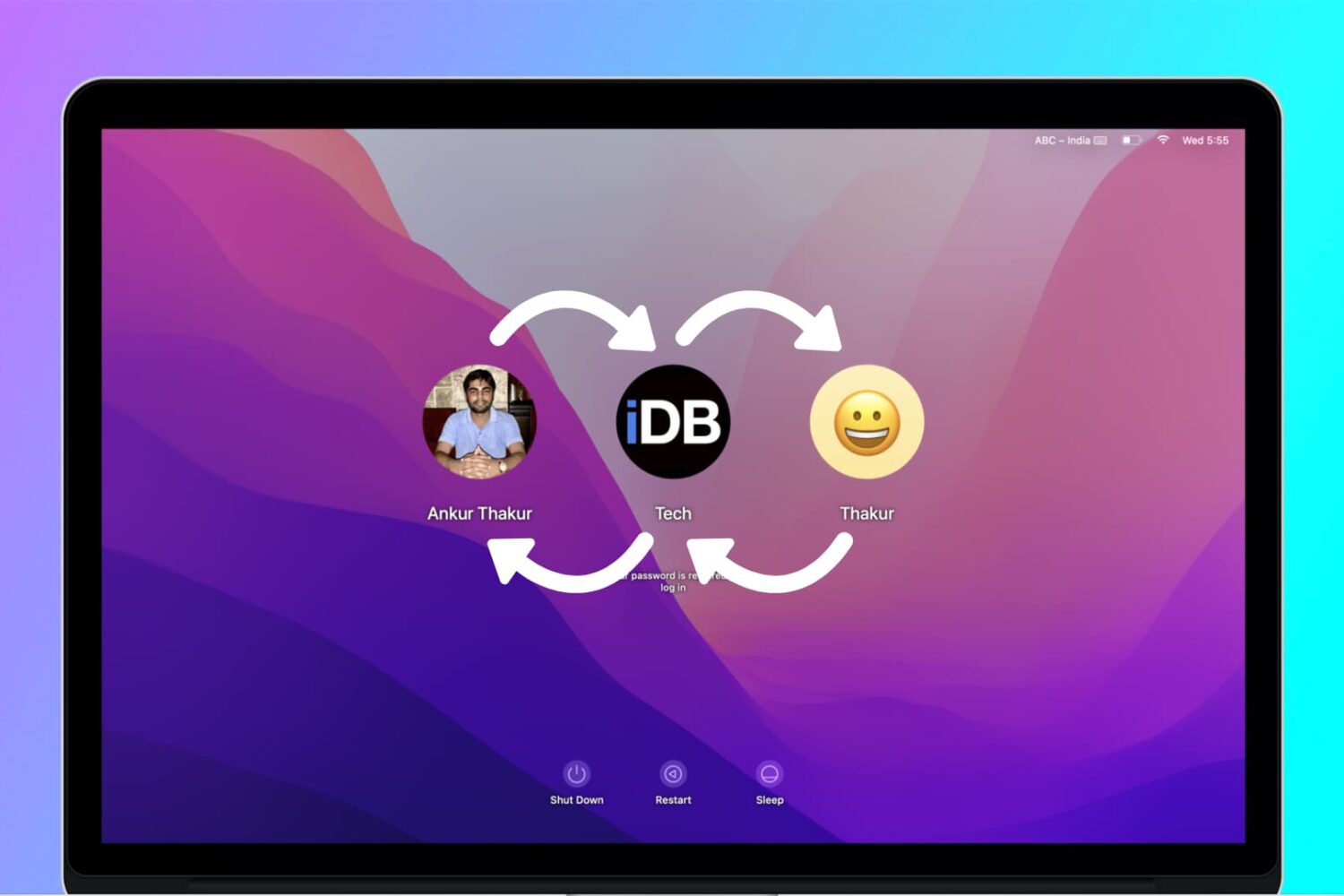
If you have a Mac in your household, chances are it's being shared between several family members. With every family member having his or her own account, each user can then operate the computer without messing up other users' files and settings.
In that kind of situation, users might, at some point, want to share files and documents with each other. This can be done either via a Shared folder, a Public folder available to each user, and a Drop Box folder that is specific to each user. (Not to be confused with cloud storage service Dropbox.)
In this post, you will learn the differences between a Shared folder, a Public folder, and the Drop Box folder. You will find out when and how to use each method to share files and documents between users of the same Mac.
Learn how to quickly find all screenshots taken on your Mac, regardless of their save location, even if you manually moved them to custom folders.

Learn what to do if your Text Replacement phrases and shortcuts are not syncing across all your iPhone, iPad, and Mac.
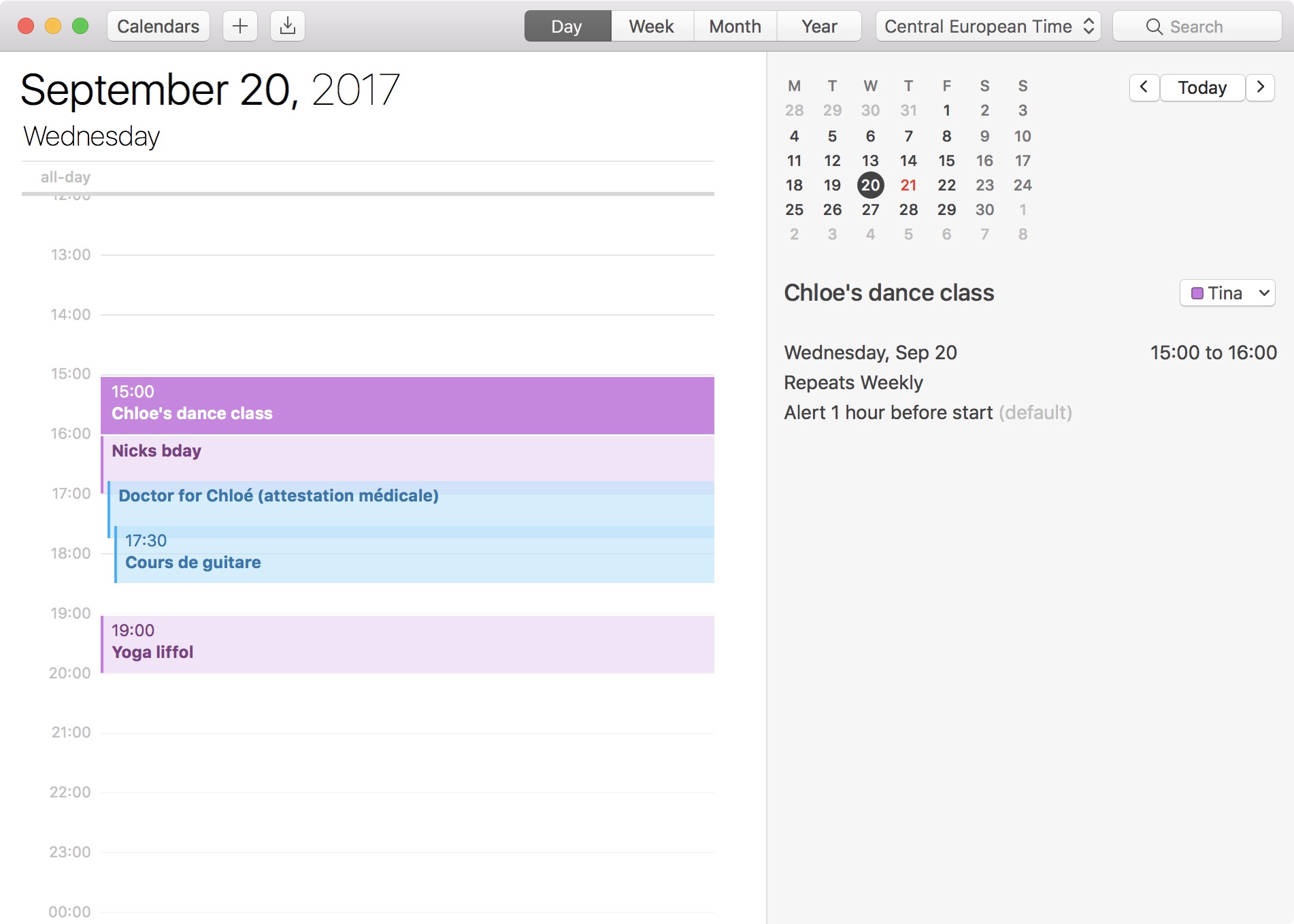
The 24-hour clock is the most commonly used time notation in the world. That is if you're not living in the US or any of the few countries that sill operate on a 12-hour clock system. Also called military time in the US, 24-hour time format arguably makes more sense than anything else as it divides the day into -- you guessed it -- 24 hours.
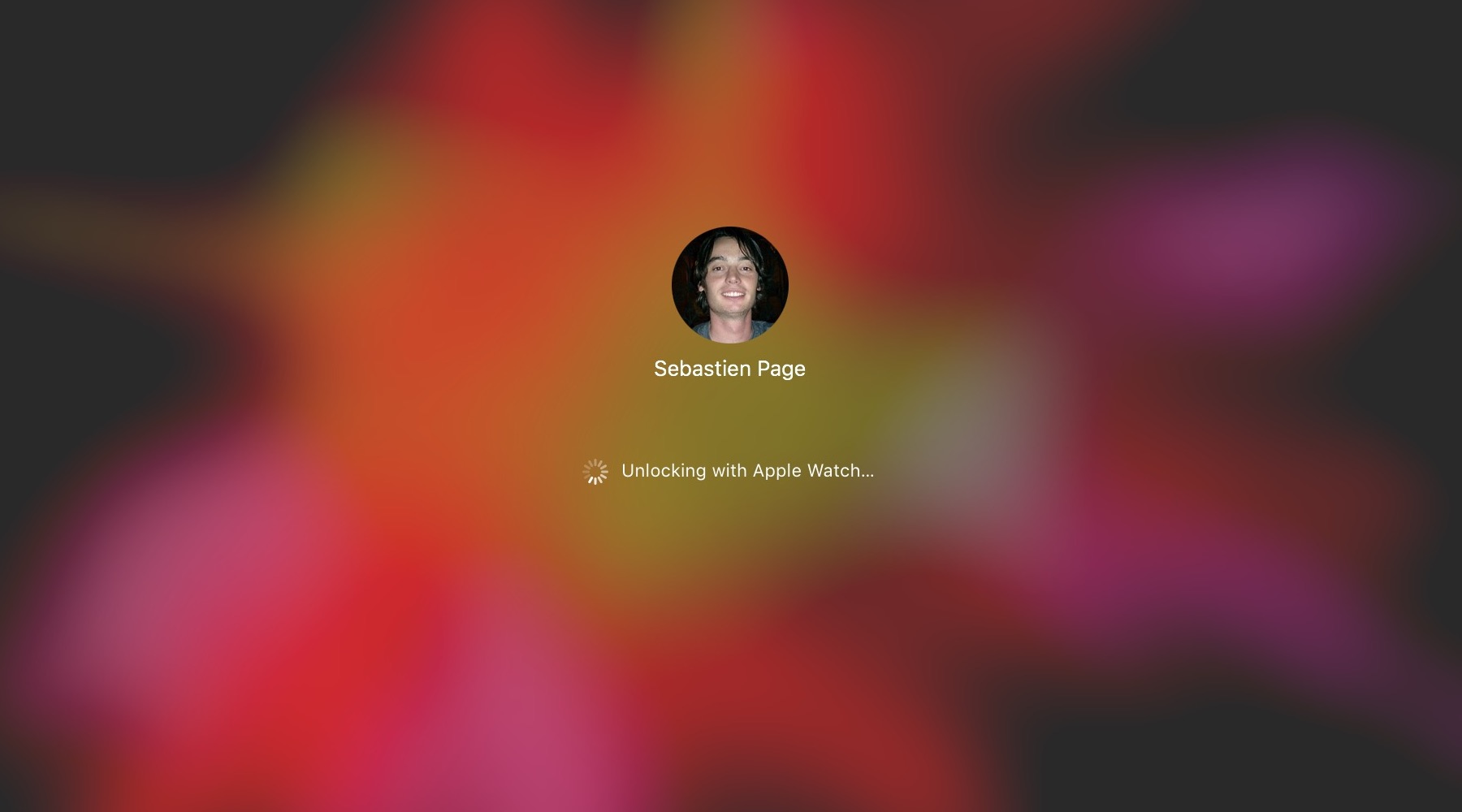
The macOS feature that allows you to unlock your Mac with your Apple Watch offers security and convenience. The problem may arise when that feature doesn't work as expected.
If you have set up your Mac to be unlocked with your Apple Watch and are having issues with the feature not working properly, there are a few things you can try.
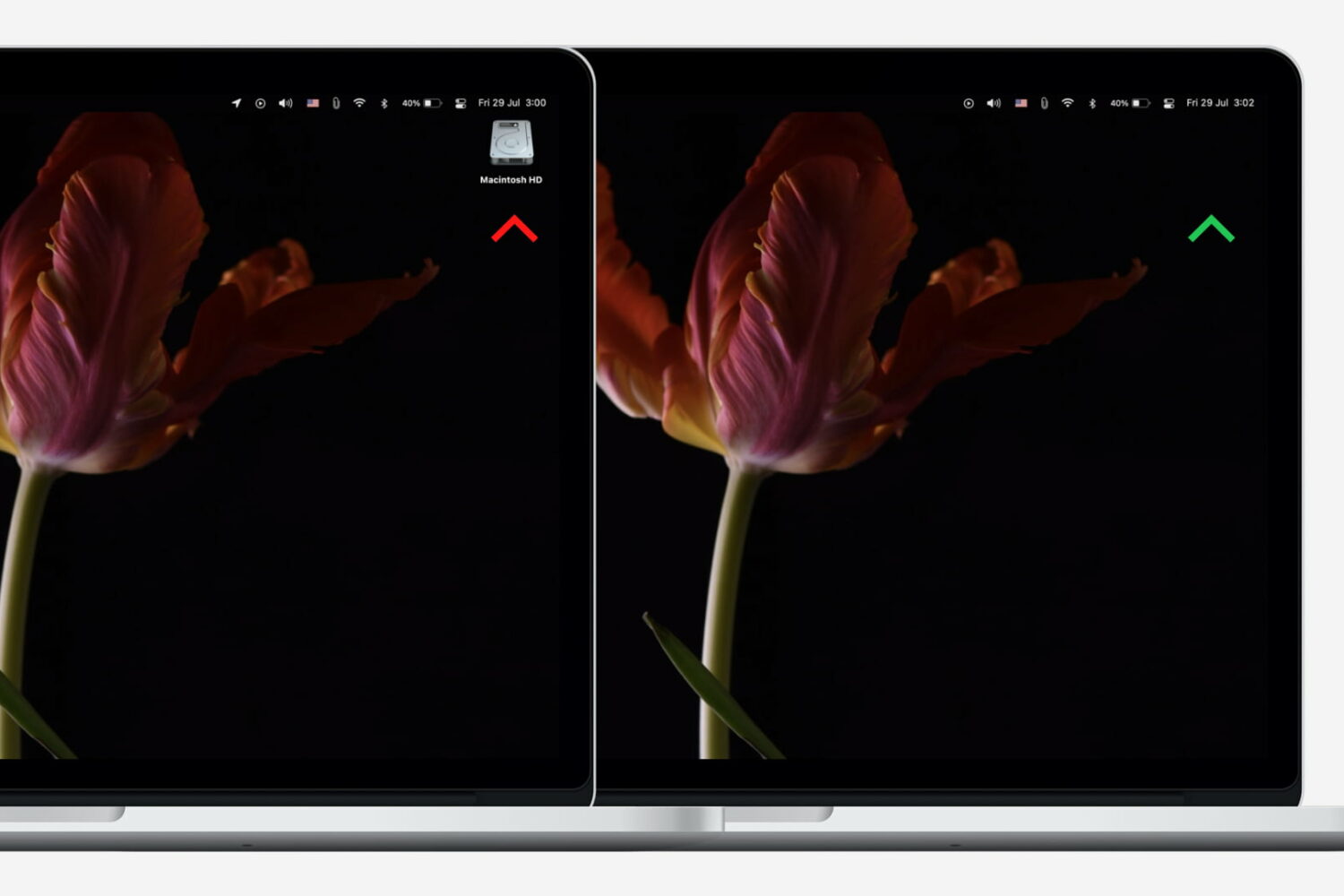
Neat freaks like me like to keep the desktop of their computers free of any clutter. That includes files, folders, and of course, the Macintosh HD icon. As a matter of fact, removing the Macintosh HD icon from the desktop is one of the first few things I do when setting up a new Mac.
Although pretty simple to do, hiding that icon is not very obvious to less tech-savvy people. So in this post, I will describe how to remove the Macintosh HD or the hard disk/SSD icon from the desktop on your Mac.

Learn how to free up storage space on your Mac by deleting unneeded email attachments in Apple Mail like PDF documents, images, videos, and other large files.

iCloud Photo Library is an optional feature on iPhone, iPad, iPod touch and Mac that uploads every photo and video you take or import to iCloud and keeps everything synchronized across all your Apple gear. I've been using it for years and it really “just works”.
On iOS 10 and earlier, Photos syncs with iCloud each time your device connects to Wi-Fi and the battery is charged. On iOS 11 and later, Photos can also use your iPhone's cellular data connection to sync and update the image library.
Do you take many photos on the go? Are you on a metered rather than an unlimited plan? Then you don't need me to tell you that you must ensure you're not wasting huge amounts of cellular data to this feature.
Here's how to stop the Photos app from eating into your iPhone's cellular data plan.
Before we get to it, keep in mind the following:
iOS 10 and earlier—Your Photos library syncs with iCloud each time your device connects to Wi-Fi and the battery is charged. iOS 11 or later—You decide if Photos syncs with iCloud via cellular or Wi-Fi only.In other words, you should double-check that cellular updates for iCloud Photo Library are turned off only if you're on iOS 11 or later. Folks on older iOS editions needn't do that because Photos syncs with iCloud only when their iPhone is connected to power and Wi-Fi.
How to stop iCloud Photo Library on iPhone from using cellular data12-megapixel images and 4K videos captured on your iPhone take up quite a bit of storage space. For most people, there's no point allowing iOS to gobble up cellular data just to keep the image library synchronized with iCloud at all times.
Thankfully, you can prevent this from happening, and here's how:
1) Launch the Settings app on your iPhone or cellular iPad.
2) Tap Photos in the list.
3) Tap Cellular Data.
4) Slide the button labeled Cellular Data to the OFF position.
This device will no longer use your carrier's cellular data for updating the Photos library. Any changes to your image library will automatically upload to iCloud as soon as the device connects to power and Wi-Fi.
TIP: If you really need Photos to be in perfect sync with iCloud at all times, even on the go, via cellular and Wi-Fi, be sure to slide the toggle labeled Unlimited Updates to the ON position.
The feature's description says “unlimited updates may cause you to excess your quota“.
Need help? Ask iDB!If you like this how-to, pass it along to your support folks and leave a comment below.
Got stuck? Not sure how to do certain things on your Apple device? Let us know via help@iDownloadBlog.com and a future tutorial might provide a solution.
Submit your how-to suggestions via tips@iDownloadBlog.com.

Let Siri use iCloud to sync its machine learning data across all your Apple devices so you get an improved, uniform Siri experience, regardless of the iPhone, iPad, or Mac you use the voice assistant on.