How to

How to Get Ready for iOS 5 and iCloud Tomorrow

Apple is finally releasing iOS 5.0 and iCloud to the public tomorrow. Both products was initially previewed to developers at Apple's WWDC conference this past June.

After 7 consecutive developer betas, iOS 5 reached its final Gold Master version on October 4th. The public version drops tomorrow with iCloud. It's time to get ready...

How to Downgrade iTunes and Fix the “iTunes Library.itl” Cannot Be Read Error

So, you downloaded and installed the iTunes beta for iTunes Match without first thinking about the consequences. No sweat.

If you've since tried to downgrade your iTunes beta back to a publicly released version of iTunes, resulting in the horrible ‘”iTunes Library.itl” cannot be read because it was created by a newer version of iTunes’ error message, don't succumb to tears just yet; we've got a fix that might just work.

Save the precious iTunes library that you've spent hours upon hours massaging to perfection, and tune in to the following video tutorial...

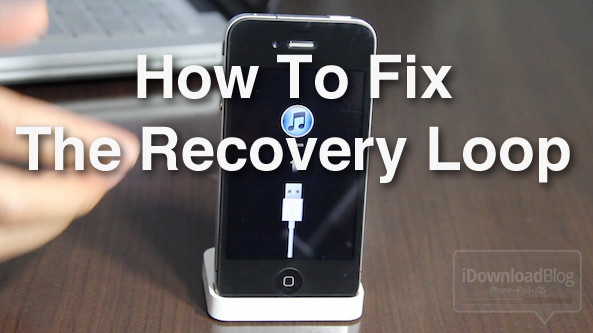
How to Fix the iPhone’s Dreaded Recovery Loop and Downgrade Back to iOS 4.3.3

If you're the type of person who likes to sell your current iPhone and use the funds to upgrade to the latest and greatest iPhone, then you've been there before. Restoring your iPhone to stock, and cleaning it up, is essential if you want to ensure you get top dollar for your device.

Thankfully, Cody already covered quite a few bases in his article, here. But what if you're still having issues downgrading your iPhone, or getting it back to stock after jailbreaking? I know a lot of you have personally told me about your struggles with the iPhone's dreaded recovery loop.

If you're having issues downgrading your iPhone back to iOS 4.3.3, issues with iTunes Error (1), and/or you're stuck in the recovery loop, and can't get out, this video tutorial should fix what ails you...

How to Enable Automatic Downloads in iTunes 10.3

Although the average consumer has to wait a month or more to get their paws on the new Mac operating system, and twice that long for iOS 5, there is one cool new feature Apple unveiled this week that users can take advantage of right away.

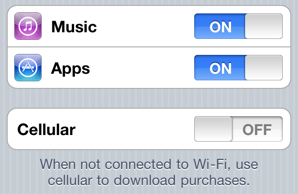
The iDevice community all let out a synchronous sigh of relief on Monday as Apple announced the new Automatic Download feature for iTunes and iDevices. While there are some limitations, the feature can help you cut the cord between your iPhone and your computer.

The built-in utility instantly recognizes when you download media on an iDevice or desktop, and automatically pushes that media out to your other devices. Once enabled, any app, song or iBook title you download on one device, will automatically push out to your other gadgets.

Essentially, any iDevice with iOS 4.3.3 or computer with the latest version of iTunes qualifies for the new feature, as long as they are all using a common iTunes account. It doesn't take much to turn on Automatic Downloads and it can be a real timesaver. Check out this quick tutorial:

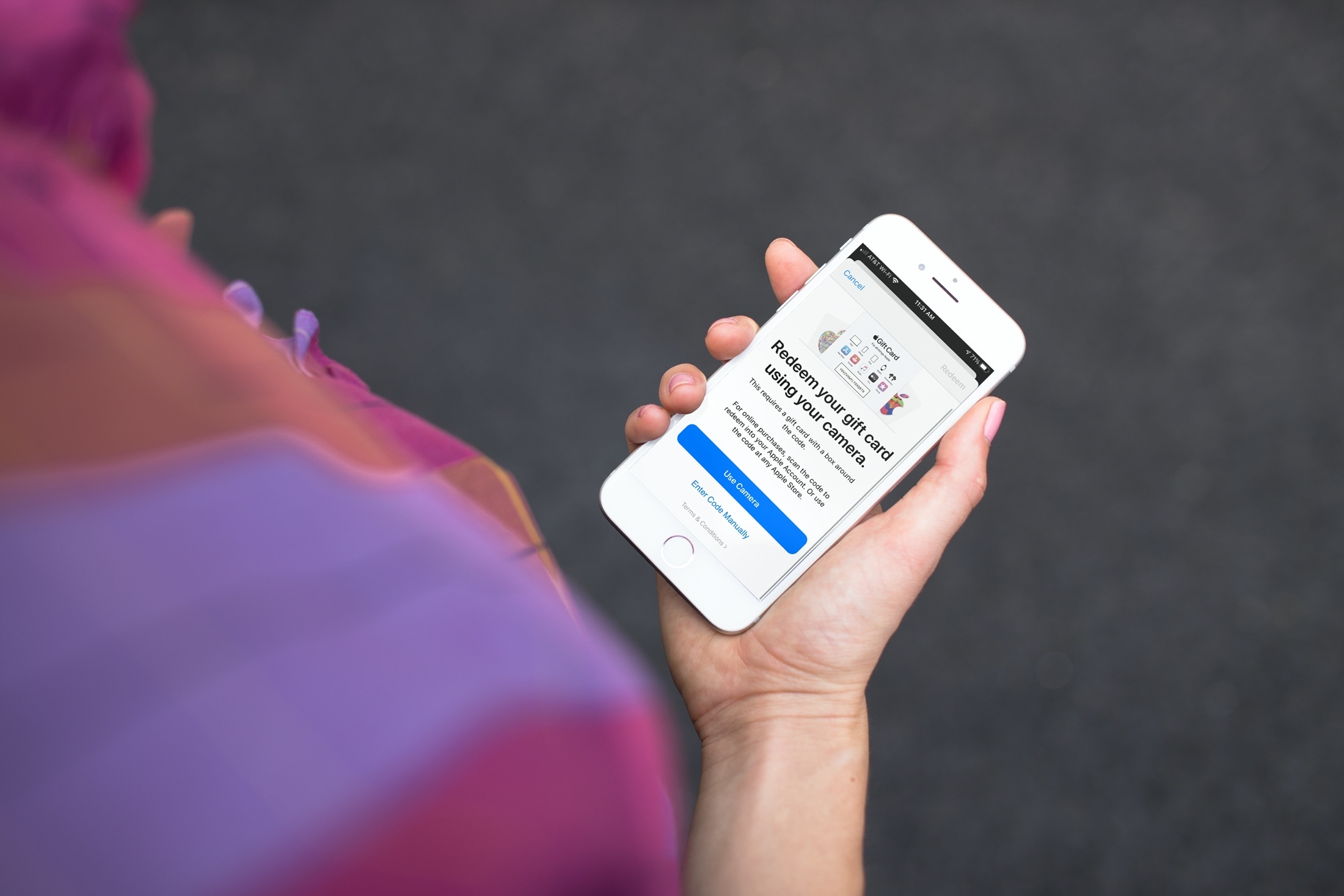
How to redeem a promo code in the App Store or iTunes

Redeem Screen in the App Store on iPhone

We sometimes do app giveaways and every time we do one of those, there is someone to ask me how to redeem the promo codes. I really thought that we had already written a post about that, but after doing a quick research, well, turns out we haven't.

In this post, I will show you how to quickly and easily redeem promo code, either from iTunes or the App Store, directly on your iPhone.

Everything You Need to Know About iOS 4.3.3 Jailbreak

Apple released iOS 4.3.3 (4.2.8 for Verizon iPhones) last Wednesday, less than three weeks after the previous software update. The new firmware included a fix for the location tracking file that Apple has gotten into so much water over (is that considered Cider?).

Chances are, most of you didn't consider 4.3.3 big enough to update from 4.3.2. But with the Verizon iPad 2 problem fixed and the infamous tracking bug patched, we may not see another update until iOS 5 is released. If that's the case, then this will likely be the last jailbreak for several months, so why not update?

How to Create Free Ringtones for Your iPhone

You either love custom ringtones or you invariably loathe them. You can put me down in the latter category. Nevertheless there are many who love hearing a portion of their favorite jam when someone calls, or assigning certain songs that fit the personality of a specific contact in their address book. If you fit into the group that loves custom alerts, you're in luck.

How to Downgrade Your iPhone From iOS 4 to 3.1.3

Every time Apple releases a new firmware, they stop signing the older one, which means you technically can't downgrade to a previous firmware by restoring. Fortunately, if you have your ECID SHSH on file on Saurik's servers, then you might be able to downgrade your iPhone from iOS 4 to 3.1.3 or earlier.

The trick is to make iTunes believe it is requesting a signature from Apple's servers while it will actually be talking to Saurik's servers.

Downgrading from iOS 4 to 3.1.3 does require you saved your SHSH on Saurik's servers. If you haven't, then you can't downgrade.

Downgrade from iPhone iOS 4 to firmware 3.1.3

Step 1 for Windows: Make sure you are logged in with administrator privileges. Launch Notepad and navigate to C:/Windows/System32/drivers/etc. Add the following at the very bottom of the file: 74.208.10.249    gs.apple.com

Now save the file back where you found it.

Step 1 for Mac: In Finder, select Go To Folder, and enter /etc. Search the hosts file and right click on it to open with TextEdit. Add the following at the very bottom of the file: 74.208.10.249    gs.apple.com

Click Save As to save the edited file on your desktop. Name the file hosts, and make sure to uncheck the box that says "if no extension is provide, use .txt".

Now drag and drop this edited file to /etc.

Step 2: Download the firmware you want to downgrade to from here.

Step 3: Put your iPhone in DFU mode. Launch iTunes and plug your iPhone in. Press and hold the home and and sleep button together for 10 seconds. After exactly 10 seconds, release the sleep button while still holding the home button. Keep holding the home button until iTunes tells you it has found an iPhone in recovery mode.

Step 4: Now hold the Option key (Mac only) or Shift key (Windows only) while clicking the Restore button in iTunes. A dialog box will pop up and you’ll be able to choose the firmware you downloaded in step 2.

Step 5: At this point, some of you will be fine. The iPhone will restore without any problem. However, some of you might end up in recovery mode again. It's ok. We just need to kick the iPhone out of recovery mode. To do so, download and launch iReb for Windows or iRecovery (both Mac and Windows).

Welcome back to 3.1.3!

[image Life Hacker]

How to Copy Your iTunes Library to A New Computer

If you recently bought a new computer, you may have faced the issue of moving your data from your old computer to your new one. In most cases, it's pretty easy, simply put your documents (ie. photos, videos, folders, etc...) on an external hard drive and move it to the new computer.

However, it's a bit more tricky if you want to move your iTunes music library while preserving your ratings, play counts, and playlists. Fortunately, Apple made it pretty easy for us to copy our iTunes library to a new computer.

This article will show you how to move your iTunes music library to a new computer in just a few simple steps. It's simple, but it does take some time though. Kudos go to Simon for this trick.

This method will work with every item you can get from iTunes. You will be able to backup the following files:

Applications Music and Podcasts Movies, Videos and TV Shows Ringtones

In order to copy the iTunes library to a new computer we will use iTunes' backup feature.

Step 1: In iTunes, go to File > Library > Backup to Disc.

Step 2: Choose Back up entire iTunes library and playlists.

Step 3: Insert a DVD or CD and start the backup process. Depending on the size of your library, this process could take hours, maybe days... If your DVD or CD is not enough to backup all the data, iTunes will offer you the option to backup to several discs.

Step 4: Once the backup process is over, open iTunes on your new computer and insert the first disc.

Step 5: iTunes will be smart enough to recognize the backup and will ask you if you want to restore from this disc. Click restore and let the magic happen.

This works pretty well if you don't have much data to backup. However, if you have tens of thousands of songs and movies like I do, this will take you days to just copy the data.
How to Disable Automatic iPhone Backup in iTunes

If you're like me, you must sometimes get annoyed at how long syncing your iPhone with iTunes can take. Turns out that the syncing process doesn't take that long at all. However, the automatic backup of your iPhone is what takes the longest.

I found out thanks to JAiB about a tool called BackOff, which easily allows you to turn on and off the automatic backup of your iPhone in iTunes.

BackOff is a free PC and Mac utility enabling you to speed up the sync of your iPhone or iPod Touch by turning off the automatic backup in iTunes. Storage of large amounts of data can seriously lenghten iTunes sync. Disable iTunes Auto-Backup feature with BackOff and speed up your syncs!

BackOff is a free tool (download here) that work for both Mac and PC and is compatible with all iPhones and iPod Touch.

Patrick was able to try it out and here is what he has to say about it:

Just to give an idea of the impact this app can have, when I tested it this afternoon, a sync with backup turned on had taken over 20 minutes before I canceled it.  Sync with backup turned off took under two minutes!

Looks like a winner to me. What do you think about BackOff?

How to Fix iPhone Errors 1600, 1601, 1602, 1603, 1604

Many of you have been asking me about those annoying iTunes errors while trying to restore your iPhone using a custom firmware with PwnageTool or SnowBreeze. Usually, the error you get says:

The iPhone "iPhone" could not be restored. An unknown error occurred (1600 - 1601 - 1602 - 1603 - 1604)

There is an easy and quick fix for this. The downside is that it is Windows only (Mac version is in the work), and that it only works for iPhone 2G, iPhone 3G, iTouch 1G and iTouch 2G. In other words, no iPhone 3GS and iPod Touch 3G support.

iREB (iTunes Restore Error Bypasser) is a neat little tool that will help you fix these errors.

Step 1: Download iREB from here.

Step 2: Launch iTunes and put your iPhone in DFU mode (hold power and home button together for 10 seconds; release the power button and keep holding the home button until iTunes tells you it has detected an iPhone in recovery mode.

Step 3: Once iTunes has detected your iPhone in recovery mode, close iTunes and launch iREB.

Step 4: Select your device and wait for the screen to go red or white.

Step 5: Launch iTunes and hold the SHIFT key while clicking on restore. A window will open. From there just browse for the custom firmware you want to restore to.

You should be good to go. iTunes should restore your iPhone to the desired firmware without giving you any error.

How to Make iTunes Believe You Are on Firmware 3.1.3

Are you tired of telling iTunes NOT to update to 3.1.3 every time you plug your iPhone in? Well, there's an app for that. It's called Fake 3.1.3 and it is ideal for people like me who don't like being bugged by recurring iTunes alerts.

Fake 3.1.3 will make iTunes believe that you are running firmware 3.1.3, although you will still be on 3.1.2 with the older baseband. It kinda reminds me of FWchanger, although this one just helped make the App Store believe you were on a different firmware.

Fake 3.1.3 is available for free on Cydia via the http://cy.sosiphone.com repo.