Guide

How to Downgrade iPhone iOS 4.3.2

With the release of iOS 4.3.2 this late last week, and the new iOS 4.3.2 redsn0w jailbreak still not completely stable, some of you might not want to wait any longer for a stable jailbreak, or maybe you’re having additional issues with the new OS. Whatever the reason might be, you can downgrade from your current iOS version to an earlier version using your SHSH blobs on file.

It is important you have your SHSH blobs on file for the iOS version you want to downgrade to. If you don’t have your SHSH blobs on file for the iOS you want to downgrade to, you will not be able to downgrade. You can check which SHSH blobs on file you’ve got by launching Cydia and looking at the top of the Cydia homepage where it lists all your saved SHSH blobs. 

How to Unlock iPhone 4.3.1

The Dev Team just released their unlock for iPhone 4.3.1. This updated version of ultrasn0w brings support for the iPhone 3Gs and the iPhone 4 that are exclusively using these basebands: 01.59.00, 04.26.08, 05.11.07, 05.12.01, 05.13.04, and 06.15.00.

In this post, we'll guide you into unlocking your iPhone 3GS or iPhone 4 on any of the above basebands, and running the latest iOS 4.3.1...

Top 5 Reasons to Jailbreak Your iPad

Earlier this week, the jailbreak for Apple's latest iOS 4.3.1 was released. Anyone with an iPad on the latest firmware, couldn't even attempt hacking it until last Sunday night. It was then that the Dev Team finally released a much-awaited jailbreaking solution to the masses.

But why on earth would anyone want to hack their iPad? This is a question I get asked a lot by friends and family members. In all honesty, I could go on for hours on why I have my iDevices jailbroken. Everything from my iPhone to my Apple TV2 has received the jailbreaking treatment, and everything in between.

But in the interest of time and space, I figured I would just put together a top 5 list of reasons why you would want to jailbreak your iPad. Hopefully it benefits some of you that may still be on the fence about the whole idea.


1. It's super easy

Although hacking iOS software is extremely complex, programmers like the Dev Team develop software to make the process extremely simple. These programs make jailbreaking as easy as following a few on screen instructions. If for some reason you do mess up, you can generally just restore in iTunes and start the process over.

2. Cydia

For those of you who aren't familiar with jailbreaking, Cydia is an app store very similar to Apple's App Store. It is generally the only icon that is initially added to your home screen once you have jailbroken. It contains everything from apps to iOS tweaks. Every other item on this list comes from Cydia.

3. Customizable Themes

Apple didn't build a lot of customization options into iOS. It's only been in the last year that they've allowed you change the wallpaper on your iDevice home screen. Customizable themes, allow you to give your iPad a complete makeover.

4. Tweaks

Tweaks can enable extra features, or build on old ones. Their overall purpose is to make using your iPad simpler. SBSettings is a popular tweak in the jailbreak scene. It enables a drop down menu, accessible from your iPad's top status bar, with shortcuts to Wi-Fi and bluetooth. You don't have to open Settings and go through menus to enable bluetooth, you can just tap the shortcut in SBSettings.

5. Cast Out Applications

Everything from productivity apps to full featured messangers are available in the Cydia store. Many of these were denied entry into Apple's App Store for violating one of their submission rules. Without Apple's strict limitations, developers are given the opportunity to be truly innovative.

Like I said the list could have gone on much longer than that, especially if it were broken down into specific tweaks and apps that I liked. If this interested you enough that you would like to give jailbreaking a shot, try our easy step by step guide here, or here if you have Windows.

What are the top 5 reasons you jailbreak your iPad?
How to Jailbreak iPhone 4.3 GM with PwnageTool Bundles

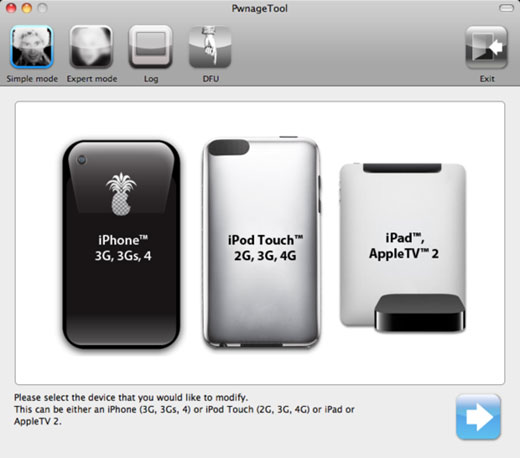
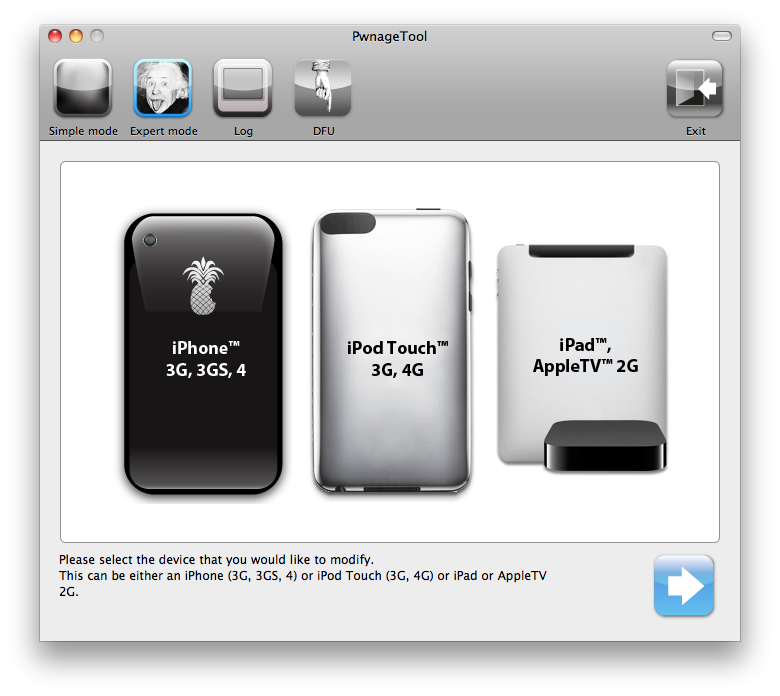
Apple's new iOS 4.3 software will launch officially March 11th. For App Store developers iOS 4.3 GM edition (final) is available now. This tutorial will show you step by step how to  jailbreak your iPhone 4.3 GM Edition with PwnageTool Bundles. Unlike the plug and play ease of GreenPoison, this method will require a few extra steps, but nothing too difficult.

These instructions are for mac OS X users only, but a windows jailbreak shouldn't be too far off. This is also a tethered jailbreak, meaning that every time you restart your iPhone, you will need to be plugged into your computer. It's also important to note that although this is the final beta release, it is still a beta, so please proceed accordingly.  Now on to the tutorial!

How to Jailbreak iPhone 4.2.1 with PwnageTool

The Dev Team just released PwnageTool 4.2, a jailbreak for iOS 4.2.1 for iPhone 3G, iPhone 3GS, and iPhone 4 (AT&T and Verizon), as well as the iPad, Apple TV, and iPod Touch 3G and 4G.

PwnageTool will allow you to jailbreak your iPhone on the latest iOS 4.2.1 while preserving its baseband, thus allowing you to unlock with UltraSn0w, assuming you are still on baseband 01.59.00.

This step by step guide will show you how to jailbreak your iPhone 4.2.1 with PwnageTool, a Mac-only jailbreak for iPhone...

How to Jailbreak the Verizon iPhone

It's official, the Verizon iPhone is here for everyone to purchase and go home with. If you just got your hands on one of them, the first thing you might want to do is to jailbreak your Verizon iPhone.

Not sure what jailbreaking is and why you should do it? Make sure to read our explanation of jailbreaking, and the reasons why you would want to jailbreak the Verizon iPhone. If you're still on the fence after reading this because you worry the FBI might bust down your door for jailbreaking your iPhone, know that jailbreaking is 100% legal, at least here in the US.

This being said, this guide will show you how to jailbreak a Verizon iPhone running iOS 4.2.6 using GreenPois0n...

How to Unlock Your iPhone 4.2.1 with UltraSn0w

The Dev Team has updated their UltraSn0w iPhone unlock for iOS 4.2.1. UltraSn0w 1.2 will unlock iPhone 4 baseband 01.59.00 and iPhone 3G/3GS basebands 04.26.08, 05.11.07, 05.12.01, 05.13.04 and now 06.15.00.

If your iPhone 4 is not on baseband 01.59.00, you will not be able to unlock it. If your iPhone 3G or 3GS is on one of the baseband version mentioned above, then you can follow the instructions below...

Tutorial: Jailbreak iPhone 4.1 with PwnageTool

This guide and tutorial will show you how to use the freshly released PwnageTool to jailbreak your iPhone 4, iPhone 3GS, or iPhone 3G. There has been a couple jailbreak tools for iOS 4.1 released recently but only PwnageTool will preserve your baseband allowing you to update to a jailbroken 4.1, while still preserving your baseband so you can unlock.

PwnageTool is available for Mac only. If you don't have a Mac, try to find a friend who does, and simply use his computer to cook the firmware. This guide was written using an iPhone 4 but the steps are the same, no matter what iPhone model you have (only the firmware downloaded will change).

This being said, make sure to follow this guide to jailbreak your iPhone iOS 4.1 with PwnageTool. As always when hacking your iPhone, you are proceeding at your own risks...

Jailbreak Your iPad with GreenPois0n [Guide]

This guide will show you how to jailbreak your iPad iOS 3.2.2 using GreenPois0n, the latest jailbreak tool by the Chronic Dev Team. If you have already jailbroken your iPad with LimeRa1n and it is working fine for you, then there is no need to jailbreak again using GreenPois0n.

At the time I am writing this, GreenPois0n is for Windows only, although a Mac version should be available soon.

Step 1: Download GreenPois0n and run it as an administrator.

Step 2: Power off your iPad, and connect it to your PC.

Step 3: Walk through the steps to put your iPad into DFU mode to prepare for jailbreak.

Step 4: Once you’re in DFU mode, click the ‘Jailbreak!’ button to jailbreak your iPad.

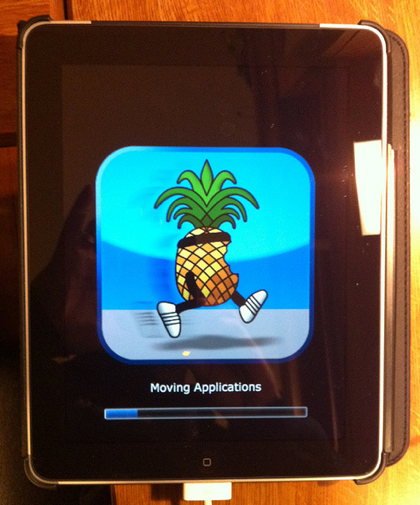
Step 5: Now, just wait until the status bar shows complete, and your iPad will reboot to the home screen.

Step 7: You should now have a new “Loader” icon on your springboard. Launch Loader. Select Cydia > Install Cydia.

Step 8: One Cydia has successfully been installed, you will be asked if you want to remove Loader. Hit “Remove” and your iPad  will automatically reboot.

Your iPad 3.2.2 should now be successfully jailbroken using GreenPois0n. If you have any question or comment, make sure to add them in the comments section below.

Tutorial: How to jailbreak your iPhone Using GreenPois0n

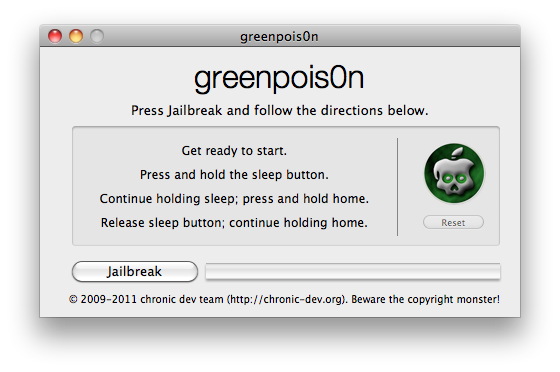
This step by step GreenPois0n guide and tutorial will show you how to jailbreak your iPhone 4.1 using GreenPois0n, the new jailbreak by Chronic Dev Team. This GreenPois0n guide will work for the iPhone 3GS, iPhone 4, iPad, iPod Touch 3G, and iPod Touch 4G.

GreenPois0n is is available for Windows, Mac, and Linux.

Although we encountered a few issues here and there, we were able to jailbreak our iPhone 4 successfully using greenpois0n. Once you get around a few hiccups, the process really isn't all that difficult.

Check inside as we step through the jailbreak process with greenpois0n using a Windows machine. The steps are exactly the same no matter what platform you use.

How to Jailbreak your iPad with LimeRa1n

Geohot just released LimeRa1n, a jailbreak for all iDevices including the iPad. This step by step guide and tutorial will show you how to use LimeRa1n to jailbreak your iPad iOS 3.2.2.

LimeRa1n is still very buggy and I don't actually recommend using it, so proceed at your own risks...

Step 1: Download LimeRa1n from our here.

Step 2: Plug your iPad in and launch LimeRa1n then click “Make it Ra1n”.

Step 3: Follow the onscreen instructions: hold the Home and Power button together.

Step 4: Release the Power button.

Step 6: LimeRa1n will have your iPad enter DFU mode and will then work its jailbreak magic.

Step 7: Your iPad is almost jailbroken and you should see the following messages.

Step 8: If you don’t see the LimeRa1n icon on your iPad , simply reboot it, then launch LimeRa1n on your iPad and select Cydia to install.

Step 9: Once Cydia is installed, you can uninstall LimeRa1n from the LimeRa1n app on your iPad.

Let us know how it goes for you.