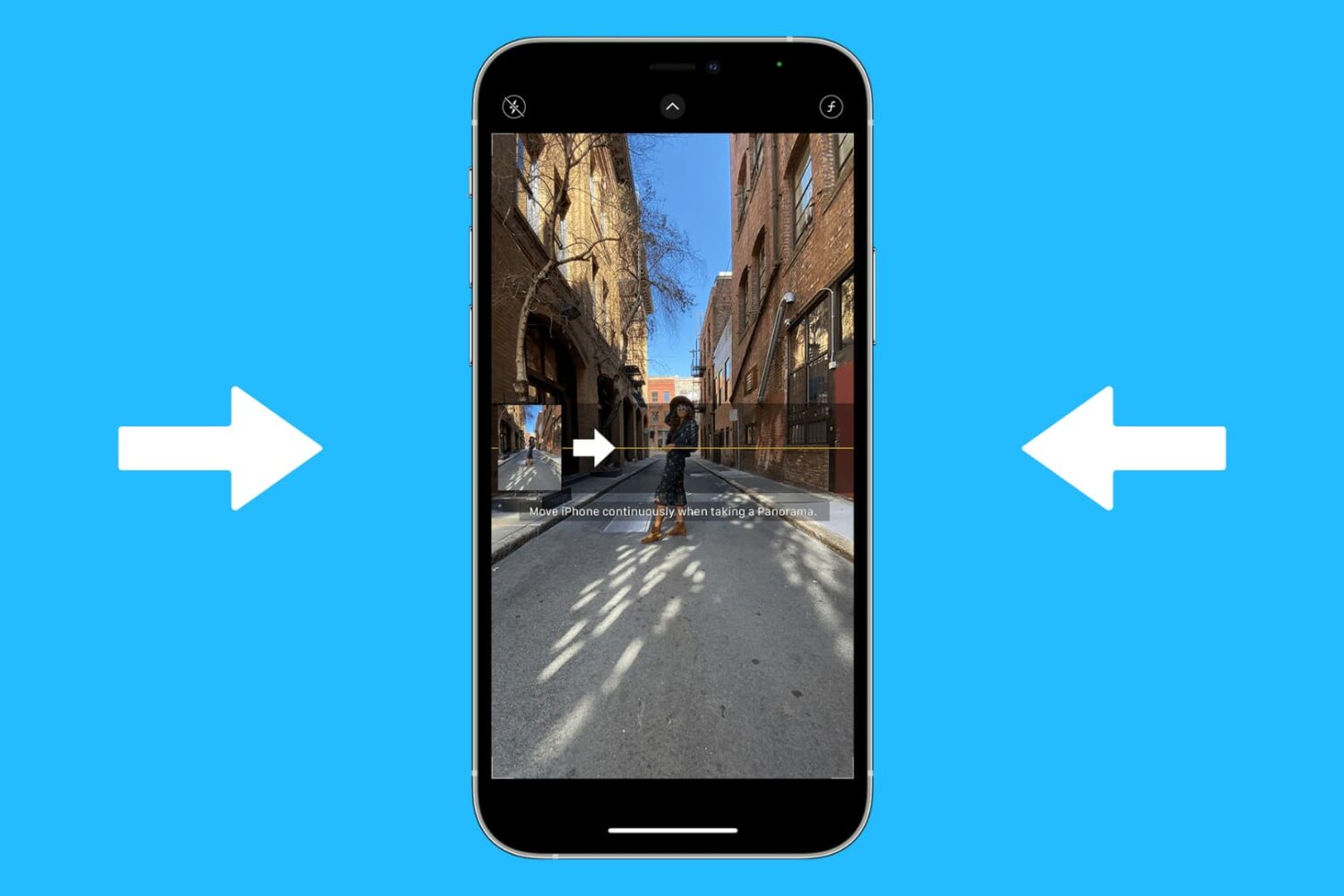
Did you know you can easily change the direction in which you take a panoramic photo? This brief tutorial shows you how to do that on your iPhone and iPad.
How to switch Panorama mode direction in iPhone Camera
Learn how to master your Apple devices with our comprehensive tutorials. From iPhone and iPad to Mac, Apple Watch, AirPods, and more, our expert guides will help you unlock the full potential of your Apple products. Discover new features, tips, and tricks each day to enhance your user experience.
Did you know you can easily change the direction in which you take a panoramic photo? This brief tutorial shows you how to do that on your iPhone and iPad.

In this tutorial, we’ll outline the steps to permanently close your Dropbox account, including downloading files to a computer before the account is deleted.

There's no question that 3D Touch really does make the iPhone's Multi-Touch user interface multidimensional. By varying the degree of pressure applied to the screen of your iPhone, you can preview emails, websites, locations, messages and a variety of other items in Apple's stock apps.
We have already covered new 3D Touch shortcuts in iBooks and today we're taking a closer look at arguably the most-oft used iPhone app—Messages. In Messages, you can Peek and Pop most of the file types to your heart's content without needing to jump between multiple apps, which can save a lot of time.
In this tutorial, we're going to lay out 3D Touch basics in Messages before moving on to all of the items you can preview in your conversations.

The Nest is one of the most popular home automation devices in existence right now, but due to incompatibility with HomeKit, iOS users can't control their Nest Learning Thermostats using Siri.
Fortunately, a workaround has been found. It's called Homebridge, and it's a NodeJS server that runs on your Mac. Homebridge allows iOS devices to interface with incompatible home automation devices like the Nest using HomeKit.
This means that it is now possible to control the Nest with Apple Watch, iPhone, and iPad using Siri. No jailbreak required.
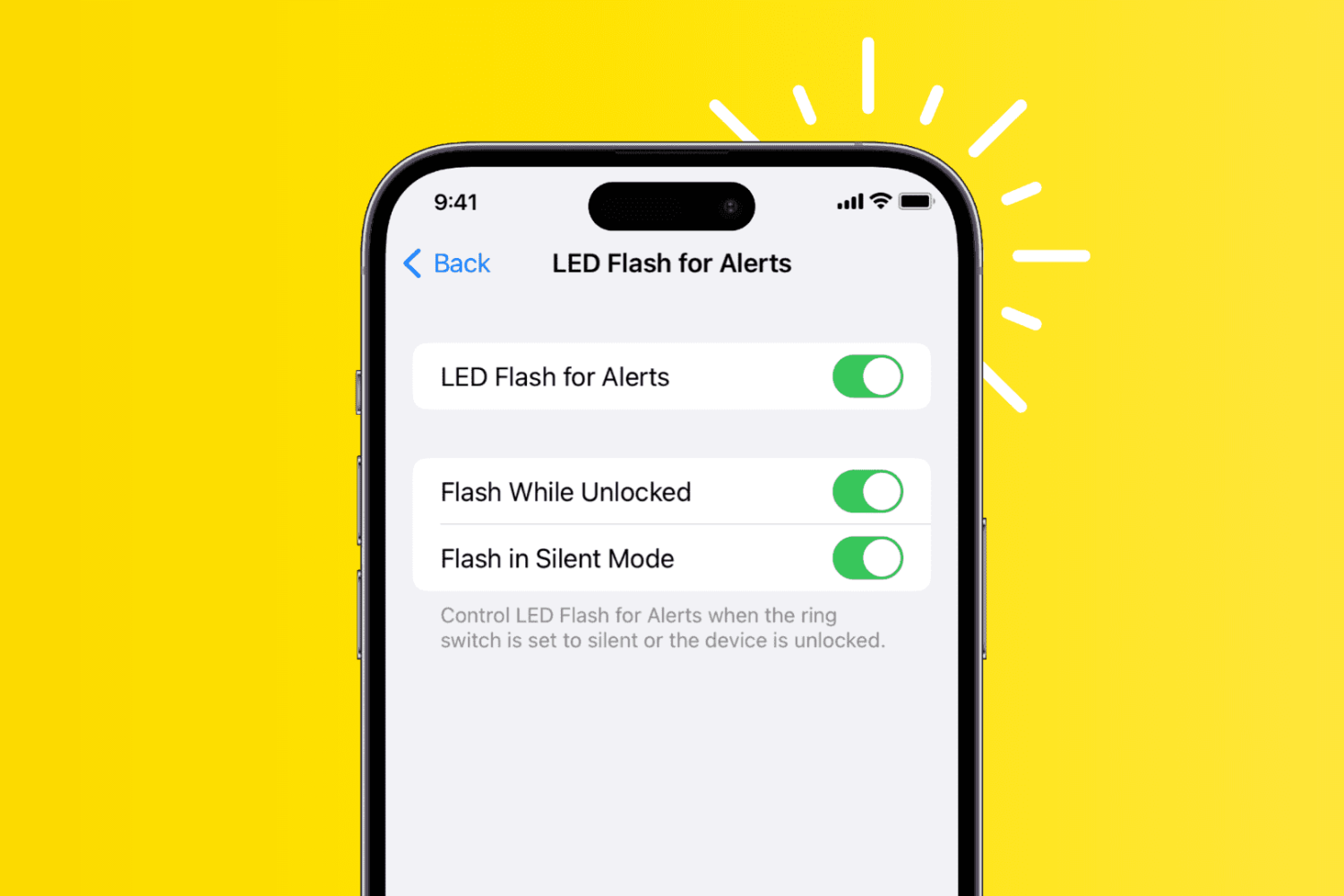
Learn how to set your iPhone or iPad to flash its LED light for calls, messages, and app notifications, which is ideal for receiving visual alerts in addition to or instead of sound and vibrations.

Learn how to reveal the hidden path bar on your Mac to see the location of a selected file or folder near the bottom of the Finder window.
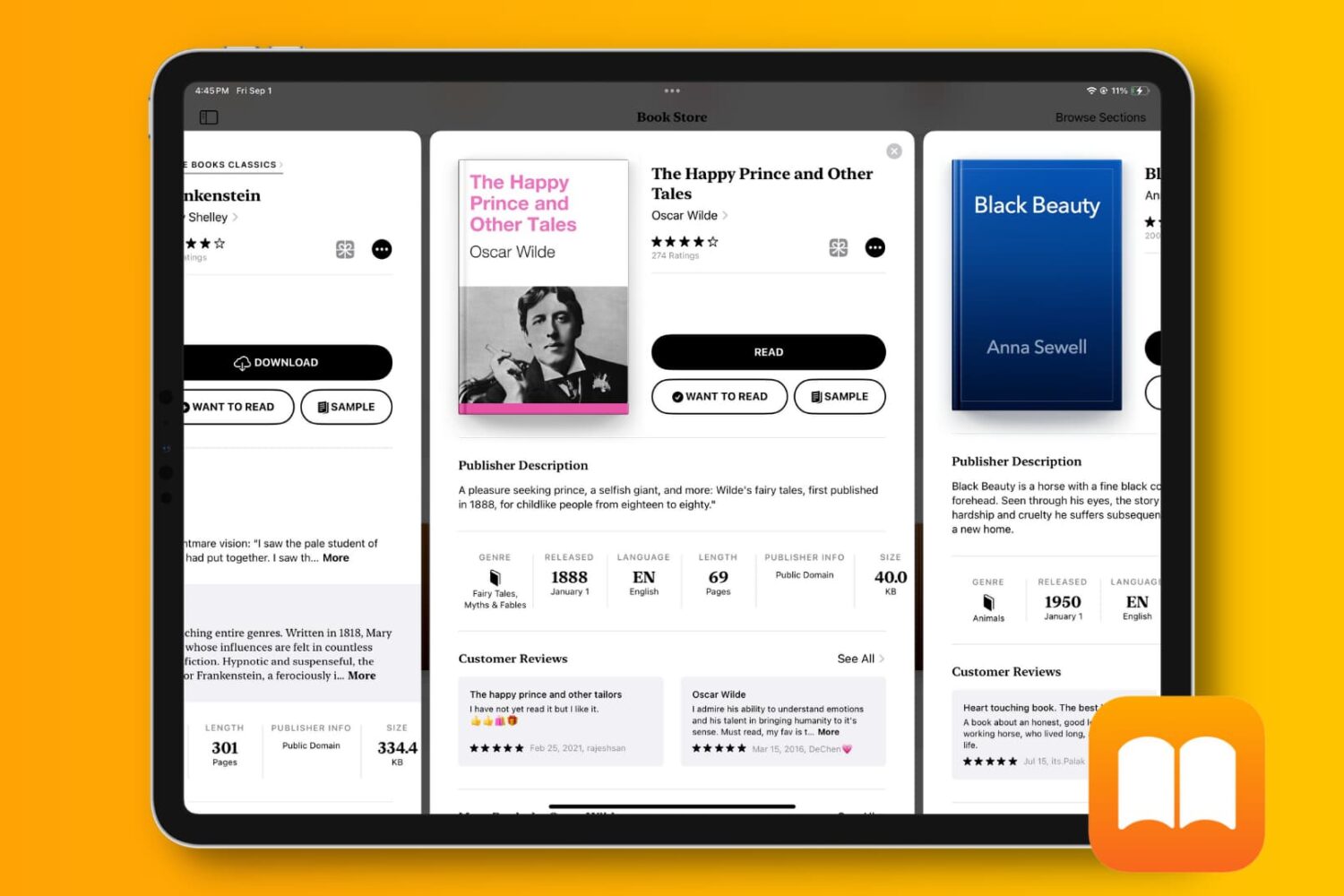
Hide books and audiobooks from the Apple Books app on your iPhone, iPad, and Mac if you don’t want that title to show up in your library or want to prevent your family members from seeing and downloading it.

As you use apps on your iPhone, iPod touch and iPad, iOS dynamically manages system memory (don't confuse RAM with storage), allocating chunks of RAM to foreground and background tasks and suspending memory usage for apps that are not actively running in the background.
For the most part, iOS manages RAM efficiently to ensure that your frequently-used applications are ready for action as soon as you switch to them. But as so-called garbage collection is not available in iOS, a poorly written application might keep large portions of memory to itself and refuse to release it at iOS's request, resulting in slower performance.
You can get around this by rebooting your device, but there's a more elegant way to purge the memory taken up by apps without rebooting, as explained in this tutorial.

Curated a fine collection of tunes and want to share it with others? Find out how to share an Apple Music playlist from your iPhone, iPad, Mac, or Android phone with your friends and family or post it to your blog or social media account.

In this quick tutorial, you'll learn how to browse recently updated apps on your Apple TV and access official changelogs from developers, which typically provide a treasure trove of information detailing new features, refinements, fixes, and other information.

Has Microsoft's unilateral decision to reduce free OneDrive accounts from fifteen to just five gigabytes of cloud storage left you totally flabbergasted? If so, you're not alone. An online petition at the OneDrive feedback website has received more than 70,000 votes already. Feeling the heat, the Windows maker today announced an opt-in offer that will permit all affected OneDrive customers to keep their fifteen gigabytes of free storage space, as well as their fifteen-gigabyte camera roll bonus.

Owners of the iPhone 7 or iPhone 7 Plus can now use Peek and Pop gestures in iBooks to speed up common tasks such as checking out their notes and bookmarks, previewing pages in search results and more.
This tutorial takes you on a quick tour of 3D Touch gestures in iBooks, including six ways applying pressure helps you interact with your fav reads.