Mac Tip

How to disable the camera on your Mac

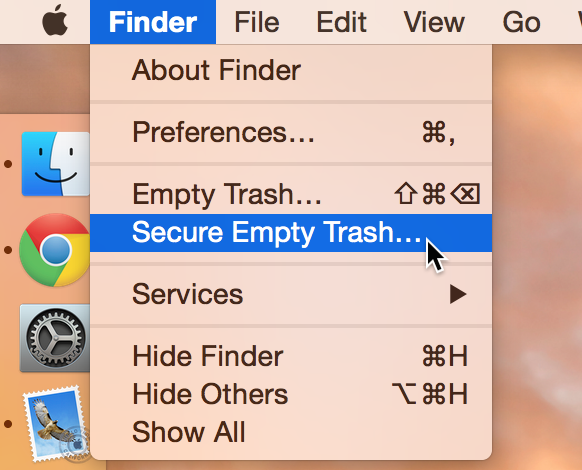
Every Mac that Apple ships, sans the Mac mini, comes with an iSight camera embedded in the bezel at the top of the display. If my memory serves me correctly, Apple's computers were one of the first to really popularize the standardization of built-in cameras.

I'm probably not alone when I say that I rarely, if ever, use my MacBook Pro's iSight camera. In fact, it's become more of a worry to me when thinking about the potential hacking and privacy concerns. I'm far from a tin foil hat wearer, but I have to be honest and admit that the thought has crossed my mind before... you know, the one where hackers view my iSight camera unbeknown to me.

With all of that said, wouldn't it be nice if you could disable your Mac camera with a simple software tweak? Inside, I'll show you how to do just that.

How to Cut and Paste files on Mac

Cut and Paste on Mac

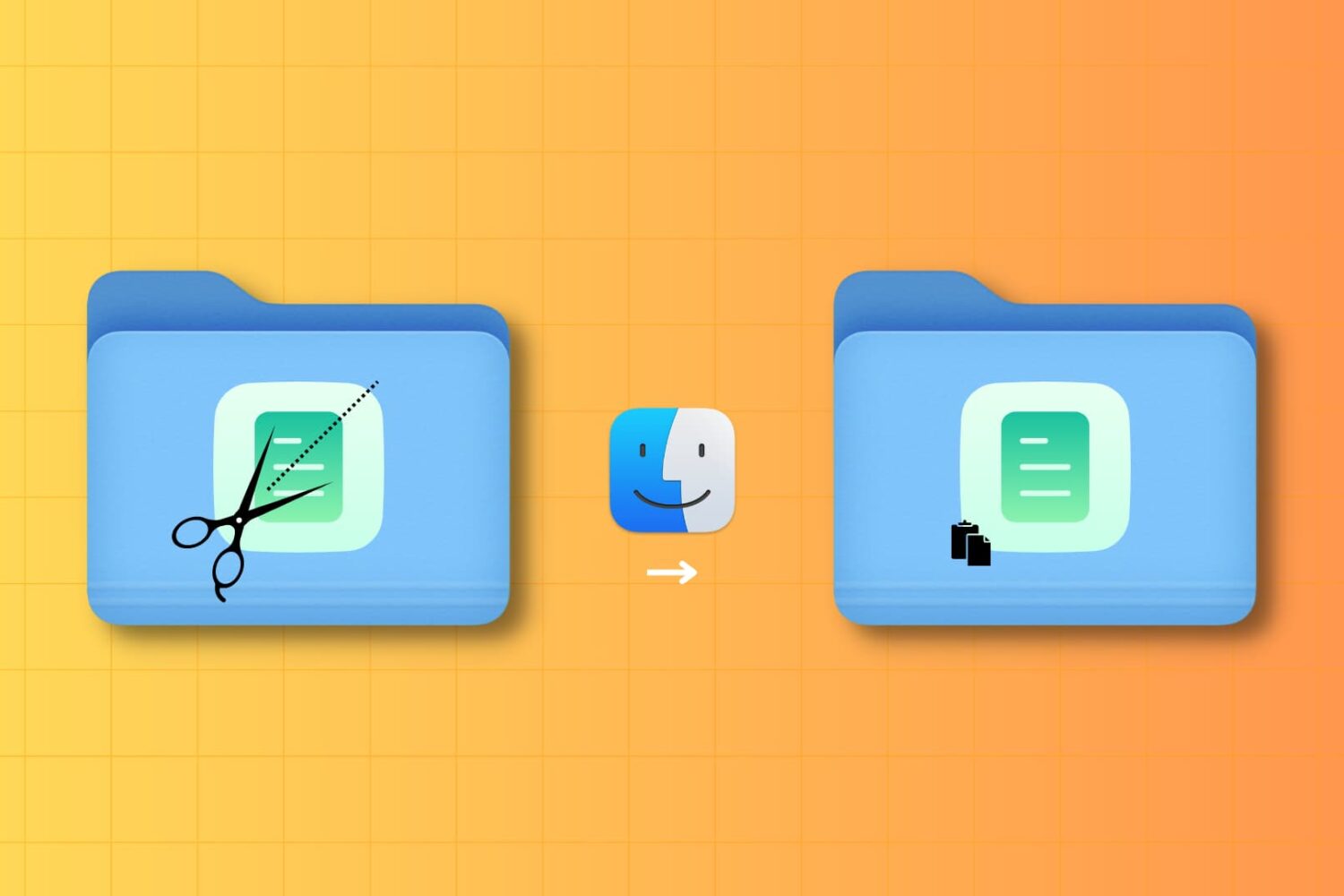
It may not be obvious, but your Mac has the option to cut a file and paste it to a new location in Finder. In this tutorial, we’ll show you four different ways to use cut and paste files on a Mac.

How to enable text selection in Quick Look on Mac

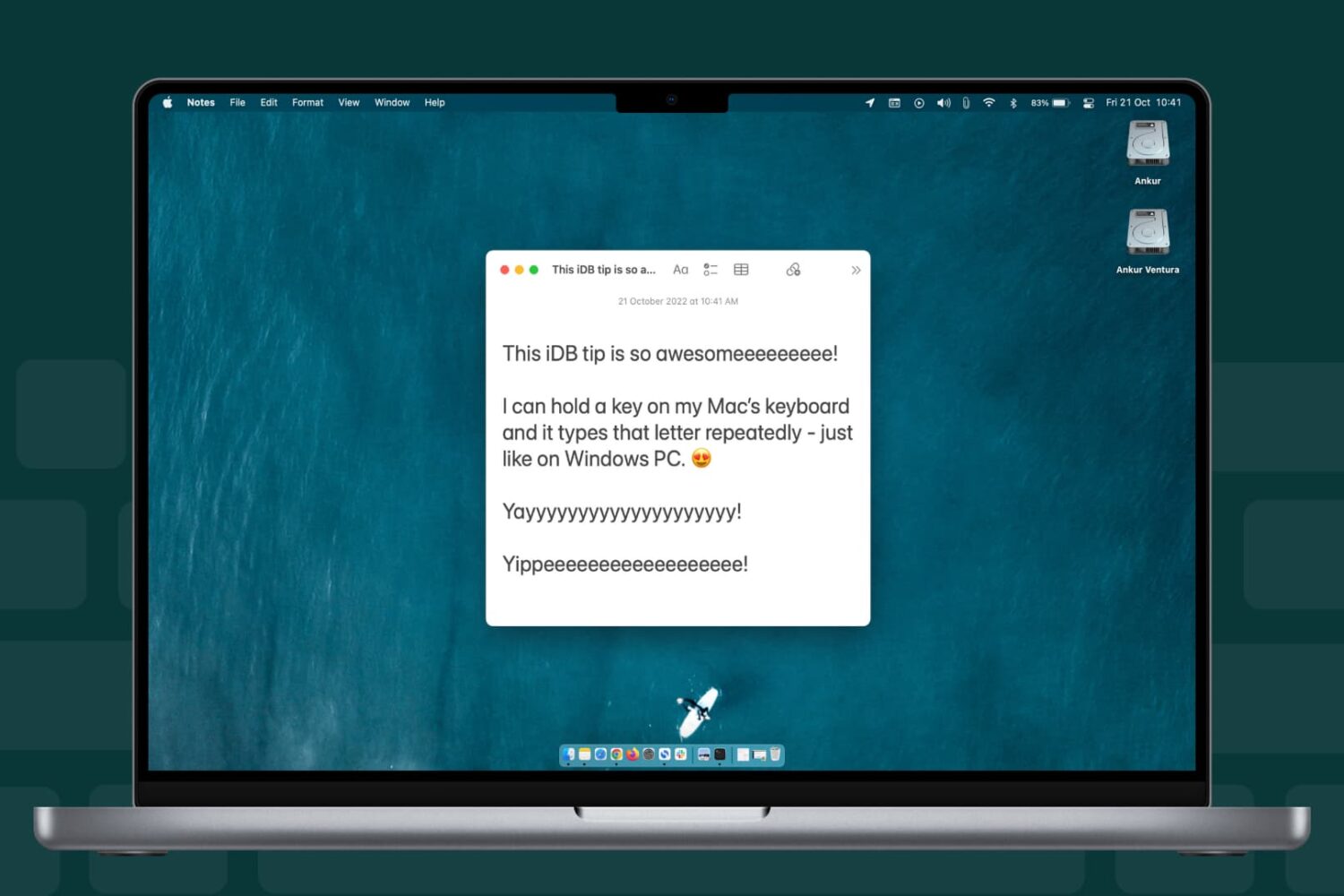
Anyone who has used a Mac for more than a minuscule amount of time has more than likely come across Quick Look, the pop-up window that is invoked with a press of the space bar when a file or folder is highlighted on the desktop or in Finder. Quick Look's usefulness becomes evident when file names aren't descriptive enough by allowing users to view the contents of many different types of files without having to open them in a full-fledged application like Pages for documents or Preview for images.

By default Quick Look can only display a static view of a file that only grants users a peek at the contents without any real function. Imagine, however, being able to copy a document's text without having to open it in TextEdit or Pages. This is incredibly useful in a variety of situations, from dealing with templates to Word documents to code snippets, where having multiple applications and documents opened shouldn't be necessary for copying from one location and pasting to another. The good news is that this functionality is completely possible and perfectly easy to enable.

How to send group emails on Mac

Creating a group email can be a real time saver as you don't have to manually enter each recipient's email address. Instead, you can quickly type in the name of a group of contacts that you want to send an email to and have the "to:" field of your email client populated for you automatically.

In this post, we will show you how to send group emails from your Mac. As you will soon be able to verify, sending messages to a group from your Mac is a fairly simple and quick process.