Samsung to build world’s biggest OLED display manufacturing plant

Samsung is planning to build the world's biggest OLED display manufacturing plant that could kick off volume production in 2019, with a peak yield of between 180,000 and 270,000 OLED display panels per month, according to industry sources.

By comparison, the company's existing “A2” factory currently produces 180,000 units of rigid and flexible OLEDs per month.

Samsung Display, the South Korean conglomerate's display-making arm, will invest more than $1.75 billion just to construct the new plant. The report is relevant to our readers because Samsung Display is believed to be an exclusive provider of OLED panels for iPhone 8.

When operational, the company's new OLED factory, tentatively named “A5”, should have 30 percent higher production capacity than Samsung current biggest factory called “A3”, according to Korean outlet ETNews.

The site added that Samsung began expanding capacity of its upcoming “A3” factory during the second half of 2015 in order to meet Apple's order for a large amount of OLED panels.

According to the report, Samsung Display has secured production capacity of 135,000 OLED panels per month over the next two years, primarily to serve the needs of its two biggest clients: Apple and Samsung Electronics.

iPhone 8 Full Vision Display concept courtesy of iFanr.

Purported iPhone 8 prototype leaks with questionable design

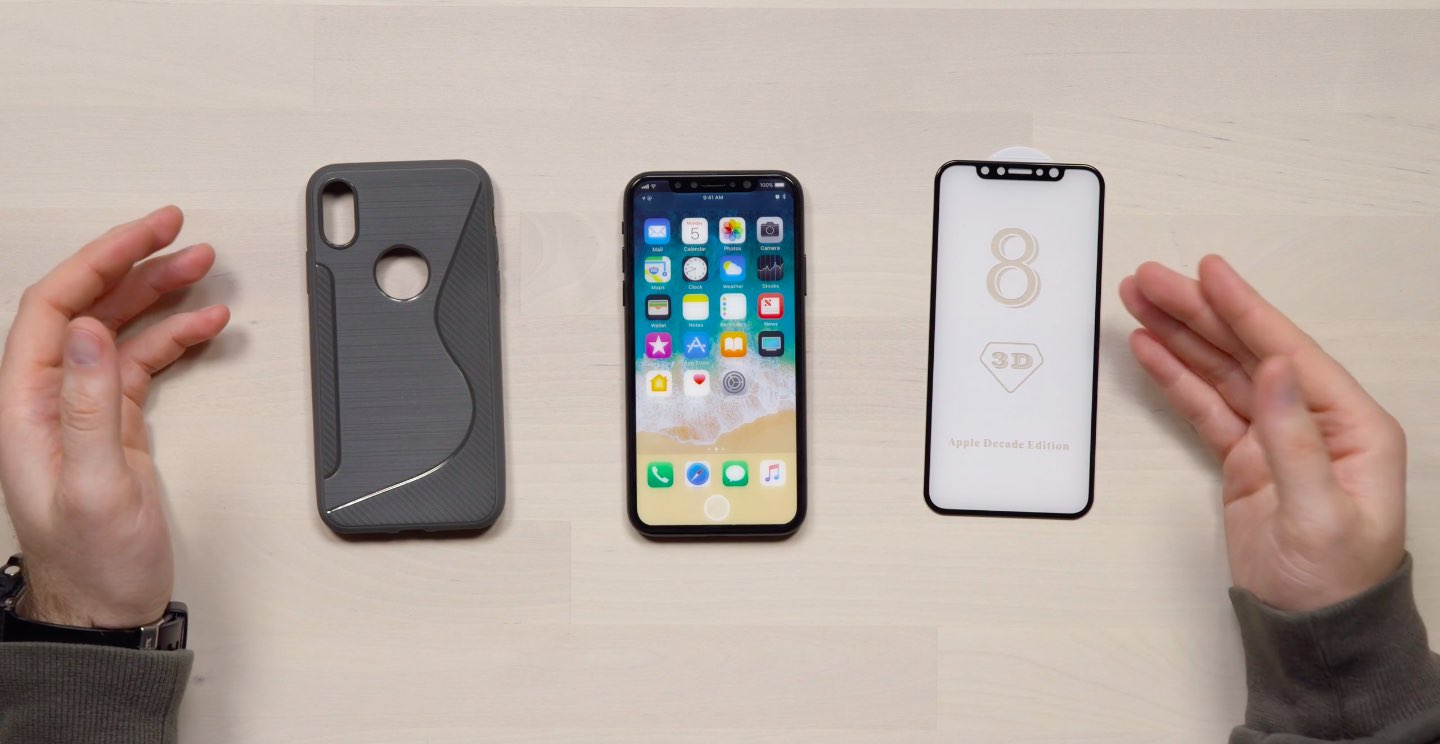
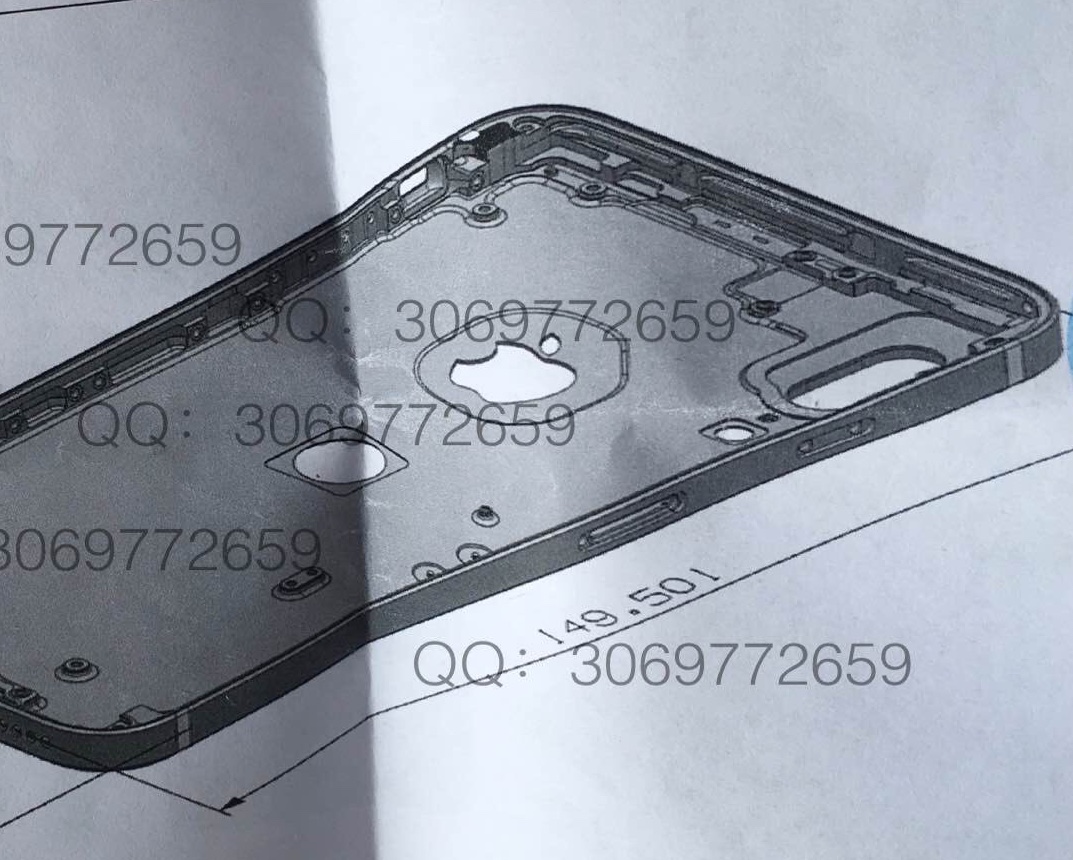
A trio of images published by Benjamin Geskin last night have gotten some folks excited (or worried, depending on your point of view). The photos appear to show an early iPhone 8 prototype, which he says was obtained from an insider.

The device pictured on the images does not have its front-facing FaceTime camera and the speaker integrated into the display, like we're expecting in the final model due this fall.

Instead, there's a “chin” at the top of the display, albeit thinner than on current iPhones.

The images show that the device came in the box with an iPhone 7 screen protector applied to its display. What's more interesting than that is a blue “passport” we can clearly see in the box.

For the uninitiated, iPhone prototypes are accompanied by this passport document at all times, for quality assurance and control testing.

According to Australian leakster Sonny Dickson:

Each component or product that is tested they document in the page. The person writes their initials next to it and any notes about it passing or failing or any other comments. It makes its way through each test and person. It then is finally sent with its 'passport' from China to Apple.

That being said, we're still unsure if the device shown on Geskin's image is in fact one of the ten iPhone 8 prototypes Apple has reportedly tested this year or simply a dummy unit created based on rumors, but we're posting it here for the sake of discussion.

So, what do you say?

Is this a real iPhone 8 prototype? And if so, does it represent the device we're going to see this fall or one of the designs that Apple has ultimately abandoned?

Let us know by posting a comment below.

NFCWriter tweak unlocks your iPhone NFC capabilities

At the beginning of May, iOS developer Limneos started tinkering with the iPhone’s NFC chip to allow it talk to third-party NFC tags and accessories that Apple has never allowed its system to talk to before.

At the time, it was just a work in progress and a proof of concept, but Limneos has officially released a new jailbreak tweak in Cydia dubbed NFCWriter that unlocks the full potential of your NFC chip for everyone. It's the first time that the chip has been hacked to this extent, and it opens a whole new realm of possibilities.

Lysithea X brings iOS 11-esque Lock screen music controls to iOS 10

In case you haven’t seen it yet, iOS 11 comes with a redesigned Now Playing Lock screen interface. It’s sleeker and takes up less space so you can manage your music playback and see missed notifications in the same place more easily.

Now, a new jailbreak tweak called Lysithea X by iOS developer ijapija00 brings this iOS 11 Now Playing Lock screen interface to jailbroken iOS 10 devices.

SwitcherControls merges the App Switcher and Control Center interfaces into one

If you want a more powerful App Switcher, then perhaps a good place to start is with a new jailbreak tweak called SwitcherControls by iOS developer DGh0st.

Immediately reminiscent of the multi-center feature from a prior jailbreak tweak release known as Auxo 3, SwitcherControls combines both the App Switcher and Control Center interfaces into one, yielding what you see above.

Apple launches macOS High Sierra public beta

Three days after it launched public betas of iOS 11 and tvOS 11, Apple on Thursday released the macOS High Sierra public beta. This means that anyone can now take this pre-release version of Apple's latest and greatest desktop operating system for a spin, including those who are not registered developers.

Needless to say, you're wholeheartedly recommended to perform a full backup of your Mac before installing the public beta, just in case something goes wrong.

Better yet, install it on a separate partition on your Mac's startup disk or to an external drive. To get the beta, you must enroll in Apple's Beta Software Program with your Apple ID at beta.apple.com. Then, click the link “Enroll Your Devices” and follow the instructions.

You may want to check out the official macOS High Sierra system requirements before proceeding with the installation of the public beta on your system.

You'll need to download the macOS Public Beta Access Utility, which will change your Mac App Store settings in System Preferences so that your Mac can receive beta software updates.

As a last step, launch Mac App Store on your computer, find the macOS public beta, then click the Get button to install the public beta on your computer.

Because your Mac is enrolled in the beta program, you will receive a notification whenever a subsequent update is available and can install it from Mac App Store's Updates pane.

Will you be testing High Sierra and what's your strategy and approach to installing a beta OS on your computer? Also, what are your favorite features in High Sierra so far?

Let us know by posting a comment below!

How to stop iCloud Photo Library from eating into your iPhone’s cellular data plan

iCloud Photo Library is an optional feature on iPhone, iPad, iPod touch and Mac that uploads every photo and video you take or import to iCloud and keeps everything synchronized across all your Apple gear. I've been using it for years and it really “just works”.

On iOS 10 and earlier, Photos syncs with iCloud each time your device connects to Wi-Fi and the battery is charged. On iOS 11 and later, Photos can also use your iPhone's cellular data connection to sync and update the image library.

Do you take many photos on the go? Are you on a metered rather than an unlimited plan? Then you don't need me to tell you that you must ensure you're not wasting huge amounts of cellular data to this feature.

Here's how to stop the Photos app from eating into your iPhone's cellular data plan.

Before we get to it, keep in mind the following:

iOS 10 and earlier—Your Photos library syncs with iCloud each time your device connects to Wi-Fi and the battery is charged. iOS 11 or later—You decide if Photos syncs with iCloud via cellular or Wi-Fi only.

In other words, you should double-check that cellular updates for iCloud Photo Library are turned off only if you're on iOS 11 or later. Folks on older iOS editions needn't do that because Photos syncs with iCloud only when their iPhone is connected to power and Wi-Fi.

How to stop iCloud Photo Library on iPhone from using cellular data

12-megapixel images and 4K videos captured on your iPhone take up quite a bit of storage space. For most people, there's no point allowing iOS to gobble up cellular data just to keep the image library synchronized with iCloud at all times.

Thankfully, you can prevent this from happening, and here's how:

1) Launch the Settings app on your iPhone or cellular iPad.

2) Tap Photos in the list.

3) Tap Cellular Data.

4) Slide the button labeled Cellular Data to the OFF position.

This device will no longer use your carrier's cellular data for updating the Photos library. Any changes to your image library will automatically upload to iCloud as soon as the device connects to power and Wi-Fi.

TIP: If you really need Photos to be in perfect sync with iCloud at all times, even on the go, via cellular and Wi-Fi, be sure to slide the toggle labeled Unlimited Updates to the ON position.

The feature's description says “unlimited updates may cause you to excess your quota“.

Need help? Ask iDB!

If you like this how-to, pass it along to your support folks and leave a comment below.

Got stuck? Not sure how to do certain things on your Apple device? Let us know via help@iDownloadBlog.com and a future tutorial might provide a solution.

Submit your how-to suggestions via tips@iDownloadBlog.com.

Instagram launches stickers for Independence Day and Canada Day

Instagram during the weekend launched stickers in its mobile app for iPhone and iPad which are dedicated to the 4th of July holiday and Canada Day celebrations across North America.

Instagram users in the United States can celebrate Independence Day by posting a Story adorned with one of the stickers in the app's new star-spangled sticker pack, ranging from backyard BBQs to fireworks at night.

Canadians get a sticker to celebrate Canada Day, available in both English and French.

The sticker was designed by Jenn Kitagawa, a multidisciplinary artist and illustrator who grew up in the prairies of Alberta and currently lives in Toronto.

Instagram is available at no charge on App Store.

First aftermarket CarPlay wireless receiver from Alpine now available

The car audio and navigation systems company Alpine today announced that its first aftermarket CarPlay wireless receiver, dubbed iLX-107, is now available for purchase in the United States, priced a bit on the high side at $900 a pop.

“The award-winning iLX-107 wireless Apple CarPlay system offers even more convenience in accessing Maps, Phone, Messages and Music from the iPhone in-vehicle without ever needing to connect a cable,” the company notes.

The unit packs a seven-inch VGA revolution capacitive touchscreen in a mech-less body. It integrates with rear view camera systems and your car's steering wheel controls.

The conveniently located Volume, Track, Home and Siri hard keys are accessible for quick access and simple control.

Alpine was one of the first firms to offer aftermarket CarPlay receivers for owners of older vehicles than lack CarPlay integration. However, today's new is significant as the iLX-107 represents their first aftermarket CarPlay receiver that supports wireless connections.

This lets you use CarPlay with your iLX-107 without needing to connect an iPhone via a USB cable. To set it up, you just pair your wireless Apple CarPlay unit from your iPhone. Of course, wired connectivity via the standard Lightning cable is supported, too.

Connecting an iPhone to your iLX-107 via a Lightning cable for the first time automatically sets up wireless connectivity, which is great. The accessory uses the 5 GHz Wi-Fi band to optimize wireless connectivity performance, Alpine has said.

While Alpine does not sell the new receiver directly, you can purchase it from a network of authorized dealers who won't just sell you the accessory but install it for you as well.

Check out Alpine's store locator online tool to find a dealer nearest to your location.

Wireless CarPlay requires iOS 8.3 or later.

Classic cartoon streaming service Boomerang hits Apple TV

The cartoon service Boomerang on Thursday announced the release of a streaming app for the fourth-generation Apple TV, bringing classic cartoons like Wacky Races, Yogi Bear, Scooby-Doo and many others to Apple's set-top box.

The service is also adding support for Google's Chromecast and Amazon's Fire TV HDMI dongles. Roku devices will be added in the coming weeks.

Boomerang originally launched its premium video subscription service in April.

You can subscribe to Boomerang for $5 per month, or $40 per year, to access exclusive shows and new episodes of cartoons, as well as enjoy Boomerang's on-demand archive of 5,000+ movies and TV shows from Hanna-Barbera, Looney Tunes and MGM animation catalogs.

A 7-day free trial of Boomerang is available.

Boomerang also launched the new original series “Dorothy and the Wizard of Oz from” Warner Bros. Animation, with the first thirteen episodes now available for streaming via their service.

The app's App Store description notes that Boomerang is only accessible in the United States “where a high-speed broadband connection is available” (well, I live in Croatia and we have a very high-speed broadband over here as well).

Download Boomerang for iPhone, iPad and Apple TV from App Store.

High Sierra will be last macOS release to support 32-bit apps “without compromise”, says Apple

We know that iOS 11 marks the end of the road for legacy 32-bit apps and now we're learning about Apple's new 64-bit requirement for Mac apps.

In an advisory on Dev Center yesterday, the Cupertino giant announced that macOS High Sierra will be the last macOS release to support 32-bit apps “without compromise.”

Apple originally said at the Worldwide Developers Conference that macOS apps submitted to Mac App Store must support 64-bit computing starting January 2018. The new advisory states that Mac app updates and existing apps must support 64-bit starting June 2018.

“If you distribute your apps outside Mac App Store, we highly recommend distributing 64-bit binaries to make sure your users can continue to run your apps on future versions of macOS,” reads Apple's note to developers.

In a separate notice, the company reminded developers to submit updates to their 32-bit apps because iOS 11 is 64-bit only. ”Support for 32-bit apps is not available in iOS 11 and all 32-bit apps previously installed on a user’s device will not launch,” reads the note.

Two days ago, Apple asked developers to update their product pages for iOS 11’s redesigned App Store.

Apple (again) reminds developers that iOS 11 won’t run 32-bit apps

Following the iOS 11 public beta release, Apple has reminded developers that iOS 11 will be 64-bit only. The notice posted yesterday on Apple's Dev Center cautions that all 32-bit apps previously installed on users’ devices will not launch after they upgrade to iOS 11.

“As a reminder, new iOS apps and updates submitted to the App Store must support 64-bit,” reads the notice. Apple recommends that developers who haven’t updated their apps to support 64-bit submit an update “so your users can continue to run your apps on iOS 11”.

TUTORIAL: How to identify 32-bit apps installed on your iPhone and iPad

Because iOS 11 is 64-bit only and doesn't support legacy 32-bit apps, users should experience a bit faster performance and fewer crashes. That's because iOS 11 will never need to load 32-bit frameworks, libraries and the kernel alongside their 64-bit counterparts needed to support legacy apps, which effectively strains the RAM and other resources.

https://www.youtube.com/watch?v=-hoPcMPvL88

Subscribe to iDownloadBlog on YouTube.

Apple’s Clips app already requires a 64-bit iOS device and iOS 11's new Files app is optimized for 64-bit computing, too. Starting with iOS 10.3, Apple began naming and shaming legacy apps via a new App Compatibility section in Settings → General → About → Applications.

The new advisory regarding 32-bit apps was posted just a day after the company invited developers to update their product pages on App Store for iOS 11's much-improved, thoroughly redesigned App Store.

iOS 11 will be in the hands of “hundreds of millions of customers” this fall.