Tutorials

How to use Extender Installer to automatically re-sign your jailbreak app

Update: As of the 0.3.2 update, the app is now called Extender: Reloaded, search for that in Cydia instead of Extender Installer.

Now that Extender: Reloaded has been released for Cydia Extender on jailbroken devices, we've had a few requests for a quick guide on how to use it. Look no further! Follow our how-to below to ensure your jailbreak app never needs sideloading from a computer again. At last, your semi-untethered jailbreak is truly semi-untethered.

How to open your iTunes playlists in separate windows

In older versions of iTunes, you could easily open a playlist in a separate window. It was both a great time-saver and a boon to your productivity, especially on large screens.

For reasons unknown, Apple has removed that functionality from the iTunes 12 update which was overhauled around a single-window workflow.

Thankfully, the company has reinstated the ability to open playlists in new windows with iTunes 12.6. Here's how to open your playlists in their separate windows using iTunes for Mac.

How to open your playlist in a new iTunes window

1) Launch iTunes on your Mac.

2) Choose Music from the menu near the upper-left corner, then click the Library tab.

3) In the lefthand column, right-click or Control (⌃)-click your playlist underneath the All Playlists heading, then select the option Open In New Window from the popup menu.

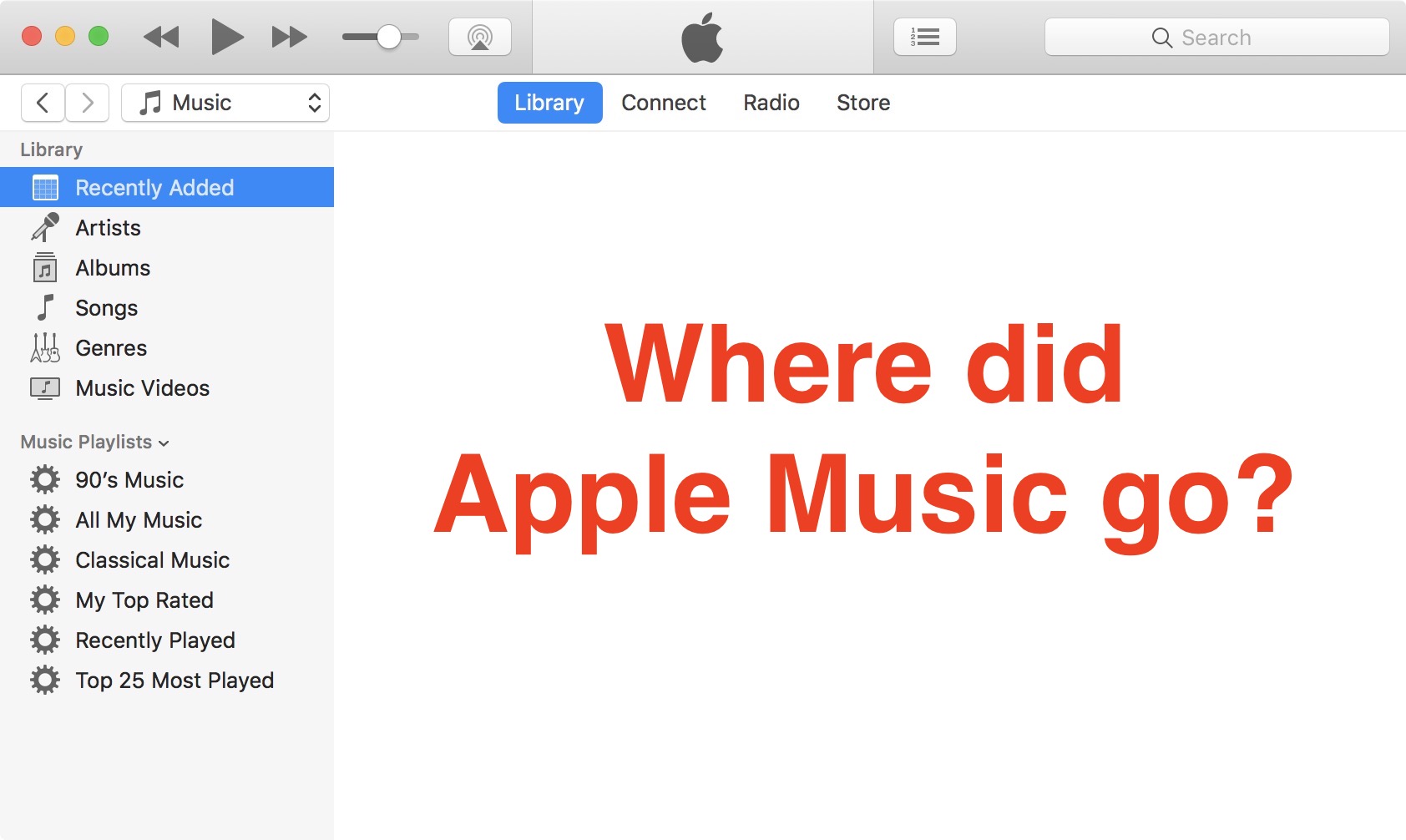
This will open a new iTunes window containing the selected playlist, as shown top of post.

You can drag songs at will between the playlist windows and open as many playlists in separate windows as you like. I don't have that many playlists created in iTunes so I was able to open “only” four playlist windows, but it worked like a charm.

How to open an Apple Music playlist in a new window

Playlists on Apple Music cannot be opened in their separate windows unless they're in your iTunes library. To do so, follow the steps below:

1) Launch iTunes on your Mac.

2) Choose Music from the popup menu near the upper-left corner of the window, then click either the Library or the For You tab.

3) Find a playlist on Apple Music and click the three dots in the lower-right corner of playlist graphics to bring up the contextual menu, then choose the option Add to Library.

4) With the selected Apple Music playlist now in your iTunes library, switch to the Library tab, right-click it underneath the Apple Music Playlists heading in the lefthand column, then select the Open in New Window command.

Just like that, the selected Apple Music playlist from your library opens in a new window.

iTunes playlists windows and Split View

Sadly, playlists windows in iTunes don't support macOS's useful Split View feature.

If iTunes supported Split View properly, it could have been a great multitasking feature. In other words, you cannot browse your iTunes library in the main window and have your favorite playlist in its separate window in macOS's Split View mode.

And that's it, boys and girls!

Pass along this article to other Mac users you support and don’t forget we accept your submissions regarding future coverage ideas via tips@iDownloadBlog.com.

If you have any questions, please post a comment below.

How to fix photos not uploading to or downloading from iCloud Photo Library

iCloud Photo Library is one of these great features that you think you don't really need until you actually start using it. One of the promises of the service is that it automatically keeps every photo or video you take in iCloud. These photos and videos can then be accessed from any of your devices, assuming the feature is enabled on these devices. iCloud Photo Library is great... at least when it works as it should.

How to clear your web browsing cache in Chrome, Safari, and Firefox on Mac

Chrome settings on Mac

Over time, web browsers accumulate website data from everyday browsing. Known as cache, this data collection helps browsers load web pages more quickly, so these files don't have to be re-downloaded when you revisit the same websites in the future.

Unfortunately, cache is also the main suspect when diagnosing issues loading websites, and it can also eat up valuable storage space on your Mac. That's why in this tutorial, we'll show you how to delete cache and cookies in three of the most popular web browsers: Apple Safari, Google Chrome, and Mozilla Firefox.

How to SSH into your jailbroken Apple TV 4 or 4K and change your root password

With several Apple TV jailbreaks in use by our readership, it's important to remember that with them comes both the power and risk of running SSH connections to your device.

Once jailbroken, you may want to tinker around with the device, grab your apticket off of it, copy files to and from it, or investigate the filesystem. To do this you'll need to connect to it from another device via SSH. In this guide we'll take you through how to do just that, as well as how to protect yourself by changing the default passwords.

How to use your iPhone’s compass with Apple Maps

iPhone includes a magnetometer sensor, also known as digital compass. With it, your iPhone can tell the direction it's pointed at. Along with built-in GPS and iOS's Location Services, this allows for some cool navigation capabilities. If you're wondering how to use iPhone compass with Apple Maps, you've come to the right place.

Displaying compass on a map not only helps you orient yourself better and find a route to a location, but also stay on course while navigating to avoid distractions that could lead to dangerous situations. In this tutorial, you'll learn how to display the compass for navigation and use it with Apple Maps turn-by-turn directions.

How to restore your device to iOS 9.x with iDeviceReRestore

A while back we broke the story of a bug which was allowing restores to iOS 9 firmwares, without even needing a jailbreak. It was subsequently discovered that the bug was more far-reaching than originally thought, allowing restores to iOS 9.x from any firmware, not just from iOS 9.

The tool was released a week or so ago, and so we thought the time was right for a tutorial. Follow our instructions here to bring any 32-bit device back to any iOS 9.x firmware you have blobs for, from any starting firmware. No keys, bundles, nonces, or jailbreak required!

How to use CoolBooter CLI to dual-boot your device

You may have seen my report on the CoolBooter updates, in which I mentioned that both the app and the command line versions had seen changes. Whilst using the CoolBooter app is self-explanatory and will satisfy the needs of most, it does not currently support iOS 5 as the secondary OS, which may lead some to want to try out the command line utility instead. I will therefore be walking you through using CoolBooter CLI 0.3 to dual-boot your device.

Five neat tricks Spotlight search can do for you on iPhone

Bearing in mind the numerous ways to invoke Spotlight search on your iPhone today, the feature has clearly become a centerpiece of iOS 10th iteration.

That is because for one, it's the fastest way to rifle through your device for any type of information, however it is also incrementally adopting Siri-level intelligence. You might know about using Spotlight for swift currency and measurement conversions by now, but the list does not end here. Largely undiscussed on the web, here are five more cool uses for Spotlight.