Learn how to use Picture in Picture on Apple TV to watch two shows at the same time or continue watching a video while you find something else to watch on your TV.
How to use Picture in Picture on Apple TV and play two videos at the same time
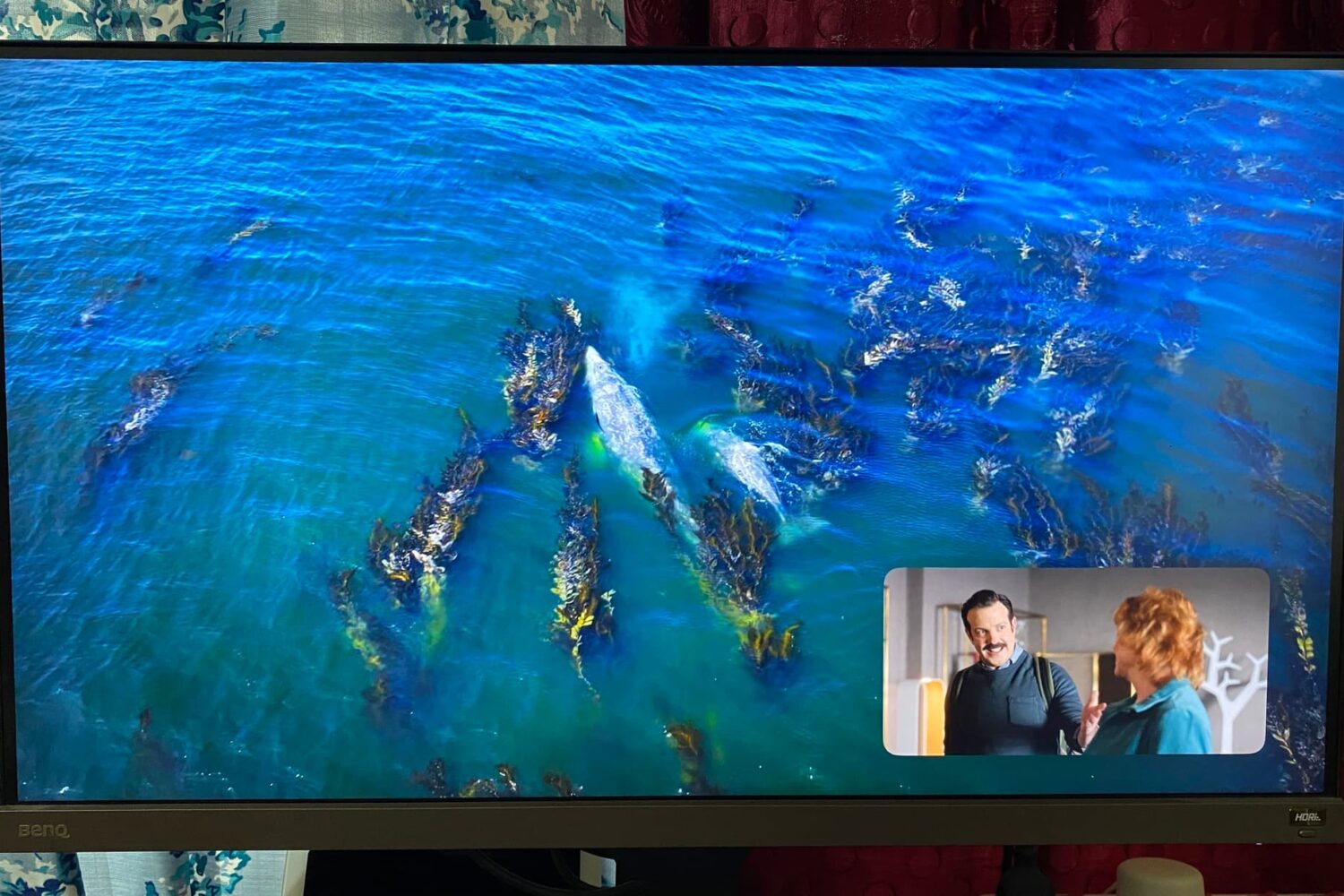
Learn how to use Picture in Picture on Apple TV to watch two shows at the same time or continue watching a video while you find something else to watch on your TV.

Learn how to change the default app for opening specific file types on Mac to customize it to your liking.

The checkra1n team officially released the checkm8 bootrom exploit-based checkra1n jailbreak tool this weekend as a public beta to the masses, and while we’d seriously recommend holding off until the tool comes out of beta, we’d totally understand if you’re a bit antsy to go hands-on with things right now.
In this tutorial, we’ll be showing you how to use the checkra1n jailbreak tool to liberate a supported iPhone, iPad, or iPod touch.
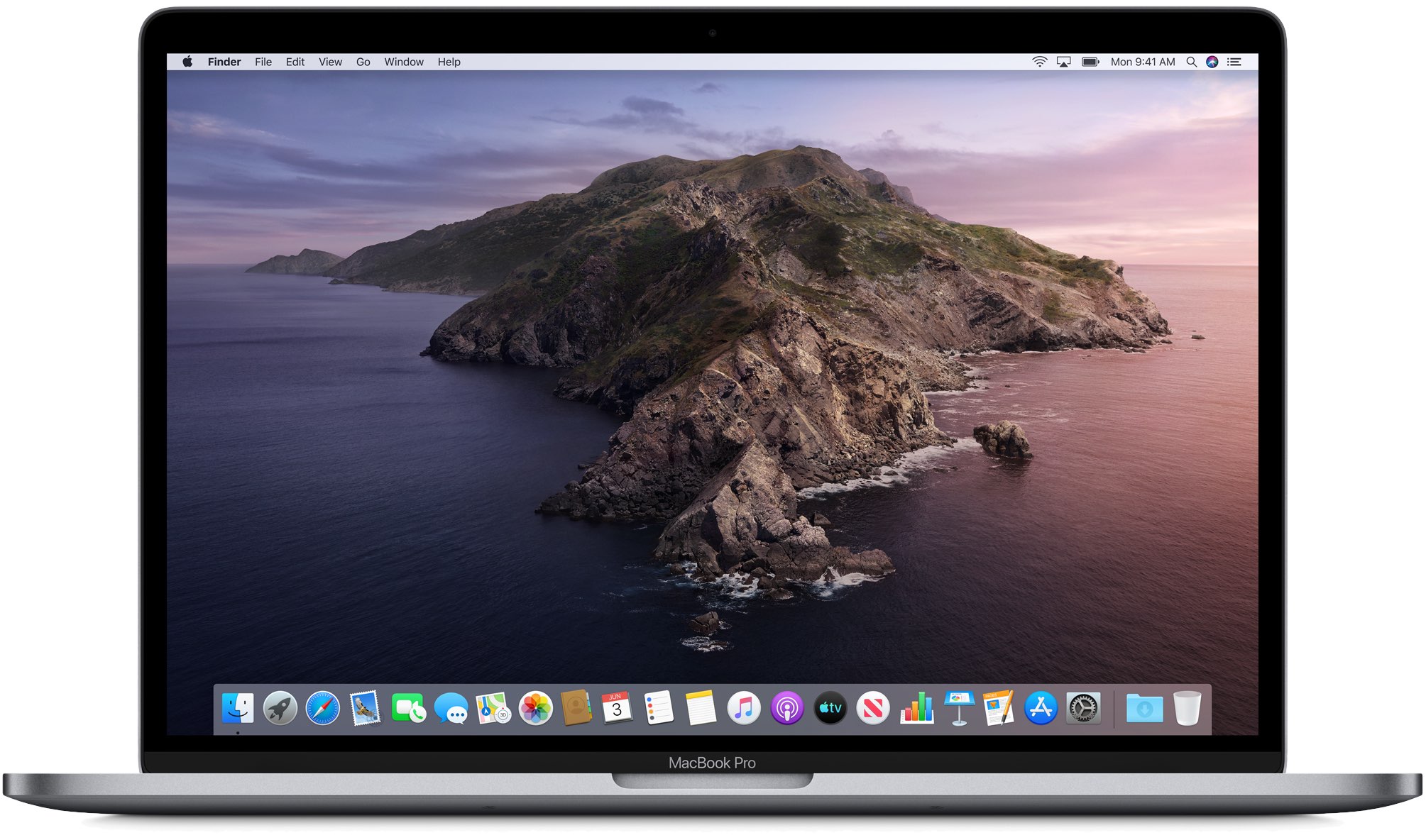
Getting tired of seeing that persistent notification in your Mac dock to remind you to upgrade to macOS 10.15 Catalina? It's possible to turn off that notification permanently without having to upgrade. All it requires is a little command-line tinkering, if you're up for it. Read on for details.

There’s nothing better when streaming a show than to have the option to pause it and resume it on another device, in a different room, or wherever you want to go.
This quick tutorial explains how you can continue watching your Apple TV+ shows and movies across your various devices by picking up right from where you left off.

Take control of your Mac desktop by using Stacks, sorting, sizes, and spacing to organize it for a more efficient workspace.
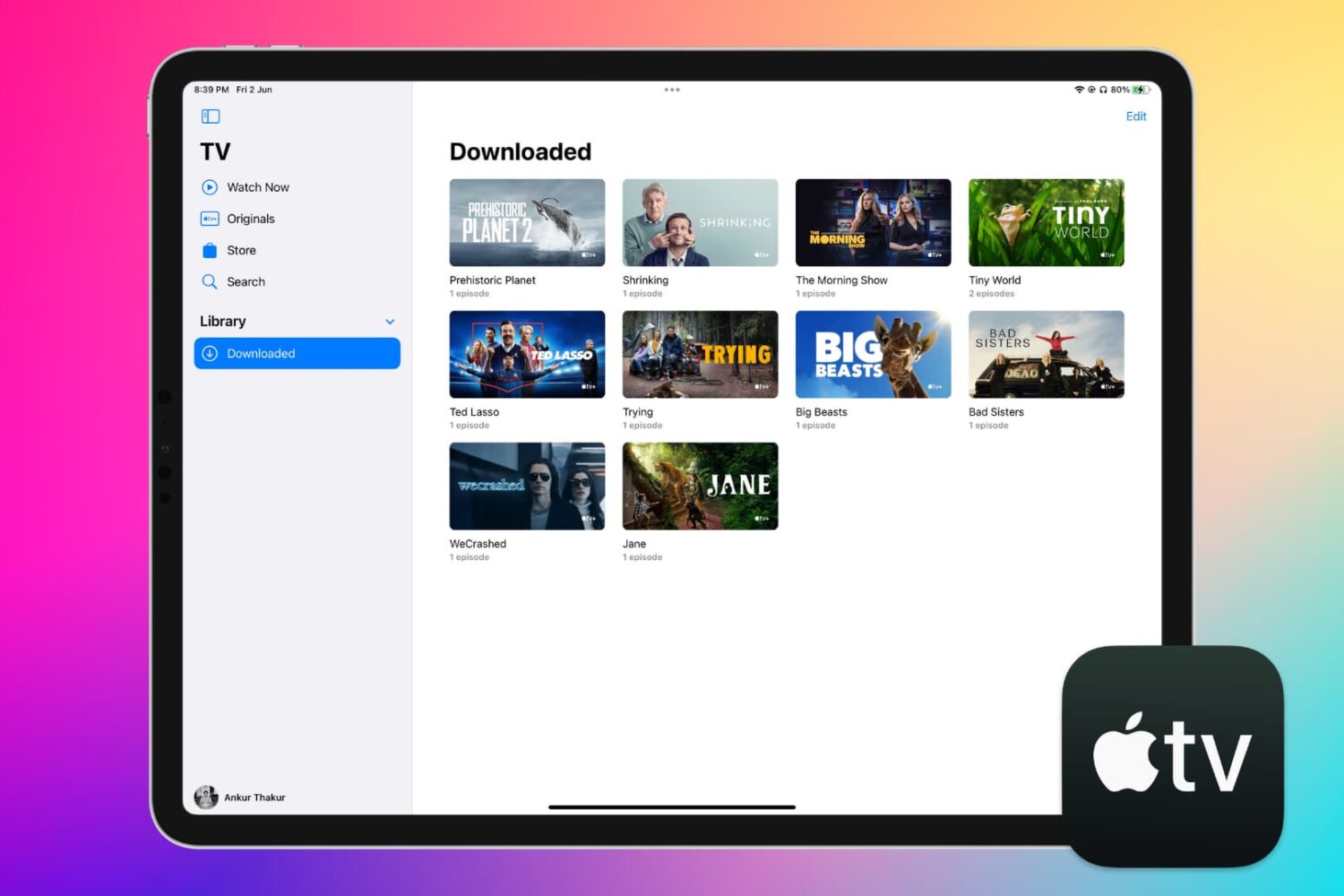
Learn how to download Apple TV content, including shows and movies, to your iPhone, iPad, or Mac for offline viewing, so you can watch them later without needing a Wi-Fi or cellular connection.
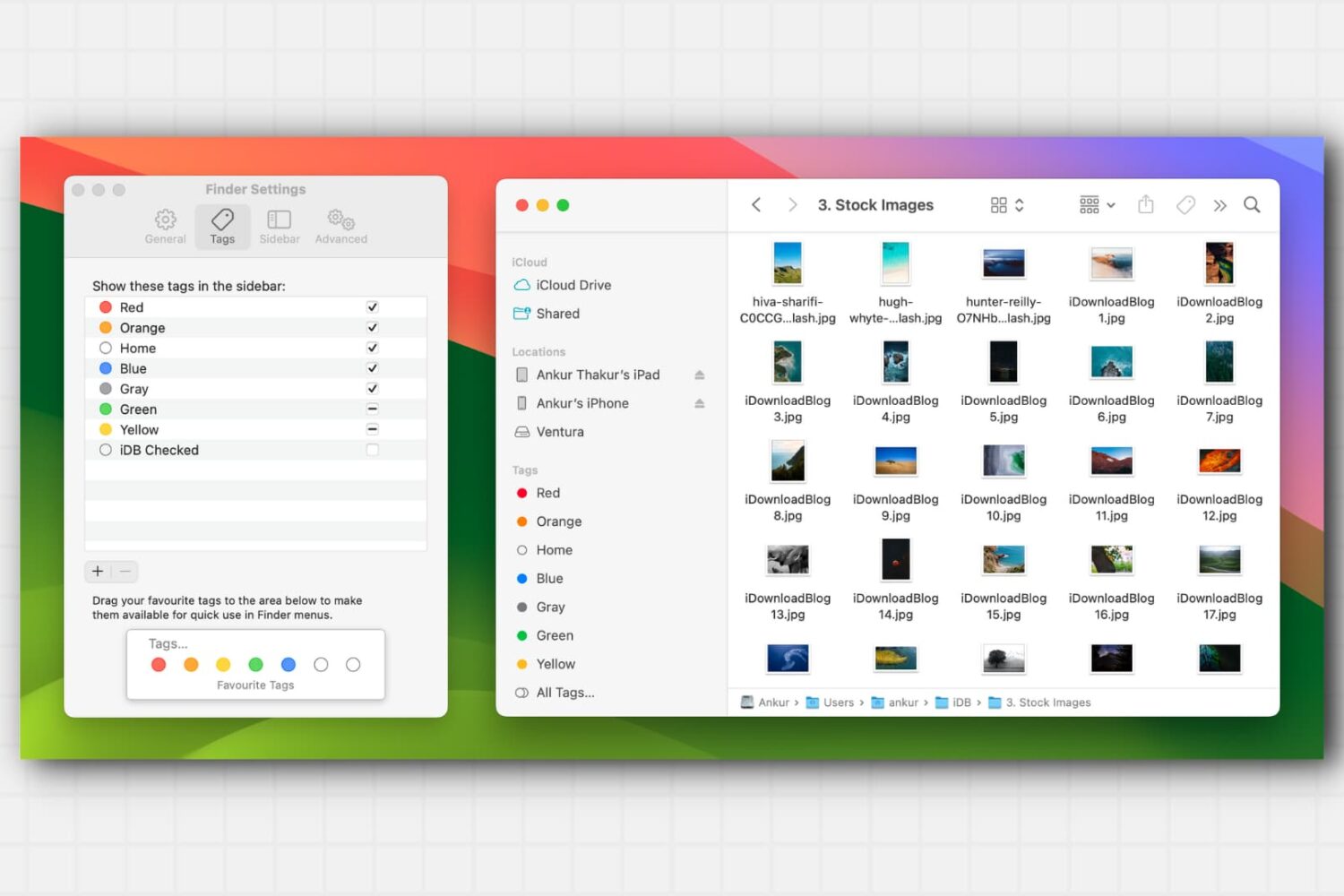
Learn about this simple and efficient method for organizing your files and folders in Finder on Mac using colored tags.

Want some background ambient noise to fall asleep? Learn how to play relaxing sounds like a crackling fireplace, nighttime, ocean waves, rain forest, and more on your HomePod to get a good night’s sleep.
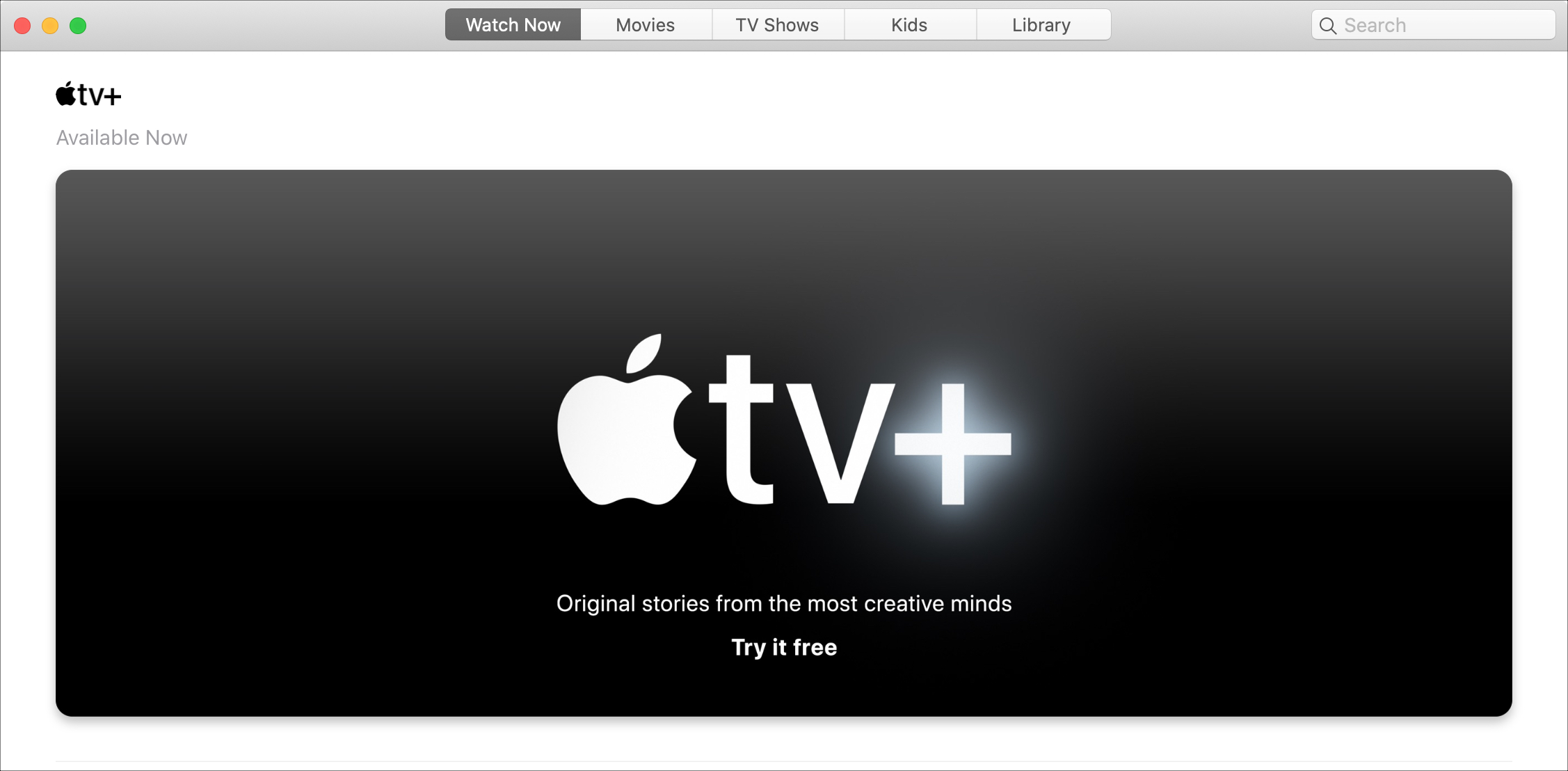
Apple TV+ debuted on November 1 and is a video streaming service that gives you original shows, movies, documentaries, kids’ shows, and more. You can give it a try before you buy into the $4.99 per month subscription with a free seven-day trial. So you have nothing to lose by checking it out.
What’s great about the service is that you don’t have to own an Apple device to enjoy it. You can watch shows on many different compatible devices as well as the web. If you’re interested, we’ll show you how to sign up for Apple TV+.
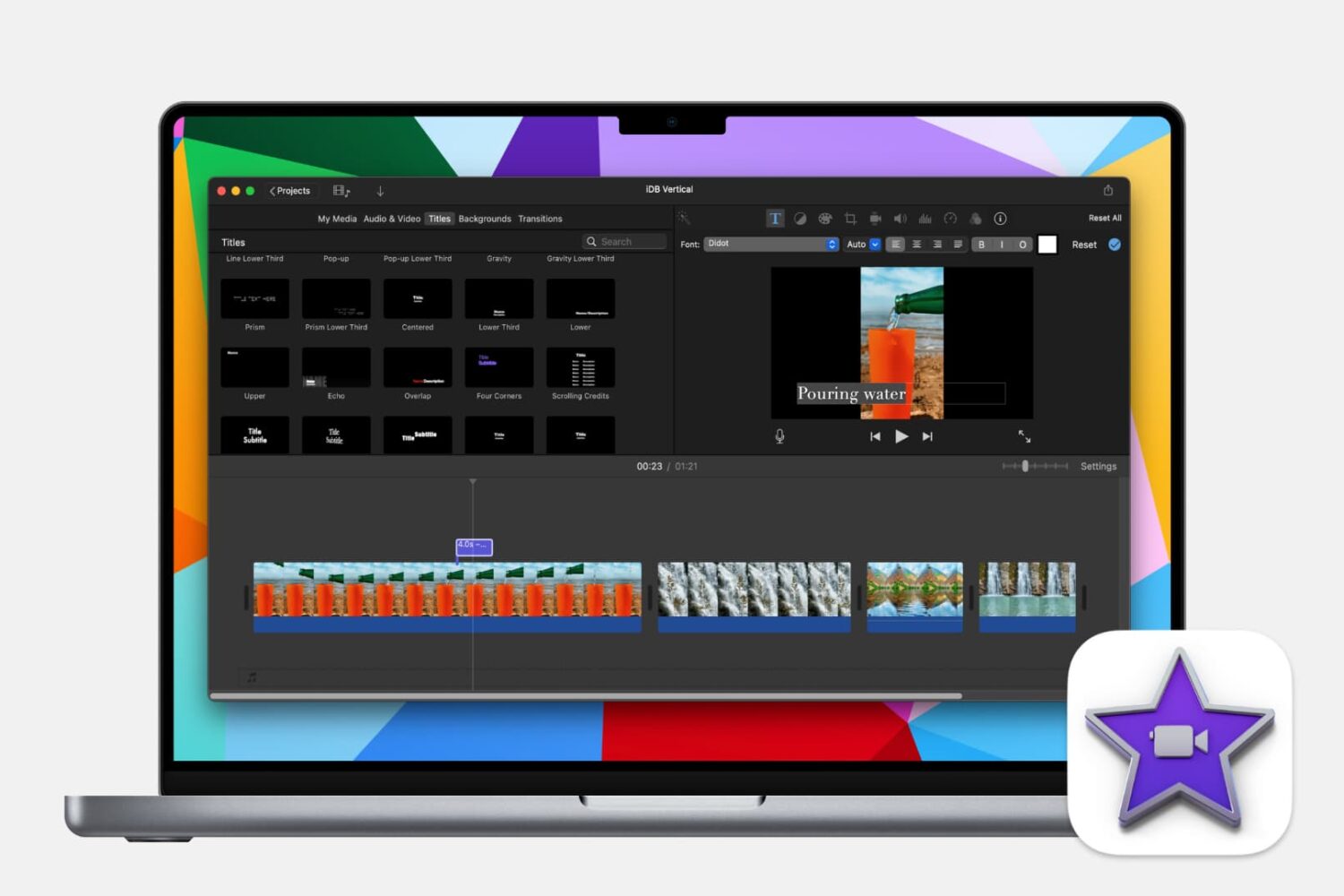
Learn how to make your iMovie creations more accessible by adding subtitles or captions to your videos with this step-by-step guide.
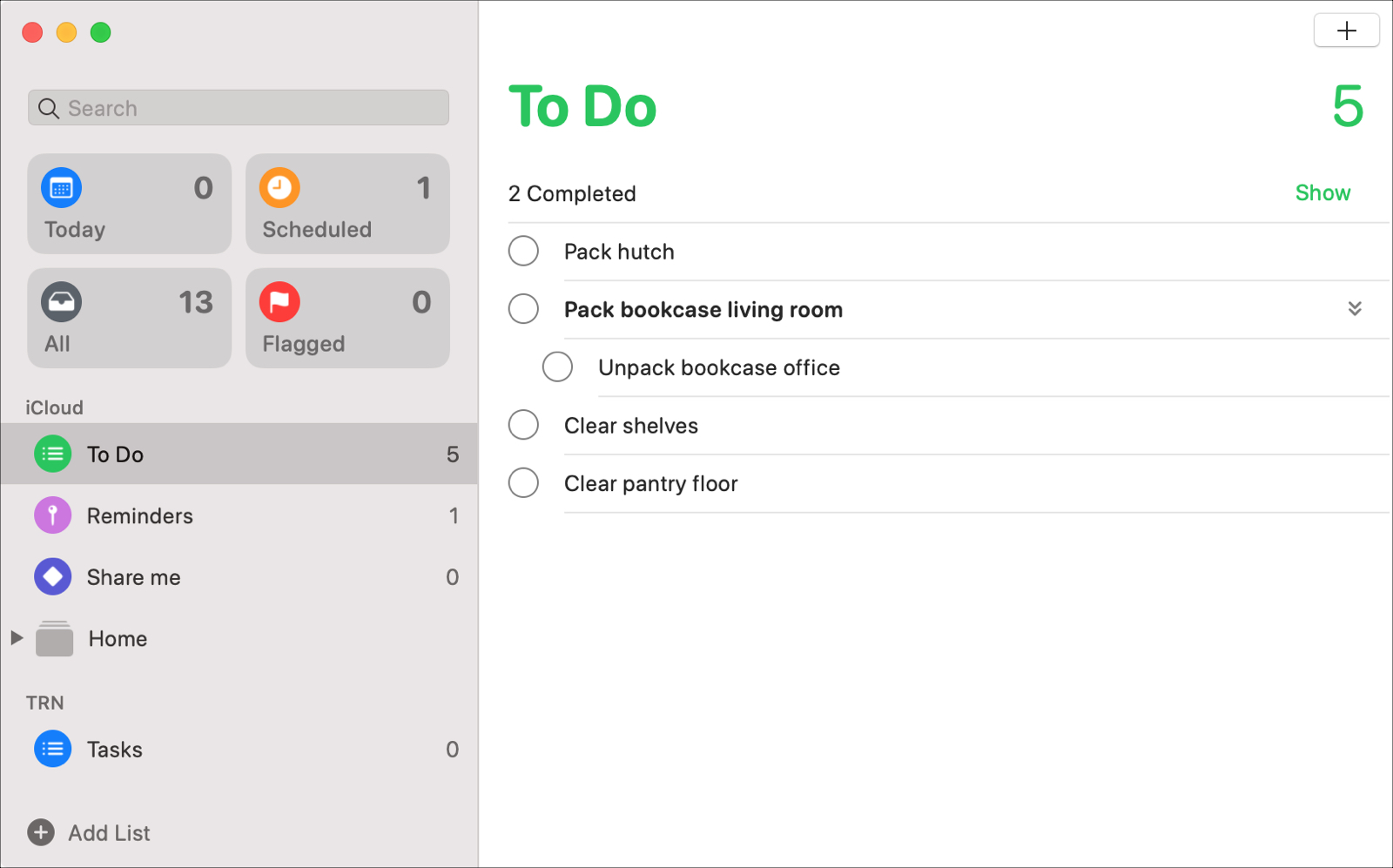
With the macOS Catalina update, users received new apps like Music, TV, and Podcasts along with updates to others like Notes and Mail. The Reminders app also got an update to its appearance and functionality that many have been waiting for.
Enhancements like subtasks and Messages integration, that can increase your productivity both at work and at home, are now part of the package.
Let’s take a look at all of the new features and how to use them in the redesigned Reminders app on Mac.