Sébastien Page

Sebastien is the Founder and Editor in Chief of iDB. Once a BlackBerry user, Sebastien instantly fell in love with the iPhone when it was first announced in 2007. Shortly after, he decided to start sharing his knowledge of the iPhone and its nascent ecosystem, which led to the creation of this blog. Sebastien currently owns 14 iPhones, 4 iPads, a MacBook Pro with Touch Bar, a MacBook Air, 2 Apple Watches, 3 Apple TVs, countless HomePods and AirTags as well as a few pairs of AirPods.

Let’s Talk Jailbreak 154: The natural evolution of things

Cody and Sebastien discuss the fact that Apple is inviting prominent iOS hackers at its Cupertino HQ, and Zerodium's $1.5M bounty for remote jailbreak. The guys also discuss their favorite jailbreak tweak releases of the past month.

Subscribe via RSS

Support Let’s Talk Jailbreak: Get Get $50 towards any mattress purchase by going to Casper.com/jailbreak.

Let’s Talk iOS 155: Hiding the love

Cody briefly reviews the Steve Jobs movie, Sebastien explains why he got AppleCare for his Apple Watch, and discussions about Apple removing outdated apps from the App Store, the fact that the company logs who you contact on iMessage for 30 days, Swift Playgrounds, and the answer to a life changing question. All in this episode.

Subscribe on iTunes

Support Let’s Talk iOS: Get two meals for free from Blue Apron by visiting BlueApron.com/ios.

I hate to Love songs on Apple Music

While Apple likes to put emphasis on the human curation that goes behind the scenes, Apple Music is still largely powered by algorithms that learn about your music tastes by looking at your own library, but also by looking at your recent activity, including the songs you Love.

The more you play a song, the more the algorithm understands you like that song, and maybe by extension that band. If you Love a song, you're also signaling that this is a tune you particularly enjoy. Algorithms then crunch data based on your behavior to improve music suggestions for you.

For the past year, my favorite way to train Apple Music's algorithms was to actively Love songs. It was a quick and simple way for me to tell Apple "hey, I really like that, please play this more often and also play more songs similar to that one."

But the big, bold, confusing mess of a redesign that happened with iOS 10 has changed a lot of things, including how you now Love songs on Apple Music.


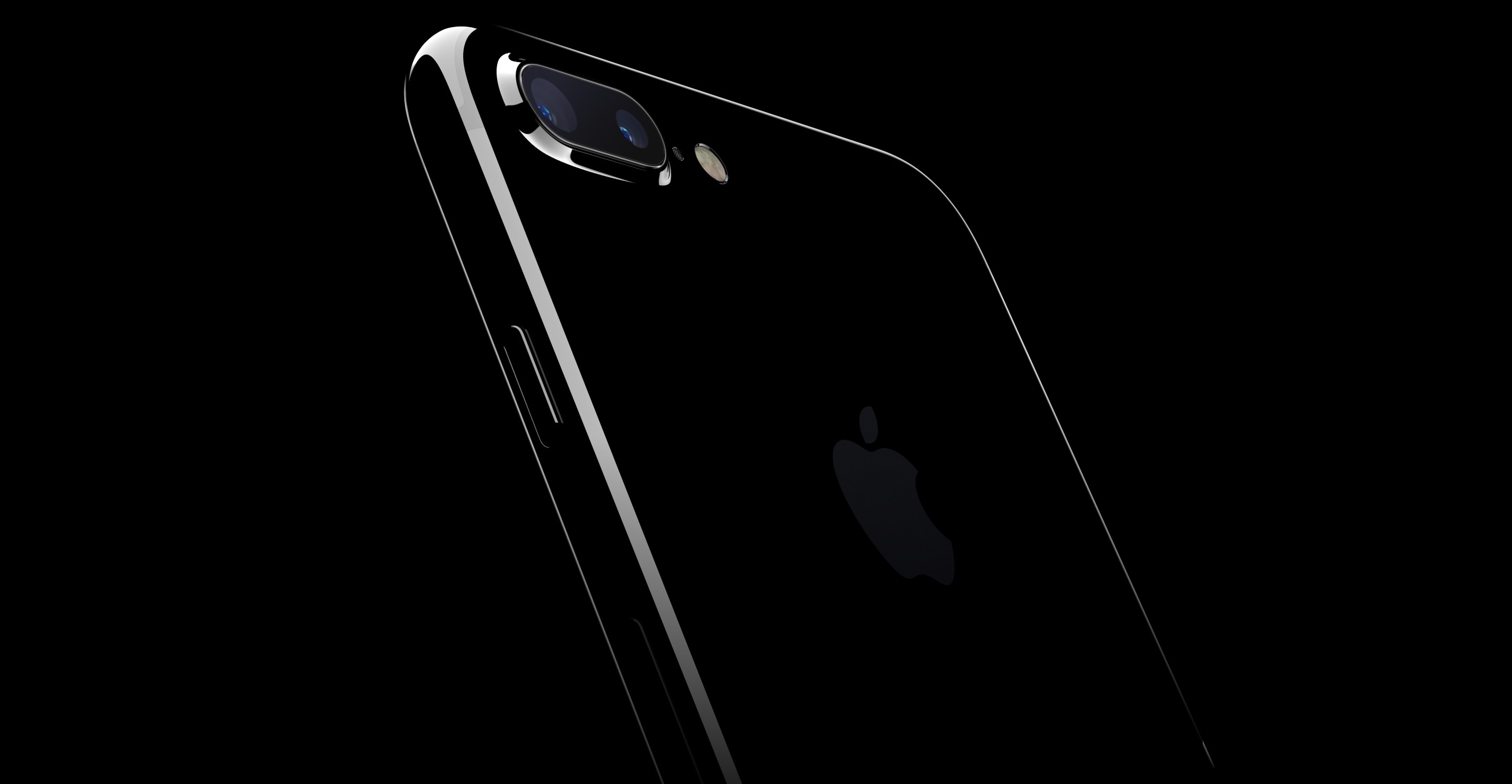
What’s jet black anyway?

Apple's new jet black iPhone 7 is what I believe to be the flagship finish for this year's iPhone. This is the one that Apple features in most of its promo materials, and I assume this is the one Jony Ive is carrying right now in his man purse, along with early prototypes of the iPhone 8.

Getting that gorgeous glossy finish isn't exactly an easy process. According to Apple, "the new jet black finish is accomplished through an innovative nine-step process of anodization and polish for a uniform, glossy finish, achieving its beautiful, high-gloss black finish even required a new process."

But what is jet black anyway?

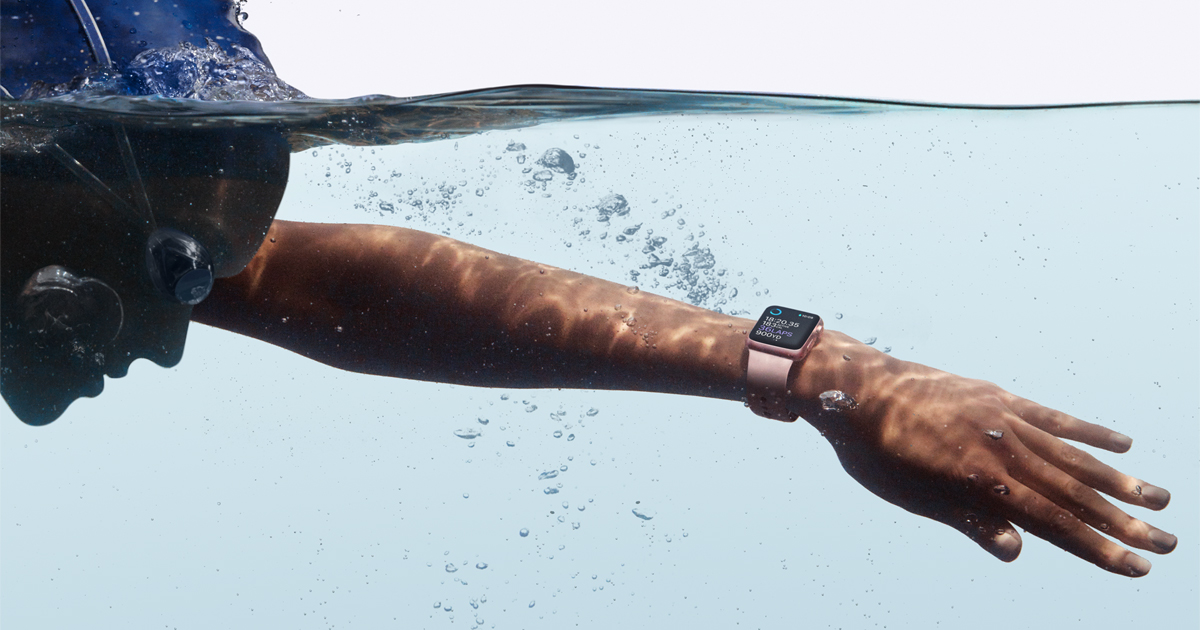
Apple Watch and water resistance: a quick guide to proper use and care

If the original Apple Watch could sustain minor splashes, starting with Series 2, new models now have a water resistance rating of 50 meters, making Apple Watch the perfect companion for swimmers, surfers, or just about anybody who wants to splash around in the pool or in the ocean.

Despite your Apple Watch being completely capable of going in the water, there are still a few things to keep in mind.

Let’s Talk iOS 154: These guys have no idea

Cody and Sebastien are definitely too old as they don't get Snapchat's Spectacles. After the sad realization that they're clueless, the guys discuss their new iPhone 7 and Apple Watch devices, macOS Sierra, and Apple's rumored Echo-like device.

Subscribe on iTunes

Support Let’s Talk iOS: Want to get into HomeKit? Visit idevicesinc.com and use promo code iOS for 15% off your home’s evolution.

How to hide Stories on Instagram

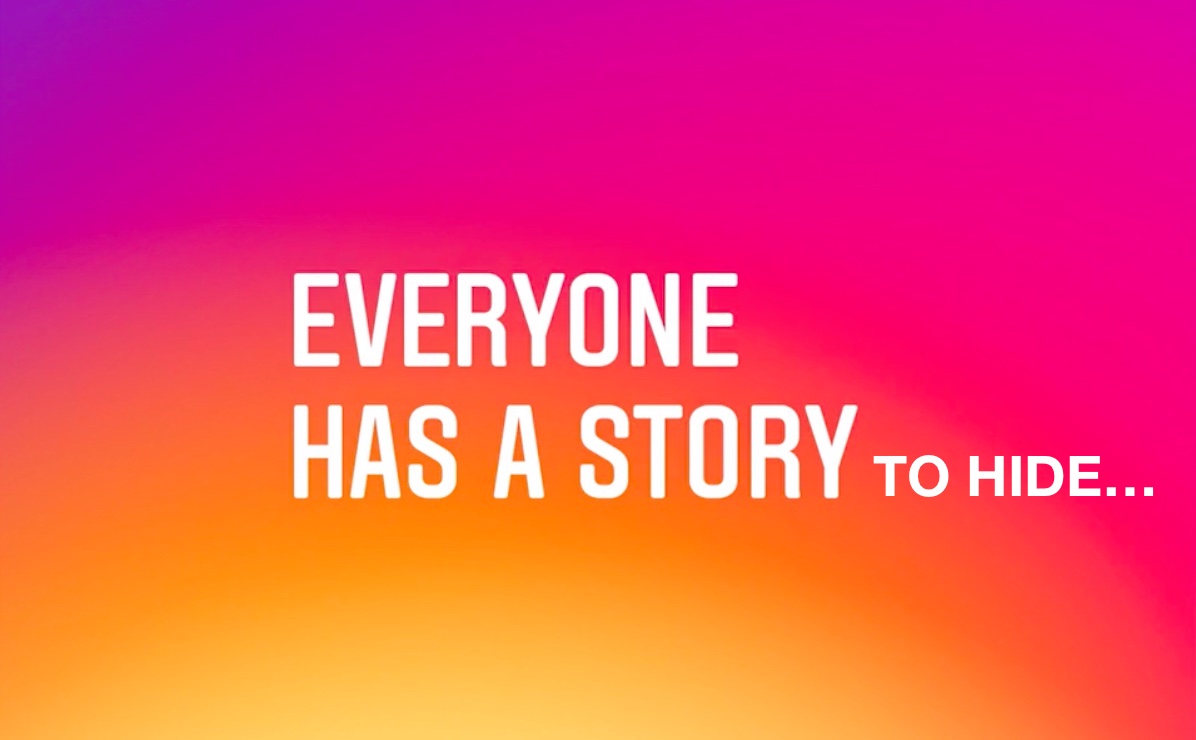
Marketing image with a tagline "Everyone has a story (to hide)" in white font printed on top of a colorful Instagram gradient background

Instagram recently unveiled a new feature called Stories which allows you to shoot, annotate, and share photos and short videos outside of your normal feed. By default, all of your followers can see the Stories your post. Likewise, you can see all the Stories the people you follow are posting. This is where it sometimes gets overwhelming.

I follow a lot of random people on Instagram because I appreciate the quality of the photos they share on their feeds. However, I care very little for their Stories, which are typically more about their personal lives than sharing beautiful shots. In this case, I'd rather not see their Stories at all.

There are also some people who follow me with whom I don't want to share my Stories, so I am opting to hide my Stories from these people.

In this post we will learn how you can hide your story from select people, but also how you can prevent other people's stories from filling up your screen.

How to use Picture-in-Picture for YouTube videos on your Mac

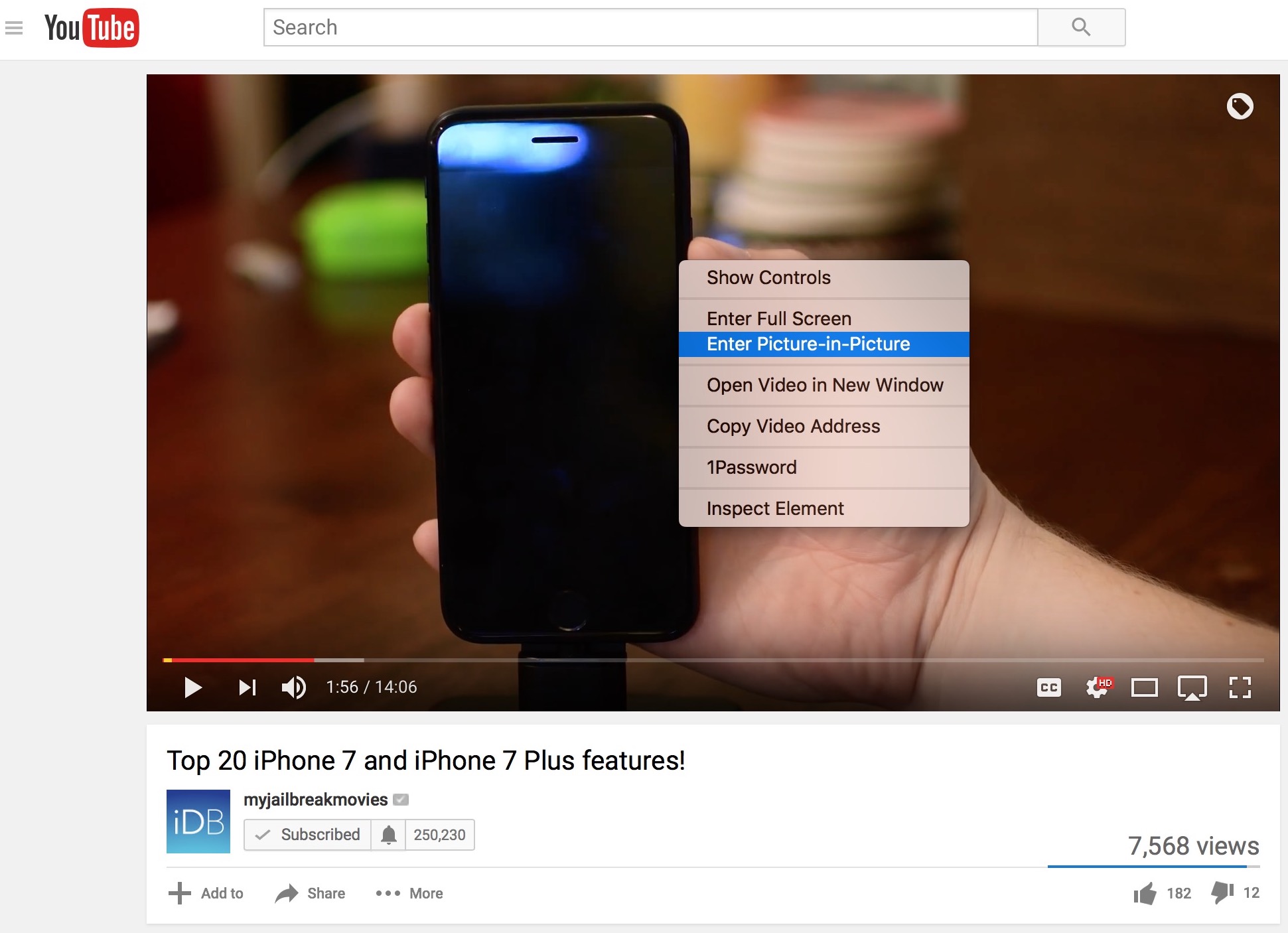
macOS Sierra was just released with a flurry of new features, one of them being the ability to watch videos in a new mode called Picture-in-Picture. When enabled, this allows you to detach a video from its player, and place it anywhere in a resizable window on your screen. This is particularly handy if you want to watch a video while working, for instance.

While the majority of video players you will encounter will already support Picture-in-Picture, there are a few rebels out there that still don't, and YouTube is one of them. Fortunately, there is a simple workaround for this.

How to invoke Siri with a keyboard shortcut on Mac

Your favorite assistant finally made its way to the Mac, starting with the macOS Sierra software update.

If you have used Siri on your iPhone or iPad before, then you'll probably feel right at home with the assistant on your Mac since it works in a similar way. However, unlike your iPhone, you don't have the ability to invoke Siri on your Mac by saying "Hey, Siri." Instead, you will have to click on the Siri icon in the Menu Bar, or in the Dock.

Another way to invoke Siri is by using a keyboard shortcut. Admittedly, this is my preferred way of activating the assistant as it feels faster and more efficient than reaching for the mouse or trackpad and clicking on the Siri icon.

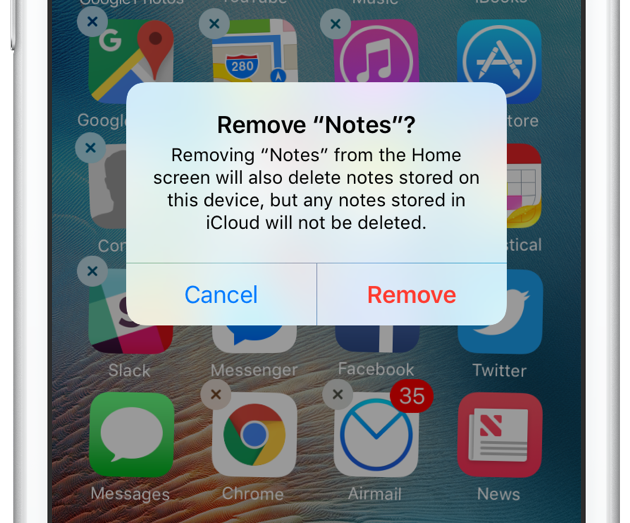
How to remove built-in applications from iPhone or iPad

Just like you probably do, I have a folder on my iPhone whose sole purpose is to store all of Apple's apps that I don't use. Stocks, Compass, Voice Memos, Tips, etc. They're all in there because I can't get rid of them. But this is changing!

Beginning with iOS 10, Apple now allows you to delete some built-in applications from your iPhone or iPad to help you tidy things up and bit and rid you of apps you don't actually use.

This comes with some minor strings attached. For one, apps aren't technically deleted from your device. That said, the process to remove them and get them back on the Home screen is similar to how you handle other apps. We'll have a look at all this right now.

Let’s Talk iOS 153: First impressions of iPhone 7 and Apple Watch Series 2

Design, Home button, display, cameras, speed, battery, sound: Cody and Sebastien discuss pretty much every aspect of their respective new iPhone 7 Plus and iPhone 7. Sebastien also talks about his Apple Watch Series 2 featuring snappier performances, brighter screen, and improved battery life. Y'all ready for this?

Subscribe on iTunes

Support Let’s Talk iOS: Want to get into HomeKit? Visit idevicesinc.com and use promo code iOS for 15% off your home’s evolution.