Sébastien Page

Sebastien is the Founder and Editor in Chief of iDB. Once a BlackBerry user, Sebastien instantly fell in love with the iPhone when it was first announced in 2007. Shortly after, he decided to start sharing his knowledge of the iPhone and its nascent ecosystem, which led to the creation of this blog. Sebastien currently owns 14 iPhones, 4 iPads, a MacBook Pro with Touch Bar, a MacBook Air, 2 Apple Watches, 3 Apple TVs, countless HomePods and AirTags as well as a few pairs of AirPods.

How to Downgrade iPhone iOS 4.2.1

Let's say you recently updated your iPhone to iOS 4.2.1 and for various possible reasons, you are already regretting this move. It is possible to downgrade your iPhone 4.2.1 to a previous iOS, but for this, you need to have your SHSH blobs on file for the iOS you want to downgrade to.

To be completely clear, if you don't have your SHSH blobs on file for the iOS you want to downgrade to, you will not be able to downgrade. There is no way around that. This being said, here is how to downgrade iPhone iOS 4.2.1 to  4.1, 4.0.2, 4.0.1, or 4.0...
The iPhone Becomes the #1 and Most Desired Smartphone in the US

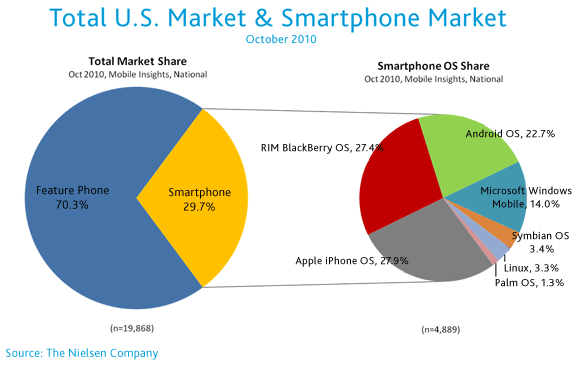
We already knew that iPhone users are the most loyal to their dear smartphone of choice. Now we know the iPhone is the #1 smartphone in the US as it just passed RIM by a slim 0.5%. Android, is a not-too-distant third.

This survey by Nielsen also confirms that the iPhone is the "most desired" smartphone among people likely to upgrade to a new device. An interesting fact is that women planning to get a smartphone are more likely to get an iPhone, while males are more likely to choose Android...

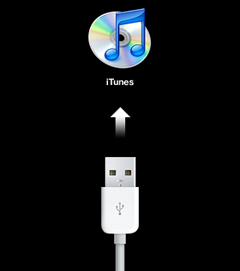
How to Put Your iPhone in DFU Mode

I am asked constantly how to put the iPhone in DFU mode. I always answer people and explain them how to do it but I figured after all this time, writing a post about how to put your iPhone in DFU mode was long overdue.

In most cases, you'll need to put your iPhone in DFU mode during the jailbreak process. It's pretty easy but it's all about perfect timing...

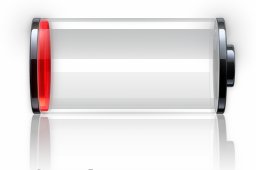
Experiencing Battery Drain After Unlocking your iPhone with UltraSn0w? Here is a Fix

A few people have been experiencing an unusual drain of their iPhone battery after unlocking with UltraSn0w. The problem doesn't actually come from UltraSn0w itself, but from the hacktivation process, for those of you who have hacktivated instead of activating the phone with an official carrier.

According to BigBoss, the issue comes from iOS 4.1 and 4.2.1 which constantly look for valid push certificates, either via wifi or your data plan (Edge or 3G). If you're not on an unlimited data plan, this can get pretty expensive, especially if you don't keep an eye on it.

There are 3 potential solutions for this...

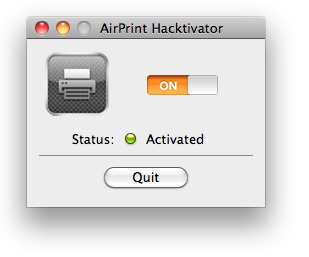
How to Use AirPrint with Any Printer

With iOS 4.2.1, Apple introduced the brilliant AirPrint. Unfortunately, you need to spend money on a few specific printer models if you want to enjoy AirPrint. Not anymore, thanks to a very simple hack that lets you use AirPrint on any printer, including printers that are not even wifi capabale.

If you're on a Mac, you can use the hack called AirPrint Hacktivator, which like its name suggests, will enable printing via AirPrint in a matter of seconds...

iPhone Users Are the Most Loyal

Here is a study by GFK that confirms something that most iPhone owners already know. According the the study, 60% of iPhone users are loyal to Apple and plan to get another iPhone. Not surprising indeed.

I'm speaking for myself here but I can't imagine owning another smartphone anytime soon. I've played around with several other Android devices and I was never impressed to the point I'd consider switching...

iPhone Quick Tip: How to Quote Text in an Email Reply

This is a ninja tip that was sent to me by an anonymous reader about how to quote text in an email reply. Let's say you receive an email from someone. In your reply, you want to quote some of the text to comment on it for example.

To do that, simply select the text you want to quote and hit the "reply" icon. This way, only your selected text will be copied in your email reply...

How to Unlock Your iPhone 4.2.1 with UltraSn0w

The Dev Team has updated their UltraSn0w iPhone unlock for iOS 4.2.1. UltraSn0w 1.2 will unlock iPhone 4 baseband 01.59.00 and iPhone 3G/3GS basebands 04.26.08, 05.11.07, 05.12.01, 05.13.04 and now 06.15.00.

If your iPhone 4 is not on baseband 01.59.00, you will not be able to unlock it. If your iPhone 3G or 3GS is on one of the baseband version mentioned above, then you can follow the instructions below...

It’s Cyber Monday Madness at iDB

Yes, today is Cyber Monday and we thought we'd give our readers a little something for the occasion. Starting now, we are offering 10% off every accessories in our store. Did you even know we had a store? If not, make sure to go visit it.

To take advantage of this promotion, use the coupon code idb1129 at check out. It will get you 10% off all accessories.

Hurry up, because these deals won't last long. The coupon is only good until tonight midnight PST.

That's not enough for you? Then check out Zagg's website as they are giving up to 50% on all their products. That means you can get this InvisibleShield for close to nothing.

How to Prepare your iPhone 4.2.1 for Unlock using RedSn0w

We've seen yesterday that we the release of the updated UtraSn0w unlock, there are a few to be met to unlock iPhone 4.2.1. This unlock will work for the iPhone 3G or iPhone 3GS with baseband 04.26.08, 05.11.07, 05.12.01, or 05.13.04. It will also work with iPhone 4 with baseband 01.59.00.

But what happens if you're not on one of those basebands? Depending on your phone model and configuration, you might have to update the baseband to 06.15.00, which is fully unlockable, then unlock using UltraSn0w.

In this tutorial, I will show you how to use RedSn0w to update your baseband to 06.15.00 so you can unlock your iPhone 3G/3GS 4.1.2...

How to Prepare Your iPhone for Unlock with PwnageTool

The Dev Team just released an update to their UltraSn0w unlock. Unfortunately, this time it's not as easy as downloading and installing UltraSn0w to unlock the iPhone.

If your iPhone is on baseband 01.59.00, 04.26.08, 05.11.07, 05.12.01, or 05.13.04, then you can simply go to Cydia and download UltraSn0w. If you are on a different baseband, you will first have to update your baseband to 06.15.00, which is unlockable.

All this sounds a little confusing? Yes, it's normal. It's very confusing, so I highly suggest you read this before going forward with the unlock process. It will tell you what you can and cannot do, depending on your configuration...

UltraSn0w iPhone Unlock for iOS 4.2.1 is Available

Not even a week after iOS 4.2.1 was released, and following the update of the RedSn0w jailbreak, the Dev Team delivered today an update to their UltraSn0w unlock for iOS 4.2.1.

This unlock will work for the iPhone 3G or iPhone 3GS with baseband 04.26.08, 05.11.07, 05.12.01, or 05.13.04. It will also work with iPhone 4 with baseband 01.59.00...