Learn how to block specific email senders in the Apple Mail app on iPhone, iPad, and Mac to make sure you never see an email from that person or company again.
How to block people from emailing you on iPhone, iPad, and Mac

Learn how to block specific email senders in the Apple Mail app on iPhone, iPad, and Mac to make sure you never see an email from that person or company again.
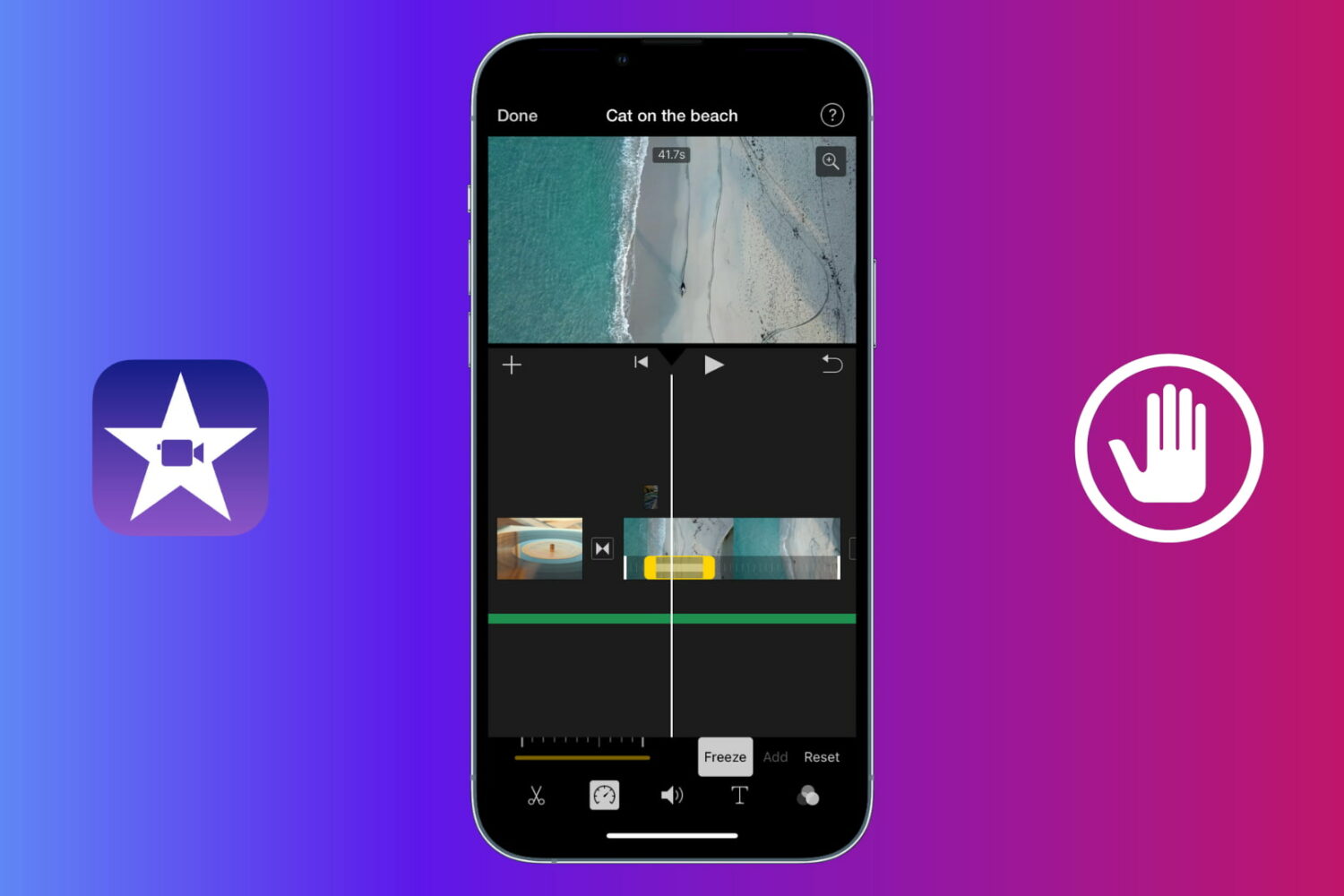
Learn how to use a freeze frame effect in iMovie to pause a scene briefly and direct the viewer's attention to something.
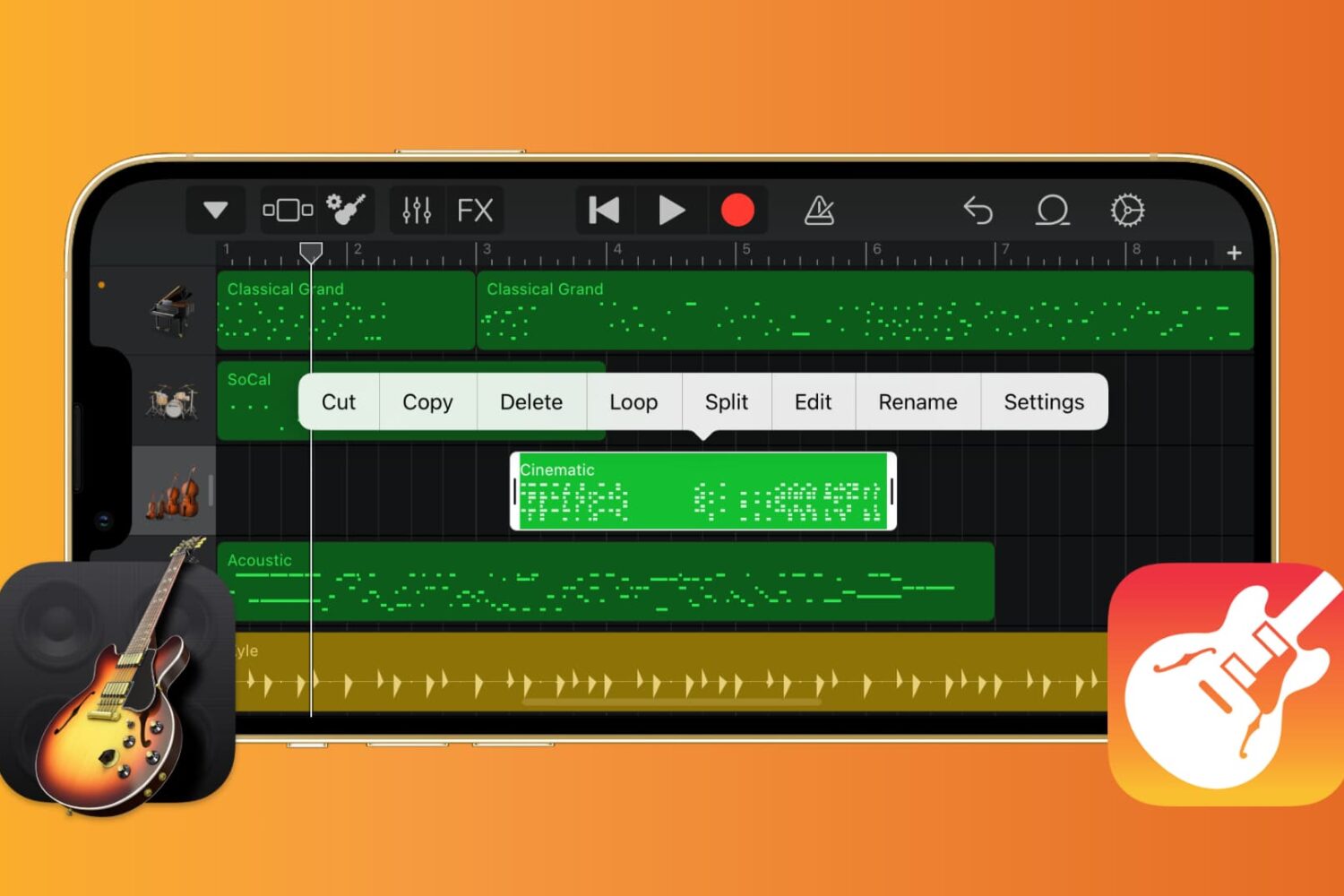
If you want to work with the musical notes in GarageBand for your song, you can show, add, and edit notes. In GarageBand on Mac, you can work with notes for MIDI regions, and on iOS, you can work with them for green touch instrument regions.
Here’s how to show, add, and edit musical notes in GarageBand on Mac, iPad, and iPhone.
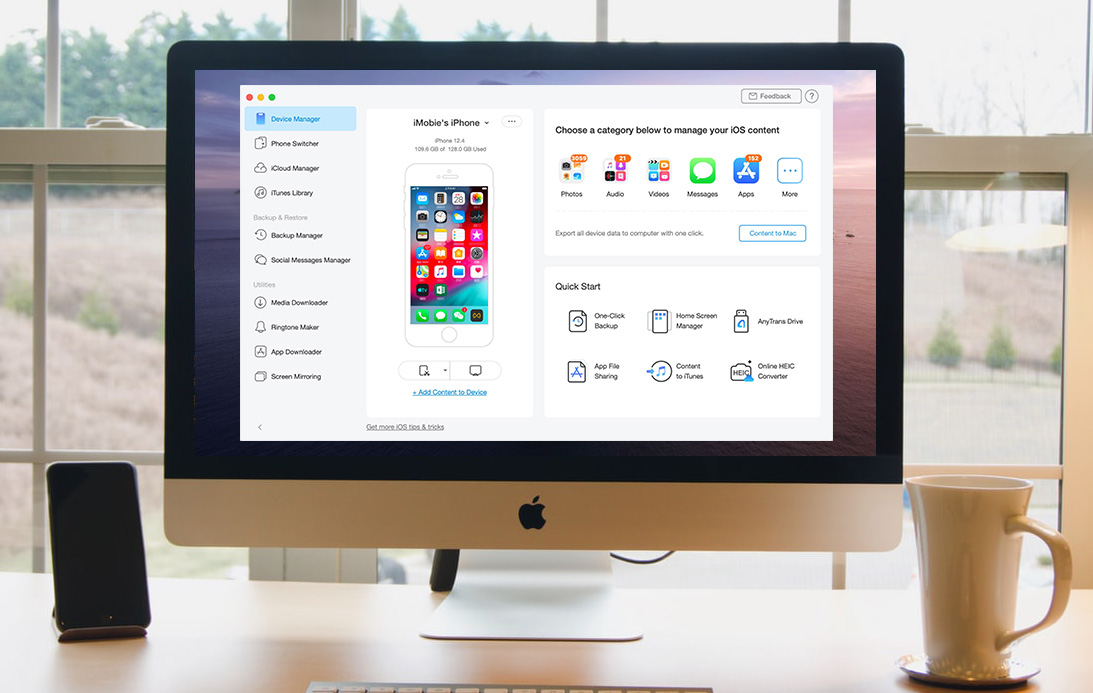
Whether you’re ramping up for your first iPhone or upgrading to the iPhone 11, you need a simple way to make a seamless transition. You might want to migrate your data from Android, create a backup of your current iPhone for an easy move, or even erase data from a phone you’re getting rid of.
Whatever the case may be, one tool can take care of all of these tasks and more. AnyTrans is an intuitive iPhone manager that lets you transfer, back up, and manage the content on your device, all in one spot.
We have covered AnyTrans in the past for backups and transfers as well as AnyTrans for Cloud to manage files. But now, we have a brand new AnyTrans to introduce to you, AnyTrans 8. This latest version of AnyTrans gives you new features and enhancements that make managing your iPhone content easier than ever.
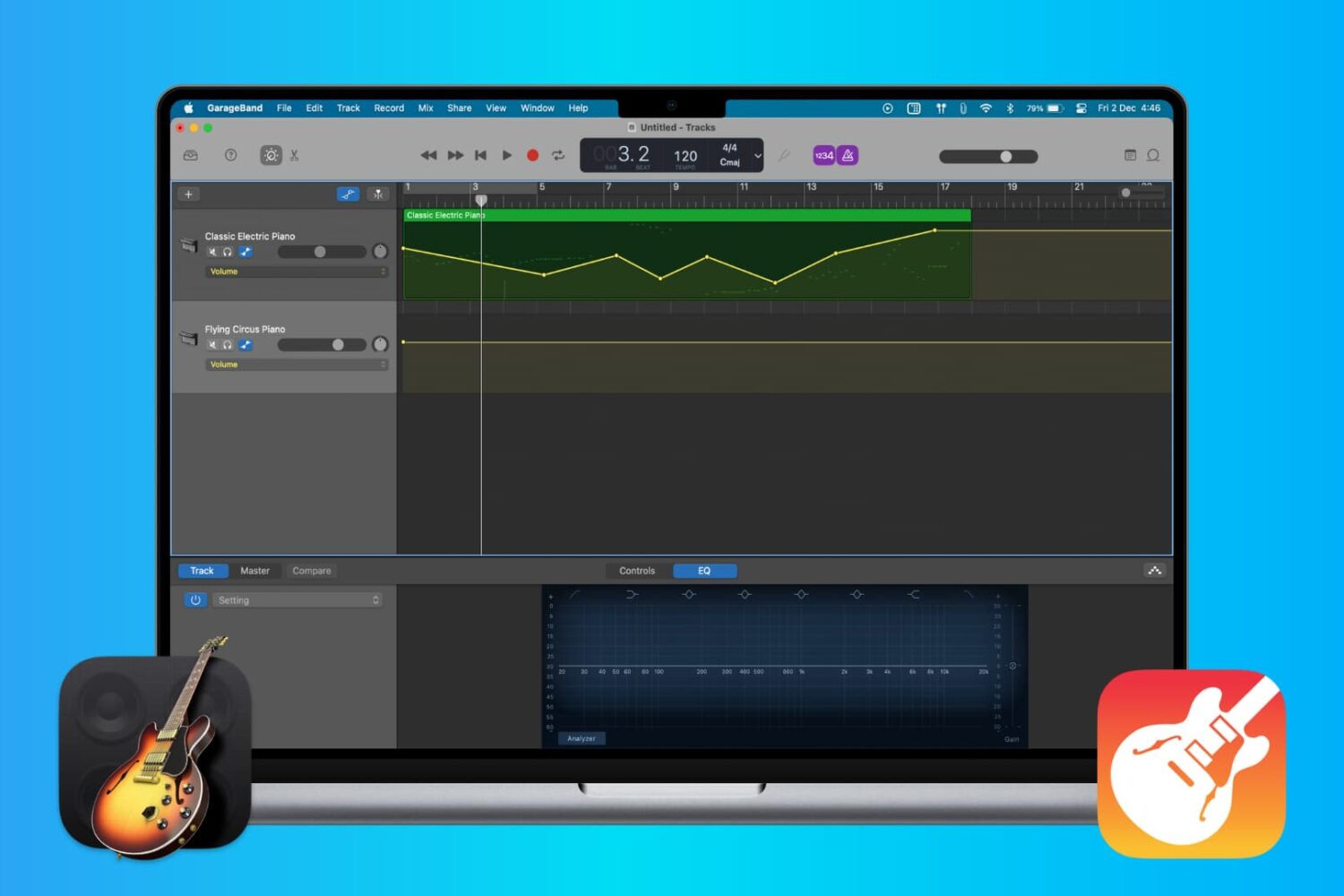
When you’re making music in GarageBand, you’re mixing regions and tracks to create your song. Whether you’re using vocals or instruments, not every track needs to have the same volume. You might want an instrument to play subtly in the background while emphasizing vocals, for example. Or you may want the volume of a track to increase and decrease at certain points.
Here’s how to adjust the track volume in GarageBand on Mac, iPhone, and iPad.

In this quick guide, we tell you how to get started with the incredibly useful Apple Preview app on your Mac and what you can do with it.

With all of the enhancements and new features accompanying iOS 13 and iPadOS, it can be hard to keep up with it all.
Not only are there useful improvements to the systems themselves like Dark Mode, faster scrolling, and text editing gestures, but also new features for apps like Notes, Photos, and Safari.
Here’s a handy roundup of how to use the new features of iOS 13 on iPhone and iPad (iPadOS) that you can bookmark and revisit as you begin using it.
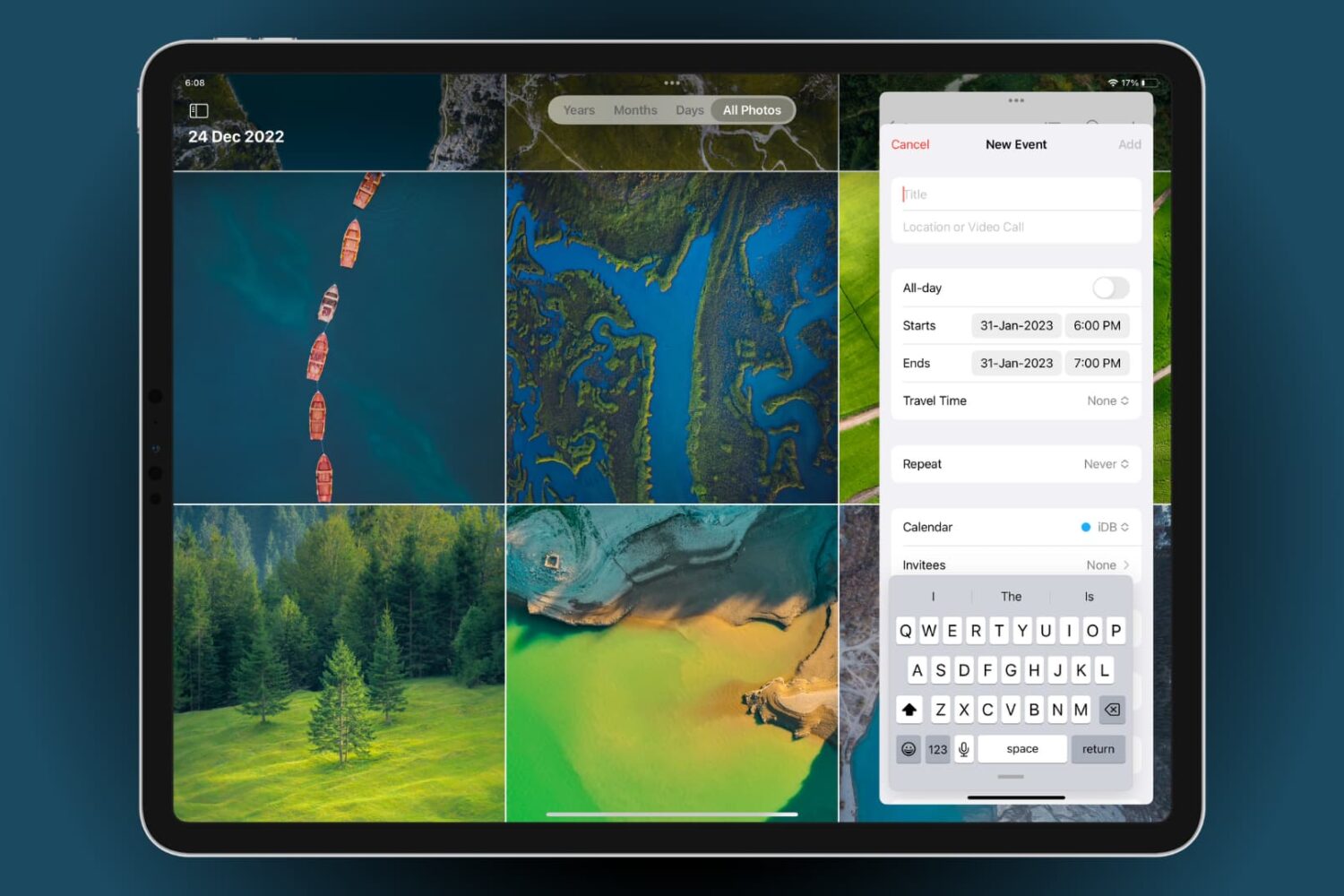
From Slide Over to Stage Manager, and everything in between, this guide will cover all the ways to multitask on your iPad and show you how to optimize your workflow and increase productivity.
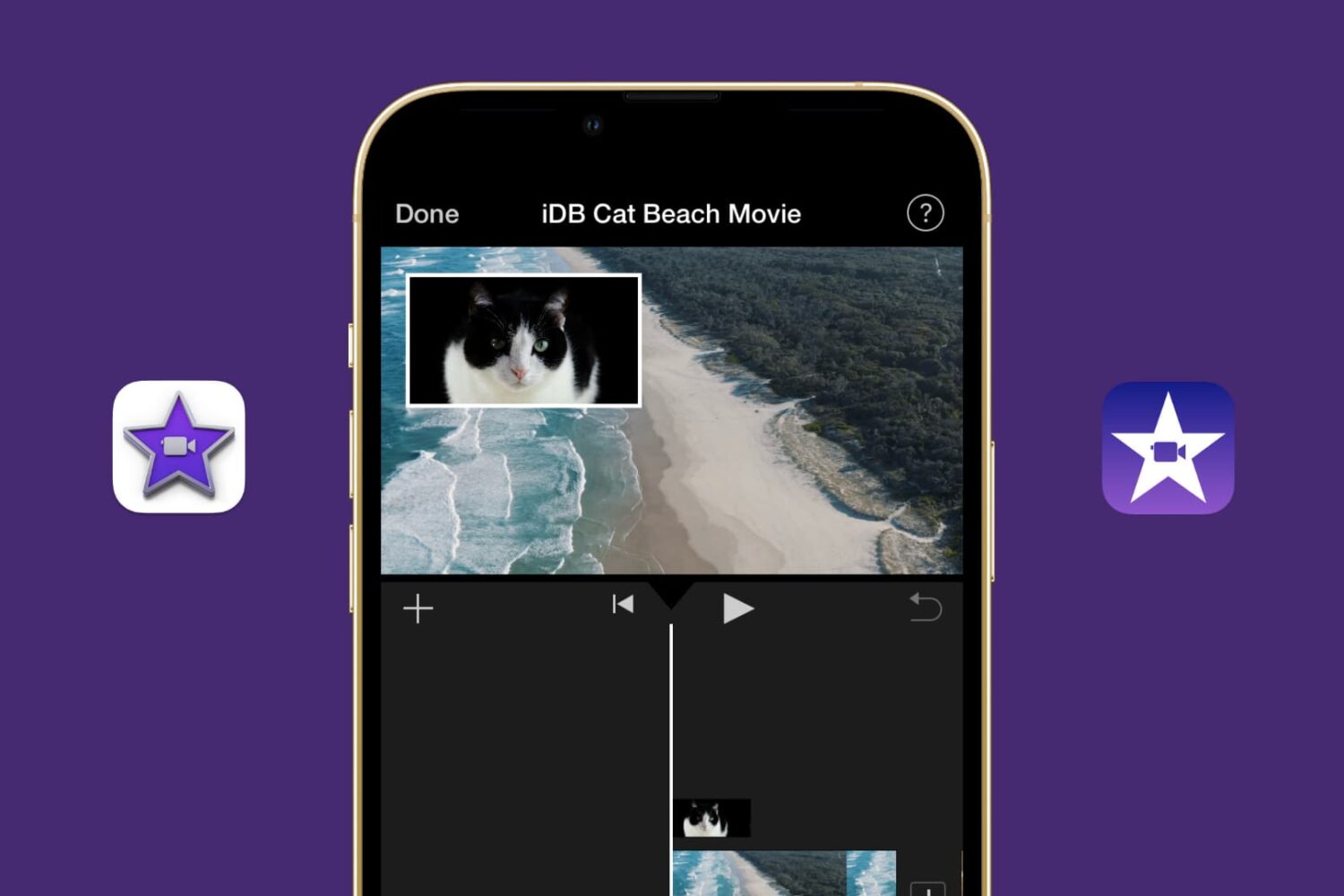
Learn how to showcase two clips simultaneously using the Picture in Picture effect in the iMovie video editor on your Mac, iPad, and iPhone.
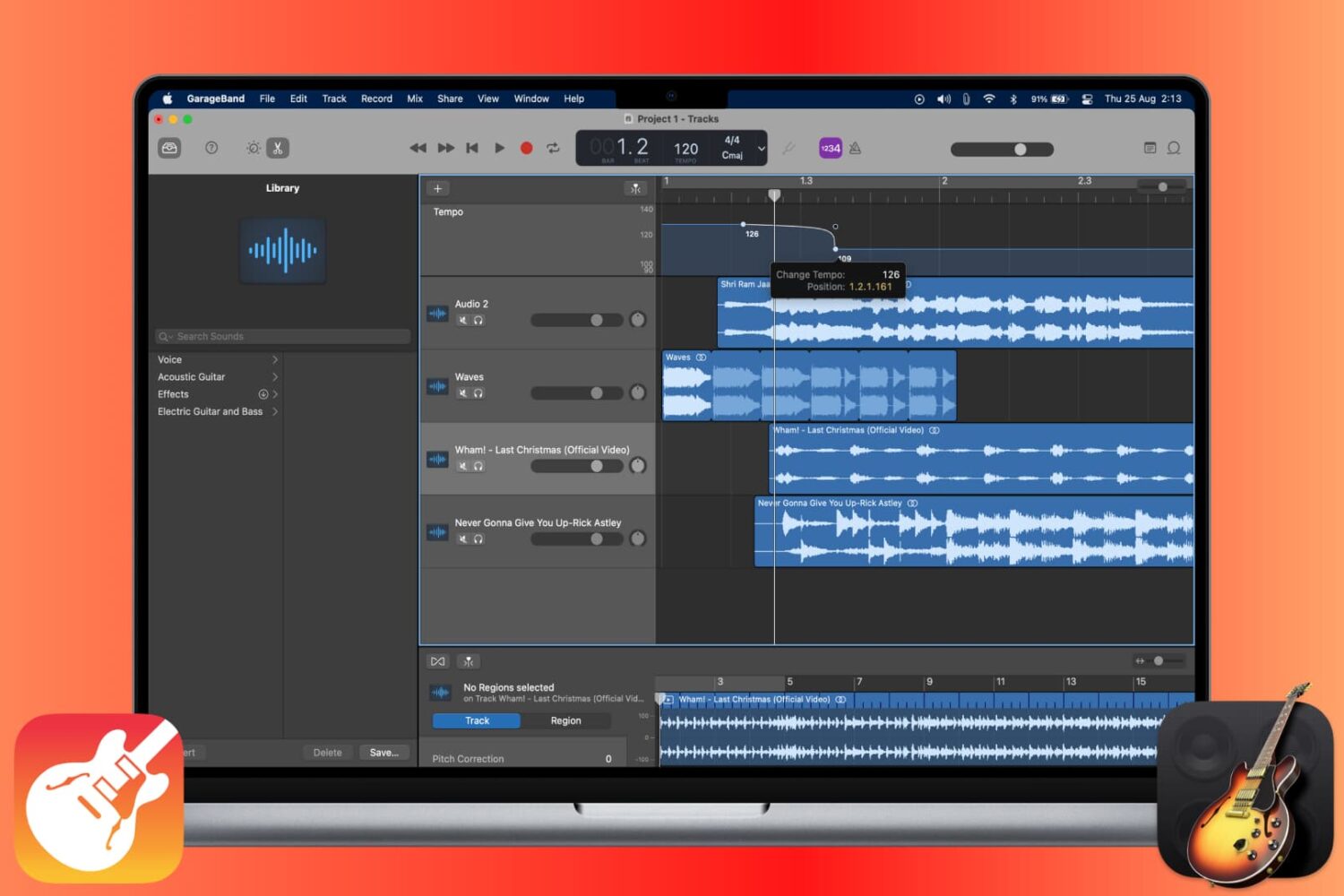
The tempo in GarageBand is expressed in beats per minute and is set to 120 by default. But you can change it to match the tempo you need for your song. On iOS, you can change the tempo for your song to a specific value. And on Mac, you also adjust it for the entire song or add tempo points to the Tempo Track so that the tempo changes throughout the song.
This tutorial shows you how to change the tempo for a song in GarageBand.
In this article, we'll explore the essential tips and tricks that every Mac user should know about using Finder. From customizing views to organizing files, we'll cover everything you need to know to streamline your workflow and get the most out of this essential tool.

You can find some great cooking apps for Apple TV and iOS. You might like those that help you learn kitchen skills, find delicious recipes, or let you explore the world of cooking more.
On Apple Watch, these types of apps can be quite handy because they’re right on your wrist. Unfortunately, they aren’t as plentiful as they once were. So, if you’ve been searching for the best apps for Apple Watch to help prepare you to cook, then this list is for you.