Sandy Writtenhouse

With her BS in Information Technology, Sandy worked for many years in the IT industry as a Project Manager, Department Manager, and PMO Lead. She then decided to follow her dream and now writes about technology full-time.

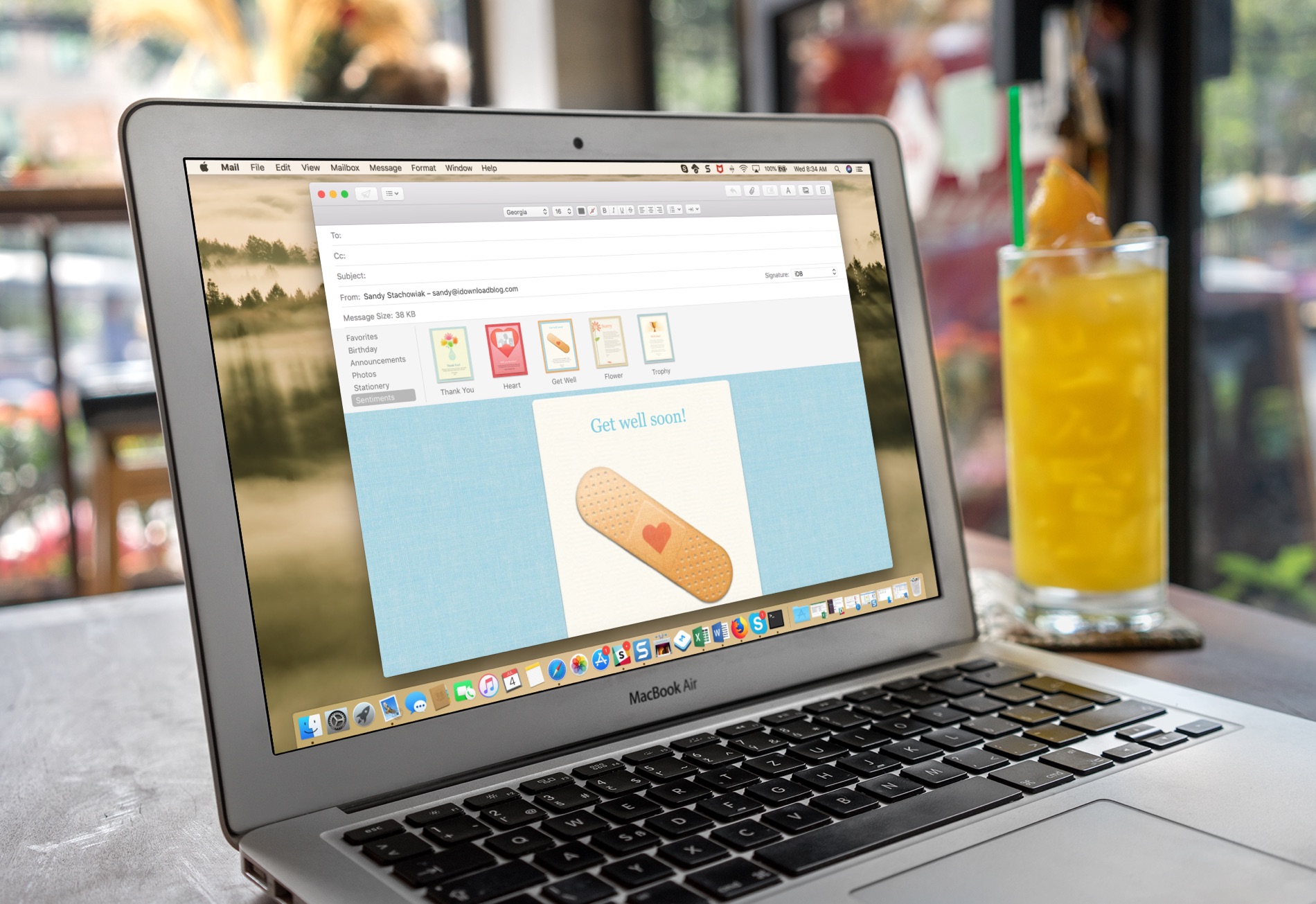
How to send cool emails from the Mail app with Stationery

Create Stationery Message Mac Mail

When you want to send a nice message to someone, maybe for a birthday, thank you, or get well soon, you might use one of those ecard apps. There are some great ones out there with cards for every occasion. But, did you know that the Mail app on Mac offers these types of messages too?

NOTE: This feature has been removed from the Mail app since the release of macOS Mojave in 2018.

If you want to send a card-like email, check out the Stationery options instead. The feature in your Mail app on Mac is easy to use, gives you cool cards to pick from, and lets you say exactly what you want to say.
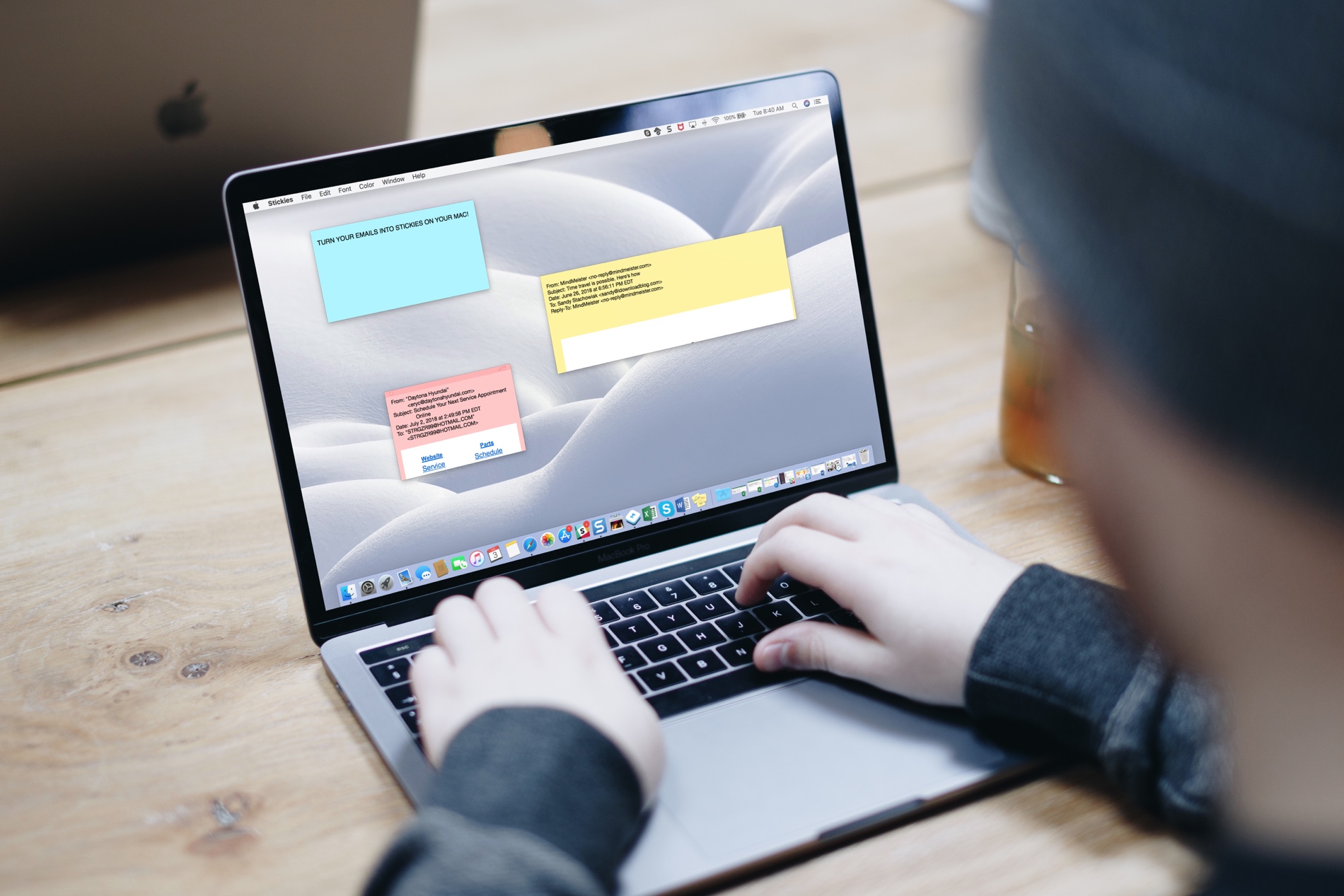
How to turn an email into a sticky note on Mac

Macbook with Stickies

Your Mac has a nifty feature called Stickies which are basically digital sticky notes. And, for those who have used or still use physical sticky notes, you know how handy they can be. You can jot down a reminder, an idea, or a to-do so that you don’t forget it.

Having these Stickies on your Mac lets you accomplish the same thing. So, for emails in the Mail app that you need to follow up on, want to read later, or just want to keep close at hand, turn them into sticky notes.

The best iPhone apps for outdoor allergy sufferers

Allergy Apps on iPhone

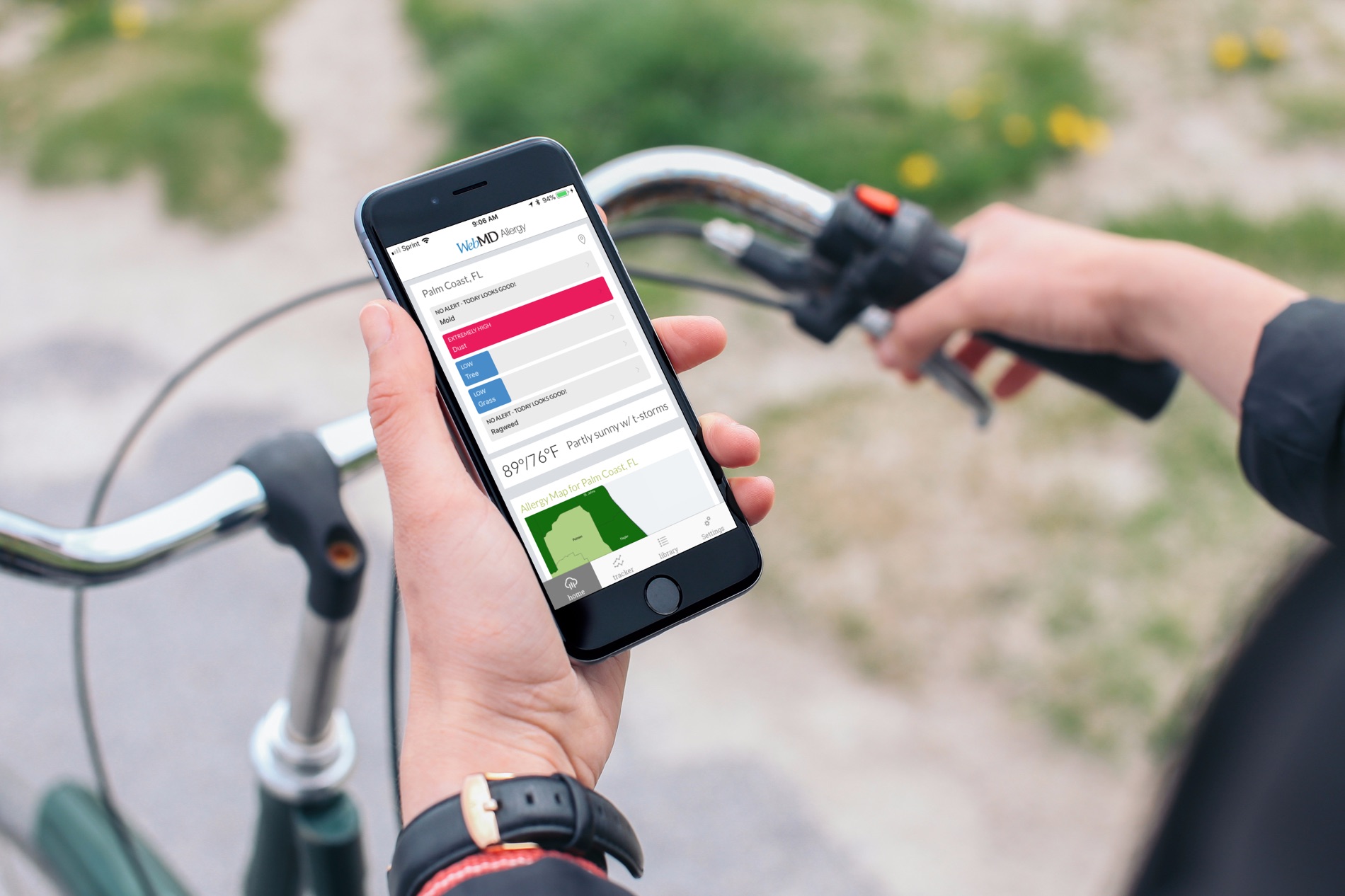
If you suffer from outdoor or seasonal allergies, then you know how difficult it can be. You need to be prepared for that certain time of year and those high counts in air.

Having an allergy app on your mobile device can help. You can see what’s coming and what’s happening at the moment. Plus, if your allergies seem to be changing over time, you can see what’s in the air causing your sniffles.

How to customize default alert times for Calendar events on iPhone and iPad

Calendar Event Types

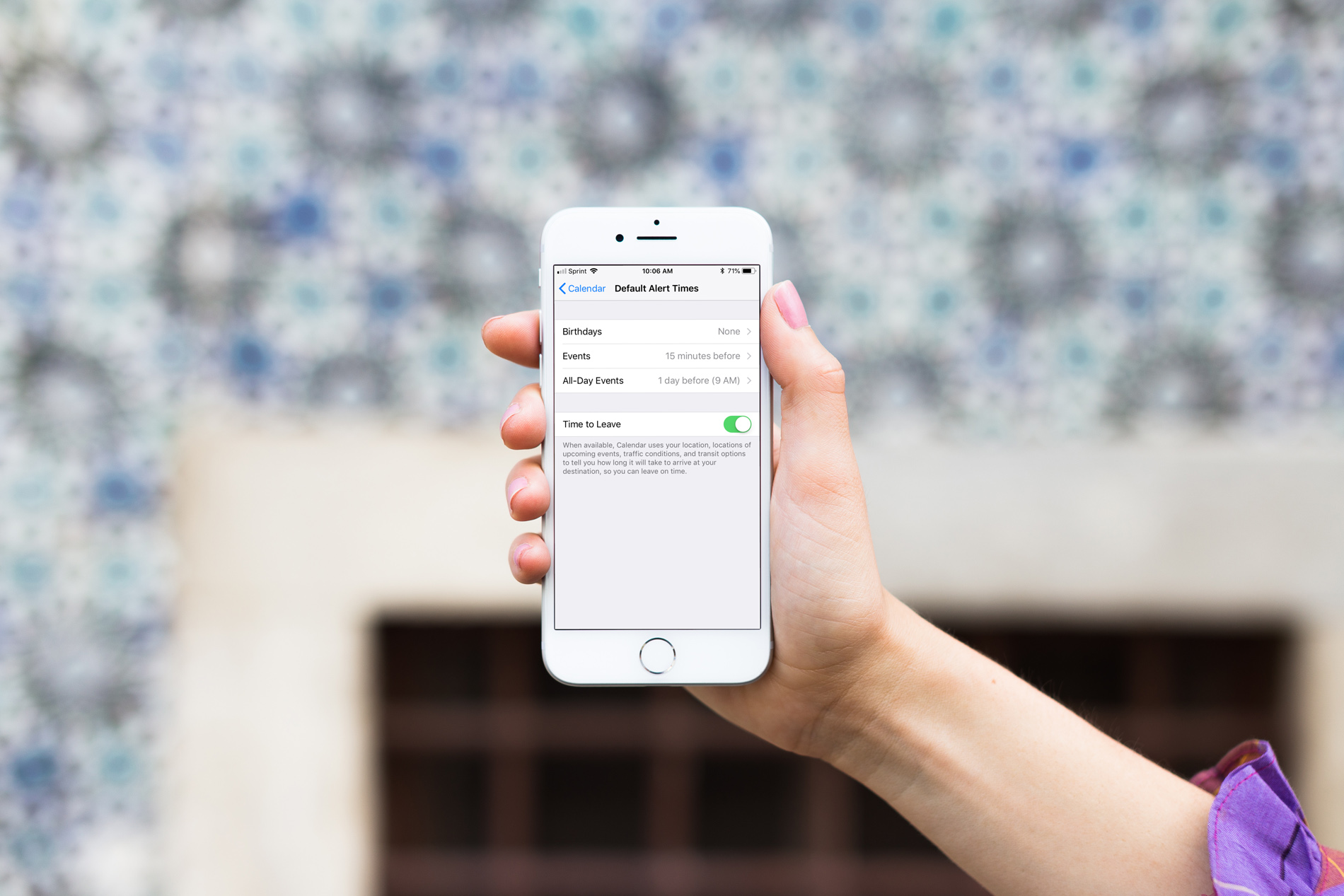
When you create events in the iOS Calendar app, you can easily set an alert to remind you of that event. But you’ll also notice that a time for the alert pops into your event alert automatically. This is the default time in your Calendar app, and you can change it to suit your preference.

Once you set the default alert time you want, you won’t have to change it when creating the event unless you really need to, and here’s how.

How to organize your Apple Watch Dock for maximum productivity

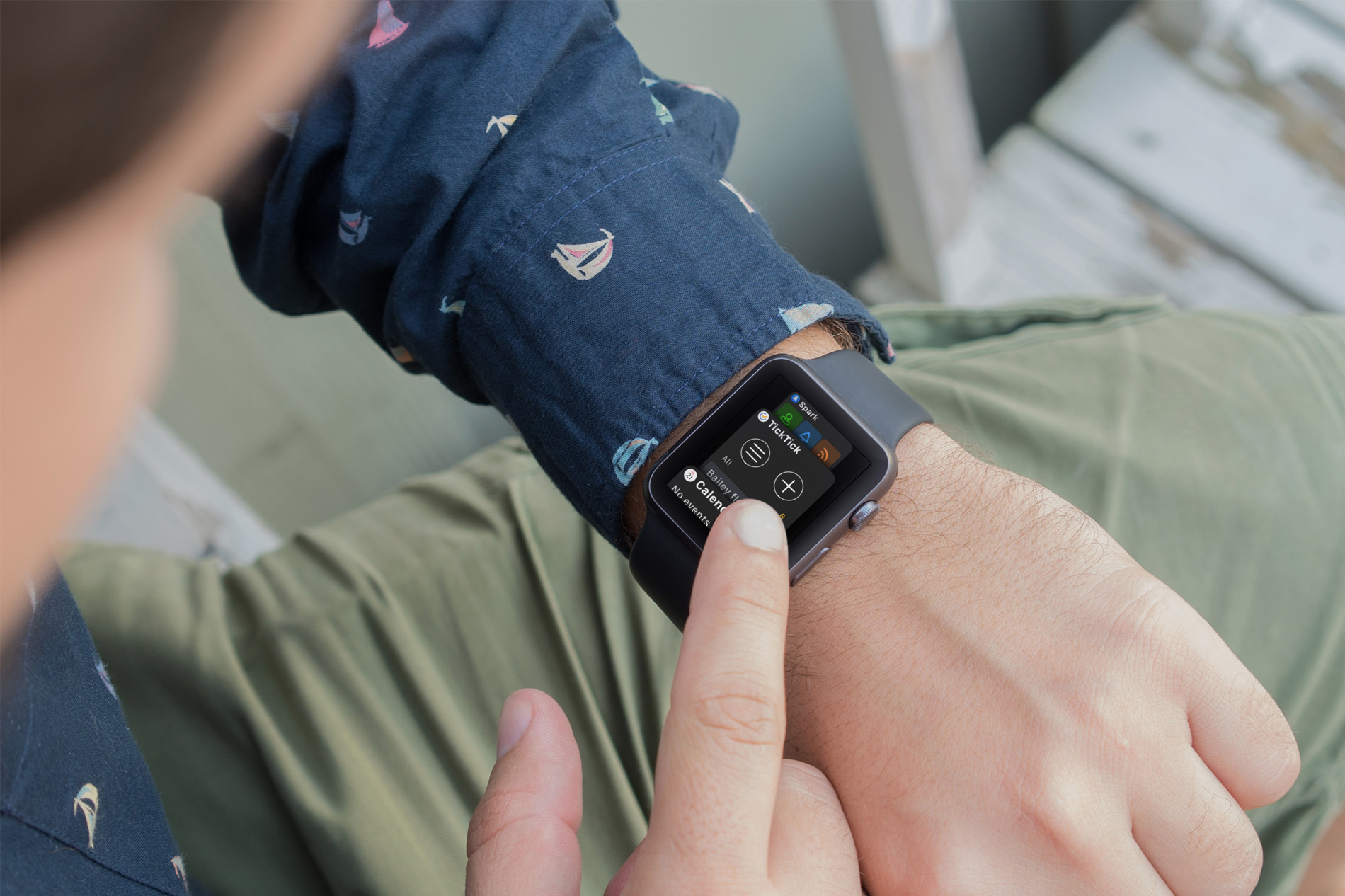
Apple Watch Productive Dock

Your Apple Watch is more than just a time piece. It’s a wonderful tool for receiving texts, checking emails, getting event alerts, and so much more when you’re on the go. And, along with all of those cool apps that let us do things with our Watch, comes a built-in feature that makes it even better; the Dock.

The Apple Watch Dock is a spot to quickly get to those apps you need and use the most. But, have you really spent time deciding which apps should go there and how they should be arranged? Here are some suggestions for making the most out of the Dock.

How to pair a Bluetooth keyboard with iPhone or iPad

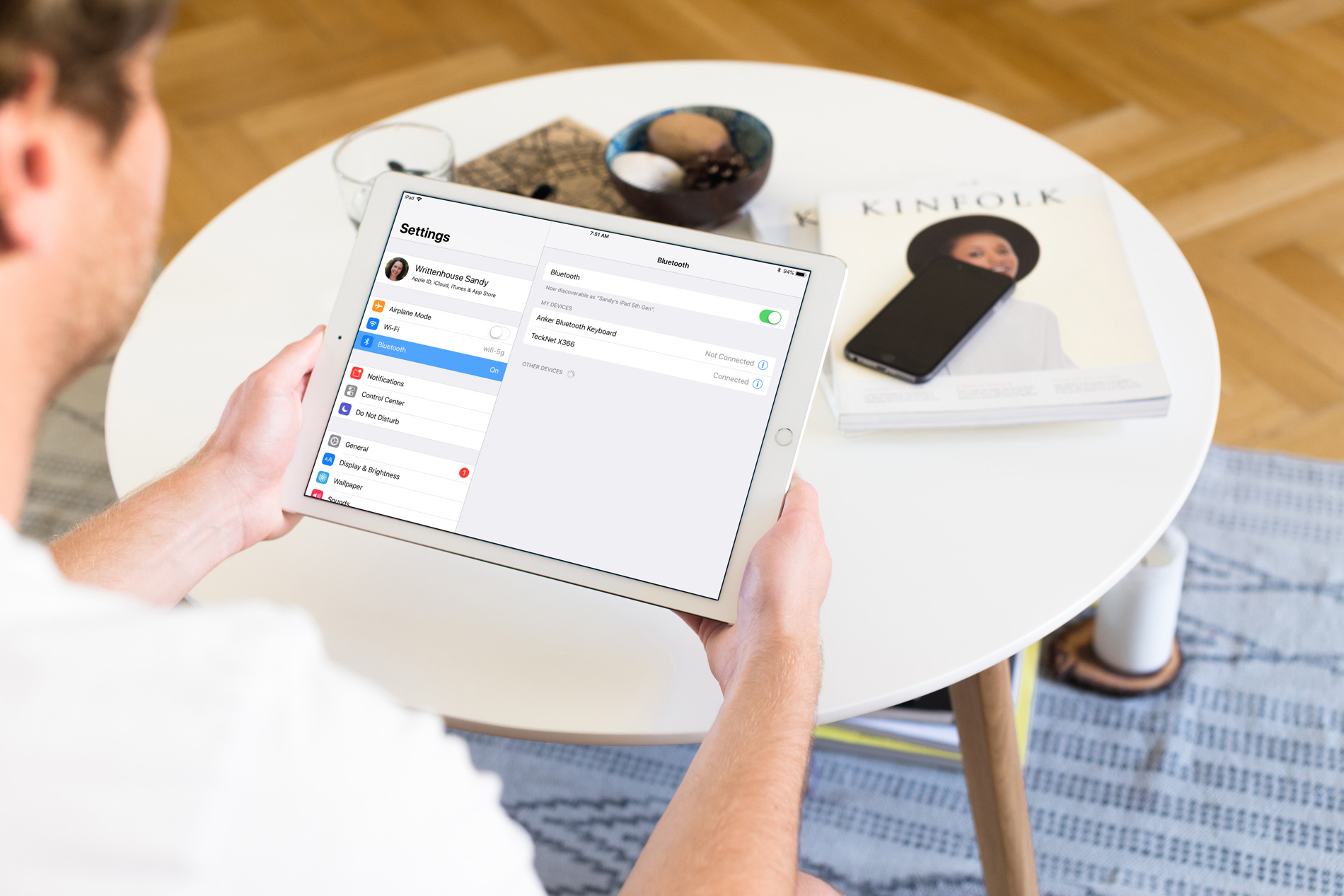
Setting Up Bluetooth Keyboard iPad

So, you bought a new wireless keyboard and want to use it with your iOS device. For those who do a lot of typing on their iPhone or iPad, an external keyboard can be more efficient than the onscreen keyboard.

In this step-by-step tutorial, we’ll show you how to pair an external Bluetooth keyboard with your iPhone or iPad so you can comfortably type long notes, emails, and documents.

The best calculator apps for iPad

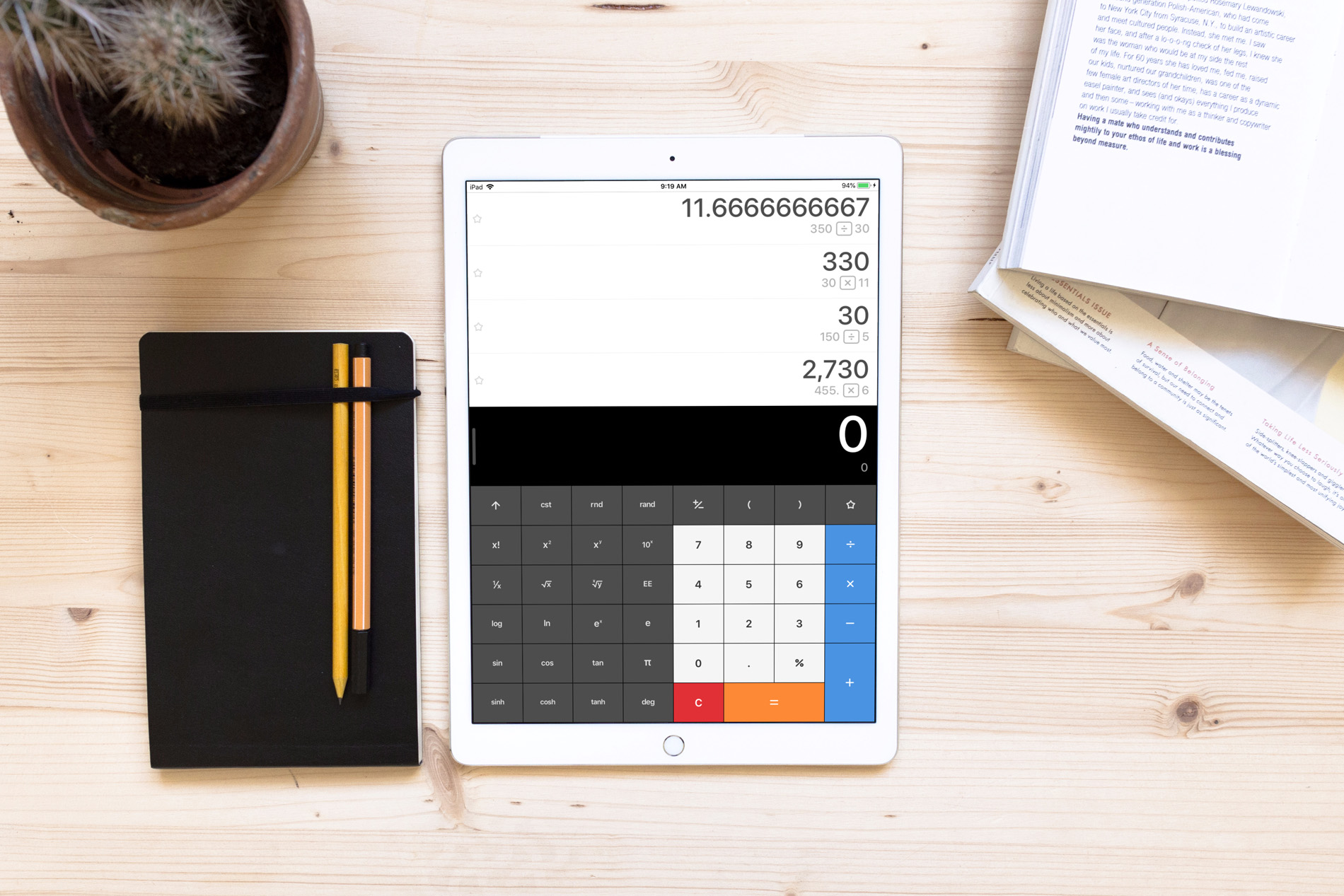
Calculator App on iPad Desk

If you own an iPad, then you know that there is currently no built-in calculator app like there is on the iPhone. But of course, the App Store is full of paid and free options that you can download.

These are some of the best calculator apps for iPad that will have you working those numbers in no time.

How to allow calls and texts from specific contacts with Do Not Disturb on

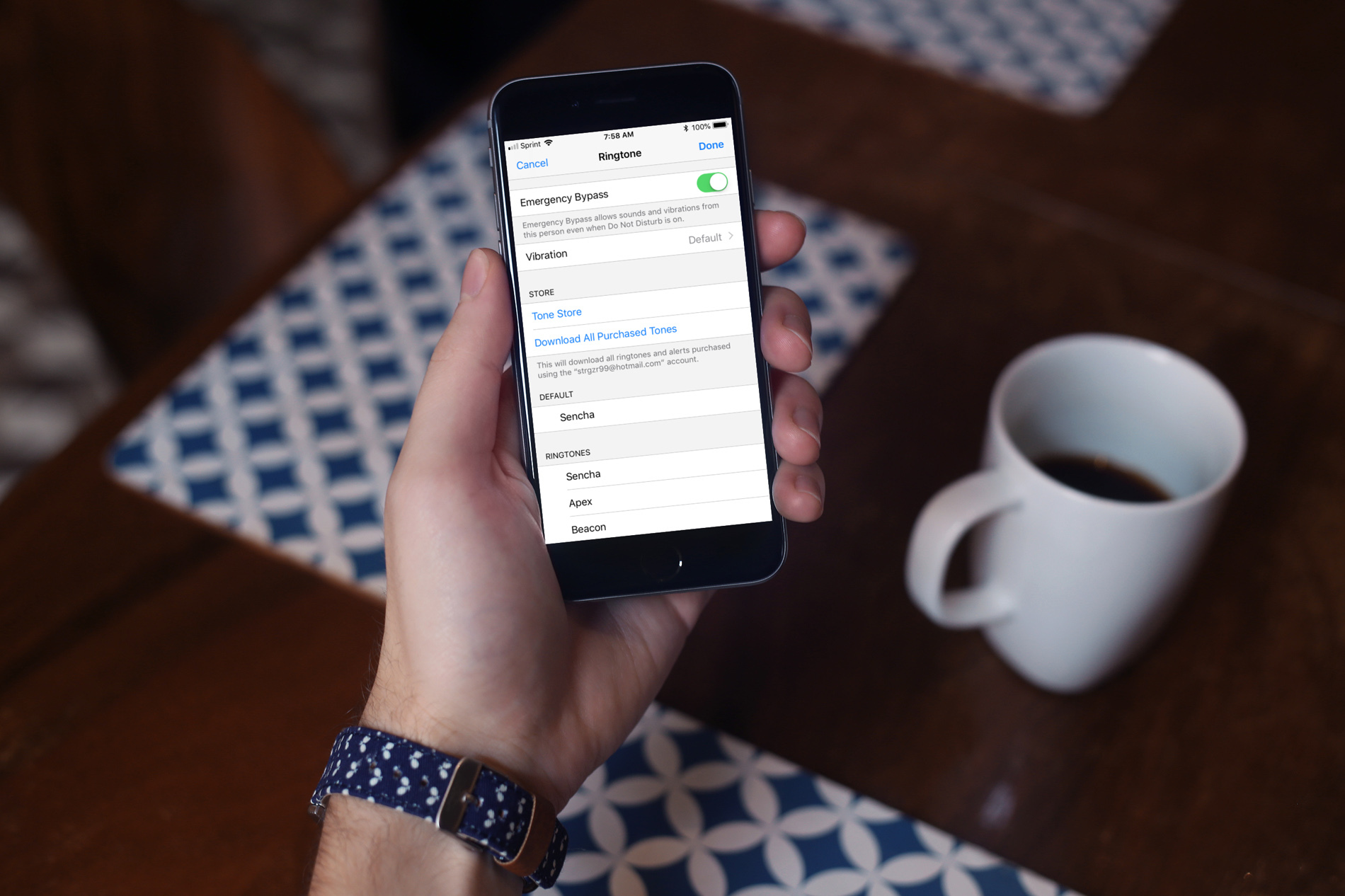
Emergency Bypass Enabled

The Do Not Disturb feature on your device is a handy tool for those times when you need to unplug. But, if an emergency pops up, you still want calls or texts from certain contacts to get through.

One way to do this is to add those contacts to your Favorites or create a new group for them. However, there is another way to allow those important phone calls and messages to come through by using the Emergency Bypass setting.