Learn how to install and use WhatsApp on your iPad to text and video call from the big screen and stay connected with your friends and family.
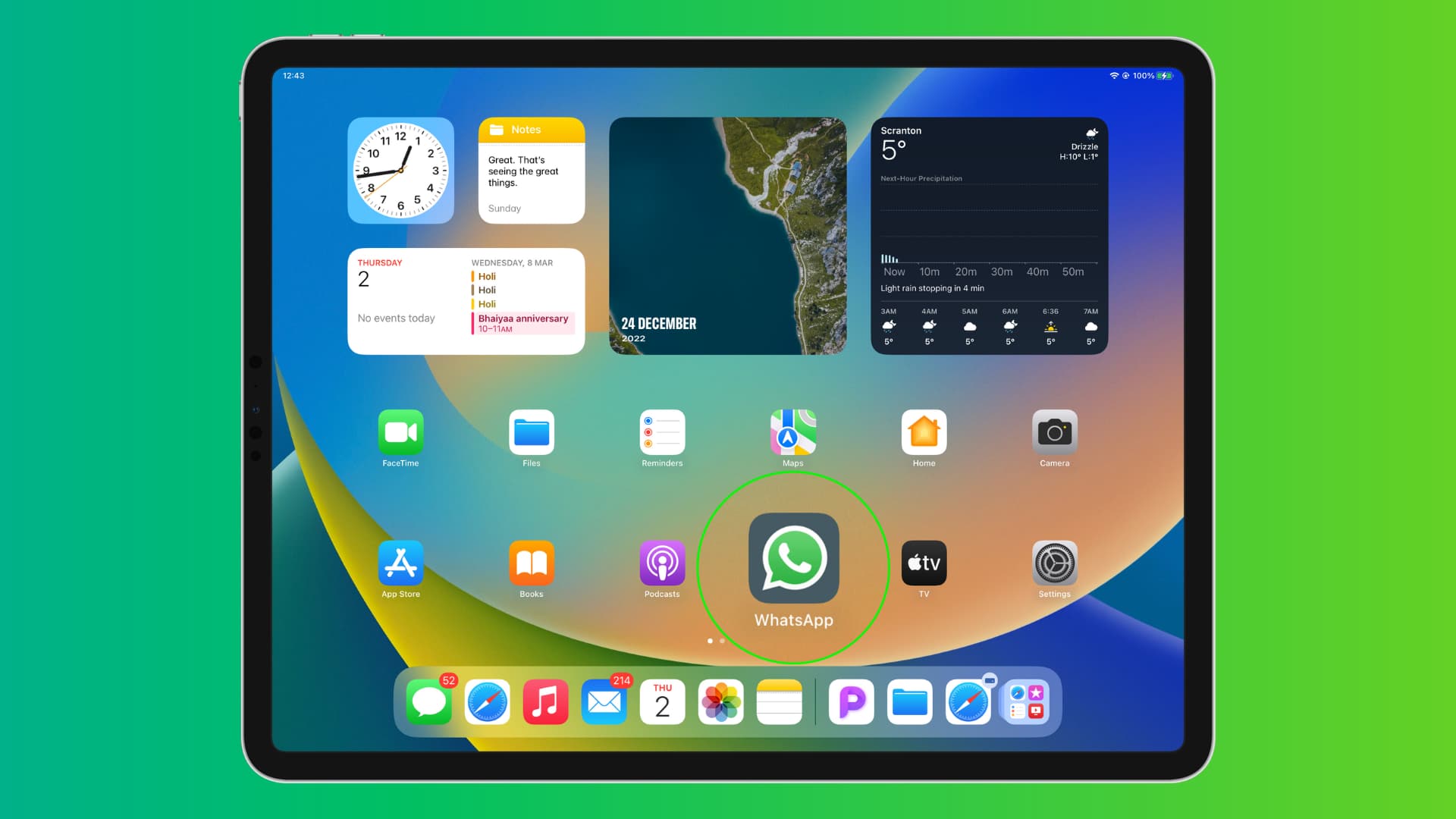
Before you begin: You must have activated WhatsApp on an iPhone or Android phone, as you can’t sign up for a new WhatsApp account directly on an iPad or computer.
Benefits of using WhatsApp on iPad
- No reliance on your phone: Once you set up WhatsApp on your iPad, you’ll receive new messages here, even if your phone is switched off or not connected to the internet.
- Transfer files: If you receive files on WhatsApp on your Android phone but want to read them comfortably on your larger iPad screen, then you can set up WhatsApp on your iPad and access the files there.
- Ease: You can put your iPad in horizontal mode on a stand to make it easier to chat using the big iPad screen and connected keyboard.
- Audio or video calls: You can make calls comfortably on the big screen.
- Take a phone break: You can switch off your phone for any reason but still be able to use WhatsApp.
Set up the official WhatsApp app for iPad
After 15 years of waiting, Meta (the parent company that owns Facebook, Instagram, and WhatsApp) finally launched a native WhatsApp app for iPad. The entire setup process is similar to registering WhatsApp on a Mac or Windows PC.
1) Download WhatsApp on your iPad from the official App Store.
2) Open the app, tap Continue, and you’ll see a QR code on the screen.

Scan this QR code using WhatsApp on your iPhone or Android phone. Here are the steps:
- iPhone: Open WhatsApp and tap You > Linked devices > Link a device. Now, authenticate with Face ID or your iPhone passcode and scan the QR code you see in WhatsApp on your iPad.

- Android phone: Open WhatsApp and tap the three-dot menu icon at the top, followed by Linked devices > Link a device. Now scan the QR code on your iPad.
3) Keep WhatsApp on your iPad and your smartphone open and wait a short while for your chats, call logs, and everything else to sync. Then, allow WhatsApp on iPad to send notifications if you want alerts for new texts and calls. Finally, take the app for a spin to text, call, see stories, and more.

Set up WhatsApp Web on iPad
If you don’t want to use the app, you can use WhatsApp in a web browser on your iPad.
1) Open Safari on your iPad and visit web.whatsapp.com.
2) Tap the share button in the top right corner and choose Add to Home Screen.

3) Rename WhatsApp Web to just WhatsApp if you want, and tap Add. This will create a Progressive Web App for WhatsApp on your iPad.
4) Tap the WhatsApp icon on the Home Screen.

You’ll see a QR code inside WhatsApp PWA that you have to scan using your smartphone (same steps as explained above in the app section) (also ignore the QR code that’s in Safari in Step 1).

In a few seconds, WhatsApp on your iPhone or Android phone and WhatsApp Web on your iPad will be linked, and you’ll see all your chats here on the big display.
After you follow the above steps, WhatsApp will take a while to sync all chats to your iPad. Once that’s done, you may see a “Turn on notifications” banner in the top left corner. Tap Turn on desktop notifications > Allow. If you don’t see the banner, go to Settings and check the box for Message notifications.

This will enable WhatsApp Web to send you new notifications when you receive a text (see screenshot below).

During your course of using WhatsApp Web on iPad, you may see a banner in the upper left corner asking permission for background sync so it can fetch new messages reliably. Simply tap it to turn on background sync.
About third-party WhatsApp apps for iPad
When you search for “WhatsApp” on the iPad App Store, you’ll find several similar apps. Don’t download unofficial apps, as those are just wrappers for WhatsApp Web. We recommend avoiding them because they offer no real advantages and may pose security or privacy risks.
How has your experience been using WhatsApp on an iPad?