Learn how to stop specific notes from uploading to iCloud and prevent them from syncing to all your Apple devices.
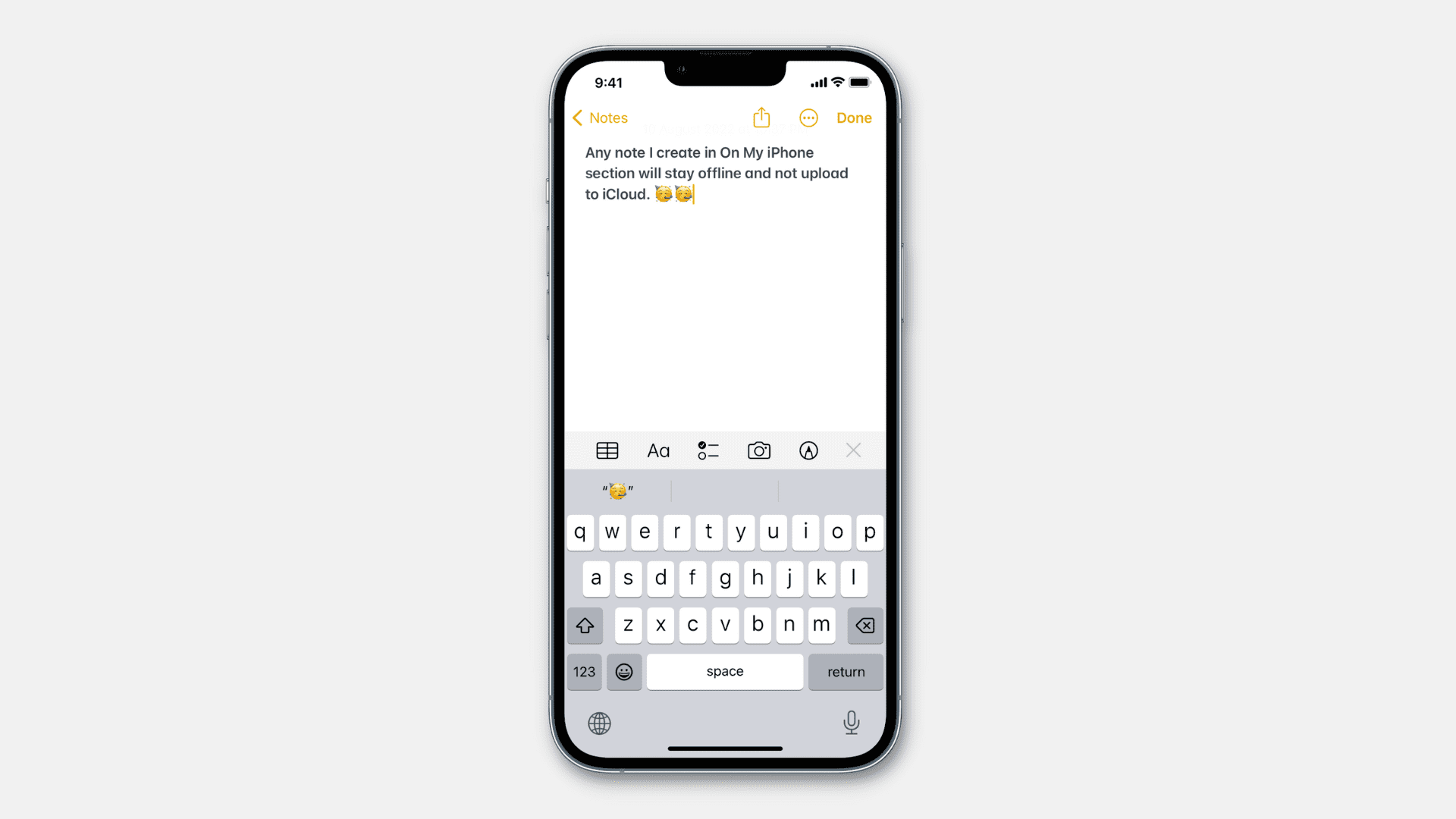
iCloud stores your notes and syncs them wirelessly to all your Apple devices. As a result, a note you create in the Apple Notes app on your iPhone syncs to your other iPhone, iPad, Mac, Vision Pro, and vice versa.
However, there are situations and some types of notes that you may not want to upload to iCloud and make available everywhere.
For instance, you may not want to clutter the Notes app on all your devices with some not-so-important notes. Or it may be a note from a random shopping list that you only want on your iPhone, or a quick sketch you only want on your iPad.
To address such scenarios, use the local on-device notes account, which keeps these notes offline and prevents them from uploading to iCloud and syncing to all your devices.
Prevent specific notes from syncing to iCloud
The fundamentals are simple. Enable the On My iPhone, On My iPad, or On My Mac account on your respective devices. After that, the notes you create inside these local accounts won’t sync to your other devices and will stay only on that particular device.
iPhone and iPad
1) Open the iOS Settings app and tap Apps > Notes.
2) Enable the switch next to “On My iPhone” Account.
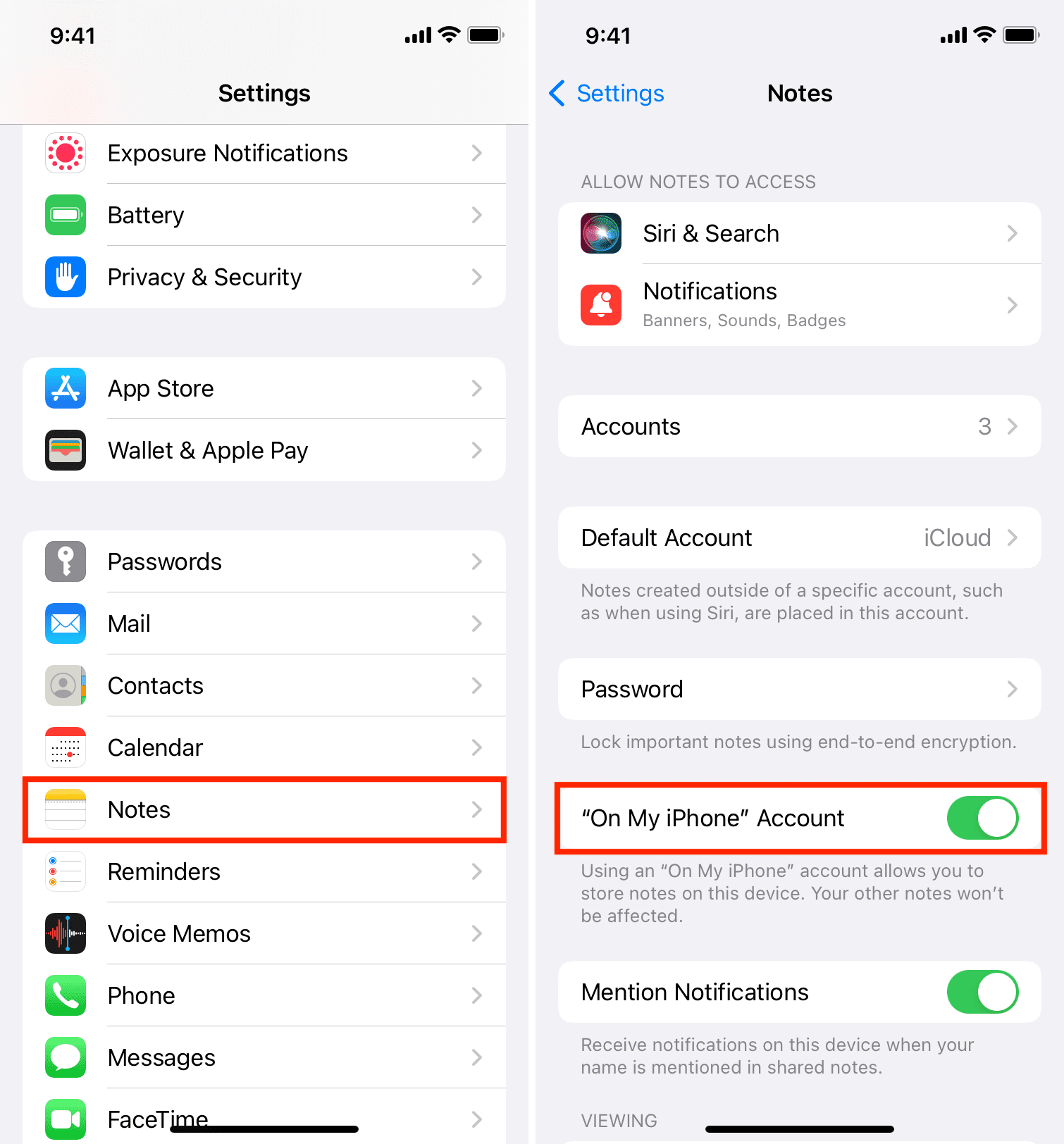
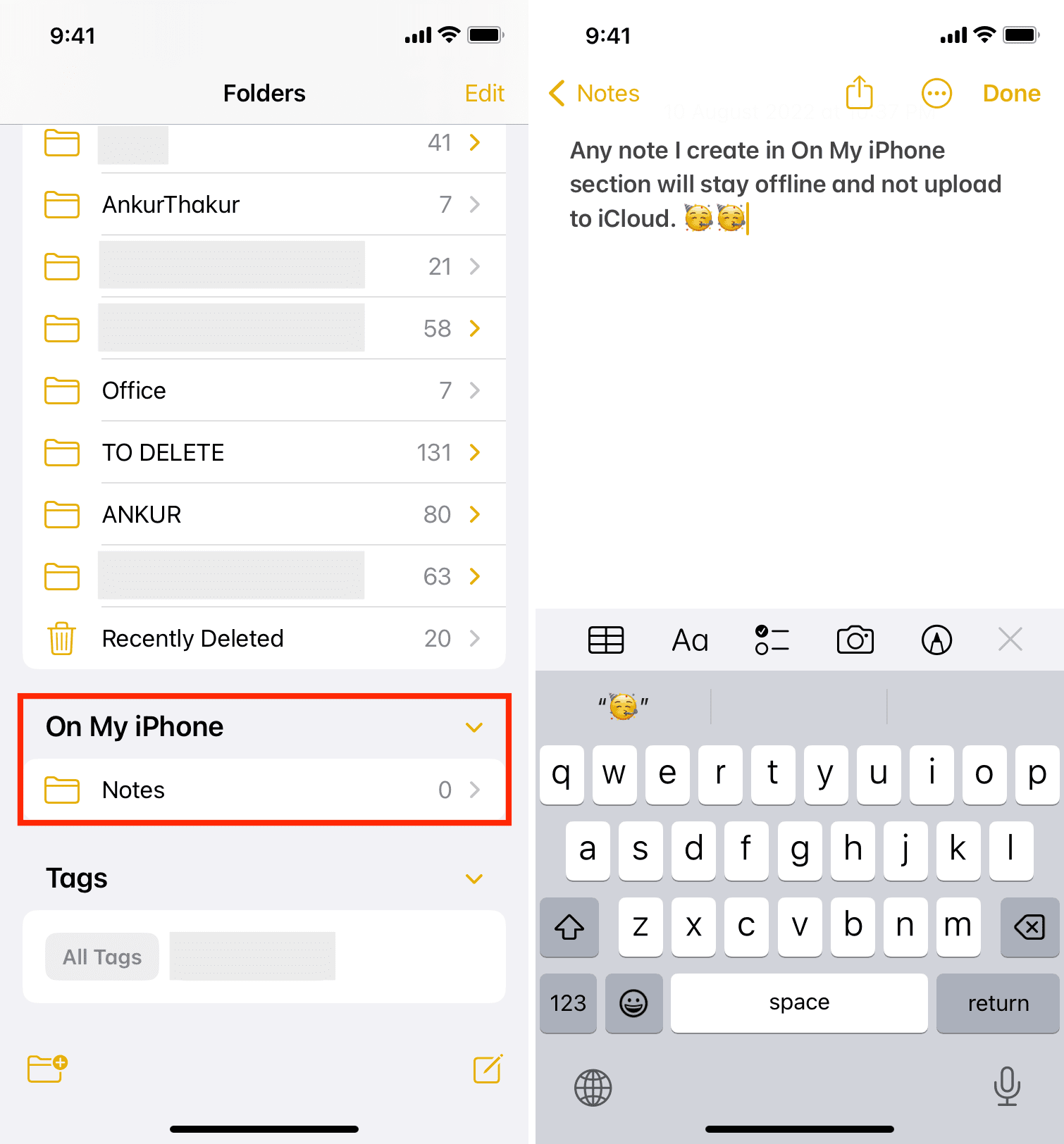
3) Open the Notes app, and if required, tap the back button (< or <Folders or <Back) in the top left to see all your notes Folders.
4) Scroll down and tap the tiny arrow (>) next to On My iPhone to expand it.
5) Tap Notes, and from now on, notes that you create in this offline section won’t upload to iCloud and will not be available on your other Apple devices.
Mac
Go through these simple steps to enable offline notes in macOS.
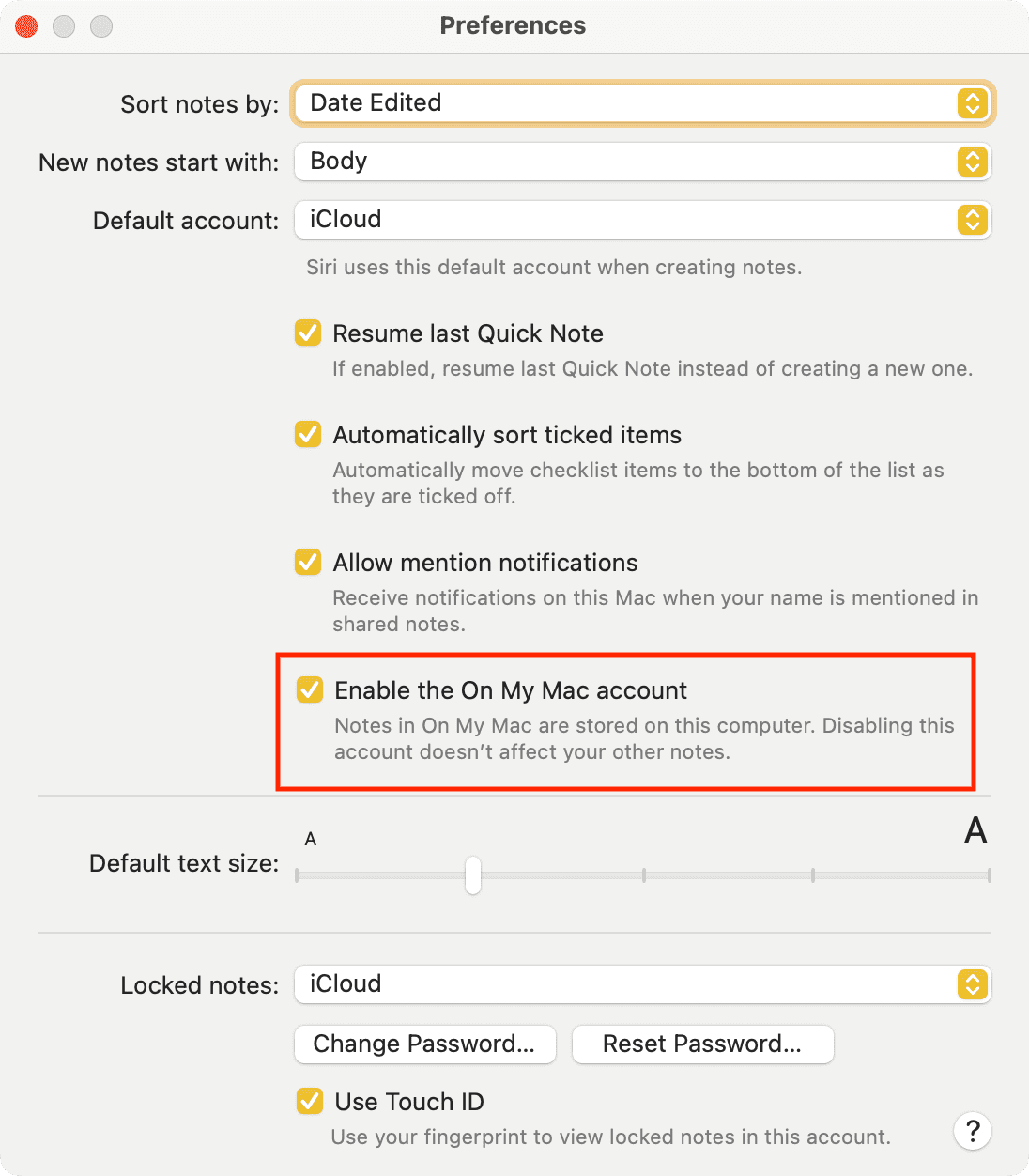
1) Open the Notes app and click Notes > Settings or Preferences from the top menu bar.
2) Check the box for Enable the On My Mac account.
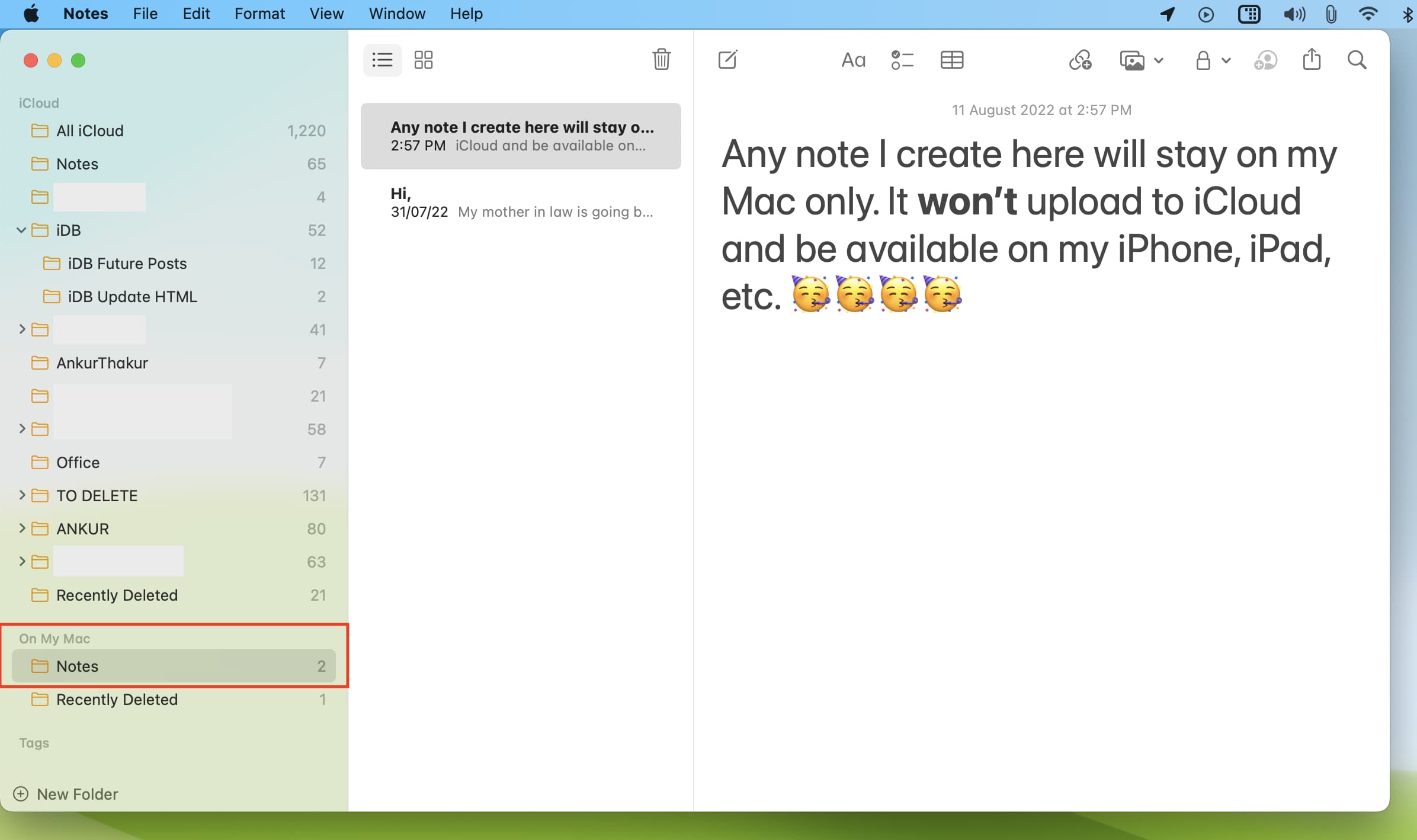
3) Return to the Notes app, and you’ll see the On My Mac section at the bottom of the left sidebar. Take your pointer over it and click the tiny arrow (>) to reveal the Notes folder.
4) Click Notes, and from now on, the notes you create here will stay only on your Mac. It won’t upload to iCloud.
Make existing iCloud notes offline
Are there specific notes in iCloud that you want to take offline and ensure they are saved only on one of your devices, like an iPhone, iPad, or Mac? In that case, all you need to do is move the note from iCloud to the local On My iPhone/iPad/Mac account.
On iPhone or iPad
1) Open the Notes app and go to the All iCloud or other iCloud folder.
2) Touch and hold the note you want to take offline and tap Move.
3) Tap Notes under On My iPhone.
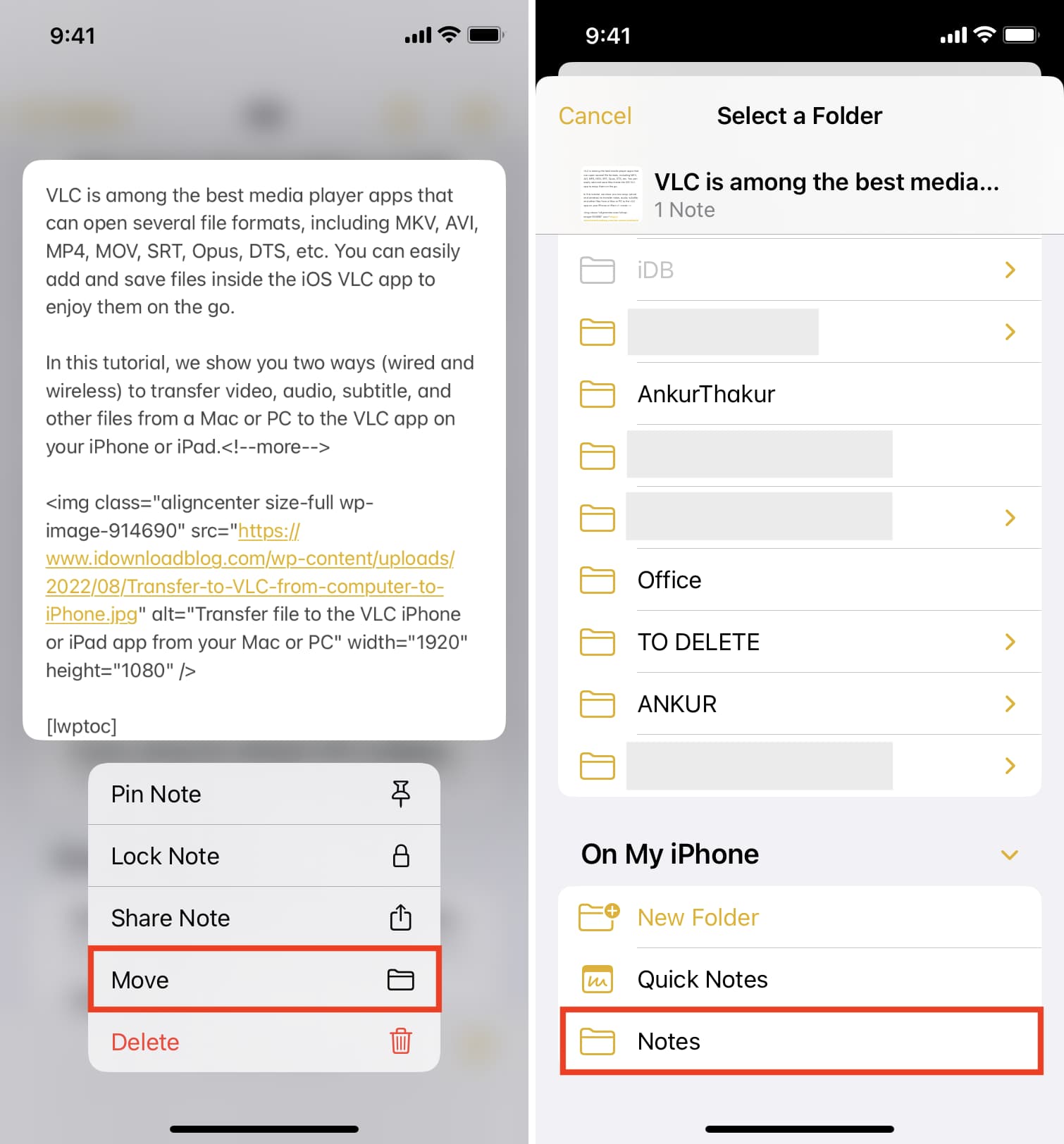
Done! That note is no longer saved to iCloud and is only saved locally on this device. In a moment, this note will disappear from all your other iPhones, iPads, and Macs, where it was synced and available earlier.
On Mac
1) Open the Notes app and go to All iCloud or the appropriate iCloud folder.
2) Drag the iCloud note and drop it over the Notes folder that’s visible under the On My Mac heading in the left sidebar. Alternatively, you can Control-click or right-click on the note and choose Move To > On My Mac > Notes.
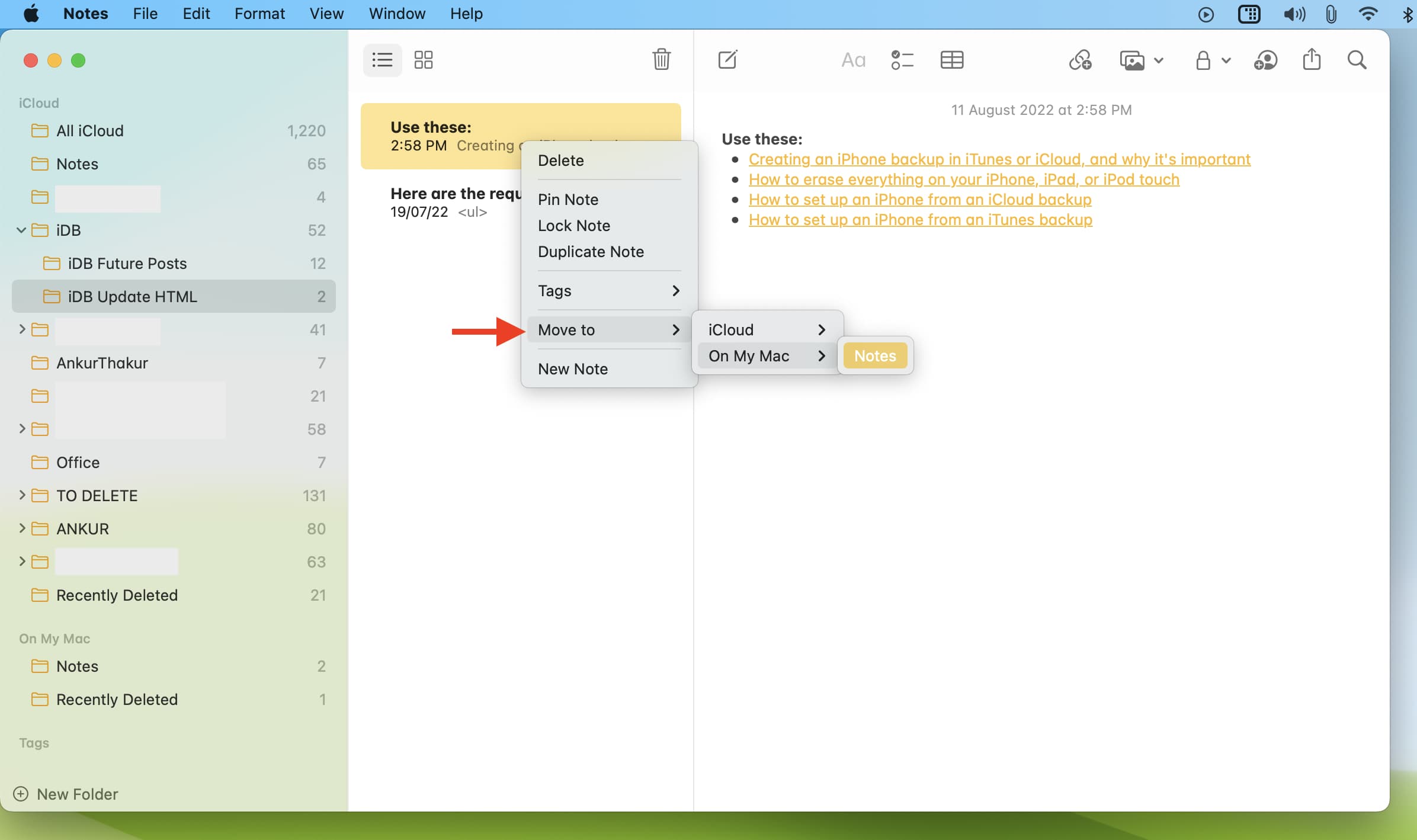
This specific note is no longer in iCloud but only on this Mac. Soon, this note will disappear from the rest of your Apple devices.
Check out next: