There are many different models of iPhone and iPad that come in various colors, sizes, screen types, and more. If you don’t follow Apple news closely, it can be hard to tell the correct iPhone or iPad name and type. To help, here’s how you can easily know the model name and number for your iPhone or iPad, even if it doesn’t power on!
Know your iPhone or iPad model name
Here are three ways to do that.
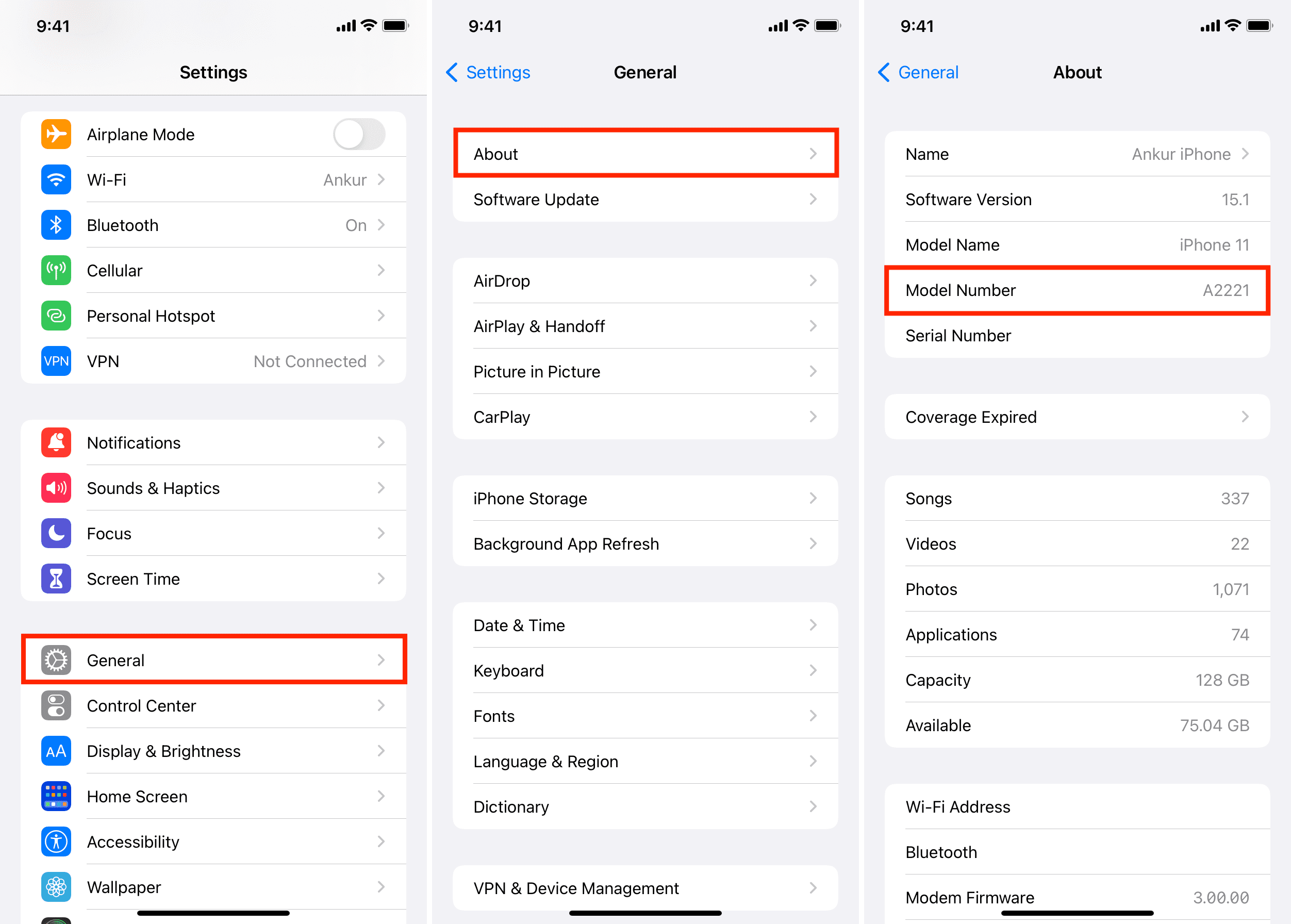
From Settings
- Open the Settings app and tap General.
- Tap About.
- Which iPhone or iPad you have is mentioned next to Model Name. Mine is an iPhone 11, as seen in the screenshot below.
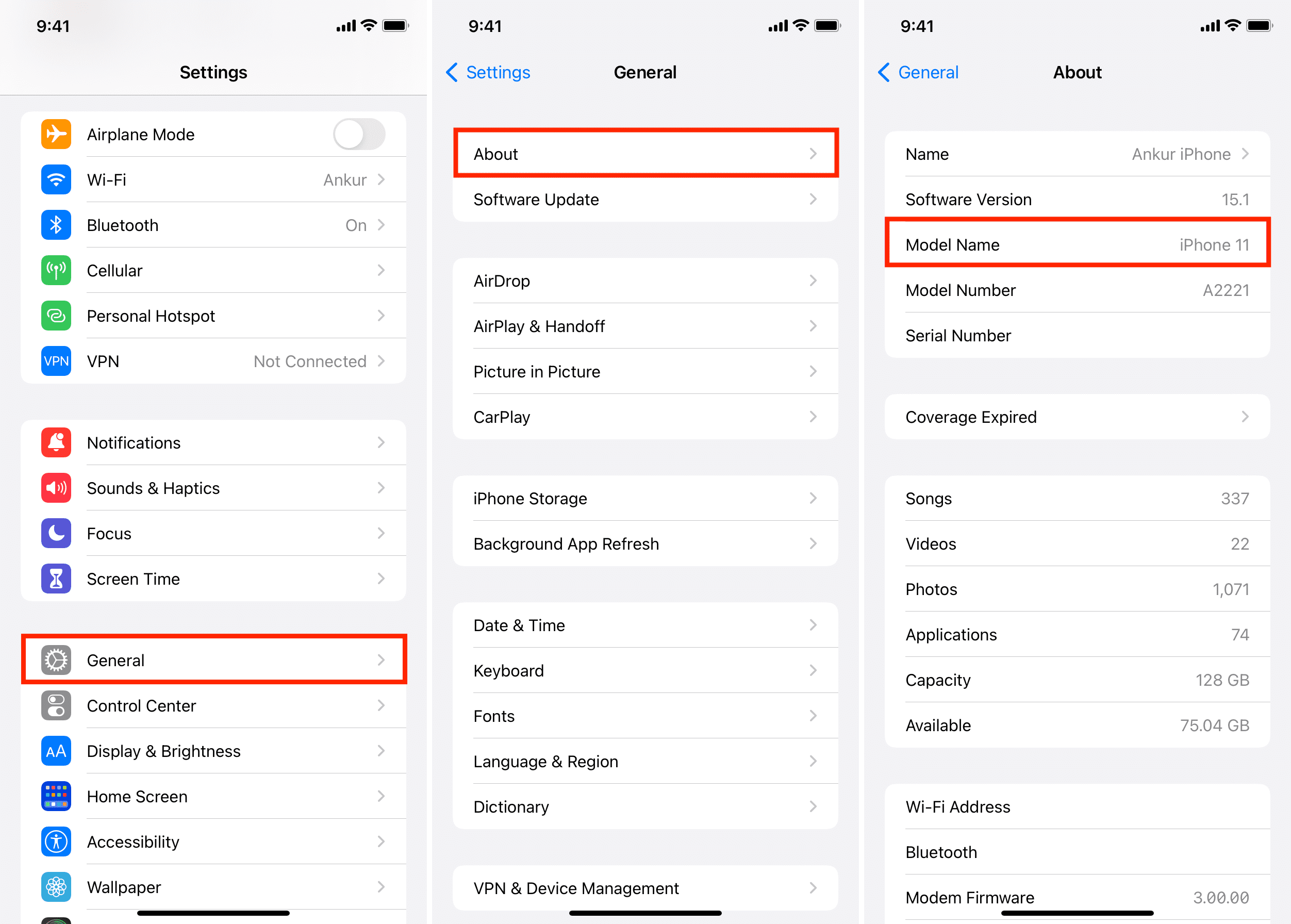
Please note that on old versions of iOS, you cannot see the model name in the Settings app. It will just show the model number. In that case, you can follow the methods mentioned below.
Use your other device
If you don’t have your iPhone with you or it won’t power up, you can use another Apple device, like another iPhone, iPad, or Mac, to see which model it is.
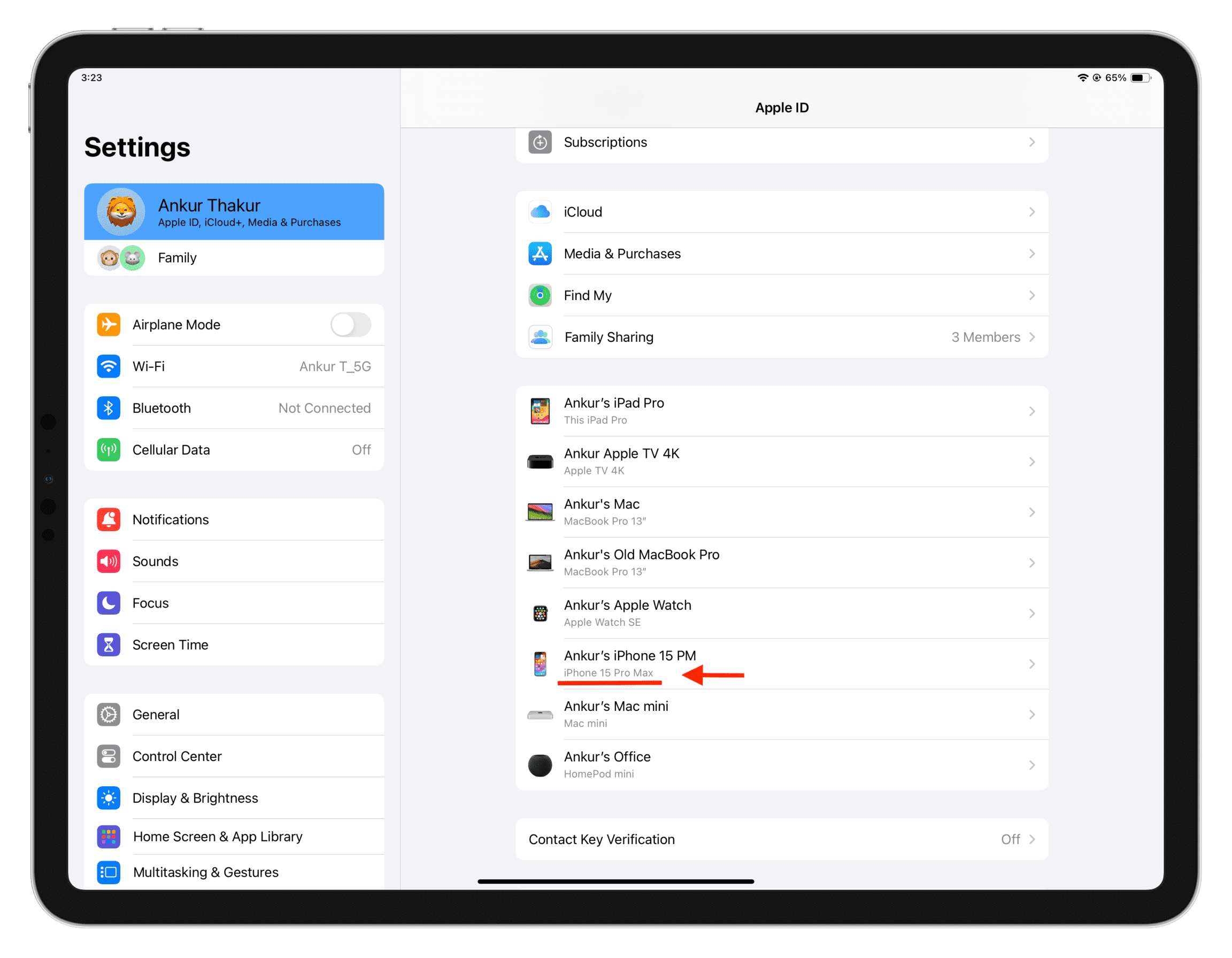
- Open iOS Settings or macOS System Settings.
- Select your Apple Account name at the top.
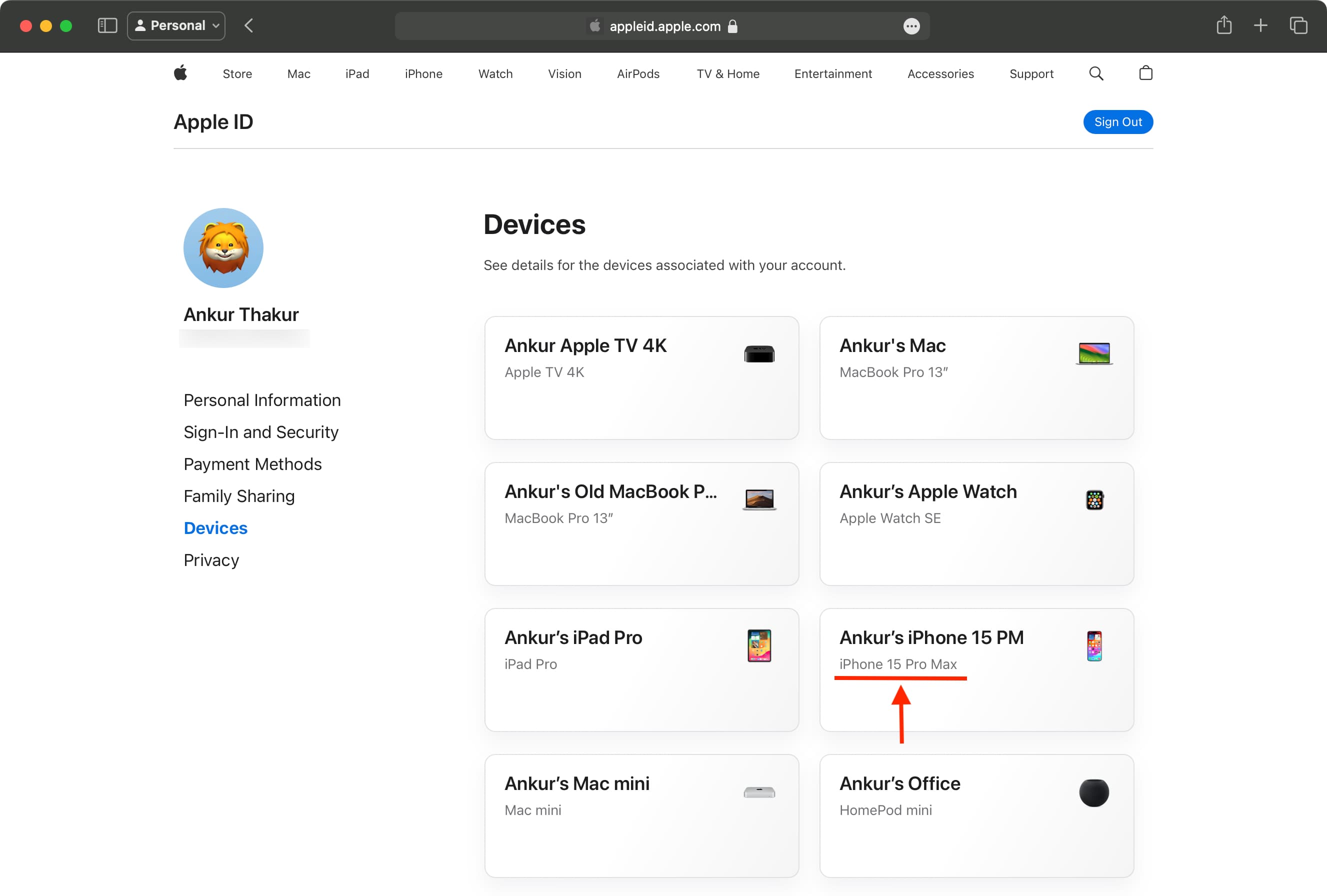
- Scroll down to the devices section, and you’ll see which iPhone you have. In my case, it’s the iPhone 15 Pro Max.
Note:
- This doesn’t help you know which specific iPad you have. For instance, I have an iPad Pro 12.9-inch 6th generation, but the Settings app just says iPad Pro, which could be any of the dozen-plus iPad Pro models Apple has released to date!
- If you don’t have another iPhone, iPad, or Mac, go to account.apple.com/account/manage/section/devices in a web browser, and you’ll see your iPhone model name here.
Connect to Mac or PC
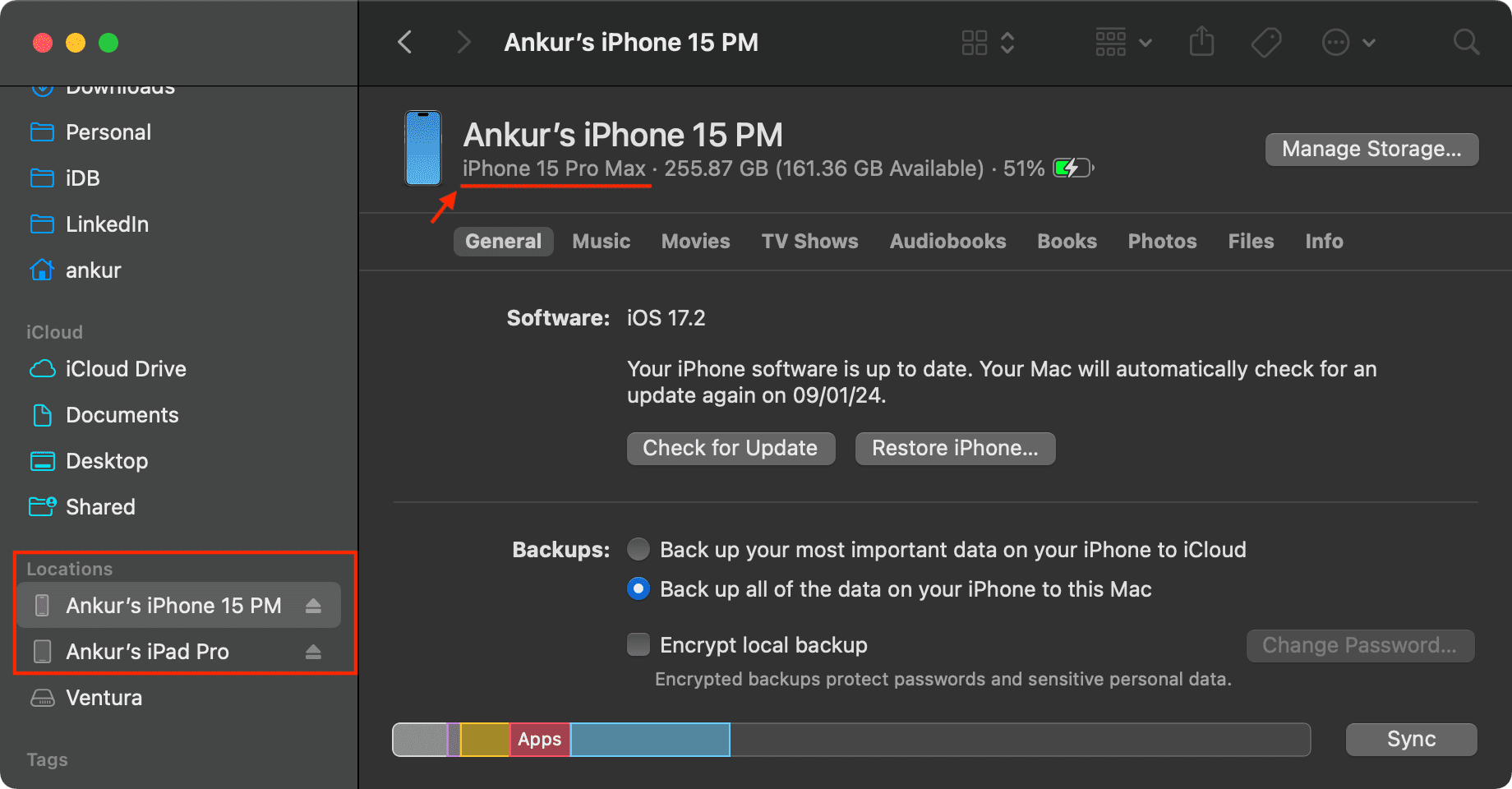
- Plug in your iPhone or iPad to your Mac or Windows PC.
- Open Finder on Mac or the Apple Devices app on Windows PC.
- Click the iOS device name from the sidebar.
- You’ll see the model name under the device name. If you don’t, click that area until you see it.
Know your iPhone or iPad’s model number
From the original iPhone introduced in 2007 to the latest iPhone 17 launched in 2025, every iPhone and iPad has at least one model number. Once you know this number, it’s easy to identify your iPhone or iPad’s name and model.
First, let us show you how to find your model number on a working or non-working iPhone or iPad. And after that, we’ll tell you how to use the model number to get more information.
Look inside Settings
Go to iPhone or iPad Settings app > General > About. Next to Model Number, you’ll find the part number, which usually starts with M, N, F, or P. Tap this part number to see your model number, which always starts with A. The model number of my iPhone is A2221.
Tip: Using the part number, you can know if your iPhone is a new retail unit, refurbished, a replacement unit, or one personalized with engraving by Apple.
Check the back of the device
iPad: The model number is etched on the back of most iPad models in tiny letters. It will start with “A.”
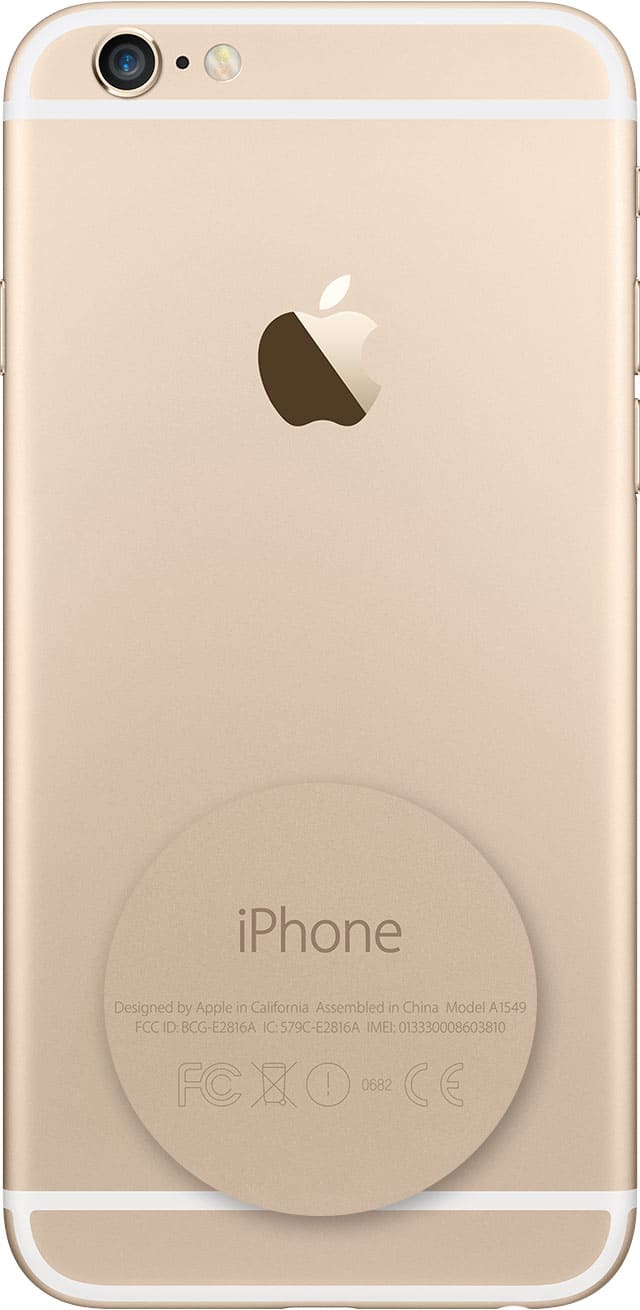
iPhone: On iPhone 7 and earlier, the model number is mentioned at the back of the iPhone in tiny letters. Remove the iPhone case or skin, and if you see a number starting with “A” next to the word “Model,” that means you have an iPhone 7 or earlier. Newer glass back iPhones don’t have the model number written on the back.
Peep inside the SIM tray
Starting with iPhone 8 and later, the model number isn’t mentioned on the back of the device. Instead, it’s etched inside the SIM slot. To see this, make sure you’re in bright light. Next, remove the SIM card tray, and tilt your iPhone appropriately to see the model number mentioned on the upper side. Of course, this doesn’t work on models that are eSIM-only.
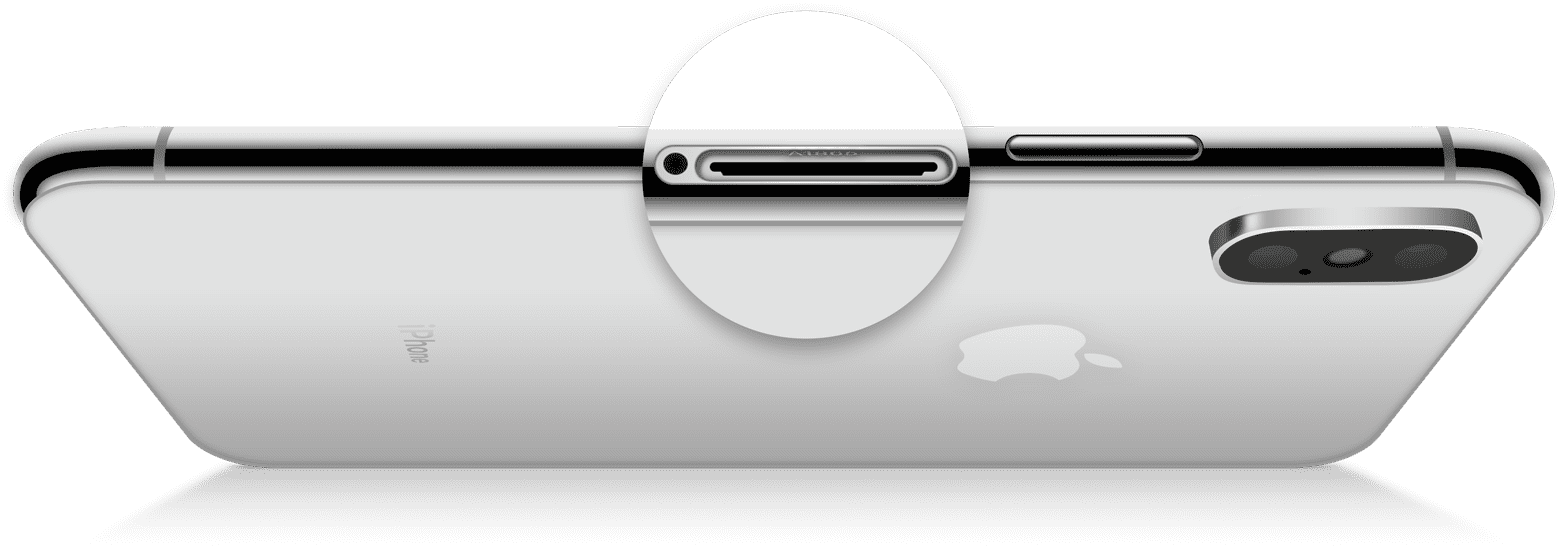
Note: I cannot see the model number inside the SIM tray on my cellular iPad Pro 6th generation.
How to use your iPhone or iPad model number
- Once you know your iPhone or iPad’s “A” model number using any of the above methods, visit the official Apple Support page for iPhone or iPad.
- Press the Command + F keys on Mac, the Control + F keys on Windows PC, or use the Find option in your browser and type the model number. It will take you to your iPhone or iPad name. Here, you can see the iPhone or iPad image, colors, details, and tech specs.
Apart from the official Apple website mentioned above, Everyi.com, TheiPhoneWiki.com, and edepot.com (not updated for a long time) have helpful information about every iPhone model. You can check them out to learn other details.
On a related note: