In this tutorial, we’ll show you two free and easy ways to secure your ZIP files on Mac with a password to prevent unauthorized use.
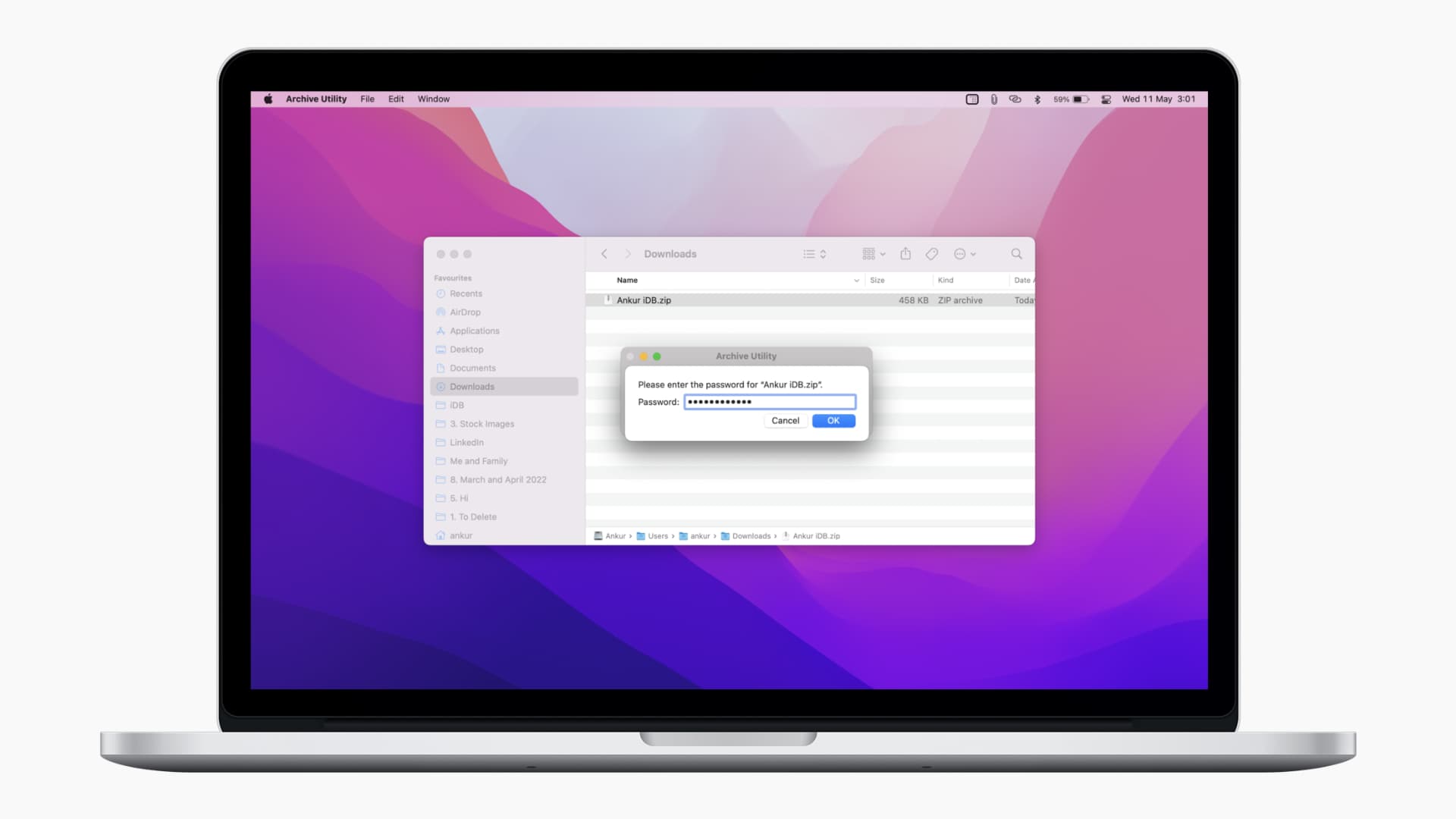
You can compress and bundle several files and folders in a single ZIP file. If you have multiple files you want to send securely for business, financial, or other reasons, you can lock the ZIP file with a password.
Password protection on a ZIP file works regardless of the operating system used to try to open it. So, when you send the password-protected ZIP file created on your Mac to someone on iOS, Android, or Windows, they still need the correct password to unzip it and view its contents.
Use Keka to lock ZIP files with a password
Keka is a tiny app that lets you password-protect ZIP files on your Mac. It is priced affordably on the macOS App Store ($5.99). However, the app is free if you get it from their website!
1) Download and install Keka on your Mac.
2) Open Keka, and it will show two windows. Close the bigger preferences/settings window.
3) Add a password and repeat it in the smaller Keka window.
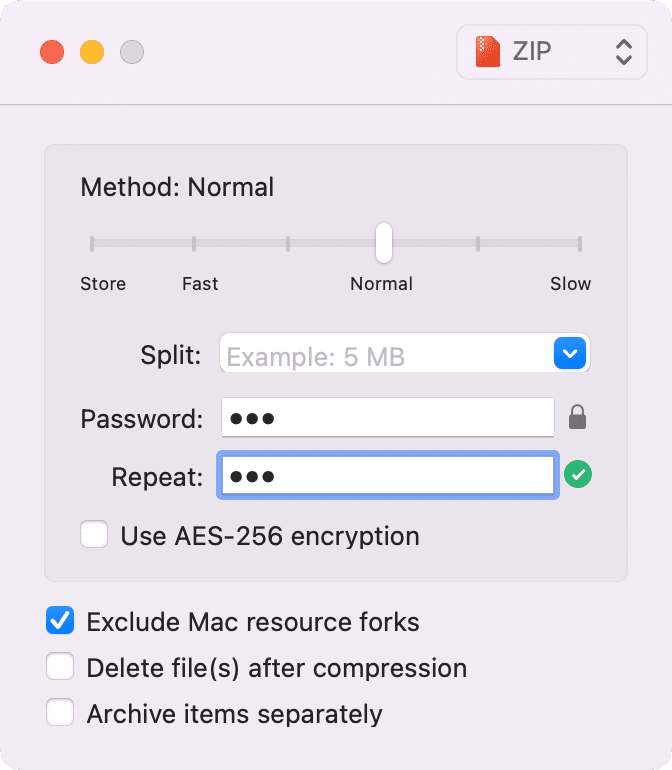
4) Drag the folder or files you want to password-protect as a ZIP file on the above Keka window.
5) Choose a location and click Compress.
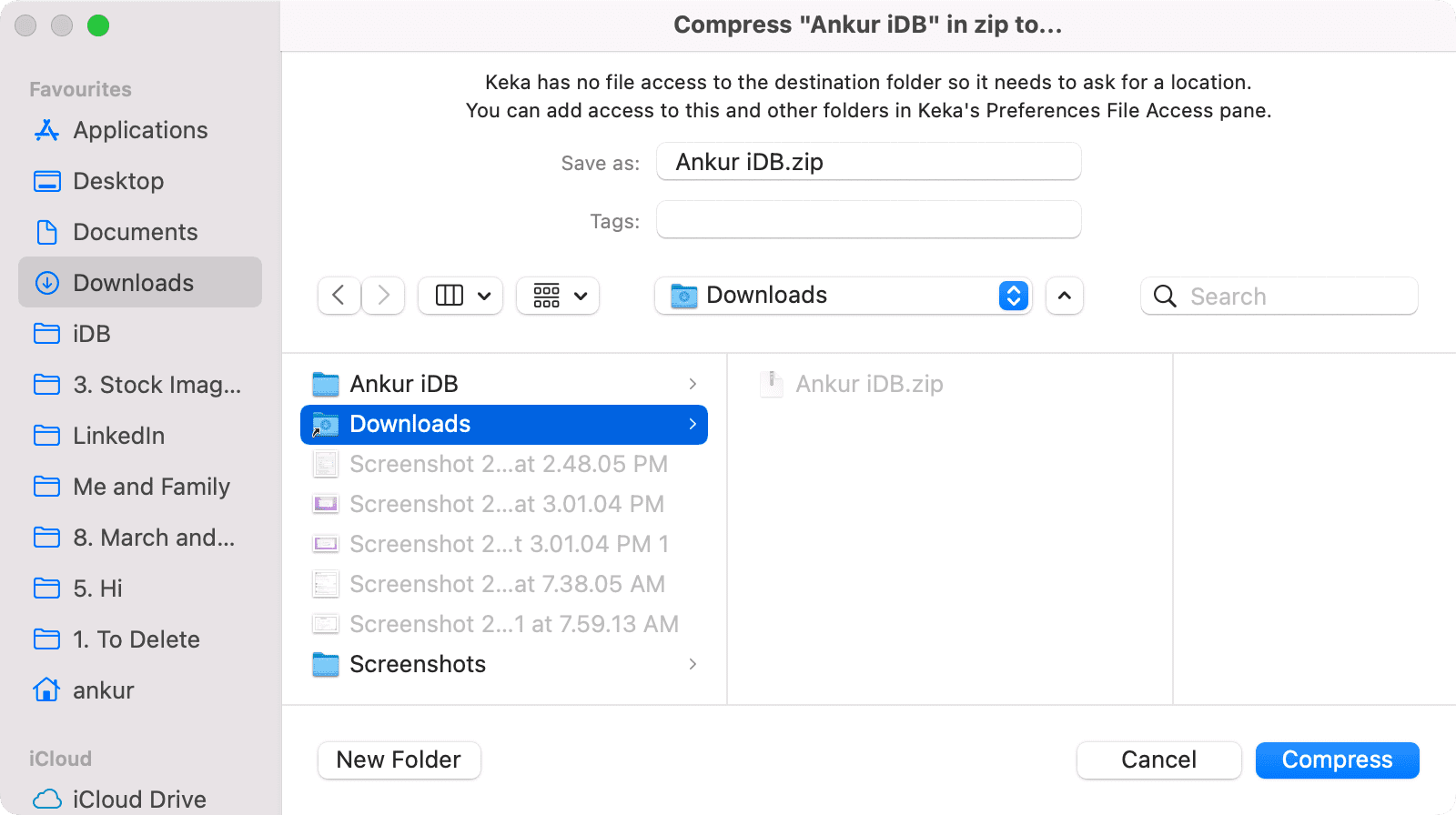
That’s all there is to it. You have successfully created a password-protected ZIP file. To unzip this ZIP file, enter the password you set in step 3 above.
Use macOS Terminal to add password protection to ZIP file
Maybe you’re not big on installing apps that you’ll only use once or twice. And if you don’t mind using Terminal on your Mac, you can use it to password-protect and zip in one fell swoop.
1) Open Terminal using Spotlight Search.
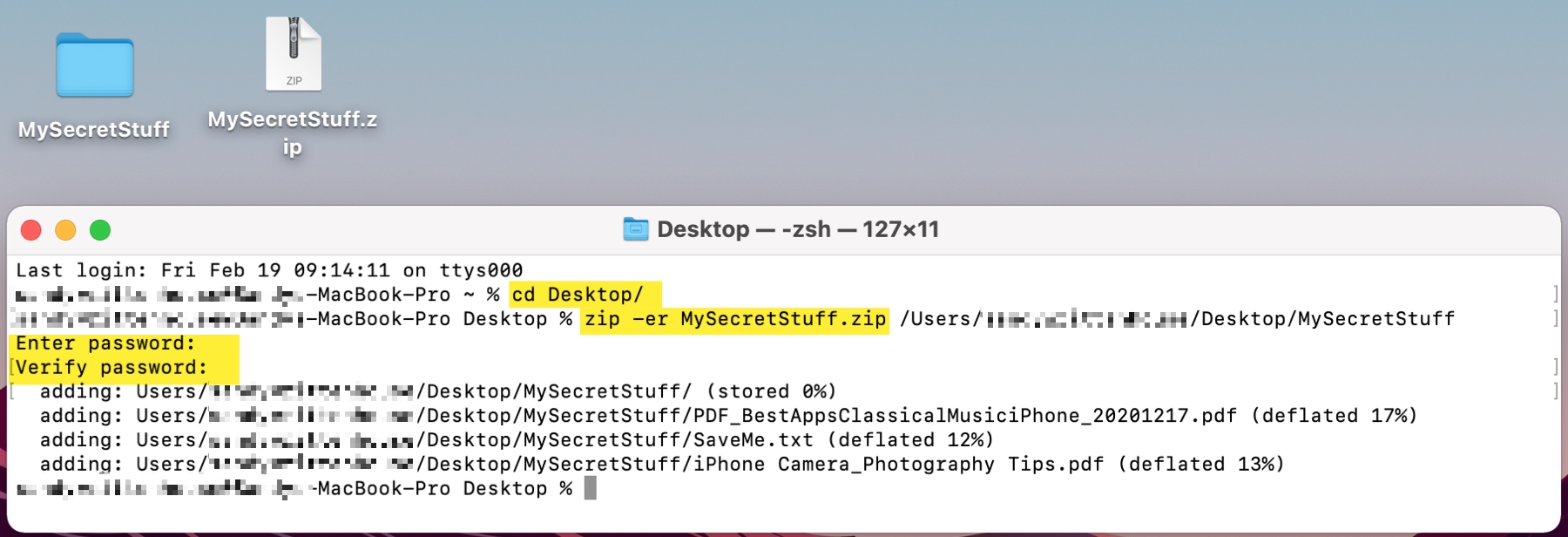
2) If you want to set the directory where you’ll be working with the files, this will save you from hunting down the file once it’s zipped. We’re going to use the Desktop since that’s where our current folder resides. So, we’ll enter the following command and press the return / enter key.
cd Desktop/
3) Next, enter the command below and replace FILENAME with the name you want to use for the ZIP file.
zip -er FILENAME.zip
4) Add a space and then drag your file or folder onto the Terminal window and press the return / enter key.
5) You’ll be prompted to enter the password you want to use, so type it in and press the return / enter key. You will not see any characters in the Terminal window.
6) You’ll then be prompted to verify the password, and again, you won’t see any characters in the command line. Press the return / enter key.
You should then see your ZIP file in the directory; in our case, it’s our Desktop.
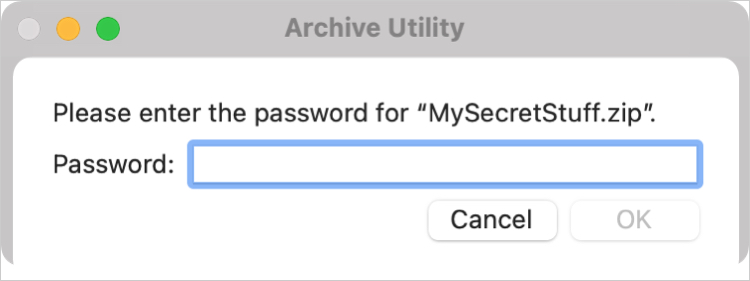
Click to open and unzip the file, and you should be prompted for the password.
Whether you decide to go with a free app or use Terminal, you can password-protect a ZIP file on your Mac in no time. Which option will you select, or do you have another method you’d like to share?
On a related note: