Learn how to rearrange rooms in the Home app on your iPhone, iPad, and Mac, so they appear in your preferred order.
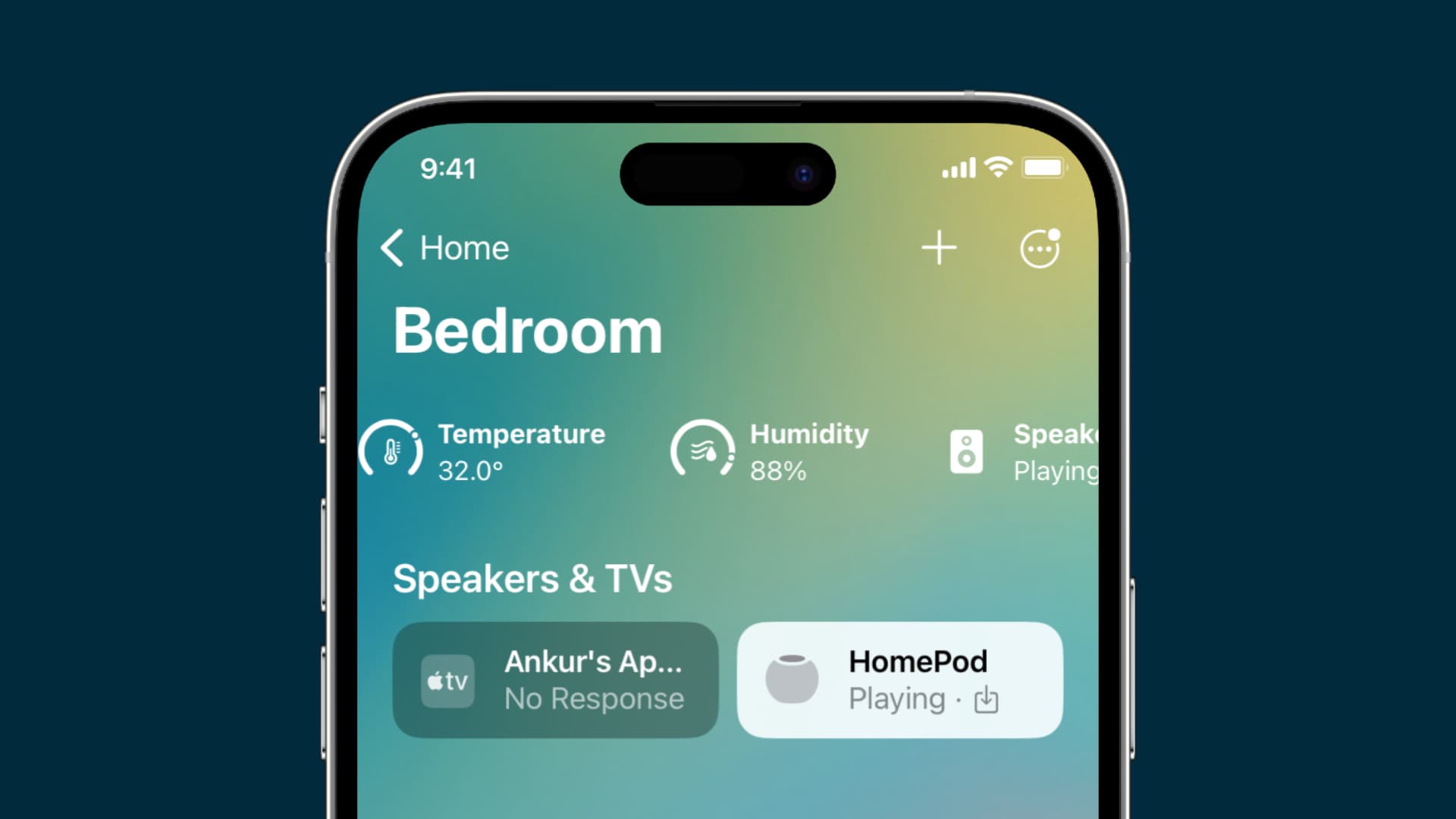
You can set up rooms in the built-in Home app, each with its own accessories.
If you switch between them multiple times throughout the day to control smart home accessories in each room, you’re recommended to rearrange them. Doing so will make the rooms appear in the order you want in the sidebar of the Home app.
Some people will arrange rooms in the order that fits their daily routine, while others may prefer to sort rooms alphabetically. Follow along with us as we lay out the steps to rearrange the order of rooms in the Home app on your iPhone, iPad, and Mac.
iOS
- Open the Home app on your iPhone or iPad.
- Tap the three-dot menu in the top-right corner and choose Reorder Sections.
- Use drag handles to change the order of rooms to your liking.
- Tap the checkmark icon or Done to save the changes.
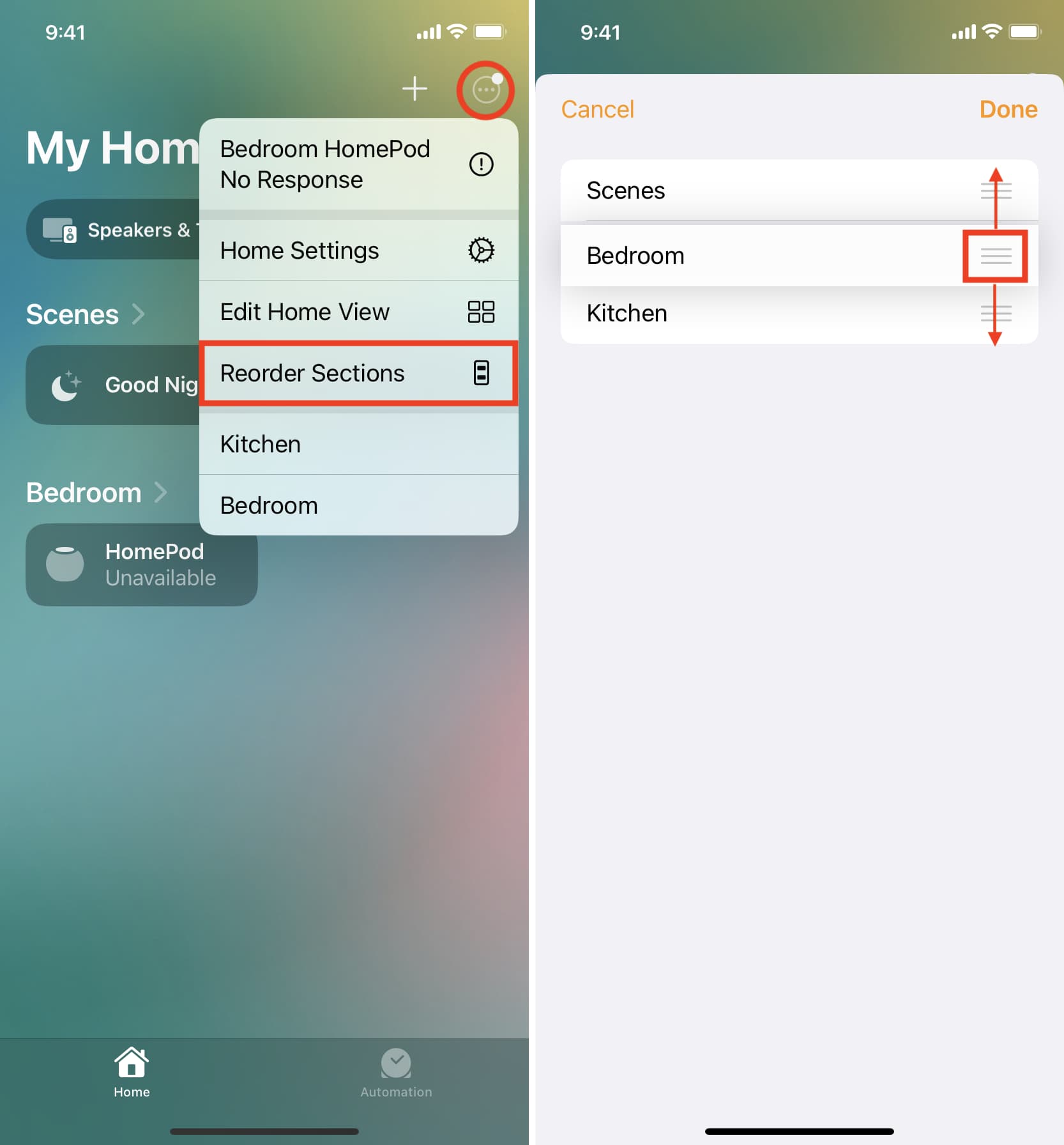
The changes to room order will sync across all your Apple devices.
Mac
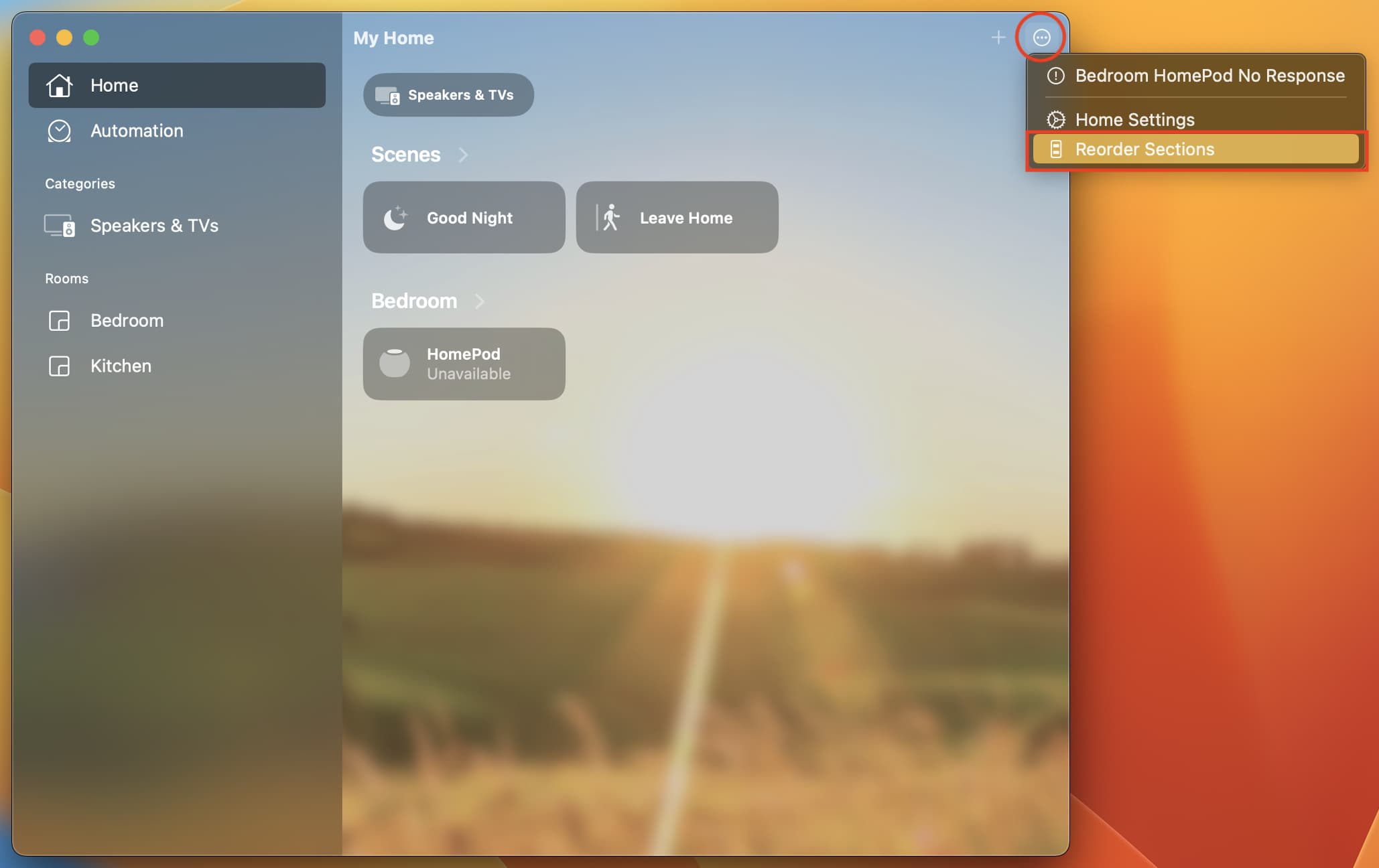
1) Open the Home app on your Mac, click the three-dotted menu in the top-right corner, and choose Reorder Sections.
2) Click and hold a drag handle next to a room to move it to a new position.
3) Click the checkmark icon or Done to save the changes.
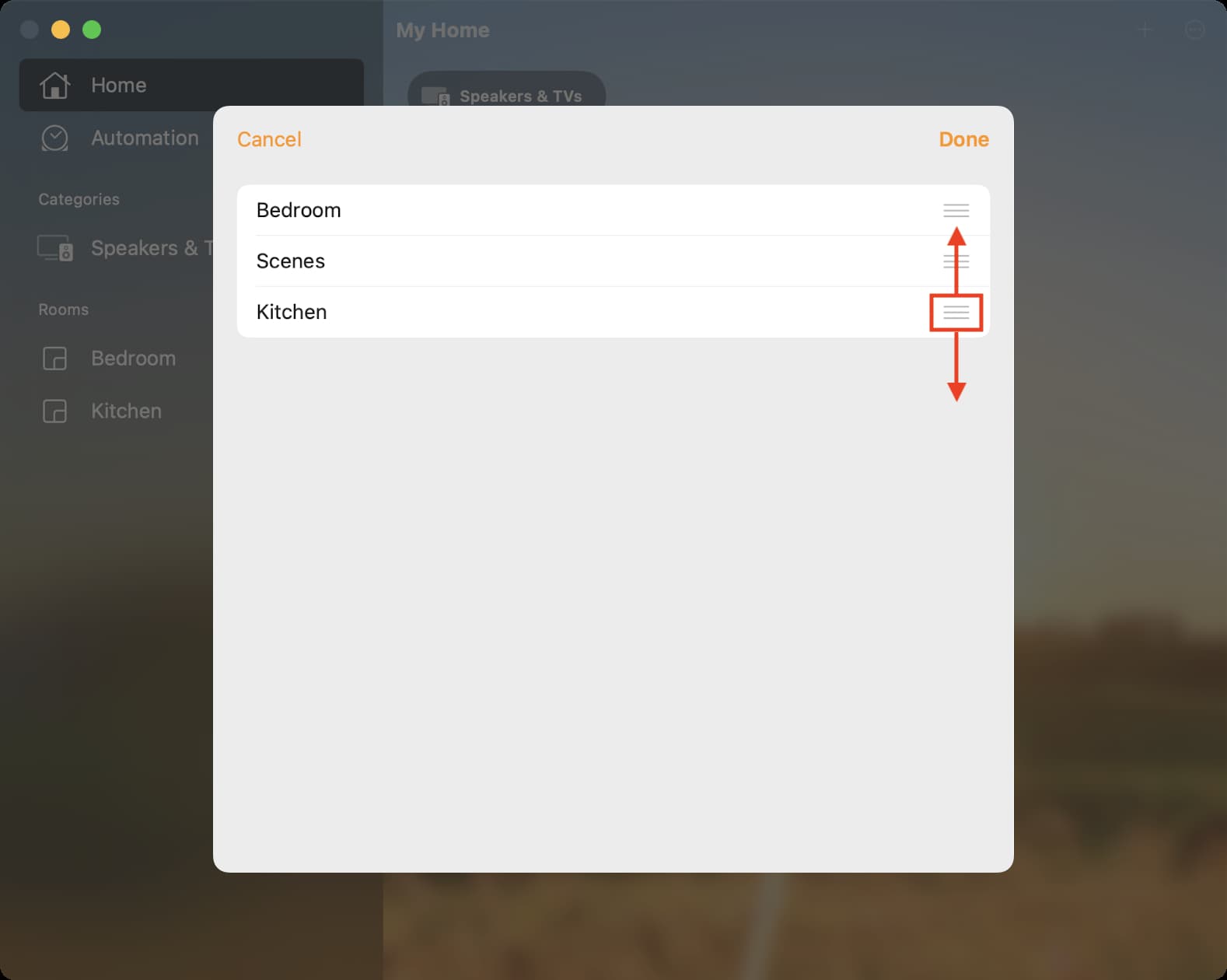
The changes to the room order made on your Mac will sync to the Home app on your iPhone and iPad (and vice versa) that are signed in with the same Apple account.
Do more with the Home app: