Learn how to toggle the ability to capture a special moment of your FaceTime video call as a Live Photo on your iPhone, iPad, and Mac.
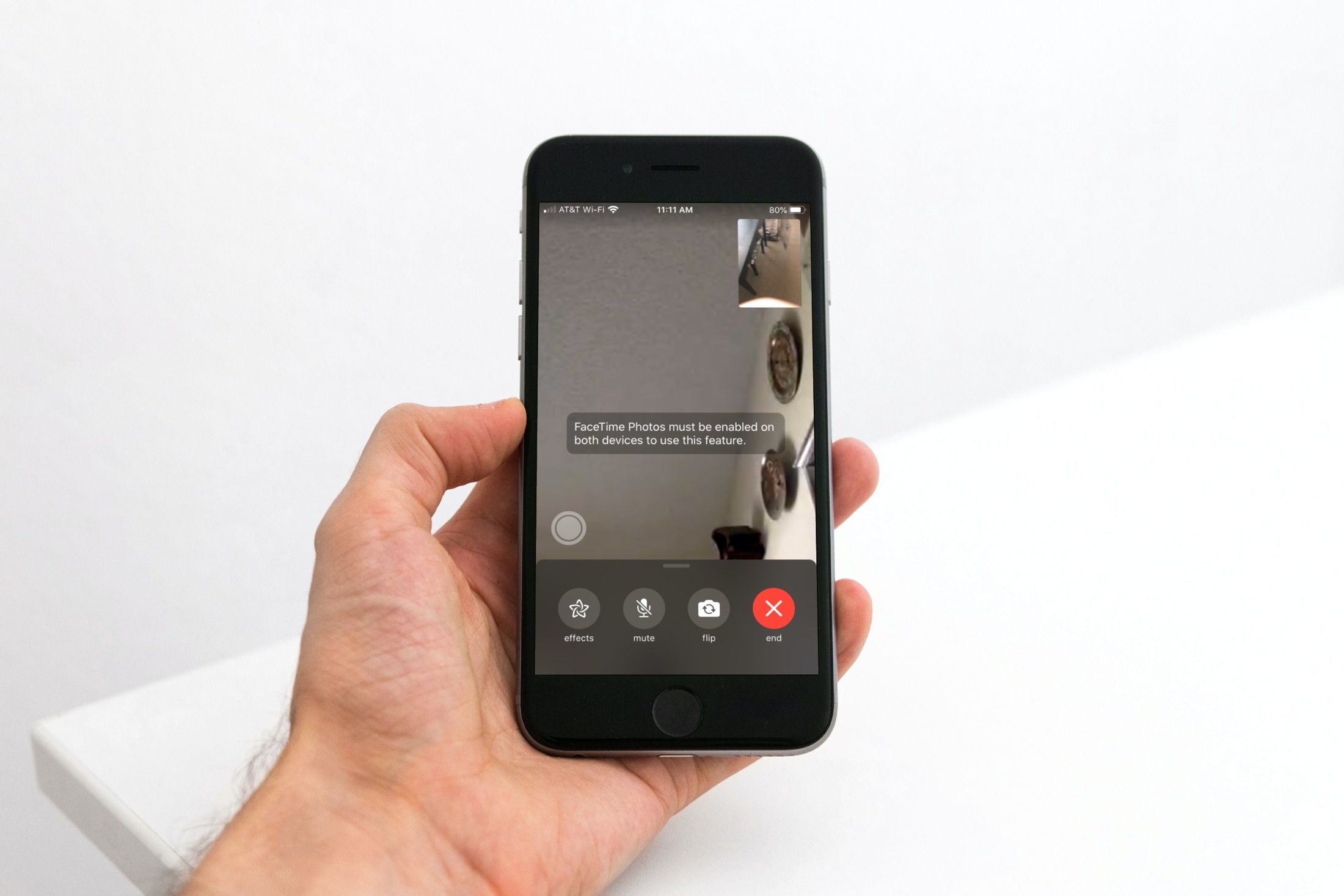
Unlike phone and FaceTime audio call recording, there is no direct way to record FaceTime video calls. However, Apple does allow you to save brief snapshots instead of the whole thing.
And for those moments, you can take Live Photos (with audio) during FaceTime video calls. But for privacy reasons, the other party on the call is notified every time you take a Live Photo of the call.
In case you don’t want to allow others to take Live Photos when they are on a video call with you, you can tighten your privacy in just a few taps, as shown below. But first, some quick info on how this works.
Take a Live Photo during a FaceTime video call
Hit the white capture button during a FaceTime video call on your iPhone, iPad, or Mac to take a Live Photo without any onscreen buttons or other distractions. If the other party has turned off this feature, you’ll see a message letting you know.
If you don’t see the button, tap the screen or move the pointer to reveal in-call controls. You can also take a Live Photo during a group call; just tap the tile of the person whose Live Photo you’d like to take, then hit the white shutter button.
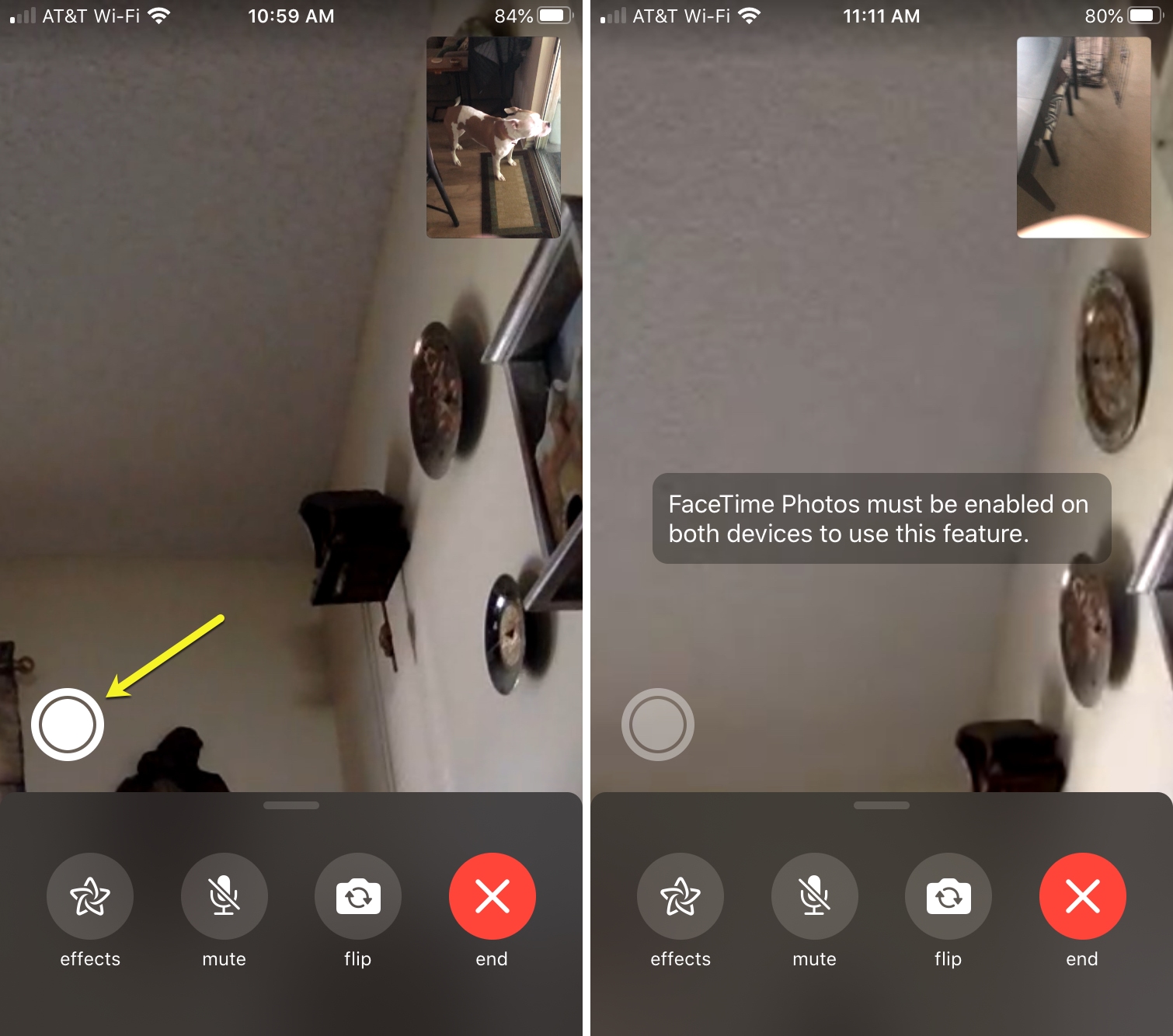
FaceTime Live Photos are automatically saved in the Live Photos section of the built-in Photos app.
Turn off Live Photos in FaceTime
It’s enabled by default, but you can turn it off if you want more privacy.
iPhone and iPad
- Open the Settings app, scroll to the bottom, and choose Apps.
- Select FaceTime from the list of apps.
- Slide the switch for FaceTime Live Photos to the OFF position to prevent others from capturing Live Photos during FaceTime calls. Otherwise, leave the setting turned on.

Mac
- Open the FaceTime app and click FaceTime > Settings (or Preferences) in the top menu bar.
- Go to the FaceTime tab (skip this step if your Mac is on a previous version of macOS).
- Tick or untick the box next to FaceTime Live Photos to allow or disallow Live Photos during FaceTime calls.

If you use FaceTime to keep up with friends and family and want to save interesting moments from your video chats, this is a great feature to have. Don’t forget, you’re always in control and can turn off FaceTime Live Photos at any time.
Do you ever capture Live Photos during FaceTime calls?
Related FaceTime posts: