Learn how to make your Mac restart automatically itself after a system crash or power outage to minimize downtime and disruptions to your workflow.
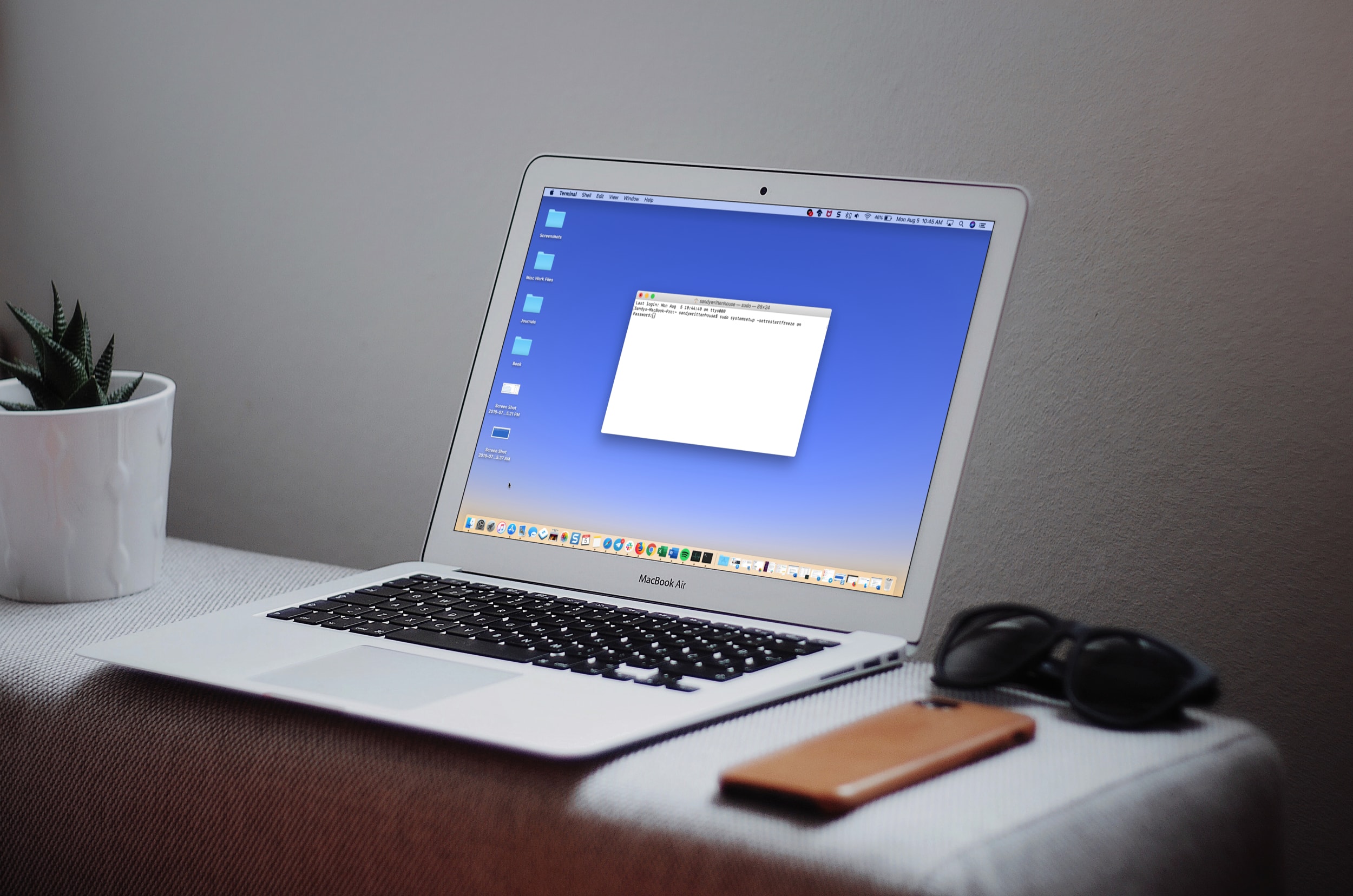
If you want to keep your Mac running all the time, then you may want to ensure it automatically restarts on its own in case macOS suddenly crashes or there’s a power outage.
You can do this in two ways, by flipping a switch in the settings or via the command line, and this tutorial will walk you through both methods.
Terminal command to make macOS automatically restart
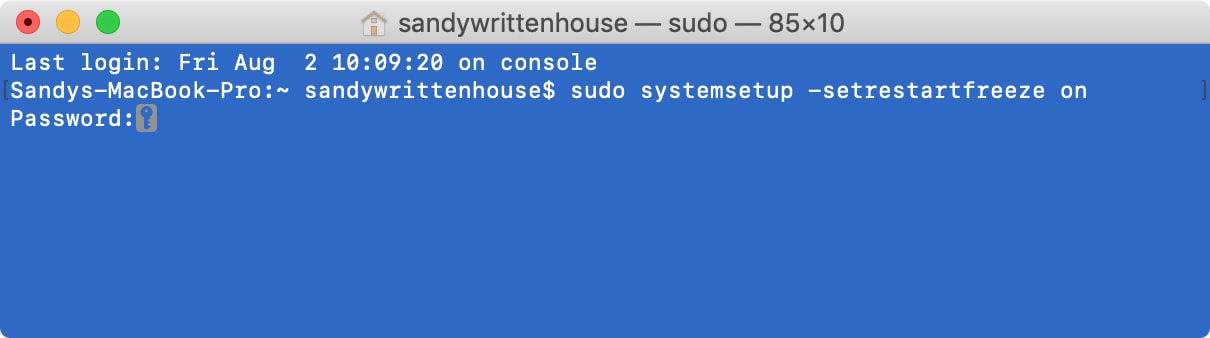
Open Terminal and type or paste the following command, then press the Enter key to run it:
sudo systemsetup -setrestartfreeze on
Enter your login password and hit the Enter key to authorize this action. For security, Terminal doesn’t display any characters when you’re typing the password.
To turn off automatic restart, run the following command in Terminal:
sudo systemsetup -setrestartfreeze off
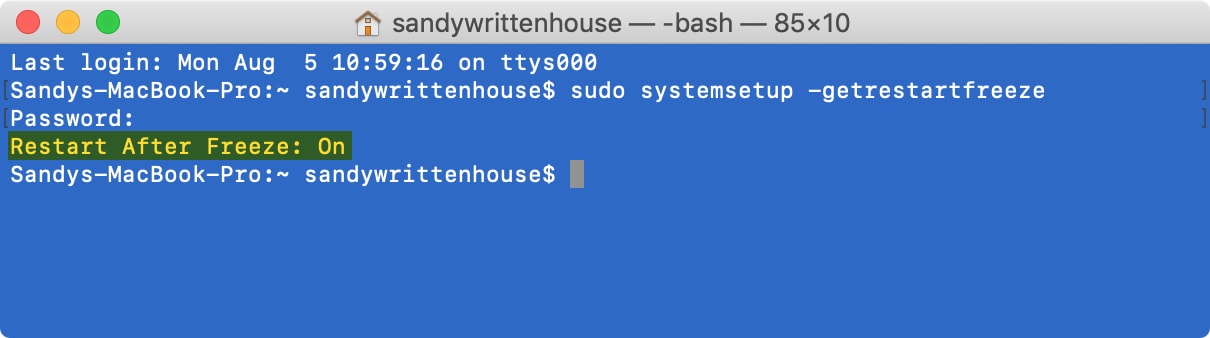
You can check the status of automatic restart with this command:
sudo systemsetup -getrestartfreeze
Turn on auto restart in System Settings
Follow these steps to turn on the auto restart option for your Mac in System Settings.
- Click the Apple menu in the top-left corner and choose System Settings.
- Select Energy or Energy Saver in the sidebar.
- Turn on the switch for ‘Start up automatically after a power failure’ on the right side.
You can also set your Mac to shut down at a specified time while using UPS power.

Control your Mac’s uptime with the ‘caffeinate’ command
If you’d like to control how long your Mac stays awake, run the following Terminal command:
caffeinate -t [seconds]
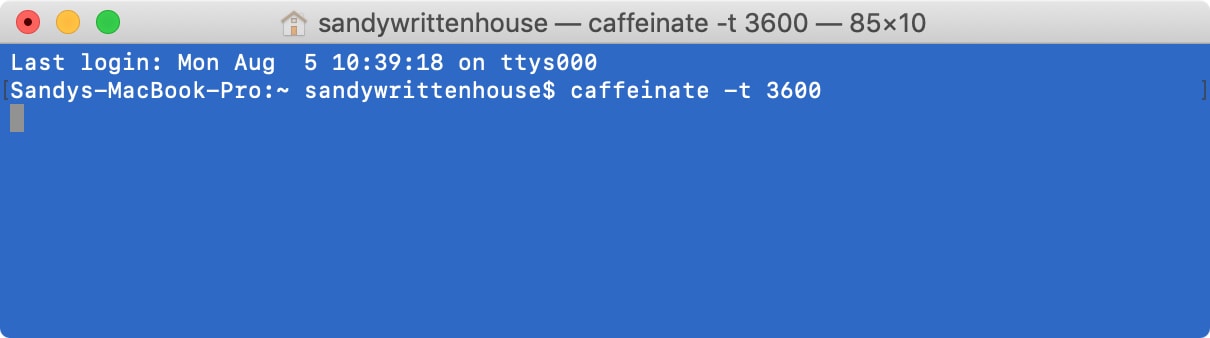
For example, you would type the following into Terminal to keep your Mac running for one hour (3600 seconds):
caffeinate -t 3600
To ensure your Mac doesn’t go to sleep when Terminal is running, run the command without any parameters:
caffeinate
To abort the caffeinate command, press the Control + C keys in the Terminal window.
Keep your Mac awake for as long as you need
Having macOS restart automatically after a crash or power failure is very handy if your Mac is running some process that takes a long time to complete, like exporting long 4K video projects, downloading multi-gigabyte installer, and so forth. If that’s the case, you may be interested to learn how to keep your Mac from sleeping, dimming, or showing a screensaver.