Whether you’re concerned about privacy or don’t use features that need your location, this tutorial shows you how to disable location services for your HomePod using your iPhone, iPad, or Mac.

With location services enabled for your HomePod, you can ask Siri for things like your weather conditions and forecast, nearby places and businesses, and traffic information for your commute. However, not everyone uses these features and may not want location services turned on.
Note that you will have to turn off location for all the HomePods you have set up in your Home — there is no pick-and-choose.
Turn off location services for HomePod
1) Open the Home app on your iPhone, iPad, or Mac. We’re using an iPhone running iOS 26.
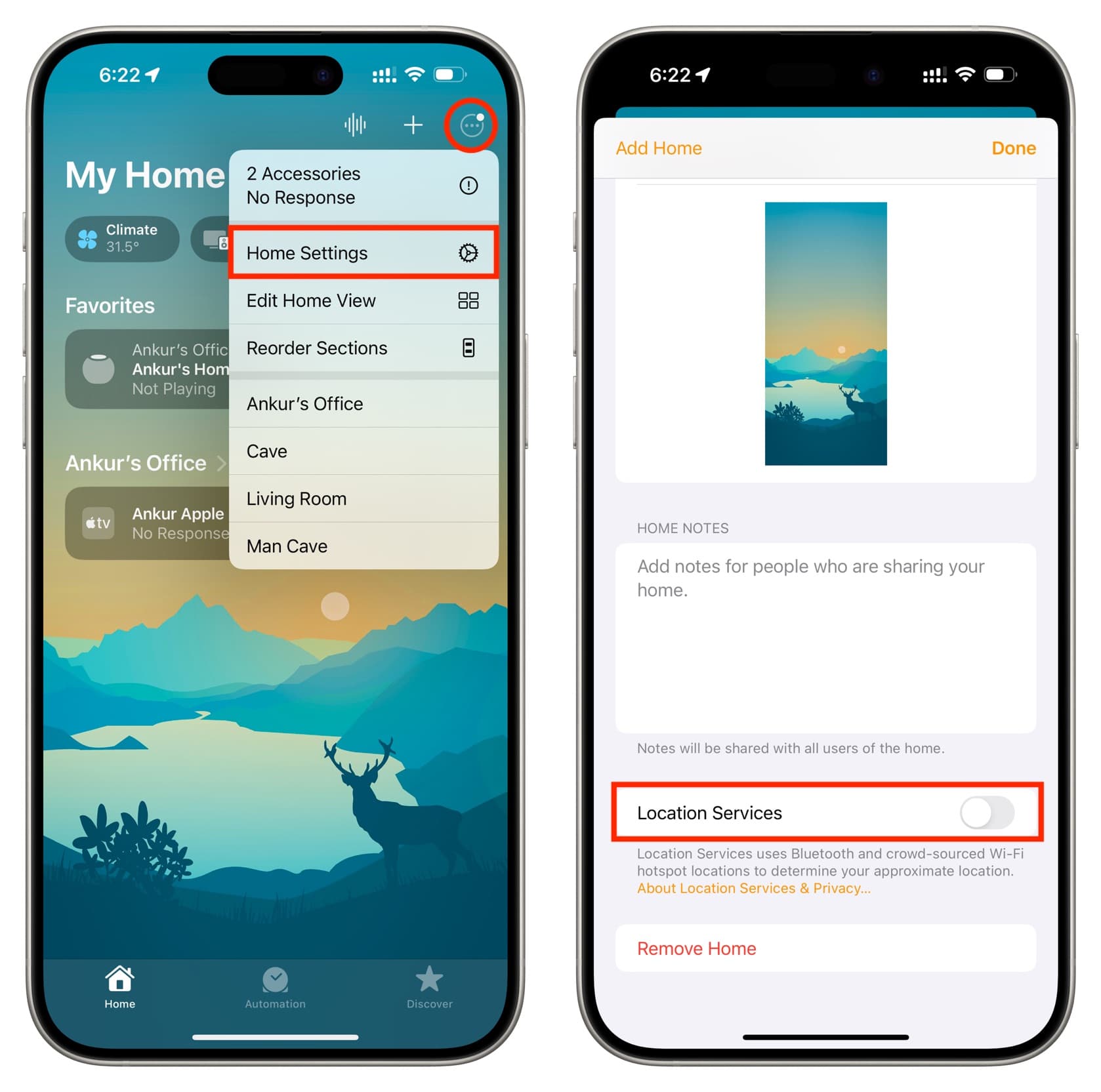
2) Tap the three dots menu icon at the top right of the Home tab and select Home Settings.
Note: If you set up more than one home, the Home app will use your location and automatically show you the settings for your current home. If you want to make the changes for a different home, select that first.
3) Scroll down to the Accessory Location section and turn off the switch for HomePod to block it from accessing your location. On older versions of iOS, switch off Location Services instead, and tap Done to save the changes.
Here’s how this looks on Mac:

Going forward, HomePods listed under this Home will no longer have access to your location. Remember that this will affect your ability to ask Siri questions about local weather, traffic, and related topics.
Note: HomePod mini and HomePod 2nd generation have built-in temperature and humidity sensors. They work even after you turn off Location Services. But you’ll have to see this information manually in the Home app. Siri does not seem to relay this local information and instead insists on enabling location services.
Do more with your HomePod: 24 tips and tricks every HomePod user should know