Learn how to quickly connect to a Wi-Fi network by scanning a QR code using the Camera app on your iPhone, iPad, or Android phone, with no manual password entry required.
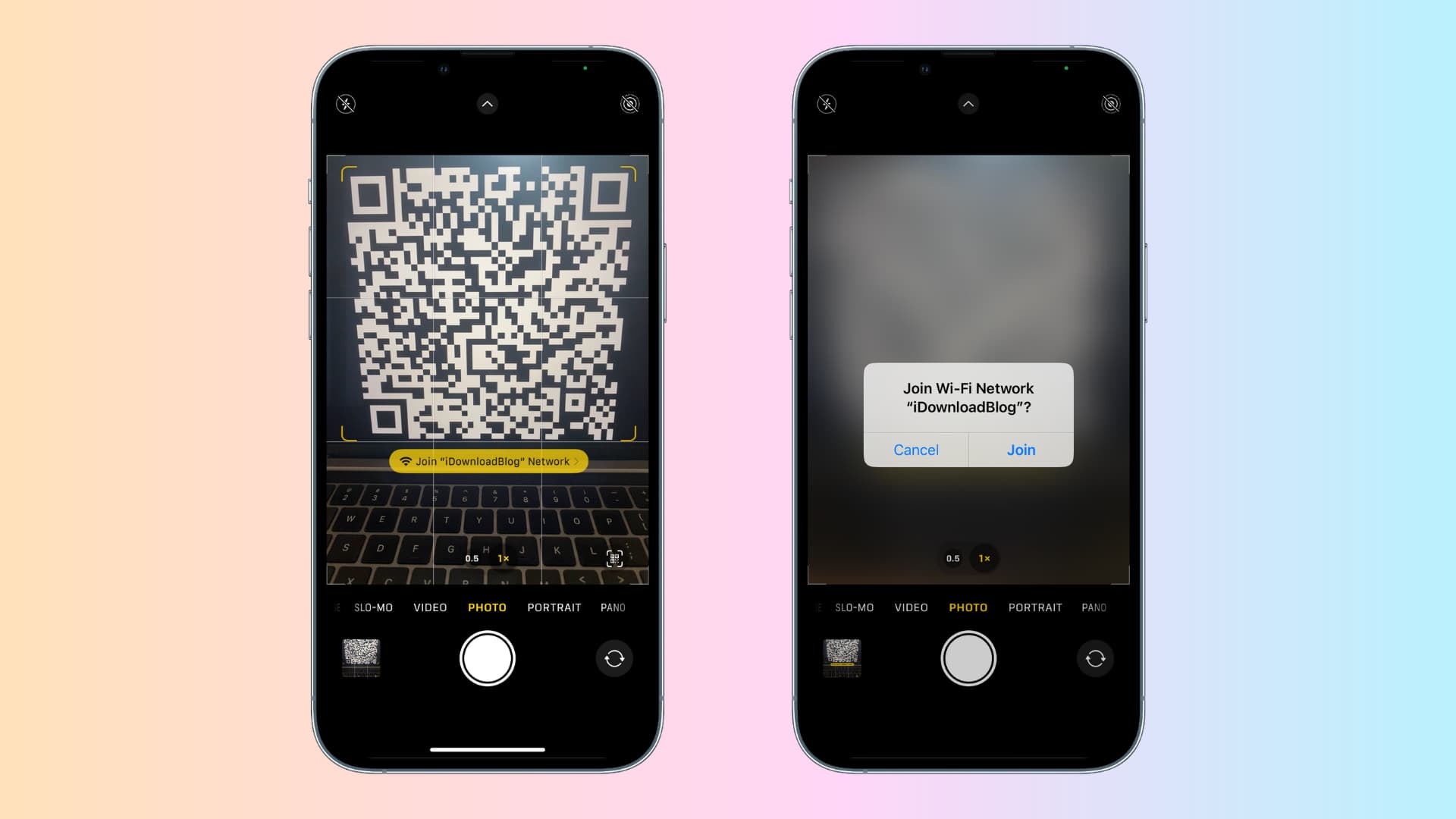
Apple’s Camera app can scan QR codes, allowing you to visit an embedded website, pair with a HomeKit accessory, and more.
QR code scanning is also the fastest way to connect to a Wi-Fi network without ever seeing login credentials.
Step 1: Get your Wi-Fi QR code
Hotels and public libraries often provide Wi-Fi QR codes on a piece of paper. You, too, can create a QR code for your Wi-Fi network to let guests hop on it without sharing the network password. Note that this isn’t the same as the QR code printed on the back of your router, which encodes factory Wi-Fi credentials.
Step 2: Join a Wi-Fi network using your iPhone camera
Make sure your iPhone or iPad can detect QR codes by going to Settings > Camera and confirming that the Scan QR Codes switch is on.
Next, open the Camera app, swipe to the Photo section, point the camera at the QR code, and tap the yellow Join button at the bottom of the viewfinder to connect to the network using Wi-Fi details stored in the QR code. This also works on Android phones, as evidenced by the image below.

Secure Wi-Fi password sharing
Apple also provides a cool Wi-Fi sharing feature for those times when you’d like to share access to your Wi-Fi network without having to exchange the network name or password. It’s ridiculously easy to use so long as you’re actually connected to the Wi-Fi that you’d like to share with another person.
Also, check out: