Learn how to fix AirPods resetting to their default name if you cannot rename them as “AirPods” in order to simplify their appearance in menus on your iPhone.
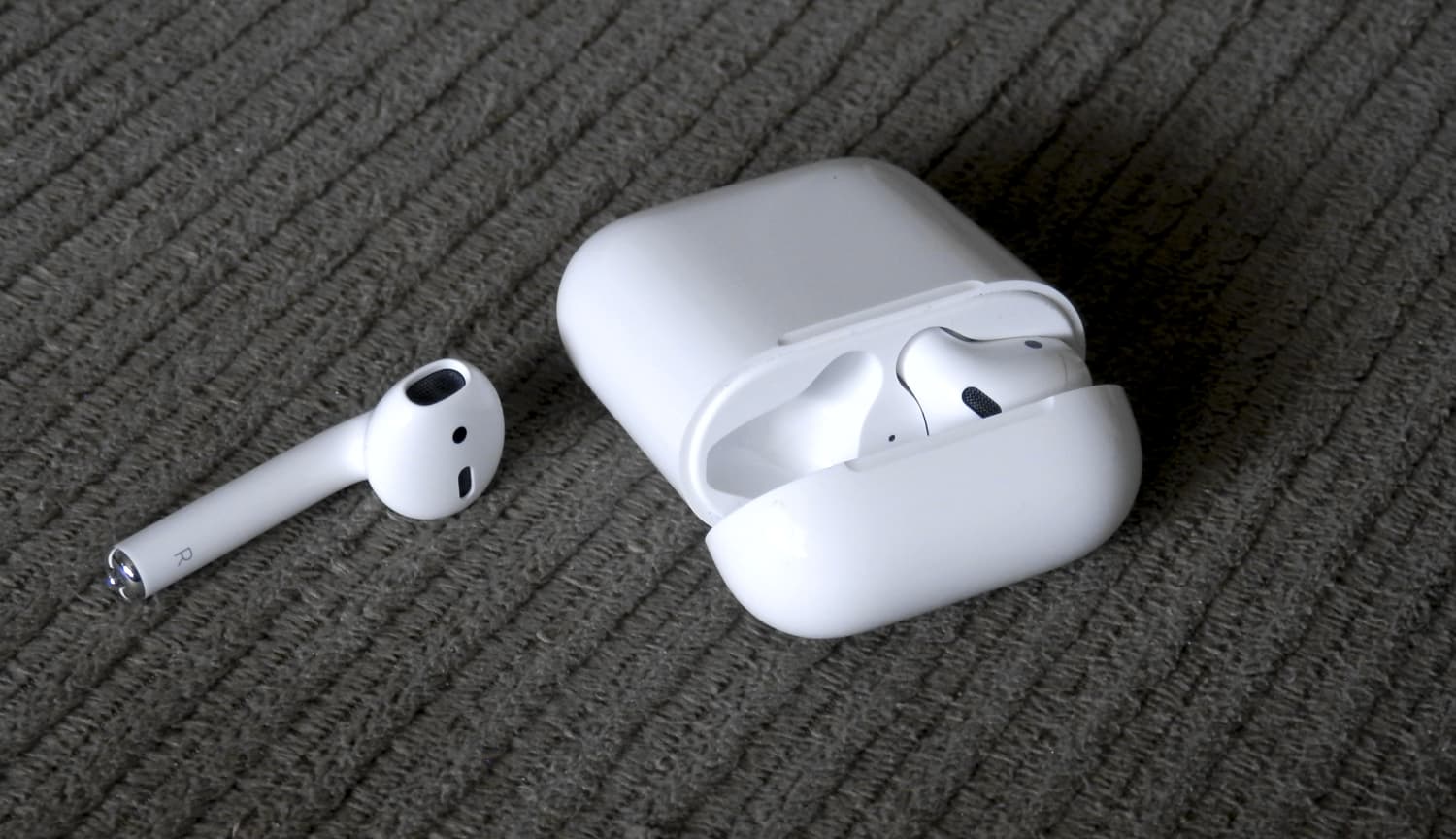
I rename all my Apple hardware with the actual product name. For example, my phone is listed in AirPlay menus and elsewhere as “iPhone 17 Pro Max,” my Apple Watch Series 11 as “Apple Watch,” and my computer as “MacBook Pro.”
One of the first things I do when setting up new AirPods is change the default name (in my case, “Chris’s AirPods”) to just “AirPods.” However, my earbuds keep reverting to the default [USER NAME’s AirPods] naming scheme whenever I reconnect to them.
AirPods keep renaming themselves
This happens every time I put the earbuds in the charging case or switch to them on my iPhone from another device like a MacBook Pro or Apple TV. This only happens on my phone; my Mac and Apple TV display the “AirPods” name without hiccups.
I’m unsure if that’s an iCloud issue or just a bug. I’ve tried unpairing and re-pairing the earbuds, to no avail; they keep reverting to the default naming scheme. My devices are running the latest versions of their operating system, as are my AirPods.
The problem only raises its ugly head when trying to rename AirPods as “AirPods.” Any other name, like “My AirPods” or “Apple AirPods,” sticks across all devices. If you’d like to rename your AirPods as “AirPods,” use our workaround instead.
Rename your AirPods as “AirPods”
Adding a trailing space to the “AirPods” name when renaming them will do the trick.
- First, connect your AirPods to your iPhone.
- Then, open the Settings app and tap your AirPods name near the top. Alternatively, select the Bluetooth option and tap the info icon ⓘ next to the name of your listed AirPods.
- Now, select the Name field, type “AirPods ” (don’t forget the trailing space!), and hit the Done key to save the new name. If a trailing space won’t do the trick, try with a dot (.).
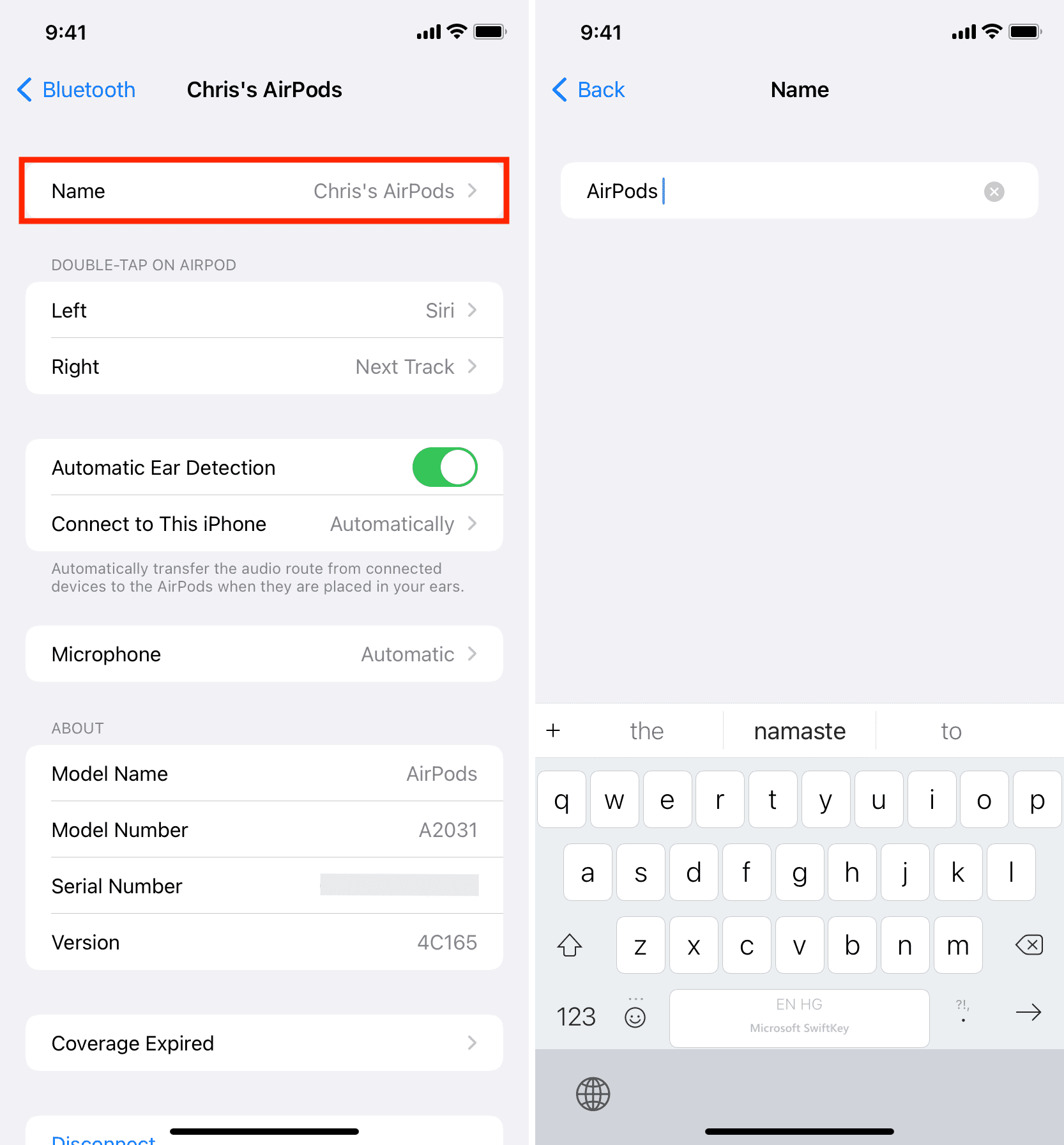
Yes, it’s as simple as that, folks. Your earbuds will now show up as “AirPods” in AirPlay menus and elsewhere, even if you switch them between your iCloud-enabled devices. The old name may still appear on some devices until the changes propagate through iCloud. But as soon as you connect to them, they’ll show up as “AirPods.”
With this simple trick, you can rename your AirPods as “AirPods.” And because that trailing space isn’t visible in the menus, you’ll soon forget it’s there.
Also, check out: