Is your iPhone stuck in headphone mode? In this piece, we’ll discuss why it happens and the troubleshooting steps for fixing it.
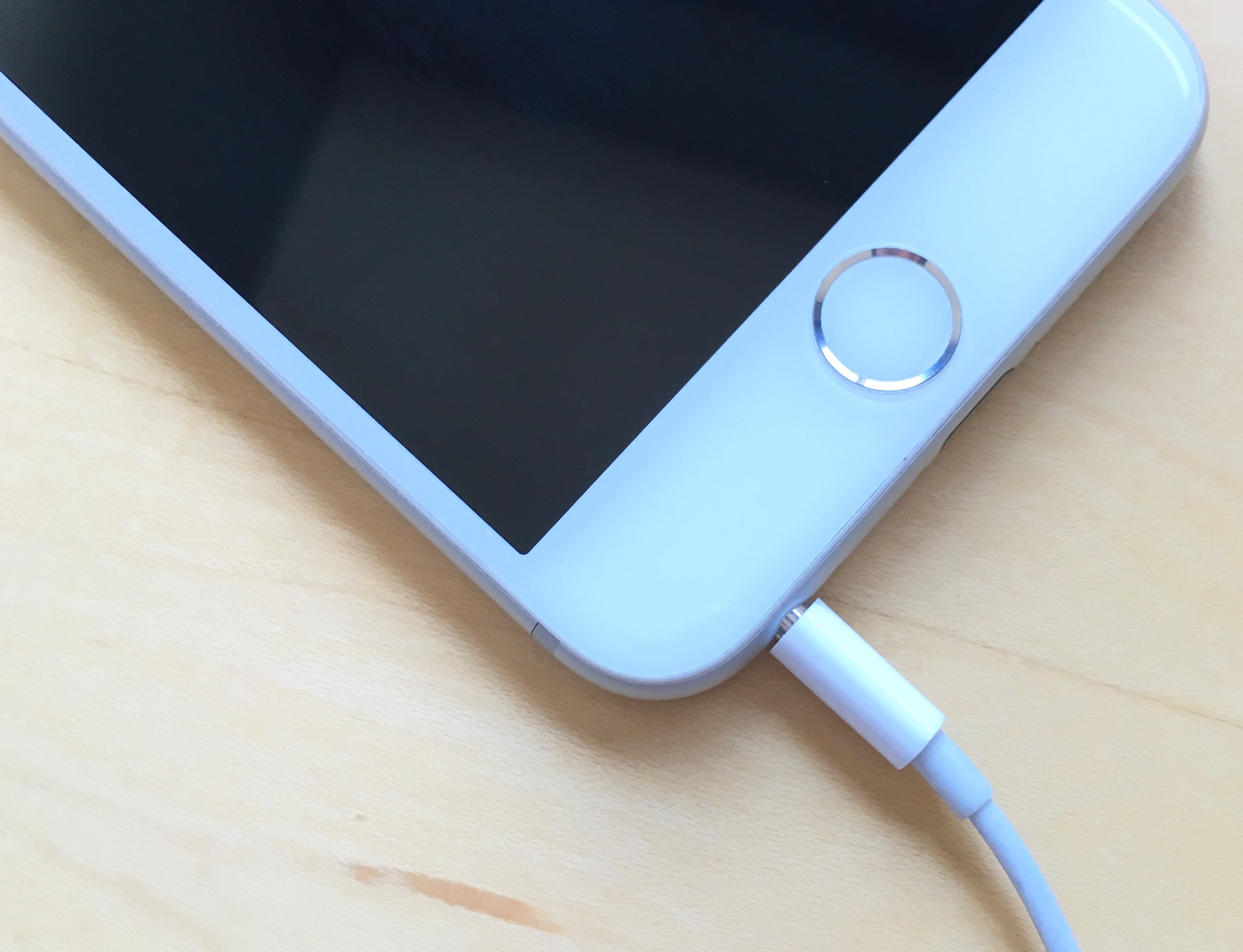
Have you ever unplugged your headphones or speakers from the USB-C port, Lightning port, or 3.5mm jack on your iPhone, iPad, or iPod touch just to find that it was stuck in headphone mode?
The most common symptom is that sound won’t come from your iPhone speakers anymore, and in some cases, you may even see the Headphones HUD stuck on your Home Screen. It can be frustrating, but it’s usually pretty easy to fix.
Why is your iPhone still in headphone volume mode
If you’re stuck in headphone volume mode on your iPhone or iPad, even after having disconnected your wired headphones or speakers, you’ve just experienced a rather annoying bug in iOS. It’s not really known why this occurs, but it could be related to any of the following actions:
- Disconnecting the headphones or speakers too quickly
- Disconnecting the headphones or speakers while your device is busy
- Using an incompatible or low-quality brand of headphones
- A problem with your 3.5mm headphone jack, Lightning port, or USB-C port
Nevertheless, if you’re stuck in headphone volume mode, it can be easy to fix.
How to get out of headphone volume mode
The problem can be related to software or hardware. Software problems are typically easier to identify and fix, although depending on the severity of the hardware issue, you may be able to fix it yourself, too. Our very own Sebastien Page would often have this problem on his iPhone, and in his case, it was typically related to software bugs.
So, without further ado, here are some steps you can take if your iPhone is stuck in headphone mode after disconnecting a pair of wired headphones or speakers:
Plug the headphones back in and then take them back out
Maybe iOS hasn’t completely recognized that your headphones were disconnected. Try plugging the headphones or speakers back in and out rapidly several times. This may set things right for good measure. It’s usually the best way to fix that temporary issue.
Try another pair of headphones
Not working? Plug in another set of headphones or another speaker, and then unplug them to see if that makes a difference. Some cheaper headphone plugs are made to poorer tolerances, and this can cause iOS to fail to recognize when a pair of headphones or speakers is unplugged.
Reboot your device
If you tried the above steps but are still in headphone volume mode, restart your iPhone or iPad. This may force iOS to refresh its sound output settings.
Look inside the port or headphone jack
If neither of the above worked, it could be a hardware problem with the USB-C or Lightning port or the headphone jack itself. With a flashlight, peer inside port and look for any traces of water or lint that could be causing an electrical malfunction. You can typically use a toothpick to clean out the port; I’ve done this hundreds of times myself, and it works great.
Restore or update iOS
If none of the above are related to your issue, then you may have a corruption in iOS itself. Although rare, this kind of problem may be more common for jailbreakers, as jailbreak tweaks that are installed from Cydia, good or bad, can modify system files. Try a DFU mode restore or an update from DFU mode if necessary, and any corrupted iOS files will be replaced with new ones that should function properly.
Contact Apple Support or an Apple Authorized Service Provider
If nothing has fixed your problem, you may have a defective charging port or headphone jack. This can happen from overuse or from damage caused by incorrectly sized headphone plugs that were built to poor tolerances. In this scenario, your only hope is to contact Apple for a repair or replacement, which should be free if your device is under warranty.
Hopefully, one of the steps prior to contacting Apple for assistance was able to help you get your iPhone out of being stuck in headphone mode, but if they didn’t, you have to do what you have to do to get a repair or replacement!
On a related note: