Learn how to use the new Lock Controls feature on your HomePod or HomePod mini running software version 27.2 or later to stop the top screen surface from responding to touches.
The circular light display on top of HomePod responds to touch so you can play, pause, invoke Siri, change volume, and more. However, many people don’t use the touch surface at all and prefer using voice (Siri) or their iPhone, iPad, Mac, or Apple TV to control playback on HomePod. If that’s you, HomePod settings now include a new option called Lock Controls that disables the touch surface to prevent accidental or intentional taps. It blocks you from changing the volume, invoking Siri, pausing or resuming playback, and more using the touch surface controls.
Activating Lock Controls also makes sense if you have children or guests in your house and you don’t want them adjusting the volume or interacting with the display.
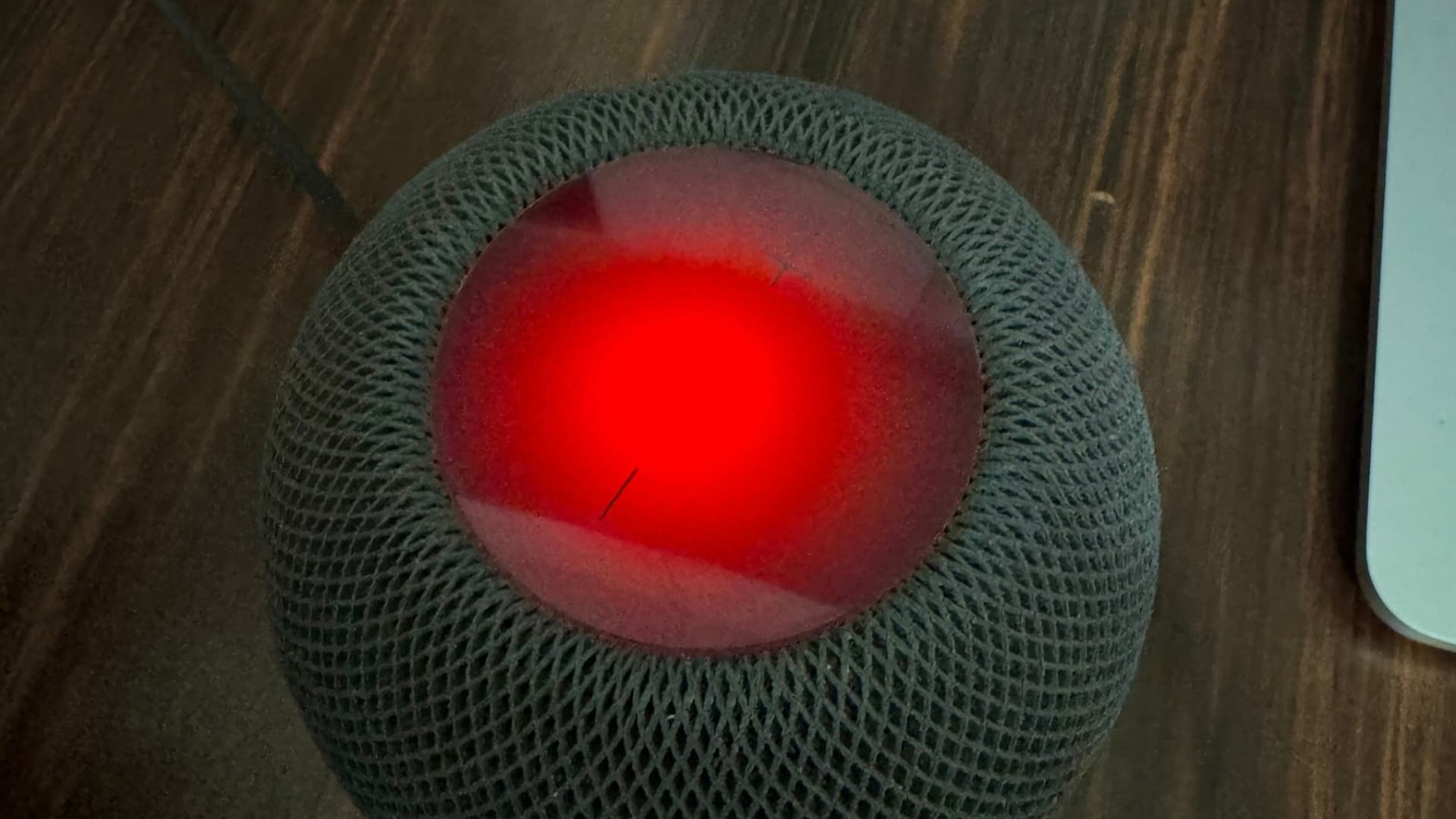
I turned it on for one reason: to eliminate unrequested Apple Music playback. Allow me to explain: when nothing is playing on the HomePod, its display is turned off. So I often tap or double-tap the display to check whether it’s powered on, and when I do, my HomePod immediately wakes up and says, “Sure, here’s XYZ playing on Apple Music…” I never liked this. Thankfully, now with the display locked, when I tap to check if it’s on, it just shows a cute red head-shake animation, and the music doesn’t start playing automatically.
Exceptions when Lock Controls won’t work
Locking the touch controls locks every touch, except for:
- Stopping timer and alarm alerts
- Intercom
- Check In
- And during Phone and FaceTime calls made directly from HomePod or when you use your HomePod as a speaker for iPhone calls
Supported models
Unlike the new Sound Glow feature, which doesn’t work on the first HomePod, Lock Controls works on all models running software version 27.2 or later. Here’s the full list:
- HomePod (released in 2018)
- HomePod mini (released in 2020)
- HomePod 2 (released in 2023)
- HomePod mini 2 (released in 2026)
Turn on Lock Controls on HomePod
- Update your iPhone, iPad, or Mac to iOS 27.2, iPadOS 27.2, or macOS Golden Gate 27.2 or later (currently in beta).
- Update your HomePod to software version 27.2 or later. It’s also in beta, with public release expected very soon.
- Open the Home app.
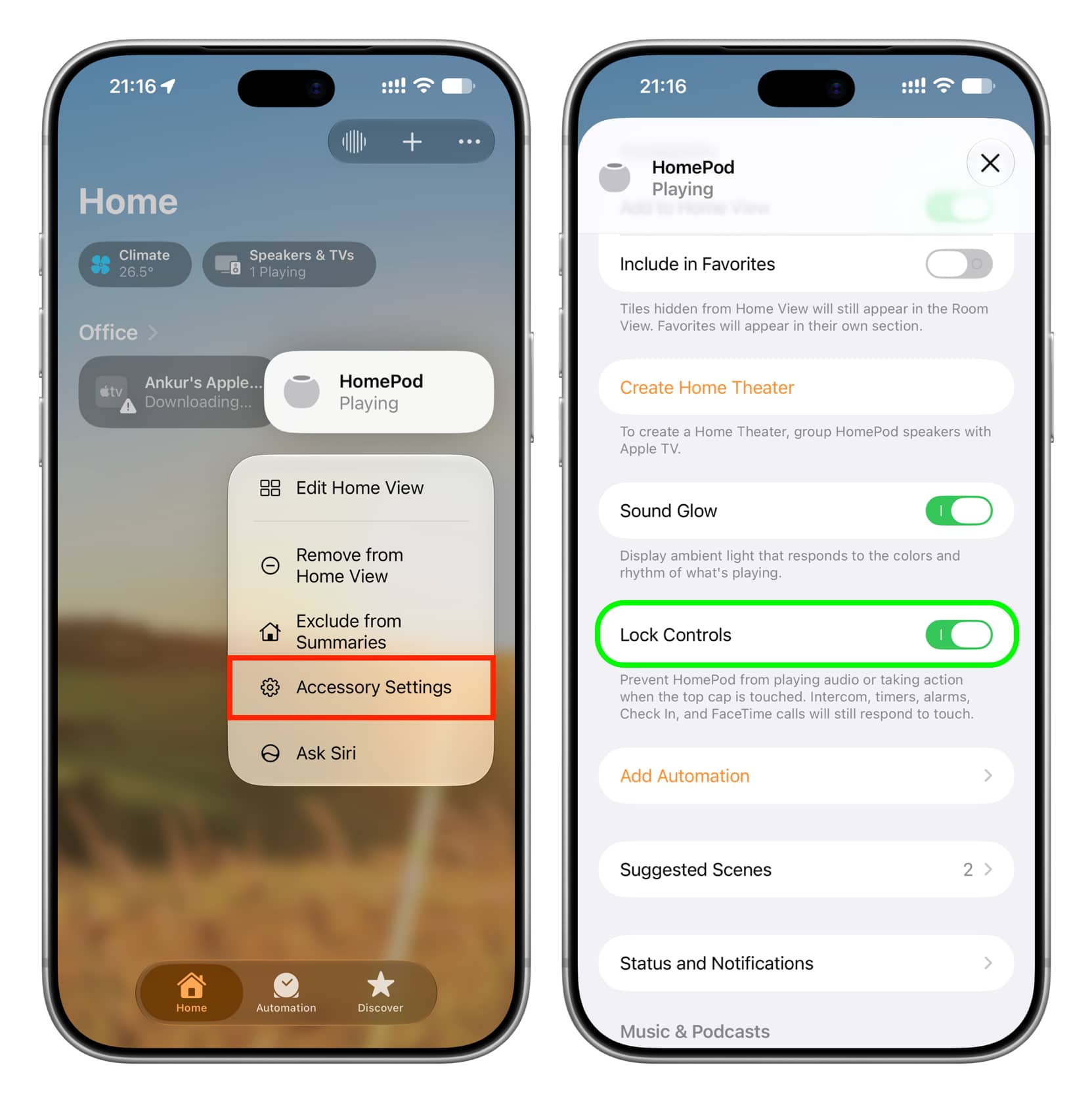
- Touch and hold your HomePod and select Accessory Settings.
- Turn on Lock Controls.
Now, tap anywhere on the top touch display of your HomePod, and a red glowing ball will move left to right, mimicking a head shake to show it’s refusing your touch.
Managing HomePod with Lock Controls enabled
Even though you can no longer use the HomePod screen to invoke Siri, change volume, switch tracks, or control media playback, you can still do all that by saying “Siri” or “Hey Siri” followed by your command. You can also use the Home app to control playback and volume on your HomePod.
But remember that even though Siri on HomePod (usually) gets preferential treatment, it isn’t always the case. Even if you intend to invoke Siri on HomePod by speaking the hotword, Siri on your iPhone or other device may carry out that request. In these cases, touching and holding the HomePod touch surface is the only sure-shot way to use Siri on it (and not other devices).
In case you want to regain access to the touch controls, return to HomePod settings and turn off Lock Controls.
What do you think of this new feature? I love it, even though it’s 8 years too late!
Also, check out: How to use AutoMix or Crossfade song transitions on HomePod