macOS Tahoe 26 has killed the Launchpad. But if you miss it, here are seven alternatives to Launchpad that you can use to see Mac apps in one spot and open them quickly.

Note that the Terminal method to restore the old Launchpad in macOS Tahoe only worked for the initial macOS 26 developer beta build. Apple soon blocked this method for all future macOS 26 versions. So here are seven options you can rely on instead.
1. Add an Applications folder to the Dock

You can add the Applications folder to Mac’s Dock and set it to display apps in a grid style. It will allow you to see and open apps in just two clicks.

- Open Finder on macOS Tahoe.
- Right-click over Applications in the Finder sidebar and select Add to Dock.
- An Applications shortcut will be added to the left of the Trash icon. Click it to view all apps and open one. You can also right-click on the icon and change a few things.
2. Make selected app folders and add to the Dock
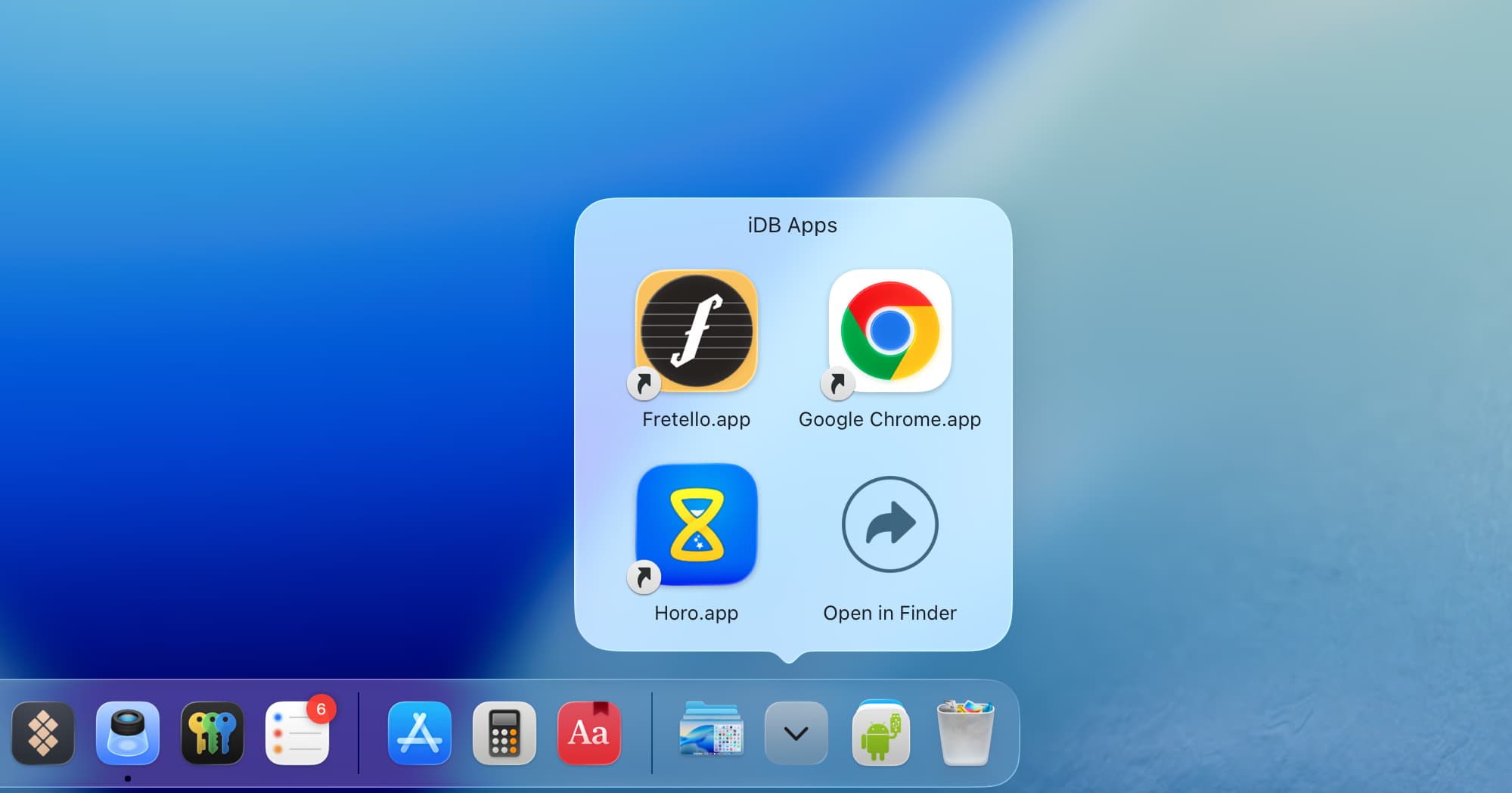
Unless you’re big on storage management, it’s likely you have a lot of apps installed on your Mac but use only a handful. It’s also possible that you have different apps for work, personal projects, and so forth. To make things simple, you can create folders of apps you use most often or separate them by work, and then add them to the Dock.

- Create a new folder on your macOS 26 Desktop.
- Open the Applications folder in Finder.
- Drag an app and drop it inside the folder on the Desktop. This will create an alias for that app. Repeat this process for all important apps.
- Now, drag the Desktop app folder and drop it in the rightmost partition of the Dock.
- Then, right-click over the added folder and set ‘View Content as’ to Grid style. You can also change other preferences as needed. Moving forward, click this folder or stack icon in the Dock to see and launch your important apps.
3. Use Launchie to mimic Launchpad

Launchie is the best Launchpad alternative for macOS Tahoe. It works well, offers handy customization options, and it’s the closest you can get to an actual Launchpad on a Mac running macOS 26. It even allows you to create app folders for improved organization, just like the old Launchpad used to.
You simply need to download the app, and it works right away. But here are some settings I have changed to tailor it for my needs:
- Allow it to start at login.
- Turn on Close on Background Click. This allows me to close the Launchie overlay by clicking in an empty area between apps, similar to how the native Launchpad worked on macOS Sequoia and earlier.
- The default keyboard shortcut to open Launchie is Command + K. The same shortcut is also used in many apps to add a hyperlink over text. So, I have changed the Launchie keyboard shortcut to Command + Shift + A.
- Add Launchie to the Dock. Like the original Launchpad and unlike other open apps, it doesn’t show the dot indicator underneath the app icon.
- Change the window size to fullscreen.
- Set Visual Style to Sheet instead of Glass.
4. Use AppGrid Launcher

AppGrid is yet another decent attempt to restore Launchpad in macOS Tahoe. Unlike Launchie (which shows all apps in a single scrollable pane), AppGrid shows them on pages, much like the built-in Launchpad. It also has several handy customization options, even in the free version, so you can tweak it just the way you want.

Yet another way to quickly see all your installed apps in one spot and open them is to use a menu bar app called Folder Peek. We first showcased this app in our post on bookmarking and opening folders quickly. To use this app as a Launchpad alternative, here’s what you need to do.

- Download and open Folder Peek on your Mac.
- Click its app icon in the menu bar and select Add Folder.
- Select Applications in the Finder interface and click Add.
- From now on, click the square Folder Peek icon in the menu bar to see a list of all your Mac apps. From there, click an application name to open it.
6. Show apps on your Desktop – Windows PC style

Yet another way to open your useful apps quickly is to add their shortcuts to the Desktop. This way, you’ll have a Mac desktop that resembles a Windows computer.
Simply drag apps from the Finder Applications folder and drop them onto the Desktop. Also, turn off Stacks to see all icons outside of the Applications bundle.
7. Add Apps to macOS Tahoe Hot Corner

Go to System Settings > Desktop & Dock > Hot Corners and assign one of the screen corners to Apps. Then, you can open the new macOS Tahoe 26 Applications overlay by taking the pointer to that corner of the screen.
Try living with the new applications overlay in macOS 26
Finally, your last option is to give the new macOS Tahoe Launchpad replacement a chance. Even though it isn’t exactly like Launchpad, it does the work. If it feels too cluttered, hide iPhone apps from showing there.
Also, check out: 15 new things to try in macOS Tahoe 26