Learn how to schedule an iOS software update to install overnight when you’re not using your iPhone, so it doesn’t interrupt your daily routine.
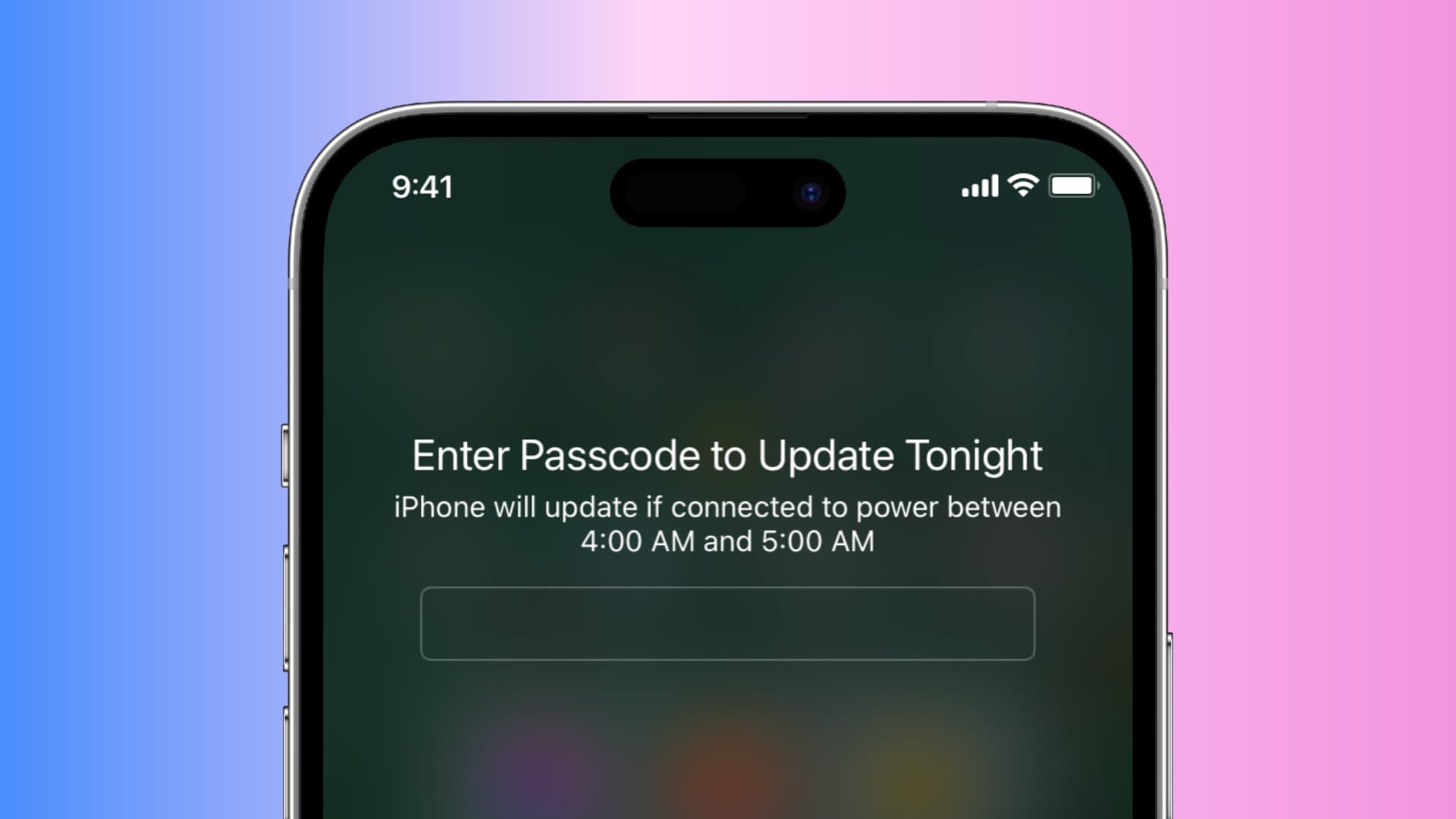
Updating the iOS or iPadOS software on your iPhone or iPad makes the device unusable for several minutes, preventing you from making calls, texting, etc.
To get the latest iOS software without experiencing downtime, you can schedule the update to automatically install at night when the device is not in use.
Schedule iOS software updates overnight
1) Open the Settings app and navigate to General > Software Update.
2) Wait for the device to check for updates or check manually by pulling this screen down. Once it shows up, choose Update Tonight instead of Update Now.

If automatic updates are turned on, your iPhone or iPad has probably already downloaded the update. In that case, choose Install Tonight.

3) Enter your device passcode and tap Done to proceed.
4) The device will download the latest iOS update in the background and prepare it for installation. Don’t worry, the update won’t install right away, and you’ll see an Update Scheduled message in Software Update. Be sure your iPhone or iPad is locked and adequately charged or plugged into charging for the update to auto-install overnight.

If you change your mind and want to immediately install the update, simply choose Cancel Update in Software Update, which brings back the Install Now and Install Tonight options, then choose Install Now or Update Now.
Important: If you use a SIM PIN on your iPhone, the SIM may not become active after the update is installed automatically until you enter the SIM PIN. So, if the update installs at, say, 3 AM, and you wake up at 6 AM, your iPhone will be without cellular signal for three hours.
iOS 16 and earlier
1) Open the Settings app and navigate to General > Software Update.
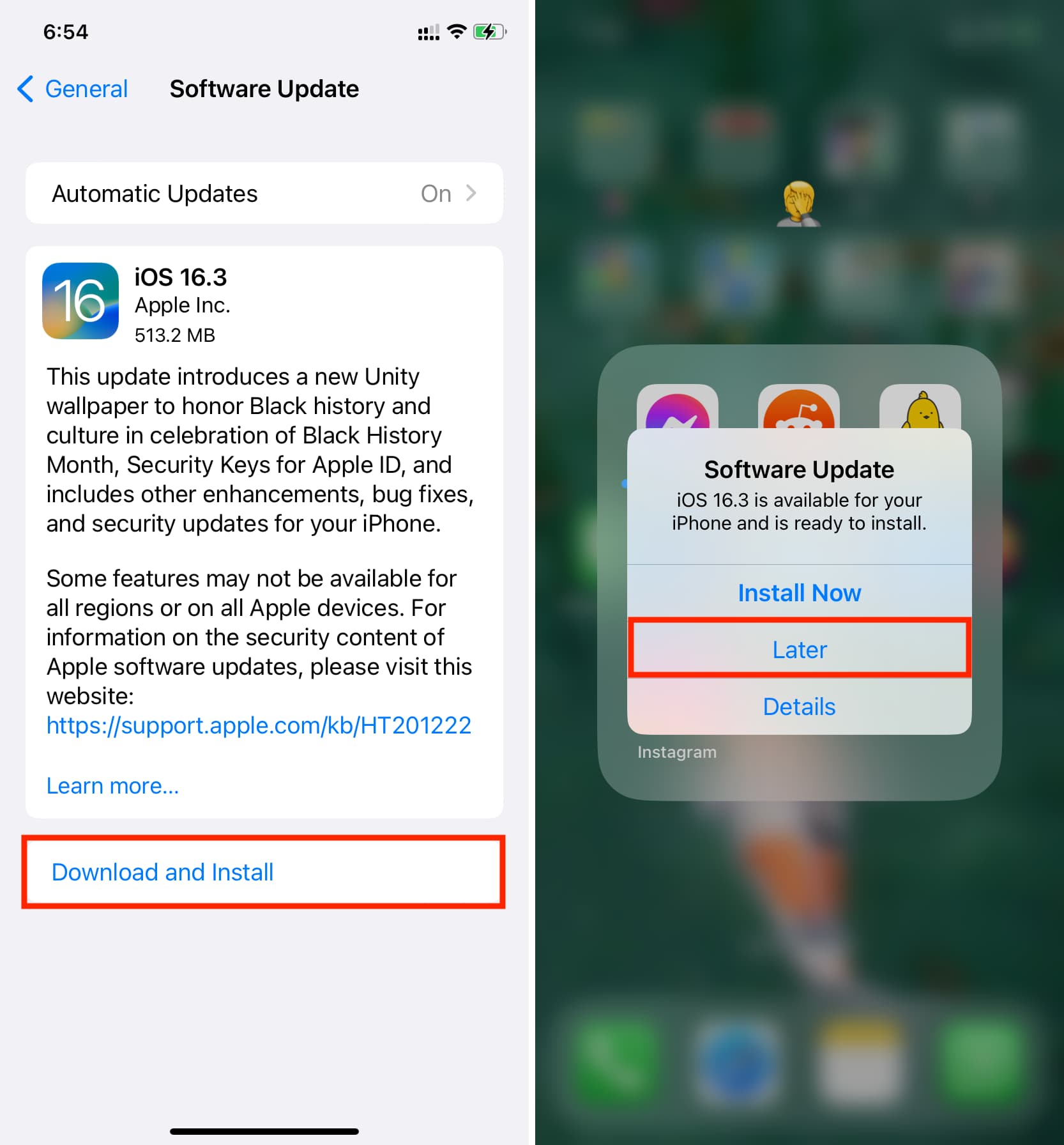
2) If the latest iOS update hasn’t downloaded yet, choose Download and Install. Doing so will prompt the device to download and prepare the update for installation. If you see the Install Now button instead, the update has already downloaded and tapping this option will immediately start the update process.
3) Depending on the update size, it may take a while for the device to finish preparing it. You’ll see an alert informing you the update is ready to install. Tap Later to schedule the update overnight instead of choosing the Install Now option.
4) Enter device passcode and hit the done key on the onscreen keyboard.
Your iPhone or iPad will automatically install the downloaded iOS update overnight as long as it’s plugged into power and sufficiently charged.
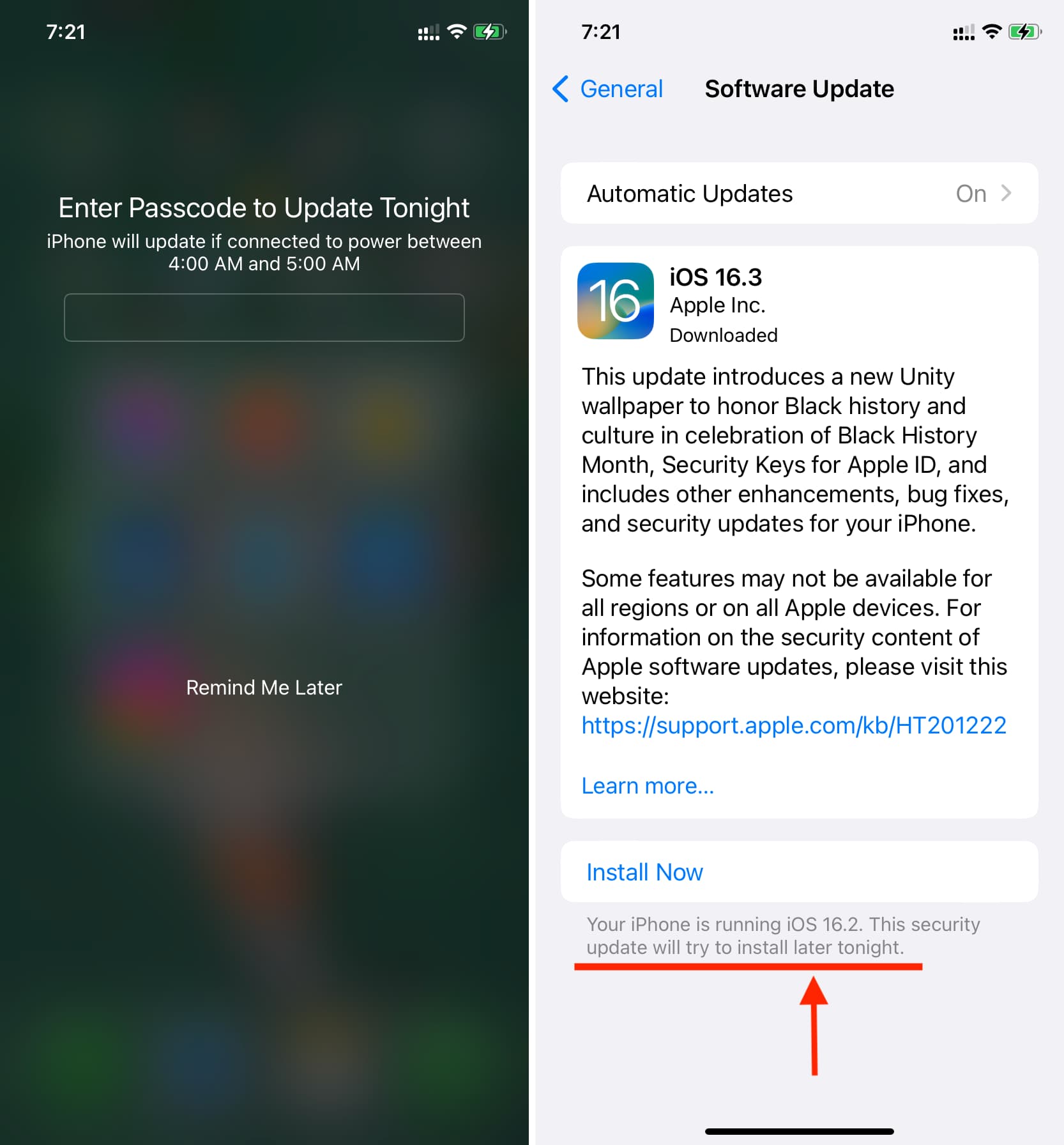
Note: If you choose the Remind Me Later option from the alert, your iPhone or iPad will periodically remind you to install the update.
At what time does iOS schedule updates?
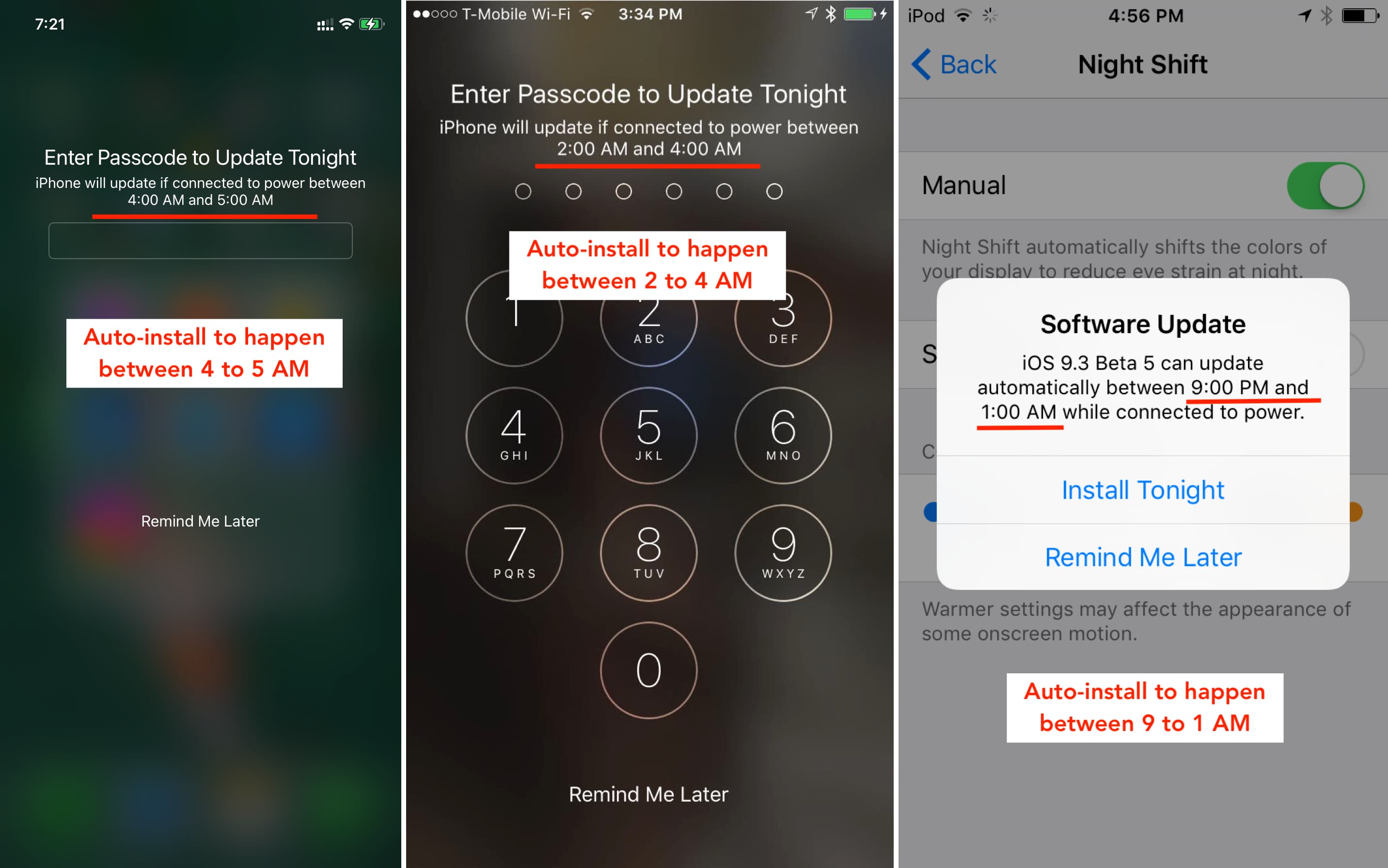
iOS picks the right time to install the scheduled update based on how you use your device. As evidenced by the screenshot below taken on my iPod touch, iOS wants to install the latest update between 9 PM and 1 AM, when I’m usually not using the device. On my iPhone, however, it’s decided that the best update timeframe would be between 4 AM and 5 AM, when I’m guaranteed to be asleep.
What do you think of this handy feature? Do you schedule iOS updates or install them as soon as you see the alert? Let us know in the comments down below!
Check out next: