Tips

How to add more Notification Center widgets on Mac

Like its iOS counterpart, Notification Center for Mac comes bundled with several stock Today widgets to get you started. However, it's possible to add third-party widgets to Notification Center's Today View by means of the Mac App Store and via direct download. Inside, we'll highlight how to add new widgets to Notification Center along with several widget recommendations.

How to quickly toggle dark mode using a keyboard shortcut on Mac

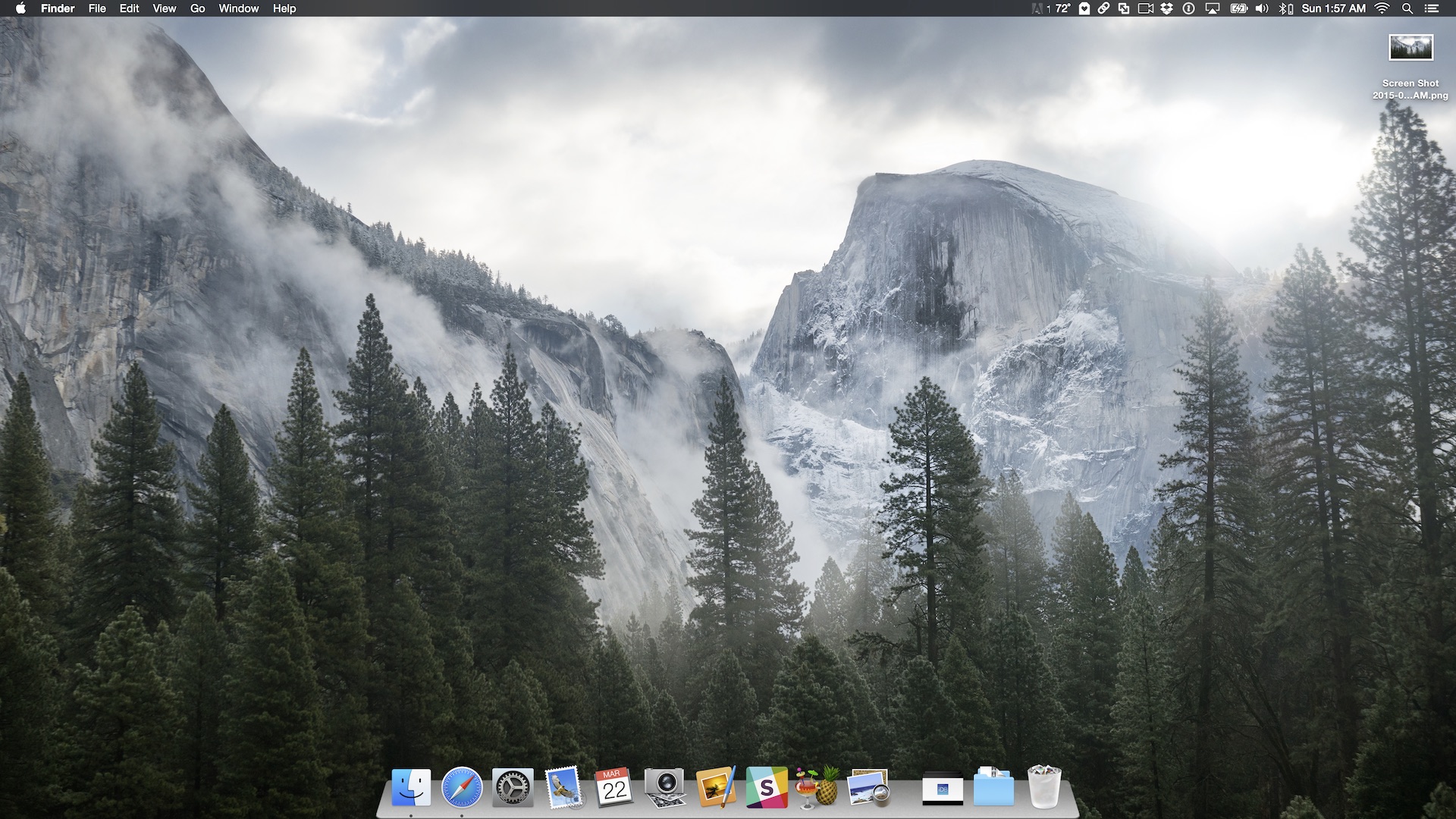
Dark mode is one of the more popular features of OS X Yosemite, because it allows you to add a dark tint to both the dock and the menu bar on Mac. The standard way to enable dark mode involves venturing to System Preferences, opening the General section, and clicking on the enable dark mode option. But wouldn't it be cool if you could toggle dark mode using a simple keyboard shortcut?

How to make third-party menu bar icons look better with dark mode on Mac

OS X Yosemite introduced a new dark mode option to change the tint color of both the menu bar and the dock in OS X. While I'm a big fan of dark mode, some of the third-party apps that I use have not been updated to play nice with dark mode. This results in menu bar icons that look weird with dark mode enabled, because they don't invert after toggling dark mode on.

If you're someone who always uses dark mode and never switches to regular mode, there is a way to force these menu bar icons to look better with dark mode enabled...

Empty Trash versus Secure Empty Trash – what’s the difference?

Did you know that there are actually two ways to empty the trash on your Mac? Perhaps you've seen both options before, but never gave it much thought. Just what is the deal with Empty Trash versus Secure Empty Trash? Which one should you use? By knowing what each empty trash command is capable of doing, you'll be able to make more informed future decisions with regard to handling your Mac's sanitation needs.

How to disable the camera on your Mac

Every Mac that Apple ships, sans the Mac mini, comes with an iSight camera embedded in the bezel at the top of the display. If my memory serves me correctly, Apple's computers were one of the first to really popularize the standardization of built-in cameras.

I'm probably not alone when I say that I rarely, if ever, use my MacBook Pro's iSight camera. In fact, it's become more of a worry to me when thinking about the potential hacking and privacy concerns. I'm far from a tin foil hat wearer, but I have to be honest and admit that the thought has crossed my mind before... you know, the one where hackers view my iSight camera unbeknown to me.

With all of that said, wouldn't it be nice if you could disable your Mac camera with a simple software tweak? Inside, I'll show you how to do just that.

Disable WhatsApp read receipts with this jailbreak tweak

WhatsApp recently introduced a new feature that automatically sends read receipts to the sender once the recipient has seen the message. Showing in the form of two blue check marks as seen in this screenshot above, this new feature could potentially raise privacy concerns for some users. If you don't want your contacts to know whether you've read their messages or not, there are a couple ways to disable WhatsApp read receipts.

How to disable Notification Center and Control Center on the Lock screen

By default, access to Notification Center and Control Center is available system-wide on iOS, meaning that you can access both features from the Lock screen, from the Home screen, and from any app. These two features are very convenient, but can also represent a security or privacy concern. With that in mind, iDB reader Eric asked us this morning on Twitter how to disable both grabbers for Notification and Control Center on the Lock screen. In this post we will show you how to do just that.

How to use “Hey Siri” without being connected to power

"Hey Siri" is a new feature in iOS 8 that makes it possible to invoke Siri using only your voice. It's nice for those moments when your hands are full or when your iPhone is across the room.

The only downside to "Hey Siri" is that your iPhone must be connected to a power source in order to use it. This restriction was placed there to save your iPhone's battery life.

But, there is a way to use Hey Siri without being connected to a power source. It's not as handy as using it while connected to power, but it's a nice workaround for those situations where you need hands-free control.