News

Apple launches macOS High Sierra public beta

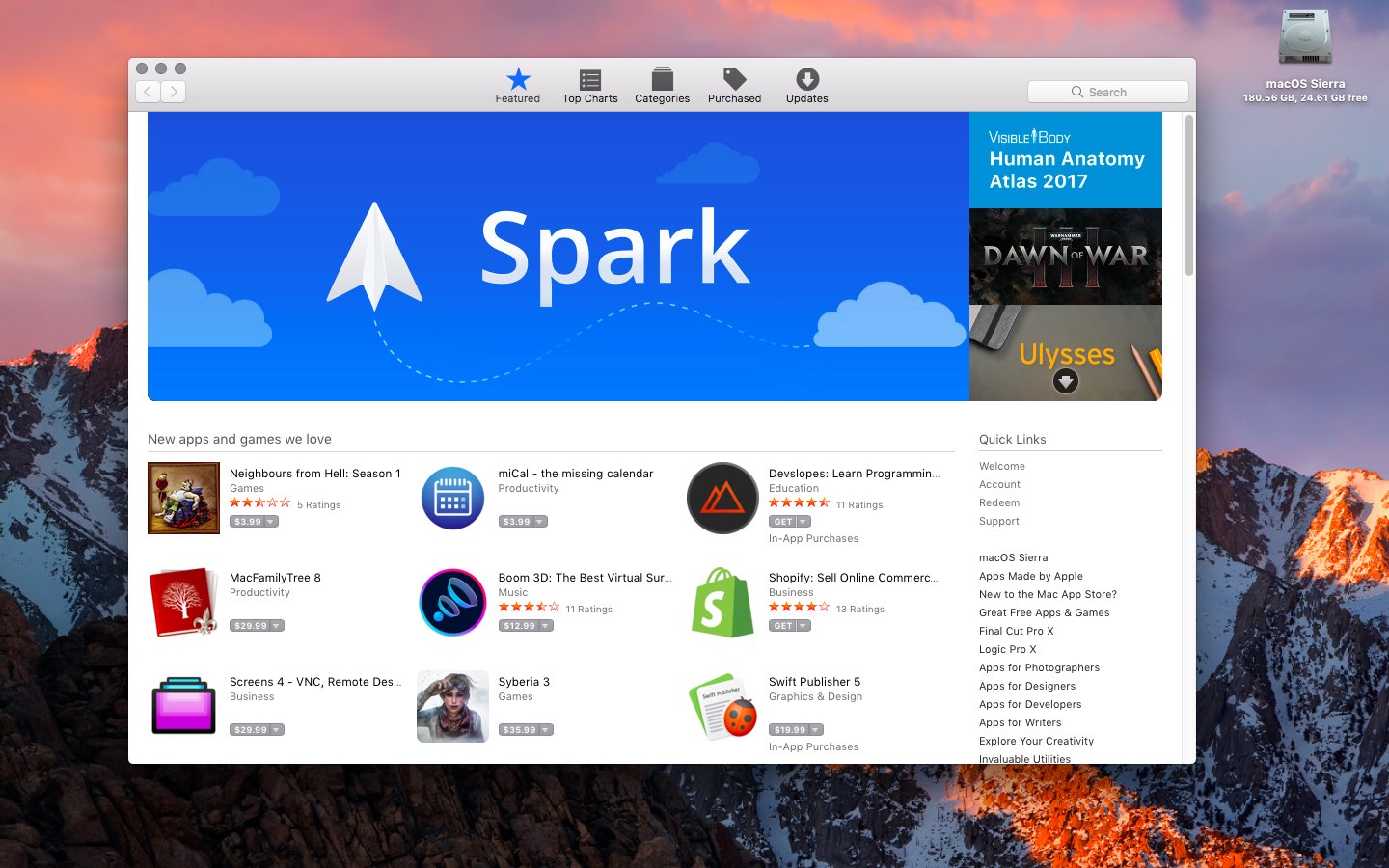
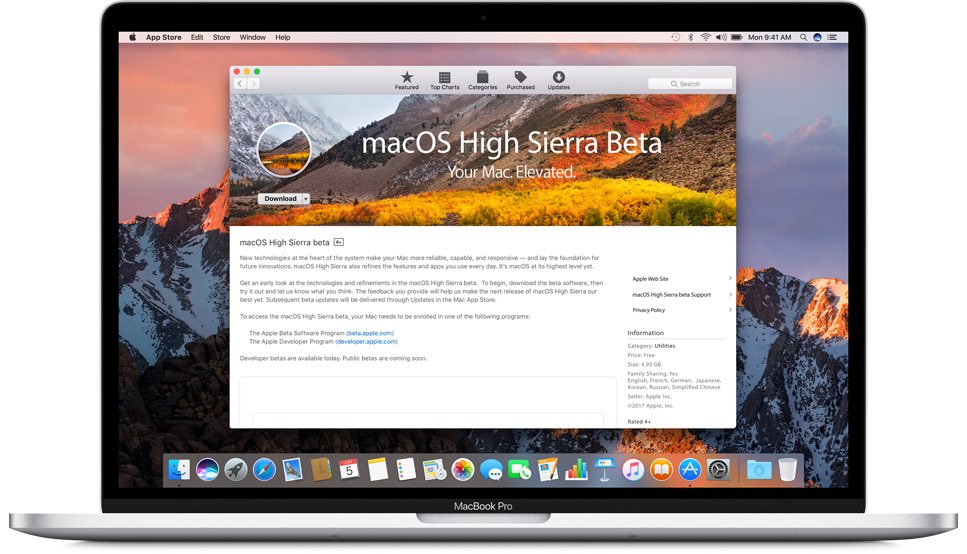
Three days after it launched public betas of iOS 11 and tvOS 11, Apple on Thursday released the macOS High Sierra public beta. This means that anyone can now take this pre-release version of Apple's latest and greatest desktop operating system for a spin, including those who are not registered developers.

Needless to say, you're wholeheartedly recommended to perform a full backup of your Mac before installing the public beta, just in case something goes wrong.

Better yet, install it on a separate partition on your Mac's startup disk or to an external drive. To get the beta, you must enroll in Apple's Beta Software Program with your Apple ID at beta.apple.com. Then, click the link “Enroll Your Devices” and follow the instructions.

You may want to check out the official macOS High Sierra system requirements before proceeding with the installation of the public beta on your system.

You'll need to download the macOS Public Beta Access Utility, which will change your Mac App Store settings in System Preferences so that your Mac can receive beta software updates.

As a last step, launch Mac App Store on your computer, find the macOS public beta, then click the Get button to install the public beta on your computer.

Because your Mac is enrolled in the beta program, you will receive a notification whenever a subsequent update is available and can install it from Mac App Store's Updates pane.

Will you be testing High Sierra and what's your strategy and approach to installing a beta OS on your computer? Also, what are your favorite features in High Sierra so far?

Let us know by posting a comment below!

How to stop iCloud Photo Library from eating into your iPhone’s cellular data plan

iCloud Photo Library is an optional feature on iPhone, iPad, iPod touch and Mac that uploads every photo and video you take or import to iCloud and keeps everything synchronized across all your Apple gear. I've been using it for years and it really “just works”.

On iOS 10 and earlier, Photos syncs with iCloud each time your device connects to Wi-Fi and the battery is charged. On iOS 11 and later, Photos can also use your iPhone's cellular data connection to sync and update the image library.

Do you take many photos on the go? Are you on a metered rather than an unlimited plan? Then you don't need me to tell you that you must ensure you're not wasting huge amounts of cellular data to this feature.

Here's how to stop the Photos app from eating into your iPhone's cellular data plan.

Before we get to it, keep in mind the following:

iOS 10 and earlier—Your Photos library syncs with iCloud each time your device connects to Wi-Fi and the battery is charged. iOS 11 or later—You decide if Photos syncs with iCloud via cellular or Wi-Fi only.

In other words, you should double-check that cellular updates for iCloud Photo Library are turned off only if you're on iOS 11 or later. Folks on older iOS editions needn't do that because Photos syncs with iCloud only when their iPhone is connected to power and Wi-Fi.

How to stop iCloud Photo Library on iPhone from using cellular data

12-megapixel images and 4K videos captured on your iPhone take up quite a bit of storage space. For most people, there's no point allowing iOS to gobble up cellular data just to keep the image library synchronized with iCloud at all times.

Thankfully, you can prevent this from happening, and here's how:

1) Launch the Settings app on your iPhone or cellular iPad.

2) Tap Photos in the list.

3) Tap Cellular Data.

4) Slide the button labeled Cellular Data to the OFF position.

This device will no longer use your carrier's cellular data for updating the Photos library. Any changes to your image library will automatically upload to iCloud as soon as the device connects to power and Wi-Fi.

TIP: If you really need Photos to be in perfect sync with iCloud at all times, even on the go, via cellular and Wi-Fi, be sure to slide the toggle labeled Unlimited Updates to the ON position.

The feature's description says “unlimited updates may cause you to excess your quota“.

Need help? Ask iDB!

If you like this how-to, pass it along to your support folks and leave a comment below.

Got stuck? Not sure how to do certain things on your Apple device? Let us know via help@iDownloadBlog.com and a future tutorial might provide a solution.

Submit your how-to suggestions via tips@iDownloadBlog.com.

Instagram launches stickers for Independence Day and Canada Day

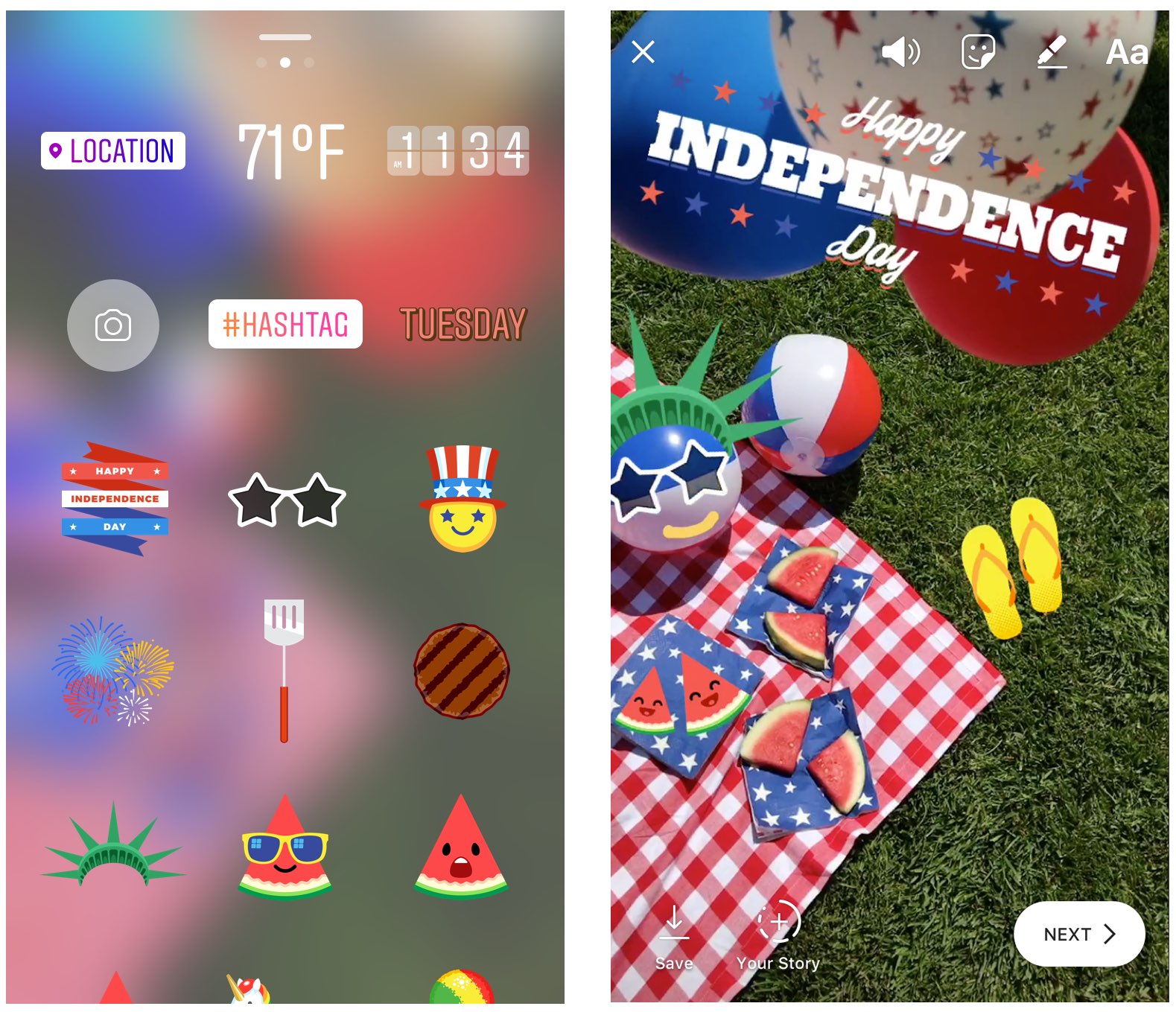
Instagram during the weekend launched stickers in its mobile app for iPhone and iPad which are dedicated to the 4th of July holiday and Canada Day celebrations across North America.

Instagram users in the United States can celebrate Independence Day by posting a Story adorned with one of the stickers in the app's new star-spangled sticker pack, ranging from backyard BBQs to fireworks at night.

Canadians get a sticker to celebrate Canada Day, available in both English and French.

The sticker was designed by Jenn Kitagawa, a multidisciplinary artist and illustrator who grew up in the prairies of Alberta and currently lives in Toronto.

Instagram is available at no charge on App Store.

First aftermarket CarPlay wireless receiver from Alpine now available

The car audio and navigation systems company Alpine today announced that its first aftermarket CarPlay wireless receiver, dubbed iLX-107, is now available for purchase in the United States, priced a bit on the high side at $900 a pop.

“The award-winning iLX-107 wireless Apple CarPlay system offers even more convenience in accessing Maps, Phone, Messages and Music from the iPhone in-vehicle without ever needing to connect a cable,” the company notes.

The unit packs a seven-inch VGA revolution capacitive touchscreen in a mech-less body. It integrates with rear view camera systems and your car's steering wheel controls.

The conveniently located Volume, Track, Home and Siri hard keys are accessible for quick access and simple control.

Alpine was one of the first firms to offer aftermarket CarPlay receivers for owners of older vehicles than lack CarPlay integration. However, today's new is significant as the iLX-107 represents their first aftermarket CarPlay receiver that supports wireless connections.

This lets you use CarPlay with your iLX-107 without needing to connect an iPhone via a USB cable. To set it up, you just pair your wireless Apple CarPlay unit from your iPhone. Of course, wired connectivity via the standard Lightning cable is supported, too.

Connecting an iPhone to your iLX-107 via a Lightning cable for the first time automatically sets up wireless connectivity, which is great. The accessory uses the 5 GHz Wi-Fi band to optimize wireless connectivity performance, Alpine has said.

While Alpine does not sell the new receiver directly, you can purchase it from a network of authorized dealers who won't just sell you the accessory but install it for you as well.

Check out Alpine's store locator online tool to find a dealer nearest to your location.

Wireless CarPlay requires iOS 8.3 or later.

Classic cartoon streaming service Boomerang hits Apple TV

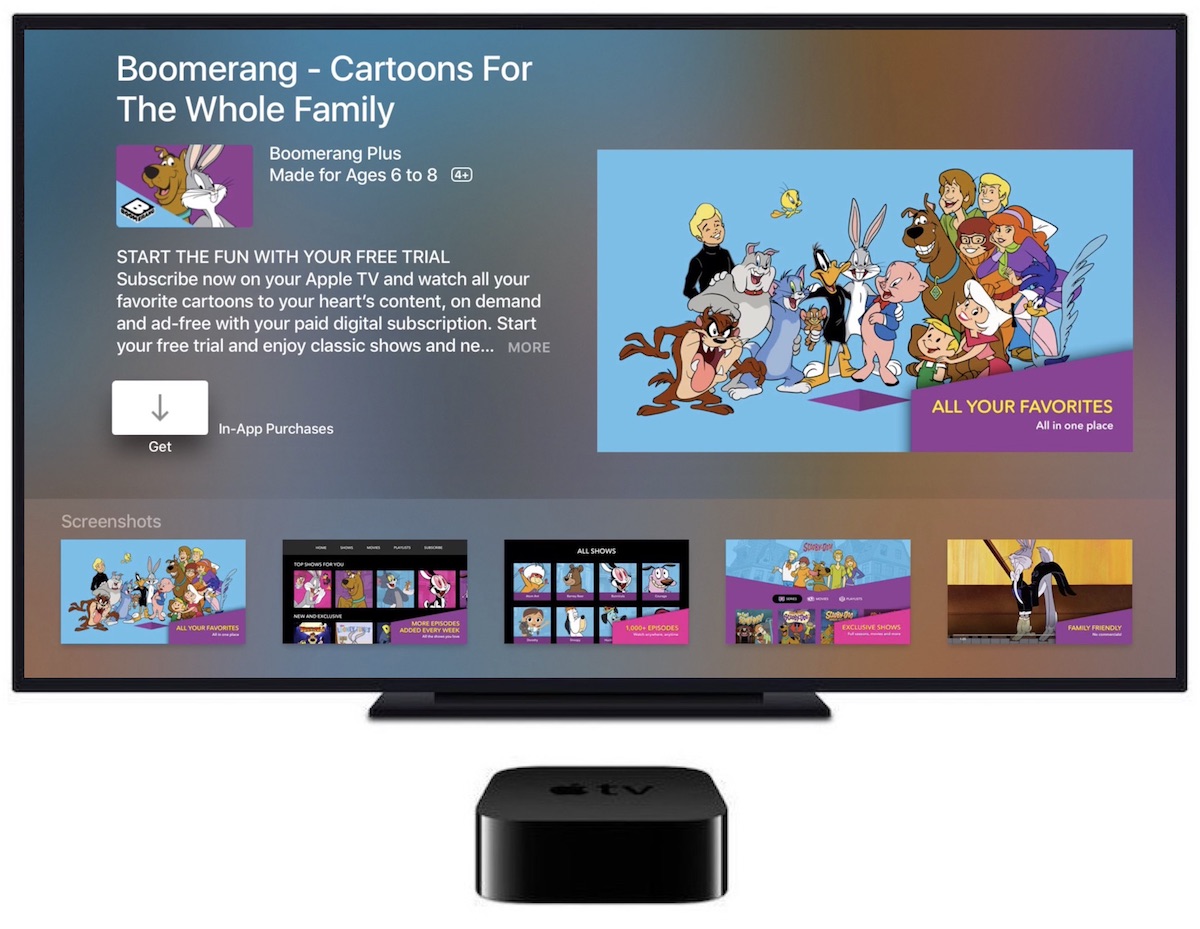
The cartoon service Boomerang on Thursday announced the release of a streaming app for the fourth-generation Apple TV, bringing classic cartoons like Wacky Races, Yogi Bear, Scooby-Doo and many others to Apple's set-top box.

The service is also adding support for Google's Chromecast and Amazon's Fire TV HDMI dongles. Roku devices will be added in the coming weeks.

Boomerang originally launched its premium video subscription service in April.

You can subscribe to Boomerang for $5 per month, or $40 per year, to access exclusive shows and new episodes of cartoons, as well as enjoy Boomerang's on-demand archive of 5,000+ movies and TV shows from Hanna-Barbera, Looney Tunes and MGM animation catalogs.

A 7-day free trial of Boomerang is available.

Boomerang also launched the new original series “Dorothy and the Wizard of Oz from” Warner Bros. Animation, with the first thirteen episodes now available for streaming via their service.

The app's App Store description notes that Boomerang is only accessible in the United States “where a high-speed broadband connection is available” (well, I live in Croatia and we have a very high-speed broadband over here as well).

Download Boomerang for iPhone, iPad and Apple TV from App Store.

High Sierra will be last macOS release to support 32-bit apps “without compromise”, says Apple

We know that iOS 11 marks the end of the road for legacy 32-bit apps and now we're learning about Apple's new 64-bit requirement for Mac apps.

In an advisory on Dev Center yesterday, the Cupertino giant announced that macOS High Sierra will be the last macOS release to support 32-bit apps “without compromise.”

Apple originally said at the Worldwide Developers Conference that macOS apps submitted to Mac App Store must support 64-bit computing starting January 2018. The new advisory states that Mac app updates and existing apps must support 64-bit starting June 2018.

“If you distribute your apps outside Mac App Store, we highly recommend distributing 64-bit binaries to make sure your users can continue to run your apps on future versions of macOS,” reads Apple's note to developers.

In a separate notice, the company reminded developers to submit updates to their 32-bit apps because iOS 11 is 64-bit only. ”Support for 32-bit apps is not available in iOS 11 and all 32-bit apps previously installed on a user’s device will not launch,” reads the note.

Two days ago, Apple asked developers to update their product pages for iOS 11’s redesigned App Store.

Apple (again) reminds developers that iOS 11 won’t run 32-bit apps

Following the iOS 11 public beta release, Apple has reminded developers that iOS 11 will be 64-bit only. The notice posted yesterday on Apple's Dev Center cautions that all 32-bit apps previously installed on users’ devices will not launch after they upgrade to iOS 11.

“As a reminder, new iOS apps and updates submitted to the App Store must support 64-bit,” reads the notice. Apple recommends that developers who haven’t updated their apps to support 64-bit submit an update “so your users can continue to run your apps on iOS 11”.

TUTORIAL: How to identify 32-bit apps installed on your iPhone and iPad

Because iOS 11 is 64-bit only and doesn't support legacy 32-bit apps, users should experience a bit faster performance and fewer crashes. That's because iOS 11 will never need to load 32-bit frameworks, libraries and the kernel alongside their 64-bit counterparts needed to support legacy apps, which effectively strains the RAM and other resources.

https://www.youtube.com/watch?v=-hoPcMPvL88

Subscribe to iDownloadBlog on YouTube.

Apple’s Clips app already requires a 64-bit iOS device and iOS 11's new Files app is optimized for 64-bit computing, too. Starting with iOS 10.3, Apple began naming and shaming legacy apps via a new App Compatibility section in Settings → General → About → Applications.

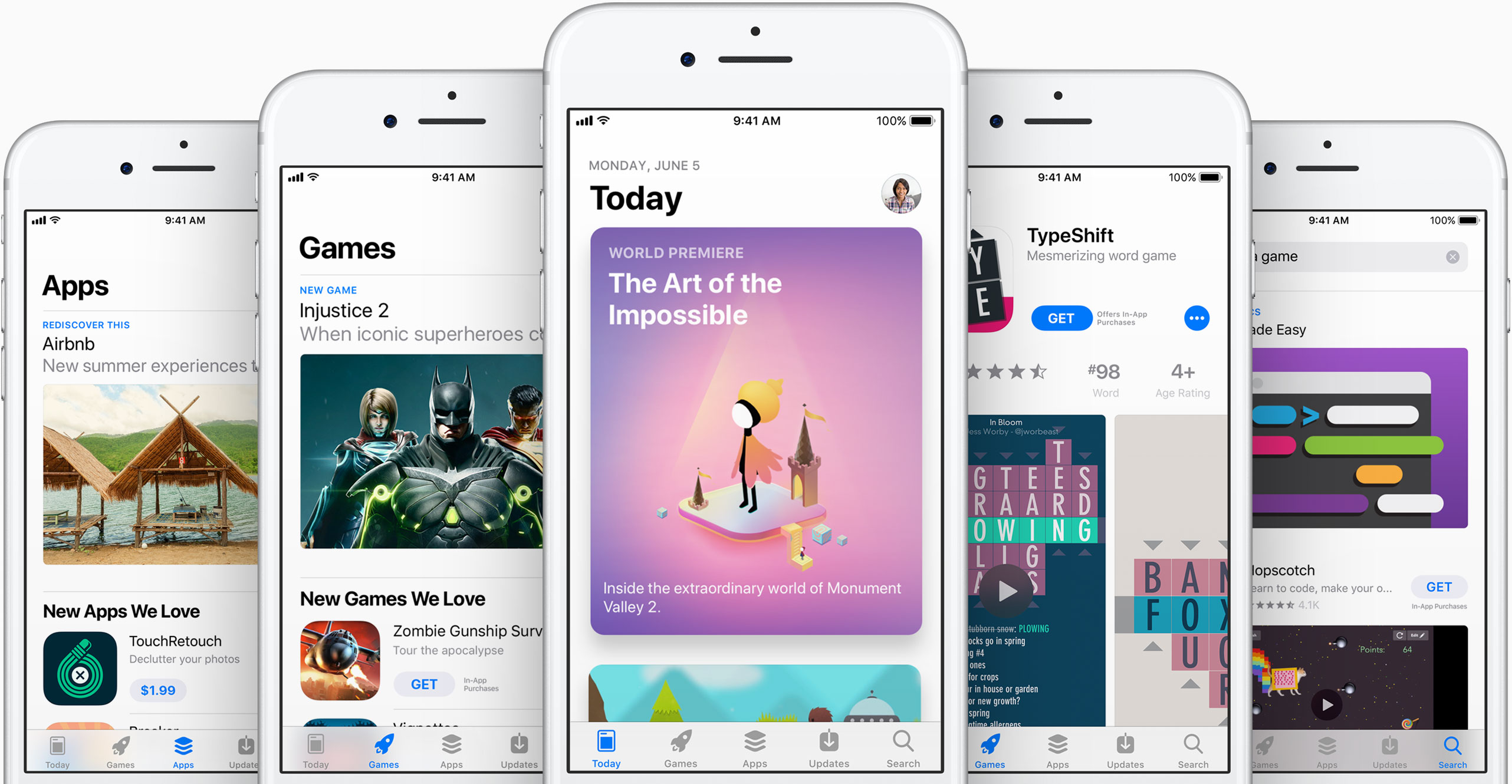
The new advisory regarding 32-bit apps was posted just a day after the company invited developers to update their product pages on App Store for iOS 11's much-improved, thoroughly redesigned App Store.

iOS 11 will be in the hands of “hundreds of millions of customers” this fall.

Instagram unveils offensive comment filter, anti-spam tool in 9 languages

Instagram today announced some much-needed new tools to help users of its mobile app enjoy the service without toxic comments and spam. One is a new filter designed to block certain offensive comments and the other is basically a spam filter supporting nine languages.

Instagram claims that the pair of newly announced tools at their users' disposal will help keep the service a safe place for self-expression and inclusive communities.

Clamping down on toxic comments is now easier with the comment filter that automatically blocks certain offensive comments on your published posts, as well as in live video.

The new offensive comment filter is in addition to Instagram's existing arsenal of tools, like comment reporting, account blocking and so forth. To access this automatic filter, tap Instagram's “...” menu from your profile, then tap the new Comments option.

“We’ll launch this comment filter in English first, but will offer it in more languages over time,” notes the Facebook-owned company. The filter is optional and can be turned off at any time.

To help fight spam, Instagram is rolling out another new filter. Powered by machine learning, it looks for any obvious spam in comments and blocks it from your posts and live videos.

According to Instagram:

Our team has been training our systems for some time to recognize certain types of offensive and spammy comments so you never have to see them. The tools will improve over time, enabling the community’s experience of sharing to improve as well. We hope to make these filters available in more languages as our algorithms improve.

At launch, this dedicated filter will remove spam written in a total of nine languages—English, Spanish, Portuguese, Arabic, French, German, Russian, Japanese and Chinese—with additional language support to be implemented in the future.

Instagram is available free of charge via App Store.

New video provides one of the best looks yet at iPhone 8 dummy unit

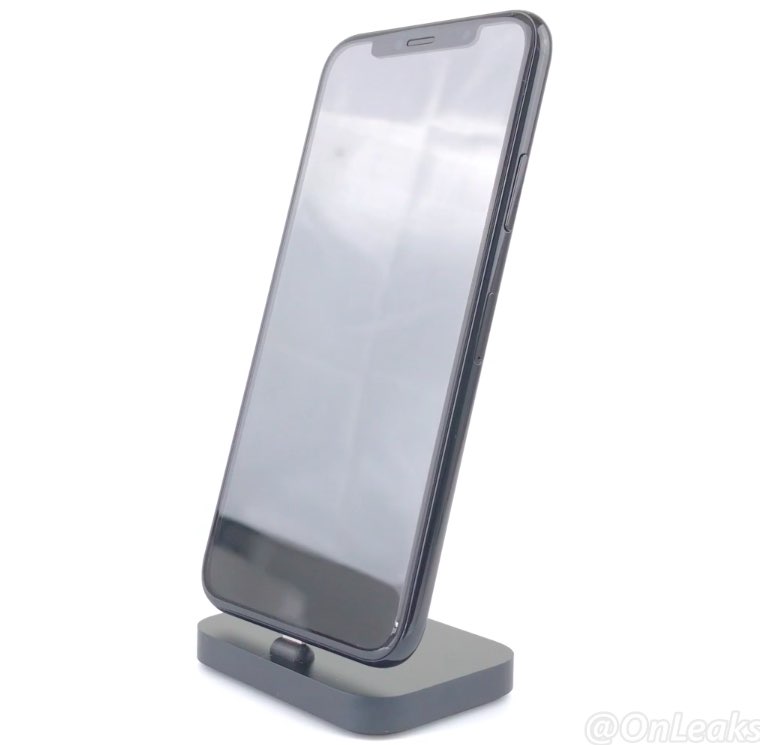
A new video that surfaced yesterday offers an up-close look, one of the clearest yet, at the prospective design of Apple's OLED-based iPhone 8. Shared by Steve Hemmerstoffer of OnLeaks, in partnership with Tiger Mobiles, the clip depicts a dummy device with a nearly full-screen face protected by a curved 2.5D glass cover.

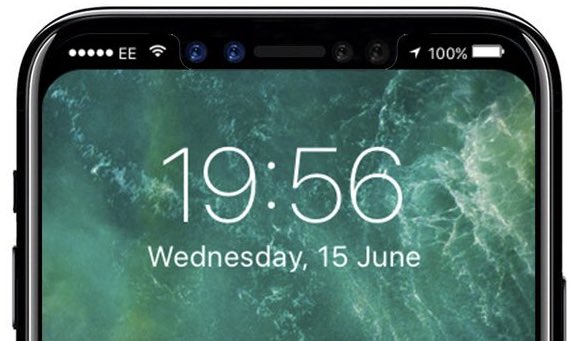
The dummy unit has minimal side bezels. A Touch ID fingerprint sensor is built into the display and there's an area at the top of the display that will presumably accommodate the front-facing FaceTime camera along with a 3D sensor and potentially other sensors.

On the back, we see a vertically aligned dual-lens camera system like on prior leaks. The dummy unit measures 144mm long, 71mm wide and 7.5mm thick without the camera bump (with the bulge included, the thickness increases to 9.1mm).

And here's the video.

https://www.youtube.com/watch?v=pW1gx086ZxU

This particular iPhone 8 dummy unit is a CNC mockup manufactured based on CAD files that were posted to Twitter back in April. Because it's just a mockup based on the months-old CAD files and design schematics that have been circulating on the web for quite some time now, it may or may not be representative of the real iPhone 8 design.

Some users are having issues with Apple’s iCloud Backup service

Apple today acknowledged ongoing issues with iCloud backups, noting on its System Status webpage that a small percentage of customers have been unable to create new iOS device backups in iCloud or restore from previous saves since Tuesday morning.

“Users may be unable to restore from an iCloud backup,” reads Apple's notice.

According to the System Status webpage, less than one precent of Apple users are affected by the outage. Given the company's one billion active devices in the wild, that seemingly small percentage potentially translates into tens of millions of affected customers.

The company states that its iCloud Backup service has been down since 8am Pacific on Tuesday. The downtime had persisted at the time of this writing, but other iCloud systems didn't seem to have been affected.

Are you experiencing issues creating iCloud backups or restoring from previous ones?

Could this be the new iPhone 8 wireless charging chime?

Unlike iPhone, iPad and iPod touch, your Apple Watch plays its own charging sound when placed on its magnetic charging disk. Going by same logic, iPhone 8 should play a distinctively unique charging chime when connected to its wireless charger.

Polish YouTube user “MAKS+” claims to have discovered a brand new charging sound file in the latest beta of iOS 11. To be sure, there's no way of telling if it signifies a new wireless charging chime for iPhone 8.

https://www.youtube.com/watch?v=xAgpgtgrh88

As you can clearly tell yourself by listening to both sounds in the video above, the new wireless charging chime in the file named “engage_power.caf” does sound distinctively different compared to the regular charging sound in the audio file named “connect_power.caf”.

Don't get your hops up high: as noted by MacRumors, there are several other sound files in iOS 10 and 11 that are unused and do not have a purpose.

Put simply, there's really no way to confirm if this particular sound has been added as the new audible indicator that an iPhone 8 has been placed on an inductive wireless charger.

Thoughts?

New demos show how easy it is to bring 3D models to life with ARKit

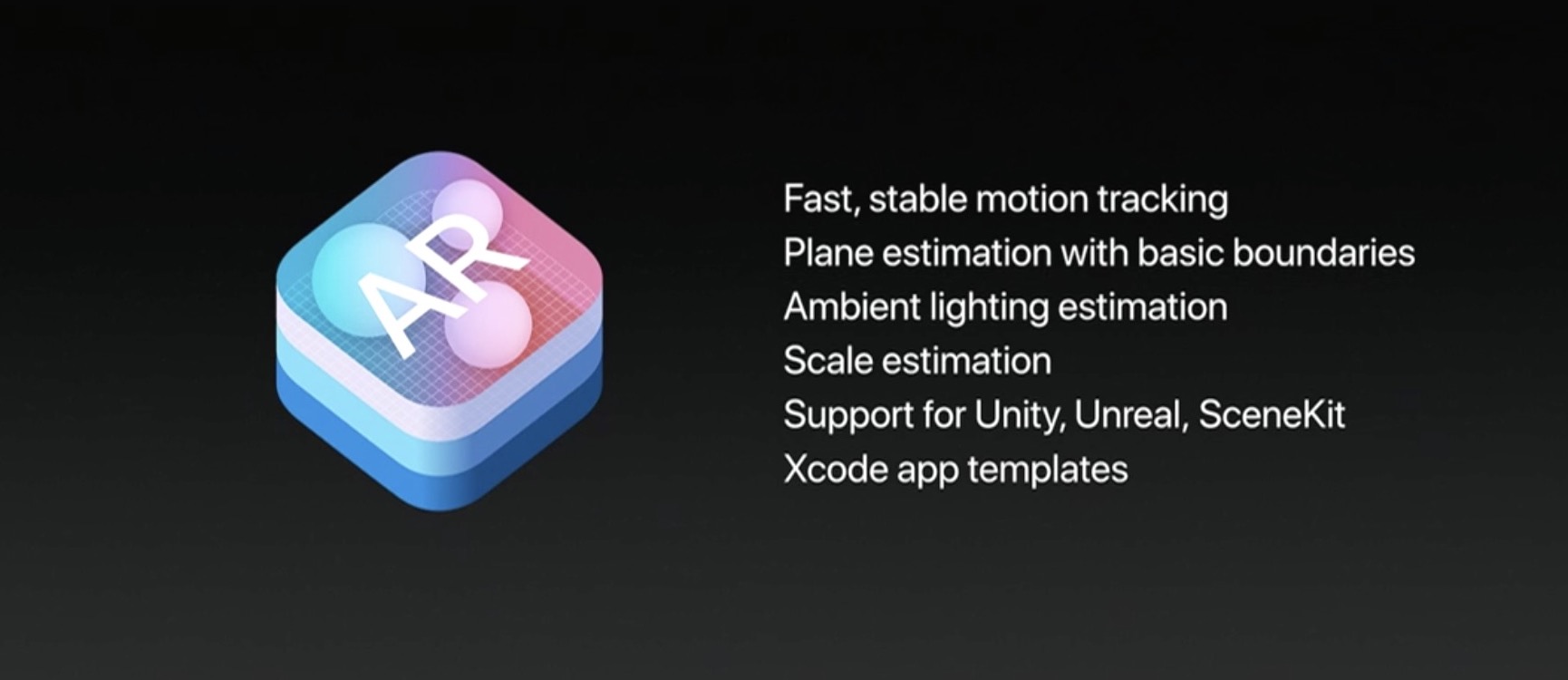
One of the best aspects of ARKit, Apple's new framework for building augmented reality apps, is the fact that it does all the incredibly complex heavy lifting like detecting room dimensions, horizontal planes and light sources, freeing up developers to focus on other things.

ARKit analyzes the scene presented by the camera view, in real time.

Combined with sensor data, it is able to detect horizontal planes, such as tables and floors, as well as track and place objects on smaller feature points with great precision.

And because it uses the camera sensor, ARKit can accurately estimate the total amount of light available in a scene to apply the correct amount of lighting to virtual objects.

First, check out this demo from Tomás Garcia.

https://www.youtube.com/watch?v=1G2YbQuQHps

Children's bedtime stories will never be the same come this fall!

Another developer has put together a quick demo showing off his AI bot, named “Pepper”.

https://www.youtube.com/watch?v=brFKo_tSkw8

According to the video's description:

I've been working on an AI bot for a while now. To be short, it's like V.I.K.I in the movie “I, Robot”. With the help of ARKit, I was able to bring it close to a real life assistant.

Due to obvious reasons, I'm not demonstrating her functionality in this video. So I ended up showing you guys how easy and simple it is to bring 3D models to life with Apple's new framework.

These videos clearly demonstrate how easy ARKit makes it for developers to match the shadows of their virtual objects to lighting conditions in the real world.

https://www.youtube.com/watch?v=lQt96saECfM

Here are some additional ARKit-enabled demos.

https://www.youtube.com/watch?v=-o7qr1NpeNI


https://www.youtube.com/watch?v=sJR_f7XCuvA


https://www.youtube.com/watch?v=lQt96saECfM

ARKit requires A9 or A10 processors, meaning ARKit apps will require an iPhone 6s or newer or one of the latest iPad Pro models, either the 9.7-inch or the 10.5-inch one.

If anything, these videos demonstrate just how easy Apple has made it to put together an AR app. Are you looking forward to ARKit, and why? Leave a comment below to let us know.