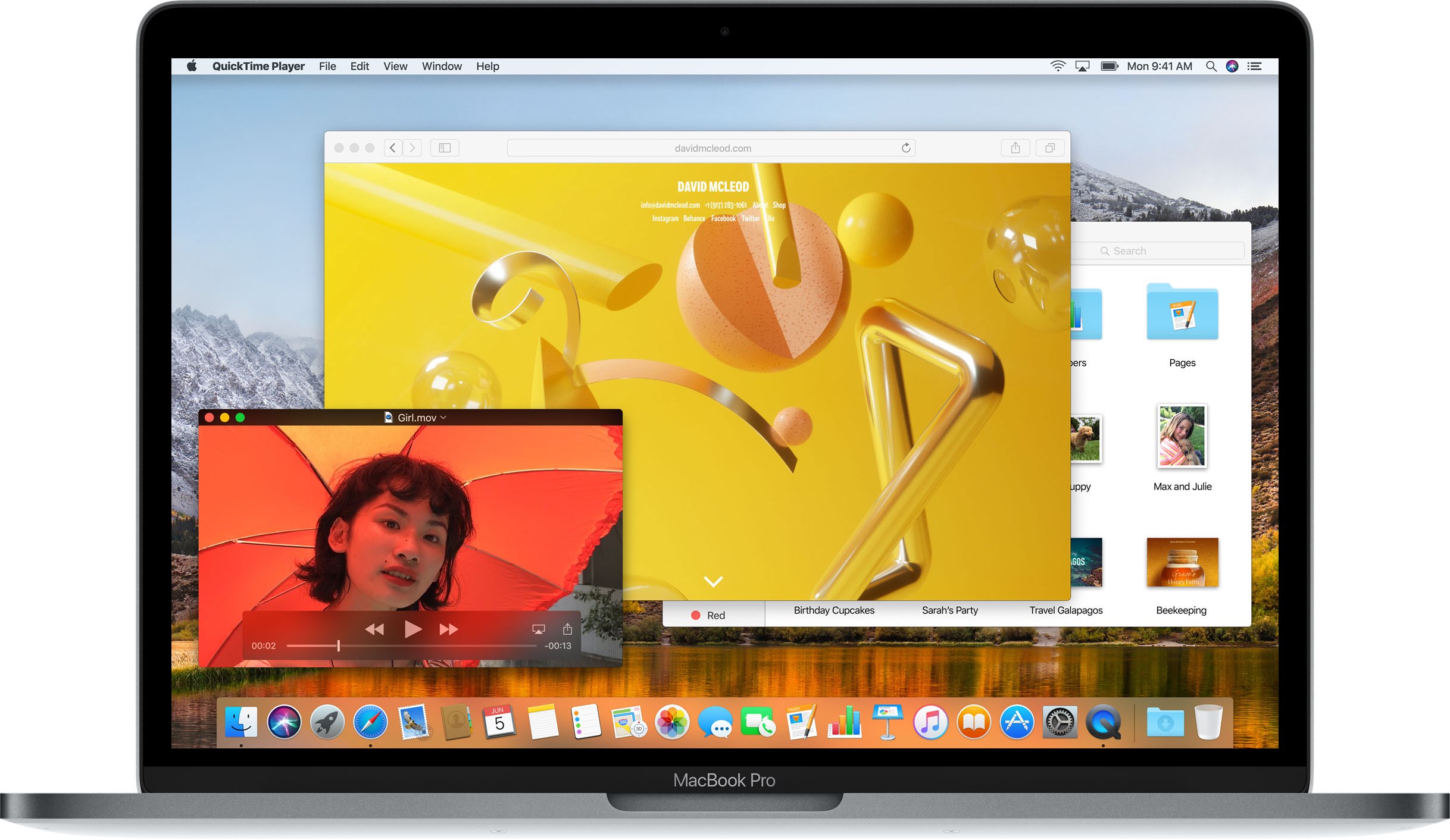
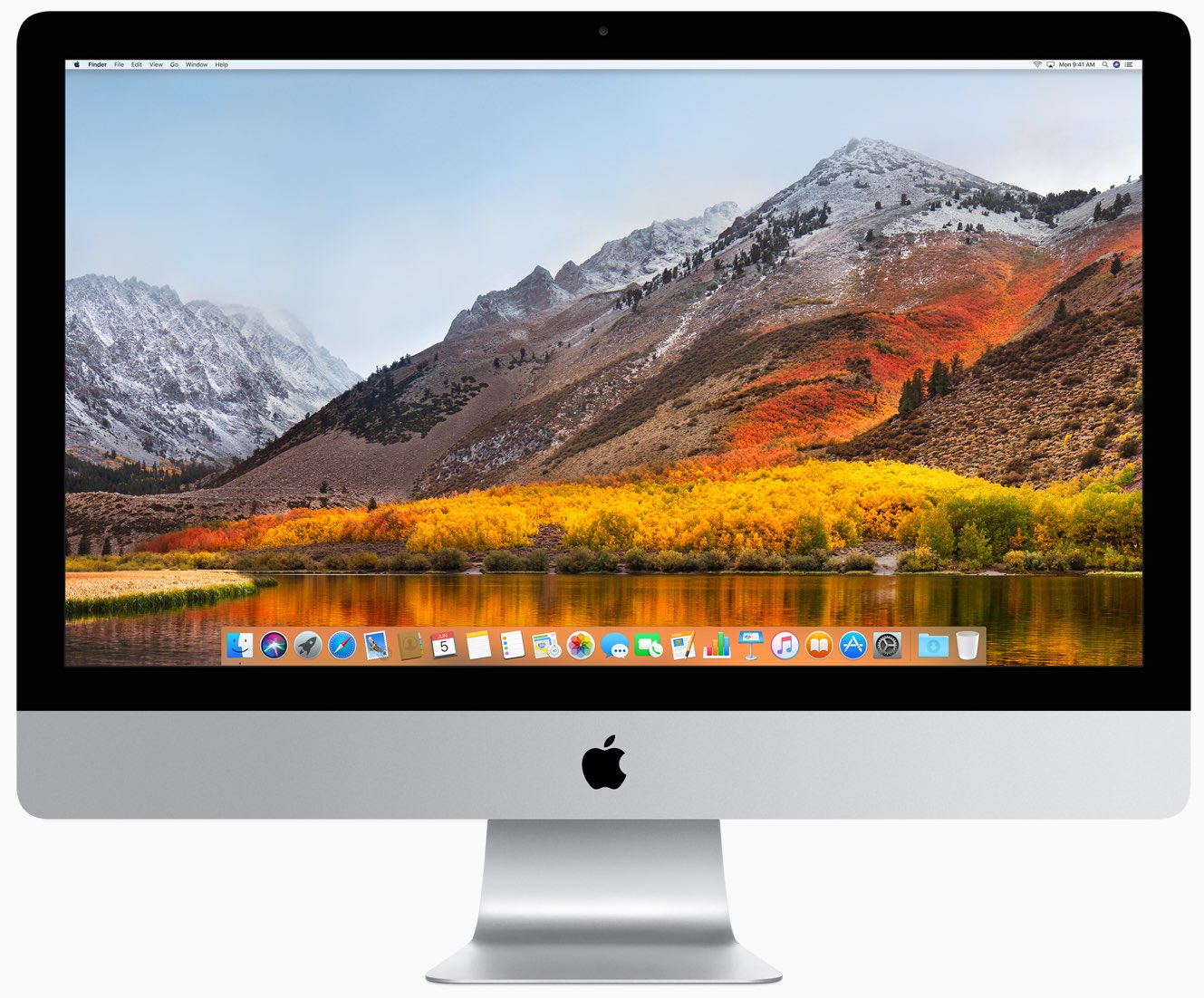
The macOS High Sierra beta is now well under way and many users have been giving it a test run to see what they make of it. However, it's still pretty far from ready for mission-critical applications, and many bugs remain. If you've had enough of the beta experience for now and want to go back to the standard macOS 10.12 Sierra, then read on!
Mac
Stay up-to-date on the latest Mac news, and tutorials. Get expert tips and tricks to optimize your Mac’s performance and learn about the latest Apple products and software updates. Discover the best Mac apps and accessories to enhance your user experience.
Apple launches macOS High Sierra public beta
Three days after it launched public betas of iOS 11 and tvOS 11, Apple on Thursday released the macOS High Sierra public beta. This means that anyone can now take this pre-release version of Apple's latest and greatest desktop operating system for a spin, including those who are not registered developers.
Needless to say, you're wholeheartedly recommended to perform a full backup of your Mac before installing the public beta, just in case something goes wrong.
Better yet, install it on a separate partition on your Mac's startup disk or to an external drive. To get the beta, you must enroll in Apple's Beta Software Program with your Apple ID at beta.apple.com. Then, click the link “Enroll Your Devices” and follow the instructions.
You may want to check out the official macOS High Sierra system requirements before proceeding with the installation of the public beta on your system.
You'll need to download the macOS Public Beta Access Utility, which will change your Mac App Store settings in System Preferences so that your Mac can receive beta software updates.
As a last step, launch Mac App Store on your computer, find the macOS public beta, then click the Get button to install the public beta on your computer.
Because your Mac is enrolled in the beta program, you will receive a notification whenever a subsequent update is available and can install it from Mac App Store's Updates pane.
Will you be testing High Sierra and what's your strategy and approach to installing a beta OS on your computer? Also, what are your favorite features in High Sierra so far?
Let us know by posting a comment below!
How to stop iCloud Photo Library from eating into your iPhone’s cellular data plan
iCloud Photo Library is an optional feature on iPhone, iPad, iPod touch and Mac that uploads every photo and video you take or import to iCloud and keeps everything synchronized across all your Apple gear. I've been using it for years and it really “just works”.
On iOS 10 and earlier, Photos syncs with iCloud each time your device connects to Wi-Fi and the battery is charged. On iOS 11 and later, Photos can also use your iPhone's cellular data connection to sync and update the image library.
Do you take many photos on the go? Are you on a metered rather than an unlimited plan? Then you don't need me to tell you that you must ensure you're not wasting huge amounts of cellular data to this feature.
Here's how to stop the Photos app from eating into your iPhone's cellular data plan.
Before we get to it, keep in mind the following:
iOS 10 and earlier—Your Photos library syncs with iCloud each time your device connects to Wi-Fi and the battery is charged. iOS 11 or later—You decide if Photos syncs with iCloud via cellular or Wi-Fi only.In other words, you should double-check that cellular updates for iCloud Photo Library are turned off only if you're on iOS 11 or later. Folks on older iOS editions needn't do that because Photos syncs with iCloud only when their iPhone is connected to power and Wi-Fi.
How to stop iCloud Photo Library on iPhone from using cellular data12-megapixel images and 4K videos captured on your iPhone take up quite a bit of storage space. For most people, there's no point allowing iOS to gobble up cellular data just to keep the image library synchronized with iCloud at all times.
Thankfully, you can prevent this from happening, and here's how:
1) Launch the Settings app on your iPhone or cellular iPad.
2) Tap Photos in the list.
3) Tap Cellular Data.
4) Slide the button labeled Cellular Data to the OFF position.
This device will no longer use your carrier's cellular data for updating the Photos library. Any changes to your image library will automatically upload to iCloud as soon as the device connects to power and Wi-Fi.
TIP: If you really need Photos to be in perfect sync with iCloud at all times, even on the go, via cellular and Wi-Fi, be sure to slide the toggle labeled Unlimited Updates to the ON position.
The feature's description says “unlimited updates may cause you to excess your quota“.
Need help? Ask iDB!If you like this how-to, pass it along to your support folks and leave a comment below.
Got stuck? Not sure how to do certain things on your Apple device? Let us know via help@iDownloadBlog.com and a future tutorial might provide a solution.
Submit your how-to suggestions via tips@iDownloadBlog.com.
High Sierra will be last macOS release to support 32-bit apps “without compromise”, says Apple
We know that iOS 11 marks the end of the road for legacy 32-bit apps and now we're learning about Apple's new 64-bit requirement for Mac apps.
In an advisory on Dev Center yesterday, the Cupertino giant announced that macOS High Sierra will be the last macOS release to support 32-bit apps “without compromise.”
Apple originally said at the Worldwide Developers Conference that macOS apps submitted to Mac App Store must support 64-bit computing starting January 2018. The new advisory states that Mac app updates and existing apps must support 64-bit starting June 2018.
“If you distribute your apps outside Mac App Store, we highly recommend distributing 64-bit binaries to make sure your users can continue to run your apps on future versions of macOS,” reads Apple's note to developers.
In a separate notice, the company reminded developers to submit updates to their 32-bit apps because iOS 11 is 64-bit only. ”Support for 32-bit apps is not available in iOS 11 and all 32-bit apps previously installed on a user’s device will not launch,” reads the note.
Two days ago, Apple asked developers to update their product pages for iOS 11’s redesigned App Store.
How to let Siri sync data across all your Apple devices
Let Siri use iCloud to sync its machine learning data across all your Apple devices so you get an improved, uniform Siri experience, regardless of the iPhone, iPad, or Mac you use the voice assistant on.
Apple launches public betas of iOS 11 and tvOS 11
Following the June 5 release of developer-only previews of Apple's four main software platforms at the Worldwide Developers Conference, the Cupertino giant today released first public betas of iOS 11 and tvOS 11.
You must enroll in the official Apple Public Beta Software Program (available at no charge) and download a special configuration profile via the website beta.apple.com to your iPhone, iPad, or the fourth-generation Apple TV.
Sign in with your Apple ID through the website to get started. iOS 11 public beta has the same features as iOS 11 beta 2. The same goes for the tvOS 11 public betas.
After installing a configuration profile (click “Enroll Your Devices”), restart your iPhone, iPad, iPod touch or the fourth-generation Apple TV, then and use the built-in Software Update mechanism in the Settings app to download and install the public beta.
watchOS betas are not available to the general public.
https://www.youtube.com/watch?v=TZ5pwZMPRxI
Subscribe to iDownloadBlog on YouTube.
“If you were testing a prior operating system, please re-enroll your device to start testing the next release,” the company notes.
TUTORIAL: How to unenroll from Apple Beta Software Program
Be sure the check out the official system requirements for iOS 11 before installing their public betas. tvOS 11 requires a fourth-generation Apple TV.
Will you be taking iOS 11 and tvOS 11 for a spin, do you think? If so, what features are you looking forward to the most, and why?
Tell us in comments!
macOS High Sierra beta 2 rolling out
Apple today rolled out a second beta of macOS High Sierra to its registered developers and members of the Apple Developer Program. macOS High Sierra beta 2 is now available via the Updates tab on Mac App Store on your Mac that has an appropriate configuration profile installed, which can be obtained through Dev Center.
macOS High Sierra 10.3 beta 2 doesn't offer new features, but instead focuses on performance improvements and bug fixes.
The general public should soon have the chance to test-drive macOS High Sierra via the Apple Beta Software Program. macOS High Sierra debuted as a developer-only preview at Apple's Worldwide Developers Conference on June 5. The software update will exit beta and release publicly this fall.
Should you spot new user-facing features and other changes in macOS High Sierra beta 2, ping us on Twitter or shoot us an email via tips@iDownloadBlog.com. Feel free to attach any screenshots, if necessary. We'll be making sure to update the post with any relevant new information, as it becomes available.
Apple seeds fourth macOS Sierra 10.12.6 beta to developers
Apple on Monday released a fourth beta of what would become the sixth major update to macOS Sierra since its official debut last fall. The most recent macOS Sierra 10.12.6 beta 4 (build number 16G18a) is now available through Apple's Software Update feature via Mac App Store's Updates tab on any supported Mac with an appropriate configuration profile installed.
This new build is being released to Apple's registered developers and members of the Apple Developer Program. Public beta testers should see it popping up on their devices later today or tomorrow. When it releases later this summer, macOS Sierra 10.12.6 will be a mostly bug-fix update with security and performance improvements.
macOS Sierra 10.12.6 beta 4 arrived less than a week after the third beta dropped and more than a month after the bug-fix macOS Sierra 10.12.5 update released on Mac App Store.
Apple, of course, previewed macOS High Sierra at the Worldwide Developers Conference.
The next major version of the desktop operating system powering Macs, macOS High Sierra is currently available as a developer-only preview. It should hit Apple Beta Software Program later this month or in July, ahead of its official release this Fall.
Box introduces macOS client for its cloud syncing service
Cloud-storage service Box has (finally?) decided to provide a native macOS client app for its Apple customers. The new app, currently in public beta, is available at no charge at box.com/resources/downloads.
With the Box Drive app, users can access Box files on their Mac, natively integrated into the Finder, as well as easily share and collaborate on documents and more. You can edit like you would any local file and have the app save it automatically to the Box cloud, with the enterprise-grade security protecting everything you do.
According to the company, the app includes the following features:
The cloud doesn’t fit on your hard drive. While it's super convenient to sync files to your desktop, the amount of syncing you can actually do is limited by your hard drive space. So while you'd like to access ALL your files (especially your team files), more often than not, you end up syncing only a subset of your files, which limits the amount of work you can actually do straight from your desktop. Storing work on your desktop is risky business. IT teams have been pulling their hair out for years, because they haven’t had proper visibility or control over how files are being accessed, shared, and managed. Plus, if your computer was ever lost or stolen, there wasn’t much you could do about the work files that went along with it. Network files shares were great—20 years ago. Teams are clamoring for greater mobility, easier collaboration, and better compliance–and network shares just can’t keep up. Not to mention the constant maintenance, unpredictable growth, storage sprawl, and never-ending costs that come with them.https://www.youtube.com/watch?v=Hl6eKWkTYVI
Apple's new Files app on iOS 11 features built-in support for a number of cloud-storage service, including Box, Dropbox, Google Drive, OneDrive, iCloud Drive, Adobe Creative Cloud and more.
iWork apps gain editing improvements, 500 shapes & more in latest update
Apple's iWork productivity suite was updated today on Mac App Store and App Store with several new editing features and other improvements available across iPhone, iPad, iPod touch and Mac devices.
For starters, Pages, Numbers and Keynote for Mac, along with their iOS counterparts, now come with a brand new library of over 500 professionally drawn shapes that you can readily use in your documents, spreadsheets and presentations.
Across all the iWork apps, users can now reply to comments and join threaded conversations, making collaborative editing even easier than before, while new auto-correction and text replacement options save time while typing.
In Numbers, the new Insert Stock Quote feature and the Stock and Currency functions let you get data from the previous market day’s close. Keynote now lets you scroll like a pro on your Mac's trackpad with new pan and zoom options and your presenter notes can be edited while displaying slides in Light Table view.
Here's the full list of new features, fixes and enhancements in Pages 6.2, Numbers 4.2 and Keynote 7.2 for Mac, iPhone and iPad listed in release notes accompanying these downloads:
What's new in Pages 6.2 for Mac Enhance your documents using a library of over 500 professionally drawn shapes Reply to comments and join threaded conversations Add linked text boxes so text easily flows from one place to another New auto-correction and text replacement options save time while typing Export documents as fixed layout ePub books Change margins, headers, footers and paper size while collaborating Improved support for Hebrew and Arabic languagesLearn more about the new Pages for Mac features on Apple's website.
What's new in Numbers 4.2 for Mac Enhance your spreadsheets using a library of over 500 professionally drawn shapes Reply to comments and join threaded conversations Support for print preview in collaborative spreadsheets New auto-correction and text replacement options save time while typing The Insert Stock Quote feature and the Stock and Currency functions now return data from the previous market day’s closeLearn more about the new Numbers for Mac features on Apple's website.
What's new in Keynote 7.2 for Mac Enhance your presentations using a library of over 500 professionally drawn shapes Reply to comments and join threaded conversations New auto-correction and text replacement options save time while typing Scroll anywhere with new pan and zoom options Edit presenter notes while displaying slides in Light Table view Improved support for Hebrew and Arabic languages The Stock and Currency functions now return data from the previous market day’s closeLearn more about the new Keynote for Mac features on Apple's website.
What's new in Pages 3.2 for iOS Enhance your documents using a library of over 500 professionally drawn shapes Reply to comments and join threaded conversations Add linked text boxes so text easily flows from one place to another New auto-correction and text replacement options save time while typing New page thumbnail view allows you to easily navigate your document Export documents as fixed layout ePub books Change margins, headers, footers and paper size while collaboratingLearn more about the new Pages for iOS features on Apple's website.
What's new in Numbers 3.2 for iOS Enhance your spreadsheets using a library of over 500 professionally drawn shapes Reply to comments and join threaded conversations Support for print preview in collaborative spreadsheets New auto-correction and text replacement options save time while typing The Insert Stock Quote feature and the Stock and Currency functions now return data from the previous market day’s closeLearn more about the new Numbers for iOS features on Apple's website.
What's new in Keynote 3.2 for iOS Enhance your presentations using a library of over 500 professionally drawn shapes Easily rearrange your slides with the new Light Table view Edit presenter notes while viewing slides Reply to comments and join threaded conversations New auto-correction and text replacement options save time while typing Improved support for Hebrew and Arabic languagesLearn more about the new Keynote for iOS features on Apple's website.
These apps used to be paid downloads, but Apple recently made them free for all users.
Grab Pages, Numbers and Keynote for free from Mac App Store.
Pages, Numbers and Keynote for iPhone and iPad are available free on App Store.
iOS 11 and macOS High Sierra automatically update your Apple ID to use Two-Factor Authentication
If you haven't upgraded your Apple ID from Apple's older Two-Step Verification system to the more secure Two-Factor Authentication, iOS 11 and macOS High Sierra will do that for your when you install either operating system on your devices.
Apple communicated the change in an email to customers with Two-Step Verification enabled for their Apple ID. Here's the full text of the email communique, as obtained by MacRumors:
If you install the iOS 11 or macOS High Sierra public betas this summer and meet the basic requirements, your Apple ID will be automatically updated to use two-factor authentication. This is our most advanced, easy-to-use account security, and it's required to use some of the latest features of iOS, macOS, and iCloud.
Once updated, you'll get the same extra layer of security you enjoy with two-step verification today, but with an even better user experience. Verification codes will be displayed on your trusted devices automatically whenever you sign in, and you will no longer need to keep a printed recovery key to make sure you can reset a forgotten password.
Significantly improving the security of your Apple ID, Two-Factor Authentication requires both your Apple ID password and a one-time code when you sign in to a new device or browser with your Apple ID.
TUTORIAL: How to protect your Apple ID with Two-Factor Authentication
Unlike Two-Step Verification, which sends a six-digit verification code via SMS, Two-Factor Authentication is deeply integrated in iOS 9, OS X El Capitan, watchOS 2 and tvOS or later and features a mechanism that automatically delivers verification codes via push notifications to all trusted devices registered to a given Apple ID.
If you're not using either system to protect your Apple ID, you're wholeheartedly recommended to enroll your devices in Two-Factor Authentication. If your account isn't eligible for two-factor authentication, you can still use two-step verification to protect your Apple ID information.
One way or another, anyone installing Apple's latest OS updates this fall shall be asked to upgrade their Apple ID to the more modern Two-Factor Authentication system. Two-Factor Authentication is available in more than a hundred countries, listed in Apple's support document.
How to create a macOS High Sierra 10.13 installer on a USB drive
In this guide, we'll demonstrate how to create a USB install drive from your downloaded macOS High Sierra software update so that you can install it to multiple machines without redownloading, perform clean install, keep a copy safe for troubleshooting purposes and more.