iPod Touch

Instagram rolls out location and hashtag Stories in Explore tab

Photo-sharing service Instagram today announced that all-new location and hashtag-enabled Stories are now available through the app's Explore tab. These newly added Stories features require Instagram version 10.22 for iPhone and iPad, available at no charge via App Store.

“Now you can see what’s happening around you and find stories related to your interests,” says Instagram. Location-based Stories appear in a new Story ring at the top of Explore.

Additionally, you can now search for any location around the world.

When you search for a location, you'll see a Story ring for that place at the top of the location page. Location and hashtag-enabled Stories appear at the top of the Explore tab only if their creators have used location stickers or a new hashtag sticker.

“We’re also beginning to introduce hashtag stories on Explore to help you find Stories related to your interests,” added the company. “When you search for a hashtag, you may see a Story ring at the top of the page filled with Stories using that hashtag.”

If your location or hashtag-enabled Story was included in the larger Story on Instagram, you’ll see a line at the top of your Stories viewer list which tells you how many people saw your Story as part of the larger Story. To use a location or hashtag sticker without your Story appearing on the Explore tab, tap the “X” on your Stories viewer list.

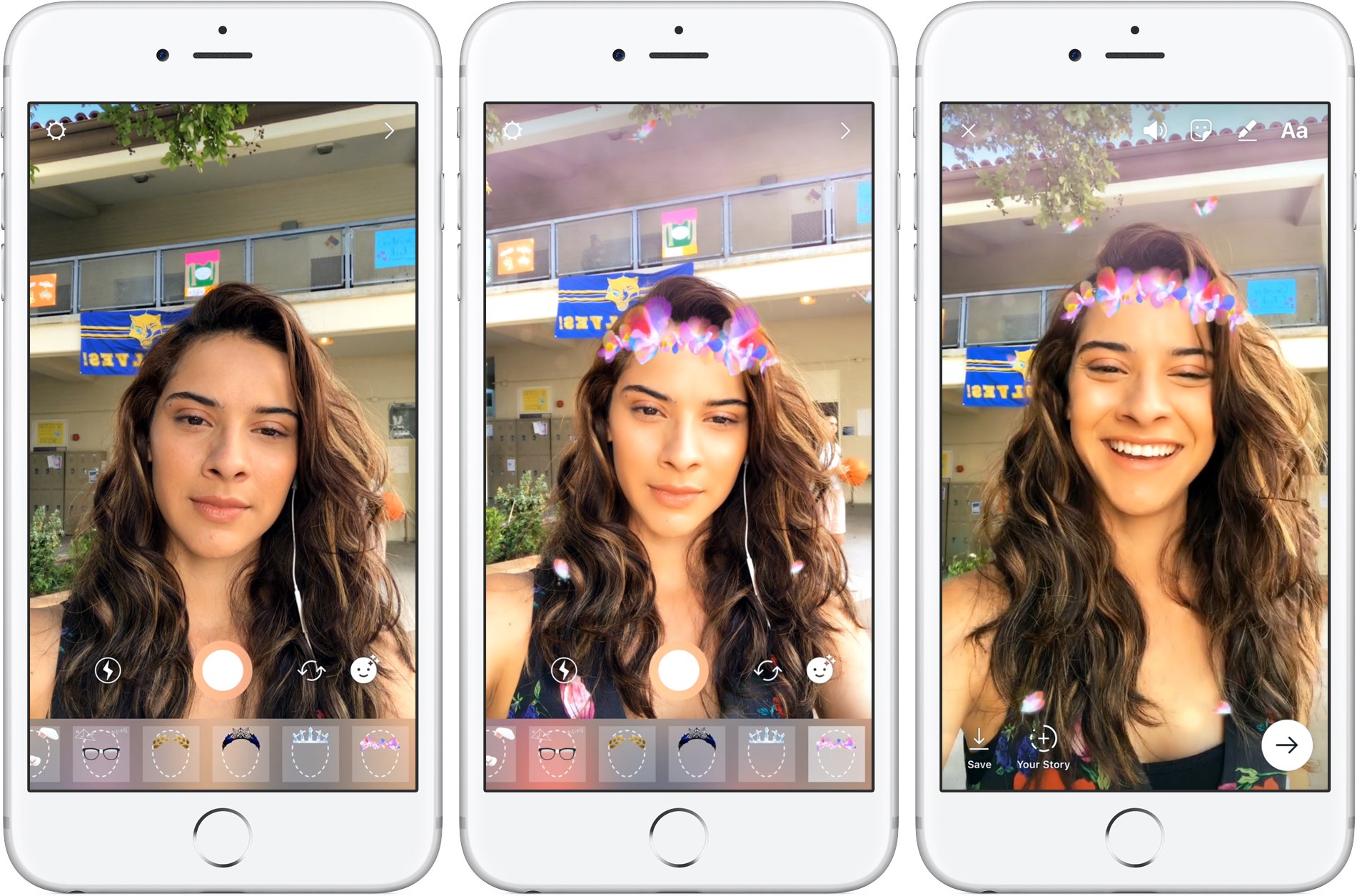
Instagram's previous update brought out Snapchat-like face filters for your selfies, an eraser brush and a new hashtag sticker. Location stories on Explore are available on iOS and Android as part of Instagram version 10.22 in App Store and Google Play.

Hashtag stories will be rolling out over the coming weeks.

You can learn more about these features in Instagram's Help Center.

Instagram for iOS is a free download from App Store.

Duet Display brings even more desktop power to your iPad drawing experience

Duet Display, an app billed as the first solution to turn your Apple tablet into a second display and a high-performance drawing tablet for your Mac or Windows PC, was updated on App Store today with some new features.

The new Duet Display now lets you have the drawing experience on your iPad with the speedy rendering and sheer hardware power of a desktop.

The update brings out a number of enhancements and new customizations, including a customized pressure curve, advanced gesture support, a more fluid drawing experience, improved color quality and more.

Here are the key highlights in this release of Duet Display:

Customized pressure curve—You can now change the way macOS or Windows receives the data, allowing for a personalized drawing experience. Advanced gestures—We have added a lot of gestures to both standard and pro users. This should make drawing and using your iPad as the primary device much simpler. Line lead—To provide a faster drawing experience, we have spent some time making a line preview to predict where the Pencil is before macOS or Windows knows where it is. We plan to continue improving this to create an instant drawing experience. Touch Bar—We implemented Touch Bar support last Christmas. Pro users have really benefitted the most as they are using their iPad more than their computer, so it makes quick interactions much faster. We have improved the stability and speed of it, and many more apps support Touch Bar now. Improved color quality—We have improved rendering quality and speed for pro users under the Pixel Perfect setting, delivering a higher quality display in less time. We plan to continue improving performance as much as we can.

Duet Display works over a USB connection as wired connections are significantly faster and far more responsive than wireless solutions. The app's speedy rendering engine has a much lower latency than Apple's AirPlay technology.

Duet Display has proven to be very valuable to artists, designers and video editors as it essentially replaces a Wacom drawing tablet with your iPad Pro and Apple Pencil.

The app supports finger drawing, too.

Aside from drawing support, Duet Display can be used to turn your iPad into a second screen for your Mac or Windows PC. For instance, you could use your iPad Pro to keep tabs on your social media feeds while editing a document on your Mac's primary display.

The ability to turn a supported iOS device an external monitor for a Mac should be especially handy while you're traveling or if you cannot afford an eternal display for your computer.

Duet Display for iOS is a $19.99 value on App Store.

To celebrate today's update, the app is on sale today for $9.99.

A pro-level upgrade which unlocks the ability to use your Apple tablet as a drawing tablet for your computer costs an additional $19.99 per year as an in-app subscription.

Duet Display 2.0 for Mac or Windows is available directly from the official website.

How to redeem iTunes or Apple Music gift cards

If you don't set up one of the supported payment methods for your Apple ID, you won't be able to upgrade your iCloud storage or buy music, movies and TV shows from iTunes Store, apps from App Store and Mac App Store, books and audiobooks from iBooks Store and more.

That's where an iTunes or Apple Music gift card should come in handy.

Upon redeeming, the amount shown on the card is added to your Apple ID in the form of good-as-cash credit that can be used for each purchase you make in Apple's content stores.

In this tutorial, you'll learn about the types of gift cards Apple supports, how they should be used, as well as how to redeem your iTunes or Apple Music gift card and apply the credit toward an individual Apple Music membership or to top up your Apple ID balance.

About iTunes and Apple Music gift cards

iTunes gift cards and Apple Music gift cards can be purchased from Apple, PayPal, Amazon, eBay, Best Buy and a number of other retailers. iTunes gift cards typically come in $25, $50 and $100 denominations. Apple Music gift cards are currently available in $30 and $100 denominations for three or twelve months of service, respectively.

You can buy them in physical form for delivery via mail or opt for a digital gift card, in which case your redemption code will be delivered straight to your inbox.

The 16-digit redemption code is hidden underneath the label on the card's back.

The redemption code always starts with an “X”.

The redemption code may appear in different places on the back of your card.

Redeeming an iTunes gift card adds store credit to your Apple ID.

Store credit is used for each purchase you make in iTunes Store, App Store or iBooks Store until it's gone. iTunes billing system always uses your store credit first, as long as the value of the item that you're buying is less than or equal to the value of your credit balance.

If you don't have any store credit left, the payment method that you designate when you sign up for an Apple ID is charged for the entire purchase.

You can use your store credit to buy the following items:

Apps from App Store and Mac App Store In-App Purchases Songs, albums, movies, TV shows and more from iTunes Store Books and audiobooks from iBooks Store iCloud storage

Store credit cannot be used to purchase more gift cards or iTunes Gifts.

NOTE: Some purchases might require that you have a credit card on file, even if you're using your credit balance to make the purchase. For instance, you must have a credit card on file in order to use store credit to pay for your iCloud storage upgrades.

You cannot use store credits for:

App gifting—When you gift an app or media item to someone else the payment method on file is always billed for the entire purchase, not the store credit. Family Sharing—You cannot share your store credit with other family members.

Even if a Family Sharing member buys something and the family organizer has store credit on their account, the item cost is still billed to the organizer's payment method on file rather than being deducted from their store credit.

TUTORIAL: How to gift apps

If a Family Sharing member with a credit on their account buys something from Apple's content stores, the amount is billed to their own account unless there's a remainder, in which case it bills to the family organizer's payment method.

You can use the credit from your Apple Music gift card to:

Sign up for a new Apple Music membership Extend your Apple Music membership by the number of months shown on the card Credit the amount to your Apple ID, like an iTunes gift card

Read Apple's support document for more on how iTunes Store purchases are billed.

How to redeem iTunes or Apple Music gift cards on iPhone and iPad

1) Open iTunes Store, App Store or iBooks on your iOS device.

2) In iTunes Store, App Store or iBooks, tap the Featured tab, then scroll to the very bottom of the screen and tap the Redeem option.

3) Sign in with the Apple ID that you use for iTunes Store or Apple Music purchases.

Tip: You can quickly get to the redeem feature by visiting the link below on your Apple device:

To redeem an iTunes gift card, follow this link To redeem an Apple Music gift card, follow this link

TIP: If your device has 3D Touch, you can press the iTunes Store or App Store icon and select the Redeem option from the Quick Actions menu on your Home screen.

4) Choose whether you'd like to type in your code manually or have the card scanned:

Scan the redemption code—If you have a physical gift card with a box around the code, use this option to redeem it via your built-in camera. Tap Use Camera, then hold the back of the card up to your iPhone's camera until it scans the code. Only gift cards with a focus box around the redemption code are redeemable via a camera. This feature is not available in all countries and regions. Type in the redemption code manually—Tap the field labeled ”You can also enter your code manually”, then peel off the label on the back of the card and type in the redemption code or paste the code from your purchase confirmation email.

When you redeem an iTunes gift card, your updated store balance appears onscreen. An error message appears if you try to redeem a gift card that's already been used.

Upon redeeming an Apple Music gift card, you're given the choice between topping up your iTunes store credit or using the code toward an individual Apple Music membership.

This is what happens if you choose to use the code for your Apple Music membership:

Apple Music members—Applying the credit to your ongoing membership extends your date of renewal by the number of months shown on the card. Apple Music non-members—Applying the credit signs you up for a membership.

If you've never been an Apple Music member, you can still get your free three-month trial in addition to the number of months your Apple Music gift card card is worth.

5) In the upper-right corner, tap Done to finish the process.

If you'd like to redeem another iTunes or Apple Music gift card, tap Redeem Another Code.

TIP: If you received your gift card via email, click the Redeem Now link in the email.

To get information about your iTunes Store or Apple Music balance:

iTunes Store balance—You can find your store balance underneath your Apple ID at the bottom of the Featured tab in iTunes Store, App Store or iBooks on your iOS device. Apple Music balance—To view your Apple Music membership, go to Settings → [your name] → iTunes & App Store and tap your Apple ID at the top of the screen. Tap View Apple ID, then Subscriptions. From the list, choose the subscription that you want to see more information about.

Your account balance automatically updates in iTunes Store, App Store and iBooks Store after redeeming the card. If your store credit does not update automatically, sign out and back in on all of your devices for it to refresh properly.

How to redeem Apple Music gift card in iOS Music app

1) Open the Music app on your iOS device.

2) Switch to the For You tab at the bottom of the screen.

3) Tap your profile image in the upper-right corner.

4) Tap the Redeem option.

5) Use your iPhone to scan the redemption code on the back of the card or enter it manually, then tap Redeem to continue.

7) Tap Done when finished redeeming the code.

How to redeem Apple Music gift card on Android

1) Open the Apple Music app on your Android device.

You can download Apple Music for Android free from Google's Play Store.

2) Tap tap the Menu icon in the upper-left corner.

3) Tap your Apple ID.

4) Tap Redeem.

5) Enter the code from the back of the card, then tap Redeem again.

An error message will appear if you try to redeem a card that's already been used.

How to redeem iTunes or Apple Music gifts card on Mac and Windows PCs

1) Open iTunes on your Mac or Windows PC.

2) Choose Music, Movies, TV Shows or Apps from the popup menu near the top-left corner, then click the Store tab near the top of the screen.

3) Click the Redeem link under the Quick Links heading on the right side.

Tip: Alternatively, choose the Redeem option from iTunes' Account menu.

To get to the Redeem feature faster, visit the link below on your computer:

To redeem an iTunes gift card, follow this link To redeem an Apple Music gift card, follow this link

4) Enter the password for the Apple ID you use for iTunes Store purchases or your Apple Music membership, then press the Return or Enter key on your keyboard, or click the Sign In button.

5) Choose how you'd like to redeem the code on the card:

Scan the redemption code—Use this option to redeem a physical card via your Mac's built-in camera. Click the Use Camera button, then hold the back of the card up to the FaceTime camera until it scans and redeems the code. Only gift cards with a focus box around the code are redeemable via a camera. This feature is not available in all countries and regions. Type in the redemption code manually—Click inside the field labeled ”You can also enter your code manually,” then type in the redemption code from the back of the card or paste it from your purchase confirmation email.

6) Click Redeem to continue.

You'll be asked if you'd like to apply the credit toward your individual Apple Music membership.

If not, select the option Use Credit for iTunes or App Store to add the amount shown on the card to your Apple ID store balance like a regular iTunes gift card.

Your updated store balance appears onscreen.

7) Click Done to finish redeeming the card.

To redeem an iTunes gift card in iBooks or App Store on your Mac:

iBooks—Open the iBooks app from your Dock, Launcher, Spotlight or the Applications folder. In the upper-left corner, click the iBooks Store button, then click the Redeem link underneath the Quick Links heading on the right side. App Store—Open the App Store app from your Dock, Launcher, Spotlight or the Applications folder. Click the Featured tab at the top, then click the Redeem link underneath the Quick Links heading on the right side.

An error message appears if you try to redeem a card that's already been used.

Related tutorials

You may find the following how-tos useful:

How to gift iTunes or App Store credit on iPhone and iPad How to redeem iOS app promo codes How to redeem Apple TV app promo codes Redeeming iTunes gift cards with iPhone's camera Redeeming iTunes gift cards with Mac's camera That's all, folks!

If you have a question, post a comment below and we'll do our best to answer it. Please share this tutorial on social media and pass it along to the folks you support.

Submit your ideas regarding future coverage via tips@iDownloadBlog.com.

YouTube TV app gains AirPlay support

Google today updated its official YouTube TV app with support for AirPlay, an Apple technology that lets you play video streamed from your iPhone or iPad on a TV set through your Apple TV.

“Announcing AirPlay! There are a few bug fixes and minor improvements in this thing, too. But mostly AirPlay,” reads the changelog for YouTube TV on App Store.

Prior to today's update, YouTube TV only supported broadcasting content from the app to a television set via Google's Chromecast HDMI dongle.

Google launched its new streaming television service back in April 2017.

In exchange for $35 per month, cord-cutters can enjoy live TV streaming from Fox, ABC, CBS, NBC and other popular cable networks along with content from an additional 39 local broadcast networks and channels, like ESPN.

Some sports channels like Fox Soccer Plus, as well as premium networks such as Showtime, are available for an additional monthly charge. DVR with unlimited storage is included in the subscription at no additional charge.

https://www.youtube.com/watch?v=qediav063xQ

YouTube TV can be used with up to six accounts in a single household without needing to share passwords between family members.

YouTube TV is separate from the YouTube Red service, which costs ten bucks per month.

YouTube TV is currently limited to select cities, like Chicago, Los Angeles, New York City, Philadelphia and the San Francisco Bay Area.

For more information, visit tv.youtube.com/tv/availability.

You can try YouTube TV free for 30 days by signing up at tv.youtube.com.

Microsoft refreshes OneNote apps with new design and accessibility features

Software maker Microsoft on Friday rolled out new versions of its note-taking apps for iPhone, iPad, Apple Watch, Mac, Android, Windows 10 and the web. OneNote's interface has been tidied up and navigation improved in the latest release.

The app now includes new assistive features to help users with disabilities.


OneNote's revamped interface makes organizing your notes easier than before with an improved layout. You'll notice that the reworked interface puts your content front and center, with all of the notebooks, sections and pages moved to columns on the left side of the app.

This allows for efficient organization of your notebooks.

The company celebrated the redesigned OneNote launch with the following video.

https://www.youtube.com/watch?v=fmGVp76WyIU

The newly implemented accessibility features, available across iOS and macOS, let people with various disabilities efficiently navigate the app with screen readers, improved keyboard shortcuts and other assistive technologies.

And with the left-hand navigation controls, screen readers can easily navigate through the app.

OneNote is now available with a consistent experience across devices: with this update, says Microsoft, your experience will be the same regardless of what device you happen to be using.

The new redesign for OneNote is rolling out for Windows 10, Mac, iOS, Android and on the web over the coming weeks so check back later if it's not live yet.

OneNote for iPhone, iPad and Apple Watch is available free on App Store.

OneNote for Mac is available free on Mac App Store.

Futurama: Worlds of Tomorrow coming to iOS, will contain some entirely new episodes

Game developers FoxNext Games and Jam City (via its game studio TinyCo) announced today that Futurama: Worlds of Tomorrow for iPhone and iPad will arrive sometime in early summer.

The new game will blend simulation, combat, galactic exploration and choose-your-own-adventure mechanics together to bring the escapades of the Planet Express crew to life. In his February interview with USA Today, Matt Goering said that the game will contain some entirely new episodes of the show.

“Oh, you guys wanna do a game? That’s fine,” he said. “But we’re gonna sneak some more Futurama episodes in there on whatever device people are gonna be using.”

The game features two main settings: New New York, which focuses on simulation and character progression gameplay, and Space Adventures, in which players explore and battle their way through planets, nebulas and other weird stuff across the Futurama universe.

Futurama: Worlds of Tomorrow is being developed in partnership with Futurama and The Simpsons creator Matt Groening and his Curiosity Company, along with executive producer David X. Cohen and original Futurama writers.

“Jam City is working with the writers, animators, and cast to produce even more original animation that will have fans waving their tentacles in the air,” according to developers.

The official teaser trailer embedded below is the first new animation from the Futurama universe since the show's original TV run ended in 2013.

“I'm proud to say that Futurama lives! In mobile-video-game teaser trailer form, anyway,” said the series' creator Matt Groening. “If you squint, it's kind of like a little episode!”

https://www.youtube.com/watch?v=k2Izx4MQCwQ

“Working on this new Futurama animation has been a thrilling adventure,” said David X. Cohen.

“I finally understand how Neil Armstrong must have felt when he first landed on the lunar surface, watched some funny cartoons on the control screen, and did whatever else was on his schedule that day,” he added, jokingly.

In the New New York setting, your main focus will be on rescuing characters, collecting special items and materials, expanding your characters' capabilities by leveling them up and crafting ability-defining character outfits and tackling story-driven quests.

According to developers, events that occur in New New York will often move the game's overarching narrative forward, by allowing players to assemble a crew of their favorite Futurama characters and take to the stars for Space Adventures.

“While traversing the depths of space, players will fight alien enemies in retro arcade-style combat, rendered in beautiful 16-bit graphics, and explore strange lands in which their choices determine their fate,” they said.

Futurama: Worlds of Tomorrow will arrive sometime in early summer to iPhone, iPad, Android and Amazon devices. More information on the game will be released in the near future and we'll be making sure to keep you in the loop.

You can pre-register at youwillplayfuturama.com to receive a special in-game gift when you start playing. More original Futurama animation is coming too, so stay tuned.


Tim Cook talks assistive technologies with Accessibility evangelists

Apple CEO Tim Cook sat down with three YouTubers who are Accessibility evangelists to discuss the importance of the assistive technologies built into the company's iOS, macOS, tvOS and watchOS platforms.

James Rath, a legally blind filmmaker; Tatiana Lee, a model, actress and lifestyle blogger; and Rikki Poynter, a North Carolina-based writer and deaf awareness activist, all published their video interviews with Apple's chief on their respective YouTube channels on Wednesday.

James Rath interview

https://www.youtube.com/watch?v=kXy8KcONTSs

Rikki Poynter interview

https://www.youtube.com/watch?v=t6_iOVSavdE

Cook explained to Poyter what Apple is all about when it comes to Accessibility:

Apple is founded on giving people power to create things, to do things that they couldn't do without those tools. And we've always viewed accessibility as a human right. And so just like human rights are for everyone, we want our products to be accessible for everyone.

He added that accessibility should be a basic human right:

It's a basic core value of Apple. We don't make products for a particular group of people. We make products for everybody.

We feel very strongly that everyone deserves an equal opportunity and equal access. So we don't look at this thing from a return on investment point of view—I've been asked that before. The answer is no, I've never looked at that. We don't care about that.

A lot of these Accessibility features, everyone can use. With HomeKit, I use HomeKit every day and control my house with my voice.

“It’s a basic core value of Apple,” said Cook.

Tatiana Lee interview

https://www.youtube.com/watch?v=58ZZFUDIM0g

Lee's whole video was shot with her iPhone 7 and edited using Apple's new app Clips.

Cook did the interviews to honor Global Accessibility Awareness Day, an initiative that promotes inclusion when it comes to creating products, content and experiences for everyone.

The company is currently highlighting apps on App Store that implement Accessibility features.

Lastly, Apple posted seven inspiring videos showcasing how people with disabilities are using assistive technologies built into iPhone, iPad and Mac. For the full overview of the extensive assistive features built into Apple products, check out its dedicated Accessibility webpage.

Google Home is gaining hands-free calling, Apple Music streaming via Bluetooth & visual responses via iPhone

Google's AI-powered speaker, called Home, is getting new features announced earlier today during the keynote address at the company's annual conference for developers. Soon, Home owners will be able to stream songs from Apple Music and other apps running on their iPhone, iPad, Mac or Android device via Bluetooth.

Hands-free calling

And with hands-free calling, customers will be able ask Assistant running on the device to place calls to mobile phones or landlines in the US or Canada for free.

Even better, there’ll be no setup and no need for a phone or additional app.

Visual responses

Yet another upcoming enhancement, called visual responses, will let the smart speaker put responses to queries on a supported display, including your iPhone's.

That's right, you’ll be able to see Assistant answers on the biggest screen in your house, whether you're asking “What's on YouTube TV right now?” or “What's on my calendar today?”

https://www.youtube.com/watch?v=dpnxTXILS4s

Getting visual responses from Home's Assistant on a TV will be even easier with Chromecast.

Bluetooth streaming

Google is adding Bluetooth support to let Home users enjoy more music, movies and TV shows in apps running on Bluetooth-enabled smartphones, tablets and computers, like Apple Music.

Soundcloud, Deezer and Spotify’s free music offering are coming soon to Home as well. On the video front, they've already added Netflix, and have more partners on the way like HBO NOW, CBS All Access and HGTV.

Reminders, additional countries

You can now use your Home speaker to schedule new calendar appointments and create reminders (support for adding reminders is coming soon). “Since it’s the same Google Assistant across devices, you’ll be able to get a reminder at home or on the go,” said the firm.

Google provided this brief explanation for proactive notifications:

Conversations can take place in many different ways. Sometimes your Assistant should be the one to start it—so over the next few months, we’re bringing proactive notifications to Google Home.

Google Home is currently available in a few markets, but that's about to change later this year as they expand it to new places, including Australia, Canada, France, Germany and Japan.

Assistant updates

Hands-free calling, adding reminders, Bluetooth streaming and visual responses will all be enabled for Google Home users in the coming months via a free firmware update.

Google Home is powered by Google Assistant (now available as a dedicated iPhone app).

Speaking of Assistant, the AI-powered helper will be rolling out to eligible Android phones in Brazilian Portuguese, French, German and Japanese. By the end of the year, Assistant will support Italian, Korean and Spanish.

Starting today, developers can build conversational apps for the Google Assistant on phones. As a result, you’ll soon be able to not only get help and answers from Google, but also from third party services.

The company currently has 70+ smart home partners backing Assistant across Google Home, Android phones and iPhone, including August locks, TP-Link, Honeywell, Logitech and LG.

Google Photos launching automatically curated albums, photo books & sharing suggestions

During today's keynote address at Google's annual I/O conference for developers, the company announced a trio of smart features powered by machine learning intelligence.

For starters, the app now automatically curates albums for the user.

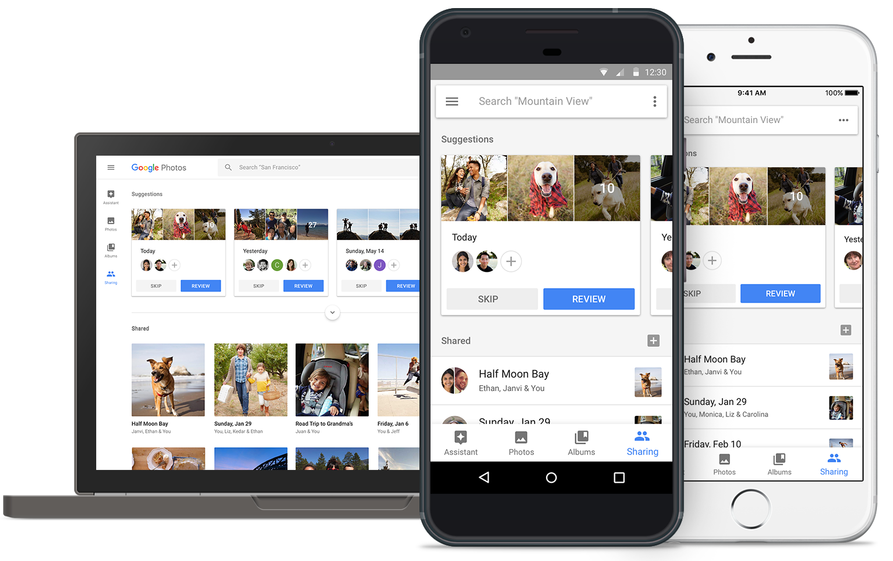
Even better, Google Photos provides suggestions when sharing photos with others. As a bonus, there's now an Apple Photos-like feature for ordering printed photo books from within the app.

But first, check out the new features for yourself in Google's video embedded below.

https://www.youtube.com/watch?v=SN_7r0mFf5Y

Sharing suggestions

Photos now uses Google's machine learning technology to remind you when it's time to share some photos. The app automatically select the right photos and even suggest who you should send them to based on who was in the photos.

All that's left for you to do is review the choices the app's made on your behalf before hitting that Send button. People you're sharing with will see all your photos and get a reminder to add theirs too. Your sharing activities are collated in the app's new Sharing tab.

This feature will be rolling out on Android, iOS and web in the coming weeks.

Automatically curated albums

Google Photos can now automatically share relevant photos with specific people. Say you took a bunch of photos of your kids: Photos may offer to automatically share them with your wife.

Called Shared Libraries, it lets you give a person access to your full photo library.

Don't worry, you can easily choose to limit sharing by having the app include just the photos of certain people or the images taken from a certain date forward. When the other person shares their library with you, you can automatically save their photos to your own library.

Shared Libraries will be rolling out on iOS, Android and web in the coming weeks.

Photo Books

Like with Apple Photos or services like Shutterfly, you can now order a printed coffee table book comprised of your best photographs without ever leaving the app. Simply select the images you'd like to fill your album with and Google's machine learning algorithm will pick the best shots, removing duplicates and poor quality images.

When placing your order, choose between a high-quality twenty-page softcover book for ten bucks a piece or a hardcover variant for twice as much. Your photo book will be delivered to that special person in your life in the mail.

This feature is rolling out today in the US on web, and on Android and iOS next week.

“We’ll bring photo books to more countries soon,” said the search giant.

Another feature that's coming soon to Photos: personalized suggestions for photo books (i.e. your trip to the Grand Canyon, time with family during the holidays, your puppy and so forth). Machine learning powers features in other Google apps, including smart replies in Gmail for iOS and the newly launched Assistant for iPhone app.

Grab Google Photos for free from App Store.

Gmail for iOS now uses machine learning to provide smart replies

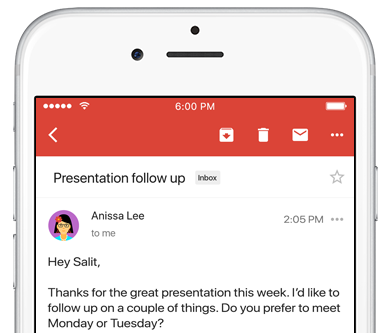
Google on Wednesday launched an updated version of the mobile Gmail app for iOS and Android, bringing out a handy new Smart Reply feature based on the company's machine learning technology. Like with canned responses in Apple's own Messages app, Gmail analyzes the contents of your emails to provide up to three canned responses based on what it thinks the sender is asking in their original message.

Smart Replies may include simple “Yes” and “No” responses. If the sender is asking whether to meet on Wednesday or Friday, Gmail may provide a bit more complex replies such as “Let's do Wednesday”, “Friday works for me” or “Either day works for me”.

Once you’ve selected one, you can send it immediately or edit your response starting with the Smart Reply text. By utilizing machine learning, the Smart Reply feature produces better responses the more you use it. “If you're more of a 'thanks!' than a 'thanks.' person, we'll suggest the response that's, well, more you,” says Google.

To learn about the smarts behind Smart Reply, check out the Google Research Blog.

Smart Reply will roll out globally in English first, with Spanish following in the coming weeks. Additional languages for Smart Replies will be added soon, Google has promised.

According to the search monster, the machine learning-assisted Smart Reply feature already drives twelve percent of replies in its Inbox email app.

Aside from Smart Replies in the Gmail app, today's keynote address at Google's annual I/O conference for developers saw the release of the official Google Assistant app for iOS.

Gmail for iOS is available at no charge from App Store.

Hey Siri, make some room for Google Assistant on my iPhone

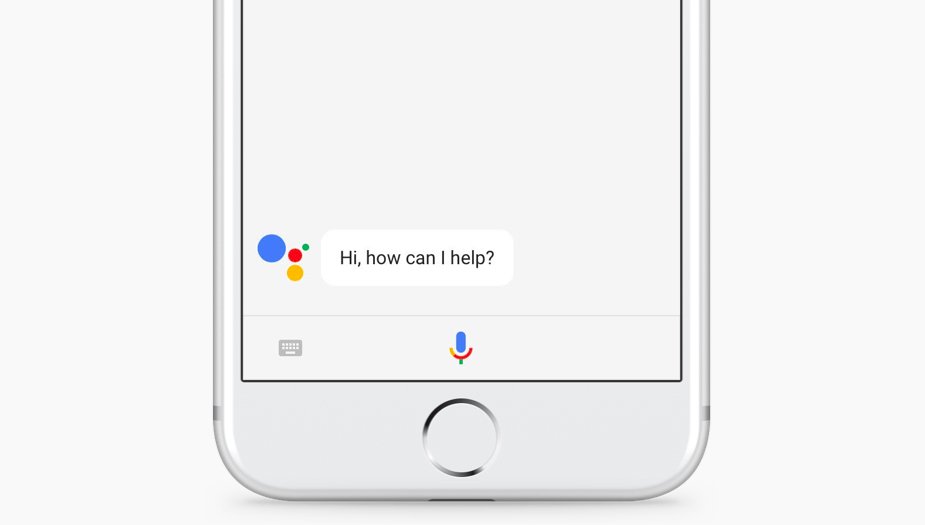
The rumors were true: the search giant Google today released a standalone Assistant app for iPhone to take on Siri. Available at no charge on App Store, it features a blend of the chat style functionality found in in the Google Allo version of Assistant and the voice-controlled version found on Android.

It even lets you call friends on Google Home or out on the town with your iPhone.

“Whether you need a reminder to pick up milk, help finding your travel photos or need to make a dinner reservation, your Assistant is ready to help,” says the company.

To get started with Assistant, press the microphone icon or start typing.

https://www.youtube.com/watch?v=VZ9MBYfu_0A

“And for when you want to see what you’ve previously asked, we’ll also soon add history within your conversation,” notes Google. And with an upcoming firmware update for Google Home, customers will be able to put responses to queries from Home's Assistant on a supported display, including your iPhone and even your TV (with Chromecast).

Apple users can use Assistant's chatbot-like capabilities as well as all of its interactive features without having to purchase Google's Pixel smartphone or another Android smartphone.

Here are a few things Assistant can help you with:

Make quick phone calls (“Call Mom”) Send text messages (“Text my bestie”) Send emails (“Email my boss the latest TPS report”) Set reminders (“Remind me to buy a birthday gift for Sarah”) Set calendar events (“Set a calendar event for dinner with Charlie tomorrow from 7-9”) Play music (“Play Jazz music on YouTube”) Navigate to places (“Get me directions home”) Ask it anything (“Will I need an umbrella today?”)

Google has promised to enhance Assistant with new features, including:

New chatbot abilities Integration with Google Lens technology

Google Lens will give Assistant for iPhone and Android some pretty cool camera capabilities with a little help from advanced artificial intelligence features. You'll be able to, for example, easily identify an object by pointing your phone's camera at it.

The company even demonstrated how Lens technology will permit Assistant users to snap up a photograph of a business's sign to quickly pull up useful information such as reviews, menu items, friend check-ins and other relevant data.

And in yet another example, Google demoed how Assistant could help Android users connect to a Wi-Fi network simply by taking a picture of a sticker on a router.

“If you see a marquee for your favorite band, you can hold up your Assistant, tap the Lens icon and get information on the band, tickets and more,“ said the firm.

Plus, starting today developers can build conversational apps for the Google Assistant on phones. In other words, soon you’ll be able to not only get help and answers from Google, but also from third party services.

The AI-powered helper will be rolling out to eligible Android phones in Brazilian Portuguese, French, German and Japanese, Google said. By the end of the year, Assistant will include additional language support for Italian, Korean and Spanish.

The company has more than 70 smart home partners supporting Assistant across Google Home, Android phones and iPhone, including August locks, TP-Link, Honeywell, Logitech and LG.

Assistant is already available on more than 100 million devices, said Google.

Grab Google Assistant for iOS for free via App Store.

The app requires an iPhone, iPad or iPod touch with iOS 9.1 or later.

Todoist gains 2-way Google Calendar integration, Dynamic Type support & more

Todoist, the popular cross-platform app for organizing work and errands, is launching a deep two-way integration between it and Google Calendar that lets the app directly pull information from Google Calendar and vice versa. In addition, the app now supports iOS's system-wide Dynamic Type feature and you can now mark individual notifications as read or unread.

Todoist + Google Calendar = winning combo

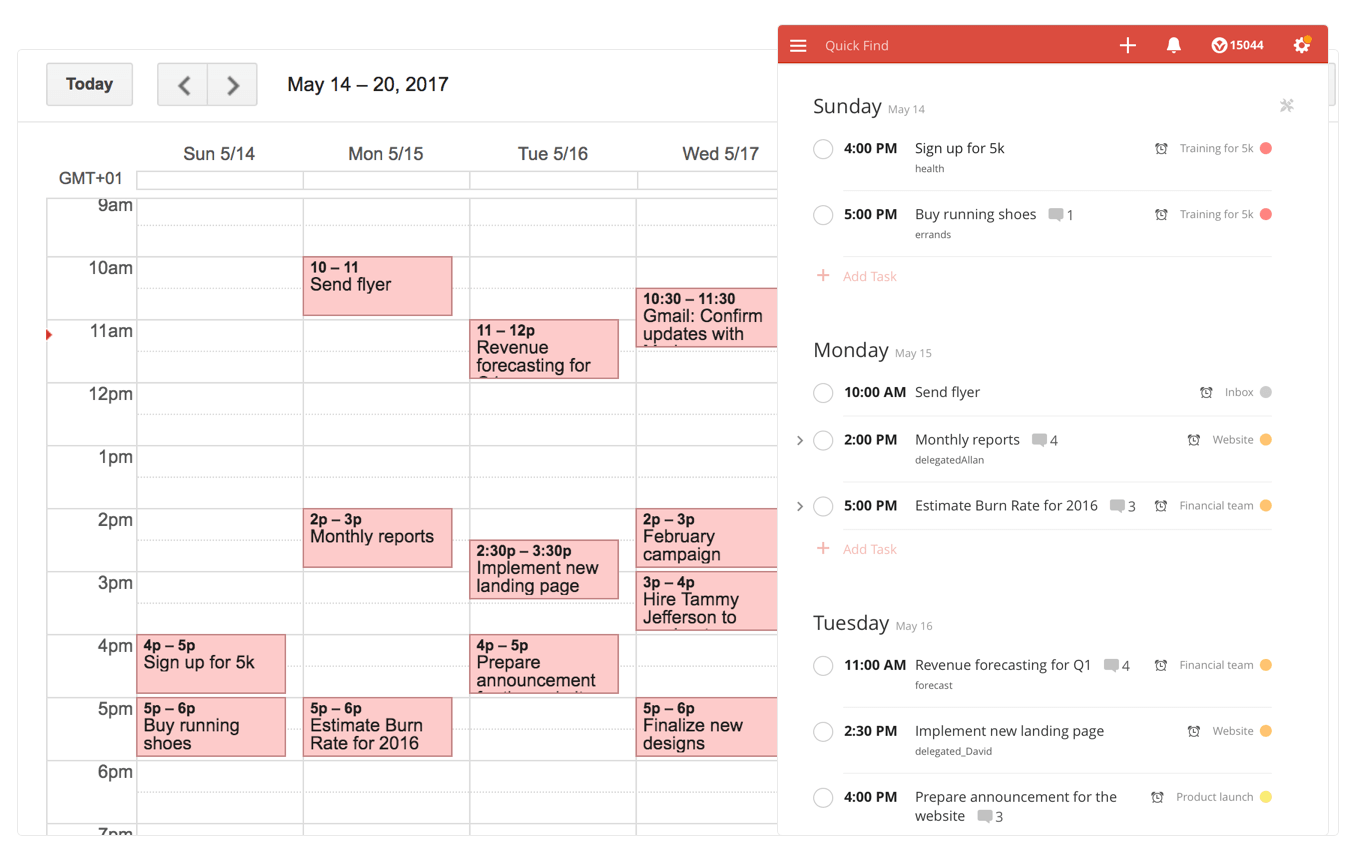
With a two-way sync between Todoist and Google Calendar, you can visualize, organize and prioritize your tasks from inside your calendar, with any changes made in Google Calendar being instantly reflected back in Todoist and vice versa.

To connect Todoist with Google Calendar, sign into the Todoist web app, click on the gear icon in the upper-right corner and choose Settings from the popup menu. Navigate to the Integrations tab and click Connect next to Google Calendar.

After signing into your Google Account, you’ll be asked which calendar you want your tasks added to, whether you'd like to sync your entire Todoist account or just a specific project, which Todoist project you want new Google Calendar tasks added to, a default event duration for new Todoist tasks in Google Calendar and whether or not you want to sync tasks with a due date but no time.

Once you authorize the integration, any tasks with a due date and/or time in Todoist will automatically be added to a Google calendar of your choosing (recurring tasks will create multiple events) The two-way sync allows you to create events in Google Calendar within Todoist, knowing they'll be automatically added to the Todoist project of your choosing.

All tasks created from Google Calendar have a default @gcal label, but you can change the label by editing the integration after you’ve connected the apps. You can even choose to only sync tasks from a specific project, if you'd like.

On the iPhone and iPad side, Todoist now supports Dynamic Type, a feature that makes it easy to adjust the font size in apps that support this feature. To make words in Todoist bigger or smaller, simply update to the latest version of the app on App Store and set your preferred text size but dragging the slider in Settings → Display & Brightness → Text Size.

To make sure you don’t miss any important updates in shared projects, Todoist for iOS now allows collaborators to mark individual notifications as read or unread.

As for Todoist for Mac, the app's design was refreshed yesterday to make it feel more at home on your Mac, including extending the theme color all the way to the top.

The smart-task Quick Add action has been overhauled as well. Faster than ever before, it now includes a shortcut to assign a task to someone else (just type “+” into the task name field to pull up a list of collaborators).

Todoist for iPhone, iPad and Apple Watch is a free download from App Store.

Todoist for Mac is available free via Mac App Store.