These quick tricks will teach you how to restore recently deleted photos and videos on your iPhone, iPad, Mac, and iCloud in just a few taps.
How to recover deleted photos and videos on iPhone, iPad, and Mac

These quick tricks will teach you how to restore recently deleted photos and videos on your iPhone, iPad, Mac, and iCloud in just a few taps.

Most of the time, when you want to use your Mac, you can just press the power button or lift the MacBook screen, hear a startup sound, and your computer will begin booting, so you can use it.
Sometimes, however, you don’t get so lucky. There may be a time when you go to use your Mac, and it doesn’t turn on at all.
As reliable as Macs can be, they can hiccup occasionally. In this piece, we talk about what you can do to troubleshoot if your Mac won’t power on after you press the power button.

Nearly five years ago, Apple started taking advantage of a new feature that lets customers send diagnostic data to an Apple advisor to help troubleshoot any problems they might be having, without having to take their device to an Apple Store Genius.
This remote diagnostic mode, which has since been implemented across all iPhone, iPod touch and iPad devices, is also available on the fourth-generation Apple TV. In this quick tutorial, you're going to learn how to access and take advantage of tvOS's hidden Diagnostics screen on your Apple TV.

In this day and age of YouTube streaming and on-demand video, the stock Videos app feels a little outdated and way too limited in terms of features though it gets the job done.
With the Videos app, you can watch movies, televisions shows and music videos that you bought or rented from the iTunes Store, as well as enjoy your personal clips synchronized from iTunes on your computer.
On the iPhone 6s and iPhone 6s Plus, using the Videos app is a little more engaging thanks to 3D Touch. In this tutorial, we'll let you in on 3D Touch shortcuts and gestures that are available in the Videos app.
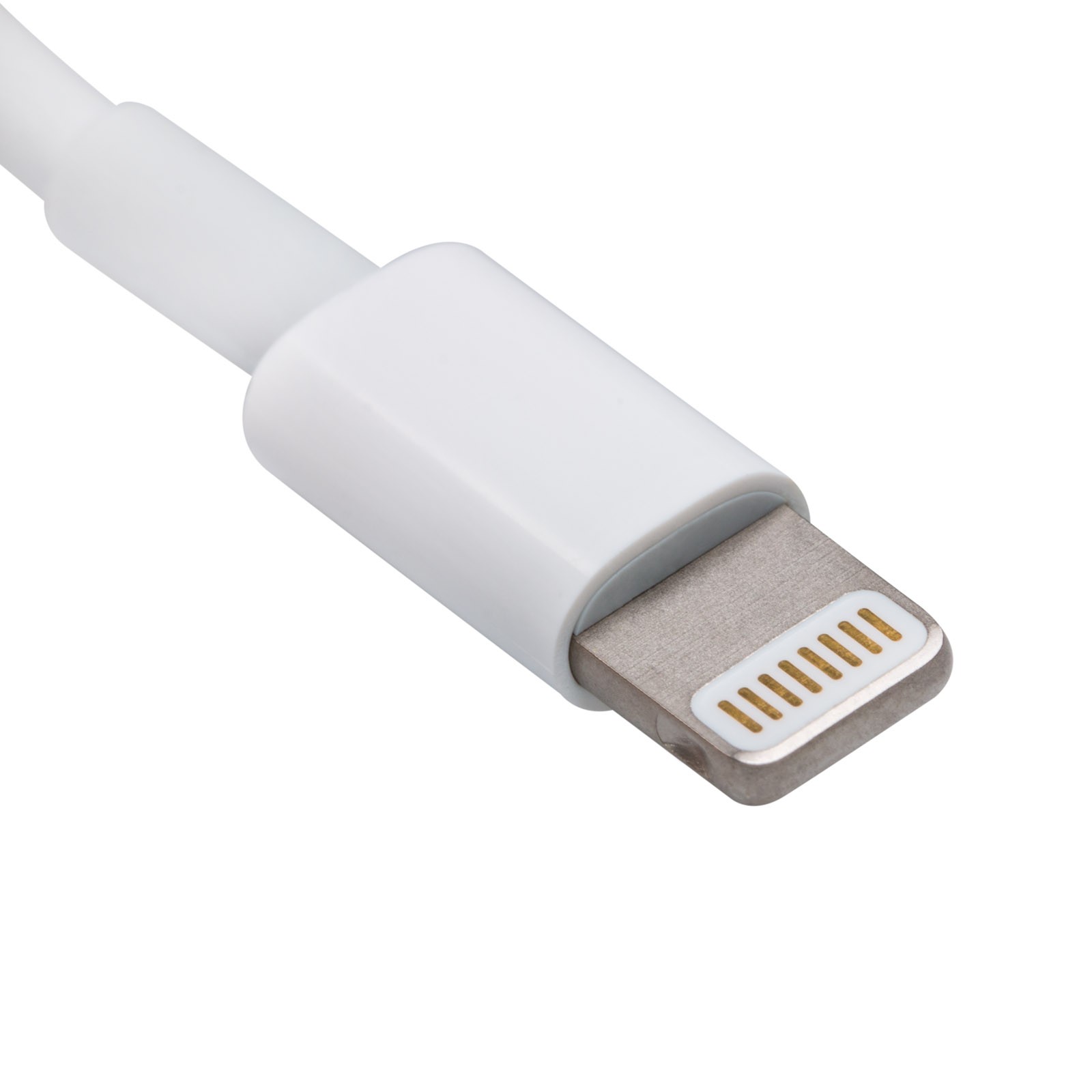
Whenever you buy a new iPhone, iPod touch, or iPad, it'll come with a Lightning to USB cable that you will use to charge and sync your device. On the other hand, you have to be careful when you buy these cables separately, especially online, because you could end up with a counterfeit cable.
A counterfeit is a cable that tries to look just like Apple's OEM Lightning to USB cable, even though it isn't. Using these cables could have an adverse effect on your device, so we'll show you how to spot the differences between a counterfeit and genuine Lightning to USB cable in this piece.

Try these troubleshooting tips if your iPhone or iPad won't join or connect to a Wi-Fi network and you can't use the Internet on your device.

Check out two free ways to convert images on your iPhone and iPad between JPG, PNG, and other formats without using specialized websites.

I recently talked about sharing Instagram videos on Vine, a multi-step procedure that involves a third-party app to save an Instagram clip to the Camera roll before posting it manually to the Twitter-owned Vine service.
So far so good.
But what about the other way round? Of course that same process applies to posting vine clips on Instagram: save a vine to the device before manually sharing it on Instagram.
As it turns out, there's a bunch of third-party apps in the App Store which can take the pain out of resharing vines on Instagram. With VineGrab, a free iPhone app by Xiaoyu Xia, not only can you watch vines in a more elegant interface than Vine's own, you can also repost your favorite ones to Instagram.

One thing I hate about the Mail app on my Mac is how when I go to enter someone's name to email them, macOS has a nasty habit of picking the wrong email address for that person and I always notice it when it's too late.
I had this happen to me the other day and my email was sent to the wrong inbox of that person – an email address that they don't even use anymore – so they never got the email I sent and I had to resend it.
If you've ever had this happen to you before, then you're reading the right tutorial, because we'll be showing you how to delete email addresses from Mac Mail history so they aren't auto-suggested for you when you start to type someone's name.

Your Mac, iPhone, iPad, Apple Watch, and/or any other other fancy high-tech devices you have are fun to use, but they'll easily get dirty and collect dust, sneeze splatter, and bacteria from your fingers over time, whether they're used frequently or not.
To combat grime, you can clean your devices every so often, but like anything else, there's a right and a wrong way to do this.
In this piece, we'll share with you some handy tips for cleaning your Mac and other Apple devices safely so you don't accidentally damage them.
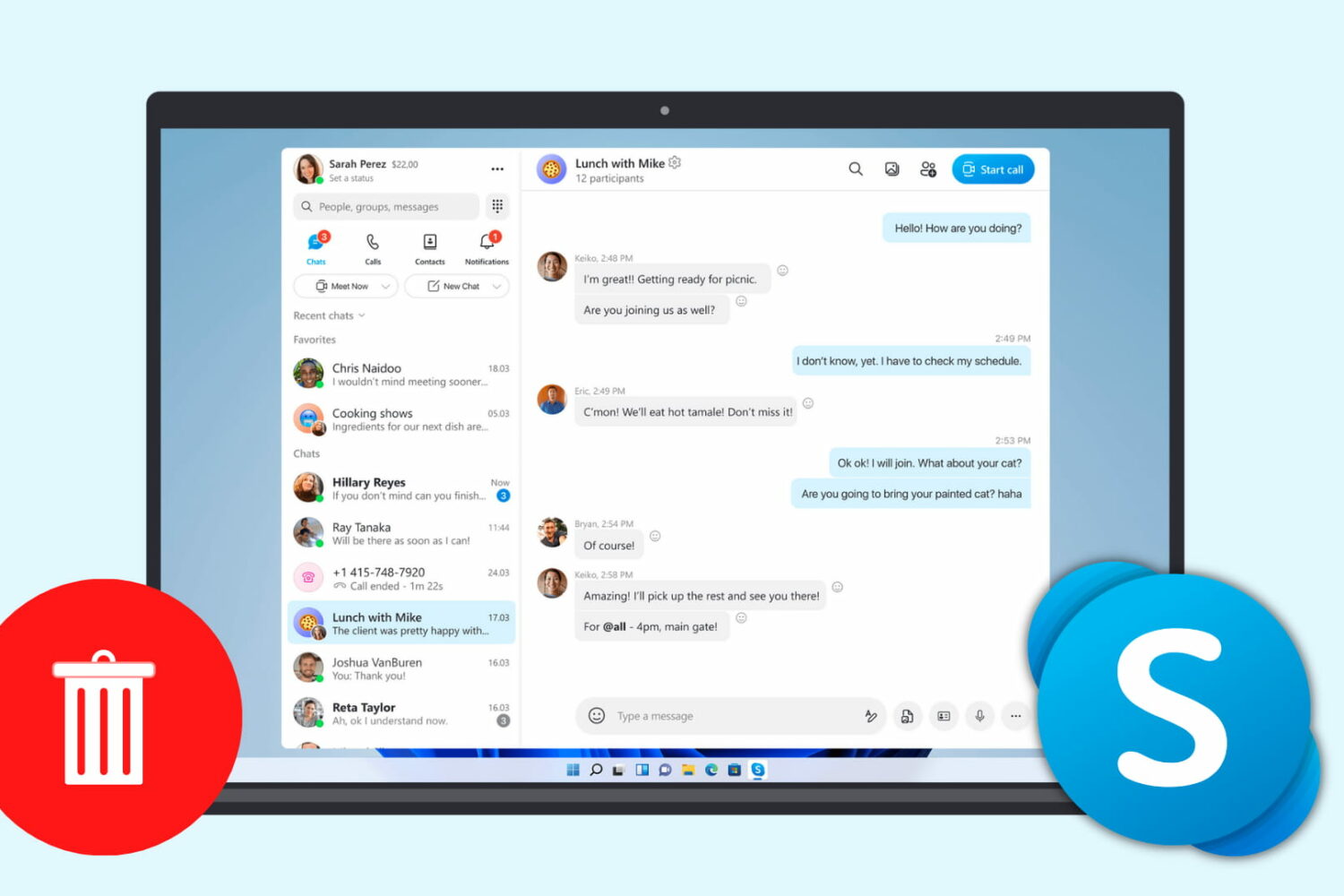
This tutorial will guide you through the steps needed to successfully close your account on Skype the right way. As a bonus, we'll show you how you can request a refund for your unused credits and unlink your accounts.

Use Screen Time on your child’s iPhone or iPad to turn off location sharing via iMessage and Find My.
We’ll also guide you on how to restrict location access for third-party apps like WhatsApp, Telegram, Facebook Messenger, and Snapchat to ensure your child’s location can’t be shared through these apps.