Apple to soon require app-specific passwords to access your iCloud data

According to an Apple Support email sent out today, all native third-party apps for iPhone, iPad, Mac and other platforms will be required to use app-specific passwords to access user data stored in iCloud, not Apple ID credentials.

App-specific passwords went into effect in October 2014.

Back then, enabling two-step verification for Apple ID would turn on app-specific passwords for web-based apps and services. Starting on June 15, app-specific passwords will become a mandatory requirement for any native app that wishes to access user data in iCloud.

You can generate app passwords in the Password & Security section of the Apple ID website.

A password created for one app, like Outlook, doesn't work in another app like Spark.

Come June 15, you'll be automatically signed out of all apps that use your Apple ID credentials. As an example, if you set up Fantastical for Mac with your Apple ID to access your iCloud calendars, you'll need to generate an app-specific password to continue accessing your iCloud calendars from within the app on and after June 15.

In simpler terms, you'll be required to enable two-factor authentication for your Apple ID and generate individual passwords for each app after the cutoff date.

The change is platform-agnostic: if you use Windows 10's Mail app to receive your iCloud data like contacts and calendars, you'll need to create an app-specific password for it. This is for the sake of everyone's security because signing into third-party apps with your primary Apple ID password may expose you to various attacks and hacking attempts.

To be clear, this only affects apps which access iCloud in a non-native way, which includes email clients like Outlook, Thunderbird and others. If an app has been updated to use iCloud Drive, it won't need an app-specific password to access user data in iCloud.

Bottom line: Apple still lets you grant apps access to your iCloud data, but soon you'll be able to do so in such a way that keeps your primary Apple ID password safe and secure.

Apple's first-party apps are not affected by this change.

Apple seeds first betas of iOS 10.3.3, watchOS 3.2.3, tvOS 10.2.2 and macOS Sierra 10.12.6

Apple on Tuesday seeded the first betas of iOS 10.3.3, watchOS 3.2.3, tvOS 10.2.2 and macOS Sierra 10.12.6. Registered developers can download the new releases via each platform's respective over-the-air mechanism, or via Apple's dev portal.

It's not yet clear what changes are included in these updates, but given their version numbers, it's likely they're focused on security fixes and other under-the-hood improvements. We will let you know if anything more significant is discovered.

The betas do come at an interesting time—24 hours after the release of public updates for each OS, and just a few weeks ahead of WWDC, where Apple is expected to show off previews of the next major versions of iOS, watchOS, tvOS and macOS.

New Beats ad features NBA all-stars LeBron James, Kevin Durant & others

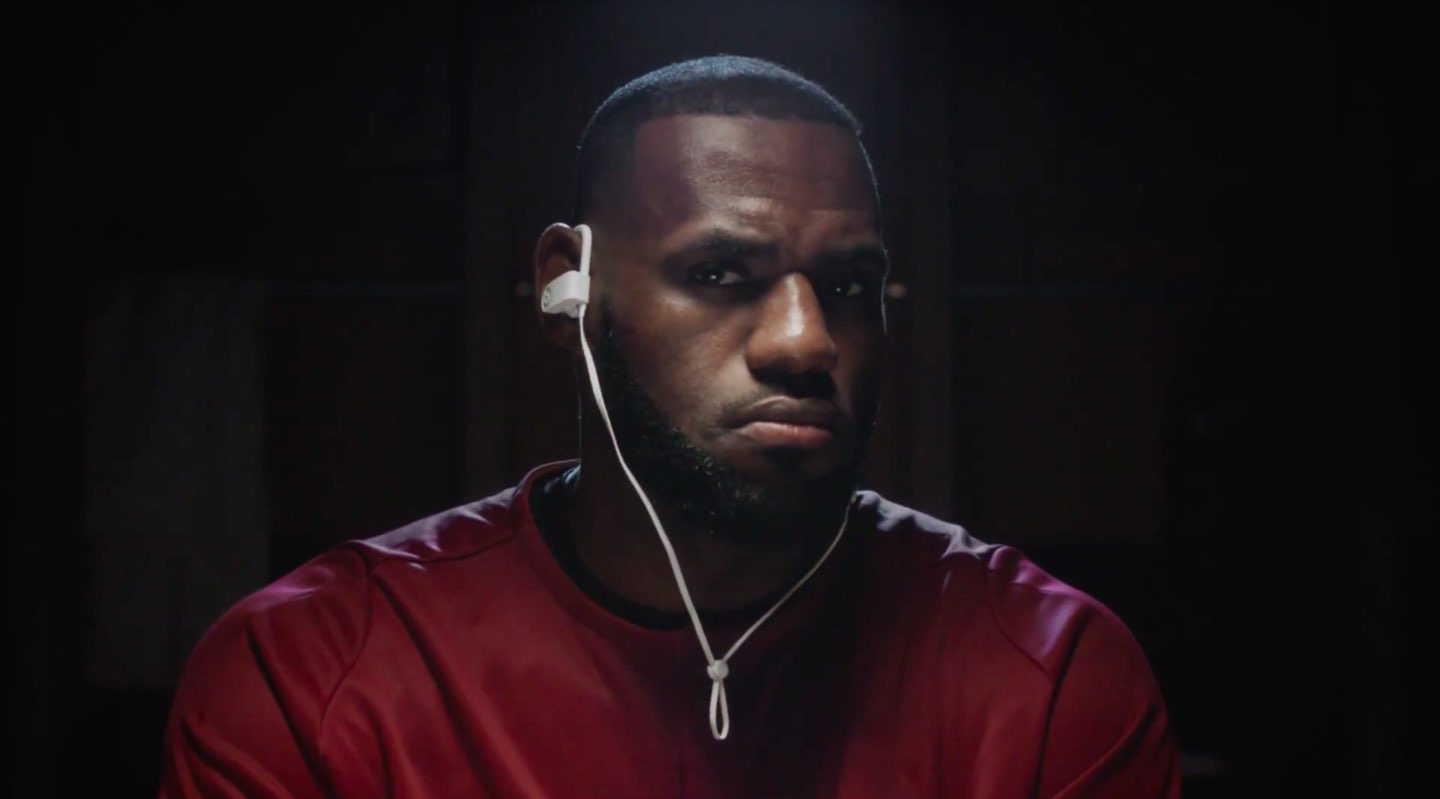
Apple on Tuesday released a new television commercial promoting the Beats Studio Wireless on-ear headphones and the Beats Powerbeats3 Wireless in-ear headphones. “Beats powers the world’s greatest basketball players to make their statement on the biggest stage,” notes the ad.

The 30-second commercial, titled “Be Heard”, features NBA all-stars LeBron James, Kevin Durant, Draymond Green and James Harden who can be seen listening to a song by American rock duo “The White Stripes” while warming up with their Beats headphones.

And here it is.

https://www.youtube.com/watch?v=pcnmfyYETD0

As mentioned, the commercial uses the song “Seven Nation Army” by The White Stripes from their album “Elephant”. You can purchase their album from iTunes or stream it on Apple Music.

How do you like Apple's new Beats ad?

Apple rumored to discontinue iPad mini

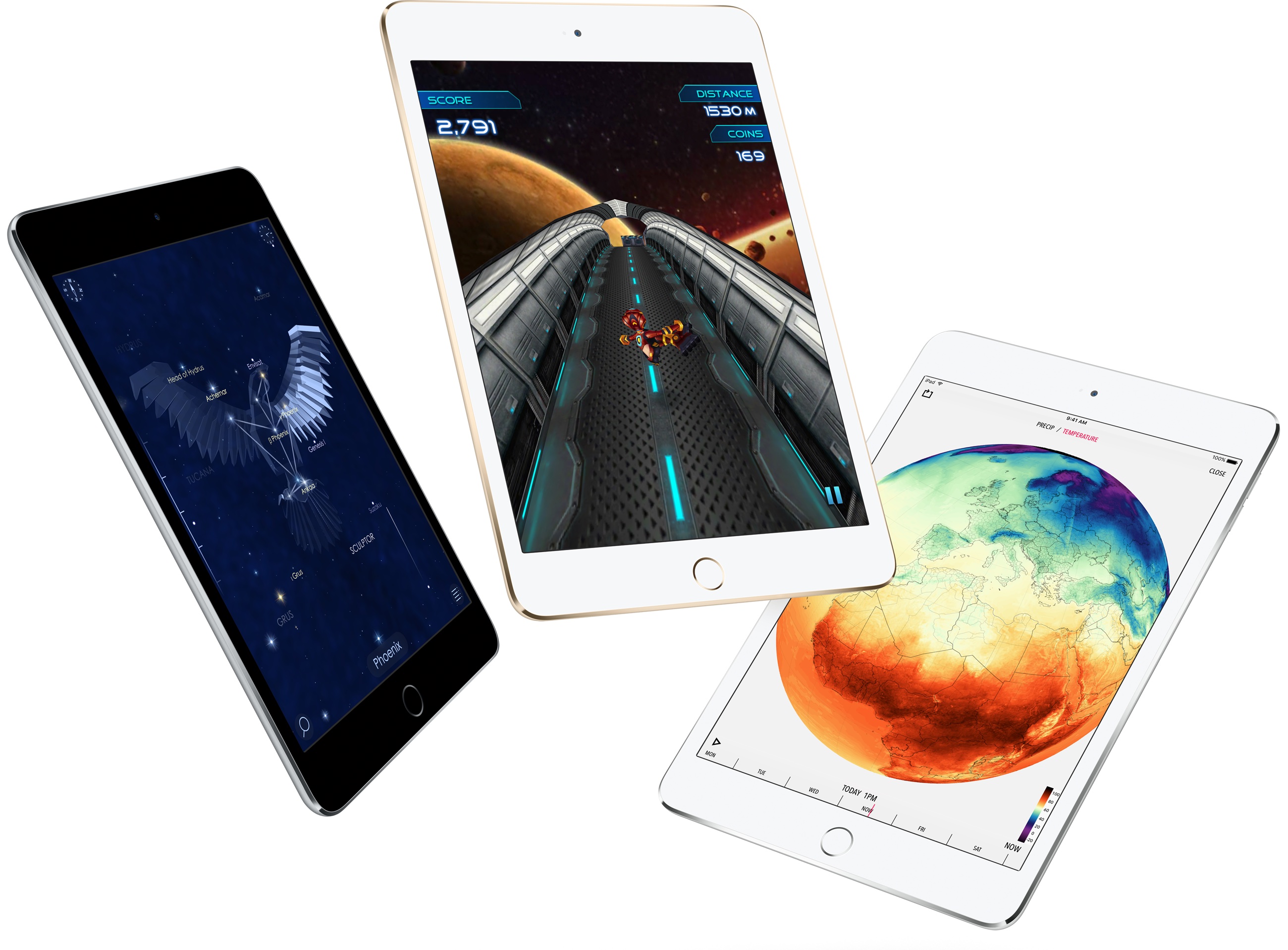
First introduced in 2012, Apple’s 7.9-inch iPad mini won't be updated going forward because the company is phasing out the device due to decreasing sales. A source close to the iPhone maker told BGR there’s “fierce cannibalism of Apple's own products” and that the iPad mini lineup has just been “sized out of its own category.”

The report does not detail when the device might be discontinued.

“We’re also told that the numbers are 'very clear' as far as sales are concerned, which is most likely the biggest reason the company plans to eliminate the littlest iPad,” reads the article.

Following the introduction of the new 9.7-inch iPad model in March 2017, Apple phased out both the original iPad mini and iPad Air 2 models.

Apple could unveil a new 10.5-inch iPad Pro at its annual developers conference next month. It's perfectly plausible that iPad mini won't be featured on Tim Cook's “2017 iPad lineup” slide.

The Cupertino company currently offers iPad mini 4 with Wi-Fi and 128 gigabytes of storage for $399. An LTE-enabled model goes for $529. Apple killed the 32-gigabyte iPad mini 4 edition after debuting the new 9.7-inch iPad model.

Japanese blog Mac Otakara claimed last October that Apple could release a fifth-generation iPad mini and market it as the 7.9-inch “iPad mini Pro.”

At any rate, iPad mini made a great choice for budget shoppers.

But with the September 2014 introduction of larger-screened iPhones, iPad mini has slowly but surely been losing its allure as a device that's perfectly suited for light tasks such as reading, checking email, browsing the web, gaming, messaging and so forth.

Should Apple discontinue iPad mini?

Post a comment below to let us know!

Instagram rolls out selfie filters, rewind option for videos, hashtag sticker & eraser brush

Instagram today announced several new capabilities for its mobile app, including selfie filters via the front-facing camera in what appears to be yet another effort to copy the last big Snapchat feature. Aside from face filters, Instagram 10.21 also includes a rewind playback option for videos, a new hashtag sticker an an eraser brush tool.

Face filters

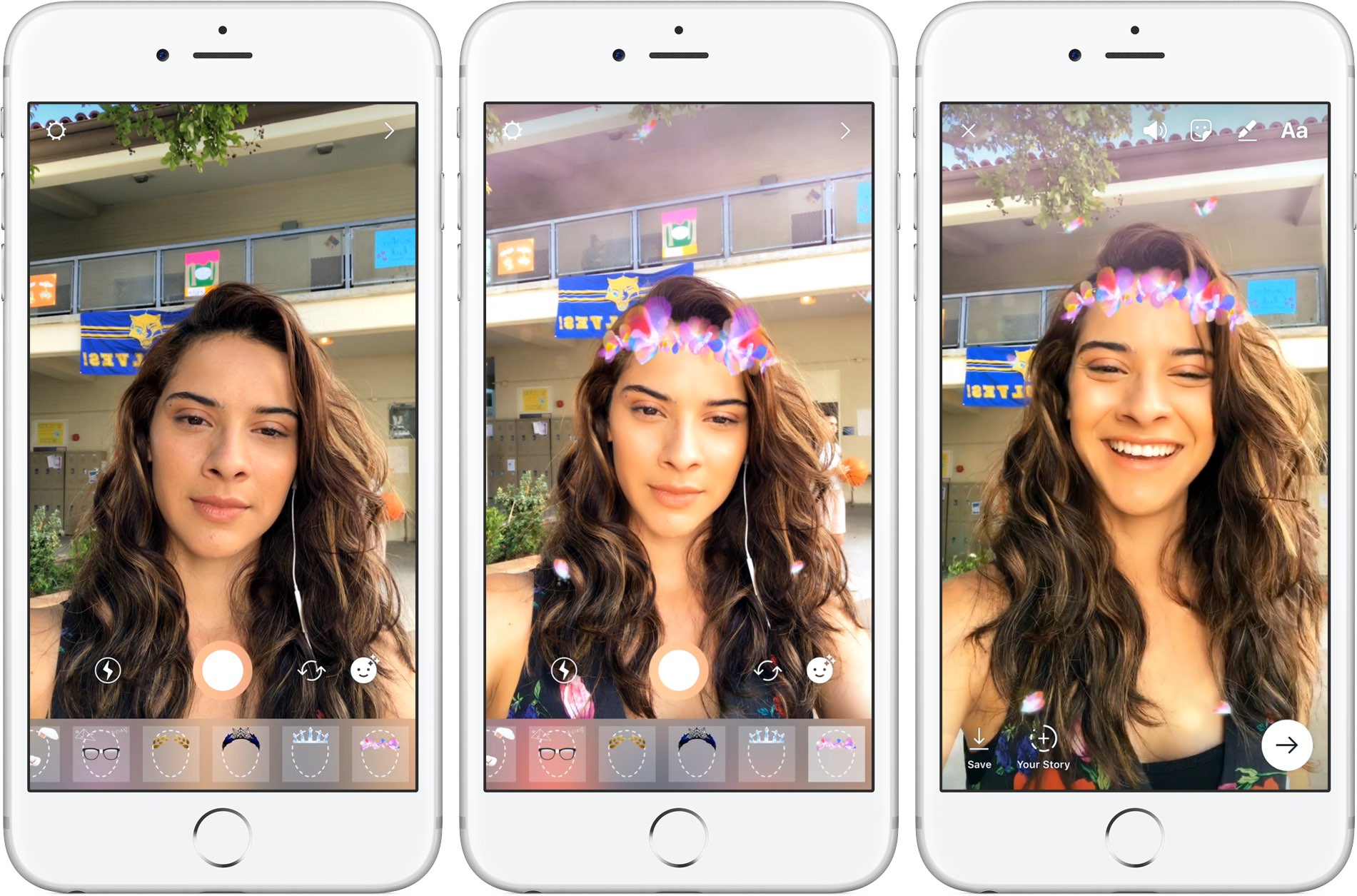
With all-new face filters in the Instagram camera, you can turn an ordinary selfie into something fun and entertaining. A total of eight different face filters are included at launch, with more to be added at a later stage via future updates. To get started with this feature, tap the new face icon in the bottom-right corner of the Instagram camera.

Simply tap a filter to try it on.

The filters include effects ranging from math equations swirling around your head to furry koala ears that move and twitch. “Whether you're sitting on the couch at home or out and about, face filters help you express yourself and have playful conversations with friends,” noted the Facebook-owned company.

https://vimeo.com/217551217

Some of the filters work with a friend.

Moreover, all the face filters included in this edition of Instagram work with Boomerang, meaning you can now add an unexpected twist to the videos you share.

Rewind option for videos

Instagram also provides a new Rewind playback option for videos.

A new camera format next to “Boomerang” and “Hands-Free”, “Rewind” lets you share a rewind of your video. This mode captures your video normally, then makes it play in reverse.

Hashtag stickers

A new hashtag sticker joins Instagram's existing stickers and geofilters. To get started with it, tap the sticker icon in the top-right corner, then choose and customize the new hashtag sticker before adding it to your own Story.

Like with mentions, you can add hashtags using regular text as well.

Hashtag stickers are interactive: folks watching your Story can tap the hashtag sticker or text to visit the hashtag page and explore related posts.

Eraser tool

With the new eraser brush, you can remove parts of drawings or color.

Instagram advises selecting the fill tool after you’ve taken a photo or video to fill the entire screen with color. Then, using the new Eraser tool, you can easily and quite creatively reveal parts of your photo or video underneath.

These new features are available as part of Instagram 10.21 for iOS.

To learn more about these updates, check out Instagram's Help Center.

Instagram is available at no charge from App Store.

Apple is looking for a programming chief

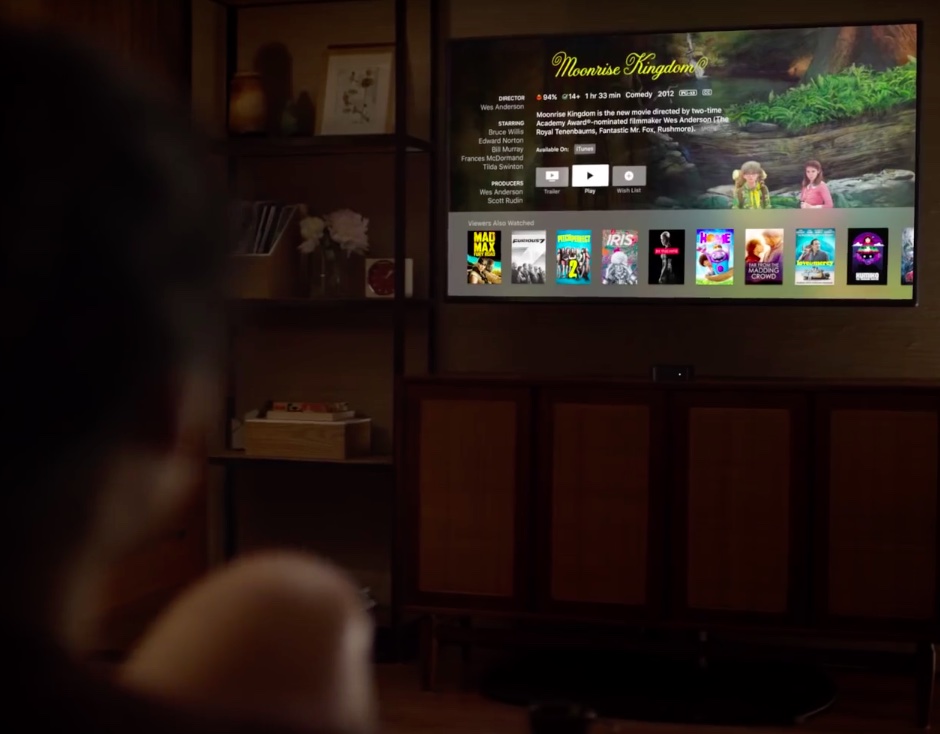
Highlighting Apple's ongoing initiatives in terms of producing original shows, The Information reported yesterday that Apple has been looking for a programming chief to lead its video efforts across the company.

“HBO’s former programming head Michael Lombardo met with Apple executives earlier this year to discuss Apple’s video programming strategy,” a person familiar with the talks told author Tom Dotan.

While the iPhone maker has been looking to fill that particular role, it's unclear if Lombardo could be a candidate to run the company's video efforts. Lombardo left his role as HBO president and programming lead in early 2016 to become a producer.

He is currently producing a 10-episode scripted series for HBO, based on true events, because the executive now has a production deal with the network he departed just earlier this year.

The publication speculates that having a programming chief would signal to the entertainment community that Apple was serious about making its own shows and movies. The Cupertino company is working on several video projects for Apple Music members, including reality competition show “Planet of the Apps” and the “Carpool Karaoke” spinoff.

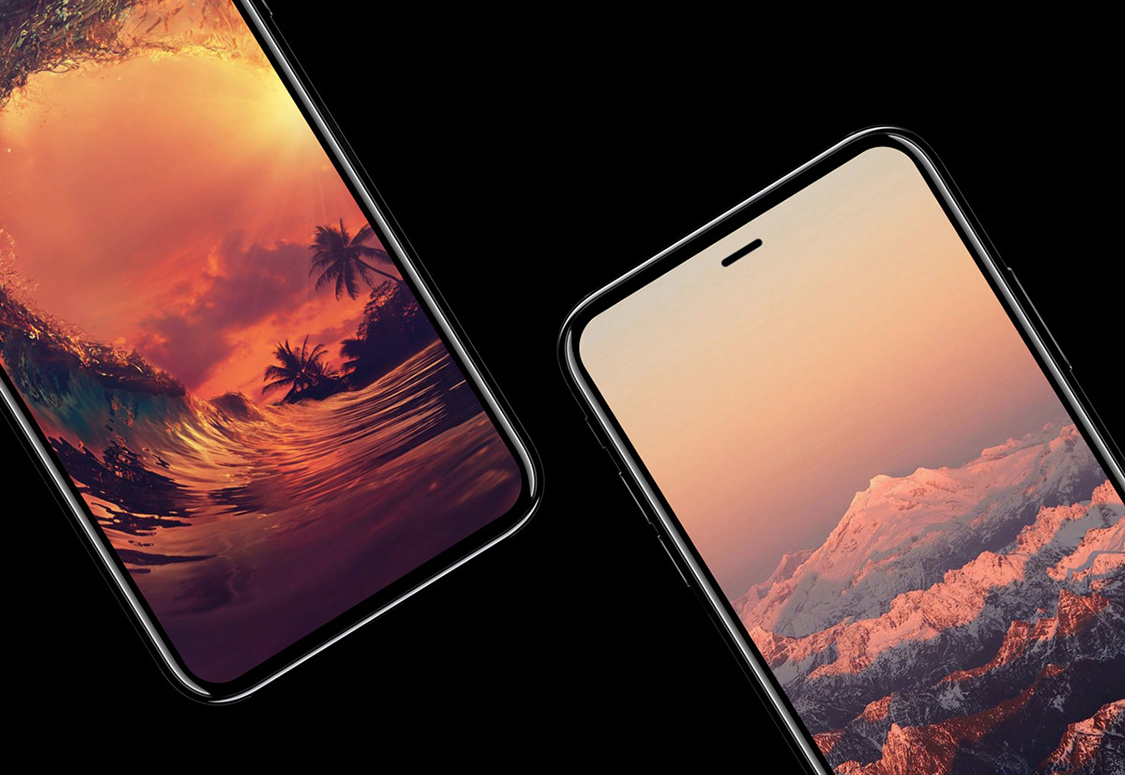
Apple awarded key iPhone 8 patents for in-screen Touch ID, edge-to-edge display and 3D scanner

The United States Patent & Trademark Office (USPTO) on Tuesday awarded Apple patents for a bezel-less screen, a depth mapping system and an always-on Touch ID fingerprint sensor integrated into the display, which are the three key features expected from iPhone 8. The patents are part of a series of 56 newly granted patents for Apple today, according to PatentlyApple.

Edge-to-edge display

Titled ”Reducing the border area of a device”, the U.S. Patent No. 9,652,096 covers the process for bending the edges of a touch sensor panel and a display panel to help reduce the non-interactive border area of a mobile device.

The patent abstract explains that an electronic device could feature a flexible panel comprised of a flat surface, “an active area” and one or more bent borders “contiguous with and extending from the active area of the substantially flat surface”.

The panel can be folded back against the back surface.

This helps extend the active touch area closer to the edges, thereby reducing the overall width of a device. The patent was filed for in July 2014 and names Apple engineer Steven Martisauskas as its inventor.

In-screen Touch ID

The U.S. Patent No. 9,652,066 for an “Electronic device including finger biometric sensor including transparent conductive blocking areas carried by a touch display and related methods” covers moving Apple's Touch ID from the Home button to beneath the display itself.

The system would use at least one transparent conductive layer beneath a touch display to define “touch sensing pixels”. A finger biometric sensing layer, which includes an array of transparent conductive finger biometric sensing pixels, is capacitively coupled to the at least one transparent conductive layer of the display.

Apple also mentions switchable transparent conductive blocking areas between the finger biometric sensing layer and at least one transparent conductive layer of the touch display. These areas could alternate between blocking and reading states.

Apple argues that biometric authentication should occur automatically as the user is interacting with the device, not require them to scan their finger in a separate step which would force them to switch between tasks to authenticate themselves. In other words, Apple's proposed solution would allow auto-authentication because your iPhone could read the fingerprint that's already on the touchscreen, providing a more seamless experience.

According to the patent's description, an in-screen Touch ID may support iPhone, iPad and MacBook devices. The late-2016 MacBook Pro is the first Apple computer to come with Touch ID, found at the rightmost side of its Touch Bar OLED display.

This patent was first filed for in January 2015 and lists Apple engineer Dale Setlak as its inventor.

3D sensing

And lastly, we have the U.S. Patent No. 9,651,417 for a “Scanning depth engine” which covers optical 3D mapping associated with a Kinect-like device and details methods and devices for projection and capture of optical radiation.

The solution requires a bespoke transmitter and a scanner.

The job of the transmitter is emitting a beam comprising pulses of light. The scanner, basically a micro-electro-mechanical systems (MEMS) device then uses micro mirrors, receives the light reflected from the scene. Using time of flight calculations, the system is able to generate 3D models of any objects in a volume of interest, based on the calculated distance of the individual points in the scene from the scanner.

“A processor is coupled to control the scanner so as to cause the beam to scan over a selected window within the scan range and to process the output of the receiver so as to generate a 3D map of a part of the scene that is within the selected window,” reads the patent abstract. The scanner can be configured to scan the reflected light within a predefined scan range, over a scene, adds the company.

While this particular invention could power iPhone 8's rumored 3D scanning and mapping features, Apple specifically mentions a Kinect-like accessory that could be also integrated into a next-generation Apple TV to permit users to interact with games or exercise videos played.

This patent was filed for in February 2013 and lists Apple's Israel-based PrimeSense engineers Alexander Shpunt and Raviv Erlich as its inventors.

Make your folders look the way they did in iOS 6 with ClassicFolders 2

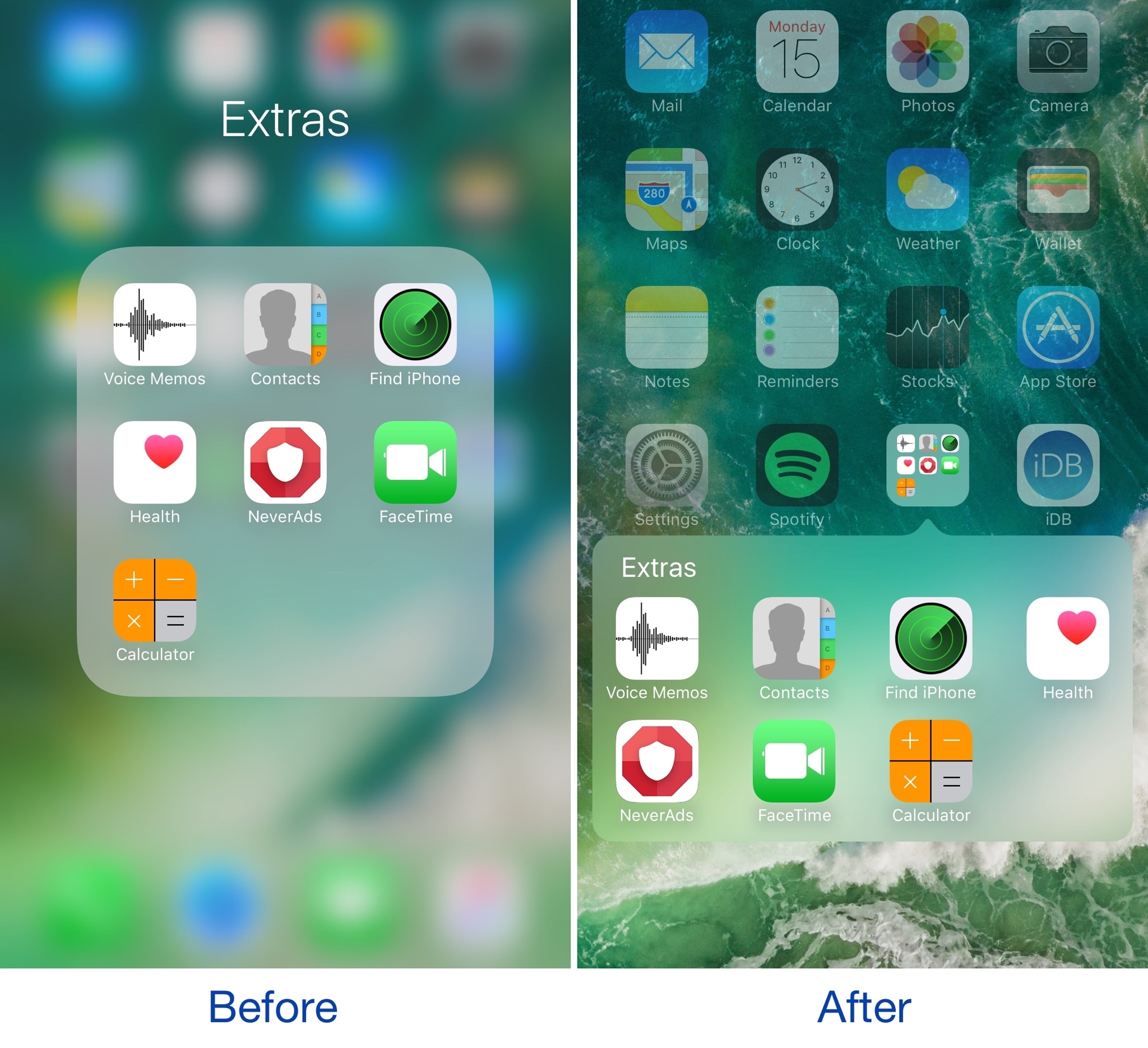
If you’ve got nostalgia for older skeuomorphic versions of iOS, or you’re just looking for a different look and feel for your device altogether, then a new jailbreak tweak called ClassicFolders 2 just might tickle your fancy.

This tweak gives your folders a throwback to the days of iOS 6 and earlier by giving them a page break-style instead of the full-screen effect that's been around since iOS 7.

Masq lets you customize the Now Playing interface

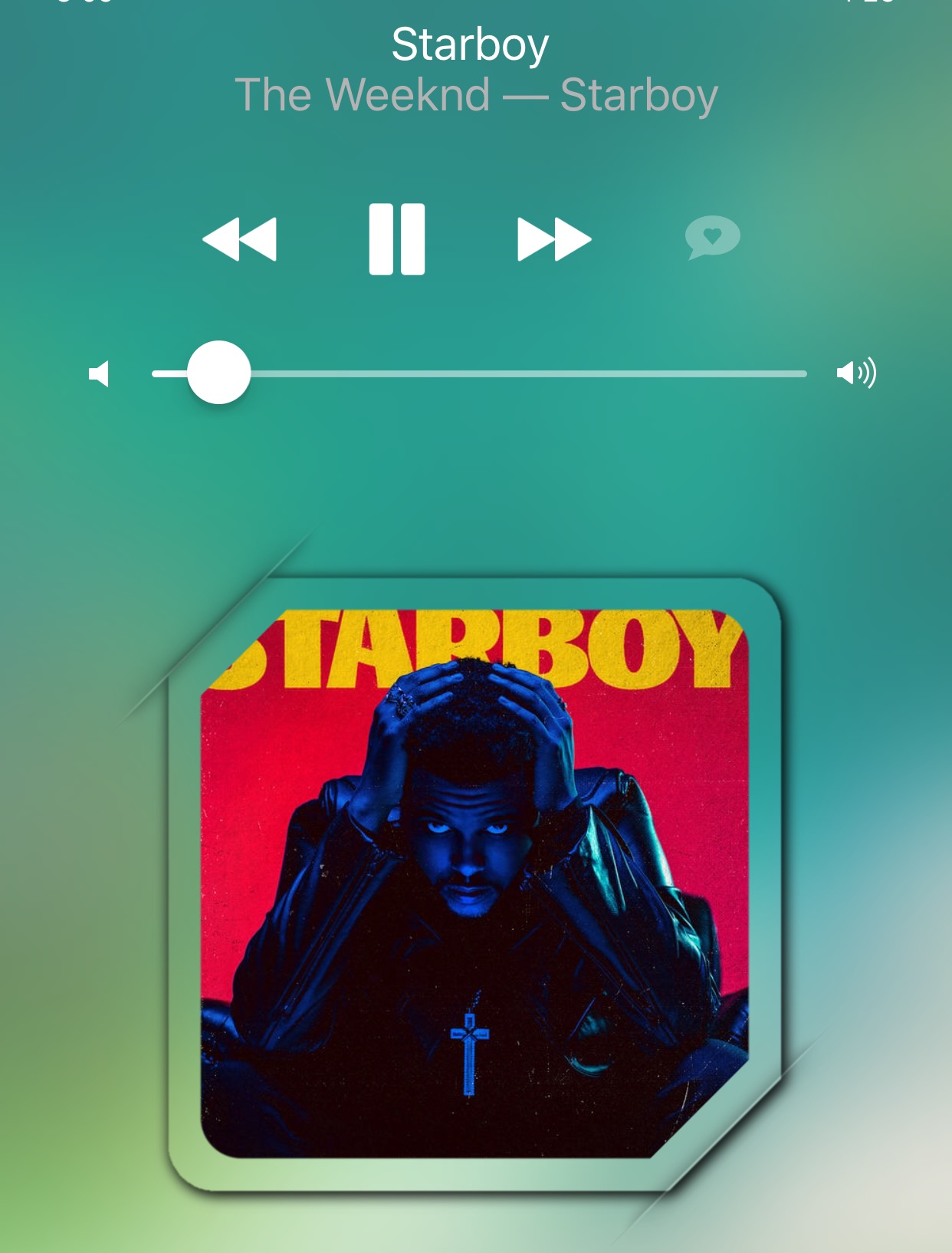
The Now Playing interface found both on the Lock screen and in Control Center when you're listening to music is the main focus of a new jailbreak tweak dubbed Masq by iOS developer candoizo.

The tweak lets you spice up the look of each interface independently with themes and a trough of aesthetic options. Tailored for the creative mind, Masq is a great addition to themed devices and stock-looking devices alike.

Let’s Talk iOS 187: This is a no-brainer

Sebastien and Cody welcome new additions to their families of electronic devices. The two take a fun quiz that you should probably take too. Talks about WWDC 2017, Siri speaker, sleep tracking, and an after show all about health and fitness.

Subscribe on iTunes

How to delete old Time Machine backups

Do you use macOS's incredibly useful zero-configuration Time Machine feature to keep the personal files, settings and documents residing on your Mac safely backed up to an external disk? If so, is your backup disk nearly full? The best way to make room on your backup disk is to delete old Time Machine backups using Finder.

For example, the disk in my AirPort Time Capsule is nearly full because I have backups dating back to 2010. In this day and age of iCloud Drive and other cloud-storage services, keeping years worth of backups is kind of useless. That precious disk space could be put to better use for storing your photos and videos, for example.

In this tutorial, you will learn how to delete old Time Machine backups to help clean up your disk and regain storage space on it.

Deleting old backups should be your first order of business in situations when your Time Machine backup disk runs out of space. By default, Time Machine deletes older backups to make room for new ones as your backup disk fills up.

There are a couple ways to remove entire backups created on specific dates. We will describe both, but note that Apple seem to prefer the first method

How to delete old Time Machine backups

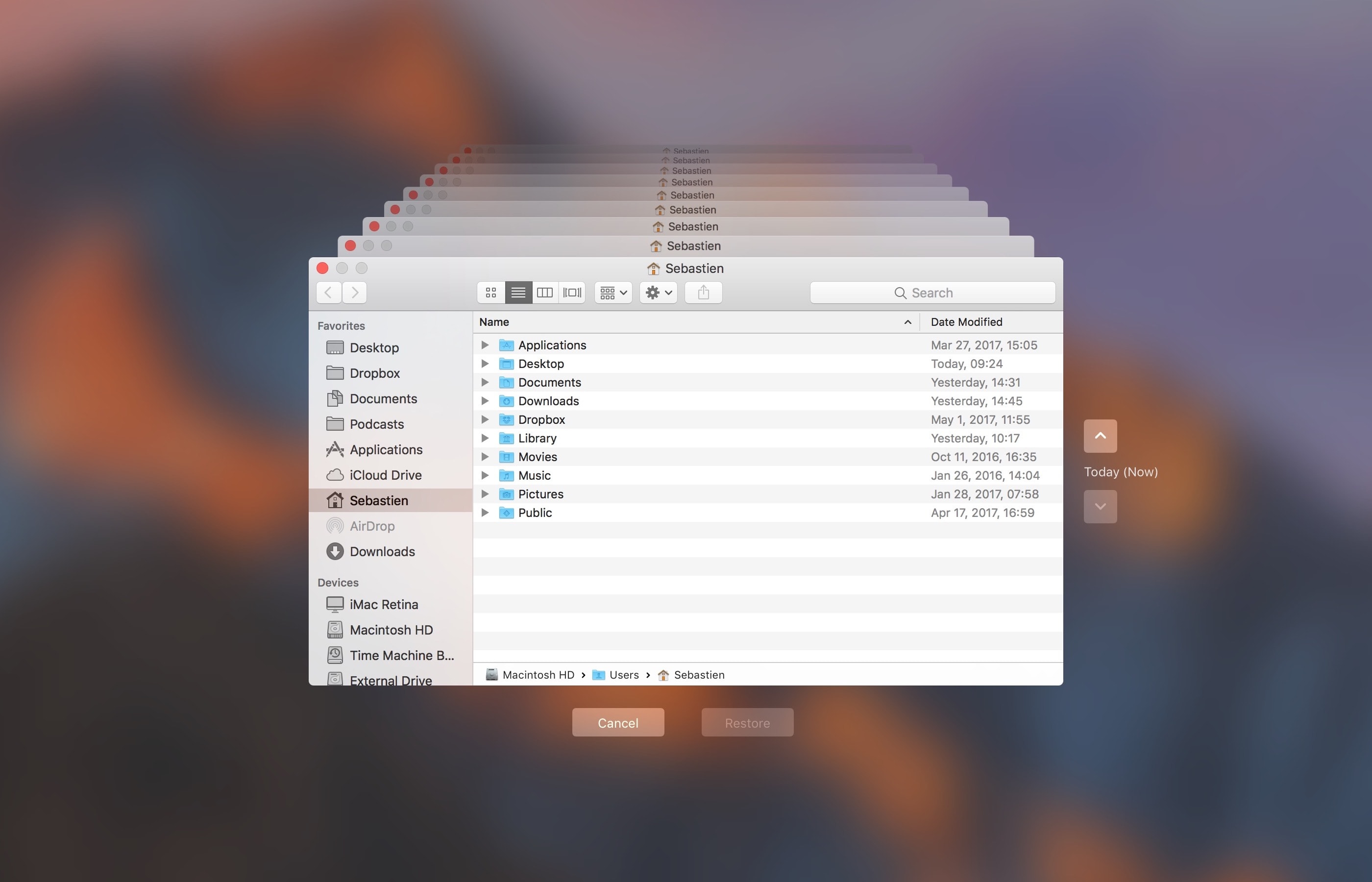
1) Click the Time Machine icon in your Menu Bar to enter Time Machine.

2) Navigate through the interface to the desired date.

3) Once you have located the day you want to delete from your backup, click on the gear icon and select Delete Backup.

4) You will be asked to confirm you indeed want to delete the backup, and you may be ask to enter your administrator password too. Once done, the backup for that specific day will be deleted.

How to remove old Time Machine backups using Finder

1) Click the desktop and open a new window by selecting New Finder Window from the File menu, or press the Command (⌘)—N keys on your keyboard.

2) Connect the disk containing your Time Machine backups to the computer and wait until its name appears underneath the Devices section in the Finder sidebar, then click it.

You may be asked to enter your administrator name and password to continue. If you use AirPort Time Capsule, you may be asked to enter a password to access the backup disk.

3) Navigate to the “Backups.backupdb” folder on your Time Machine backup disk as you would other folders. It should be a top-level folder of your backup drive.

4) Once inside the “Backups.backupdb” folder, navigate to the sub-folder named with your Mac computer's name. For instance, if your Mac is named “iMac Retina” in System Preferences, Time Machine will store backups inside the “iMac Retina” sub-folder.

TUTORIAL: How to change your Mac computer's name

5) You will see a bunch of sub-folders, each prefixed with the date of the backup in the YYYY-MM-DD format. For example, backups of your iMac created on April 19, 2017 would we stored in the sub-folder with the name beginning with “2017-04-19”. To delete a desired backup sub-folder, right-click or Control (⌃)-click it, then choose Move to Trash from the popup menu.

This will delete all copies of a backed-up file or folder from your Time Machine backup disk.

6) Repeat the process for other full-day backups you'd like to remove. When done, disconnect the disk by selecting its icon on the desktop, then choose Eject from Finder's File menu.

While you can safely delete sub-folders within the “Backups.backupdb” folder, you are not allowed to delete individual items inside the dated folders.

You're wholeheartedly discouraged from using Terminal or any other app other than Finder to move, copy or delete items from the Backups.backupdb folder.

You also cannot delete items from local snapshots stored on your internal drive.

To save space on the backup drive, why not exclude individual files or entire folders of files—like your Applications or Downloads folder—in the Time Machine preferences window?

That's all, folks!

If you have a question, post a comment below and we'll do our best to answer it. Please share this tutorial on social media and pass it along to the folks you support.

Submit your ideas regarding future coverage via tips@iDownloadBlog.com.

BGR: Next Apple Watch to use smart bands for game-changing diabetes treatment tech

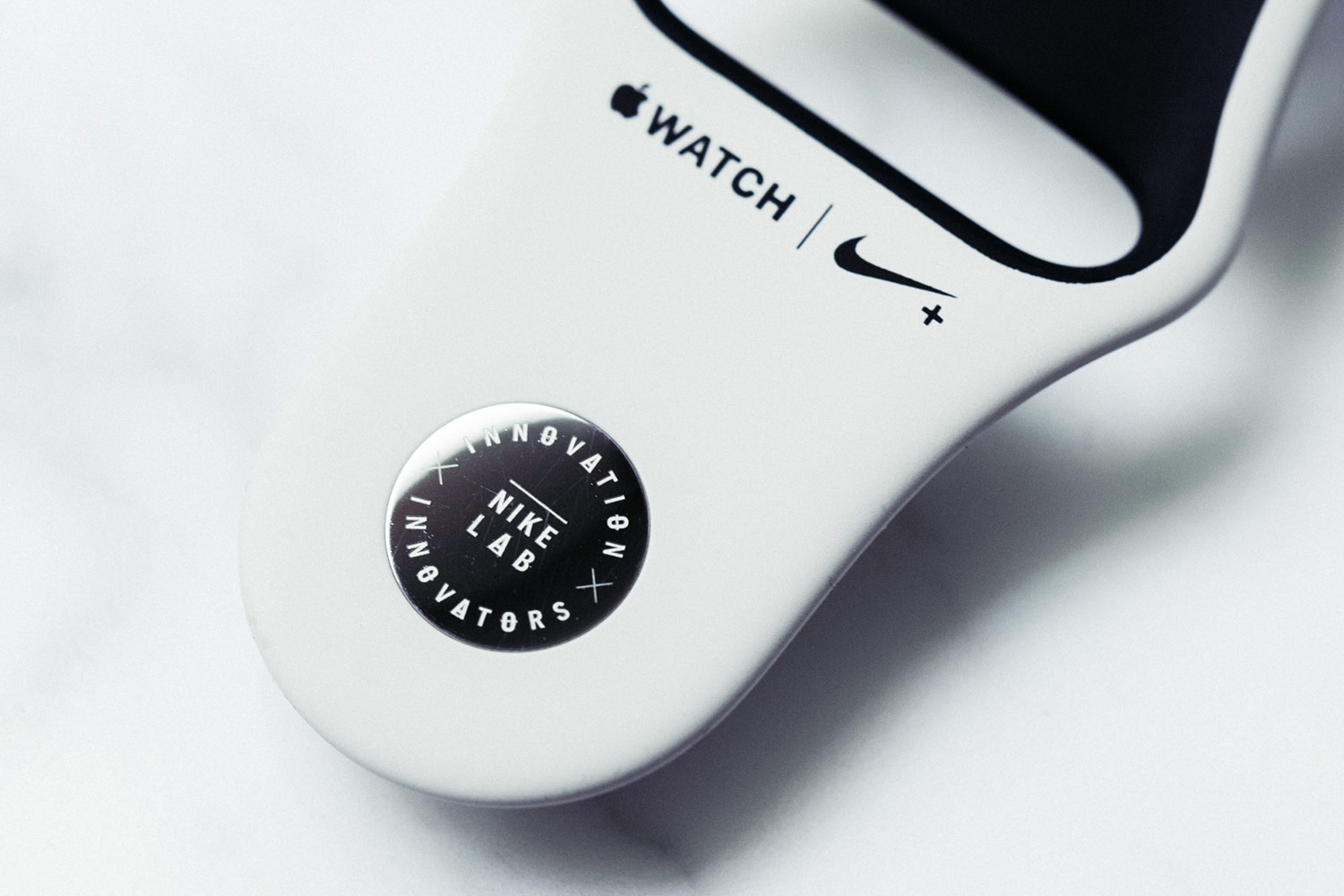
Apple is reportedly working on a “game-changing” diabetes treatment technology for Apple Watch Series 3 which will allegedly use interchangeable “smart watch bands” said to contain specialized built-in sensors.

That's according to a source familiar with Apple’s plans who spoke with BGR. The iPhone maker has reportedly “identified the right part of the body and there’s so much more they can and intend to do with the watch,” said the source.

Jonathan Geller, who runs BGR, speculates that the glucose monitoring feature could use Apple's smart band system rather than being built into the watch hardware.

“Apple also plans to introduce interchangeable smart watch bands that add various functionality to Apple Watch without added complexity, and without increasing the price of the watch itself,” the author wrote.

30 million people suffer from diabetes in the US, as per the American Diabetes Association.

Currently, the only way to properly measure blood sugar levels is by using a blood sample or a device that penetrates the skin. That could change soon, if these reports are anything to go by.

Last week, CNBC learned that the Cupertino company has been developing non-invasive sensors that would continuously monitor blood sugar levels.

The super secret initiative is allegedly focused on developing optical sensors that would shine a light through the skin in order to measure indications of glucose.

Apple is even conducting feasibility trials at clinical sites across the Bay Area.

CNBC says Apple hired consultants to deal with regulatory approvals, yet another indication that these smart Apple Watch bands with built-in sensors could in fact see the light of day.

Apple is expected to preview a major new version of watchOS at WWDC next month.