How to switch between Celsius and Fahrenheit on your iPhone, iPad, and other Apple devices

Two screenshots from the iPhone Weather app with one showing the temperature in Fahrenheit and the other in Celsius

Your Apple devices provide a global setting for representing specific quantities of temperature in apps. You can switch between displaying the temperature in either Celsius or Fahrenheit. Apps that support this feature, including Apple's stock Weather app, honor this setting to display the temperature in your preferred unit regardless of your regional settings.

In this tutorial, you will learn how to easily switch between Celsius and Fahrenheit independently of your other regional settings on your iPhone, iPad, or iPod touch, as well as adjust this setting on other Apple devices, such as your Apple TV, Apple Watch, or Mac.

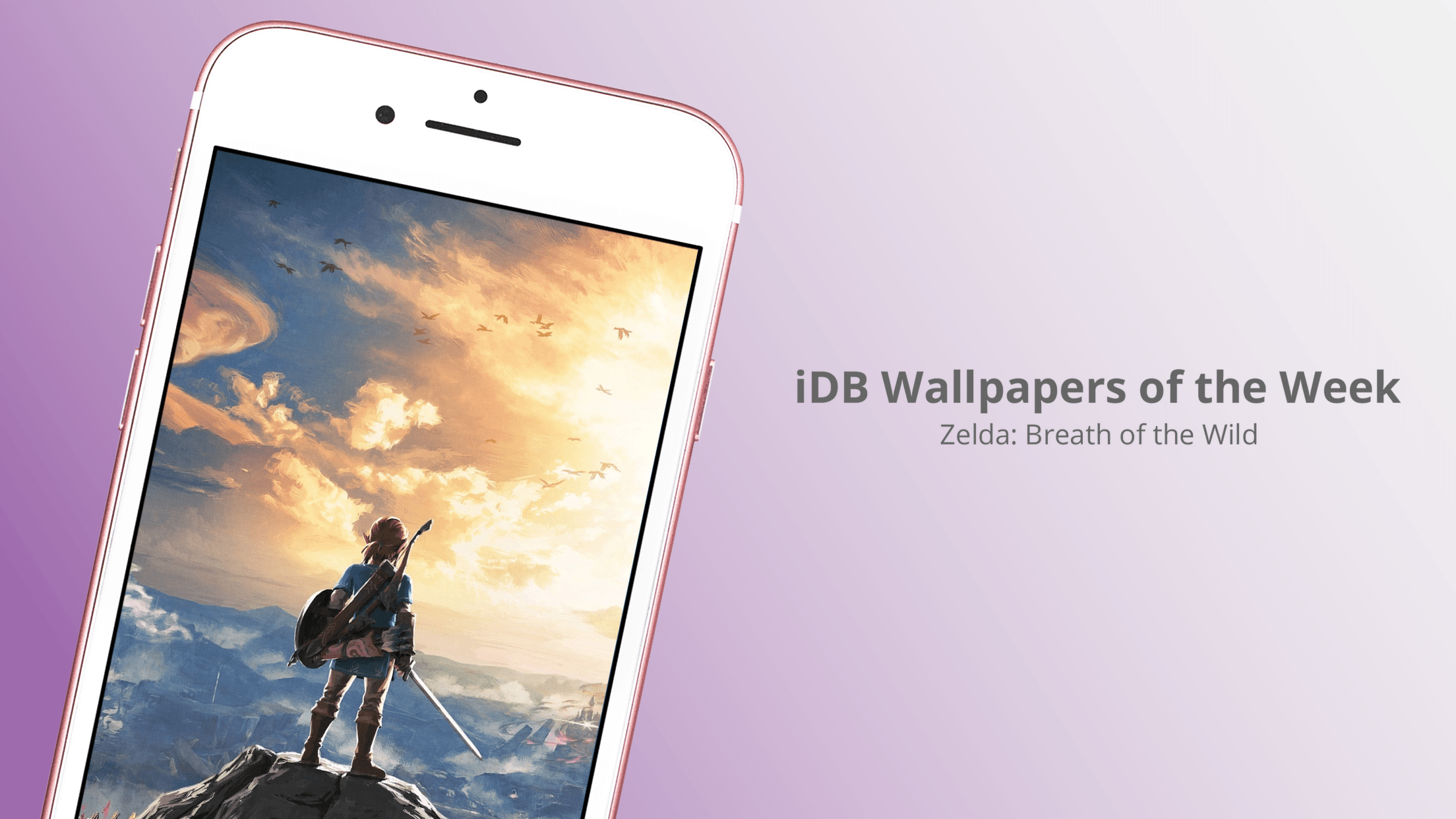
Wallpapers: Apple Store Dubai Mall

On April 27, Apple opened its second store in Dubai and third in the United Arab Emirates. In an attempt to mitigate the ever-changing local climate, Apple used 18 "Solar Wing" panels, comprised of 340 carbon fiber polymer rods to create an opening structure that closes to block the sun, but opens at night. Four million people have already visited the first two UAE in only 18 months. Today we feature a collection of wallpapers inspired by the Apple Store Dubai Mall.

Jailbreak tweaks of the week: ColorGram, HUDPlayer, & more…

The jailbreak community has been pretty unpredictable lately; just as you begin to think Cydia is going through a lull, developers surprise you with a bevy of fun and useful new releases.

In this piece, we'll discuss all of the jailbreak tweaks that were released throughout the week, starting with our favorites. We'll outline the rest of them afterwards.

JPMorgan: iPhone 8 to bring enhanced stereo sound and waterproofing, ship with AirPods

JPMorgan analysts who track Apple's supply chain in the Asia-Pacific region, including Gokul Hariharan, shared a new research note this week. In it, the they predicted that the company's upcoming iPhone 8 will come outfitted with an enhanced earpiece sporting “further improvements” to stereo sound and waterproofing.

The note, obtained by MacRumors, does not specify what acoustical improvements Apple could introduce to iPhone 8's earpiece.

JPMorgan also made the prediction that AirPods could come as a free accessory with iPhone 8. If true, Apple's $159 wireless earbuds could replace the firm's $29 wired EarPods with Lightning connector that come in the box with current iPhone models.

https://www.youtube.com/watch?v=R17WDY3BIfo

Subscribe to iDownloadBlog on YouTube

The research note mentions other previously rumored iPhone 8 features, like an OLED display, a stainless steel and glass design, a faster A11 processor, a larger battery, wireless charging and enhanced cameras with new sensors for 3D mapping, 3D selfies, facial recognition, augmented reality capabilities and more.

The analysts estimate that iPhone 8 will be $75 to $80 more expensive to manufacture.

iPhone 7 became the first iPhone to feature stereo sound.

Rather than use two separate speakers at the bottom of the device, Apple has opted to combine a speaker unit at the bottom with the earpiece at the top to create “immersive stereo sound” delivering two times the audio output of iPhone 6s and increased dynamic range.

FolderAutoClose 10 automatically closes folders after launching apps from them

Any time you open a folder to launch a containing app, and then you close it, you find yourself back inside the folder where you originally launched that app rather than on the main Home screen.

A new free jailbreak tweak dubbed FolderAutoClose 10 by iOS developer yuripeyamashita is now available that automatically closes folders in the background when launching apps from them.

Hide the date from the Today page with No Date Today

Some might consider the date information in the Today page unnecessary because the date appears in several other places on your devices. If you agree, then a new free jailbreak tweak called No Date Today by TheComputerWhisperer could be useful to you.

This tweak removes the double-line date from the Today page and makes more vertical room for cramming additional Today widgets into a single screen; the benefit being that you won't have to scroll down as much to see their information.

This tweak forces Safari to load web pages in Reader or full screen mode

While browsing the web in Safari, two bars typically appear in the app: the navigation bar (top) and the toolbar (bottom). As you scroll through a page, on the other hand, the toolbar disappears and the navigation bar shrinks to conserve vertical space.

There are other modes you can use in Safari to complement the web browsing experience, such as full screen mode in landscape orientation and Reader mode in either orientation, but if you’ve ever wished Safari would just use either mode automatically for every page you visit, then you’re going to love using a new free jailbreak tweak called SafaReaderFullScroll by CydiaGeek.

How to use Extender Installer to automatically re-sign your jailbreak app

Update: As of the 0.3.2 update, the app is now called Extender: Reloaded, search for that in Cydia instead of Extender Installer.

Now that Extender: Reloaded has been released for Cydia Extender on jailbroken devices, we've had a few requests for a quick guide on how to use it. Look no further! Follow our how-to below to ensure your jailbreak app never needs sideloading from a computer again. At last, your semi-untethered jailbreak is truly semi-untethered.

How to open your iTunes playlists in separate windows

In older versions of iTunes, you could easily open a playlist in a separate window. It was both a great time-saver and a boon to your productivity, especially on large screens.

For reasons unknown, Apple has removed that functionality from the iTunes 12 update which was overhauled around a single-window workflow.

Thankfully, the company has reinstated the ability to open playlists in new windows with iTunes 12.6. Here's how to open your playlists in their separate windows using iTunes for Mac.

How to open your playlist in a new iTunes window

1) Launch iTunes on your Mac.

2) Choose Music from the menu near the upper-left corner, then click the Library tab.

3) In the lefthand column, right-click or Control (⌃)-click your playlist underneath the All Playlists heading, then select the option Open In New Window from the popup menu.

This will open a new iTunes window containing the selected playlist, as shown top of post.

You can drag songs at will between the playlist windows and open as many playlists in separate windows as you like. I don't have that many playlists created in iTunes so I was able to open “only” four playlist windows, but it worked like a charm.

How to open an Apple Music playlist in a new window

Playlists on Apple Music cannot be opened in their separate windows unless they're in your iTunes library. To do so, follow the steps below:

1) Launch iTunes on your Mac.

2) Choose Music from the popup menu near the upper-left corner of the window, then click either the Library or the For You tab.

3) Find a playlist on Apple Music and click the three dots in the lower-right corner of playlist graphics to bring up the contextual menu, then choose the option Add to Library.

4) With the selected Apple Music playlist now in your iTunes library, switch to the Library tab, right-click it underneath the Apple Music Playlists heading in the lefthand column, then select the Open in New Window command.

Just like that, the selected Apple Music playlist from your library opens in a new window.

iTunes playlists windows and Split View

Sadly, playlists windows in iTunes don't support macOS's useful Split View feature.

If iTunes supported Split View properly, it could have been a great multitasking feature. In other words, you cannot browse your iTunes library in the main window and have your favorite playlist in its separate window in macOS's Split View mode.

And that's it, boys and girls!

Pass along this article to other Mac users you support and don’t forget we accept your submissions regarding future coverage ideas via tips@iDownloadBlog.com.

If you have any questions, please post a comment below.