Sébastien Page

Sebastien is the Founder and Editor in Chief of iDB. Once a BlackBerry user, Sebastien instantly fell in love with the iPhone when it was first announced in 2007. Shortly after, he decided to start sharing his knowledge of the iPhone and its nascent ecosystem, which led to the creation of this blog. Sebastien currently owns 14 iPhones, 4 iPads, a MacBook Pro with Touch Bar, a MacBook Air, 2 Apple Watches, 3 Apple TVs, countless HomePods and AirTags as well as a few pairs of AirPods.

Unofficial PwnageTool Jailbreak for iPhone 3GS iOS 4.0.2

PwnageTool, the famous jailbreak that helps cook custom firmwares, hasn't been updated by the Dev Team in a few weeks. Some hackers decided it was time to revive PwnageTool and released an unofficial version of it.

Since this is unofficial, I do not endorse or even recommend it. I'm just sharing the news with you. Now if you want to use it, do so at your own risks.

The steps to jailbreak your iPhone using PwnageTool remain the same but keep in mind this will only work for the iPhone 3GS (old bootrom only).

If my words haven't killed your motivation to use this unofficial version of PwnageTool, you can download it here. Please let us know what your impressions are by leaving a comment should you decide to give it a try.

[RP]

Safari Download Manager Updated for iOS 4

Safari Download Manager, the extension that adds a powerful download manager to the iPhone's web browser, has been updated to work on iOS 4, bringing support for the iPhone 4 and the iPad.

Although a bit pricey, Safari Download Manager is a great application that really unleashes to power of the iPhone, allowing you to download and save on your device virtually any file out there.

You can download Safari Download Manager from Cydia for $5.

How to Convert Old iPhone App Icons to Retina Display Icons

I just got tipped by an anonymous reader about a nice little trick that will convert iPhone app icons that haven't been optimized for the iPhone 4 Retina Display to high resolution icons. This will require a jailbroken iPhone and a couple applications.

Step 1: Download iFile from Cydia and Resize-Photo from the App Store.

Step 2: In iFile, navigate to the folder of the application of which you'd like to optimize the icon. The application folder is usually called appname.app.

Step 3: Save the app icon to your camera roll. The app icon size should be 512 x 512.

Step 4: Open Resize-Photo and change the application icon size from 512 x 512 to 114 x 114 and save it.

Step 5: In iFile, navigate to your photos folder and copy the new icon you just resized.

Step 6: Now go back to your app folder and look for the application icon and rename it to something like IconBackUp.png, just in case something goes wrong.

Step 7: Still in the application folder, paste the resized app icon and name it Icon.png, or whatever the app icon was called in the first place.

Step 8: Reboot your iPhone. You should now have a high resolution icon.

Apparently this doesn't work with every application icon but it should work with most of them.

Pretty nice trick, isn't it?

Give a Vintage Look to Your iPad With a BookBook Case

Want to give a vintage look to your iPad? Then you may want to try the BookBook case.

BookBook for iPad is a handmade one-of-a-kind, hardback leather case that doubles as a fully adjustable stand. Along with its vintage looks, the super cool case makes iPad feel as if you’re holding a real book, and in many ways you are holding a book. BookBook for iPad forms a safe cocoon around your prized iPad. The hardback cover and spine provide impact protection, while the hard protective inner frame offers crush protection. As a bonus, the unique design of this case disguises iPad for an extra level of stealthy security.

The BookBook case comes in classic black or vibrant red for $69.99 (free shipping).

[JAiB]

How to Downgrade iPhone 4.0.2 to 4.0.1

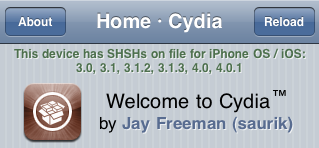
This step by step guide will show you how to downgrade your iPhone iOS 4.0.2 to iOS 4.0.1. These steps are pretty simple but there is one major requirement: you must have your SHSH files saved on Saurik's server. There is absolutely no way around it. If you don't have your SHSH, you won't be able to downgrade your iPhone.

In this tutorial, we will see how to downgrade the iPhone from 4.0.2 to 4.0.1 but the steps are the same if you want to downgrade to iOS 4 or even 3.1.3.

There are several methods used to downgrade the iPhone. We will learn the method that uses TinyUmbrella. No file editing will be necessary.

How to Downgrade from iOS 4.0.2 to 4.0.1

Step 1: Let's download your SHSH blobs from Saurik's server to your computer. To do so, download TinyUmbrella and plug your iPhone in. Select the "Advanced Options" box. Also select the firmware version to which you wish to downgrade. Finally, select "Cydia" under "Request From". Then hit "Save My SHSH". This will grab your SHSH files from Saurik's servers and save them on your computer.

Step 2: Download the firmware to which you wish to downgrade to from our iPhone downloads section. Save it to your desktop.

Step 3: Put your iPhone in DFU Mode. To do so, launch iTunes and plug your iPhone in. Press and hold the Home and Power button together for 10 seconds. After 10 seconds, release the Power button while still holding the Home button until iTunes pops up and says it has found an iPhone in recovery Mode.

Step 4: Run TinyUmbrellaand click the "Display SHSHs" button to make sure your SHSH blobs were downloaded to your computer. Once done, click "Start TSS Server".

Step 5: Now we're going to restore to the firmware you want. To do so, launch iTunes and plug your iPhone in. Hold to SHIFT key (Windows only) or ALT/Option key (Mac only) while clicking on Restore. Make sure you hold the key while clicking Restore. A window will open. Simply select the firmware you downloaded in step 2.

Step 6: Your iPhone will start the restore process. You will most likely get several errors (error 1011, 1013, and 1015) but that's ok, don't worry about those.

Step 7: Finally, we need to get your iPhone out of recovery mode. To do so, simply click "Kick Device Out of Recovery" in TinyUmbrella.

Done!

You should now be back on a previous iOS, giving you the ability to jailbreak and unlock.
Remove Background Toggle for SBSettings

Remove Background is a new mod available in Cydia that adds a toggle to SBSettings allowing you to remove all apps from the task switcher, and kill apps processes at the same time. It's pretty handy because your app switcher can get messy really quickly if you recently opened several applications

I've been looking for a similar app for a while and although Remove Background works as advertised, I find it to be too "extreme" for me. I rarely (if ever) want to kill all apps at once. Instead, I'd like to be able to select in the settings what apps I never want to run in the background or appear in the task switcher. If you're a developer, feel free to use my idea...

What about you? Have you used Remove Background? What do you think about it?

iPhone Patch Improves iPhone 4 Antenna Signal

A couple weeks ago I received and email from Jeff at iPhonePatch.com, a website that sells little stickers to supposedly prevent iPhone 4 antenna issues. Jeff was very friendly and easy going so when he proposed to send me some patches to try out, I agreed. I received the patches last week and I've been trying them ever since and I'd like to tell you a bit more about my experience.

The patches come in 15 different designs to choose from. They're tiny little vinyl patches that take a few seconds to put on. Personally, I put the skulls and recycle logo patches on my iPhone because I thought they were the one that fit me best. It looked a little funny to have these on my phone at first but I quickly got used to them.

I have terrible signal in my house and when I grab my iPhone, I usually get just one bar. After putting the patches on my i4 though, I was able to get 2 or 3 bars constantly when holding the phone. For the purpose of this review, I tried to replicate the antenna death grip and I wasn't able to. The least I would have was 2 bars.

If like me you don't like having a case on your iPhone, using these vinyl patches might be a good alternative to using a Bumper to increase signal strength.

Starting at $5.99 for a six pack of vinyl patches, I think they are a good deal. The only thing I have against the patches is the poor variety of designs. There is indeed not much to choose from but Jeff tells me he's going to be adding more styles in the near future.

You can buy vinyl iPhone patch from iPhonePatch.com.

This is How Much Data Your iPhone Uses When Using FaceTime on 3G

There are a few jailbreak apps on Cydia that let you use FaceTime on 3G: 3G Unrestrictor, My3G, and FaceBreak. If like me you're on an unlimited data plan, data usage is not a problem. If however you are on a capped data plan, using FaceTime over 3G could take you overboard.

A few days ago, I made a FaceTime call over 3G for 10 minutes to figure out how much data FaceTime uses on 3G. As you can see on the image above, I sent about 15 MB of data and I received about 12 MB. I think I sent more than I received because I was moving around a lot.

Total data usage for a 10-minute FaceTime call on 3G: 26.5 MB. That's about 2.65 MB per minute.

Obviously your mileage may vary but these numbers shouldn't be too far from what a FaceTime call over 3G will cost you.

FaceBreak Allows FaceTime Over 3G

FaceBreak is a new jailbreak application that allows you to do FaceTime on 3G. It is very similar to 3G Unrestrictor and My3G, except it only works with FaceTime.

It is available for $1.49 from the Cydia Store. It is cheaper than 3G Unrestrictor and My3G, but again, it doesn't do as much. If you only need FaceTime to work on 3G, then FaceBreak is your best bet. If however you need a mod to allow other apps to run on 3G, then you'd be better off going with My3G.

Have you tried FaceBreak? How do you like it?

iPad KegMate Makes Perfect Bartender

Some engineers at Yelp have made the iPad and a keg of beer work together. The iPad is connected to the keg via several connectors and it is able to tell who's pouring the beer, how much he is pouring, as well as various information about the beer.

Watch the video for more details. It's pretty cool!

Do you want the same at home? Grab the source code here.

[JAiB - Gizmodo]

NoCyFresh Prevents Cydia From Refreshing at Launch

NoCyFresh is a new jailbreak app available in the http://repo.modyouri.com/ repo that provides a way to enable and disable Cydia's refresh of packages at launch. You can still manually refresh by going to the Changes section and hitting "refresh".

I haven't personally tried it but I'd love to hear your thoughts if you have. It seems that NoCyFresh can be a real time saver. Comments?

UPDATE: iDB reader Burge tells us this is a dangerous package. After a bit of research, turns out he is correct. Don't install NoCyFresh (or do it at your own risks)