We've talked about Multifl0w before, one the first jailbreak apps to give a multitasking UI to the iPhone. At the time, I wasn't really a fan because I thought that ProSwitcher was a much better application. Things have changed a lot since then. Apple developed their own multitasking feature, and ProSwitcher was left for dead by its developer who recently said he will not update it.
Sébastien Page
Sebastien is the Founder and Editor in Chief of iDB. Once a BlackBerry user, Sebastien instantly fell in love with the iPhone when it was first announced in 2007. Shortly after, he decided to start sharing his knowledge of the iPhone and its nascent ecosystem, which led to the creation of this blog. Sebastien currently owns 14 iPhones, 4 iPads, a MacBook Pro with Touch Bar, a MacBook Air, 2 Apple Watches, 3 Apple TVs, countless HomePods and AirTags as well as a few pairs of AirPods.Drunken Banned iPad Promo
We've seen the hilarious banned iPad promo video before. Now comes the drunken banned iPad promo. Just as funny, a bit more intoxicated. Enjoy.
[Thanks John for sending this in]
Come See Our New Site Design

We were way overdue for a site redesign! As you can see it's much better than it was before. That's because instead of doing the design myself, I actually hired a professional to do it. The layout is pretty much the same so you should find your way around pretty easily.
There are Twitter and Facebook buttons on every page so you can easily share the articles with your buddies. We also have a new logo, which I really like.
Action Menu – My Favorite Jailbreak App Updated for iOS 4
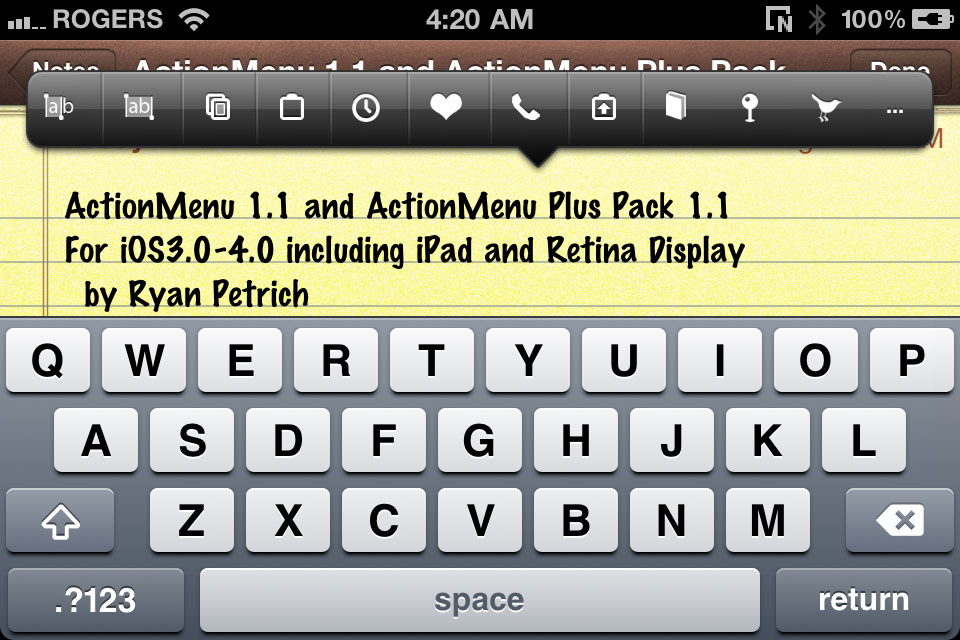
It's like Christmas for me right now. One of my favorite jailbreak apps, Action Menu, has been updated to bring support for iOS 4, the iPhone 4 and the iPad. I've always confessed my love for Action Menu, which saves me tons of time in my everyday usage of the iPhone.
For those of you who don't know about Action Menu, let me give you a quick glimpse at what it does. Action Menu takes a stab at enhancing the copy/paste function of your iPhone by adding a bunch of add-ons to it. The lite version is free but for $2.99, you can get the full-featured app, which I think is well worth the money.
How to Send SMS from Your iPad
Want to send SMS from your iPad? There is an app for that, assuming you have a jailbroken iPad 3G. SwirlyMessage is a new jailbreak application by the developer of SwirlyMMS that allows you to send and receive real SMS and MMS on your iPad 3G.
In order to use SwirlyMessage, you need a jailbroken iPad 3G, and make sure that your carrier data plan allows for sending sending SMS and/or MMS. I don't have an iPad 3G so I wasn't able to try this application but from what I understand, SwirlyMessage simply provides an interface to send SMS through your carrier. If that's the case, extra cost for each SMS sent/received might apply.
You can download SwirlyMessage from Cydia for $12. Please let us know what you think of this application should you decide to give it a try.
Replace Your iPhone “Slide to Unlock” by the Volume Button
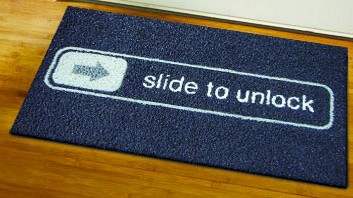
Are you tired of using the "Slide to Unlock" thingy on your iPhone to get access to its homescreen? Then VUnlock might the jailbreak app you've been waiting for. VUnlock allows you to use the volume button of your iPhone to unlock the screen.
Using the volume key to access your phone might be a faster way than turning on the screen and swiping your finger across. The downside is you might accidentally unlock your iPhone more often now it's just one push of a button away.
Slow iPhone 3G? Apple Will Release a Software Update Soon
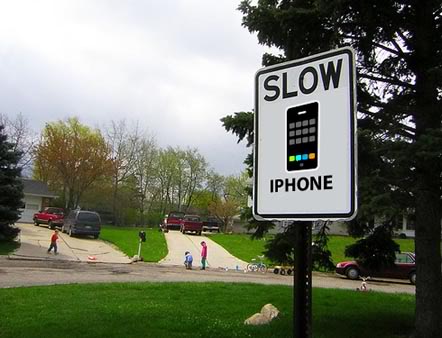
Some of you with iPhone 3G who updated to iOS 4 and up have noticed how performances have been degraded. The most common symptom is how slow you iPhone 3G becomes. Apple recently said they are looking into it, and in the meanwhile, we provided you with a quick fix that works for many of you.
A frustrated iPhone 3G user asked Steve Jobs about it:
FolderCloser Jailbreak App Automatically Closes Your iPhone Folders
If like me you get annoyed by folders staying opened after you launch and close an application from within this folder, then FolderCloser should be the right mod for you. Available for free in Cydia, FolderCloser will automatically close the opened folder at app launch. There are no settings or icon for this app. Just install it and your folders should now close by themselves.
Five Icon Switcher Tweak for iPhone
Five Icon Switcher is a new mod by Chpwn that, just like the name suggests, brings an additional icon to your iPhone multitasking switcher. Not groundbreaking but simple and very convenient. That's the kind of mods I like!
The iPad is Shipping Faster and Faster
About a month ago we reported that there was production delays for the iPad, pushing the shipping time to about 7-10 days. Apple's website now shows shipping times of about 3-5 days, which is basically twice as fast as it used to be. In the meantime, it looks like the iPhone 4 production is accelerating too as shortages are expected to be a thing of the past soon.
Are you still waiting for an iPad or an iPhone 4?
[TUAW]
Fix for “Unable to Load This Page” and “Login Failed” Errors on Facebook 3.2
Yesterday night Facebook updated their iPhone application to version 3.2 which brings the new Places feature to our favorite phone. While this update comes with a cool new feature, it also broke the Facebook application all together for some of us (me included).
The symptoms are the following:
You get the "Unable to Load This Page" error message anywhere you go in the application You get the "Error - sorry there was an error" message while trying to load Places You get the "Login Failed - Unable to Connect to Facebook" error if you're trying to log in the application.The cause? Apparently the problem appears on jailbroken iPhones running BiteSMS.
The fix? The fix that worked for me was to uninstall BiteSMS. Facebook worked flawlessly after that. Once I reinstall BiteSMS though, the problems come back.
There is another fix explained on Redmond Pie:
I opened SBSettings, More, Mobile Substrate Addons. I then disabled BiteSMSsb, resprung, and now FB works fine. Not sure what that addon does, but so far BiteSMS works fine, as does FB.
This didn't work for me. Well, actually it worked but then BiteSMS is completely crippled (ie. no quick compose), so I don't really consider this a fix.
Considering I use the Facebook app every other month, my choice is clear: I keep BiteSMS running and leave the Facebook app for dead. Hopefully BiteSMS will be updated soon to fix this compatibility issue.
If you're having the same problem, please share your experience in the comments section.
UPDATE: Thanks to CDXX who provided a link to an actual fix from BiteSMS developers in the comments:
Replace the file /Library/MobileSubstrate/DynamicLibraries/biteSMSsb.plist with the one you download from http://cydia.bitesms.com/biteSMSsb.plist
REBOOT not respring.
The BiteSMS dev also says that an update to the app will be made available on Monday via Cydia. Yippee!
How to Install Android on Your iPhone 2G or 3G with iPhoDroid
Android on the iPhone is more of a "project" than anything else. It's buggy, unstable, and doesn't even bring all the features needed to fully use the iPhone. So why in the hell would you install Android on your iPhone? Just for the heck of it, of course! Thanks to Sergio McFly, this is now easily possible.
iPhoDroid 1shot is probably the easiest way to install Android on your iPhone 2G or iPhone 3G. It doesn't require any file editing or anything that might scared the least technically advanced of us. Without further ado, here are the instructions to set up Android on your iPhone. As usual, proceed at your own risks...
Step 1: Make sure your iPhone is jailbroken and Cydia is up to date. If it's not jailbroken, do so by using JailbreakMe.
Step 2: Download the latest version of iPhoDroid 1 shot from here. The download link is at the very bottom left of the page.
Step 3: Make sure your iPhone is connected to your computer via the USB cable. Launch iPhoDroid and click "shoot".
Step 4: iPhoDroid will extract the touch driver and transfer the cache/system/data folders to your iPhone.
Step 5: iPhoDroid will now place your iPhone in recovery mode.
Step 6: After that, you will get the OpeniBoot splash page with different options (Apple, Android, Install, Uninstall). Use the volume buttons to highlight the "Install" option, then tap the Home button to select it.
Step 7: Some code will then be running on your screen. Once done, your iPhone will reboot in the Android OS.
Done! You can now enjoy your crippled iPhone running Android.
If you're one of the few courageous men out there to try this hack, please let us know how it's working for you by leaving a comment below.
[iClarified]