Learn how to configure Safari on your Mac to display the full website URL in the address bar, making it easier to distinguish between open tabs.
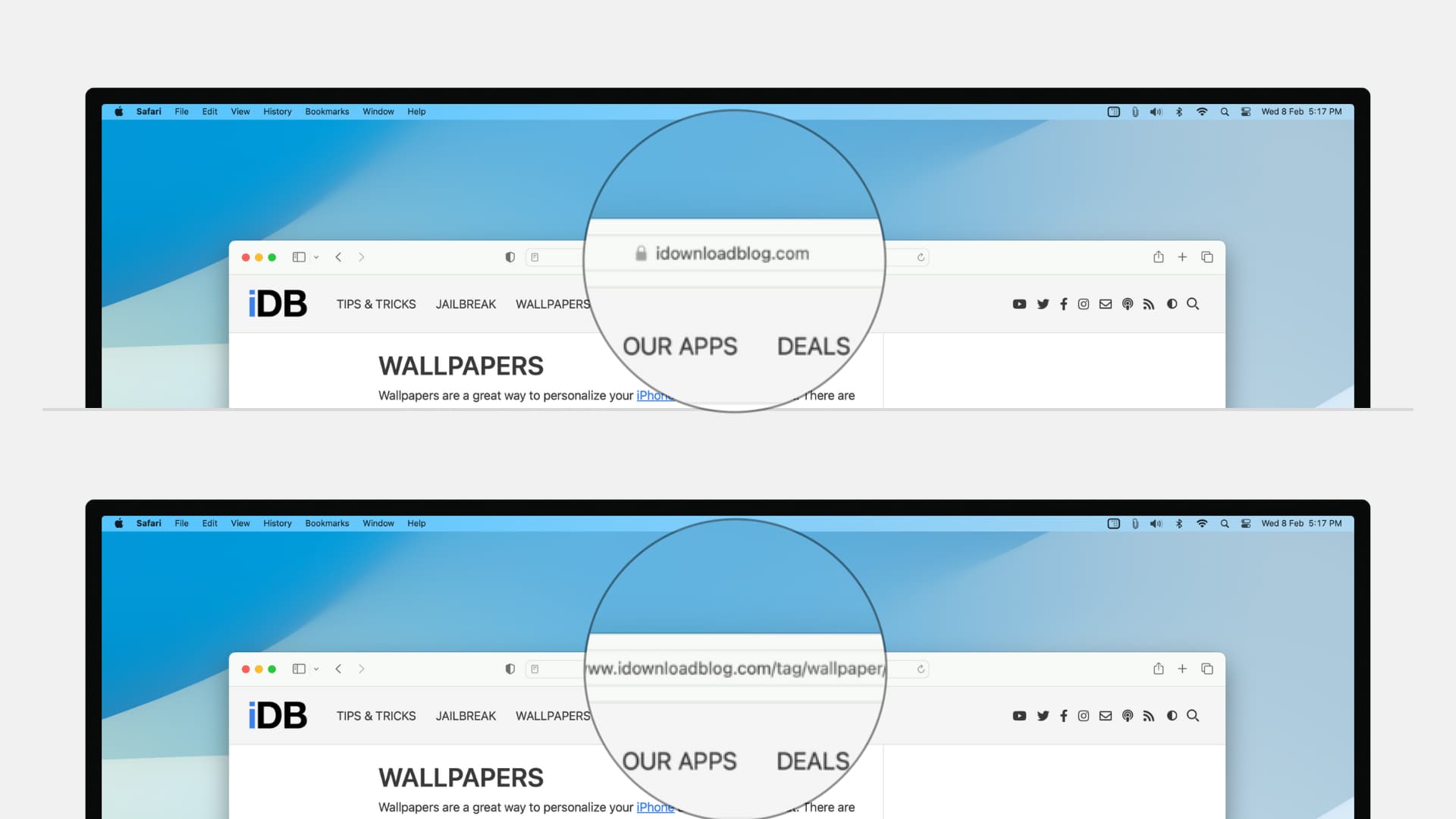
By default, Safari shows you the domain name for the visited page in the address bar, but not the entire URL.
For example, it only displays idownloadblog.com instead of https://www.idownloadblog.com/tag/wallpaper/. But don’t worry, you can easily fix this.
Set Safari to show the full website URL in the address bar
- Open Safari on your Mac.
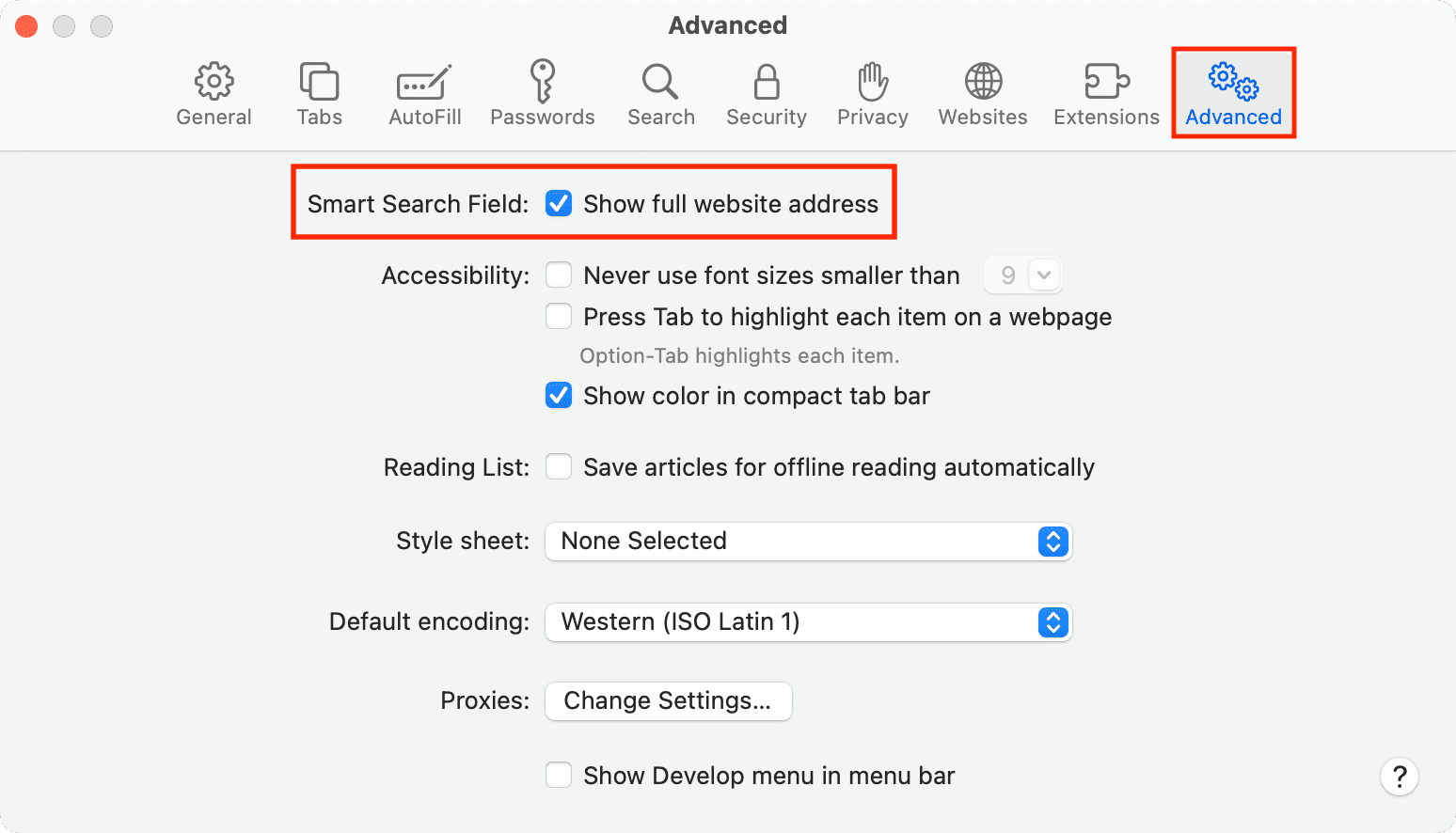
- Click the Safari menu and choose Settings or Preferences.
- Select the Advanced tab.
- Tick the box next to ‘Show full website address.’
Safari will now show the full URL in its address bar. If the URL is truncated because it’s longer than the address bar, clicking it will reveal the full URL.
More on Safari: